Skip to content

blober

62 posts with the tag "blober"

Azure Blob Tiers vs AWS S3 Storage Classes (and Google Nearline/Coldline)

Azure Blob tiers compared with AWS S3 and Google Cloud storage classes

Azure calls them access tiers. Amazon S3 and Google Cloud Storage call them storage classes. Other providers call them tiers, classes, plans, or just pricing. The labels sound interchangeable, but they are not one-to-one.

The biggest trap is the word archive. Azure Archive is offline and must be rehydrated before you can read it. AWS S3 Glacier Flexible Retrieval and Deep Archive are also offline restore workflows. Google Cloud Storage Archive, despite the name, still has millisecond access; it is colder mainly because of retrieval charges and a 365-day minimum storage duration[1]. If you treat all three as the same thing, your restore plan will be wrong.

This guide maps the intent behind each tier or class: hot data, monthly access, quarterly access, offline archive, automatic tiering, and provider-specific variants.

IntentAzure BlobAWS S3Google Cloud StorageOther provider names
Active, frequently read dataHotS3 StandardStandardOCI Standard, IBM Standard, Cloudflare R2 Standard, DigitalOcean Spaces Standard, Wasabi Hot, Backblaze B2
Unknown or changing accessSmart tier, where availableS3 Intelligent-TieringAutoclassIBM Smart Tier, OCI Auto-Tiering
Infrequent but online accessCoolS3 Standard-IA, S3 One Zone-IANearlineOCI Infrequent Access, IBM Vault, Cloudflare R2 Infrequent Access, DigitalOcean Spaces Cold Storage
Rare but still online accessColdS3 Glacier Instant RetrievalColdlineIBM Cold Vault
Archive with restore delayArchiveS3 Glacier Flexible Retrieval, S3 Glacier Deep ArchiveNot the same: Google Archive is still onlineOCI Archive
High-performance special classNo direct Azure access-tier equivalentS3 Express One ZoneRapid storageProvider-specific performance products

That table is a mental map, not a pricing calculator. Always check the current pricing page before committing data, because minimum durations, request charges, retrieval fees, and regional prices can matter more than the storage price.

Storage tiers are usually a trade between four things:

  • Storage price: colder classes cost less per GB-month.
  • Access price: colder classes usually charge more to read, retrieve, or operate on data.
  • Minimum duration: colder classes often bill as if the object stayed for 30, 90, 180, or 365 days.
  • Access latency: online classes return data immediately; offline archive classes require a restore or rehydration step.

Azure states the ladder clearly: Hot has the highest storage cost and lowest access cost; Cool and Cold reduce storage cost but increase access and transaction costs; Archive is offline, lowest storage cost, and highest access cost[2]. AWS frames S3 classes by use case, from Standard for frequent access, to Standard-IA for monthly access, to Glacier classes for archive and restore workflows[3]. Google keeps every primary storage class online, even Archive, and makes the difference mostly price, availability, retrieval fees, and minimum storage duration[4].

Minimum Duration and Access Behavior

Section titled "Minimum Duration and Access Behavior"
ProviderClass or tierMinimum durationOnline read?Restore or rehydrate behavior
Azure BlobHotNoneYes, millisecondsNone
Azure BlobCool30 daysYes, millisecondsNone
Azure BlobCold90 daysYes, millisecondsNone
Azure BlobArchive180 daysNoRehydrate to Hot, Cool, or Cold; can take up to 15 hours[5]
AWS S3StandardNoneYes, millisecondsNone
AWS S3Standard-IA30 daysYes, millisecondsRetrieval fees apply[6]
AWS S3One Zone-IA30 daysYes, millisecondsRetrieval fees apply; stored in one Availability Zone[7]
AWS S3Glacier Instant Retrieval90 daysYes, millisecondsRetrieval fees apply[8]
AWS S3Glacier Flexible Retrieval90 daysNoRestore first; expedited, standard, or bulk retrieval ranges from minutes to 12 hours[9]
AWS S3Glacier Deep Archive180 daysNoRestore first; AWS summarizes average retrieval as 9 to 48 hours[10]
Google Cloud StorageStandardNoneYes, millisecondsNone
Google Cloud StorageNearline30 daysYes, millisecondsRetrieval fees apply
Google Cloud StorageColdline90 daysYes, millisecondsRetrieval fees apply
Google Cloud StorageArchive365 daysYes, millisecondsNo offline restore; higher access/operation costs and 365-day minimum[11]
Oracle Object StorageStandardNoneYesNone
Oracle Object StorageInfrequent Access31 daysYesRetrieval fees apply
Oracle Object StorageArchive90 daysNoRestore to Standard for access; Oracle says first byte is available at most an hour after restore request[12]
Cloudflare R2StandardNoneYesNo egress bandwidth charge, but operations still bill
Cloudflare R2Infrequent Access30 daysYesData retrieval processing fee applies, but egress bandwidth remains free[13]
DigitalOcean SpacesStandardNoneYesIncluded storage and outbound transfer bundle
DigitalOcean SpacesCold Storage30 daysYesRetrieval fee, early deletion/update cost, and 128 KiB minimum billing units[14]

Azure Hot, AWS S3 Standard, Google Standard, OCI Standard, IBM Standard, Cloudflare R2 Standard, Backblaze B2, and Wasabi Hot are all meant for data that can be read at any time without a restore step. This is where you put application assets, active backups, staging data, media currently in production, and datasets you expect to query often.

The difference is not the meaning. It is the billing model. AWS, Azure, and Google separate storage, requests, retrieval, and transfer in more detail. Wasabi publishes no separate egress or API request charges but applies a 90-day minimum storage duration and a minimum storage amount[15]. Backblaze B2 positions itself as always-hot storage with no minimum storage duration and free egress up to 3x average monthly stored data[16].

Monthly Access / Infrequent Access

Section titled "Monthly Access / Infrequent Access"

Azure Cool, AWS S3 Standard-IA, Google Nearline, OCI Infrequent Access, IBM Vault, Cloudflare R2 Infrequent Access, and DigitalOcean Spaces Cold Storage all point at the same general idea: data you do not read often, but still want online when you do.

The common shape is a lower storage price, a 30-ish day minimum, and some cost when you read the data. The names differ: Azure calls it Cool, AWS calls it IA, Google calls it Nearline, Oracle says Infrequent Access, IBM says Vault, and Cloudflare says Infrequent Access. Treat them as cousins, not exact twins.

Azure Cold, AWS S3 Glacier Instant Retrieval, Google Coldline, and IBM Cold Vault are closer to each other in intention: data accessed at most a few times a year, but still available quickly. Azure Cold has millisecond access with a 90-day minimum. AWS Glacier Instant Retrieval has millisecond access with a 90-day minimum. Google Coldline has millisecond access with a 90-day minimum and retrieval charges[17]. IBM Cold Vault is the IBM name for cold workloads where data is accessed every 90 days or less, with larger retrieval charges than Vault[18].

Azure Archive, AWS S3 Glacier Flexible Retrieval, AWS S3 Glacier Deep Archive, and Oracle Archive are true archive workflows. The object exists, but you cannot just read it like a hot object. You initiate a restore or rehydration operation first.

This is where restore time becomes a product requirement. Azure Archive can take up to 15 hours to rehydrate. AWS Glacier Flexible Retrieval can restore in minutes to hours depending on retrieval tier. AWS Glacier Deep Archive is designed for hours-long restores, with AWS summarizing average retrieval as 9 to 48 hours. Oracle Archive restores objects to Standard for access.

Google Archive does not belong in this exact group. It is the coldest Google Cloud Storage class, but it remains online with millisecond access. Its archive-like behavior is economic: a 365-day minimum duration plus higher data access and operation costs[19].

DifferenceWhy it matters
Archive can mean offline or onlineAzure Archive and AWS Glacier Flexible/Deep Archive require restore. Google Archive does not.
Minimum duration is not always the sameAzure Archive is 180 days; AWS Deep Archive is 180 days; Google Archive is 365 days; Oracle Archive is 90 days.
Retrieval fees are separate from egressA provider can have free egress but still charge retrieval processing or operations, such as R2 Infrequent Access.
Automatic tiering is implemented differentlyS3 Intelligent-Tiering is a storage class. Google Autoclass is a bucket feature. Azure Smart tier is an access-tier automation feature where available. OCI Auto-Tiering moves between Standard and Infrequent Access.
Some providers do not expose a full class ladderBackblaze B2 and Wasabi focus on simple hot storage economics rather than many storage classes. Lifecycle rules may delete or hide old versions, but that is not the same as a cold storage class.
One-zone classes are about resilience, not just priceS3 One Zone-IA and S3 Express One Zone trade multi-AZ resilience for cost, latency, or locality. Do not map them directly to Azure Cool or Google Nearline without considering failure-domain risk.

Changing the class or tier of existing data is one place where Azure and S3 differ sharply.

Azure Blob has a Set Blob Tier operation. It sets the access tier on a blob, snapshot, or specific blob version by using the comp=tier request and an x-ms-access-tier value[20]. Azure's versioning docs treat tiering as an operation you can apply to any version of a block blob, while version creation is described around write operations such as Put Blob, Put Block List, Copy Blob, and Set Blob Metadata[21]. In practical terms, a tier change is not a copy-over-self operation.

Amazon S3 can also change an existing object's storage class without downloading it to your machine, but the mechanism depends on how you do it.

Change methodAzure BlobAWS S3
Manual immediate changeSet Blob Tier changes the access tier on the blob or version.Console, CLI, SDK, and API changes are copy-based. AWS documents changing an existing object's class with aws s3 cp object object --storage-class ..., and the CopyObject API accepts x-amz-storage-class[22].
Lifecycle changeAzure lifecycle management can move blobs between tiers by policy.S3 Lifecycle Transition changes the current object version to the specified storage class; NoncurrentVersionTransition changes noncurrent versions[23].
Versioning impactA tier change does not create a copied object version the way a write/copy does. Explicitly tiered versions can change how Azure bills shared blocks and full content length[24].Manual copy-over-self creates a new copied object version when destination bucket versioning is enabled; AWS says CopyObject returns the version ID of the newly created copy[25]. Lifecycle transitions do not create a new current version; they transition the applicable version.
Cost shapeTier-down is billed as a write operation; tier-up is billed as a read operation for Set Blob Tier[26].Copy requests are charged based on destination storage class and Region; the request can also trigger source retrieval charges, and cross-Region copies can incur data transfer charges[27]. Lifecycle transitions have transition request costs and minimum-duration rules.

The safe S3 cleanup pattern depends on intent. If you want data to age into colder classes predictably, lifecycle rules are usually cleaner. If you need to change specific objects right now, manual copy-over-self works, but versioned buckets will keep the old version until lifecycle or explicit deletion removes it.

Lifecycle Policies: Azure vs S3 Ease

Section titled "Lifecycle Policies: Azure vs S3 Ease"

Both Azure Blob and Amazon S3 can automatically move data to colder storage by rule. The difference is how much the rule system asks you to think about.

Azure Blob lifecycle management is built around access-tier actions. A policy is a JSON document made of rules; each rule has conditions, actions, and filters. Conditions can use creation time, last modified time, and last accessed time if access tracking is enabled. Actions can move current versions, previous versions, or snapshots to cooler tiers, delete them, or move blobs back from Cool to Hot when they are accessed. Filters can include path prefixes and blob index tags[28]. In the Azure portal, this is exposed under Data management => Lifecycle management, with a list view for common rules and a code view for JSON policies[29].

Amazon S3 Lifecycle is broader. A bucket lifecycle configuration can have rules that transition objects to other storage classes, expire current versions, transition noncurrent versions, permanently delete noncurrent versions, remove expired delete markers, and abort incomplete multipart uploads. Rules can target all objects or filter by prefix, tags, and object size[30]. You can create them in the S3 console under the bucket Management tab, or manage them with CLI, SDKs, or the REST API[31].

TaskAzure Blob lifecycleS3 LifecycleEasier in practice
Move logs or backups to a colder tier after N daysAdd a rule for base blobs, set days since modified/created/accessed, choose Cool, Cold, or Archive.Add a lifecycle rule, filter by prefix/tag/size, choose a storage-class transition and days after creation.Tie for simple prefix-by-age rules. Azure reads closer to the access-tier model.
Use last-access behaviorSupported if last access tracking is enabled; lifecycle can also move blobs back from Cool to Hot when accessed[32].S3 Lifecycle is mostly age/filter based. Use S3 Intelligent-Tiering when access pattern is unknown or changing.Azure for explicit last-access rules; S3 for fully managed Intelligent-Tiering.
Manage old versionsSupports current versions, previous versions, and snapshots as lifecycle targets.Very explicit current/noncurrent version actions, including transition and expiration of noncurrent versions[33].S3 gives more version-specific knobs; Azure is simpler if you only need tier/delete policies.
Avoid tiny-object surprisesFewer class-transition-specific size traps in the lifecycle model.Objects smaller than 128 KB do not transition by default unless you override with size filters or headers; transition request costs can outweigh storage savings[34].Azure is easier; S3 is more configurable but easier to misprice.
Rehydrate archived data automaticallyLifecycle policies cannot rehydrate Archive blobs to an online tier[35].Lifecycle cannot transition Deep Archive back to warm classes; restore/copy workflows are needed for archived objects[36].Neither. Archive restore is a separate workflow.
Know when it will happenPolicy changes can take up to 24 hours to go into effect and for first execution to start[37].Lifecycle configuration propagation takes minutes, but actions are asynchronous and can complete later; billing usually changes when the rule is satisfied[38].Neither is immediate. Use direct tier change/copy when you need right-now changes.

The short version: Azure is usually easier when your rule is "move these blobs by age, prefix, tag, or access time to Hot/Cool/Cold/Archive." S3 is more flexible when you need full object lifecycle management across current versions, noncurrent versions, delete markers, multipart cleanup, object-size filters, and multiple storage-class transitions. That flexibility is useful, but it also makes S3 lifecycle rules easier to misconfigure.

Automatic Tiering: Similar Goal, Different Mechanic

Section titled "Automatic Tiering: Similar Goal, Different Mechanic"
ProviderFeatureWhat it doesWatch out for
Azure BlobSmart tierAutomatically moves data between Hot, Cool, and Cold based on usage patterns, where available[39].It does not include Archive in the same online ladder. Confirm account and API support before designing around it.
AWS S3Intelligent-TieringKeeps the storage class as Intelligent-Tiering while moving objects through Frequent, Infrequent, Archive Instant, and optional Archive/Deep Archive access tiers[40].Monitoring/automation fees apply; objects under 128 KB are not auto-tiered. Optional archive tiers require restore.
Google Cloud StorageAutoclassMoves objects to colder storage classes when not accessed, and back to Standard when read[41].Management and enablement charges can apply; manual storage class changes are ignored in Autoclass buckets.
Oracle Object StorageAuto-TieringMoves objects larger than 1 MiB from Standard to Infrequent Access and back to Standard based on access patterns[42].It is a Standard to Infrequent Access optimizer, not a deep archive policy.
IBM Cloud Object StorageSmart TierBills dynamic workloads by automatically classifying data into hot, cool, and cold tiers based on monthly usage patterns[43].It is bucket-class pricing, not the same mechanics as S3 Intelligent-Tiering or Google Autoclass.
If you use Azure...Closest AWS S3 classClosest Google classPractical meaning
HotS3 StandardStandardActive data; lowest read friction; highest storage cost among general classes.
CoolS3 Standard-IANearlineInfrequent online data, roughly monthly access, 30-day minimum.
ColdS3 Glacier Instant RetrievalColdlineRare online data, roughly quarterly access, 90-day minimum.
ArchiveS3 Glacier Flexible Retrieval or Deep ArchiveNo exact equivalentOffline restore workflow. Google Archive is colder economically but still online.
Smart tierS3 Intelligent-TieringAutoclassLet the provider move data across warmer and colder classes based on access.
If your thought is...Choose this kind of classExamples
"This data is active and users or apps read it constantly."Hot/standardAzure Hot, S3 Standard, GCS Standard, R2 Standard, IBM Standard, OCI Standard.
"I read this monthly, but it still needs to come back instantly."Online infrequent accessAzure Cool, S3 Standard-IA, GCS Nearline, R2 Infrequent Access, OCI Infrequent Access, IBM Vault.
"I read this quarterly or rarely, but a restore delay would be painful."Online coldAzure Cold, S3 Glacier Instant Retrieval, GCS Coldline, IBM Cold Vault.
"This is compliance/archive data and waiting hours is acceptable."Offline archiveAzure Archive, S3 Glacier Flexible Retrieval, S3 Glacier Deep Archive, OCI Archive.
"I do not know the access pattern yet."Auto tieringAzure Smart tier, S3 Intelligent-Tiering, Google Autoclass, IBM Smart Tier, OCI Auto-Tiering.
"I want simple predictable billing more than fine-grained classes."Flat hot storageBackblaze B2, Wasabi, many S3-compatible specialists.

Choose Hot / Standard when users, apps, or jobs read the data regularly. If your object is a website asset, current media project, active backup, training dataset, or API payload, keep it online and warm.

Choose Cool / Standard-IA / Nearline when the data is still important but usually sits untouched for weeks. This is a good fit for backups, completed projects, and archives that are still likely to be restored within a month.

Choose Cold / Glacier Instant Retrieval / Coldline when you expect rare access but cannot tolerate a restore delay. These classes are good for quarterly compliance checks, disaster recovery material, and media that might need quick retrieval but not frequent reads.

Choose Archive / Glacier Flexible / Deep Archive / OCI Archive only when restore delay is acceptable. These are not CDN origins, app storage, or active backup targets. They are for data you preserve more than you use.

Choose automatic tiering when you genuinely do not know the access pattern. Do not use it as a substitute for understanding a known workflow. If half a bucket is active data and half is never-read backup data, separate prefixes or buckets plus lifecycle rules may be clearer and cheaper.

When you move data between clouds, do not just map names. Map behavior.

  • Moving Azure Cool to S3 Standard-IA usually preserves the monthly-access intent.
  • Moving Azure Cold to S3 Glacier Instant Retrieval preserves fast retrieval better than moving it to Glacier Flexible Retrieval.
  • Moving Azure Archive to Google Archive changes behavior: the data becomes online in Google, but with a 365-day minimum and retrieval/operation charges.
  • Moving Google Archive to Azure Archive changes behavior the other direction: the data becomes offline until rehydrated.
  • Moving AWS Deep Archive to Azure Archive keeps the offline-archive idea, but restore times and minimum durations differ.

Blober can write new Azure Blob uploads directly to Hot, Cool, Cold, or Archive in a workflow, and it can bulk-change existing Azure blobs between those tiers with Azure mutations. For S3-compatible destinations, the generic connector includes a storage-class field, so you can use provider-documented class names where the destination supports x-amz-storage-class.

The Traps to Check Before You Pick a Tier

Section titled "The Traps to Check Before You Pick a Tier"
  • Minimum duration. Cool/IA/Nearline usually means 30 days. Cold/Coldline/Glacier Instant often means 90 days. Deep/archive classes can mean 180 or 365 days.
  • Online vs offline. Azure Archive and S3 Glacier Flexible/Deep Archive require restore. Google Archive does not.
  • Retrieval fees. Cold storage often charges when you read, copy, move, or rewrite data.
  • Operation fees. Moving, rewriting, lifecycle transitions, and metadata-heavy workflows can cost more in colder classes.
  • Minimum billable object size. S3 IA and Glacier Instant use 128 KB minimums; DigitalOcean Cold Storage also documents 128 KiB minimum billable object/read behavior.
  • Auto-tiering eligibility. Small objects may not auto-tier. AWS Intelligent-Tiering and Google Autoclass both document 128 KB/KiB style thresholds for automatic transitions.
  • Provider-specific semantics. Some providers set class at the bucket level, some per object, some through lifecycle only, and some avoid classes entirely.

Is Azure Cool the same as S3 Standard-IA? Conceptually, yes: both target long-lived, infrequently accessed data that still needs millisecond access and has a 30-day minimum. Pricing, operations, and redundancy details differ.

Is Azure Cold the same as Google Coldline? They are close in intention: rare-access online storage with a 90-day minimum and fast reads. Do not confuse either with Azure Archive or S3 Glacier Deep Archive, which are restore-first archive workflows.

Is Google Archive the same as Azure Archive? No. Google Archive is still online with millisecond access. Azure Archive is offline and must be rehydrated before reading.

Which S3 class maps to Azure Archive? S3 Glacier Flexible Retrieval and S3 Glacier Deep Archive are the closest behavioral matches because they are archived and require restore before normal access. S3 Glacier Instant Retrieval maps more closely to Azure Cold.

Does the cheapest storage class always save money? No. If you read the data more often than expected, retrieval, operation, early deletion, and restore costs can erase the storage savings. The cheapest class is usually only cheapest when the access pattern matches the class.

Pick the right storage class before you move the data. Blober transfers between S3, S3-compatible storage, Azure Blob, Google Drive, Dropbox, local storage, and more, and can write Azure Blob data straight to the tier you choose.

Download Blober at blober.io

Cloud Storage Ingress vs Egress Fees: Which Providers Are Free?

Cloud storage ingress and egress fees explained

Ingress is data going into a cloud. Egress is data coming out of a cloud. That sounds simple until you move data between providers: the source sees egress, the destination sees ingress, and both sides may also charge for requests, retrieval, minimum storage duration, or storage-class transitions.

For a migration from AWS S3 to Cloudflare R2, for example, AWS is the egress side and R2 is the ingress side. R2's zero-egress pricing helps after the move, but it does not erase the source provider's charge for reading data out. A direct transfer avoids a relay and a second full local copy; it does not make source egress disappear.

Ingress Is Usually Free, Egress Is Not

Section titled "Ingress Is Usually Free, Egress Is Not"

Most object-storage providers make network ingress free, or close to it. Uploading data is how they get storage revenue, so they rarely put a bandwidth toll at the door. But writes can still create API, PUT, multipart, replication, or storage-class charges. AWS S3, for example, says S3 costs include request, retrieval, data transfer, transfer acceleration, replication, transform, and query components, and it separately calls out per-request ingest charges for some writes and lifecycle transitions[1].

Egress is the expensive side. It is what you pay when users download files, an app serves media, a backup restore reads data out, or a migration leaves a provider. Azure lists data transfer in as free, but internet egress from Azure data centers is priced by zone and volume[2]. Google Cloud Storage lists inbound data transfer as free, while general outbound transfer to the internet is billable after any free-tier allowance[3].

Use that difference to decide what to optimize for:

  • Prioritize ingress for backup targets, one-time imports, camera dumps, and upload-heavy workflows.
  • Prioritize egress for public assets, media delivery, AI training reads, frequent restores, and any data you may need to leave with later.
  • Prioritize both when the same bucket is active in both directions: teams moving data between clouds, hot archives, shared datasets, or migration staging buckets.

Provider Groups by Transfer Pricing

Section titled "Provider Groups by Transfer Pricing"

Pricing changes, and providers define "free" differently. Use this as a map, then verify the current pricing page before committing production data.

GroupProvidersWhat is free or includedWatch for
Zero-egress or no separate egress lineCloudflare R2, Wasabi, Synology C2, Impossible Cloud, TelnyxR2 publishes no egress bandwidth charges[4]. Wasabi publishes no egress or API request fees, with minimum storage rules[5]. Synology C2 advertises free data retrieval and no API request or deletion fees[6]. Impossible Cloud publishes free egress and API calls[7]. Telnyx markets Cloud Storage as an S3-compatible alternative with zero egress fees[8].Operation fees, retrieval processing fees, minimum storage duration, support tiers, and fair-use terms can still matter. Impossible Cloud's docs say monthly egress should not exceed active storage volume under its fair-use policy[9].
Allowance-based free egressBackblaze B2, MEGA S4, IDrive e2, Storadera, Rabata BackupBackblaze B2 includes free egress up to 3x average monthly stored data, then bills additional egress[10]. MEGA S4 describes up to 5x average monthly stored data as free egress[11]. IDrive e2 says there are no additional ingress, egress, deletion, or API-request charges, but its page also notes charges beyond free egress limits[12]. Storadera allows downloads equal to stored amount under fair use[13]. Rabata Backup has no additional egress fee, with egress expected to stay under 2x stored amount[14].These can be excellent for backups and normal restores, but not for unlimited media delivery. Read the multiplier, overage price, and fair-use language.
Bundled outbound transferDigitalOcean Spaces, Vultr Object StorageDigitalOcean Spaces includes 1 TiB outbound transfer, then charges additional transfer[15]. Vultr Object Storage pricing bundles selected storage with selected bandwidth, then charges for additional transferred data[16].Good for predictable app storage when the included bandwidth matches your traffic. Less good if traffic can spike far beyond the bundle.
Paid egress baselineAWS S3, Azure Blob, Google Cloud StorageUploading data is usually the easier side, but outbound data transfer is a major pricing dimension. AWS S3 data transfer pricing has explicit in/out components[17]. Azure data transfer in is free, while internet egress is priced by region and volume[18]. Google Cloud Storage inbound data transfer is free, while general outbound transfer is priced by destination and volume[19].These platforms can be the right choice for deep ecosystem integration, analytics, identity, compliance, and managed services. Do not pick them on storage price alone if your workload reads heavily.

Ingress matters most when your workload mostly writes data and rarely reads it back. Examples:

  • Nightly backups into object storage.
  • Camera, drone, or GoPro footage uploaded after shoots.
  • One-time imports into a long-term archive.
  • Logs and machine-generated data flowing into cold storage.
  • Migration into a destination you plan to keep using.

Free ingress is useful, but it is rarely enough by itself. For upload-heavy work, also check the provider's region list, multipart upload limits, request pricing, small-object behavior, and minimum storage duration. A provider with free uploads but a distant region may still be slower and less reliable than a provider close to your source.

If the upload is a one-time migration, the destination's ingress policy is only half the bill. The source provider's egress and read/retrieval charges are usually the part that hurts.

Egress matters when data leaves storage often. Examples:

  • Public downloads, app assets, images, and videos.
  • CDN origin storage.
  • AI or analytics jobs that repeatedly read training datasets.
  • Backup restores that are tested often.
  • Customer exports and data portability.
  • Any archive you may need to leave later.

This is where zero-egress and allowance-based providers earn attention. Cloudflare R2 is built around no egress bandwidth charges. Backblaze B2's 3x allowance is generous for many backup and archive patterns. Wasabi, Synology C2, Impossible Cloud, and similar providers can make bills easier to predict, but their minimums and fair-use terms decide whether they fit your exact workload.

If you serve a 10 TB media library once a month, a 1x egress fair-use policy may be enough. If users download the same 10 TB library ten times a month, you need true zero egress, a CDN strategy, or a negotiated plan.

Some workloads are both write-heavy and read-heavy:

  • Active media teams ingest footage, review it, deliver it, and archive it.
  • AI teams upload new datasets and read them repeatedly during experiments.
  • Agencies move client files in and out of storage every week.
  • Multi-cloud teams use an object store as a staging area between providers.
  • Backup teams run frequent restore tests instead of treating backups as write-only.

For these, compare the whole transfer loop:

  1. Source egress and read/retrieval fees.
  2. Destination ingress, write, and operation fees.
  3. Storage cost and minimum retention.
  4. Destination egress for future reads, restores, or exits.
  5. Tool cost and whether it adds a relay hop.

The common mistake is optimizing only for the first upload. A cheap destination that charges heavily when you read data back may be fine for a legal archive and wrong for a media workflow.

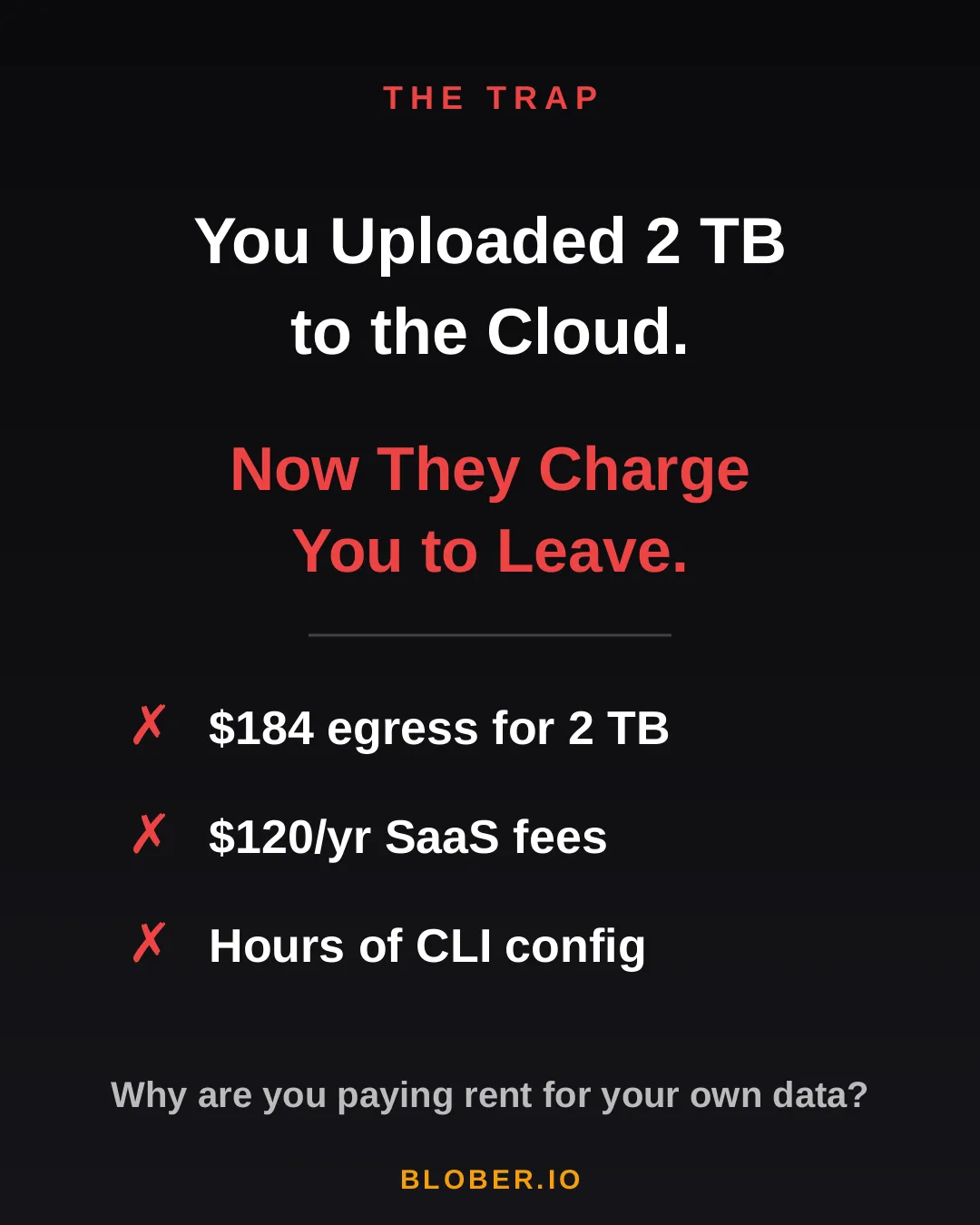
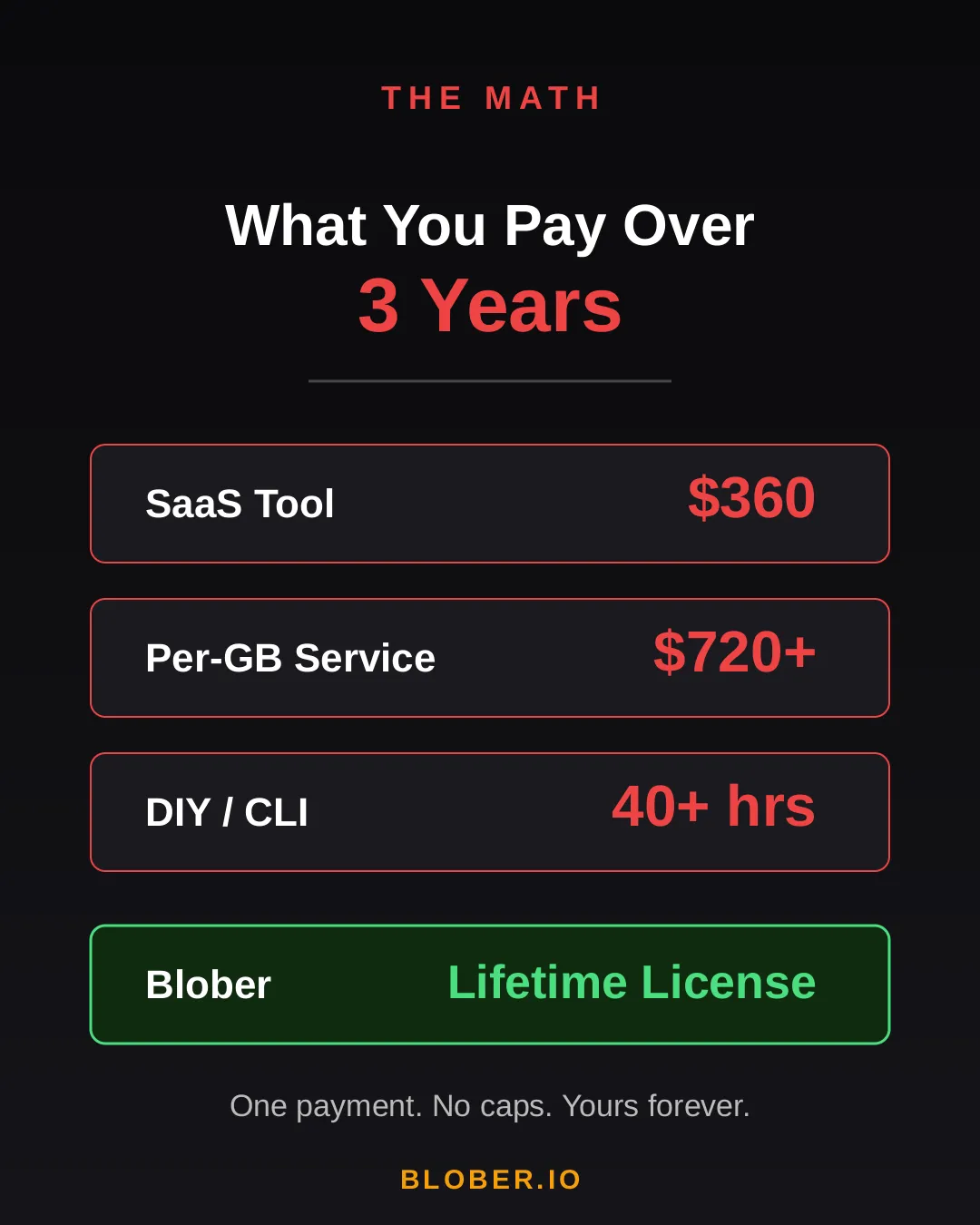
Blober does not charge per GB and does not relay your files through Blober servers. It runs on your machine, reads from the source, and writes to the destination. That keeps the route local and avoids an extra transfer-service bill.

Provider fees still apply. If the source charges egress, you pay the source. If the destination charges PUT requests, retrieval, or storage, you pay the destination. The value of a direct desktop transfer is that it avoids an additional middle service, keeps your credentials local, and lets you choose the storage provider whose ingress and egress model fits the job.

Does free ingress mean a migration is free? No. Free ingress only describes the destination side. The source can still charge egress, retrieval, or read requests.

Does zero egress mean there are no storage costs? No. You still pay for storage, operations, retrieval processing if the provider has it, minimum duration, and any add-on services. Zero egress means the provider does not bill outbound bandwidth as a separate line item.

Should backups optimize for ingress or egress? Both, but for different reasons. You write backups often, so ingress performance matters. You restore rarely but urgently, so egress cost and restore speed matter when something goes wrong.

Can a transfer tool avoid egress fees? Not source-provider egress. A tool can avoid an extra relay, subscription, or duplicate local staging step, but the source provider still sees data being read out.

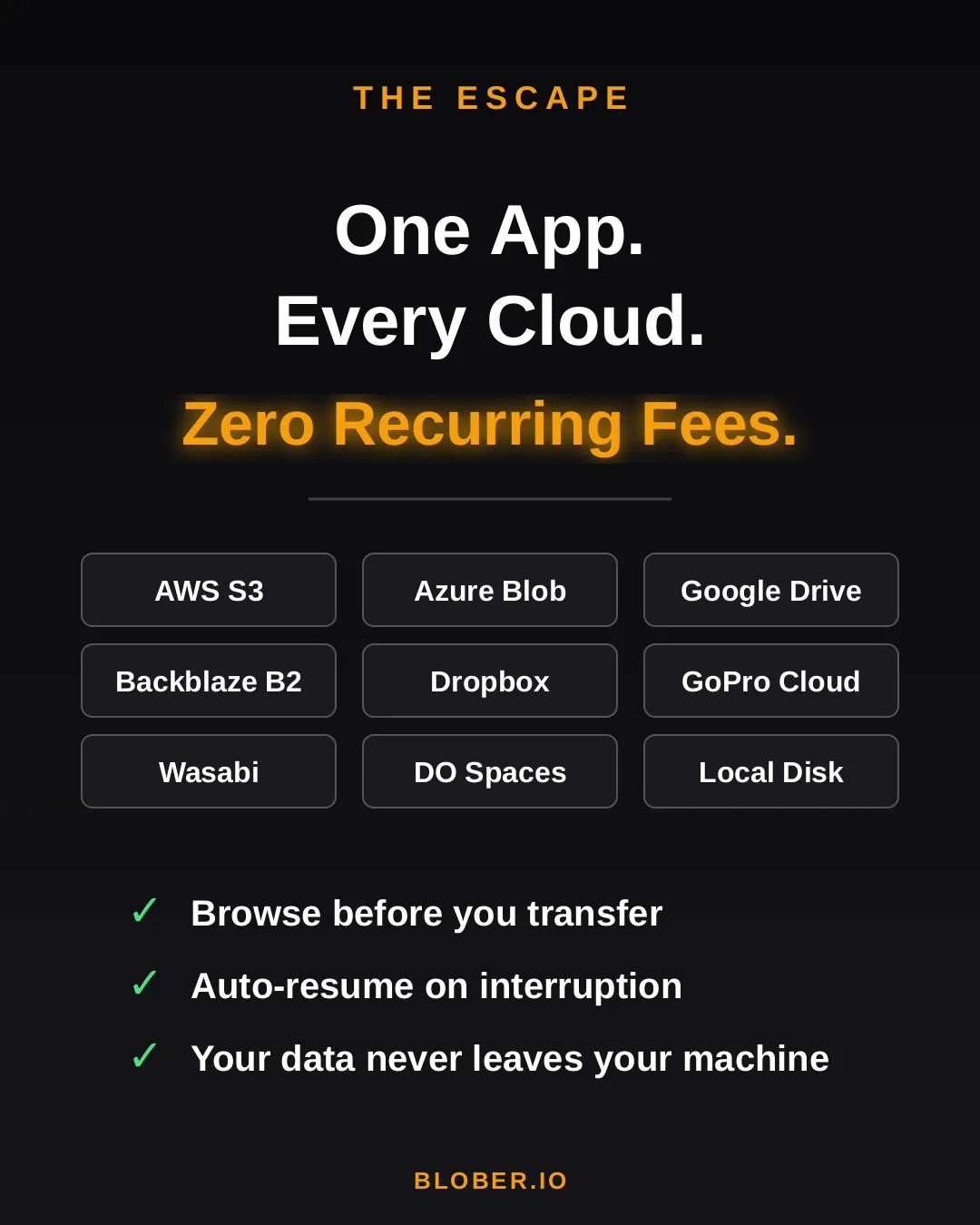
Compare providers on the bill that matters, then move the data directly. Blober connects S3, S3-compatible storage, Azure Blob, Dropbox, Google Drive, GoPro Cloud, and more without per-GB transfer fees.

Download Blober at blober.io

Best S3-Compatible Object Storage Specialists (Independent Clouds)

Independent S3-compatible object storage specialist clouds

Some clouds do one thing: S3-compatible object storage, priced and tuned for it. These are the specialists to compare when you want predictable storage costs without the egress surprises of the hyperscalers. This page lists the independent object-storage clouds, their endpoint formats, and how to connect each one.

This is one category in our complete list of S3-compatible storage providers. Several of these have a preconfigured connector in Blober; the rest use the generic S3-Compatible connector. Confirm endpoints in each provider's dashboard, since regions change over time. The endpoint formats below come from each provider's own documentation, cross-checked against current S3 client references[1].

Each entry lists an addressing style. Virtual-hosted puts the bucket in the subdomain (https://my-bucket.s3.example.com); path-style puts it in the URL path (https://s3.example.com/my-bucket). Most providers here use virtual-hosted, and Blober picks the style from the endpoint field you fill in. The endpoint formats below show hostnames; in Blober, include https:// in the endpoint field. The endpoint setup notes explain it in full.

Wasabi is flat-rate object storage with no egress fees and no API request charges, popular for backups and media archives.

  • Endpoint format: s3.<region>.wasabisys.com (for example s3.wasabisys.com for US East 1, s3.eu-central-1.wasabisys.com).
  • Regions: Virginia (US East 1 and 2), Texas, Oregon, San Jose, Toronto, Amsterdam, Frankfurt, London (two regions), Paris, Milan, Tokyo, Osaka, Singapore, and Sydney[2].
  • Addressing: virtual-hosted.
  • Notes: egress and API requests are not separately billed under Wasabi's published pricing terms, but minimum storage rules still matter: a 1 TB minimum and a 90-day minimum storage duration apply[3]. Blober has a preconfigured Wasabi connector.

Backblaze B2 is among the lowest per-GB object storage prices, with an S3-compatible API alongside its native one.

  • Endpoint format: s3.<region>.backblazeb2.com (for example s3.us-west-004.backblazeb2.com).
  • Regions: US West, US East, and EU Central account regions; copy the exact endpoint from the bucket's Endpoint field, since Backblaze says an account is associated with a single region and S3 endpoints use s3.<region>.backblazeb2.com[4].
  • Addressing: virtual-hosted.
  • Notes: free egress is up to 3x average monthly data stored, then additional egress is billed per GB[5]. Blober has a preconfigured Backblaze B2 connector. See also How to Switch Wasabi to Backblaze B2.

Cloudflare R2 is object storage with zero egress fees, served from Cloudflare's global edge network.

  • Endpoint format: <account-id>.r2.cloudflarestorage.com.
  • Regions: buckets are automatically distributed; the region is set to auto.
  • Addressing: virtual-hosted.
  • Notes: Cloudflare documents auto as the S3 API bucket region, with empty and us-east-1 accepted as aliases for compatibility[6]. R2 has no egress bandwidth charges, though operation and Infrequent Access retrieval charges can still apply[7]. Blober has a preconfigured Cloudflare R2 connector. See How to Move Azure Blob to Cloudflare R2.

Rabata is S3-compatible secure cloud storage with flat, transparent pricing and no API request fees.

  • Endpoint format: s3.<region>.rabata.io (for example s3.eu-west-2.rabata.io).
  • Regions: US East (us-east-1, N. Virginia) and EU West (eu-west-2, London); Rabata's quickstart examples use s3.us-east-1.rabata.io, and its billing page maps Hot Storage to us-east-1 and Backup to eu-west-2[8].
  • Addressing: virtual-hosted.
  • Notes: two flat-priced tiers. Hot Storage (us-east-1) is $0.01/GB and Backup (eu-west-2) is $49 per 10 TB block, with no API request charges and free ingress. Backup has no egress fees, with egress capped at 2x your stored volume[9]. Blober has a preconfigured Rabata connector.

Storj is decentralized cloud storage with an S3-compatible hosted gateway. Data is encrypted and erasure-coded across a global network of nodes.

  • Endpoint format: gateway.storjshare.io (plus regional gateways gateway.eu1.storjshare.io, gateway.us1.storjshare.io, gateway.ap1.storjshare.io).
  • Regions: global; set S3-compatible tools to global when they require a region[10].
  • Addressing: virtual-hosted.
  • Notes: S3 credentials come from an access grant. Storj's S3 compatibility table calls out partial support for some listing and multipart-copy behavior, so treat advanced S3 semantics as provider-specific and verify workflows that depend on exact listing order, ListMultipartUploads, or UploadPartCopy[11]. Storj also appears on our decentralized storage page.

IDrive e2 is low-cost S3-compatible object storage with free egress allowances, aimed at backup and archive.

  • Endpoint format: <region>.idrivee2-XX.com, where the host is shown in your console (for example q9d9.la12.idrivee2-5.com).
  • Regions: many across the US, Europe, and Asia-Pacific[12].
  • Addressing: virtual-hosted.
  • Notes: the endpoint host is account- and region-specific, so copy it from the IDrive e2 dashboard.

Cubbit DS3 is a geo-distributed, S3-compatible object storage platform with European data residency.

  • Endpoint format: s3.cubbit.eu, or s3.<tenant>.cubbit.eu for a custom tenant.
  • Regions: geo-distributed; Cubbit describes DS3 as an S3-compatible object-storage platform that fragments data across its distributed network, so confirm the current region and tenant endpoint in your Cubbit console[13].
  • Addressing: virtual-hosted.
  • Notes: if you use a custom tenant endpoint, you must use the tenant-specific host; the generic one will not work in that case[14].

Impossible Cloud is a European S3-compatible object storage provider with regions in Europe and the US.

  • Endpoint format: <region>.storage.impossibleapi.net (for example eu-central-2.storage.impossibleapi.net).
  • Regions: Frankfurt (eu-central-2), Amsterdam (eu-west-1), London (eu-west-2), Paris (eu-west-3), Poznan (eu-east-1), Copenhagen (eu-north-1), and New York (us-east-1)[15].
  • Addressing: virtual-hosted.
  • Notes: the public limitations page documents bucket/object limits and object-name conflict rules, not a blanket transfer problem. Browse, upload, download, and copy should be fine for ordinary transfers, but validate workflows that depend on exact AWS-only edge behavior or conflicting folder/object keys[16].

Seagate Lyve Cloud is enterprise-grade S3-compatible storage from Seagate.

  • Endpoint format: s3.<region>.<account>.lyve.seagate.com, where the account name is part of the host (for example s3.us-west-1.global.lyve.seagate.com).
  • Regions: US West (California), EU West (Ireland), and more.
  • Addressing: virtual-hosted.
  • Notes: the distinctive setup detail is the account-specific host: copy the S3 endpoint from Lyve Cloud for your account and region instead of treating lyve.seagate.com as a generic endpoint[17].

Synology C2 is S3-compatible object storage from the NAS maker, with no API request fees, download fees, or deletion penalties.

  • Endpoint format: <region>.s3.synologyc2.net (for example eu-001.s3.synologyc2.net, us-001.s3.synologyc2.net).
  • Regions: Europe and the US; Synology documents these data centers on its object-storage overview and exposes C2 Object Storage through C2 OneStorage pricing[18].
  • Addressing: virtual-hosted.
  • Notes: no charge for egress or API requests is listed for C2 Object Storage under C2 OneStorage pricing[19]. It is a natural pairing for Synology NAS owners who want an off-site S3 copy.

MEGA S4 is an S3-compatible object store with regional endpoints and a published free-egress allowance.

  • Endpoint format: s3.<region>.megas4.com (for example s3.eu-amsterdam.megas4.com).
  • Regions: Amsterdam, Luxembourg, Paris, Barcelona, Montreal, Vancouver, Tokyo[20].
  • Addressing: virtual-hosted.
  • Notes: MEGA says buckets are not restricted to one region; pick the endpoint closest to your users or workloads. MEGA's object-storage page describes up to 5x average monthly stored data as free egress, so check the current plan terms before using it for high-volume delivery[21].

Tebi is a geo-distributed S3-compatible object store with a global endpoint and optional regional endpoints.

  • Endpoint format: s3.tebi.io.
  • Regions: global endpoint via GeoDNS, plus Germany, US East, US West, and Singapore regional S3 endpoints[22].
  • Addressing: virtual-hosted.
  • Notes: Tebi storage classes control where data is physically stored and how many copies are kept; use the console settings for current placement and performance choices[23].

Storadera is a European S3-compatible object storage provider with flat, simple pricing.

  • Endpoint format: <region>.s3.storadera.com (for example eu-east-1.s3.storadera.com).
  • Regions: Europe; confirm the current regional endpoint in the console.
  • Addressing: virtual-hosted.
  • Notes: Storadera publishes no upload charges and no download charges under fair use, where the allowed monthly download amount equals the stored amount[24].

Telnyx Cloud Storage is S3-compatible object storage from the communications platform Telnyx.

  • Endpoint format: <region>.telnyxcloudstorage.com (for example us-central-1.telnyxcloudstorage.com).
  • Regions: US Central, US East, US West, and EU Central[25].
  • Addressing: virtual-hosted.
  • Notes: Telnyx billing is based on stored bytes and API operation counts; its docs list separate US and EU storage/operation pricing[26].

Tigris is a globally distributed S3-compatible object store (built with Fly.io) that routes through a single endpoint.

  • Endpoint format: t3.storage.dev.
  • Regions: San Jose, Chicago, Ashburn, Amsterdam, Frankfurt, London, Singapore, Tokyo. Set the region to auto; the same page also lists additional Fly.io locations, so check the docs for the current list[27].
  • Addressing: virtual-hosted.
  • Notes: buckets can be global, multi-region, dual-region, or single-region; the single endpoint handles routing.

FileLu S5 is an S3-compatible object store with a single global endpoint and regional options.

  • Endpoint format: s5lu.com (global), with us.s5lu.com, eu.s5lu.com, ap.s5lu.com, and me.s5lu.com for regions.
  • Regions: Global, US East, EU Central, AP Southeast, ME Central[28].
  • Addressing: not explicitly documented; start with path-style in the generic connector unless your FileLu client configuration confirms virtual-hosted support.
  • Notes: predictable pricing with no separate transfer or API charges.

Petabox is S3-compatible object storage with regions across several continents and free ingress.

  • Endpoint format: s3.<region>.petabox.io (for example s3.us-east-1.petabox.io), or s3.petabox.io for US East.
  • Regions: Virginia, Frankfurt, Singapore, Bahrain, Sao Paulo.
  • Addressing: virtual-hosted.
  • Notes: confirm the regional endpoint in the Petabox console[29].

Zata is an S3-compatible object storage gateway with a focus on South Asia.

  • Endpoint format: idr01.zata.ai.
  • Regions: Indore, India (South Asia endpoint).
  • Addressing: virtual-hosted.
  • Notes: confirm the endpoint in the Zata console[30].

Filebase is an S3-compatible gateway that stores objects on decentralized networks (IPFS and others) behind a familiar S3 API.

  • Endpoint format: s3.filebase.io.
  • Regions: single global endpoint; Filebase uses region auto for SigV4 signing.
  • Addressing: both path-style (https://s3.filebase.io/<bucket>/<key>) and virtual-hosted (https://<bucket>.s3.filebase.io/<key>) are supported[31].
  • Notes: public-bucket reads should use the virtual-hosted URL. Filebase also appears on our decentralized storage page.

Which S3-compatible specialist has no egress fees? Several limit or remove separate egress charges, but the details differ. Cloudflare R2, Wasabi, Synology C2, Impossible Cloud, and Telnyx publish zero-egress or no-separate-egress positioning; Backblaze B2 includes free egress up to 3x average monthly stored data; MEGA S4 publishes up to 5x; Rabata Backup and Storadera use fair-use caps. See Cloud Storage Ingress vs Egress Fees for the split.

Are these as reliable as AWS S3? Durability and availability are each provider's own design, and many publish strong durability figures. Compatibility refers to the API, not to a guarantee of identical reliability, so check the provider's SLA for your use case.

Can I migrate from AWS S3 to one of these specialists? Yes. Because they share the core S3 API, Blober copies directly from S3 to the specialist by setting the source and destination endpoints. Validate provider-specific behavior if you rely on advanced S3 features.

Which preconfigured connectors does Blober include? For this category, Wasabi, Backblaze B2, Cloudflare R2, and Rabata are preconfigured. The rest connect through the generic S3-Compatible connector.

Connect to any S3-compatible specialist by URL and move data in or out directly, without filling your local disk.

Download Blober at blober.io

Decentralized and Web3 S3-Compatible Storage (Storj, Filebase, and More)

Decentralized and Web3 S3-compatible storage backed by node networks

Decentralized storage spreads your data across a network of independent nodes instead of one company's data centers. What makes them usable day to day is the S3-compatible gateway: it puts a standard S3 API in front of the decentralized backend, so your existing S3 tools write to IPFS, Sia, or a node network without touching the underlying protocol. This page lists the decentralized and Web3 S3-compatible providers and how to connect each one.

This is one category in our complete list of S3-compatible storage providers. These connect to Blober through the generic S3-Compatible connector when the gateway supports the common S3 operations Blober uses: you point it at the gateway endpoint with the keys the network issues.

Storj is decentralized cloud storage where files are encrypted, split, and erasure-coded across thousands of independent nodes worldwide. Its S3-compatible hosted gateway makes all of that invisible to S3 tools.

  • Endpoint format: gateway.storjshare.io, with regional gateways gateway.eu1.storjshare.io, gateway.us1.storjshare.io, and gateway.ap1.storjshare.io.
  • Addressing: virtual-hosted.
  • Notes: S3 credentials are generated from an access grant in the Storj console. Storj is globally distributed by default; when an S3-compatible tool requires a region, set it to global[1]. Use a large multipart cutoff for very large files. Storj also appears on our object storage specialists page.

Filebase is an S3-compatible gateway that stores objects on decentralized networks (IPFS, and historically Sia and Storj) while presenting a familiar S3 API and console.

  • Endpoint format: s3.filebase.io.
  • Addressing: both path-style (https://s3.filebase.io/<bucket>/<key>) and virtual-hosted (https://<bucket>.s3.filebase.io/<key>) are supported.
  • Notes: Filebase uses a single global endpoint and region auto; public-bucket reads should use the virtual-hosted URL served by the Filebase CDN[2].

4everland is a Web3 infrastructure platform whose Bucket service offers an S3-compatible API backed by IPFS and Arweave.

  • Endpoint format: endpoint.4everland.co.
  • Addressing: virtual-hosted.
  • Notes: designed for hosting and pinning assets to decentralized networks while keeping the S3 workflow. Generate keys in the 4everland dashboard; the documented S3-compatible endpoint is https://endpoint.4everland.co[3].

Akave provides decentralized object storage with an S3-compatible interface (Akave O3) aimed at data availability for AI and Web3 workloads.

  • Endpoint format: the S3-compatible gateway endpoint issued in your Akave account.
  • Addressing: virtual-hosted.
  • Notes: confirm the current endpoint host and credentials in the Akave console, as the production gateway address is account-specific. Akave's docs list akave-network as the region value for its decentralized S3 interface and show hosted endpoints such as https://o3-rc2.akave.xyz for specific environments[4].

Most decentralized networks were not designed around the S3 API. What makes them usable from ordinary tools is a gateway that translates S3 calls into the network's native operations: pinning to IPFS, contracts on Sia, erasure-coding across Storj nodes, and so on. From your side, it is just an endpoint and a pair of keys.

That is the same reason Blober can treat a decentralized gateway like a normal S3 target for common object operations. You do not interact with the network protocol; you point the S3-Compatible connector at the gateway and transfer as usual.

A few practical points for decentralized targets:

  • Server-side copy may be limited. Some gateways do not implement S3 server-side copy. Blober falls back to streaming the copy through, so transfers still work.
  • Listing and metadata can differ. Treat these stores as S3-compatible for the common operations (browse, upload, download) and confirm any advanced behavior with the provider.
  • Encryption is often built in, but check where it happens. Networks like Storj encrypt and erasure-code data before it leaves the hosted gateway, but the gateway still handles the upload. Add client-side encryption if your threat model requires the gateway itself not to see plaintext.

Is decentralized storage really S3-compatible? The storage networks themselves are not S3, but their gateways are. You connect to the gateway endpoint with S3 keys, and standard S3 tools work. That is what "S3-compatible" means here.

Can I move data from AWS S3 to Storj or Filebase? Yes. Because the gateways speak S3, Blober copies directly from an S3 bucket to the decentralized gateway by setting the source and destination endpoints.

Do these keep my data private? Several encrypt data before it is distributed (Storj is a notable example). Check each provider's encryption model, since the details differ between networks.

Why might a transfer behave differently than to AWS? Some gateways limit server-side copy or return listings differently. Blober handles the copy fallback automatically, so the transfer completes even when native copy is unavailable.

Connect Blober to a decentralized S3 gateway by URL and move data between Web3 storage and the rest of your clouds directly, without filling your local disk.

Download Blober at blober.io

Enterprise and On-Premises S3-Compatible Storage Systems

Enterprise and on-premises S3-compatible storage systems

Behind the cloud services, there is a large market of enterprise storage platforms that expose an S3-compatible endpoint inside the data center. These are the systems that hold petabytes for media companies, banks, research labs, and government, and they all speak S3 so that standard tools can read and write to them. This page lists the enterprise and on-premises S3-compatible platforms and how to connect each one.

This is one category in our complete list of S3-compatible storage providers. All of these connect to Blober through the generic S3-Compatible connector: you point it at the system's S3 endpoint (often a data VIP or load-balanced address inside your network) with your keys. Most on-premises systems prefer path-style addressing. The endpoint notes below come from each vendor's own documentation, cross-checked against current S3 client references[1]. The endpoint setup notes explain path-style and virtual-hosted addressing.

NetApp StorageGRID is a widely deployed enterprise object store with a mature S3 implementation, used for backup targets, archives, and data lakes.

  • Endpoint format: your StorageGRID gateway or load-balancer address (your own deployment).
  • Addressing: both styles are supported; path-style is common on-prem.
  • Notes: StorageGRID supports S3 features like versioning, object lock, and lifecycle, which makes it a strong compliance and ransomware-recovery target[2].

NetApp ONTAP, the operating system behind FAS and AFF arrays and Cloud Volumes ONTAP, includes an S3 object server.

  • Endpoint format: the S3 server address you configure on the ONTAP system.
  • Addressing: path-style is the safe default.
  • Notes: beginning with ONTAP 9.8, you can enable an ONTAP S3 object storage server in an ONTAP cluster and manage it with System Manager or the ONTAP CLI[3].

Dell ECS (Elastic Cloud Storage) and its containerized successor ObjectScale are enterprise object platforms with a full S3 API.

  • Endpoint format: your ECS or ObjectScale data node or load-balancer address.
  • Addressing: both styles; path-style is common on-prem.
  • Notes: designed for multi-site, geo-distributed deployments with active-active access[4].

Cloudian HyperStore is an S3-native enterprise object store sold as software or as an appliance, known for close S3 API fidelity.

  • Endpoint format: your HyperStore S3 endpoint (data VIP or load balancer).
  • Addressing: both styles supported.
  • Notes: Cloudian markets very high S3 API compatibility, including object lock for immutability[5].

Pure Storage FlashBlade is a high-performance, all-flash platform with an S3-compatible object store.

  • Endpoint format: https://<s3-data-vip> (the FlashBlade S3 data VIP).
  • Addressing: path-style works everywhere; virtual-hosted needs DNS so that bucket.<endpoint> resolves to the data VIP.
  • Notes: supports ListObjectsV2, multipart with AWS-compatible ETags, versioning, and advanced checksums on recent Purity releases[6].

Hitachi Content Platform is an enterprise object store for long-term retention and compliance, with an S3-compatible API.

  • Endpoint format: https://<your-hcp-host>.
  • Addressing: path-style is the safe default.
  • Notes: HCP supports namespace access through REST, the Hitachi API for Amazon S3, WebDAV, CIFS, and NFS; in the S3-compatible API, namespaces are called buckets[7].

Spectra Logic BlackPearl is an on-premises S3-compatible gateway that tiers data to disk, tape, and public clouds under one namespace.

  • Endpoint format: https://<your-blackpearl-host>.
  • Addressing: path-style.
  • Notes: popular for media archives and backup where tape economics matter[8].

Scality RING is a petabyte-scale software-defined object store; ARTESCA is its lighter, cloud-native sibling. Both expose S3.

  • Endpoint format: your RING or ARTESCA S3 endpoint (load balancer or connector address).
  • Addressing: both styles supported.
  • Notes: Scality also maintains the open-source Zenko CloudServer, so the S3 lineage runs deep[9].

Quantum ActiveScale (formerly Western Digital ActiveScale) is an enterprise object system tuned for large-capacity archives and cold data.

  • Endpoint format: your ActiveScale S3 endpoint (load-balanced address).
  • Addressing: path-style is common.
  • Notes: often paired with tape for very long-term retention[10].

DataCore Swarm (formerly Caringo Swarm)

Section titled "DataCore Swarm (formerly Caringo Swarm)"

DataCore Swarm is an object storage platform with an S3-compatible gateway, used for archives and content repositories.

  • Endpoint format: your Swarm S3 gateway address.
  • Addressing: path-style is common.
  • Notes: focuses on long-term data protection and large media libraries[11].

Nutanix Objects is the S3-compatible object service in the Nutanix hyperconverged platform.

  • Endpoint format: the Objects store endpoint you configure in Prism.
  • Addressing: both styles supported.
  • Notes: integrates object storage into existing Nutanix clusters[12].

VAST Data is an all-flash, scale-out platform that exposes S3 alongside file protocols.

  • Endpoint format: your VAST S3 endpoint (virtual IP or load balancer).
  • Addressing: path-style is the safe default.
  • Notes: aimed at high-throughput analytics and AI pipelines[13].

Weka is a high-performance data platform with an S3 protocol front end over its parallel file system.

  • Endpoint format: your Weka S3 endpoint (cluster address).
  • Addressing: path-style is common.
  • Notes: built for GPU and HPC workloads that also need object access[14].

Zadara is fully managed, enterprise-grade S3-compatible storage with on-prem, hybrid, and cloud deployment options.

  • Endpoint format: https://<vsa-id>.zadarazios.com (for example https://vsa-00000001-public-zadara-cloud-01.zadarazios.com).
  • Addressing: virtual-hosted, with us-east-1 as the default region.
  • Notes: fetch the endpoint and region from the Zadara Object Storage management interface[15].

A Note on IBM Cloud Object Storage and MinIO On-Premises

Section titled "A Note on IBM Cloud Object Storage and MinIO On-Premises"

Two systems span the cloud and on-prem worlds. IBM Cloud Object Storage (covered on the cloud providers page) is also sold as on-premises software descended from Cleversafe. MinIO (covered on the self-hosted page) is deployed in many enterprises as a production object tier, not just for testing. Both connect to Blober the same way: point the generic S3-Compatible connector at the endpoint.

Can Blober connect to an on-premises storage array? Yes, as long as the array exposes an S3 endpoint your machine can reach. Use the system's data VIP or load-balanced address with your keys, and pick path-style addressing if browsing fails.

Do enterprise systems support S3 object lock and versioning? Many do (StorageGRID, Cloudian, Dell ECS, and others), which is why they are used as immutable backup and compliance targets. Confirm the specific features with your vendor.

Why do these prefer path-style addressing? Virtual-hosted addressing needs DNS so that every bucket.<endpoint> name resolves to the storage. On-prem systems often skip that, so path-style (bucket in the URL path) is the reliable default.

Can I move data from an on-prem array to the cloud? Yes. Blober copies directly between your on-prem S3 endpoint and cloud S3 endpoints that support the normal object operations it uses, or to non-S3 targets like Azure Blob, without staging a full copy on your disk.

Connect Blober to your enterprise S3 endpoint by URL and move data between on-prem storage and the cloud directly, without filling your local disk.

Download Blober at blober.io

S3-Compatible Cloud Object Storage Providers (Hyperscalers and Regional Clouds)

S3-compatible cloud object storage providers and their endpoints

The large platform clouds all run object storage, and most expose an Amazon S3-compatible endpoint alongside their native API. That means you can point an S3 client at Alibaba, Tencent, Huawei, IBM, Oracle, Google, Yandex, and many regional clouds by changing the endpoint URL and keys. This page lists the cloud S3-compatible services, their endpoint formats, and how to connect each one.

This is one category in our complete list of S3-compatible storage providers. For independent object-storage clouds, hosting platforms, self-hosted servers, enterprise appliances, and decentralized storage, see the other category pages linked at the end.

These services are intended to connect through Blober's generic S3-Compatible connector when they support the common S3 operations Blober uses. Paste the endpoint and keys, then browse to confirm. Confirm the exact endpoint in each provider's console, since regions and hostnames change over time. The endpoint formats below come from each provider's own documentation, cross-checked against current S3 client references[1].

Each entry notes an addressing style. Virtual-hosted puts the bucket in the subdomain (https://my-bucket.s3.example.com); path-style puts it in the URL path (https://s3.example.com/my-bucket). Almost every cloud here uses virtual-hosted. The endpoint formats below show hostnames; in Blober, include https:// in the endpoint field. The endpoint setup notes explain how Blober picks the right one.

Alibaba Cloud OSS (Object Storage Service)

Section titled "Alibaba Cloud OSS (Object Storage Service)"

Alibaba Cloud Object Storage Service, formerly Aliyun OSS, is the dominant object store in China and across Alibaba's global regions.

  • Endpoint format: oss-<region>.aliyuncs.com (for example oss-cn-hangzhou.aliyuncs.com, oss-us-east-1.aliyuncs.com, oss-eu-central-1.aliyuncs.com).
  • Regions: dozens across mainland China, plus Singapore, Tokyo, Frankfurt, London, Dubai, Silicon Valley, and Virginia.
  • Addressing: virtual-hosted (bucket in subdomain).
  • Notes: OSS offers Standard, Infrequent Access, Archive, and Cold Archive tiers. Use the matching regional endpoint for your bucket[2].

Tencent Cloud COS (Cloud Object Storage)

Section titled "Tencent Cloud COS (Cloud Object Storage)"

Tencent Cloud Object Storage is the object store behind much of China's app ecosystem, with a global region footprint.

  • Endpoint format: cos.<region>.myqcloud.com (for example cos.ap-guangzhou.myqcloud.com, cos.ap-singapore.myqcloud.com, cos.na-ashburn.myqcloud.com).
  • Regions: Beijing, Shanghai, Guangzhou, Chengdu, Hong Kong, Singapore, Mumbai, Seoul, Bangkok, Tokyo, Silicon Valley, Virginia, Toronto, Frankfurt.
  • Addressing: virtual-hosted.
  • Notes: there is also a Global Acceleration endpoint (cos.accelerate.myqcloud.com). Standard, Infrequent Access, and Archive tiers are available[3].

Huawei Cloud OBS (Object Storage Service)

Section titled "Huawei Cloud OBS (Object Storage Service)"

Huawei Cloud OBS is a high-capacity object store with an S3-compatible interface, used widely across Asia, Latin America, and EMEA.

  • Endpoint format: obs.<region>.myhuaweicloud.com (for example obs.af-south-1.myhuaweicloud.com, obs.ap-southeast-3.myhuaweicloud.com).
  • Regions: Johannesburg, Bangkok, Singapore, Hong Kong, Shanghai, Beijing, Guangzhou, plus Latin America (Sao Paulo, Mexico City, Santiago, Buenos Aires, Lima) and Moscow.
  • Addressing: virtual-hosted.
  • Notes: OBS underpins several rebranded regional clouds (Open Telekom Cloud and SberCloud, listed below), so the connection pattern is similar[4].

IBM Cloud Object Storage, descended from Cleversafe, disperses data across locations and is accessed through an S3-compatible API. It is also sold as on-premises software.

  • Endpoint format: s3.<region>.cloud-object-storage.appdomain.cloud (for example s3.us-east.cloud-object-storage.appdomain.cloud, s3.eu-de.cloud-object-storage.appdomain.cloud).
  • Regions: US East and South, EU (Frankfurt, Amsterdam, Milan), Great Britain, plus single-site endpoints in many cities. Private endpoints exist for in-cloud traffic.
  • Addressing: virtual-hosted.
  • Notes: IBM COS supports IAM API-key authentication in addition to HMAC access keys. Storage classes include Standard, Vault, Cold Vault, and Smart Tier[5].

Oracle Cloud Infrastructure (OCI) Object Storage

Section titled "Oracle Cloud Infrastructure (OCI) Object Storage"

Oracle Cloud Infrastructure Object Storage offers an Amazon S3 Compatibility API in front of its native object store.

  • Endpoint format: <namespace>.compat.objectstorage.<region>.oci.customer-oci.com for path-style, or <bucket>.vhcompat.objectstorage.<region>.oci.customer-oci.com for virtual-hosted. The <namespace> is your tenancy's unique Object Storage namespace.
  • Regions: Ashburn, Phoenix, Frankfurt, London, Tokyo, and the rest of OCI's global regions.
  • Addressing: both path and virtual-hosted are supported.
  • Notes: authenticate with a Customer Secret Key (an access key and secret pair). If your tool cannot set the region identifier, set it to us-east-1 or leave it blank to use your home region. SigV2 is not supported[6].

Google Cloud Storage (XML / S3 Interoperability)

Section titled "Google Cloud Storage (XML / S3 Interoperability)"

Google Cloud Storage is not S3 by default, but its XML API has an S3-compatible interoperability mode that works with HMAC keys.

  • Endpoint format: storage.googleapis.com.
  • Regions: global; the endpoint is single, and the bucket's location is set when you create it.
  • Addressing: virtual-hosted.
  • Notes: create an HMAC key for a service account to get an access key and secret. Object versioning listing and a few advanced behaviors differ from AWS, so treat GCS as S3-compatible for the common operations (browse, upload, download, copy) rather than a perfect clone[7].

Yandex Cloud's object storage is S3-compatible and popular across Russia and the CIS.

  • Endpoint format: storage.yandexcloud.net.
  • Regions: ru-central1 and its availability zones; the endpoint is single.
  • Addressing: virtual-hosted.
  • Notes: Standard (hot) and Cold storage classes are available. Use static access keys generated for a service account[8].

VK Cloud Object Storage (formerly Mail.ru Cloud Solutions)

Section titled "VK Cloud Object Storage (formerly Mail.ru Cloud Solutions)"

VK Cloud, previously Mail.ru Cloud Solutions, runs Hotbox and Icebox object storage tiers behind an S3-compatible endpoint.

  • Endpoint format: hb.bizmrg.com (Hotbox) and ib.bizmrg.com (Icebox), with newer hb.<region>.vkcs.cloud hosts.
  • Regions: Moscow.
  • Addressing: virtual-hosted.
  • Notes: Hotbox is the hot tier, Icebox the cold tier. Confirm the current endpoint in the VK Cloud console.

Baidu AI Cloud BOS (Baidu Object Storage)

Section titled "Baidu AI Cloud BOS (Baidu Object Storage)"

Baidu Object Storage provides an S3-compatible interface for one of China's major clouds.

  • Endpoint format: s3.<region>.bcebos.com (for example s3.bj.bcebos.com for Beijing, s3.gz.bcebos.com for Guangzhou).
  • Regions: Beijing, Baoding, Suzhou, Guangzhou, Hong Kong, and more.
  • Addressing: virtual-hosted.
  • Notes: Standard, Infrequent Access, Cold, and Archive tiers are available.

JD Cloud, the cloud arm of JD.com, exposes an S3-compatible object storage service.

  • Endpoint format: s3.<region>.jdcloud-oss.com (for example s3.cn-north-1.jdcloud-oss.com).
  • Regions: North China, East China, and South China.
  • Addressing: virtual-hosted.
  • Notes: confirm the regional endpoint in the JD Cloud console.

China Mobile Ecloud EOS (Elastic Object Storage)

Section titled "China Mobile Ecloud EOS (Elastic Object Storage)"

China Mobile's Ecloud Elastic Object Storage is a large, region-dense S3-compatible service across mainland China.

  • Endpoint format: eos-<city>-1.cmecloud.cn (for example eos-wuxi-1.cmecloud.cn, eos-beijing-1.cmecloud.cn).
  • Regions: dozens, from Suzhou and Shanghai to Chengdu, Guiyang, and Xian.
  • Addressing: virtual-hosted.
  • Notes: the location constraint must match the endpoint when creating buckets[9].

Kingsoft Cloud Standard Storage Service (KS3) is an S3-compatible object store widely used in China.

  • Endpoint format: ks3-<region>.ksyuncloud.com or ks3-<region>.ksyun.com (for example ks3-cn-beijing.ksyuncloud.com).
  • Regions: Beijing, Shanghai, Guangzhou, Hong Kong, and international points.
  • Addressing: virtual-hosted.
  • Notes: confirm the current endpoint host in the Kingsoft console.

China Telecom's CTYun (Tianyi Cloud) Object-Oriented Storage is an S3-compatible service across China Telecom's regions.

  • Endpoint format: oos-<region>.ctyunapi.cn (for example oos-sccd.ctyunapi.cn).
  • Regions: many across mainland China.
  • Addressing: virtual-hosted.
  • Notes: confirm the regional endpoint in the CTYun console.

NAVER Cloud Platform, South Korea's major cloud, runs an S3-compatible object storage service.

  • Endpoint format: <region>.object.ncloudstorage.com (for example kr.object.ncloudstorage.com).
  • Regions: Korea, plus other NAVER Cloud regions.
  • Addressing: virtual-hosted.
  • Notes: generate API keys in the NAVER Cloud console.

Open Telekom Cloud, operated by T-Systems on Huawei technology, exposes Huawei OBS under its own endpoints.

  • Endpoint format: obs.<region>.otc.t-systems.com (for example obs.eu-de.otc.t-systems.com).
  • Regions: Germany (Biere, Magdeburg), the Netherlands, and Switzerland.
  • Addressing: virtual-hosted.
  • Notes: the OBS lineage means it behaves like Huawei OBS, with European data residency.

SberCloud Advanced (Cloud.ru) runs object storage on Huawei OBS technology with Russian endpoints.

  • Endpoint format: obs.<region>.hc.sbercloud.ru (for example obs.ru-moscow-1.hc.sbercloud.ru).
  • Regions: Moscow.
  • Addressing: virtual-hosted.
  • Notes: behaves like Huawei OBS with Russian data residency.

Netease NOS (Netease Object Storage)

Section titled "Netease NOS (Netease Object Storage)"

Netease Object Storage offers an S3-compatible interface used by Netease's services and third parties.

  • Endpoint format: regional NOS endpoints (for example nos-eastchina1.126.net).
  • Regions: several across China.
  • Addressing: virtual-hosted (path-style addressing is disabled by the provider).
  • Notes: confirm the exact endpoint in the Netease console.

A Note on Microsoft Azure Blob Storage

Section titled "A Note on Microsoft Azure Blob Storage"

Azure Blob Storage is the obvious omission here, and it is deliberate. Azure Blob uses its own API, not the S3 API, so it is not S3-compatible in the drop-in sense. The concepts line up (a container maps to a bucket, a blob to an object), but an S3 client cannot talk to Azure Blob without a translation gateway. If you need to move data between S3 and Azure, Blober bridges the two directly. See How to Transfer AWS S3 to Azure Blob.

Is Google Cloud Storage S3-compatible? Through its XML API interoperability mode, yes, for the common operations. You create an HMAC key and point your S3 client at storage.googleapis.com. A few advanced behaviors differ from AWS S3.

Is Alibaba OSS the same as AWS S3? OSS speaks the S3 API, so S3 tools work against it by changing the endpoint and keys. It is run by Alibaba, not Amazon, and its tier names and some features are its own.

Why do Open Telekom Cloud and SberCloud look like Huawei OBS? Because they are built on Huawei OBS technology and rebranded for their regions. The S3-compatible connection pattern is the same, with different endpoints and data residency.

Can Blober move data from one cloud's object storage to another? Yes. Point Blober at a source endpoint and a destination endpoint and it copies between them directly for normal object transfers. Provider-specific S3 feature gaps can still matter for advanced workflows.

Connect to any cloud's S3-compatible object storage by URL and move data between providers directly, without filling your local disk.

Download Blober at blober.io

S3-Compatible Object Storage from Web Hosts and VPS Providers

S3-compatible object storage from web hosting and VPS providers

If you already rent servers from a hosting or VPS company, there is a good chance they also sell S3-compatible object storage right next to your droplets, instances, or dedicated boxes. Keeping storage with your compute reduces latency and often avoids cross-provider egress. This page lists the hosting and VPS object-storage services, their endpoint formats, and how to connect each one.

This is one category in our complete list of S3-compatible storage providers. DigitalOcean Spaces has a preconfigured connector in Blober; the rest use the generic S3-Compatible connector. Confirm endpoints in each provider's console, since regions change over time. The endpoint formats below come from each provider's own documentation, cross-checked against current S3 client references[1].

Each entry notes an addressing style. Virtual-hosted puts the bucket in the subdomain (https://my-bucket.s3.example.com); path-style puts it in the URL path (https://s3.example.com/my-bucket). Almost every host here uses virtual-hosted. The endpoint formats below show hostnames; in Blober, include https:// in the endpoint field. The endpoint setup notes explain how Blober picks the right one.

DigitalOcean Spaces is S3-compatible object storage with a built-in CDN, sold alongside DigitalOcean droplets.

Linode (now part of Akamai) offers S3-compatible object storage across many global regions.

  • Endpoint format: <region>.linodeobjects.com (for example us-east-1.linodeobjects.com, eu-central-1.linodeobjects.com).
  • Regions: Newark, Atlanta, Chicago, Los Angeles, Miami, Seattle, Washington DC, Amsterdam, Frankfurt, London, Madrid, Milan, Paris, Stockholm, Chennai, Jakarta, Osaka, Singapore, Sao Paulo, Melbourne.
  • Addressing: virtual-hosted.
  • Notes: one of the widest region footprints among VPS providers[3].

Vultr Object Storage is S3-compatible storage with a CDN, billed with generous included transfer.

  • Endpoint format: <region>.vultrobjects.com (for example ewr1.vultrobjects.com, ams1.vultrobjects.com).
  • Regions: New Jersey, Silicon Valley, Amsterdam, Singapore, Bangalore, Delhi, and more.
  • Addressing: virtual-hosted.
  • Notes: includes an archival storage tier with lifecycle policies. Confirm the regional host in the Vultr console[4].

OVHcloud offers S3-compatible object storage across its European, North American, and Asia-Pacific regions.

  • Endpoint format: s3.<region>.io.cloud.ovh.net (for example s3.gra.io.cloud.ovh.net for Gravelines, s3.de.io.cloud.ovh.net for Frankfurt). US regions use io.cloud.ovh.us.
  • Regions: Gravelines, Roubaix, Strasbourg, Paris, Frankfurt, London, Warsaw, Beauharnois, Toronto, Singapore, Sydney, Mumbai, plus US (Virginia, Oregon) and a cold archive region.
  • Addressing: virtual-hosted.
  • Notes: storage classes include Standard, High Performance, Standard Infrequent Access, and archive tiers[5].

Hetzner Object Storage is low-cost S3-compatible storage in Hetzner's European data centers.

  • Endpoint format: <region>.your-objectstorage.com (for example hel1.your-objectstorage.com, fsn1.your-objectstorage.com, nbg1.your-objectstorage.com).
  • Regions: Helsinki, Falkenstein, Nuremberg.
  • Addressing: virtual-hosted.
  • Notes: a popular budget option for European workloads[6].

Scaleway Object Storage is S3-compatible storage from the French cloud provider, with a Glacier cold tier.

  • Endpoint format: s3.<region>.scw.cloud (for example s3.nl-ams.scw.cloud, s3.fr-par.scw.cloud, s3.pl-waw.scw.cloud).
  • Regions: Amsterdam, Paris, Warsaw.
  • Addressing: virtual-hosted.
  • Notes: the GLACIER storage class uploads directly to Scaleway's cold tier; restore before reading[7].

Contabo Object Storage is budget S3-compatible storage (built on Ceph) with included transfer.

  • Endpoint format: <region>.contabostorage.com (for example eu2.contabostorage.com, usc1.contabostorage.com, sin1.contabostorage.com).
  • Regions: Europe, United States, and Asia.
  • Addressing: virtual-hosted.
  • Notes: unlimited inbound and generous outbound transfer are included in the flat monthly rate. Confirm your exact endpoint in the Contabo console[8].

Exoscale SOS (Simple Object Storage)

Section titled "Exoscale SOS (Simple Object Storage)"

Exoscale Simple Object Storage is S3-compatible storage from the Swiss cloud provider, with European zones.

  • Endpoint format: sos-<zone>.exo.io (for example sos-ch-gva-2.exo.io, sos-de-fra-1.exo.io).
  • Regions: Geneva, Zurich, Frankfurt, Munich, Vienna, Sofia.
  • Addressing: virtual-hosted.
  • Notes: strong fit for Swiss and EU data residency[9].

UpCloud Object Storage is S3-compatible storage from the Finnish cloud provider.

  • Endpoint format: <region>.upcloudobjects.com (the exact host is shown in your console).
  • Regions: several across Europe, the US, and Asia-Pacific.
  • Addressing: virtual-hosted.
  • Notes: confirm the per-region endpoint host in the UpCloud control panel.

IONOS S3 Object Storage is S3-compatible storage from the German provider IONOS.

  • Endpoint format: s3-<region>.ionoscloud.com (for example s3-eu-central-1.ionoscloud.com).
  • Regions: Frankfurt, Berlin, Logrono (Spain), Lenexa (USA).
  • Addressing: virtual-hosted.
  • Notes: generate keys in the Data Center Designer under the Object Storage Key Manager[10].

Gcore Object Storage is S3-compatible storage from Gcore, with a wide global edge footprint.

  • Endpoint format: regional S3 endpoint shown in the Gcore console (for example a s3.<region> style host).
  • Regions: many across Europe, the Americas, Asia, and the Middle East.
  • Addressing: virtual-hosted.
  • Notes: confirm the current endpoint host for your region in the Gcore console.

DreamObjects is DreamHost's S3-compatible object storage, built on Ceph.

  • Endpoint format: objects-<region>.dream.io (for example objects-us-east-1.dream.io).
  • Regions: US.
  • Addressing: virtual-hosted.
  • Notes: leave the region blank and set the endpoint, as with other Ceph-based services[11].

RackCorp Object Storage is an S3-compatible platform with anycast and many regional endpoints.

  • Endpoint format: <region>.s3.rackcorp.com (for example au-nsw.s3.rackcorp.com), or s3.rackcorp.com for the global anycast endpoint.
  • Regions: Australia (several), plus Asia, Europe, North America, and New Zealand.
  • Addressing: virtual-hosted.
  • Notes: useful where other providers lack a nearby region[12].

cloudscale.ch is a Swiss provider with S3-compatible object storage and strong data-residency guarantees.

  • Endpoint format: objects.<region>.cloudscale.ch (for example objects.rma.cloudscale.ch, objects.lpg.cloudscale.ch).
  • Regions: Rumlang and Lupfig, Switzerland.
  • Addressing: virtual-hosted.
  • Notes: all data stays in Switzerland[13].

Fuga Cloud is a European OpenStack-based provider with an S3-compatible object store.

  • Endpoint format: core.fuga.cloud.
  • Regions: the Netherlands.
  • Addressing: virtual-hosted.
  • Notes: confirm the endpoint and any newer hosts in the Fuga console.

Infomaniak, a Swiss provider, offers S3-compatible object storage on its OpenStack-based Public Cloud.

  • Endpoint format: s3.<region>.infomaniak.cloud (for example s3.pub1.infomaniak.cloud).
  • Regions: Switzerland.
  • Addressing: virtual-hosted.
  • Notes: Swiss data residency and renewable-energy hosting.

OUTSCALE, a Dassault Systemes brand, offers enterprise-grade S3-compatible object storage.

  • Endpoint format: oos.<region>.outscale.com (for example oos.eu-west-2.outscale.com).
  • Regions: Paris, New Jersey, California, SecNumCloud (Paris), Tokyo.
  • Addressing: virtual-hosted.
  • Notes: includes a SecNumCloud-qualified region for sensitive French workloads[14].

Liara is an Iranian platform with S3-compatible object storage.

  • Endpoint format: storage.iran.liara.space.
  • Regions: Iran.
  • Addressing: virtual-hosted.
  • Notes: leave the region blank and set the endpoint[15].

ArvanCloud offers S3-compatible object storage with regions in Iran.

  • Endpoint format: s3.<region>.arvanstorage.ir (for example s3.ir-thr-at1.arvanstorage.ir), also seen as s3.arvanstorage.com.
  • Regions: Tehran, Tabriz.
  • Addressing: virtual-hosted.
  • Notes: confirm the current endpoint host in the ArvanCloud console[16].

Bizfly Cloud Simple Storage is an S3-compatible service with regions in Vietnam.

  • Endpoint format: <region>.ss.bfcplatform.vn (hn.ss.bfcplatform.vn for Hanoi, hcm.ss.bfcplatform.vn for Ho Chi Minh City).
  • Regions: Hanoi, Ho Chi Minh City.
  • Addressing: virtual-hosted.
  • Notes: match the region to the endpoint[17].

Selectel and Servercore Object Storage

Section titled "Selectel and Servercore Object Storage"

Selectel and its international brand Servercore offer S3-compatible object storage with triple-redundant storage.

  • Endpoint format: s3.<region>.storage.selcloud.ru (for example s3.ru-1.storage.selcloud.ru), plus s3.<region>.srvstorage.uz and s3.<region>.srvstorage.kz for Servercore in Central Asia.
  • Regions: St. Petersburg, Moscow, Kazakhstan, Uzbekistan.
  • Addressing: virtual-hosted (the provider recommends vHosted, not path-style).
  • Notes: confirm the endpoint for your region in the console[18].

Fastly Object Storage is S3-compatible storage from the edge-cloud provider Fastly, with mandatory server-side encryption.

  • Endpoint format: <region>.object.fastlystorage.app (for example us-east.object.fastlystorage.app).
  • Regions: US East, US West, US Central, EU Central, EU South, EU West, UK East, JP Central, AU East.
  • Addressing: virtual-hosted.
  • Notes: server-side encryption is always on[19].

Leaseweb offers S3-compatible object storage alongside its dedicated and cloud hosting.

  • Endpoint format: the regional S3 endpoint shown in the Leaseweb customer portal.
  • Regions: Europe, the US, and Asia-Pacific.
  • Addressing: virtual-hosted.
  • Notes: confirm the exact endpoint host in the Leaseweb portal.

Why use a host's object storage instead of a specialist? Keeping storage with your compute reduces latency and often avoids cross-provider egress charges. If you already run servers at OVHcloud, Hetzner, or Vultr, their object storage is the path of least resistance.

Do these all use the AWS S3 API? Yes. Every provider here exposes an S3-compatible endpoint, so the same S3 tools and SDKs work by changing the endpoint and keys.

Can I move data from DigitalOcean Spaces to another host's object storage? Yes. Blober copies directly between S3 endpoints that support the normal object operations it uses. Set the source and destination and it transfers without staging a full copy on your disk.

Which of these connect to Blober without setup? DigitalOcean Spaces has a preconfigured connector. Every other provider on this page uses the generic S3-Compatible connector: paste the endpoint and keys.

Connect to any host's S3-compatible object storage by URL and move data between providers directly, without filling your local disk.

Download Blober at blober.io

S3-Compatible Storage Providers: The Complete List (90+ Providers)

The complete list of S3-compatible storage providers and their endpoints

This is a practical list of well-known S3-compatible storage providers. If a service speaks the Amazon S3 API, the same tools, SDKs, and apps that work with AWS S3 usually work with it by changing two things: the endpoint URL and the access keys. That portability is why so many S3-compatible services exist, from global clouds to storage you run on your own hardware.

We have grouped them into six categories so the list stays usable. Each provider below links to a detailed entry with its endpoint format, regions, addressing style, and notes. Whatever S3-compatible store you are searching for, there is a good chance it is on this page.

Every endpoint format here comes from the provider's own documentation, cross-checked against current S3 client references and the per-provider sources in the category pages[1]. The tables show endpoint hostnames for readability. In Blober, enter the full URL with https:// unless you are connecting to a local/self-hosted server that explicitly uses http://.

S3-compatible means the service exposes the same HTTP API as Amazon S3, so an S3 client points at it by URL. It does not mean the service is run by Amazon, and it does not promise every advanced feature is identical. For the full explanation, see What S3-Compatible Really Means.

For common S3 operations, the custom endpoint is the portability layer. Once your tool can set that endpoint, the provider becomes much easier to swap.

How Blober Connects to Any of These

Section titled "How Blober Connects to Any of These"

Blober has preconfigured connectors for the most common S3 services (Amazon S3, Wasabi, Cloudflare R2, Backblaze B2, DigitalOcean Spaces, and Rabata). For everything else on this list, Blober has a single generic S3-Compatible connector: you paste the endpoint URL and keys, and Blober can use the common browse, upload, download, copy, and delete operations when the provider implements them.

That connector covers both addressing styles (bucket in the subdomain, or bucket in the path), single-bucket or full-account access, a custom region, and a free-text storage class, so it reaches the long tail of providers, self-hosted servers, and local test setups. You point Blober at a source and a destination and it copies between them directly, without staging a full copy on your disk.

CategoryWhat is in itOpen the list
Cloud object storageS3 services from large platform clouds (Alibaba, Tencent, Huawei, IBM, Oracle, Google, Yandex, and more)Cloud providers
Object storage specialistsIndependent clouds built only for object storage (Wasabi, Backblaze, Storj, IDrive e2, Cubbit, and more)Specialists
Hosting and VPS object storageS3 storage bundled with a hosting or VPS platform (DigitalOcean, Linode, Vultr, OVHcloud, Hetzner, Scaleway, and more)Hosting and VPS
Self-hosted and open sourceS3 servers you run yourself (MinIO, Ceph, SeaweedFS, Garage, and more)Self-hosted
Enterprise and on-premisesAppliances and enterprise platforms (NetApp StorageGRID, Dell ECS, Cloudian, Pure FlashBlade, and more)Enterprise
Decentralized and Web3Object storage backed by decentralized networks (Storj, Filebase, 4everland, and more)Decentralized

Master Index of S3-Compatible Providers

Section titled "Master Index of S3-Compatible Providers"

Every provider, alphabetical, with its endpoint format. The endpoint is the host you give your S3 client; the bucket name is then added either as a subdomain or in the path. Replace any bracketed value (<region>, <account>, <namespace>) with your own. A check in the last column means Blober ships a preconfigured connector; everything else uses the generic S3-Compatible connector. When you enter one of these in Blober, include the URL scheme, for example https://s3.example.com.

ProviderEndpoint formatPreconfigured
Alibaba Cloud OSSoss-<region>.aliyuncs.com
Amazon S3s3.<region>.amazonaws.comYes
Apache Ozoneself-hosted S3 Gateway
ArvanClouds3.<region>.arvanstorage.ir
Backblaze B2s3.<region>.backblazeb2.comYes
Baidu AI Cloud BOSs3.<region>.bcebos.com
BizflyCloud<region>.ss.bfcplatform.vn
Ceph (RADOS Gateway)self-hosted
China Mobile Ecloud EOSeos-<city>-1.cmecloud.cn
China Telecom CTYun OOSoos-<region>.ctyunapi.cn
Cloudflare R2<account>.r2.cloudflarestorage.comYes
Cloudian HyperStoreappliance or software
cloudscale.chobjects.<region>.cloudscale.ch
Contabo Object Storage<region>.contabostorage.com
Cubbit DS3s3.cubbit.eu
DataCore Swarmon-premises
Dell ECS / ObjectScaleon-premises
DigitalOcean Spaces<region>.digitaloceanspaces.comYes
DreamHost DreamObjectsobjects-<region>.dream.io
Exabaself-hosted
Exoscale SOSsos-<zone>.exo.io
Fastly Object Storage<region>.object.fastlystorage.app
FileLu S5s5lu.com
Filebases3.filebase.io
4everlandendpoint.4everland.co
Fuga Cloud Object Storecore.fuga.cloud
Garageself-hosted
Gcore Object Storageregional endpoint
Google Cloud Storagestorage.googleapis.com
Hitachi Content Platformon-premises
Hetzner Object Storage<region>.your-objectstorage.com
Huawei Cloud OBSobs.<region>.myhuaweicloud.com
IBM Cloud Object Storages3.<region>.cloud-object-storage.appdomain.cloud
IDrive e2<region>.idrivee2-XX.com
Impossible Cloud<region>.storage.impossibleapi.net
Infomaniak Public Clouds3.<region>.infomaniak.cloud
Intercolo Object Storagede-fra.i3storage.com
IONOS Cloud S3s3-<region>.ionoscloud.com
JD Cloud Object Storages3.<region>.jdcloud-oss.com
Kingsoft Cloud KS3ks3-<region>.ksyuncloud.com
Leaseweb Object Storageregional endpoint
Leviias3.leviia.com
Liarastorage.iran.liara.space
Linode / Akamai<region>.linodeobjects.com
MEGA S4s3.<region>.s4.mega.io
MinIOself-hosted
NAVER Cloud Object Storage<region>.object.ncloudstorage.com
NetApp StorageGRIDon-premises
NetApp ONTAP S3on-premises
Netease NOSnos-<region>.126.net
Nutanix Objectson-premises
OpenIOself-hosted
OpenStack Swift (s3api)self-hosted
Open Telekom Cloud OBSobs.<region>.otc.t-systems.com
Oracle Cloud OCI<namespace>.compat.objectstorage.<region>.oci.customer-oci.com
Outscale OOSoos.<region>.outscale.com
OVHcloud Object Storages3.<region>.io.cloud.ovh.net
Petaboxs3.<region>.petabox.io
Pure Storage FlashBladeon-premises
Qiniu Kodos3-<region>.qiniucs.com
Quantum ActiveScaleon-premises
Rabatas3.<region>.rabata.ioYes
RackCorp<region>.s3.rackcorp.com
Riak CSself-hosted
Scality RING / ARTESCAon-premises
Scaleway Object Storages3.<region>.scw.cloud
Seagate Lyve Clouds3.<region>.<account>.lyve.seagate.com
SeaweedFSself-hosted
Selectels3.<region>.storage.selcloud.ru
Servercores3.<region>.storage.selcloud.ru
SberCloud OBSobs.<region>.hc.sbercloud.ru
Spectra Logic BlackPearlon-premises
Storadera<region>.s3.storadera.com
Storjgateway.storjshare.io
Synology C2<region>.s3.synologyc2.net
Tebis3.tebi.io
Telnyx Cloud Storage<region>.telnyxcloudstorage.com
Tencent Cloud COScos.<region>.myqcloud.com
Tigrist3.storage.dev
UpCloud Object Storage<region>.upcloudobjects.com
US3 (UCloud)s3-<region>.ufileos.com
VAST Dataon-premises
Versity Gatewayself-hosted
VK Cloud Object Storagehb.bizmrg.com
Vultr Object Storage<region>.vultrobjects.com
Wasabis3.<region>.wasabisys.comYes
Yandex Object Storagestorage.yandexcloud.net
Zadara<vsa-id>.zadarazios.com
Zataidr01.zata.ai

This index is a starting point. Providers add regions and change hostnames over time, so always confirm the exact endpoint in your provider's console before you connect. The detailed group articles explain each provider's regions, addressing style (path or subdomain), and any quirks.

Subdomain vs Path: The One Setting That Trips People Up

Section titled "Subdomain vs Path: The One Setting That Trips People Up"

S3 supports two ways of putting the bucket name into the request:

  • Virtual-hosted (bucket in the subdomain): https://my-bucket.s3.example.com. This is the AWS default and what most hosted providers expect.
  • Path-style (bucket in the path): https://s3.example.com/my-bucket. This is what MinIO, Ceph, and most self-hosted servers expect.

If browsing or uploads fail against a self-hosted server, switch to path-style. In Blober, you pick the style implicitly by which endpoint field you fill in. Everything else is the same.

How many S3-compatible storage providers are there? There is no official registry. This page indexes more than ninety well-known hosted providers, hosting platforms, self-hosted servers, enterprise systems, and decentralized gateways across six categories.

Is Azure Blob Storage S3-compatible? Not natively. Azure Blob uses its own API. The concepts map across (a container is like a bucket, a blob like an object), but an S3 tool needs a translation layer to talk to it. See How to Transfer AWS S3 to Azure Blob for moving data between the two.

Can I move data between two different S3-compatible providers? Yes. Because they share the core API, moving between them is usually a straightforward copy. Blober connects to a source and a destination and transfers directly between them. Check provider-specific feature gaps if your workflow depends on object lock, lifecycle, metadata edge cases, or server-side copy.

Do I need a preconfigured connector, or does the generic one work? The generic S3-Compatible connector works with S3-compatible endpoints that support the common operations Blober uses. The preconfigured connectors (S3, Wasabi, R2, B2, Spaces, Rabata) just save you from pasting the endpoint.

Which S3-compatible provider is the cheapest? It depends on your access pattern. Flat-rate, zero-egress providers win for data you read often; the lowest per-GB storage rate wins for cold archives. The pricing model (egress fees and minimum storage duration) usually matters more than the headline storage rate.

Connect to S3-compatible stores on this list and move data between them directly, without filling your local disk. Blober handles S3, Wasabi, R2, B2, Spaces, Rabata, and generic S3 endpoints by URL, plus non-S3 services like Azure Blob, Dropbox, and Google Drive.

Download Blober at blober.io

Self-Hosted and Open-Source S3-Compatible Storage (MinIO, Ceph, and More)

Self-hosted and open-source S3-compatible storage servers

You do not need a cloud account to get an S3 endpoint. A whole category of open-source software gives you S3-compatible storage on your own hardware, in your own data center, or on a laptop for testing. These servers expose the same core S3 object-storage API shape as AWS, so the same tools can point at http://localhost:9000 as easily as at a cloud. This page lists the self-hosted and open-source S3 servers and how to connect each one.

This is one category in our complete list of S3-compatible storage providers. All of these connect to Blober through the generic S3-Compatible connector. Self-hosted servers almost always want path-style addressing (bucket in the path), so use the path endpoint field in Blober if browsing or uploads fail. The endpoint and compatibility notes below come from each project's own documentation, cross-checked against current S3 client references[1]. The endpoint setup notes explain the difference between path-style and virtual-hosted addressing.

MinIO is the most widely deployed self-hosted S3 server: a single Go binary that exposes an S3-compatible API, used for everything from local testing to large production clusters.

  • Endpoint format: http://<host>:9000 (for example http://localhost:9000).
  • Addressing: path-style.
  • Notes: for a quick local test, the default keys are often minioadmin / minioadmin. MinIO is also the reference target for "does this tool support custom S3 endpoints," and it is a common front end for other storage backends[2].

Ceph is an open-source distributed storage system; its RADOS Gateway (RGW) exposes an S3-compatible object interface on top of a Ceph cluster.

  • Endpoint format: https://<your-rgw-host> (your own gateway address).
  • Addressing: path-style is the safe default.
  • Notes: Ceph powers many commercial object stores (DreamObjects and Contabo among them). Leave the region blank and set the endpoint. Older Ceph (pre-Jewel) may need v2 signatures[3].

SeaweedFS is a fast distributed storage system for blobs and files, with an S3-compatible gateway. It can also cache a remote S3 store with asynchronous write-back.

  • Endpoint format: http://<host>:8333 (for example http://localhost:8333).
  • Addressing: path-style.
  • Notes: lightweight and quick to stand up; good for edge and on-prem caching in front of a remote bucket[4].

Garage, from Deuxfleurs, is a lightweight, self-hosted S3-compatible object store designed for geo-distributed deployments on modest hardware.

  • Endpoint format: http://<your-garage-host>:3900 (your own configured address).
  • Addressing: path-style.
  • Notes: built for resilience across home-server-grade nodes; a popular choice for self-hosters and small co-ops[5].

Zenko CloudServer (formerly Scality S3 Server) is an open-source Node.js S3 server that can store locally or proxy to cloud backends.

  • Endpoint format: http://<host>:8000 (your own configured address).
  • Addressing: path-style.
  • Notes: part of the wider Zenko project, which targets multi-cloud data management with an S3 front end[6].

Versity Gateway is an open-source S3 gateway with pluggable backends, letting you put an S3 API in front of a POSIX file system or other stores.

  • Endpoint format: http://<your-gateway-host>:7070 (your own configured address).
  • Addressing: path-style.
  • Notes: useful for exposing existing file storage (including tape-backed archives) over S3[7].

s3proxy is an open-source proxy that presents an S3 API backed by a local file system or by other cloud stores, including Azure Blob and Google Cloud Storage.

  • Endpoint format: http://<your-proxy-host>:80 (your own configured address).
  • Addressing: path-style.
  • Notes: a common way to give non-S3 backends an S3 face. If you specifically need S3 in front of Azure, this is one of the standard tools[8].

Apache Ozone is a distributed object store for big-data and Kubernetes workloads, with an S3 Gateway component.

  • Endpoint format: the S3 Gateway address you deploy (commonly port 9878).
  • Addressing: path-style.
  • Notes: designed to scale to billions of objects alongside Hadoop and Spark[9].

OpenStack Swift (with the s3api middleware)

Section titled "OpenStack Swift (with the s3api middleware)"

OpenStack Swift is the object storage component of OpenStack. With the s3api middleware enabled, it accepts S3 API calls in addition to its native Swift API.

  • Endpoint format: your Swift proxy address with s3api enabled (your own deployment).
  • Addressing: path-style.
  • Notes: many regional and academic clouds run Swift; if yours has s3api turned on, you can connect over S3[10].

OpenIO is an open-source object storage platform (now part of OVHcloud) with an S3-compatible gateway.

  • Endpoint format: your OpenIO S3 gateway address (your own deployment).
  • Addressing: path-style.
  • Notes: designed for grid-style scaling on heterogeneous hardware[11].

LeoFS is an open-source distributed object store with an S3-compatible interface.

  • Endpoint format: your LeoFS gateway address (your own deployment).
  • Addressing: path-style.
  • Notes: confirm the gateway endpoint and credentials from your LeoFS configuration[12].

Riak CS (Cloud Storage) layers S3-compatible object storage on top of a Riak key-value cluster.

  • Endpoint format: your Riak CS proxy address (your own deployment).
  • Addressing: path-style.
  • Notes: suited to multi-tenant, highly available deployments[13].

Rclone can serve any of its remotes over the S3 protocol with rclone serve s3, turning anything rclone supports into a temporary S3 endpoint.

  • Endpoint format: http://<host>:8080 (your own configured address).
  • Addressing: path-style.
  • Notes: handy for bridging an odd backend to S3 tools for a one-off transfer[14].

Exaba is an on-premises, S3-compatible storage server for service providers and enterprises, with a free container edition.

  • Endpoint format: http://<host>:9000 (your own configured address; the admin runs on a separate port).
  • Addressing: path-style.
  • Notes: set up the container through the admin interface first, then use the S3 service port[15].

A Note on Gateways: S3 in Front of Something Else

Section titled "A Note on Gateways: S3 in Front of Something Else"

Several tools here (s3proxy, Versity Gateway, Zenko, MinIO, and SeaweedFS) can act as gateways: they present an S3 API in front of a different backend, such as a local file system, tape, or even a non-S3 cloud like Azure Blob. If your goal is to make a non-S3 store look like S3, a gateway is the usual answer. If your goal is simply to move data between an S3 store and a non-S3 store, Blober already bridges S3, Azure Blob, Dropbox, Google Drive, and more directly, with no gateway to run.

Which self-hosted S3 server should I start with? MinIO, for most people. It is a single binary, well documented, and the de facto standard for a local or on-prem S3 endpoint. Ceph RGW suits larger clusters; Garage and SeaweedFS suit lightweight or distributed setups.

Why do uploads fail against my self-hosted server? Almost always because the tool is using virtual-hosted (subdomain) addressing. Self-hosted servers want path-style. In Blober, use the path endpoint field, for example http://localhost:9000.

Can Blober connect to a server on my own machine? Yes. Point it at http://localhost:9000 (or your server's address) with path-style addressing and your keys, and browse to confirm.

Can I put an S3 API in front of Azure or Google Drive? You can with a gateway like s3proxy. But to just move data between those services and an S3 store, Blober connects to each one natively, so you do not need a gateway.

Connect Blober to MinIO, Ceph, SeaweedFS, Garage, or any self-hosted S3 server by URL, and move data between your own storage and the cloud directly, without filling your local disk.

Download Blober at blober.io

Large Cloud Transfers: When a Desktop App Is the Right Tool

Where a desktop app fits for large cloud transfers, versus a provider's own migration

Moving a few files is easy anywhere. Moving terabytes is a question of where the work runs, and the answer depends on the job. For most transfers, a desktop app on your own machine beats a browser-based or hosted tool. For a single bulk move of a very large dataset into one provider, that provider's own migration service can be faster. This page sorts out which is which.

A browser-based transfer happens inside a tab, and a tab is a small, supervised space. It has a memory budget, it can be paused or discarded when you switch away, and it usually holds only a handful of connections. For a dozen photos this is invisible. For a media library it is the wall the transfer hits: the tab slows, the laptop heats up, and a job that should run for an hour cannot stay awake long enough to finish.

The Timeout and the Bandwidth Bill

Section titled "The Timeout and the Bandwidth Bill"

Hosted services move work onto their own machines, which sounds like an upgrade until you look at the path. The data has to travel from the source into their infrastructure, and then back out to the destination. You wait for both legs, and the company pays for the bandwidth in the middle. That cost does not disappear. It comes back as a subscription, a per-GB charge, or a monthly transfer cap.

Server functions also run on a clock. AWS Lambda, for example, documents a maximum function timeout of 900 seconds, or 15 minutes[1]. Many serverless jobs are designed to finish in seconds or minutes, not the hours a large migration needs. When the clock runs out mid-file, the job has to be broken into pieces and stitched back together; if that orchestration is wrong, gaps and duplicates are the failure mode.

What a Desktop Process Can Actually Do

Section titled "What a Desktop Process Can Actually Do"

A desktop app is not boxed in the same way. It can use the memory and processor your machine actually has, open many transfers in parallel, and keep running for as long as the work takes. If the connection drops, Blober can retry failed records; if you stop and rerun a workflow, skip-existing keeps completed files from being sent again.

Blober also streams rather than stages. Instead of saving a full copy of every file to your disk and uploading it again, it flows the data through and writes it straight to the destination, so disk space stops being the limit. The difference between a streamed transfer and download-and-reupload is small for ten files and decisive for ten thousand, which is covered in Server-to-Server vs Download-and-Reupload.

Because the transfer runs from your machine, it uses your own connection and your own IP address. There is no shared relay address for a provider to throttle or block for every user of the tool at once. A hosted service, by contrast, reaches every provider from the same pool of company servers, which is the traffic pattern most likely to attract shared-service limits. Your own account and API limits still apply either way.

When a Provider's Own Migration Wins

Section titled "When a Provider's Own Migration Wins"

For a single move of a very large dataset, tens of terabytes or tens of millions of files, into one destination, the fastest path is often not your machine at all. Some providers run datacenter-to-datacenter migration, where the data never makes the round trip through your home or office connection. Backblaze, for example, lists assisted data migration as available for B2 Cloud Storage[2], and what can take weeks streaming through your own link can take far less over a datacenter one. If you are doing one big move into one provider and you can grant that service access, start there. There is a worked 25 TB example in Migrating 100M+ Files from DigitalOcean Spaces to Backblaze B2.

This is not a flaw in any one tool. Any client-side transfer, a desktop app or a command-line tool alike, has to pull the data down to your machine and push it back up, which is two trips through your connection. For the very largest one-time moves, skipping those trips is the whole point.

Where a Desktop App Is the Right Tool

Section titled "Where a Desktop App Is the Right Tool"

A provider migration helps in a narrow case: one big move, into one provider that offers it, when you can hand that provider access. Outside that case, a desktop app like Blober is usually the better fit, and for some teams it is the only acceptable one.

  • When you cannot share credentials with anyone. Assisted migration means granting a third party access to your storage. For regulated data, client data under NDA, or anything inside a SOC 2 or ISO 27001 boundary, that is often ruled out. A team in that position cannot hand its keys to a destination provider's migration service any more than it could hand them to a relay. Blober keeps your credentials on your own machine and adds no third party to the path, so the transfer stays inside the controls you already have. See How Blober Works.
  • When the move is ongoing, not one-time. Migration services are built for a single bulk lift. New uploads, folder moves, periodic refreshes, and re-running a saved job are what a desktop tool is for.
  • When no assisted path exists. Provider migration almost always moves data into that one provider. Moving between two arbitrary providers, or pulling a library out of a consumer cloud like GoPro Cloud or Google Photos, has no assisted option. A desktop app that speaks each provider directly is the practical route.
  • When the scale is moderate. For gigabytes or a few terabytes, arranging an assisted migration is more trouble than it is worth. A desktop app just runs.
  • When you want to watch it happen. A desktop transfer stays visible and under your control, so you can pause, resume, and verify on your own machine.

What a Desktop App Does and Does Not Solve

Section titled "What a Desktop App Does and Does Not Solve"

A desktop app is not magic, and it is not always the fastest option. The bytes travel over your own connection, so a slow link is still slow, and for the very largest one-time moves a provider's datacenter migration can beat it outright. What a desktop app gives you is control and privacy: no relay, no third party holding your keys, and the reach to move between any providers you connect, including the ones with no migration service at all.

Is a desktop app the fastest way to move a very large dataset? Not always. For a one-time move of tens of terabytes into a single provider that offers datacenter migration, that route is usually faster, because it skips the trip through your connection. A desktop app wins on control, privacy, ongoing use, and moves between providers that have no assisted option.

What if I cannot give a third party access to my storage? Then a desktop app is the right choice. Blober uses your credentials on your own machine and adds no outside party to the transfer, so it fits inside compliance boundaries that rule out both hosted relays and assisted migration services.

Does the data still go through my computer? Yes. A desktop tool streams the data through your machine to the destination. The point is that it does not also route through a separate company's servers, and it does not save a second full copy to your disk.

What happens if my transfer is interrupted? Blober retries failed records during a run. If you stop and rerun the workflow, skip-existing avoids sending files already written at the destination, so the job continues at file level instead of starting the whole migration again.

The Zero-Knowledge Illusion in Cloud Transfer Tools

The zero-knowledge illusion in cloud transfer tools, encrypted in transit versus never seen

A transfer tool can only call itself zero-knowledge if it is never in a position to see your files or your credentials. There is really only one way to guarantee that: the tool never sits in the path your data travels. If it runs on someone else's servers, "zero-knowledge" describes an intention, not the architecture.

"Encrypted in Transit" Is Not the Whole Story

Section titled ""Encrypted in Transit" Is Not the Whole Story"

Most hosted tools say your data is encrypted in transit, and it is. The detail that matters is where the encryption stops. When data moves through a company's servers, it is decrypted there so it can be read and sent on to the destination, then encrypted again for the second leg. That is hop-by-hop encryption, not end-to-end. For a moment, on a machine you do not control, your files are in the clear.

This is not a sign of bad intent. It is how a relay has to work. But it means "encrypted in transit" and "we never see your files" are two different promises, and only one of them is being made.

The Bigger Exposure Is Your Credentials

Section titled "The Bigger Exposure Is Your Credentials"

Files in transit are the visible worry. The quieter one is the keys. To move data on your behalf, a tool needs your storage credentials, and a storage key is not a limited transfer pass. It can read, write, list, and delete across your account.

A hosted service has to store those keys somewhere so it can use them. That store, holding the credentials of many users, is a single valuable target. If it is breached, the exposure is not one transfer; it is standing access to everyone's storage.

One arrangement actually delivers it: the tool runs on your own machine, keeps your credentials in local storage, and connects straight to your providers. With nothing in the middle, there is no relay to decrypt your files and no shared vault to breach. The vendor's service knows nothing because it is not in the transfer path.

Blober works this way. Credentials stay in a local store on your computer, the data streams directly between your providers and your machine, and there is no Blober account or server in the path.

You do not have to take a claim on faith. A few questions sort the architecture out:

  • Does it require an account with the tool's own service? A pure local tool needs a licence, not an account that holds your data.
  • Where are credentials stored? On your machine, or on the tool's servers?
  • Can it run when the tool vendor's own servers are unreachable? If the core transfer can run with those servers unreachable, they are not in your data path. If it cannot, they are.

That vendor-offline test is the most telling. A tool that keeps working with its own service unreachable cannot be sending your files through that service.

The command-line tool rclone is also local, and that is its strength: it runs on your machine and moves data directly between providers. Its credentials live in a configuration file on your disk, which rclone says should be protected because it typically contains login information[1]. Blober keeps the same local-only principle while removing the configuration step, storing your credentials on your own machine and connecting straight to your providers.

Zero-knowledge is about the middleman, not the endpoints. No tool can protect you from a provider you have chosen to authorize; that provider can see what is in its own account by definition. What a local-first tool removes is the extra party, the one that had no need to see your data and no business holding your keys.

Is "encrypted in transit" enough? It protects data from outsiders on the wire, but not from the service doing the relay, which decrypts it to pass it along. End-to-end privacy requires that no middle service ever holds the unencrypted data.

Why are credentials a bigger deal than the files? A single transfer exposes one set of files. A leaked storage key exposes the whole account, for as long as the key stays valid.

How do I know a desktop tool is not phoning home? Test it offline. If the transfer between your clouds runs with the tool's own servers unreachable, your data is not passing through them.

What 'Local-First' Actually Means

What local-first software means, software that runs on your device rather than a remote server

Local-first software runs on your own device and keeps your data and its core features working without depending on someone else's servers. The cloud is still welcome, but it is optional rather than required. You hold the data, the app and local state remain usable offline, and nothing essential disappears if a company does.

The phrase was popularized by a 2019 essay from the research group Ink & Switch, titled "Local-first software: you own your data, in spite of the cloud"[1]. It set out a handful of ideals for software that respects the person using it: your data stays on your device and remains yours, the work is available offline, it lasts for the long run instead of vanishing when a service shuts down, and privacy is the default rather than an upgrade.

The essay was written about documents and collaboration, but the principles travel well to any tool that touches your data, including one that moves files between clouds.

It helps to place local-first between two older ideas.

  • Cloud-first software lives on a company's servers. You reach it through a browser, your data sits in its database, and when the service is down or gone, so is your access.
  • Local-only software is the classic desktop app that could not talk to anything else. Your data was yours, but it was stranded on one machine.

Local-first keeps the good parts of both. Your data and the app live on your device, so you keep control and offline access, and the app still reaches the cloud when you want it to. The difference from cloud-first is who is in charge: the cloud serves you, instead of holding you.

Applied to moving files between clouds, local-first has a clear shape:

  • The app runs on your computer, not in a browser tab on someone else's servers.
  • It connects directly to your providers, so your files are not relayed through a middle service.
  • Your credentials stay in a local store on your machine.
  • The core work does not depend on the tool's own servers, so it keeps running even when they are unreachable.
  • It keeps working for the long run. Blober is a lifetime licence with future updates under the current terms, so the copy on your machine does not stop working when a billing cycle ends.

This is the same idea described in Your Files, Your Machine, No Middleman, set out as a principle here rather than step by step.

  • Ownership. Your files and your keys stay on your side. A tool you run cannot quietly change what it does with data it never receives.
  • Longevity. A local-first tool does not depend on a company staying in business to keep functioning. What works today keeps working.
  • Privacy. With no middle service in the path, there is no extra party to see your files or hold your credentials.
  • No lock-in. Because the tool moves data between the storage you already use, it makes leaving any one provider easier, not harder.

Local-first is not anti-cloud, and it is not a claim that servers are bad. Plenty of good software is cloud-first for good reasons. Local-first is a statement about control: the data and the core features belong on your device, and the cloud is something you reach out to on your terms. For a tool whose whole job is handling your files, that is a sensible default.

Is local-first the same as offline? Offline is one of its results, not the whole idea. Local-first means the app and your data live on your device; working offline follows from that.

Does local-first mean I cannot use the cloud? No. It means the cloud is optional for the app to function. You still connect to cloud providers; you are just not dependent on the tool's own servers.

How is this different from an old desktop program? An old desktop program was often local-only, stranded on one machine. Local-first keeps your data on your device and still connects to the cloud when you want it.

Where Cloud Transfer Tools Actually Send Your Data

Where cloud transfer tools send your data, hosted service versus local script versus desktop app

When you move files between clouds, the tool you pick decides the route your data takes. There are three common designs: a hosted service that relays your files through its own servers, a local command-line tool that runs on your machine, and a local desktop app. They differ most in two places you cannot see from the marketing page: where your files travel, and where your credentials live.

You sign in on a website, connect your clouds, and the service moves the data on its servers. It is convenient and needs nothing installed. In exchange, your files pass through infrastructure you do not control, your credentials are stored on its systems, and the work depends on its uptime, its pricing, and its jurisdiction. Pricing here is usually a subscription or a per-GB transfer fee, sometimes with a monthly cap.

Tools like rclone run on your own machine and move data directly between providers. Your files do not detour through anyone else's servers, and your credentials sit in a local file you control; rclone documents cloud authentication in its local configuration file and recommends protecting that file because it contains login information[1]. The cost is your time: configuration files, keys to manage, and provider-specific flags, all from a terminal.

A desktop app keeps the direct, on-your-machine route of a command-line tool and adds a visual interface. You connect a provider by signing in, browse your files, pick a destination, and run. Credentials stay in a local store, the data streams straight between your providers and your machine, and there is no Blober account or Blober server in the transfer path. Blober is built this way, with a lifetime licence rather than a subscription.

QuestionHosted serviceLocal scriptLocal desktop app
Where do your files travel?Through the company's serversDirectly, through your machineDirectly, through your machine
Where do your credentials live?On the company's systemsIn a local file you controlIn a local store on your machine
Does the tool vendor need to be in the transfer path?YesNoNo
Can provider limits still apply?Yes, and shared company servers can be throttled or blocked for every user at onceYes, but traffic uses your own IPYes, but traffic uses your own IP
What does it cost you over time?Subscription or per-GB feeFree tool, your setup timeLifetime licence, no subscription or per-transfer fees
What does it ask of you?An account and trust in the relayComfort with a terminalSigning in and clicking

A hosted service reaches every provider from the same pool of server addresses. That is the pattern most likely to attract shared-service rate limits, geofencing, or blocks, and when it happens, every user of that service is affected at once. A tool on your own machine connects from your own IP address, so there is no company relay address to single out. For services that were never designed for bulk export, that difference can matter, although account-level and API limits still apply.

  • Pick a hosted service if you want nothing installed, you are moving a modest amount, and a shared team dashboard matters more than keeping data and keys on your own side. These services are genuinely convenient, and for the right job that convenience wins.
  • Pick a local script if you live in the terminal and want maximum control with no interface in the way.
  • Pick a desktop app if you want the direct, local route without the setup, especially for large libraries or providers that resist bulk transfers.

No single design is best for everyone. A hosted service removes all setup and is easy to share across a team. A script is the most flexible if you are willing to learn it. A desktop app aims at the middle: the privacy and reach of running locally, with the ease of a visual tool. The right choice is the one whose trade-offs you are happy to live with.

Does a desktop app still send my data through my computer? Yes, and that is the point. The data streams through your machine to the destination instead of through a separate company's servers, and no second full copy is saved to your disk.

Why can a hosted service get blocked when a desktop app does not? The hosted service connects from shared company servers that a provider can recognize and throttle. A desktop app connects from your own IP, so there is no shared relay address to block for every user at once.

Is a local tool less safe because the credentials are on my machine? Your machine is a single device under your control, not a shared database of many users' keys. For most people, one device they control is a smaller target than a company server holding thousands of accounts' credentials.

Archiving Large Research and Scientific Datasets Across Clouds

Archiving large research and scientific datasets across clouds

Research datasets are large, occasionally needed years later, and often spread across storage paid for by different grants or collaborators. Archiving them well means picking durable storage, moving the data without a scripting project, and using transfers that resume when a multi-day run gets interrupted.

Anyone who has managed a lab's data knows the pattern. A dataset lives on a cluster's object store, a copy sits in a collaborator's account, and the grant that funded the original storage is ending. The data has to move, it is enormous, and nobody wants to own the migration.

Choose Storage That Suits an Archive

Section titled "Choose Storage That Suits an Archive"

Active analysis and long-term archive have different needs. For the archive, the priorities are durability and a cost model that fits data you read back rarely:

  • Object storage such as Backblaze B2, Wasabi, or Cloudflare R2 is built for exactly this: large objects, high durability, S3-compatible so your existing tools work.
  • Compare on egress and minimum storage duration, not the headline rate. For an archive you touch a few times a year, those terms decide the real cost far more than the storage price.
  • Keep a second copy. A single archive is one copy. Durable does not mean infallible, and a second location is what the 3-2-1 rule is for.

Moving the Data Without a Scripting Project

Section titled "Moving the Data Without a Scripting Project"

The usual options at this scale are command-line tools and custom scripts, which is fine if you have an engineer to spare and a problem when you do not. The bottleneck is rarely the copy itself. It is listing millions of small files, keeping throughput up with parallelism, and resuming cleanly when a run that takes days gets interrupted.

Blober handles those parts from a desktop app. It connects to S3, B2, Wasabi, R2, DigitalOcean Spaces, Azure Blob, and local storage, copies between them directly without staging a full copy on disk, runs transfers in parallel, and has skip-existing so a paused or failed run picks up where it left off instead of starting over. For a dataset larger than any one machine's disk, that combination is the difference between a finished archive and an abandoned one.

An archive nobody can navigate is only half useful. As you move data, keep a simple record: what went where, when, and the rough file count, so a future you or a future student can find a dataset without reverse-engineering the folder tree. A short README in the destination bucket pays for itself the first time someone needs the data after you have moved on.

Where should I archive large research datasets? Durable object storage such as Backblaze B2, Wasabi, or Cloudflare R2, chosen on egress and minimum storage duration rather than the headline rate, with a second copy in another location.

How do I move a multi-terabyte dataset between clouds? Use a tool that transfers directly, runs in parallel, and resumes. Blober copies between object stores and local storage from a desktop app, with skip-existing so interrupted runs continue rather than restart.

What makes large transfers fail? At scale, listing millions of small files and surviving interruptions are the hard parts, not the copy. Parallelism and resumable, skip-existing transfers are what get a multi-day run to finish.

Is object storage good for research archives? Yes. It is durable, built for large objects, and usually S3-compatible, so existing tools work. Keep a second copy elsewhere to satisfy 3-2-1.

Move multi-terabyte datasets between object stores and local storage without a scripting project. Blober transfers in parallel, preserves structure, and resumes interrupted runs.

Download Blober at blober.io

Cloudflare R2 for AI Training Data: Why Zero Egress Changes the Math

Cloudflare R2 as a home for AI training data, with zero egress on repeated reads

Why Egress Is the Hidden Tax on Training Data

Section titled "Why Egress Is the Hidden Tax on Training Data"

Training a model means reading the same dataset over and over, once per epoch, often from GPUs that sit outside your storage provider's network. On most object stores you pay an egress fee every time that data leaves the bucket. Cloudflare R2 does not charge egress fees, so reading a dataset a hundred times costs the same in transfer as reading it once. For read-heavy AI work, that quietly changes the math.

People size storage by the price per terabyte and then get surprised by the transfer line on the bill. For an archive you rarely open, egress barely matters. For a training set you stream through a data loader thousands of times, egress is the cost.

What Makes Training Data Different From an Archive

Section titled "What Makes Training Data Different From an Archive"

Training data has a few traits that make egress the deciding factor:

  • It is read many times. Every epoch reads the whole set again. Hyperparameter sweeps and multiple runs multiply that.
  • It is large. Image, video, audio, and text corpora run to terabytes, and embeddings pile on more.
  • The compute is often elsewhere. GPUs in another cloud or a rented cluster mean the data crosses a network boundary on every read, which is exactly what egress charges for.

Put those together and a metered-egress store can cost more to read than to hold.

Two properties do the work. First, R2 does not charge egress fees, so repeated reads from outside Cloudflare do not accumulate transfer cost. Second, R2 is S3-compatible, so the data loaders, SDKs, and tools your pipeline already uses point at it by changing the endpoint and the keys. You do not rewrite your training code to adopt it.

A couple of honest caveats, because the math is not free in every direction. R2 has its own operation and request considerations, and throughput depends on how your loader and network are set up. If your training compute lives in the same cloud as your current data, reads inside that cloud may already avoid egress, so R2's advantage is largest when storage and compute would otherwise sit on different networks. Confirm Cloudflare's current terms before you commit a pipeline to them.

A training corpus rarely starts life in one place. It is scraped to a local disk, staged in an S3 bucket, or scattered across a few accounts from different collaborators. Consolidating it into one R2 bucket is the setup step.

Blober moves data into R2 directly from AWS S3, Backblaze B2, Wasabi, DigitalOcean Spaces, Azure Blob, Dropbox, Google Drive, or local storage. It copies in parallel, keeps the folder structure intact, and has skip-existing, so the first run stages the whole corpus and later runs only carry the new files as the dataset grows. You are not downloading the set to a laptop and pushing it back up, which matters when the corpus is bigger than any one machine's disk.

  1. Choose R2 as the dataset home if your training compute reads it repeatedly from outside Cloudflare.
  2. Stage the corpus into an R2 bucket with Blober, in parallel and with structure preserved.
  3. Point your S3-compatible data loader at the R2 endpoint and train.
  4. Re-run Blober with skip-existing as you add data, so only the new files move.

Keep a second copy somewhere else as well. One bucket is one copy, and the 3-2-1 rule applies to a dataset you cannot easily recreate just as much as to family photos.

Does Cloudflare R2 charge egress fees? No. R2 does not charge egress fees for reading your data out, which is its main draw for read-heavy workloads like model training. Confirm the current terms on Cloudflare's site before committing.

Is Cloudflare R2 good for machine learning datasets? Yes, especially when your training compute reads the dataset repeatedly from outside Cloudflare's network. Zero egress removes the per-read transfer cost that dominates training storage bills.

Is R2 S3-compatible for data loaders? Yes. R2 exposes an S3-compatible API, so existing S3 data loaders, SDKs, and tools work by changing the endpoint and credentials.

How do I move my training data into R2? Use a tool that transfers directly and in parallel. Blober stages datasets into R2 from S3, B2, Wasabi, Spaces, Azure Blob, and local storage, with skip-existing for incremental updates.

Stage your training data into R2 without a scripting project. Blober moves datasets into R2 from S3, B2, Wasabi, Spaces, Azure Blob, and local storage, in parallel and with structure intact.

Download Blober at blober.io

Consolidating Multiple Cloud Accounts Into One (Without Losing Folder Structure)

Consolidating multiple cloud accounts into one without losing folder structure

Merging Scattered Cloud Accounts, Done Right

Section titled "Merging Scattered Cloud Accounts, Done Right"

To consolidate files spread across several clouds, pick one destination, then copy each source into its own folder there so nothing collides, keeping the original folder tree intact. The hard part is not the copying. It is doing it without flattening your structure or creating a thousand duplicates.

Most people accumulate clouds by accident: a personal Dropbox, a work Google Drive, an old S3 bucket from a project, a free account that came with a device. Finding one file means remembering which silo it is in. Consolidating fixes that, if you do it carefully.

Before moving anything, choose where everything will live. Match it to how you work:

  • Google Drive or Dropbox if you mostly open and share documents and want easy collaboration.
  • A NAS or external drive if you want the files under your own roof and off a subscription.
  • Object storage like Backblaze B2 or Wasabi if it is mostly a large archive you rarely touch.

Pick one. Splitting the destination defeats the point.

Preserve the Structure, Avoid Collisions

Section titled "Preserve the Structure, Avoid Collisions"

This is where consolidations go wrong. Two sources both have a folder named "Projects," they merge, and now you cannot tell which file came from where. The fix is simple: give each source its own top-level folder in the destination, for example from-dropbox/, from-drive/, from-old-s3/, and copy each source's tree underneath. You keep every original path, and nothing overwrites anything.

Blober preserves folder structure when it copies, so the tree you had in each source lands intact in the destination. Point it at a source, choose the destination folder, and it recreates the hierarchy rather than dumping files into one flat pile.

If one of your sources is Google Drive, remember that Google Docs, Sheets, and Slides are not real files. They are pointers to Google's editor, and copying them without exporting leaves you with empty links. Decide how those should come across before you move them, so your consolidated library holds real documents, not dead shortcuts.

Run the moves source by source rather than all at once, so you can check each as it lands. When everything is in place, open a few files from each from-* folder and confirm the counts look right. Once you trust the consolidated copy, you can retire the old accounts on your own schedule.

How do I combine files from different cloud accounts? Choose one destination, then copy each source into its own folder there so nothing collides. A tool like Blober copies between accounts directly and keeps the folder structure intact.

Will consolidating clouds create duplicate files? Not if you give each source its own top-level folder in the destination. That keeps same-named folders from merging and overwriting each other.

Does moving files between clouds keep my folder structure? With Blober, yes. It recreates the source's folder tree in the destination rather than flattening everything into one folder.

What happens to Google Docs when I consolidate? Google Docs, Sheets, and Slides are editor links, not files. Export them to a real format as part of the move, or you will copy empty pointers.

Pull files from every cloud you use into one home, with the folder structure intact. Blober connects to a wide and growing range of cloud providers plus local storage and copies between them directly.

Download Blober at blober.io

DJI Osmo and Insta360 Footage: Where It Should Live

Where to store DJI Osmo, Insta360, and GoPro action-cam footage

Where Should Action-Cam Footage Live?

Section titled "Where Should Action-Cam Footage Live?"

Action-cam footage is large, shot in bursts, and rarely needed in a hurry, so it belongs on storage you own or on cheap, durable object storage, with a second copy somewhere else. A camera-maker's own cloud is a fine staging area, not a final home.

This guide is brand-neutral. Whether you shoot on a DJI Osmo, an Insta360, a GoPro, or a mix, the storage problem is the same: a lot of big files and nowhere obvious to put them.

The Honest Problem With Camera-Maker Clouds

Section titled "The Honest Problem With Camera-Maker Clouds"

Each camera ecosystem nudges you toward its own app and cloud. That is convenient on day one and limiting later. The clouds are tuned for their own footage, the bulk-export tools tend to be weak, and your library ends up split across apps that do not talk to each other.

If you shoot on more than one brand, this gets worse fast. Footage scattered across a DJI account, an Insta360 account, and a GoPro subscription is three separate silos with three separate exit doors.

A NAS or external drive (footage you own, kept close). Best for active projects and anyone who wants the files under their own roof. A Synology or similar NAS turns a stack of drives into one library you control.

Object storage: Backblaze B2, Wasabi, Cloudflare R2 (the long-term archive). Best for footage you want to keep but rarely open. It is durable and built for large files. Compare them on egress model and minimum storage duration rather than on the sticker, since those terms decide the real cost of an archive you read back occasionally.

Dropbox or Google Drive (sharing and collaboration). Best when the point is handing footage to a client, an editor, or family. Easy links, familiar to everyone, not built to be a cheap multi-terabyte vault.

A Simple Setup That Works for Any Brand

Section titled "A Simple Setup That Works for Any Brand"
  1. Pull footage off the camera the way each brand expects: GoPro to GoPro Cloud, DJI through the Mimo app, Insta360 through its Studio app, or straight off the SD card.
  2. Get a full-quality copy onto storage you own (a NAS or a drive).
  3. Add a second copy on object storage or a second cloud for the off-site leg of a 3-2-1 backup.

That is the whole strategy. One working copy you can edit from, one archive you can fall back on.

Blober moves footage between a broad range of cloud providers and local storage, so it is the piece that gets a library out of one place and onto another without a download-and-reupload detour. For GoPro specifically, it is the only desktop app that connects directly to GoPro Cloud and pulls the whole library out in one pass.

For DJI and Insta360, whose clouds have no open third-party access, the practical path is to bring footage local through their own apps first, then use Blober to move it onward to a NAS, to object storage, or to another cloud, and to keep that archive copy in sync as you add to it.

What is the best storage for action-cam footage? Storage you own (a NAS or drive) for active footage, plus durable object storage like Backblaze B2 or Wasabi for the long-term archive. Keep two copies in different places.

Does DJI or Insta360 have a cloud like GoPro? Both have their own apps and cloud features, but none offer open third-party access for bulk export. The reliable approach is to bring footage local through their apps, then move it onto storage you own.

Can Blober connect to DJI or Insta360 cloud? Blober connects directly to GoPro Cloud. For DJI and Insta360, bring footage local first, then use Blober to move it to a NAS, object storage, or another cloud.

How do I keep one library across different camera brands? Land every brand's footage in one owned destination (a NAS or an object-storage bucket), then keep a second copy elsewhere. Blober handles the moves between them.

Get your action-cam footage onto storage you own. Blober moves it between the major cloud providers, local drives, and your NAS, and it is the only app that connects directly to GoPro Cloud.

Download Blober at blober.io

GoPro Cloud, in Plain English: How It Actually Works

How GoPro Cloud works, explained in plain English

How GoPro Cloud Works, in One Minute

Section titled "How GoPro Cloud Works, in One Minute"

GoPro Cloud is an auto-backup service that comes with a GoPro subscription. When your camera charges on a Wi-Fi network, it uploads the day's footage on its own, at full quality. You then watch, edit, and share those clips from the Quik app on your phone.

The part that trips people up: the cloud copy is a benefit of the subscription, not a permanent locker. While you pay, it is convenient. Stop paying and the access goes with it. The useful way to think about it is "a fast, automatic staging area," not "my one safe copy."

This page walks through each piece in plain terms, then shows how to keep a copy that stays yours.

The whole system is built around one habit: charging the camera.

Plug a GoPro in on a Wi-Fi network it knows, and while it sits there powered up, the new footage uploads itself to the cloud at full resolution. Once a clip is safely up, you can clear the SD card and keep shooting. That loop, shoot then charge then upload, is the reason people like the service. It removes the manual offload step that every action-cam owner used to dread.

Two conditions have to be true for it to run: the camera needs power, and it needs a Wi-Fi network it has been set up to use. On cellular or a strange network, it waits.

Quik is the front end for everything in the cloud. It is where you browse what has uploaded, where the automatic highlight edits appear, and where you share a clip or a finished cut. For most owners, Quik is GoPro Cloud, because it is the only place they ever see the footage.

That is also the catch. Quik streams a compressed preview for fast playback, not the original file. It is fine for picking a moment or sending a quick highlight, and it is frustrating the day you want the full-quality clip on a real editing timeline.

What GoPro Cloud Stores, and What It Does Not

Section titled "What GoPro Cloud Stores, and What It Does Not"

The headline feature, unlimited storage, applies to media captured on a GoPro camera. Footage from other cameras counts against a separate, capped allowance. So the cloud is tuned for the GoPro workflow, not as a general file drive for everything you own.

It keeps your GoPro video and photos, plus media you add through Quik. It does not give you a public way to pull everything back down in one move. The web portal downloads in small zipped batches, and there is no single "download all" button. For a handful of clips that is fine. For a few thousand, it is the weak point of the whole system.

Why People Treat It as Their One Copy, and Why That Is Risky

Section titled "Why People Treat It as Their One Copy, and Why That Is Risky"

Because the upload is automatic and the storage is unlimited, it is easy to assume the footage is safe forever. It is one copy, in one company's cloud, reachable only while the subscription is active. There is no second copy and no third-party tool with open access if something goes wrong.

That is not a reason to avoid GoPro Cloud. It is a reason to keep a copy of your own next to it, so a cancelled card, a changed plan, or a new camera does not put your footage out of reach.

Blober is the only desktop app that connects to GoPro Cloud, because no other transfer tool supports it. You sign in to GoPro through Blober, see your whole library, pick a destination, and let it run in parallel:

  • A local drive, an external disk, or a NAS you own
  • Object storage like Backblaze B2, Wasabi, or Cloudflare R2 for a long-term archive
  • Dropbox, Google Drive, AWS S3, Azure Blob, or DigitalOcean Spaces

No 25-file batches and no scripts. Keep your subscription or cancel it later; either way the footage now also lives somewhere you control.

Does GoPro Cloud upload automatically? Yes. When the camera charges on a Wi-Fi network it knows, it uploads new footage at full quality on its own. It needs both power and that Wi-Fi connection to run.

Does GoPro Cloud store full-quality footage? Yes, it stores your originals. The Quik app plays a compressed preview for speed, but the full-resolution file is what was uploaded.

Can I see GoPro Cloud on a computer? You can sign in at gopro.com to view and download media, though the web portal only downloads about 25 files at a time. To pull your whole library to a computer or another cloud in one pass, use Blober.

Is GoPro Cloud a backup? Treat it as one copy, not a full backup. It is a single copy tied to your subscription. A real backup means a second copy on storage you control.

Keep your GoPro footage on storage you own. Blober is the only app that connects to GoPro Cloud, so you can move your whole library out whenever you want.

Download Blober at blober.io

How Freelancers Keep Client Files Organized Across Clouds

How freelancers keep client files organized across multiple clouds

Freelancers end up with files scattered across every client's cloud plus their own, and the fix is a simple routine: work from your own organized storage, archive each project when it closes, and hand off a clean copy. The trick is making the moves between all those clouds painless enough that you actually keep up with them.

If you freelance, you know the mess. One client lives in Dropbox, another shares through Google Drive, a third dropped files in an S3 bucket two years ago. Your own work sits somewhere else again. Finding a single old deliverable means logging into four accounts.

1. Pull each project into your own organized storage. Whether that is a NAS, a drive, or your own cloud, give every client and project a consistent folder. You work from a structure you control, not from whatever each client happened to set up.

2. Archive when a project closes. Finished work does not need to sit in fast, active storage. Move it to a cheaper archive, object storage like Backblaze B2 or a NAS, and keep your working space lean. You still have it if the client comes back a year later.

3. Hand off a clean copy. When a project wraps, deliver a tidy copy into the client's cloud of choice, with the folder structure intact, so the handoff looks professional and nothing is missing.

Blober is the part that moves files between all these places without the download-and-reupload slog. It connects to every major cloud provider plus local storage, preserves folder structure, and copies directly between accounts. A few ways freelancers use it:

  • Pull a client's Dropbox or Drive into your own organized archive at the start of a job.
  • Move a finished project from active storage to a cheaper archive when it closes.
  • Deliver the final files into the client's cloud, structured the way they expect.

Because it runs on your machine rather than a third-party server, client files are not passing through someone else's relay, which matters when the work is under NDA.

Keep the Originals, Protect the Relationship

Section titled "Keep the Originals, Protect the Relationship"

One habit that saves freelancers repeatedly: keep your own archived copy of every project even after handoff. Clients lose files, ask for a re-send months later, or come back for a follow-up. An organized archive turns those moments into a two-minute favor instead of a scramble, and that reliability is part of why they rehire you.

How should freelancers organize files across multiple clients? Work from your own consistent folder structure rather than each client's setup. Pull projects into your storage, archive them when they close, and keep an organized copy of everything.

How do I move a client's files out of their Dropbox or Drive? With access to the account, Blober copies the files directly into your own storage, keeping the folder structure intact, without downloading and re-uploading.

Where should I archive finished freelance projects? Cheaper, durable storage such as a NAS or object storage like Backblaze B2. Keep active projects in fast storage and move closed ones to the archive.

Is it safe to move client files with a transfer tool? Blober runs on your own machine with your credentials, so files are not routed through a third-party server. That keeps client work out of an external relay.

Keep client work organized across every cloud you touch. Blober moves files directly between the major cloud providers and local storage, preserves folder structure, and runs on your own machine.

Download Blober at blober.io

Leaving GoPro Cloud: A Calm, Complete Exit Checklist

A step-by-step checklist for leaving GoPro Cloud without losing footage

When a GoPro subscription ends, access to the footage in GoPro Cloud ends with it. The safe order is always the same: export everything first, check that the copy is complete, then cancel. Do it in that order and leaving is painless.

This is the checklist, start to finish. Work through it once and your library is yours no matter what you decide about the subscription.

Step 1: Take Stock of What Is Up There

Section titled "Step 1: Take Stock of What Is Up There"

Open the Quik app or sign in at gopro.com and get a rough count. How many clips, roughly how many gigabytes, and how far back does it go? You do not need an exact number. You need to know whether you are dealing with a weekend of footage or three years of it, because that changes how long the export will take and where it should land.

Step 2: Pick Where the Footage Will Live

Section titled "Step 2: Pick Where the Footage Will Live"

Decide the destination before you start moving anything. Good options, depending on how you work:

  • A NAS or an external drive if you want the files close and under your own roof.
  • Object storage like Backblaze B2, Wasabi, or Cloudflare R2 for a durable long-term archive.
  • Dropbox or Google Drive if you mainly want to share the footage afterward.

If you are not sure, a NAS or an external drive is the simplest first home. You can always move it onward later.

Step 3: Export the Whole Library in One Pass

Section titled "Step 3: Export the Whole Library in One Pass"

This is the step the GoPro website makes hard. The web portal downloads about 25 files at a time as a zip, and large batches stall, so a big library turns into dozens of manual rounds.

Blober is the only desktop app that connects to GoPro Cloud. Sign in through it, select your entire library, choose the destination from step 2, and start the transfer. It runs in parallel and resumes if your connection drops, so even a multi-thousand-clip library finishes in one sitting rather than fifty.

Step 4: Verify the Copy Before You Cancel

Section titled "Step 4: Verify the Copy Before You Cancel"

Do not skip this. Once the transfer finishes, spot-check the destination: open a few clips from different dates, confirm the file count looks right against your step 1 estimate, and make sure the folders came across the way you expected. A backup you have not opened is a hope, not a backup.

Now it is safe. Turn off auto-renew from your account settings on gopro.com or in the app. GoPro does not publish exactly how long it keeps already-uploaded media after a subscription lapses, so treat the cloud copy as gone the moment access ends. Because you finished steps 3 and 4, that no longer matters.

If your renewal date is close, give yourself a buffer. Start the export a few days before, not the night before. Large libraries and slower connections take time, and you want room to re-run the verify step without racing a billing date.

Do I lose my footage if I cancel GoPro? You lose access to the cloud copy when the subscription ends. If you exported it first, your own copy is unaffected.

How do I get all my footage off GoPro before cancelling? The website only downloads small batches. Blober connects to GoPro Cloud and exports your entire library in one pass to a drive, a NAS, or another cloud.

How long does GoPro keep my media after I cancel? GoPro does not publish a fixed retention window, so the safe assumption is that the cloud copy is gone once access ends. Export before you cancel.

Can I cancel and keep using my GoPro? Yes. The camera works without a subscription. You lose the cloud and the subscription perks, not the camera.

Export your full GoPro Cloud library before you cancel. Blober is the only app that connects to GoPro Cloud, so you can leave on your terms with every clip in hand.

Download Blober at blober.io

Server-to-Server vs Download-and-Reupload: Why the Difference Decides Your Transfer

A direct, streamed transfer versus download-and-reupload, explained

The Two Ways to Move Files Between Clouds

Section titled "The Two Ways to Move Files Between Clouds"

There are two ways to move files from one cloud to another. The common way downloads every file to your computer and uploads it again to the destination, which leaves a full copy on your disk and makes your machine the slow part. The other way, often called server-to-server or a direct transfer, streams the data between the two services without staging a full copy on your disk, so local disk space stops being the limit.

The difference is invisible for ten files and decisive for ten thousand. Understanding it saves you from a stalled migration halfway through a terabyte.

A Quick Word on "Server-to-Server"

Section titled "A Quick Word on "Server-to-Server""

The label is looser than it sounds. A literal server-to-server copy, where the two providers hand the bytes straight to each other and nothing passes through you, only happens in narrow cases: within a single provider, or between two services that specifically support it. What a desktop tool like Blober gives you instead is a streamed copy. The data flows through the app rather than being staged on your disk, so disk space stops being the limit, though the bytes still travel over your own connection. The win is skipping the second full copy, not escaping your network.

Download-and-Reupload, and Where It Breaks

Section titled "Download-and-Reupload, and Where It Breaks"

Drag a cloud folder to your desktop and back into another service, or let a sync client mirror it locally, and you are doing a download-and-reupload. It works, and for small jobs it is fine.

It breaks in three ways at scale. First, disk: a 2 TB move needs 2 TB of free space, which most laptops do not have. Second, time: every byte makes two trips through your machine. Third, fragility: a sync client chewing through thousands of files will choke, duplicate, or stall, and you babysit it.

A direct transfer connects to both services and streams data from the source to the destination without writing a full local copy to disk. The practical wins:

  • Disk space stops being the limit. You can move far more than your free disk, because the files are not staged there.
  • It runs in parallel. Many files move at once instead of one slow queue, which is what actually makes a big library finish.
  • It skips what is already done. If a transfer drops partway, re-running it carries only the files that did not make it, instead of starting the whole job over.

A direct transfer is not magic, and it helps to know the real boundaries. The data still travels over the connection of wherever the tool runs, so your bandwidth is part of the equation. Egress, what a source provider charges to read your data out, still applies regardless of the tool, so plan the move as one clean pass rather than repeated pulls. What you avoid is the second full copy on your disk and the double handling that comes with it.

Where Your Data Goes (and Does Not)

Section titled "Where Your Data Goes (and Does Not)"

There is a second axis worth separating from disk: who handles your data. Some cloud-to-cloud services route your files through their own servers, which means a third party touches them. Blober is a desktop app, so it runs on your machine with your credentials, and your data is not parked on someone else's server in the middle. You get the direct-transfer benefit without handing your files to a relay.

What is a server-to-server transfer? Strictly, it means the two providers move the data between themselves so it never touches your machine, which only works in specific cases. In practice, most "server-to-server" tools stream the data through the tool instead. Blober does this from your own machine: the files are never staged as a full copy on your disk, though they do travel over your connection.

Do I have to download files to move them between clouds? Not with a direct-transfer tool. Blober streams between the source and destination without writing a full copy to your disk, so disk space is not the limit.

Why is my cloud-to-cloud transfer so slow? A download-and-reupload sends every byte through your machine twice and often runs one file at a time. A parallel direct transfer keeps many files moving at once, which is far faster for large libraries.

Does a direct transfer avoid egress fees? No. Egress is charged by the source provider for reading your data out, no matter which tool you use. A direct transfer avoids the wasted second trip and the local copy, not the provider's egress.

Move large libraries between clouds without filling your disk. Blober streams files directly between a broad, growing set of cloud providers and local storage, in parallel, and runs on your machine rather than a third-party server.

Download Blober at blober.io

The 3-2-1 Backup Rule for People Who Live in the Cloud

The 3-2-1 backup rule applied to cloud-first users

Keep 3 copies of anything you care about, on 2 different kinds of media, with 1 copy off-site. It is an old rule from the server world, and it still holds. The twist for cloud-first people is that "it is in Google Photos" or "it is in Dropbox" counts as a single copy, not three.

A cloud account feels like safety because the company runs the servers. It is still one copy in one place, subject to one account that can be locked, billed, closed, or simply forgotten. That is exactly the single point of failure 3-2-1 exists to remove.

Account lockouts happen. Subscriptions lapse. A provider changes terms or sunsets a service. Sync can faithfully replicate a deletion or a corruption to every device before you notice. In each case, having everything in one cloud means having one copy, and one copy is the thing the rule warns against.

This is not an argument against your cloud. It is an argument for two more copies.

You do not need a server rack. A workable 3-2-1 for a normal cloud library looks like this:

  • Copy 1: the cloud you already use. Google Photos, Drive, Dropbox, iCloud, GoPro Cloud, whatever holds the originals today.
  • Copy 2: storage you own. A NAS or an external drive. Different kind of media, under your own roof, reachable even if an account is not.
  • Copy 3: a second, off-site cloud. Object storage like Backblaze B2, Wasabi, or Cloudflare R2, or a second consumer cloud. This is the off-site leg that survives a fire, theft, or a drive failure at home.

Two kinds of media, one of them off-site. That is the whole rule.

A backup made once and never updated slowly stops matching reality. The practical habit is to refresh the owned copy and the off-site copy on a schedule that matches how often the originals change: monthly for a photo library, after each shoot for a working archive.

Blober is the piece that moves data between these copies. It connects to a broad set of cloud providers plus local storage and copies between them directly, without staging a full copy on your disk. It has skip-existing, so a re-run only carries what is new rather than recopying everything, which is what makes "refresh the backup" a five-minute job instead of an afternoon.

Run one test before you trust any of this: open a few files from the owned copy and the off-site copy. A backup you have never opened is a hope. Two copies you have actually checked are a backup.

What is the 3-2-1 backup rule? Keep 3 copies of your data, on 2 different types of media, with 1 copy stored off-site. It protects you from any single failure, whether a drive, an account, or a location.

Does cloud storage count as a backup? A single cloud account is one copy, not a backup. It becomes part of a real backup once you add a second copy on owned storage and a third copy off-site.

What is the easiest second copy for a cloud library? A NAS or an external drive. It is a different kind of media than the cloud and stays reachable even if an account is locked.

How do I keep my backup copies up to date? Re-run the copy on a schedule. A tool with skip-existing, like Blober, only moves what changed, so refreshing the owned and off-site copies is quick.

Build a real 3-2-1 backup without a weekend of manual uploads. Blober moves data between your clouds, your NAS, and local drives, and only copies what changed on a re-run.

Download Blober at blober.io

What S3-Compatible Really Means (and Why It Matters When You Switch)

What S3-compatible means and why it matters when switching providers

What "S3-Compatible" Actually Means

Section titled "What "S3-Compatible" Actually Means"

S3-compatible means a storage service speaks the same API language as Amazon S3. Tools, SDKs, and apps built for S3 can usually work with it for common object operations by changing endpoint and credentials. It does not mean the service is run by Amazon, and it does not promise every feature is identical.

The S3 API became a de facto standard. Once enough tools spoke it, new providers had a choice: invent their own interface and ask everyone to re-tool, or speak S3 and work on day one with the entire existing ecosystem. Most chose S3.

The API Is the Standard, Not the Company

Section titled "The API Is the Standard, Not the Company"

Think of it like a power socket. The plug shape is the standard, and a device built for that plug can draw power without caring which utility generated the electricity. S3 compatibility is the plug shape for object storage. Backblaze B2, Wasabi, Cloudflare R2, and DigitalOcean Spaces all expose an S3-compatible endpoint, so tools such as aws s3, rclone, and desktop transfer apps can point at them by changing the endpoint and the keys.

The real value of S3 compatibility is that it makes providers more swappable. If your app reads and writes through the common S3 operations, moving from one S3-compatible store to another is mostly a matter of changing the endpoint and the credentials, not rewriting code. That keeps you from being locked in by your tooling, and it means a provider's pricing model or a new egress policy does not trap your data with them.

What Compatibility Does Not Guarantee

Section titled "What Compatibility Does Not Guarantee"

Compatible is not identical. A few things still vary between S3-compatible providers, so check them before you commit:

  • Feature coverage. Lifecycle rules, versioning, object lock, and multipart limits differ. Most common operations are covered; the long tail is not always.
  • Performance and consistency. Throughput, latency, and edge-case consistency behavior are the provider's own.
  • Regions and durability. Where your data physically sits, and how many copies are kept, is a provider decision.
  • The pricing model. Egress and minimum storage duration are where S3-compatible providers differ most, and those terms decide the real cost of an archive far more than the headline storage rate.

Azure Blob Storage uses its own API rather than the S3 API, so it is not S3-compatible in the same drop-in way. The concepts line up (an S3 bucket maps to a container, an object to a blob), but a tool pointed at S3 will not talk to Azure Blob without a translation layer. That is worth knowing if your stack assumes S3 everywhere.

When you do need S3-compatible applications to run against Azure, an S3 gateway sits in front of Azure Blob and converts S3 API calls to Azure Blob calls on the fly:

  • Flexify.IO runs an S3 gateway in front of Azure Blob Storage[source].
  • s3proxy is an open-source proxy that presents an S3 API backed by Azure Blob and other stores[source].
  • VersityGW is an open-source S3 gateway with pluggable backends[source].
  • MinIO is S3-compatible storage that has been used to put an S3 API in front of other backends[source].

For .NET projects, FluentStorage takes a different route. Rather than a gateway, it is a polymorphic cloud storage abstraction layer, so one codebase targets S3, Azure Blob, and other stores without per-provider code[source].

Moving Between S3-Compatible Stores

Section titled "Moving Between S3-Compatible Stores"

Because the core API is shared, moving data between S3-compatible providers is usually straightforward. Blober connects to S3, Backblaze B2, Wasabi, Cloudflare R2, and DigitalOcean Spaces, and its generic S3 connector points at other S3-compatible endpoints by URL when they support the common operations Blober uses. It also bridges to non-S3 services like Azure Blob, Dropbox, and Google Drive. You point it at a source and a destination and it copies between them directly, without staging a full copy on your disk.

There are dozens of well-known S3-compatible services, plus self-hosted servers and enterprise systems you can run yourself. For a practical roster with endpoints and setup, see The Complete List of S3-Compatible Storage Providers.

Is Backblaze B2 S3-compatible? Yes. B2 exposes an S3-compatible API, so S3 tools and SDKs work against it by changing the endpoint and keys.

Is Azure Blob Storage S3-compatible? Not natively. Azure Blob uses its own API. The concepts map across (container for bucket, blob for object), but S3 tools need a translation layer to talk to it.

Does S3-compatible mean exactly the same as AWS S3? No. It means the same API language. Features like lifecycle rules and versioning, plus performance, regions, and the pricing model, vary by provider.

Can I switch S3-compatible providers without changing my app? Usually yes, if your app uses the S3 API. You change the endpoint and credentials. Check that the specific features you rely on are supported by the new provider first.

Switch object-storage providers without the re-tooling headache. Blober moves data between S3, B2, Wasabi, R2, Spaces, and more, directly and without filling your local disk.

Download Blober at blober.io

GoPro Cloud Backup: 6 Methods Compared (and the Best for Each Job)

GoPro Cloud backup methods compared, with Blober the best for moving footage to another cloud or NAS

Backing Up a Full GoPro Cloud Library

Section titled "Backing Up a Full GoPro Cloud Library"

The problem: GoPro Cloud has no "Download All" button. The website lets you grab about 25 files at a time as a ZIP, and large batches often stall. For a year of 5.3K footage, clicking through 25-file batches is not a real plan.

The short answer: there are five honest ways to get your whole library out, and they split into two camps. Most of them download your footage to your computer first and leave the rest to you. One of them, Blober, moves the library straight from GoPro Cloud to another cloud or a NAS with no download-and-reupload round trip. Which one is "best" depends on where you want the footage to land. Below is each option, what it does well, and where it slows down.

Why Bulk Download Is Hard in the First Place

Section titled "Why Bulk Download Is Hard in the First Place"

GoPro Cloud is built around the capture-and-edit loop, not around handing you your raw archive. Three facts shape every method here:

  • The web portal caps batch downloads at roughly 25 files, bundled into a ZIP. Big batches time out, and you repeat the process by hand.
  • There is no public API and no official cloud-to-cloud export.
  • Your library is tied to the subscription. Cancel it and access ends, so a copy you own matters.

Keep those in mind and the trade-offs between the methods make sense.

Method 1: The GoPro Website (Manual ZIP Download)

Section titled "Method 1: The GoPro Website (Manual ZIP Download)"

How it works: sign in at gopro.com, open your media library, select up to 25 items, and download the batch as a ZIP. Repeat until you have everything.

Good for: a small number of clips, or grabbing one shoot. It is official, free with your subscription, and needs nothing installed.

Watch for: the 25-file cap turns a large library into dozens of manual rounds. Large ZIPs can fail or time out, and you only find out after the wait. Everything lands on your local disk, so getting it into another cloud later is a separate job.

Method 2: The GoPro Quik App (Phone or Tablet)

Section titled "Method 2: The GoPro Quik App (Phone or Tablet)"

How it works: open Quik, go to Media then Cloud, select your files (you can select all), tap share, and save them to your device. From there you move them off the phone.

Good for: people who mostly shoot and review on a phone and only need a modest number of clips on the camera roll. Official and free with the subscription.

Watch for: the files land in phone storage first, which fills fast with 5.3K video, and you still have to move them to a computer or another cloud afterward. It runs one device at a time and is slow over a phone connection. Not practical for hundreds of gigabytes.

Method 3: ASUS StoryCube (Windows)

Section titled "Method 3: ASUS StoryCube (Windows)"

How it works: StoryCube is an ASUS-engineered, AI-powered media manager. As of October 2025 it is the first Windows app to connect to GoPro Cloud, including .360 footage. It auto-organizes clips by activity, previews and reframes GoPro MAX footage, and lets you drag clips into editors like Adobe Premiere Pro or CapCut.

Good for: Windows creators who want to organize and edit, especially 360 video. The AI sorting and 360 reframing are genuinely useful, and ASUS laptop buyers may get a GoPro Premium subscription included. If your goal is to edit on a PC, this is a strong, official option.

Watch for: it runs on Windows only, so Mac and Linux users are out. It is built to organize and edit on your machine, not to migrate your library into Dropbox, Google Drive, a NAS, or object storage. As a back-up-to-anywhere tool, that is the gap.

Method 4: JDownloader 2 (Free Download Manager)

Section titled "Method 4: JDownloader 2 (Free Download Manager)"

How it works: JDownloader is a free, open-source download manager with a GoPro Plus Media Library plugin. You add your GoPro account, paste the media-library link, and it scans your whole library and batch-downloads it to a local folder with no 25-file cap.

Good for: a free way to pull your entire library down to your computer in one pass. It is open source, cross-platform, and removes the batch limit. If local disk is your destination and you do not mind a busy interface, it does the job at no cost.

Watch for: you type your GoPro password directly into the app's account manager, and an active subscription is required. It downloads to local storage only, so footage destined for Dropbox or a NAS still needs a manual upload after. The general-purpose interface takes a little learning.

Method 5: Open-Source CLI Scripts (e.g. GoPro Plus Downloader)

Section titled "Method 5: Open-Source CLI Scripts (e.g. GoPro Plus Downloader)"

How it works: community projects such as the GoPro Plus Downloader run from the command line or Docker. You supply an auth token and user ID pulled from your browser session, and the script pages through your library and downloads everything, which suits unattended NAS and Synology jobs.

Good for: developers and homelab users who like automation. It is free, open source, has no 25-file limit, and drops cleanly into a Docker or NAS routine.

Watch for: you extract a JWT token and user ID from your browser dev tools, and the token expires, so you redo it now and then. It is command-line first with no graphical browser, and it downloads to a local volume, so onward delivery to another cloud is on you. Maintenance follows the project's author.

Method 6: Blober (Straight to Another Cloud, NAS, or Local)

Section titled "Method 6: Blober (Straight to Another Cloud, NAS, or Local)"

How it works: Blober is a desktop app for Mac, Windows, and Linux that connects to GoPro Cloud as a first-class provider. You sign in through a normal browser login, Blober captures the session, and you get a visual file browser of your whole library. Select one file, a folder, or your entire storage, choose a destination, and run.

Here is what sets it apart from every method above: the destination can be another cloud or a NAS, and the transfer goes directly there. Blober moves GoPro Cloud footage to Dropbox, Google Drive, Backblaze B2, Wasabi, AWS S3, Cloudflare R2, Azure Blob, or DigitalOcean Spaces, as well as to a local drive or a Synology or QNAP share. The files never have to be downloaded to your computer and re-uploaded by hand.

Good for: backing up or migrating a full library to storage you own, or to another cloud, in one step. The parts that matter:

  • No 25-file limit. Transfer 10 files or 10,000 in a single run.
  • Direct cloud-to-cloud movement, so there is no download-then-reupload round trip.
  • Parallel transfers that keep your connection busy, roughly four times faster than GoPro's one-at-a-time app, with auto-resume if the connection drops.
  • A browser-based login, so your credentials are not stored or sent to any server. Everything runs on your machine.
  • Path templates like /{camera_model}/{capture_date}/{filename} that turn a flat dump into a tidy archive.
  • Full original quality, with no re-encoding.

Watch for: Blober is a one-time purchase rather than free. It runs workflows on demand with skip-existing for repeat runs, so it is a refresh you trigger yourself, not a scheduled background sync. If your only goal is a single local copy and cost is the deciding factor, the free tools above also work.

Move your GoPro Cloud library straight to Dropbox, a NAS, or Backblaze B2. Download Blober.

MethodPlatformBeats the 25-file capStraight to another cloud or NASSetupCost
GoPro website (ZIP)Any browserNoNo (local ZIP)NoneFree with subscription
GoPro Quik appiOS, AndroidYesNo (via phone)NoneFree with subscription
ASUS StoryCubeWindows onlyYesNo (organize and edit)App installFree, ASUS-tied
JDownloader 2Win, Mac, LinuxYesNo (local only)ModerateFree
CLI scriptsDocker, CLIYesNo (local only)TechnicalFree
BloberWin, Mac, LinuxYesYesApp installOne-time

Prices and features change, so confirm current details with each provider.

  • You want a few clips fast with nothing installed: the GoPro website is fine.
  • You live in the Quik app and only need some footage on your phone: use Quik.
  • You are on Windows and mainly want to organize and edit, especially 360: StoryCube is a great fit.
  • You want a free full download to your computer and do not mind setup: JDownloader, or a CLI script if you automate a NAS.
  • You want your whole library on another cloud, a NAS, or cheap object storage in one step: Blober, because it is the only option that moves it there directly.

The honest framing: if local disk is your final destination and free is the priority, the free tools are good, and you should use them. The moment your destination is another cloud or a NAS, every other method makes you download first and upload second. That is the step Blober removes.

A Direct Transfer, Start to Finish

Section titled "A Direct Transfer, Start to Finish"
  1. Open Blober and create a workflow. Pick GoPro as the source and click the GoPro login. Sign in, and Blober captures your session.
  2. Browse your library and tick what you want, or select the entire storage.
  3. Choose a destination: Dropbox, Google Drive, Backblaze B2, a NAS, or any supported provider.
  4. Optionally set a path template so files arrive organized by camera and date.
  5. Run it. Watch live progress, and let auto-resume handle any dropouts.

For a large archive you can start it and leave it running overnight.

Can I download my entire GoPro library at once? Not through the GoPro website, which limits you to roughly 25 files per ZIP. JDownloader, CLI scripts, and Blober all remove that cap. Blober also sends the library straight to another cloud or a NAS instead of only to your local disk.

How do I move GoPro Cloud footage to another cloud? Blober transfers GoPro Cloud directly to Dropbox, Google Drive, Backblaze B2, Wasabi, AWS S3, Cloudflare R2, Azure Blob, or DigitalOcean Spaces, with no download-and-reupload step.

What is the best way to download GoPro Cloud videos for free? JDownloader's GoPro Plus plugin, or an open-source CLI script. Both pull your full library to local storage at no cost. You handle any later upload yourself.

Will I lose my footage if I cancel GoPro? Access to the cloud library ends when the subscription ends, and GoPro does not publish how long files are kept afterward. Back up everything before you cancel. See How to Cancel GoPro Plus Without Losing Your Footage.

Does anything handle 360 footage? StoryCube previews and reframes GoPro MAX 360 footage on Windows. Blober transfers the .360 files themselves to your chosen destination at full quality.

Is the browser login safe? Blober uses GoPro's own browser login and keeps the session on your machine. Your password is not stored or sent to any server. The session lasts about 20 hours, then you sign in again.

Keep a copy of your footage on storage you control. Blober is the only app that moves your GoPro Cloud library straight to another cloud, a NAS, or a local drive, and it is a one-time purchase with no subscription and no per-GB fees.

Download Blober at blober.io

DigitalOcean Spaces: Regions, Cross-Region Replication, and Backup

DigitalOcean Spaces regions and cross-region replication explained

Spaces Regions and the Replication Question

Section titled "Spaces Regions and the Replication Question"

The problem: people assume DigitalOcean Spaces replicates across regions the way Amazon S3 can, so a single Space feels like a backup. It is not. A Space lives in one region, and DigitalOcean does not copy it to another region for you.

The short answer: pick the region closest to your users when you create a Space, and if you want a second copy in another region or another provider, you have to make it yourself. This page lists the regions, explains what Spaces does and does not replicate, and shows how to create a real backup copy.

Each Space is tied to one datacenter region, chosen at creation and fixed afterward. The current Spaces regions and their locations:

Region codeLocation
NYC3New York City, United States
SFO3San Francisco, United States
AMS3Amsterdam, Netherlands
FRA1Frankfurt, Germany
SGP1Singapore
SYD1Sydney, Australia
BLR1Bangalore, India

DigitalOcean adds regions over time, so check their documentation for the latest availability. The practical rule is unchanged: choose the region nearest the people who read the data most, because a Space only serves from its own region's endpoint.

Does DigitalOcean Spaces Do Cross-Region Replication?

Section titled "Does DigitalOcean Spaces Do Cross-Region Replication?"

No. DigitalOcean Spaces does not offer built-in cross-region replication. There is no setting that mirrors a Space in NYC3 to a Space in FRA1, and no automatic failover to another region.

This is the main difference from Amazon S3, which has Cross-Region Replication (CRR) as a bucket feature. On Spaces, if you want the same objects in two regions, you copy them there yourself and keep them in sync by re-copying when things change.

A few consequences worth knowing:

  • A region outage affects a single Space directly. With no replica, you cannot fail over to another region automatically.
  • Compliance or latency in a second geography means creating a second Space and populating it yourself.
  • There is no native "backup to another region" button. Backup is something you set up, not something Spaces does for you.

DigitalOcean Spaces includes a built-in CDN that caches your objects at edge locations for faster delivery. This is easy to mistake for replication, but it is not. The CDN caches copies for performance and can expire them at any time. The authoritative copy still lives in one region, and if that object is lost, the cache does not protect you. Edge caching speeds up reads; it does not give you a durable second copy.

How to Copy a Space to Another Region or Provider

Section titled "How to Copy a Space to Another Region or Provider"

Since Spaces will not replicate for you, the job is a straightforward copy, and Blober handles it without scripts or AWS-CLI loops.

  • Spaces to another Spaces region. Connect your DigitalOcean account in Blober. It detects every Space across all regions in one view, so you can copy objects from a Space in one region into a Space you create in another. Run it again later to refresh the copy, skipping objects that already exist.
  • Spaces to another provider. Use the same flow to copy a Space to AWS S3, Backblaze B2, Wasabi, Cloudflare R2, Azure Blob, Google Drive, Dropbox, or local and NAS storage, for an offsite backup that does not depend on DigitalOcean at all.
  • Resumable. Large copies survive a dropped connection and continue where they stopped.

This gives you the second copy that Spaces does not provide on its own, in whichever region or provider you choose.

If the goal is not a backup but a move, the steps are the same, just pointed at one destination. The most common move is to Amazon S3, which has the storage tiers and ecosystem Spaces lacks. There is a full walkthrough in How to Migrate from DigitalOcean Spaces to AWS S3, including how Blober detects Spaces across all seven regions and maps them to S3 storage classes.

For very large Spaces with millions of objects, see Migrating 100 Million Files from DigitalOcean to Backblaze.

Does DigitalOcean Spaces support cross-region replication? No. There is no built-in cross-region replication. To have a Space's objects in a second region, you copy them yourself, which Blober can do across all regions in one workflow.

Which regions can I create a Space in? Currently NYC3, SFO3, AMS3, FRA1, SGP1, SYD1, and BLR1. DigitalOcean occasionally adds regions, so confirm on their site.

Can I move a Space from one region to another? Not in place. You create a new Space in the target region and copy the objects over. Blober copies between regions directly without downloading everything to your computer first.

Is the Spaces CDN a backup? No. The CDN caches objects at the edge for faster delivery and can evict them at any time. The durable copy still sits in one region. For a backup, make a separate copy in another region or provider.

How do I migrate from DigitalOcean to AWS? Connect both in Blober, set DigitalOcean as the source and S3 as the destination, and run. The DigitalOcean Spaces to AWS S3 guide covers it step by step.

Make the second copy that DigitalOcean Spaces will not make for you, to another region or another provider. Blober is a one-time purchase with no per-GB fees.

Download Blober at blober.io

Dropbox and Google Drive: Sync, Transfer, or Migrate?

Decide whether to sync, transfer, or migrate between Dropbox and Google Drive

Sync, Transfer, or Migrate: Which One Do You Need?

Section titled "Sync, Transfer, or Migrate: Which One Do You Need?"

The problem: "sync Dropbox to Google Drive," "transfer Dropbox to Google Drive," and "migrate Dropbox to Google Drive" sound like the same task, so people pick the wrong tool and end up with duplicates, a full hard drive, or a subscription they did not need.

The short answer: they are three different jobs. Pick by how often the files need to move.

You want to...That is calledHow often it runsRight tool
Move everything once and leave Dropbox behindMigrateOne timeA direct transfer app like Blober
Keep both accounts and copy new files over now and thenTransfer / incremental refreshOn demand, repeatedBlober (re-run the workflow, it skips what already moved)
Keep both accounts mirrored automatically, in the backgroundLive syncContinuous, both directionsA dedicated sync service (see below)

Most people who type "sync Dropbox to Google Drive" actually want the first or second one. They are switching providers or making a backup copy, not running a permanent mirror. If that is you, a migration is simpler, cheaper, and leaves nothing running in the background.

A migration moves your files from Dropbox to Google Drive once. After it finishes, you verify everything arrived, then cancel or downgrade Dropbox. There is no ongoing connection.

This is the right choice when:

  • Your company moved to Google Workspace and Dropbox is being retired
  • You are consolidating two accounts into one
  • You want your files out of a provider you are leaving

The fastest way to do this without filling your local disk is a direct cloud-to-cloud transfer. Blober streams each file from Dropbox straight to Google Drive, so you do not download the whole library to your computer first. Step-by-step guides:

Transfer (Incremental Refresh): Copy New Files When You Want

Section titled "Transfer (Incremental Refresh): Copy New Files When You Want"

Sometimes you keep using both accounts but want one to receive copies of the other. For example, you work in Dropbox but keep a copy of finished projects in Google Drive.

Blober handles this with saved workflows. You set Dropbox as the source and Google Drive as the destination once. When you want to copy the latest files, you open the workflow and run it again. Blober skips any file that already exists at the destination, so a re-run only moves what is new. This gives you a manual, on-demand refresh without re-copying your whole library every time.

What this is not: it does not watch your folders and copy changes the instant they happen, and it does not run on a schedule by itself. You start each run. For many people that is enough, because they refresh the copy once a week or after a project wraps, not every minute.

Live Sync: When You Genuinely Need a Background Mirror

Section titled "Live Sync: When You Genuinely Need a Background Mirror"

Live sync keeps two locations matched automatically and continuously. Add a file on one side and it appears on the other within minutes, without anyone pressing a button. True two-way sync also handles edits and deletions in both directions.

Blober does not do continuous background sync today. Two-way sync is on the roadmap, but right now Blober is built for migrations and on-demand transfers, not always-on mirroring. If what you need is a real-time mirror between Dropbox and Google Drive, be honest with yourself about that and use a tool built for it:

  • Dropbox and Google Drive do not sync to each other natively. Neither company offers a built-in bridge to the other.
  • Dedicated sync services (for example MultCloud or similar cloud-to-cloud sync tools) can run scheduled or near-real-time syncs between the two. They work, but they route your files through their servers, and they charge a recurring subscription, often with a monthly data cap.

If you only need the mirror for a short project, a sync service on a free or trial tier may cover it. If you need it forever, weigh the ongoing cost against simply doing a clean migration and standardizing on one provider.

"Integration" Usually Means Something Else

Section titled ""Integration" Usually Means Something Else"

A lot of "Dropbox Google Drive integration" searches are really about connecting Dropbox or Drive to a third app: pulling a Dropbox file into Google Sheets, or attaching Drive files in another service. That is an app connector or an automation tool (such as a no-code automation platform), not a storage transfer. If that is what you are after, you do not need a migration tool at all. If you want the actual files to live in the other service, you are back to migrate or transfer above.

  • Moving off one provider for good? Migrate. Run a one-time transfer, verify, then cancel the old account.
  • Keeping both but want copies kept fresh? Use a re-runnable transfer (Blober workflow with skip-existing) and run it when you need it.
  • Need changes mirrored automatically, both ways, all the time? Use a dedicated live-sync service, and accept the subscription that comes with it.

For the first two, here is the fastest path that does not fill your disk or charge per gigabyte: move Dropbox to Google Drive with a direct transfer.

Can I auto-sync Dropbox to Google Drive? Not with Blober today. Blober runs migrations and on-demand transfers: you start each run, and it skips files that already moved. For continuous background sync in both directions you need a dedicated sync service. Two-way sync is on Blober's roadmap, but it is not live yet.

Is there a Dropbox to Google Drive migration tool that does not download everything first? Yes. Blober streams each file from Dropbox to Google Drive through your computer's memory, so you do not need free disk space equal to your whole library. Nothing is saved to your local disk during the transfer.

Will transferring create duplicates? On a first run, every file is copied once. On a re-run, Blober skips files that already exist at the destination, so you do not get duplicates as long as you keep the same source and destination.

Can I move just one folder instead of my whole account? Yes. You browse your Dropbox in Blober and select a single folder, several folders, or everything. The choice is yours per workflow.

Do I need to keep Blober running for the transfer to continue? The transfer runs while Blober is open. If your connection drops, it resumes from where it stopped. Once a migration finishes, you can close the app. There is no background service left running.

For a clean one-time move or a repeatable copy between Dropbox and Google Drive, Blober is a one-time purchase. No subscription, no per-GB fees, no background service.

Download Blober at blober.io

GoPro Cloud Storage: The Complete Guide (Plans, File Types, Sharing, Limits)

GoPro Cloud Storage complete guide - plans, file types, sharing, and limits

The short version: GoPro Cloud is the storage that comes with a GoPro Premium or Premium+ subscription. When your camera charges on Wi-Fi, it auto-uploads your footage at full quality, and you edit and share it from the Quik app. Storage for GoPro-captured video and photos is unlimited; storage for footage from other cameras is capped.

The one limit that matters most: your cloud footage is tied to the subscription. Stop paying and you lose access to it. Everything below explains the plans, file types, sharing, and limits in plain terms, and how to keep a copy you own.

This is a reference page. Each section answers one common question, so jump to whichever one you came for.

GoPro Cloud is an auto-upload and backup service bundled with a GoPro subscription. The idea is simple: plug your camera in to charge, and while it sits on Wi-Fi, the day's footage uploads itself to the cloud at 100% quality. The camera's SD card can then clear, and the Quik app turns your clips into highlight videos you can watch and share from your phone.

It is built around the GoPro workflow, not as a general file locker. The headline feature, unlimited storage, applies only to media captured on a GoPro camera.

GoPro Premium and Premium+: Plans and Features

Section titled "GoPro Premium and Premium+: Plans and Features"

GoPro sells two subscription tiers (the service was previously called GoPro Plus). Here is what each one includes and how the cloud allowance compares to general storage services.

PlanPriceGoPro footageNon-GoPro footage
GoPro Premium$59.99/yrUnlimited cloud storage100 GB
GoPro Premium+$99.99/yrUnlimited cloud storage500 GB
Google One (for comparison)$99.99/yrn/a2 TB total
Apple iCloud+ (for comparison)$119.88/yrn/a2 TB total

Beyond storage, a GoPro Premium subscription also includes:

  • Auto-upload to the cloud at full quality while the camera charges on Wi-Fi
  • Automatic highlight videos generated in the Quik app
  • Guaranteed camera replacement for any reason (subject to GoPro's terms)
  • Up to 50% off accessories at gopro.com
  • Up to $150 off two cameras per year
  • Live streaming

Premium+ adds the larger 500 GB allowance for non-GoPro footage and some advanced editing features in Quik. Prices and inclusions change, so confirm the current numbers on GoPro's subscription page before you buy.

GoPro Cloud stores what your camera produces, plus media you add through the Quik app.

SourceTypical formats
GoPro video.mp4 (HEVC or H.264), .360 on Max and 360 cameras
GoPro photo.jpg, and .gpr RAW (GoPro's DNG-based RAW)
Added through QuikPhotos and videos from your phone or other cameras

The unlimited allowance is for content captured on a GoPro device (Fusion is excluded). Footage from other cameras counts against the 100 GB (Premium) or 500 GB (Premium+) non-GoPro allowance.

Sharing happens mainly through the Quik app and your GoPro account:

  • Highlight videos. Quik auto-edits your uploaded clips into a shareable video you can post or send as a link.
  • Shared links. You can share individual media or edits as links to people who do not have a GoPro account.
  • Social export. Quik exports directly to the usual social platforms at chosen resolutions.

Sharing is designed for finished edits and individual clips, not for handing someone your entire raw library. There is no public API and no bulk export-and-share.

The limits people run into:

  • Unlimited is GoPro-only. Non-GoPro footage is capped at 100 GB on Premium and 500 GB on Premium+. To raise that, upgrade from Premium to Premium+.
  • Auto-upload needs Wi-Fi and power. The camera uploads while charging on a Wi-Fi network. Cellular data fees may apply if you tether.
  • Downloading in bulk is the weak point. The web portal lets you download roughly 25 files at a time as a zip, and large batches frequently fail. There is no "download everything" button.

Upgrading or downgrading between Premium and Premium+ is done in your account settings.

You manage your subscription and view cloud media by signing in at gopro.com and through the Quik mobile app. From your account you can see your plan, change between Premium and Premium+, update billing, and start or stop auto-renew. The Quik app is where you browse uploaded media, build edits, and share.

You cancel a GoPro subscription from your account settings on gopro.com or in the app, by turning off auto-renew. Two things to know before you do:

  • You lose access to your cloud footage when the subscription ends. The cloud library is a benefit of the subscription, not a permanent store.
  • GoPro does not publish an exact retention window for how long already-uploaded media stays on its servers after you cancel. The safe assumption is that you should treat it as gone once your access ends.

The practical takeaway: download or move your footage somewhere you control before you cancel. There is a step-by-step walkthrough in How to Cancel GoPro Plus Without Losing Your Footage.

The Limit Nobody Mentions: Your Footage Lives and Dies With the Subscription

Section titled "The Limit Nobody Mentions: Your Footage Lives and Dies With the Subscription"

GoPro Cloud is convenient, and for an active shooter the unlimited tier is genuinely a good deal. But it is one copy, in one company's cloud, that you can only reach while you keep paying. There is no second copy, no versioning, and no third-party tool with API access if something goes wrong. If you stop paying, change cameras, or GoPro changes its terms, the footage you cannot easily bulk-download is the footage you can lose.

That is not an argument against GoPro Cloud. It is an argument for having a copy of your own alongside it.

Blober is the only desktop app that connects to GoPro Cloud, because no other transfer tool (rclone, MultCloud, Flexify, and the rest) supports it. You sign in to GoPro through Blober, browse your entire library, and send it wherever you want:

  • Your local drive, an external disk, or a NAS
  • Backblaze B2 or Wasabi for cheap long-term storage
  • Dropbox, Google Drive, AWS S3, Azure Blob, Cloudflare R2, or DigitalOcean Spaces

No 25-file zip limit, no manual batches. Connect, select everything, pick a destination, and run, with auto-resume if your connection drops. Keep your GoPro subscription or cancel it; either way the footage is now also on storage you control.

Is GoPro Cloud storage really unlimited? For content captured on a GoPro camera (Fusion excluded), yes. Footage from other cameras counts against a separate allowance: 100 GB on Premium, 500 GB on Premium+.

What file types does GoPro Cloud store? GoPro video (.mp4, and .360 on 360 cameras), GoPro photos (.jpg and .gpr RAW), and media you add through Quik from your phone or other cameras.

How much does GoPro Cloud cost? GoPro Premium is $59.99/year and Premium+ is $99.99/year. Confirm current pricing on GoPro's site, since it changes.

Can I download all my GoPro Cloud footage at once? Not through GoPro's website, which limits you to small zip batches. Blober is the only tool that can browse your full GoPro Cloud library and download or transfer all of it in one workflow.

What happens to my footage if I cancel? You lose access to the cloud library when the subscription ends, and GoPro does not publish how long the data is retained afterward. Download or move it before cancelling.

Does any tool other than Blober connect to GoPro Cloud? No. As of 2026, GoPro Cloud has no public API, and Blober is the only third-party desktop app that supports it as a source.

Keep your GoPro footage on storage you own. Blober is the only app that connects to GoPro Cloud, and it is a one-time purchase with no subscription and no per-GB fees.

Download Blober at blober.io

GoPro Cloud vs Dropbox vs Google Drive: Where Should Your Footage Live?

GoPro Cloud vs Dropbox vs Google Drive for action-cam footage

Where Should Your GoPro Footage Live?

Section titled "Where Should Your GoPro Footage Live?"

The problem: action-cam footage is big. A day of HERO video is tens of gigabytes, and a couple of seasons fills terabytes. GoPro Cloud, Dropbox, and Google Drive all want to hold it, but they are built for different jobs and priced very differently.

The short answer: GoPro Cloud is the best place to capture and edit footage because of auto-upload, but it locks your files to a subscription. Dropbox and Google Drive are better for sharing and mixing footage with other files, but their 2 TB tiers fill up fast and get expensive. For a large archive you rarely touch, none of the three is the cheapest home. Here is the full comparison.

GoPro CloudDropboxGoogle Drive
Typical price$59.99/yr (Premium)$119.88/yr (Plus, 2 TB)$99.99/yr (Google One, 2 TB)
CapacityUnlimited for GoPro footage2 TB2 TB
GoPro auto-uploadYes, built inNoNo
Works with non-GoPro filesLimited (100 GB on Premium)Yes, any fileYes, any file
Bulk downloadHard (25-file zips)YesYes (or Takeout)
SharingQuik edits and linksStrong link sharingStrong, Workspace-friendly
If you stop payingLose cloud accessAccount read-only, then limitedOver-quota, read-only

Prices and allowances change; check each provider before deciding.

Cost Per Terabyte Is the First Filter

Section titled "Cost Per Terabyte Is the First Filter"

The math flips depending on how much footage you have.

  • Under 2 TB, actively shooting GoPro: GoPro Cloud's unlimited tier at $59.99/yr is the cheapest and least hassle, because it also auto-uploads and edits.
  • Under 2 TB, mixed with other work files: Dropbox or Google Drive at roughly $100 to $120/yr make sense, since your footage sits next to everything else and shares cleanly.
  • Over 2 TB: all three get awkward. GoPro Cloud stays unlimited but only for GoPro footage and only while you pay. Dropbox and Google Drive push you to pricier tiers. At this size, dedicated object storage is far cheaper, which is the subject of the best storage for GoPro and action-cam footage.

Upload Friction: GoPro Cloud Wins, Until You Want Out

Section titled "Upload Friction: GoPro Cloud Wins, Until You Want Out"

GoPro Cloud is the only one of the three that uploads your footage for you. Plug the camera in on Wi-Fi and the day's clips go up at full quality, then Quik builds a highlight reel. Dropbox and Google Drive have no GoPro integration, so you offload the SD card to a computer first, then upload by hand.

The friction reverses when you want your footage out. GoPro Cloud has no bulk export and caps web downloads at small zip batches. Dropbox and Google Drive both let you pull everything back down (Drive via the app or Takeout). So GoPro Cloud is the smoothest in, and the hardest out.

  • GoPro Cloud shines for finished edits. Quik turns clips into shareable videos and links without you touching an editor.
  • Dropbox is the strongest for sending raw files and folders to people, with reliable shared links and large-file support.
  • Google Drive is best if your collaborators live in Google Workspace, with comments and in-place previews.

If your goal is a polished clip for social, GoPro Cloud is built for it. If your goal is handing a client or editor the raw footage, Dropbox or Drive is easier.

This is the dimension people forget until it bites.

  • GoPro Cloud is one copy that disappears when you stop paying, with no easy bulk export. It is a working cache, not an archive.
  • Dropbox and Google Drive keep your files if you downgrade, but they go read-only or over-quota, and large libraries cost real money every year, forever.

None of the three gives you an owned, offline copy. For footage you want in ten years, you need a copy on storage you control, regardless of which service you shoot into.

  • Actively shooting and want zero-effort backup plus quick edits: keep GoPro Cloud. It is cheap and frictionless for that. But pair it with an owned copy so you are not one cancelled subscription away from losing everything.
  • You want footage alongside other files and easy sharing: Dropbox or Google Drive, as long as you stay under 2 TB. Past that, the price climbs.
  • You have a large archive you rarely touch: skip all three as the primary home and use cheap object storage or a NAS. See the best storage for GoPro footage.

Whichever you choose for shooting, the smart setup is shoot in one place, archive in another.

Blober Moves Footage Between All of Them

Section titled "Blober Moves Footage Between All of Them"

The reason you do not have to marry one service: Blober connects to GoPro Cloud (the only desktop app that does), Dropbox, Google Drive, and cheaper object storage like Backblaze B2 and Wasabi. You can:

  • Pull your GoPro Cloud library down before cancelling and push it to Dropbox, Drive, B2, or a NAS
  • Keep shooting into GoPro Cloud and run Blober now and then to copy new footage into an archive you own
  • Move a Dropbox or Drive video library into cheaper storage when it outgrows the 2 TB tier

Connect a source, pick a destination, run. Auto-resume if the connection drops, no per-GB fee.

Is GoPro Cloud cheaper than Dropbox or Google Drive? For GoPro footage under the unlimited tier, yes: $59.99/yr beats Dropbox (about $120/yr) and Google One (about $100/yr) for 2 TB. The catch is that GoPro Cloud only stores GoPro footage cheaply, and you lose access if you cancel.

Can I move my footage from GoPro Cloud to Dropbox or Google Drive? Yes, with Blober. It is the only app that connects to GoPro Cloud, so you can transfer your library straight to Dropbox, Google Drive, or anywhere else.

Which is best for sharing GoPro videos? GoPro Cloud for polished highlight edits, Dropbox for sending raw files and folders, Google Drive if your collaborators use Google Workspace.

What is the best cloud storage for a large GoPro archive? For terabytes of footage you rarely touch, object storage like Backblaze B2 or Wasabi is far cheaper than any of these three. See the best storage for GoPro and action-cam footage.

Shoot wherever you like and keep a copy you own. Blober is the only app that connects to GoPro Cloud, and it moves your footage to Dropbox, Google Drive, or cheaper storage. One-time purchase, no subscription.

Download Blober at blober.io

The Best Storage for GoPro and Action-Cam Footage in 2026

The best storage for GoPro and action-cam footage compared on price and egress

Where to Put Terabytes of GoPro Footage

Section titled "Where to Put Terabytes of GoPro Footage"

The problem: GoPro Cloud is great for shooting, but its unlimited tier only holds GoPro footage, and only while you keep paying. Once you have a real archive (multiple terabytes of HERO and action-cam video you want to keep for years) you need a cheaper, permanent home that you own.

The short answer: for most people, Backblaze B2 is the best all-round home at $6.95/TB/month with free egress up to 3x what you store. If you download often, Wasabi removes egress math entirely. If you serve footage publicly, Cloudflare R2's zero egress wins. And a local NAS is cheapest over many years if you are willing to maintain it. Here is the full comparison.

OptionPriceEgressBest for
Backblaze B2$6.95/TB/mo (about $83/yr per TB)Free up to 3x stored, then $0.01/GBThe best default for most archives
Wasabi$6.99/TB/mo, rising to $7.99 on July 1, 2026Free (no egress or API fees)Frequent downloads, predictable bills
Cloudflare R2$15/TB/mo (about $180/yr per TB)Free (zero egress)Serving or streaming footage publicly
Local drive or NASOne-time hardware costFreeLargest archives, lowest long-run cost
GoPro Cloud (baseline)$59.99/yr, unlimited GoPro footageBulk download is hardCapturing and editing, not archiving

Prices are current as of 2026 and change over time. Always confirm before committing a large library.

At $6.95 per TB per month, B2 is roughly a quarter of the price of Amazon S3 for storage, and egress is free up to three times the amount you store each month. For a footage archive, where you upload once and download occasionally, that free-egress allowance usually covers normal retrieval, so your bill is essentially just storage.

  • Cost for 5 TB: about $35/month, or roughly $417/year.
  • Why it fits GoPro footage: you store a lot and read a little, which is exactly what B2 prices for.
  • S3-compatible, so it works with standard tools.

For most people archiving GoPro footage, B2 is the recommendation.

Wasabi charges one flat rate for capacity, with no egress or API request fees at all. The current rate is $6.99/TB/month, increasing to $7.99/TB/month on July 1, 2026. The trade-offs are a 1 TB minimum and a 90-day minimum storage duration per object, so it suits archives you keep rather than data you churn.

  • Best when you pull footage back frequently and do not want to think about egress allowances.
  • Watch the 90-day minimum retention: deleting footage early still bills for the remainder of the 90 days.

Cloudflare R2: Zero Egress for Public Footage

Section titled "Cloudflare R2: Zero Egress for Public Footage"

R2 costs more to store ($15/TB/month) but charges nothing for egress, ever. That is the opposite balance from B2: you pay more to hold the data and nothing to serve it.

  • Best when you publish or stream footage to viewers, where egress on other providers would dominate the bill.
  • Not the cheapest for a private cold archive you rarely read; B2 or Wasabi wins there.

Local Drive or NAS: Cheapest Over Years

Section titled "Local Drive or NAS: Cheapest Over Years"

A hard drive or a NAS (Synology, QNAP, TrueNAS) is a one-time purchase. An 8 TB drive is well under the cost of a single year of cloud storage at that size, and a NAS gives you redundancy across multiple drives.

  • Best for the largest archives and the lowest cost measured over five or ten years.
  • The catch: a single local copy is not a backup. Drives fail, and a fire or theft takes everything. Use a NAS as one leg of a plan, not the whole plan.

There is a full walkthrough in back up cloud storage directly to your NAS.

The 3-2-1 Setup for Footage You Cannot Re-Shoot

Section titled "The 3-2-1 Setup for Footage You Cannot Re-Shoot"

Action-cam footage is unrepeatable. The standard rule for irreplaceable data is 3-2-1: three copies, on two kinds of media, with one offsite. A practical version for GoPro footage:

  1. Working copy: GoPro Cloud or your editing machine while a project is active.
  2. Local archive: a NAS or external drive you own.
  3. Offsite copy: Backblaze B2 or Wasabi.

That gives you cheap bulk storage, a fast local copy, and an offsite copy that survives a disaster, for far less than paying a 2 TB consumer plan forever.

How Blober Gets Your Footage There

Section titled "How Blober Gets Your Footage There"

Whichever destination wins, Blober is what moves the footage into it. It is the only desktop app that connects to GoPro Cloud, so you can:

  • Pull your entire GoPro Cloud library out (no 25-file zip limit) and push it to B2, Wasabi, R2, or a NAS
  • Copy footage to two destinations to build the 3-2-1 setup
  • Organize files on the way in with path templates, so a flat cloud dump lands as a clean camera/date/file archive

Connect GoPro Cloud as the source, pick your storage as the destination, run, and let it resume through any dropped connection.

What is the cheapest cloud storage for GoPro videos? For a private archive, Backblaze B2 ($6.95/TB/month) and Wasabi ($6.99/TB/month) are the cheapest credible options, both far below Amazon S3 or consumer plans. A local NAS is cheaper still over several years if you maintain it.

Is GoPro Cloud good for long-term storage? It is good for capturing and editing, not for archiving. It only stores GoPro footage cheaply, you lose access if you cancel, and there is no bulk export. Keep a copy elsewhere for the long term.

How do I move footage from GoPro Cloud to Backblaze B2 or Wasabi? Use Blober. It connects to GoPro Cloud and transfers your library directly to B2, Wasabi, or any supported destination, with no manual batching.

Backblaze B2 or Wasabi, which is better for GoPro footage? B2 if you mostly store and rarely download, thanks to its free 3x egress allowance. Wasabi if you download often and want zero egress math, keeping the 1 TB minimum and 90-day retention in mind.

Move your GoPro footage to the storage that actually fits a large archive. Blober is the only app that connects to GoPro Cloud, and it is a one-time purchase with no subscription and no per-GB fees.

Download Blober at blober.io

Cloudinary: Where It Fits and Where It Doesn't

Cloudinary: Where It Fits and Where It Doesn't. Credit model, tiers, alternatives, and migration with Blober.

Cloudinary is an image and video platform. You upload a file, you get a URL like res.cloudinary.com/your-cloud/image/upload/w_400,c_fill,f_auto,q_auto/photo.jpg, and Cloudinary handles resizing, format conversion (WebP, AVIF), CDN caching, and delivery. Change a URL parameter, get a new version on demand. The same model covers video, with transcoding and adaptive streaming.

Two other products sit alongside the API: a digital asset management (DAM) tool for marketing teams, sold separately, and MediaFlows for no-code workflow automation. Files are stored on AWS S3 and Google Cloud, in US regions by default.

Cloudinary does not bill storage, bandwidth, and processing separately. Everything goes through one shared pool of credits ([source]):

1 credit equals 1,000 transformations, OR 1 GB stored, OR 1 GB delivered, OR 500 seconds of SD video processing, OR 250 seconds of HD video processing.

The pool is flexible: a quiet month uses fewer credits, a viral month uses more. The trade-off is that a single popular video can drain your monthly budget in hours, and you cannot price any one file in isolation.

Two counting details worth knowing:

  • Transformations count once per unique URL in a month. Repeat views of the same URL are free at the transformation layer (bandwidth still counts).
  • Bandwidth counts net file bytes served, not HTTPS overhead or retransmits.

All prices monthly. Annual billing saves about 10%.

PlanMonthlyAnnual (per mo)Credits/moMax imageMax video
Free$0$02510 MB100 MB
Plus$99$8922520 MB2 GB
Advanced$249$22460040 MB4 GB
Advanced Extra$549$4941,35040 MB4 GB
Pro PAYG$1,099$9892,75040 MB4 GB
EnterpriseCustomCustomCustomCustomCustom

The Free plan is permanent, not a trial, and Cloudinary states you can run production on it as long as you stay under 25 credits a month. No credit card required to sign up. 25 credits is roughly 5 GB stored, 10 GB delivered, and 10,000 transformations.

Things that surprise people:

  • Overages exist only on Pro PAYG ($0.45 per extra credit). On every other paid plan, going over triggers warnings, then partial disable, then full disable. There is no grace period.
  • Custom domain (CNAME) and HTTPS start at Advanced, not Plus. Many teams hit Plus then jump to Advanced just for cdn.example.com.
  • SAML SSO, multi-CDN, EU data residency, and AI-powered search are Enterprise-only.
  • DAM is a separate product. A paid API plan does not raise your DAM limits. Full DAM means a second Enterprise contract.
  • Add-ons (AI tagging, OCR, Rekognition) have free evaluation tiers; production volume requires a paid Cloudinary plan plus paid add-on tiers.

URL-based transformations. Resize, crop, smart-crop on faces, watermark, overlay text, change format and quality, all by editing the URL. No build step.

Automatic format and quality. Add f_auto,q_auto and Cloudinary picks the smallest format and quality the requesting browser supports. Usually 30 to 70 percent smaller than the original with no manual work.

Video without your own pipeline. HLS and DASH adaptive streaming, transcoding, thumbnails, clipping, captions via add-ons. Video burns credits faster than images (250 to 500 seconds per credit), but you do not need to run FFmpeg.

AI features. Auto-tagging, OCR, content moderation, background removal, generative fill. Most are add-ons, integrated into the upload pipeline.

Migration in is well supported. Lazy auto-upload pulls from your existing URLs the first time anyone requests a file, plus the CLI and Upload API for batch jobs. See the Cloudinary migration guide.

Getting files back out. There is no "export everything" button. The Admin API lists assets and lets you download originals one at a time. Backup to your own S3 starts at the Plus tier and only mirrors new uploads. Moving an existing catalog off Cloudinary is a scripting job, or a workflow in Blober.

Cost predictability under traffic spikes. Shared credits mean one popular asset can blow the monthly budget. The only plan that pays overage in cash instead of suspension warnings is Pro PAYG at $989/month annual.

Pure CDN serving. If you have pre-optimized files and just need a CDN, you are paying for the transformation engine you are not using. Cloudflare R2 (zero egress) or Bunny CDN ($0.005 to $0.01/GB) will be much cheaper.

Data residency. US-only storage by default. EU or other regions require Enterprise.

Self-hosted control. Originals live in Cloudinary's AWS and GCS accounts. You can mirror to your own S3 from Plus upward, but the source of truth is theirs.

Cloudflare Images is the cheapest serious option. Free plan covers 5,000 unique transformations per month, no card needed. Paid is $5 per 100,000 images stored, $1 per 100,000 images delivered, $0.50 per 1,000 transformations beyond the free 5,000. Less polish on transformations, no DAM, no add-ons. Video is a separate product (Cloudflare Stream, $5 per 1,000 minutes stored, $1 per 1,000 minutes delivered). Much cheaper than Cloudinary at most scales.

ImageKit is the closest direct competitor. Same URL transformation model, integrated DAM, video processing. Free tier with 20 GB bandwidth, paid from around $49/month with explicit storage and bandwidth caps instead of credits. Pulls from your existing origin (S3, GCS, your server), so files do not have to live in their storage. Easier to leave than Cloudinary.

Imgix is transformation and delivery only. No DAM, no widget, no AI. Points at your existing bucket and serves transformed URLs. Per-master-image plus per-GB pricing. Smaller feature set, originals stay where they are.

Bunny Optimizer adds image transformations on top of Bunny CDN. $9.50/month flat per pull zone plus standard Bunny bandwidth. URL-based transformations and format conversion. Weaker on video and AI than Cloudinary, roughly 10x cheaper at scale.

Uploadcare focuses on upload widget plus transformation pipeline. Per-upload and per-GB pricing, more predictable than credits. Smaller feature set.

Imagor and Thumbor are open source. You host them yourself in front of your own storage. Free in software cost, you pay for servers and ops time. No DAM, no AI, no managed CDN.

Blober supports Cloudinary as a source and a destination. Connect with your Cloud Name, API Key, and API Secret from the Cloudinary Console and Blober can browse your folders, upload from any other supported provider (Google Drive, Dropbox, AWS S3, Backblaze, Cloudflare R2, Wasabi, Rabata, Proton Drive, GoPro Cloud, NAS, local disk), download to any destination, and delete in bulk.

The most useful case is moving out of Cloudinary. Because Cloudinary has no bulk export tool, leaving means listing the catalog, downloading every original, and re-uploading somewhere else. Blober runs that as a single workflow: pick Cloudinary as source, pick the destination, select the files, run it. Transfers stream through your own machine, folders and filenames are preserved, and you can re-run the workflow later to pick up anything new.

The same workflow runs in the other direction if you want to move an existing folder tree from Dropbox or S3 into Cloudinary.

For setup details, see the Cloudinary provider documentation.

Proton Drive Is Hard to Migrate To or From. Blober Makes It Easy.

Proton Drive Is Hard to Migrate To or From. Blober Makes It Easy. Browser login, no password stored, Google Drive/Dropbox/S3 to Proton in one step.

The Privacy-First Cloud Storage That's Hard to Move Files Into

Section titled "The Privacy-First Cloud Storage That's Hard to Move Files Into"

Proton Drive is one of the most privacy-respecting cloud storage services available. End-to-end PGP encryption. Swiss jurisdiction. Open-source clients. Zero-access architecture, so not even Proton can read your files. Over 100 million accounts trust it. If privacy is your priority, Proton Drive is a strong choice.

But there's a catch: Proton built great sync clients, not transfer tools.

Their official apps sync a folder between your device and Proton Drive. That works perfectly when Proton Drive is your only cloud. The moment you need to move files from Google Drive, from Dropbox, from AWS S3, or to Proton Drive from another provider, you're on your own. Download everything locally, then re-upload. For a few gigabytes, that's fine. For 500 GB of photos across three Google accounts, it's a weekend you don't get back.

Where Proton Drive Is Officially Supported

Section titled "Where Proton Drive Is Officially Supported"

Proton offers native clients on four platforms, plus web access:

PlatformClientSyncFile BrowserBulk Transfer From
Other Clouds
Windows✅ Desktop app✅ Folder sync✅ Via web
macOS✅ Desktop app✅ Folder sync✅ Via web
iOS✅ Mobile app✅ Photo backup✅ In-app
Android✅ Mobile app✅ Photo backup✅ In-app
LinuxNo client✅ Web only
Web✅ Browser

Notice the last column. Across every platform, on every client, there is no built-in way to transfer files from another cloud provider into Proton Drive. The official path is: download to your machine, then let the sync client pick it up. That means you need enough free local storage to hold everything in transit.

And if you're on Linux, there is no desktop client at all. You get the web interface, which works but doesn't support drag-and-drop bulk uploads from other services either.

What The Proton Client Does Well (And What It Doesn't)

Section titled "What The Proton Client Does Well (And What It Doesn't)"

The Proton Drive clients are well-built for their intended purpose, which is sync, not migration:

What they do well:

  • Folder sync between your device and Proton Drive
  • Automatic photo backup on mobile
  • End-to-end encryption handled transparently
  • Proton Docs and Sheets integration

What they're not built for:

  • Moving files between Proton Drive and another cloud
  • Browsing or selecting files from another cloud as part of a transfer
  • Repeatable transfer workflows
  • Linux without a browser

That's the gap Blober fills.

rclone is the canonical open-source tool for cloud storage. It supports 70+ backends and is genuinely excellent at what it does. Its Proton Drive backend works, with a couple of things worth knowing up front:

  • Tier 4 (Experimental). rclone classifies its Proton Drive support as Tier 4, meaning it's community-maintained and flagged as "use with care." Known gaps include unsupported modification times, draft conflicts on retries, and stale caching when other clients touch the same files. The underlying Proton-API-Bridge library notes there are "likely quite a few errors."
  • Password-based auth. To set up rclone with Proton Drive, you provide your Proton email, password, 2FA, and (if applicable) mailbox password through rclone config. These end up in rclone's config file on disk.

If you're already in the rclone ecosystem and these tradeoffs work for you, rclone is a perfectly good fit. Blober is a different style of tool for a different style of user, and the rest of this article is about that.

How Blober Handles Proton Drive Differently

Section titled "How Blober Handles Proton Drive Differently"

Blober takes a different approach to Proton Drive: instead of asking for your credentials in a config file, it asks Proton for them.

When you connect Proton Drive in Blober, a browser window opens to account.proton.me, which is Proton's own login page. You sign in with your email, password, and 2FA exactly as you would in any browser. Your password never touches Blober. It stays inside the isolated browser session, the same way it does when you log in at drive.proton.me.

What Blober Supports With Proton Drive

Section titled "What Blober Supports With Proton Drive"
OperationSupportedDetails
BrowseNavigate your full folder tree
DownloadParallel, resumable downloads
UploadParallel uploads, auto-creates folders
DeleteMoves to Proton Trash (recoverable)
MetadataFilename, size, created/modified dates
Multiple accountsEach account gets its own session. Run transfers in parallel

What Blober Does That Proton's Client Can't

Section titled "What Blober Does That Proton's Client Can't"
  1. Transfer from any supported provider directly to Proton Drive. Google Drive, Dropbox, AWS S3, Azure Blob, Backblaze B2, Cloudflare R2, DigitalOcean Spaces, Wasabi, Rabata, GoPro Cloud, local disk. No intermediate downloads.
  2. Transfer from Proton Drive to any other provider. Moving away from Proton? Moving a subset of files to cold storage on Backblaze? Blober handles it.
  3. Selective file transfer. Browse your source, pick exactly the files you want, transfer only those. Not a full sync of everything.
  4. Saved workflows. Set up "Dropbox to Proton Drive" once, run it whenever you want. The workflow remembers your source path, destination path, filters, and file naming templates.
  5. Works on Linux. Blober runs on Windows, macOS, and Linux. Since Proton doesn't ship a Linux desktop client, Blober is one of the few ways to get a desktop-native Proton Drive experience on Linux without using a browser.
  6. Resumable transfers. If your session expires mid-transfer, Blober prompts you to re-authenticate and picks up where it left off. No files are lost or duplicated.

Here's the situation Blober is built for:

You're on Google Drive or Dropbox. You've decided to move to Proton Drive for privacy. You have 200 GB of documents and photos spread across folders. Today, your options are:

Option A: Manual download and re-upload

  1. Download 200 GB from Google Drive to your local machine (hours, needs free disk space)
  2. Wait for Proton Drive sync client to upload it all (hours more, CPU-intensive due to encryption)
  3. Repeat for Dropbox
  4. Hope nothing failed silently

Option B: Google Takeout + manual upload

  1. Request a Takeout archive (can take days)
  2. Download the archive(s)
  3. Extract, organize, upload to Proton Drive
  4. Storage used: 3× (source cloud + local archive + Proton)

Option C: rclone

  1. Run rclone config to set up your Google/Dropbox and Proton remotes
  2. Provide your Proton credentials when prompted
  3. Run rclone copy gdrive: protondrive: with the flags that fit your scenario
  4. Drive everything from the CLI, including monitoring and restart

Option D: Blober

  1. Sign in to Google Drive (OAuth) or Dropbox (OAuth)
  2. Sign in to Proton Drive (browser login)
  3. Select the files you want
  4. Start the transfer, then come back and re-run the same workflow whenever you need to

Blober vs rclone for Proton Drive: Side by Side

Section titled "Blober vs rclone for Proton Drive: Side by Side"
Bloberrclone
Auth methodBrowser login via Proton's own pageCredentials in rclone config
InterfaceNative desktop GUICLI
Modification timesPreserved from sourceNot preserved
Resume on failureAutomaticManual restart
LinuxNative desktop appCLI
Cross-provider transferBuilt-in (select source and destination)rclone copy source: dest:
Multiple Proton accountsEach one its own sessionSeparate config remotes
Scriptable automationWorkflows, no cronCron-friendly CLI
Mount as filesystemNot supportedSupported (FUSE)

Blober is a good fit if:

  • You're migrating into Proton Drive from Google Drive, Dropbox, or another cloud
  • You're moving out of Proton Drive to another provider, or shifting a subset to cold storage
  • You're on Linux and want a desktop-native way to manage Proton Drive files
  • You'd rather log in through a browser than configure credentials in a file
  • You want a repeatable, named workflow you can re-run later

rclone is a good fit if:

  • You're already in the rclone ecosystem and want one tool for everything
  • You need scriptable, cron-based automation
  • You want to mount Proton Drive as a filesystem (FUSE)
  • You prefer CLI control over a GUI

Proton Drive is a genuine privacy-first storage service. End-to-end PGP. Zero-knowledge architecture. Open clients. The trade-off Proton makes for that privacy is that getting files in or out, at scale, isn't a first-class experience.

That's where Blober comes in. You sign in to Proton Drive through Proton's own login page, pick the cloud you're moving from or to (Google Drive, Dropbox, S3, Backblaze B2, R2, Wasabi, GoPro, NAS, or local disk), choose what you want to move, and let it run. No config files, no CLI, no separate sync clients to install. The same workflow runs on Linux, macOS, and Windows.

If you have files in other clouds and you want them in Proton Drive, or files in Proton Drive you want elsewhere: that's what Blober is for.

Rabata.io: Where It Fits and Where It Doesn't

Rabata.io: Where It Fits and Where It Doesn't - benchmarks, pricing, and comparison with AWS, Backblaze, R2, Wasabi, iDrive

Rabata.io is an S3-compatible object storage provider from RCS Technologies (UK) with two products: Hot Storage, general-purpose object storage at $0.01/GB/month in us-east-1, designed for applications, media, and frequently accessed data, and Backup, bulk archival storage at $49/10TB flat in eu-west-2, intended for backups, disaster recovery, and cold data. Both use standard AWS SigV4 authentication, work with any S3 SDK or CLI, and require no code changes to migrate from AWS S3. You swap the endpoint and credentials.

That is the entire product. No compute layer, no managed databases, no dashboard file browser: you cannot preview or view objects through Rabata's web UI, so you need an S3 client or a tool like Blober to actually see what's in your buckets. Just storage with an S3 API.

Rabata published benchmarks using MinIO warp v1.0.7 (released January 2025, now superseded by v1.5.0) on a Debian 13 VM in us-east-1 with 8 concurrent threads in September 2025. The methodology is public.

According to their numbers, Rabata wins upload speed by a small margin (1,462 MB/s vs AWS's 1,444) and mixed operations by 2.3x over AWS. It loses on downloads to both Backblaze (2,075 MB/s) and AWS (1,816), and loses small object throughput to iDrive e2 (962 ops/s vs 696).

The mixed operations number is the most relevant for production workloads. Real applications read, write, list, stat, and delete concurrently. Rabata scored 2.3x higher than AWS S3 in that test.

These are same-region tests (us-east-1 to us-east-1). Performance from other geographies is unknown, and Rabata only operates in two regions. The runs are 30 seconds to 10 minutes with 8 threads, so they measure burst, not sustained multi-TB daily throughput over months. The warp version used (v1.0.7, January 2025) was already 8 months old at the time of testing and is now over a year outdated, and newer versions may produce different results. AWS S3 publishes 99.999999999% durability. Rabata publishes no durability SLA, and their terms include a broad "as is" disclaimer with zero liability for data loss.

Rabata fits a specific profile:

Write-heavy S3 workloads that need to stay cheap. If you're ingesting backup pipelines, media uploads, log aggregation, or AI training data, and your bottleneck is upload throughput plus cost, Rabata's upload speed at $0.01/GB is competitive, roughly 57% less than AWS's $0.023/GB first-tier pricing (AWS discounts at volume).

The Backup tier at $49/10TB ($0.0048/GB) is priced below Backblaze B2 ($6.95/TB, ~$0.007/GB) and Wasabi ($6.99/TB, ~$0.007/GB, increasing to $7.99/TB in July 2026). Wasabi enforces a 90-day minimum retention. Rabata's Backup tier has no documented minimum retention, but note: egress is capped at 2x your storage amount and billing is in 10TB increments rounded up: store 1TB and you pay for 10TB.

GDPR-compliant EU storage. The eu-west-2 Backup tier gives you EU data residency, which Rabata calls out explicitly. Worth noting: Rabata's parent company (RCS Technologies) operates under UK law, not EU law. Hetzner also offers EU-based S3-compatible storage with three EU regions (NBG1, FSN1, HEL1) versus Rabata's single EU region. For European companies that need S3-compatible storage with data residency guarantees, both are worth evaluating.

No-friction evaluation. 30-day trial, no credit card required per Rabata's signup page.

  • Download-heavy workloads. If you're serving content to users, Backblaze B2 (2,075 MB/s downloads, ~$0.007/GB) or Cloudflare R2 ($0.015/GB storage, zero egress, weak throughput but free delivery) are better choices depending on whether you're optimizing for speed or cost.
  • Global distribution. Two regions. If you need worldwide low-latency access, this is not the product.
  • Enterprise compliance requirements. No published durability SLA, no SOC 2 mention, limited public track record, benchmarks not independently verified.
  • Ecosystem depth. No lifecycle policies, no event notifications, no cross-region replication, no versioning (or at least none documented), no dashboard file browser. AWS S3 has all of these. Rabata does not.

Based on Rabata's own benchmarks (no independent verification available), they offer three things at once that no other single provider does:

  1. Fastest mixed workload performance in their published benchmarks
  2. Simple pricing at $0.01/GB with $0.01/GB egress (Backup tier: egress capped at 2x storage)
  3. No-barrier trial with no credit card required

AWS is faster on downloads but 2-3x more expensive. Backblaze is comparable on storage (~$0.007/GB) but slower on uploads. Cloudflare R2 has zero egress but performs 3-8x worse. Wasabi has no egress fees but enforces 90-day minimums. iDrive wins on small objects but falls behind on mixed workloads.

If your workload is "ingest data via S3 API, store it cheaply, occasionally read it back," Rabata is worth testing. If your workload needs more features, more regions, or a long track record, look elsewhere.

Blober supports Rabata.io as a native provider. Connect with your access key and secret key, and Blober detects your buckets across both regions (Hot Storage and Backup). You can use Rabata as a source or destination in any workflow: migrate to it from AWS S3, sync from Dropbox, back up from Google Drive, or download files from Rabata to your local machine. Since Rabata's dashboard has no built-in file browser, Blober is one of the easiest ways to actually see and manage what's in your buckets.

What Blober supports with Rabata:

  • Browse: list buckets and objects across both regions (something Rabata's own dashboard doesn't offer)
  • Upload: write files to Hot Storage or Backup buckets
  • Download: pull files from Rabata to local storage or stream to another provider
  • Copy/Move: transfer objects between buckets
  • Delete: remove objects

Blober handles the region routing automatically. If a bucket lives in eu-west-2, operations go through the eu-west-2 endpoint. No manual configuration needed.

For setup details, see the Rabata.io provider documentation.

How to Bulk Change Azure Blob Storage Access Tiers (Hot, Cool, Cold, Archive)

Change Azure Blob Storage tiers without code using Blober mutations

Azure Storage Tiers and the Problem with Managing Them

Section titled "Azure Storage Tiers and the Problem with Managing Them"

Azure Blob Storage offers four generally available access tiers for block blob data: Hot, Cool, Cold, and Archive. Each tier has different storage and retrieval costs. The idea is straightforward: keep frequently accessed data on Hot, move older data to Cool or Cold, and archive rarely needed files to Archive for the lowest per-GB rate[1].

In practice, managing tiers is not that simple. The Azure portal is fine for occasional manual changes, but repeatable bulk work usually means PowerShell, Azure CLI, direct API calls, or lifecycle management policies. If you want to move 500 blobs from Hot to Archive right now, you are either doing manual portal work or writing and testing a script.

Lifecycle policies help with automated transitions, but they operate on rules and schedules. They are not designed for the case where you look at a set of files and decide, right now, that these specific blobs need to be on a different tier.

Hot, Cool, Cold, and Archive: The Tiers at a Glance

Section titled "Hot, Cool, Cold, and Archive: The Tiers at a Glance"

Azure Blob Storage has four access tiers. The colder the tier, the less you pay to store data and the more you pay, in both money and time, to read it back. Here is the practical comparison.

TierStorage costRead costMinimum retentionTime to first byteBest for
HotHighestLowestNoneMillisecondsData in active use
CoolLowerHigher30 daysMillisecondsBackups, data read about monthly
ColdLower stillHigher still90 daysMillisecondsRarely touched data you still want instantly
ArchiveLowestHighest180 daysHours (rehydration)Long-term archive and compliance copies

Two things catch people out:

  • Archive is offline. You cannot read an archived blob directly. You first rehydrate it to Hot, Cool, or Cold, which can take up to 15 hours. Plan for that latency before you archive anything you might need quickly.
  • Early deletion penalty. If you delete, overwrite, or move a blob out of Cool (30 days), Cold (90 days), or Archive (180 days) before its minimum retention elapses, Azure charges a prorated early deletion fee. Moving a blob to Archive and pulling it back two weeks later is not free.

Moving an online blob to another online tier, or down to Archive, is an immediate tier operation. Only the reverse, rehydrating from Archive to an online tier, is a pending restore workflow that can take hours[2].

Blober is a desktop app that connects to Azure Blob Storage as one of its supported providers. Beyond the usual read, write, list, and delete operations, Blober supports something called mutations for Azure Blob. Mutations let you change properties of existing blobs without transferring any data.

Today, Blober supports two types of Azure mutations:

Select any number of blobs in the Blober file browser, choose a target tier (Hot, Cool, Cold, or Archive), and run the mutation. Every selected blob gets moved to the new tier. No re-upload, no script, no waiting for a lifecycle policy to kick in.

This is useful when you realize a project is finished and its assets should move to Archive, or when you need to bring archived files back to Cool for a review cycle.

Azure containers can be set to Private, Blob-level public access, or Container-level public access. Changing access levels usually means navigating to each container in the portal and updating the setting. With Blober, you select the containers you want to modify, pick the access level, and apply.

A Real Example: Post-Production Archival

Section titled "A Real Example: Post-Production Archival"

Say you run a media production company. You have a container called project-alpine-2025 with 800 GB of raw footage sitting on Hot storage. The project wrapped three months ago and no one is accessing those files. You are paying Hot rates for storage that should be on Archive.

With Azure CLI, you would write something like:

az storage blob list --container-name project-alpine-2025 --output tsv | \
while read line; do
az storage blob set-tier --container-name project-alpine-2025 --name "$line" --tier Archive
done

This works, but you need to set up authentication, handle pagination for large containers, deal with blobs that are already archived, and test the script before running it on production data.

With Blober, you open your Azure Blob connection, navigate to the container, select all files, choose "Archive" as the target tier, and click run. Done.

Tier changes and access levels are the first mutations Blober supports for Azure. The architecture is designed to extend this to other providers and other types of modifications. Future mutations could include things like metadata updates, blob tagging, or replication settings. The goal is to give you the same visual, point-and-click control over blob properties that you already have for transfers.

Setting Up Azure Blob Storage in Blober

Section titled "Setting Up Azure Blob Storage in Blober"

Connecting Azure to Blober takes about a minute:

  1. Open Blober and add a new provider
  2. Select Azure Blob Storage
  3. Paste your connection string (the same one you would use with Azure Storage Explorer or the SDK)
  4. Blober verifies the connection and lists your containers

From there, you can browse blobs, transfer files to or from Azure, and run mutations on existing blobs.

When using Azure as a destination, Blober lets you configure:

  • Storage Tier: Choose which tier new uploads land on (Hot, Cool, Cold, or Archive)
  • Write Behavior: Overwrite existing blobs, skip if a blob already exists, or skip only if the blob is archived

These options are set per-workflow, so you can have one workflow that uploads to Hot and another that uploads directly to Archive.

  • DevOps teams managing storage costs across multiple containers and projects
  • Media companies archiving completed project assets
  • Backup administrators moving cold data to cheaper tiers
  • Anyone who has outgrown Azure Portal's one-blob-at-a-time tier management

Common Questions About Azure Blob Tiers

Section titled "Common Questions About Azure Blob Tiers"

Does changing a blob's access tier create a new version? No. Changing the tier with the Set Blob Tier operation does not create a new blob version. When versioning is enabled, the operations that create a version are writes: Put Blob, Put Block List, Copy Blob, and Set Blob Metadata. Set Blob Tier is not one of them; Azure documents tiering as an access-tier operation that can be applied to a blob version[3][4]. If you already keep multiple versions, each version holds its own tier, and explicitly tiering a version changes how that version is billed, but no new version is generated.

Is this different from changing an Amazon S3 storage class? Yes. Azure has a Set Blob Tier operation for changing a blob or version's tier. In S3, an immediate manual storage-class change is copy-based: AWS documents changing an existing object's storage class with a copy to the same object URI, and CopyObject returns the version ID of the newly created copy when versioning is enabled[5]. S3 Lifecycle transitions are different: they transition the current or noncurrent object version selected by the rule rather than creating a new current version[6]. See Azure Blob Tiers vs AWS S3 Storage Classes for the full comparison.

Can I set the tier per file share or only per storage account? That question is about Azure Files, which is separate from Azure Blob Storage. For Azure Blob, the tier is a property of each blob, so you set it per blob, and Blober changes many at once. For Azure Files, pay-as-you-go classic file shares have access tiers such as transaction optimized, hot, and cool, while the SSD/HDD media tier is a file-share planning choice. Microsoft documents that after you create a file share in a storage account, you cannot directly move it to a different media tier; to move from HDD to SSD, for example, you create a new share and copy the data[7]. Blober's bulk tier change applies to Azure Blob blobs.

How long does a tier change take? Moving from a warmer tier to a cooler one, such as Hot to Cool or Cool to Archive, is instantaneous. Bringing a blob back from Archive to an online tier is a rehydration that can take up to 15 hours, depending on the priority you choose.

Can I move blobs to Archive in bulk without PowerShell? Yes. Select the blobs in Blober, choose Archive as the target tier, and run the mutation. No script, no lifecycle policy, no Azure CLI. The same works in reverse to rehydrate selected blobs to Hot, Cool, or Cold.

Will changing tiers re-upload my data? No. A tier change is a service-side access-tier operation on the blob. Nothing is downloaded or re-uploaded by Blober, so there is no tool-side data transfer for the change itself. Azure still bills the Set Blob Tier request as a write operation for tier-down and a read operation for tier-up[8].

Blober is a one-time purchase. No subscriptions. No transfer fees. No transfer limits.

Download Blober at blober.io

How to Cancel GoPro Plus Without Losing Your Footage

Cancel GoPro Plus without losing your footage by downloading everything with Blober

GoPro Plus (now sold as GoPro Premium) costs $59.99/year. It gives you unlimited cloud storage for your GoPro footage, camera replacement coverage, and discounts on accessories. For active GoPro users, that's a reasonable deal.

The problem shows up when you want to leave.

GoPro Plus auto-uploads your footage to GoPro Cloud. Over time, you might have hundreds of gigabytes sitting there. When you cancel, you lose access to those files. GoPro does not give you a bulk export tool, there's no API, and the web interface lets you download at most 25 files at a time in zip bundles.

If you have 500 videos from two years of travel, surfing, or family events, downloading them 25 at a time is not practical. And the zip downloads often fail on larger batches.

When your GoPro Plus subscription ends:

  • You can no longer view or access your cloud footage
  • Your files remain on GoPro's servers for a limited time (the exact retention policy is not published)
  • No third-party tool has API access to help you
  • You lose camera replacement coverage and store discounts

The footage does not transfer anywhere. It sits in GoPro's cloud until they delete it. If you did not download it before cancelling, it may be gone.

How to Save Everything Before Cancelling

Section titled "How to Save Everything Before Cancelling"

Blober is the only desktop app that connects to GoPro Cloud. It was built specifically because no other tool can access GoPro's proprietary storage system.

Step 1: Download Blober and Connect GoPro Cloud

Section titled "Step 1: Download Blober and Connect GoPro Cloud"

Install Blober on your Mac, Windows, or Linux computer. Add GoPro Cloud as a provider and sign in with your GoPro account. Blober captures your session and gives you a visual file browser showing your entire cloud library.

Step 2: Choose Where to Save Your Footage

Section titled "Step 2: Choose Where to Save Your Footage"

You have several options:

Local hard drive or SSD The simplest option. Select all your GoPro Cloud files, pick a local folder as the destination, and transfer. Your footage downloads to your computer at full quality.

External drive or NAS If your internal drive does not have enough space, point Blober to an external drive, SD card, or network-attached storage (Synology, QNAP, etc.).

Backblaze B2 (cheapest cloud option) If you want your footage in the cloud but do not want to pay $59.99/year, Backblaze B2 stores data at $6.95/TB/month. For 1 TB of GoPro footage, that is about $83/year with no subscription lock-in, no download limits, and full API access.

Dropbox, Google Drive, or AWS S3 If you already use another cloud provider, Blober can transfer your GoPro footage directly there. No double-download needed.

Select your files (or select all), choose the destination, and click run. Blober transfers with parallel streams, auto-resume on failure, and progress tracking. For large libraries, you can leave it running overnight.

Once your footage is safely stored elsewhere, cancel your subscription through the GoPro app or website. Your files are yours, on storage you control.

Cost Comparison: GoPro Plus vs Alternatives

Section titled "Cost Comparison: GoPro Plus vs Alternatives"
Storage OptionCost (1 TB/year)Download LimitsAPI Access
GoPro Plus$59.99/year25 files at a timeNone
Backblaze B2~$83/yearUnlimitedS3-compatible
Wasabi~$84/yearUnlimitedS3-compatible
Local hard driveOne-time ~$40 (4TB HDD)N/AN/A
Google Drive (2TB)$100/yearUnlimitedYes

GoPro Plus is actually the cheapest cloud option per TB, but it comes with restrictions that the others do not have: no bulk downloads, no third-party tool access, and your footage is inaccessible the moment you cancel.

This is not a case of "just use rclone" or "try MultCloud." GoPro Cloud is a proprietary system with no published API. No transfer tool, CLI, or cloud sync service has ever supported it.

  • rclone: No GoPro backend. Never had one.
  • MultCloud: Does not list GoPro Cloud as a provider.
  • Flexify: No GoPro support.
  • CloudHQ, Mover, Movebot: None support GoPro Cloud.

Blober connects to GoPro Cloud through the same authentication path as GoPro's own web app. It is the only third-party tool that can read, download, and transfer your GoPro Cloud files.

What If You Want to Keep GoPro Cloud?

Section titled "What If You Want to Keep GoPro Cloud?"

Not everyone needs to cancel. If you shoot regularly and use GoPro's highlight tools, Plus is a solid deal. But even if you keep your subscription, having a backup somewhere else is just good practice.

Use Blober to mirror your GoPro Cloud to a local drive or Backblaze B2 as a safety net. That way, if GoPro changes their terms, raises prices, or has a service issue, your footage is protected.

Blober is a one-time purchase with a lifetime license. No subscription, no per-GB fees.
Download Blober at blober.io

How to Migrate from DigitalOcean Spaces to AWS S3

Migrate from DigitalOcean Spaces to AWS S3 with Blober

Growing Out of DigitalOcean Spaces

Section titled "Growing Out of DigitalOcean Spaces"

DigitalOcean Spaces is a good starting point for object storage. It is simple, affordable ($5/month for 250 GB + 1 TB transfer), and S3-compatible. For small to mid-size projects, it does the job.

But as your storage needs grow, you run into limitations:

  • Region constraints. Spaces are region-scoped. Each region only sees its own Spaces. Cross-region replication is not available.
  • No storage tiers. Everything is stored at the same tier. There is no equivalent to S3's Glacier or Intelligent-Tiering for cost optimization.
  • Limited ecosystem. AWS S3 integrates with hundreds of services: Lambda, CloudFront, Athena, Step Functions, SageMaker. DigitalOcean's ecosystem is smaller.
  • Bandwidth limits. The included 1 TB transfer can be burned through quickly on busy applications.

When a project outgrows Spaces, AWS S3 is the most common destination.

DigitalOcean runs Spaces across 7 regions: NYC3, SFO3, AMS3, SGP1, FRA1, SYD1, and BLR1. If you have Spaces in multiple regions, you need to handle each region separately.

Blober detects all your Spaces across all DigitalOcean regions automatically. When you connect your DigitalOcean account, Blober probes all 7 regions in parallel and presents a unified view of all your Spaces. You do not need to configure each region separately.

DigitalOcean recently introduced cold storage tiers for Spaces. Blober detects whether a Space is using Standard or Cold storage and flags it accordingly. This helps you make informed decisions about which S3 storage class to target.

Step 1: Connect DigitalOcean Spaces

Section titled "Step 1: Connect DigitalOcean Spaces"

Add DigitalOcean Spaces as a provider in Blober. You can use either:

  • S3-compatible credentials (Access Key + Secret Key) for basic access
  • Personal Access Token for richer bucket listing with project metadata

Blober discovers all your Spaces across all regions.

Add AWS S3 with your Access Key ID, Secret Access Key, and preferred region. Blober lists your S3 buckets.

Create a workflow with DigitalOcean as the source and S3 as the destination. Browse your Spaces, select files or entire Spaces, and choose the target S3 bucket and storage class.

Options for the destination:

  • Storage class: Standard, Intelligent-Tiering, Standard-IA, Glacier Instant Retrieval, Glacier, or Deep Archive
  • Target bucket: Any existing S3 bucket (or create one in the AWS console first)

Blober handles the transfer with parallel multipart uploads on both sides. S3-to-S3-compatible transfers are efficient because both services speak the same protocol.

DigitalOcean SpacesAWS S3 StandardAWS S3 Standard-IA
Storage (1 TB)$5/mo (250 GB included) + $20/mo extra$23/mo$12.50/mo
Bandwidth (1 TB)Included$90/mo$90/mo
PUT requests (100K)$0.50$0.50$1.00

DigitalOcean is cheaper for simple, low-traffic use cases. S3 is more cost-effective at scale with its tiering options, especially if you use Intelligent-Tiering or Glacier for archival data.

One-time purchase. Transfer as much as you need.

Download Blober at blober.io

How to Migrate from Google Drive to Backblaze B2

Migrate Google Drive files to Backblaze B2 with Blober

Why Move from Google Drive to Backblaze B2?

Section titled "Why Move from Google Drive to Backblaze B2?"

Google Drive is a collaboration tool with storage built in. Backblaze B2 is pure storage built for scale. The reasons people move between them usually come down to one or more of these:

  • Cost. Google One charges $100/year for 2 TB. Backblaze B2 charges $6.95/TB/month, but for archival or backup data you access rarely, the math works differently. If you are storing 5+ TB of media, raw footage, or project archives, B2 can be significantly cheaper depending on your access patterns.
  • Control. B2 gives you S3-compatible API access, which means you can integrate it with backup tools, CDNs, media workflows, and custom applications. Google Drive's API is more limited for bulk operations.
  • Redundancy. Keeping a copy of your Google Drive data in B2 means you are not dependent on a single provider. If Google changes pricing, restricts your account, or has an outage, your files are safe elsewhere.

Google Drive stores native files (Docs, Sheets, Slides) as cloud-only application states, not as downloadable files. When you need them outside of Google, they must be converted to Office formats first.

Google Takeout can export your Drive, but it takes hours, produces fragmented zip archives, and flattens your folder structure. For a migration to B2 specifically, Takeout is especially awkward because you would need to download everything locally, extract it, then upload it to B2 using a separate tool.

Blober connects to both Google Drive and Backblaze B2. It handles the tricky parts automatically:

  • Google Docs become .docx files during transfer
  • Google Sheets become .xlsx files during transfer
  • Google Slides become .pptx files during transfer
  • Regular files (photos, videos, PDFs) transfer as-is
  • Folder structure is preserved in your B2 bucket
  • Shared files are accessible through a "Shared with me" virtual folder
  1. Connect Google Drive: Add Google Drive as a provider in Blober. OAuth login through your browser.
  2. Connect Backblaze B2: Add B2 with your Application Key ID and Application Key. Blober auto-detects your bucket regions.
  3. Create a workflow: Set Google Drive as source, B2 as destination. Browse and select files or folders.
  4. Run: Blober streams files from Google Drive to B2 through your machine. No local storage needed for intermediate files.
Google One (2 TB)Backblaze B2 (2 TB)
Monthly$8.33~$14
Annual$100~$167
5 TB$25/month (Google One Premium)~$35/month
10 TB+Not available on consumer plans~$70/month
EgressFree (via Drive sync/download)Free up to 3x stored

For small amounts of active data, Google Drive is the better deal. For large archives, backups, and media libraries that you rarely access, B2's pay-for-what-you-use model wins.

Many people do not fully leave Google Drive. Instead, they keep it for active collaboration (shared documents, team folders) and move everything else to B2:

  • Current projects stay in Google Drive for real-time editing
  • Completed projects, old photos, and archives go to Backblaze B2
  • Blober handles the transfer once, then you adjust your Google storage plan

This hybrid approach gives you the best of both: Google's collaboration features for active work and B2's affordable storage for everything else.

One-time purchase. No subscription, no per-GB fees.
Download Blober at blober.io

How to Migrate Google Drive Files to AWS S3

Migrate Google Drive files to AWS S3 with Blober

Google Drive works great as a collaboration tool. Real-time editing, sharing links, 15 GB free storage. But when your data grows past a few hundred gigabytes, or when you need programmatic access, versioning policies, or storage tiering, Google Drive starts showing its limits.

AWS S3 is built for exactly those use cases. It handles petabytes, offers multiple storage classes, integrates with hundreds of AWS services, and gives you full API control. The gap between Google Drive and S3 is not about which is "better." It is about what each one is built for.

Moving from one to the other is where things get complicated.

Google Drive stores some files as native Google formats: Google Docs, Google Sheets, Google Slides. These are not actual files on disk. They are application states stored in Google's cloud. You cannot download a "Google Doc file" the way you download a PDF.

When you export from Google Drive (or use Google Takeout), these files get converted to their Microsoft Office equivalents: DOCX, XLSX, PPTX. But this conversion is often inconsistent with Takeout, and the folder structure gets flattened.

How Blober Handles Google Drive to S3

Section titled "How Blober Handles Google Drive to S3"

Blober connects to Google Drive via OAuth and to AWS S3 via access keys. It solves the two biggest pain points of this migration:

When Blober encounters a Google Doc, Sheet, or Slide, it automatically converts it to the corresponding Office format (DOCX, XLSX, PPTX) during transfer. This happens on the fly. You do not need to manually export anything.

The converted files land in your S3 bucket in a usable format that any application can read.

Blober recreates your Google Drive folder hierarchy in S3. If you have Work/Projects/2025/Proposal.docx in Google Drive, it becomes Work/Projects/2025/Proposal.docx in your S3 bucket. No flat dumps, no reorganization needed.

Google Drive has a "Shared with me" section that is separate from your main drive. Blober shows this as a browsable folder, so you can include shared files in your migration if needed.

  1. Connect Google Drive: Add Google Drive as a provider. Blober opens a browser window for OAuth authorization. Sign in and grant access.
  2. Connect AWS S3: Add S3 with your Access Key ID, Secret Access Key, and region.
  3. Create a workflow: Set Google Drive as source, S3 as destination. Browse your Drive, select files and folders.
  4. Choose S3 options: Pick the storage class (Standard, Intelligent-Tiering, Standard-IA, Glacier, etc.) and target bucket.
  5. Run: Blober transfers with progress tracking and auto-resume.

One advantage of moving to S3 is choosing the right storage class for your data:

Storage ClassUse CaseCost (per TB/mo)
StandardFrequently accessed files~$23
Intelligent-TieringUnknown access patterns~$23 (auto-optimizes)
Standard-IAInfrequent access, fast retrieval~$12.50
Glacier InstantArchive with instant access~$4
Glacier Deep ArchiveLong-term cold storage~$1

With Blober, you set the storage class when creating the workflow. All transferred files land on the tier you choose. If you want different tiers for different data, create multiple workflows.

  • Startups growing out of Google Workspace who need infrastructure-grade storage
  • Data teams that need to run analytics on files currently in Google Drive
  • Companies consolidating storage to AWS for compliance or integration reasons
  • Developers who want S3's API and event-driven architecture instead of Google Drive's sync model

One-time purchase. No per-GB fees, no subscription.

Download Blober at blober.io

How to Move Data from Azure Blob Storage to Cloudflare R2

Move data from Azure Blob Storage to Cloudflare R2 with Blober

Azure Blob Storage charges $0.087 per GB for data leaving their network. If you serve 1 TB of files per month to users or external systems, that is $87/month in egress alone, on top of storage costs.

Cloudflare R2 charges $0 for egress. Zero. Nothing. You pay for storage ($0.015/GB/month) and operations, but downloading data from R2 is free. For applications that serve files to users, APIs, CDNs, or other services, switching to R2 can cut your cloud bill significantly.

The most common reason is cost. If your Azure Blob account is mostly used for serving static assets, media files, backups that get restored frequently, or API responses, the egress fees can dwarf your storage costs. R2 removes that variable entirely.

Another reason is simplicity. R2 is S3-compatible, meaning any tool or SDK that works with S3 works with R2. If your application already uses the S3 API (many do, even on Azure), the migration is mostly about moving data and updating the endpoint.

Blober supports both Azure Blob Storage and Cloudflare R2 as native providers. The transfer works like any other Blober workflow: connect both accounts, select files, run.

Step 1: Connect Azure Blob Storage

Section titled "Step 1: Connect Azure Blob Storage"

Add Azure Blob as a provider with your connection string. Blober lists your containers and their contents.

Add Cloudflare R2 as a provider. You will need your Account ID along with an S3-compatible Access Key ID and Secret Access Key from the Cloudflare dashboard. If you also provide a Cloudflare API token, Blober can list your buckets through Cloudflare's native API with server-side pagination, which is more efficient for accounts with many buckets.

Set Azure Blob as the source and Cloudflare R2 as the destination. Browse your Azure containers, select the files or containers you want to migrate, and choose the destination bucket in R2.

Blober streams data from Azure through your machine to R2. It uses parallel uploads on both ends, so large files move efficiently. If the transfer is interrupted, Blober resumes from where it stopped.

What About Azure Egress Fees During Migration?

Section titled "What About Azure Egress Fees During Migration?"

This is the unavoidable part. Moving data out of Azure means paying egress. For the initial migration, you will pay $0.087/GB to get your data from Azure to your machine (where Blober runs), and from there to R2.

For 1 TB, that is about $87 in egress fees. That is a one-time cost. After the migration, your ongoing egress from R2 is $0.

If you were paying $87/month in Azure egress, the migration pays for itself in the first month.

Data SizeAzure Egress Cost (one-time)Monthly Savings on R2
500 GB~$43Depends on egress pattern
1 TB~$87Up to $87/month
5 TB~$435Up to $435/month
10 TB~$870Up to $870/month

This matters because your application code likely uses the AWS SDK or an S3-compatible client. After migrating data to R2, updating your app is often as simple as changing the endpoint URL and credentials. No SDK changes, no API rewrites.

Blober connects to R2 using the same S3 protocol, so the transfer is seamless.

When Azure Is Still the Right Choice

Section titled "When Azure Is Still the Right Choice"

R2 is excellent for serving files and eliminating egress. But Azure has features that R2 does not:

  • Storage tiers (Hot, Cool, Cold, Archive) for lifecycle cost optimization
  • Geo-redundant replication built into the platform
  • Azure Functions and event triggers tied to blob operations
  • Enterprise compliance certifications that some industries require

If you need those features, Azure is worth the egress premium. Many teams keep some data on Azure (for processing and compliance) and move the served/public data to R2 (for cost savings).

One-time purchase. Transfer as much data as you need.

Download Blober at blober.io

How to Move Files from Dropbox to Backblaze B2

Move files from Dropbox to Backblaze B2 with Blober

Why People Leave Dropbox for Backblaze B2

Section titled "Why People Leave Dropbox for Backblaze B2"

Dropbox works well as a file sync tool. You drop files in a folder and they show up on all your devices. But as your data grows, Dropbox gets expensive. The Plus plan costs $120/year for 2 TB. If you have 5 TB or more, you need Dropbox Business at $180/year per user.

Backblaze B2 charges $6.95 per TB per month for storage. For 2 TB, that is about $14/month or $167/year. But here is where it gets interesting: most of the data sitting in Dropbox is not being actively synced. It is old projects, archives, backups, photos from three years ago. That data does not need instant sync to every device. It needs to be stored cheaply and retrieved when needed.

For archival and backup storage, Backblaze B2 is significantly cheaper. And unlike Dropbox, you only pay for what you use. No fixed plans, no storage ceilings.

The Problem with Moving Data Out of Dropbox

Section titled "The Problem with Moving Data Out of Dropbox"

The obvious approach is to download everything from Dropbox to your computer, then upload it to Backblaze B2. This works for small amounts of data. For 500 GB or more, it becomes painful:

  • You need enough free space on your local disk to hold the download
  • Downloading takes hours or days depending on your connection
  • Uploading to B2 takes equally long
  • If anything fails midway, you start over

Some people try rclone for this. rclone works, but you need to configure both remotes in a text file, understand the command syntax, and handle errors yourself. If you are comfortable with the terminal, rclone is a solid choice. If you are not, it is a wall.

Blober connects to both Dropbox and Backblaze B2. You set up both providers, select the files you want to move, and Blober handles the transfer. Files stream from Dropbox through your computer to Backblaze B2 without needing to store them locally.

Add Dropbox as a provider in Blober. Click the OAuth login button and authorize Blober with your Dropbox account. Blober stores your credentials locally on your machine, not on any server.

Add Backblaze B2 as a provider. You will need your Application Key ID and Application Key from the Backblaze dashboard. Blober verifies the connection and lists your buckets.

Create a new workflow with Dropbox as the source and Backblaze B2 as the destination. Browse your Dropbox files, select what you want to transfer, and choose which B2 bucket to send it to.

Click run. Blober transfers files with parallel uploads, progress tracking, and automatic resume if your connection drops.

Blober preserves your folder structure. If you have Projects/2024/Client-A/ in Dropbox, it creates the same path in your B2 bucket. You do not end up with a flat pile of files.

Dropbox PlusBackblaze B2 (2 TB)
Monthly cost$10/month~$14/month
5 TBNeed Business plan ($15/user/mo)~$35/month
10 TBNeed Business plan~$70/month
EgressFree (sync)Free to Cloudflare partners, $0.01/GB otherwise
API accessOAuthS3-compatible

For pure storage (not sync), B2 wins at every tier above 2 TB. And if you pair B2 with Cloudflare CDN through the Bandwidth Alliance, egress is free.

This is not about abandoning Dropbox entirely. Dropbox is great for active files you need on every device. The move that makes sense for most people is:

  • Keep Dropbox for current projects and actively used files
  • Move archives, old projects, and large media to Backblaze B2
  • Use Blober to transfer the archival data once, then cancel the upgraded Dropbox plan

Blober is a one-time purchase. No subscription, no per-GB transfer fees.

Download Blober at blober.io

How to Move Files from Dropbox to Google Drive

Move files from Dropbox to Google Drive with Blober

Move Dropbox to Google Drive Without Filling Your Disk

Section titled "Move Dropbox to Google Drive Without Filling Your Disk"

The problem: there is no built-in transfer between Dropbox and Google Drive. The manual route makes you download your entire Dropbox to your computer, then upload all of it to Drive. That needs free disk space equal to your whole library and sends every file over the network twice.

The short answer: you have three realistic options. Drag and drop through the desktop apps, upload through the browser, or run a direct cloud-to-cloud transfer with Blober that streams each file from Dropbox to Google Drive without saving it to your disk. Here is how they compare.

MethodLocal disk neededSpeedFolder structureBest for
Manual (desktop sync, then drag)Full library sizeSlow: download, then uploadYou may have to rebuild itA single small folder
Browser uploadEnough to download firstSlowPreserved if you recreate foldersA few gigabytes
Blober (direct)None, files stream through memoryAbout half the time, single passPreserved automaticallyWhole-account moves and large libraries

People switch from Dropbox to Google Drive for a few common reasons:

  • Their company standardized on Google Workspace and needs everything in Drive
  • Google One pricing is more competitive for their storage needs (2 TB for $100/year vs Dropbox Plus at $120/year)
  • They want the Google Docs, Sheets, and Slides collaboration features
  • They are consolidating everything under one Google account

The actual move is where friction shows up.

Without a migration tool, moving from Dropbox to Google Drive looks like this:

  1. Install the Dropbox desktop client
  2. Wait for all files to sync to your computer
  3. Drag those files into your Google Drive folder (if using the desktop client) or upload them through the browser
  4. Wait for everything to upload
  5. Verify nothing was missed

This requires enough local disk space to hold your entire Dropbox. If you have 500 GB in Dropbox and a 256 GB laptop, you are stuck.

Even with enough space, the process is slow. You are downloading everything from Dropbox's servers to your local disk, then uploading everything from your local disk to Google's servers. That is double the transfer time.

Blober connects to both Dropbox and Google Drive. Files stream from Dropbox through your computer to Google Drive without being stored on your local disk. You need just enough memory to buffer the current file being transferred, not enough disk space for your entire library.

  • No disk space worries. A 1 TB Dropbox migrates to Google Drive even on a laptop with 128 GB of storage.
  • Half the network time. Instead of download + upload (two trips), Blober streams the data through in a single pass. The download from Dropbox and upload to Google Drive happen simultaneously.
  • Folder structure preserved. Your Dropbox folder hierarchy recreates exactly in Google Drive.
  1. Connect Dropbox: OAuth login in your browser. Blober supports both long-term OAuth tokens (with refresh) and direct access tokens.
  2. Connect Google Drive: OAuth login in your browser. Blober accesses your Drive files.
  3. Browse and select: Navigate your Dropbox in Blober's file browser. Select specific folders or your entire Dropbox.
  4. Create a workflow: Set Dropbox as source, Google Drive as destination.
  5. Run: Blober transfers with auto-resume and progress tracking.

Moving your whole Dropbox? Blober streams it straight into Google Drive without filling your laptop. Download Blober, connect both accounts, and start the transfer.

Dropbox is one of the providers where Blober supports native copy and move operations. This means:

  • Copy duplicates files within Dropbox without re-downloading them
  • Move relocates files within Dropbox without a round-trip transfer

For the cross-cloud transfer to Google Drive, files stream through your machine as described above. But if you also need to reorganize files within Dropbox before or after the migration, Blober handles that natively.

Once your files are in Google Drive:

  • They are accessible from any device with a Google account
  • Google automatically indexes content for search
  • Office files (DOCX, XLSX, PPTX) can be edited natively in Google Docs/Sheets/Slides
  • Files sync across devices via the Google Drive desktop app

You can keep Dropbox installed alongside Google Drive if you need a transition period. Once you verify everything transferred correctly, you can downgrade or cancel Dropbox.

Can I transfer files from Dropbox to Google Drive without downloading them first? Yes. Blober streams each file directly from Dropbox to Google Drive through your computer. Nothing is saved to your local disk, so you do not need free space equal to your library size.

Does Blober preserve my Dropbox folder structure in Google Drive? Yes. Your Dropbox folder hierarchy is recreated exactly in Google Drive, including nested folders.

How long does a Dropbox to Google Drive migration take? It depends on how much data you have and your upload speed. Because Blober downloads and uploads in a single pass instead of two separate trips, it finishes in roughly half the time of a manual download-then-upload.

Can I sync Dropbox to Google Drive automatically? Blober moves and copies files on demand through workflows that you start when you need them. You can re-run a workflow at any time to move newly added files. It is built for migrations and repeat transfers rather than always-on background sync.

Can I move from Dropbox to Google Workspace or a Shared Drive? Yes. Google Workspace accounts and Shared Drives appear in Blober once you connect Google Drive, so you can set either as the destination.

Most cloud-to-cloud services bill per gigabyte or charge a monthly fee for as long as you keep them. Blober is a one-time purchase. Moving 50 GB costs the same as moving 5 TB, and there is nothing to cancel once the migration is done. For a one-off move from Dropbox to Google Drive, that is the difference between paying once and renting a tool for a weekend.

Move your Dropbox into Google Drive without filling your disk or paying per gigabyte. One-time purchase, no subscription, no per-GB fees.

Download Blober at blober.io

How to Switch from Google Drive to Dropbox

Switch from Google Drive to Dropbox with Blober

Move Google Drive to Dropbox Without the Google Docs Trap

Section titled "Move Google Drive to Dropbox Without the Google Docs Trap"

The problem: Google Docs, Sheets, and Slides are not real files. They live only inside Google, so you cannot drag them into Dropbox, and Google Takeout exports your library as flat date-stamped zips that lose your folder names.

The short answer: you have three realistic options. Export each native file by hand, use Google Takeout and reorganize the zips afterward, or run a direct transfer with Blober that converts Google Docs to Office formats and rebuilds your folders in Dropbox automatically. Here is how they compare.

MethodGoogle Docs handlingFolder structureLocal disk neededBest for
Manual export, then uploadOpen and export each oneRebuild by handFull library sizeA handful of files
Google TakeoutExports to Office, inside flat zipsLost in date-stamped foldersSpace for every zipA full archive you will sort later
Blober (direct)Auto-converts to .docx, .xlsx, .pptxPreserved automaticallyNone, files stream through memoryMoving your account intact

Google Drive vs Dropbox: Different Strengths

Section titled "Google Drive vs Dropbox: Different Strengths"

Google Drive is tightly integrated with Google Workspace. If your team lives in Gmail and Google Docs, Drive is the natural file storage. But if you work with non-Google tools, or you need reliable desktop sync, offline access, and smart file management, Dropbox has a stronger desktop experience.

People switch from Google Drive to Dropbox for a few reasons:

  • Dropbox's desktop sync is more reliable for large file sets
  • Better support for non-Google file formats and creative tools
  • Dropbox Paper, Smart Sync, and team folder management
  • Moving away from Google Workspace entirely

Whatever the reason, the migration is the part nobody looks forward to.

Why the Switch Is Harder Than It Sounds

Section titled "Why the Switch Is Harder Than It Sounds"

Google Drive stores some files as native Google formats. Google Docs, Sheets, and Slides are not files in the traditional sense. They exist only in Google's cloud. You cannot drag a Google Doc into Dropbox.

If you try to move files manually, you need to:

  1. Open each Google Doc, Sheet, or Slide
  2. Download it as DOCX, XLSX, or PPTX
  3. Upload it to Dropbox
  4. Repeat for every native Google file

For regular files (PDFs, images, videos), you download from Google Drive and upload to Dropbox. But you still need enough local disk space to hold everything, and you need to recreate the folder structure manually.

Google Takeout exports everything as flat zip archives. Your carefully organized folder structure disappears into date-stamped directories.

Blober connects to both Google Drive and Dropbox. When it encounters Google Docs, Sheets, or Slides, it automatically converts them to their Office equivalents (DOCX, XLSX, PPTX) during the transfer. Regular files pass through as-is.

  • Google Docs become .docx files that open in Word, Dropbox Paper, or any text editor
  • Google Sheets become .xlsx files that open in Excel or Numbers
  • Google Slides become .pptx files that open in PowerPoint or Keynote
  • Regular files (PDFs, images, videos) transfer without conversion
  • Folder structure preserved exactly as it appears in Google Drive
  • Shared files accessible through the "Shared with me" virtual folder
  1. Connect Google Drive: OAuth login through your browser
  2. Connect Dropbox: OAuth login (or paste an access token)
  3. Browse and select: Navigate your Google Drive in Blober's file browser, select everything or specific folders
  4. Run the transfer: Files move from Google Drive to Dropbox through your computer

No local disk space needed for intermediate storage. Blober streams files directly from one cloud to the other.

Leaving Google Drive? Blober converts your Docs to Office files and rebuilds your folders in Dropbox in one pass. Download Blober, connect both accounts, and run it.

Once your files are in Dropbox, you can:

  • Install Dropbox on your devices for desktop sync
  • Share folders and files with Dropbox's sharing tools
  • Use Smart Sync to keep files in the cloud until you need them locally
  • Edit Office files directly (Dropbox has built-in Office integration)

The converted Google Docs are fully editable Office files. They are not locked into any format.

Can I move Google Drive to Dropbox without downloading everything first? Yes. Blober streams files directly from Google Drive to Dropbox through your computer, so you do not need local disk space for the whole library.

What happens to my Google Docs, Sheets, and Slides? Blober converts them automatically during the transfer. Docs become .docx, Sheets become .xlsx, and Slides become .pptx, all fully editable in Office, Dropbox Paper, or similar tools.

Does Blober transfer files shared with me? Yes. Files shared with your Google account appear under the "Shared with me" folder in Blober and can be included in the transfer.

Can I sync Google Drive to Dropbox automatically? Blober transfers files on demand through workflows that you run when you need them, and you can re-run a workflow to move new files. It is designed for migrations and repeat transfers rather than continuous background sync.

Can I switch from Google Workspace or a Shared Drive to Dropbox? Yes. Workspace accounts and Shared Drives show up in Blober after you connect Google Drive, so you can use either as the source.

Most cloud-to-cloud services bill per gigabyte or charge a monthly fee for as long as you keep them. Blober is a one-time purchase. Moving 50 GB costs the same as moving 5 TB, and there is nothing to cancel once the switch is done. For a one-off move from Google Drive to Dropbox, that is the difference between paying once and renting a tool for a weekend.

Move your Google Drive into Dropbox with your folders and Office files intact. One-time purchase, no subscription, no per-GB fees.
Download Blober at blober.io

How to Switch from Wasabi to Backblaze B2

Switch from Wasabi to Backblaze B2 with Blober

Two S3-Compatible Providers, Different Tradeoffs

Section titled "Two S3-Compatible Providers, Different Tradeoffs"

Wasabi and Backblaze B2 both position themselves as affordable alternatives to AWS S3. Both are S3-compatible. Both offer low-cost storage. But they have meaningful differences that lead people to switch from one to the other.

Wasabi charges $6.99/TB/month with no egress fees. Sounds perfect, until you read the fine print:

  • 90-day minimum retention. If you delete or overwrite a file within 90 days, you still pay for the full 90 days of storage.
  • Egress is "free" with conditions. Your monthly egress cannot exceed your stored data. If you store 1 TB and download 1.5 TB in a month, Wasabi may contact you about their "reasonable use" policy.
  • No native CDN partnerships. Wasabi does not have bandwidth alliance partnerships like Backblaze does.

Backblaze B2 charges $6.95/TB/month for storage and $0.01/GB for egress. But:

  • Free egress through Cloudflare. Through the Bandwidth Alliance, egress from B2 to Cloudflare is free. If you use Cloudflare as your CDN (many do), egress is effectively $0.
  • No minimum retention. Store and delete whenever you want.
  • Free egress allowance. B2 includes 3x your storage amount in free egress each month. If you store 1 TB, you get 3 TB of free downloads.

For most use cases, Backblaze B2 ends up cheaper or equivalent to Wasabi, with fewer restrictions.

Both Wasabi and Backblaze B2 speak the S3 protocol. This means Blober uses the same underlying S3 operations for both providers, making the transfer clean and predictable.

  1. Connect Wasabi: Add Wasabi as a provider with your Access Key, Secret Key, and region (Wasabi uses region-specific endpoints like s3.us-east-1.wasabisys.com).
  2. Connect Backblaze B2: Add B2 with your Application Key ID and Application Key. Blober auto-detects your bucket regions.
  3. Create a workflow: Source = Wasabi, Destination = B2. Browse your Wasabi buckets, select what to move.
  4. Run: Blober transfers with parallel multipart uploads and automatic resume.
  • Multi-region detection for B2. Backblaze B2 buckets can be in different regions. Blober fetches all buckets via B2's native API to determine the correct region for each, then configures the S3 endpoint accordingly.
  • Region-aware endpoints for Wasabi. Wasabi uses different endpoints per region. Blober maps your chosen region to the correct endpoint.
  • Large file support. Both providers handle multipart uploads. Blober chunks large files and uploads them in parallel.

When migrating from Wasabi, keep in mind the 90-day minimum retention policy. If you uploaded files to Wasabi less than 90 days ago, you will be charged for the full 90 days even after you delete them.

The practical approach:

  1. Transfer everything to Backblaze B2
  2. Wait until the oldest files in Wasabi pass the 90-day mark
  3. Then delete and close the Wasabi account

This avoids paying both Wasabi and B2 for the same data longer than necessary.

WasabiBackblaze B2
Storage per TB/mo$6.99$6.95
Egress per GB$0 (with conditions)$0.01 (free via Cloudflare)
Min retention90 daysNone
Free egress allowanceEqual to storage3x storage
CDN partnershipNoneCloudflare Bandwidth Alliance

One-time purchase. No recurring fees, no per-GB charges.

Download Blober at blober.io

How to Transfer Files from AWS S3 to Azure Blob Storage

Transfer files from AWS S3 to Azure Blob Storage with Blober

Moving Between AWS S3 and Azure Blob

Section titled "Moving Between AWS S3 and Azure Blob"

AWS S3 and Azure Blob Storage are the two most popular object storage services in the world. Companies move data between them for all sorts of reasons: switching primary cloud vendors, setting up multi-cloud redundancy, following compliance requirements, or simply taking advantage of Azure's pricing for certain workloads.

The transfer itself is the hard part. Both providers have their own tools (AWS DataSync, Azure Data Box, AzCopy), but those tools are designed for their own ecosystem. Cross-cloud transfers with native tools usually require intermediate steps, scripting, or third-party managed services that charge per-GB.

You can download from S3 using the AWS CLI and upload to Azure using AzCopy. This requires local disk space for the intermediate files, separate authentication for each tool, and scripting to coordinate the two.

Services like Flexify charge per-GiB transferred. For large migrations (10 TB+), the fees add up. Your data also routes through their infrastructure, which may not meet compliance requirements.

rclone supports both S3 and Azure Blob. It works, but you need to configure both remotes, handle multipart upload settings, and manage the transfer from the command line.

Blober connects to both AWS S3 and Azure Blob Storage natively. You configure both providers with their respective credentials, create a workflow, and run the transfer. Files stream from S3 through your machine to Azure without intermediate storage.

What Blober Does That Matters for This Transfer

Section titled "What Blober Does That Matters for This Transfer"

Parallel uploads to Azure. Blober uses Azure's uploadStream with configurable concurrency. Large files are streamed in parallel chunks, which makes a noticeable difference on fast connections.

S3 streamed reads. On the source side, Blober reads S3 objects as streams through the AWS SDK. Large objects do not need to be staged as full local files before Azure upload begins.

Azure tier selection. When setting up Azure as your destination, you choose which storage tier new blobs land on: Hot, Cool, Cold, or Archive. This means you can migrate directly to the tier that matches your access pattern without a second step to change tiers after upload.

Write behavior options. You can configure Blober to overwrite existing blobs, skip files that already exist at the destination, or skip only archived blobs. This is useful for incremental migrations where you want to resume without re-transferring what is already there.

  1. Connect AWS S3: Add S3 as a provider with your Access Key ID, Secret Access Key, and region. Blober lists your buckets.
  2. Connect Azure Blob: Add Azure Blob Storage with your connection string. Blober verifies and lists your containers.
  3. Create a workflow: Set S3 as source, Azure Blob as destination. Browse and select files or entire buckets.
  4. Choose Azure options: Pick the storage tier and write behavior.
  5. Run: Blober transfers with progress tracking. If you stop and rerun later, skip-existing avoids sending blobs that already landed.

Most S3-to-Azure jobs are not a single file, they are whole buckets or whole prefixes. Blober is built for that.

  • Select an entire bucket or prefix. Browse your S3 bucket in Blober, select everything at the top level or drill into a prefix, and queue it all in one workflow. You do not enumerate keys by hand or script a loop.
  • Mass transfers run in parallel. Blober reads from S3 as streams and uploads to Azure with parallel streams, so a bucket with thousands of objects moves as a continuous pipeline rather than one object at a time.
  • Repeatable with skip-existing. Set the write behavior to skip blobs that already exist at the destination. If a multi-terabyte run is interrupted, or you stop and continue tomorrow, re-running the workflow picks up only what has not transferred yet. That is what makes a mass migration practical: you are not forced to start the whole job over.
  • Land directly on the right tier. Pick the Azure tier for the whole job, so a bulk archive migration writes straight to Cool, Cold, or Archive instead of landing on Hot and needing a second pass.

For a move of 5 TB across 200,000 objects from us-east-1 to westeurope, you point Blober at the bucket, choose the destination container and tier, turn on skip-existing, and let it run. Progress is tracked per file, and rerunning the workflow after an interruption skips blobs that already completed.

If your S3 bucket is in us-east-1 and your Azure storage account is in westeurope, Blober handles the cross-region transfer. S3's cross-region copy limitations (which affect native S3-to-S3 copies) do not apply here because the data flows through your machine.

The tradeoff is that transfer speed depends on your internet connection. For very large migrations (50 TB+), this is usually slower than a datacenter-to-datacenter transfer. But for gigabytes to a few terabytes, running through Blober on a fast connection can be simpler than coordinating a managed migration service.

For an S3-to-Azure move, price the transfer in parts instead of trusting a single headline number:

  • AWS S3 source cost: data transfer out, source reads, and any retrieval fees if the source objects are in an infrequent-access or archive class[1].
  • Azure destination cost: Blob Storage usually does not charge for inbound data transfer, but new writes, storage tier, redundancy, and operation charges still matter[2].
  • Future Azure egress: if the data later leaves Azure, outbound bandwidth is priced separately by route, zone, and volume[3].

Azure can be cheaper for some storage-heavy workloads, while S3 can be better when the surrounding AWS ecosystem matters. The right choice depends on access pattern, region, redundancy, tier, request volume, and where the data will go next.

How do I copy data from S3 to Azure Blob without AzCopy or scripts? Connect both providers in Blober, create a workflow with S3 as the source and Azure Blob as the destination, select your buckets, and run. There is no AzCopy command, no AWS CLI loop, and no intermediate download to your disk. Files stream from S3 straight to Azure.

Can I migrate a whole bucket, or only individual files? Either. Select a single object, a prefix, or an entire bucket. Whole-bucket and mass-data migrations are the common case.

Does the data land on the tier I want? Yes. You choose the Azure access tier (Hot, Cool, Cold, or Archive) for the destination, and new blobs are written to that tier on arrival. There is no second pass to re-tier after upload.

Who pays for the data transfer? AWS charges egress (data transfer out) when data leaves S3, billed per GB. Azure lists data transfer in as free, while outbound bandwidth is priced separately[4]. So the transfer cost usually sits on the AWS side, the same as it would with any tool that reads from S3. Blober adds no per-GB fee of its own.

How large a migration can this handle? Transfers run through your machine, so speed depends on your connection. For moderate migrations, Blober avoids managed-service setup and can be rerun with skip-existing if interrupted. For datacenter-scale moves of 50 TB and up, a provider appliance or assisted migration may finish sooner.

Migrate S3 buckets to Azure Blob in bulk, with no AzCopy scripts and no per-GB transfer fee from us. One-time purchase, no subscription.

Download Blober at blober.io

Upload to GoPro Cloud 4x Faster with Parallel Transfers

Upload to GoPro Cloud 4x faster with Blober parallel uploads

If you shoot with a GoPro, you know the routine. After a day of riding, diving, or traveling, your camera has anywhere from 20 to 200 GB of footage. You plug your camera in or connect via Wi-Fi, and the GoPro app starts uploading to GoPro Cloud.

The upload is slow. Not because your internet is slow, but because GoPro's app sends files one at a time. It picks a file, uploads it, waits for confirmation, then starts the next one. If you have 100 clips from a weekend trip, each one sits in a queue while the previous clip finishes.

This sequential approach means you are never using your full upload bandwidth. Most internet connections can handle several simultaneous uploads. A connection with 50 Mbps upload speed could be pushing four or five files at once, but GoPro's app uses it for just one.

How Blober Handles GoPro Cloud Uploads

Section titled "How Blober Handles GoPro Cloud Uploads"

Blober uses parallel upload streams when transferring files to GoPro Cloud. Instead of sending one file at a time, Blober opens multiple concurrent connections and uploads several files simultaneously.

The result is straightforward: if your connection can handle four simultaneous uploads (and most can), you finish in roughly a quarter of the time.

This is not a theoretical number. It comes down to basic network utilization. GoPro's sequential uploads leave bandwidth idle between files and during handshake overhead. Blober keeps the pipe full by starting the next upload before the previous one finishes its server-side confirmation.

ScenarioGoPro AppBlober
50 GB weekend trip (100 clips)~4 hours~1 hour
120 GB week-long shoot (300 clips)~10 hours~2.5 hours
8 GB quick session (15 clips)~35 min~8 min

Times based on a typical 30 Mbps upload connection. Actual speeds depend on your connection, file sizes, and GoPro Cloud server conditions.

GoPro's web interface limits downloads to 25 files at a time. If you want to download 500 clips, you need to repeat the process 20 times.

Blober has no batch limit. Select 10 files or 10,000 and start the transfer. Blober works through the entire queue without stopping to ask you to select the next batch.

Uploads fail. Connections drop, laptops go to sleep, Wi-Fi switches networks. When a GoPro Cloud upload fails through the app, it often starts the file over from scratch.

Blober tracks progress per file. If a transfer is interrupted, Blober resumes from where it stopped. For large files (GoPro's 5.3K videos can easily be 5-10 GB each), this saves real time. You do not re-upload 4 GB of a 5 GB file because your connection dropped at 80%.

Upload From Anywhere, Not Just Your Camera

Section titled "Upload From Anywhere, Not Just Your Camera"

GoPro's app expects you to upload from the camera or phone. If your footage is on an SD card, a NAS, or already in another cloud provider, you cannot use the app to get it into GoPro Cloud.

Blober lets you upload to GoPro Cloud from any source it supports:

  • Local drives and SD cards: Import footage from your card reader directly to GoPro Cloud
  • NAS devices: Upload from Synology, QNAP, or any network drive
  • Other cloud providers: Move files from Dropbox, Google Drive, or AWS S3 into GoPro Cloud
  • DJI or Insta360 footage: Consolidate action camera media from multiple brands in one cloud

Some people ask why you would upload to GoPro Cloud at all. Fair question. Here is when it makes sense:

  • You already have a GoPro Plus subscription and want to use the cloud highlight reels and editing features
  • You want automatic camera-to-cloud backup but need a faster way to bulk-upload existing footage
  • You shoot with DJI or other cameras and want all your action footage in one place with GoPro's editing tools

If you are moving away from GoPro Cloud, Blober handles that too. Transfer your entire library to Backblaze B2, AWS S3, Dropbox, or a local drive.

Blober is a one-time purchase with a lifetime license. No subscription, no per-GB charges.

Download Blober at blober.io

How to Backup Google Photos Without Google Takeout (After rclone Lost Access)

Download all Google Photos without Takeout using Blober desktop app

Google Photos Does Not Have a "Download All" Button

Section titled "Google Photos Does Not Have a "Download All" Button"

If you have 10,000 or 50,000 photos in Google Photos and you want them on your computer, Google gives you two options:

  1. Select photos manually in the web interface. You can select up to 500 at a time, click download, and receive a zip file. Then repeat until you have covered your entire library.
  2. Use Google Takeout to request an export of your entire library. Google will prepare zip archives and email you a download link. This process can take hours or even days depending on library size.

Neither option lets you browse your library, pick a destination, and transfer everything in one step. There is no sync, no resume, and no way to send files directly to another cloud provider.

Google Photos has no download all button, Takeout takes hours, rclone lost library access, and manual download requires selecting photos one by one

Google Takeout: The Problems Nobody Talks About

Section titled "Google Takeout: The Problems Nobody Talks About"

Google Takeout is the official way to export your Google Photos library. On paper it works. In practice, it has real limitations:

  • Wait time. Google creates your archive in the background. For large libraries, this can take 12 to 48 hours.
  • Zip file format. Your photos arrive in multiple zip archives, often split into 2 GB chunks. You have to download each zip and extract them manually.
  • No folder structure. Takeout dumps all photos into flat directories organized by date. If you had albums, those names may appear as metadata JSON files next to the images, not as actual folders.
  • No resume. If a download fails, you start over. There is no incremental sync.
  • No direct cloud transfer. You cannot send Takeout exports directly to Dropbox, Backblaze, or a NAS. Everything goes through your browser first.

For someone with 200 GB of family photos, Google Takeout means hours of waiting followed by hours of downloading and extracting.

Google's official download options compared: manual selection limited to 500 at a time, Takeout takes hours, rclone API access revoked, and other tools do not work

rclone Lost Full Library Access in March 2025

Section titled "rclone Lost Full Library Access in March 2025"

Until early 2025, rclone had a Google Photos backend that could list and download your photo library. Then Google changed their API access policy.

Starting March 31, 2025, rclone can only download photos that were uploaded through the rclone API itself. If you uploaded your photos through the Google Photos app, the web interface, or any other method, rclone cannot access them anymore.

The rclone documentation states it clearly: "From March 31, 2025 rclone can only download photos it uploaded."

This means rclone is no longer a viable tool for backing up or migrating an existing Google Photos library. Other transfer tools like MultCloud, Flexify, and various CLI utilities face the same restriction or never supported Google Photos at all.

Blober downloads your entire Google Photos library without Takeout, with no manual selection, transfer to any cloud or disk, and auto-resume

Blober Downloads Your Entire Google Photos Library

Section titled "Blober Downloads Your Entire Google Photos Library"

Blober is a desktop application that connects to Google Photos and gives you a visual file browser showing your entire library. From there, you can:

  • Download all photos and videos to your local disk, external drive, or NAS
  • Transfer your library to Dropbox, Google Drive, Backblaze B2, AWS S3, or any other supported provider
  • Browse by album, date, or folder with a familiar file manager interface
  • Resume interrupted transfers automatically if your connection drops
  • Skip files that already exist at the destination to avoid duplicate downloads

No Google Takeout. No zip files. No manual selection. You connect your Google Photos account, pick a destination, and Blober handles the rest.

FeatureGoogle TakeoutBlober
Bulk downloadYes, after hours of waitingYes, immediate
Folder structureFlat zip archivesAlbums and dates preserved
Resume on failureNoYes, automatic
Transfer to another cloudNo, browser download onlyYes, direct to any provider
Real-time browsingNoYes, visual file browser
Incremental syncNoYes, skips existing files
Before and after comparison showing Google Takeout workflow versus Blober's direct Google Photos download and transfer

Back Up Google Photos to a Local Drive

Section titled "Back Up Google Photos to a Local Drive"

Connect Google Photos in Blober, select your local disk as the destination, and transfer. Every photo and video downloads to a folder on your computer. If you have 100 GB of photos, Blober will transfer them without creating zip files or requiring extraction.

Migrate Google Photos to Dropbox or iCloud

Section titled "Migrate Google Photos to Dropbox or iCloud"

If you are leaving Google Photos for another service, Blober lets you transfer your library directly. Connect Google Photos as the source and Dropbox as the destination. Your photos move from one cloud to the other without touching your local disk (or through it, if you prefer a local copy).

Create a Cold Backup on Backblaze B2

Section titled "Create a Cold Backup on Backblaze B2"

Pair Google Photos with Backblaze B2 in Blober. Your entire photo library gets copied to B2 at $6.95/TB/month for storage. This gives you an independent backup that does not depend on Google.


Google Photos is not a backup. It is a service that can change its terms, adjust its storage pricing, or restrict access at any time. The March 2025 API change proved that: tools that worked for years stopped working overnight.

Having a local copy of your photos, or a copy in a second cloud provider, means you are not dependent on a single company to access your own memories.

Blober makes that transfer possible without the pain of Google Takeout, without CLI configuration, and without selecting 500 photos at a time.


  • Anyone with a large Google Photos library who wants a local backup
  • Users leaving Google Photos for Dropbox, iCloud, or another service
  • Parents and families with years of photos who want a second copy on a hard drive
  • Photographers who used Google Photos as a sync target and need to migrate
  • Privacy-conscious users who want their photos on storage they control

Blober is a one-time purchase with a lifetime license. No subscriptions. No transfer fees. No transfer limits. It runs on Mac, Windows, and Linux.

Download Blober at blober.io

How to Download All Your GoPro Cloud Videos to Your Computer

GoPro Cloud transfer with Blober, the only app that supports GoPro Cloud backup and download

GoPro Cloud stores your footage after it auto-uploads from your camera. But once your videos and photos land there, getting them out is a different story. There is no public API, no bulk download feature, and no way to transfer your media directly to another cloud provider.

If you want to move a single clip, you open the GoPro app on your phone, download it to your device, then manually upload it somewhere else. For a handful of files, that works. For hundreds of gigabytes of 5.3K footage from a year of riding, surfing, or travel, it does not.

GoPro Cloud is a dead end with no API, no bulk download, and no third-party tool support

No Other Tool Supports GoPro Cloud

Section titled "No Other Tool Supports GoPro Cloud"

This is not a matter of choosing the right CLI command or configuring a remote. GoPro Cloud is a proprietary system with no documented API for third-party developers.

  • rclone has never had a GoPro Cloud backend. It does not appear in any version of the changelog going back to 2012.
  • MultCloud and Flexify list dozens of cloud providers but GoPro Cloud is not among them.
  • CLI tools for GoPro focus on camera firmware and settings, not cloud storage transfers.

The result: if your footage lives in GoPro Cloud, every other transfer tool on the market leaves you stranded.

Comparison showing rclone, MultCloud, Flexify, and CLI tools all fail to support GoPro Cloud while Blober has full support

Blober Connects Directly to GoPro Cloud

Section titled "Blober Connects Directly to GoPro Cloud"

Blober is a desktop application (Mac, Windows, Linux) that connects to GoPro Cloud as a first-class provider. You sign in with your GoPro account, and Blober gives you a visual file browser showing all your uploaded media.

From there, you can:

  • Download all your GoPro footage to your local disk or NAS in one transfer
  • Transfer GoPro Cloud media to Dropbox, Google Drive, or any other supported provider
  • Upload DJI media to GoPro Cloud, letting you consolidate action camera footage from multiple brands in one place
  • Copy files between any two providers without routing data through a remote server

Blober runs entirely on your machine. Files stream directly between your computer and the provider APIs. No middleman, no SaaS relay, no monthly subscription.

Blober connects to GoPro Cloud with full support for browsing, transferring, and downloading footage to any cloud or local disk

Without Blober, backing up GoPro Cloud footage to Dropbox looks like this:

  1. Open the GoPro app on your phone
  2. Select a video
  3. Download it to your phone storage
  4. Open the Dropbox app
  5. Upload the video
  6. Repeat for every file

With Blober:

  1. Open Blober on your computer
  2. Connect your GoPro Cloud account and your Dropbox account
  3. Select the files (or select all)
  4. Click transfer

Blober handles the rest, including auto-resume if your connection drops.

Before and after comparison showing manual GoPro Cloud workflow versus Blober's one-click transfer to Dropbox or Google Drive

DJI Users: Consolidate Your Footage

Section titled "DJI Users: Consolidate Your Footage"

If you shoot with both a GoPro and a DJI drone or action camera, your footage ends up scattered across local drives, SD cards, and cloud services. Blober lets you upload DJI media directly to GoPro Cloud, Google Drive, Dropbox, or any combination of providers.

This means you can keep all your action camera footage in one place, regardless of which brand captured it.


GoPro Cloud is not a backup if you cannot get your files out. A backup requires that you can retrieve your data when you need it. Without a download or transfer mechanism, GoPro Cloud is storage you cannot control.

Blober turns GoPro Cloud into a real part of your backup workflow:

  • Pull footage from GoPro Cloud to a local drive as a cold backup
  • Mirror GoPro Cloud to Backblaze B2 or Wasabi for cheap long-term archival
  • Sync GoPro Cloud with Google Drive so your footage is accessible from any device

  • GoPro users who want to download their entire cloud library to a computer or external drive
  • Content creators who shoot on GoPro and DJI and need to consolidate footage
  • Travelers and adventurers who auto-upload to GoPro Cloud and want a second copy elsewhere
  • Photographers switching away from GoPro Cloud who need to migrate their media
  • Anyone who tried to bulk-download from GoPro Cloud and found there is no option

Blober is a one-time purchase with a lifetime license. No subscriptions. No transfer fees. No transfer limits.

Download Blober at blober.io

Transfer GoPro Cloud Files in 45 Seconds with Blober

GoPro Cloud workflow setup in 45 seconds with Blober

This video shows the full process of creating a Blober workflow with GoPro Cloud as the source.

Play

Select GoPro Cloud as your source, click Open GoPro Login, and sign in. Blober captures your session. No API keys, no config files, no CLI.

Click Browse Files and Folders. Blober loads your GoPro Cloud library. Files are listed with date and size.

Blober file browser showing GoPro Cloud files with entire storage directory selected

You can select:

  • Individual files by clicking a single file
  • Multiple files by checking several files across folders
  • Entire directory by ticking the / (Entire Storage) checkbox

Click Submit Selection. The workflow editor shows your GoPro Cloud source with the selected items. Pick your destination (local disk, Backblaze B2, AWS S3, Dropbox, or another supported provider), configure options, and click Save Workflow.

Blober workflow editor with GoPro Cloud as source and entire storage selected

Close the workflow editor with the X button in the top-right corner. On the Workflows page, click the green Run button on your workflow card. Blober starts the transfer with parallel downloads, progress tracking, and automatic resume.

GoPro's web portal limits batch downloads to 25 files at a time, bundled as ZIPs. Large downloads often fail. There is no bulk export and no "Download All" button.

Blober is the only tool that connects to GoPro Cloud. rclone, MultCloud, and Flexify do not support GoPro as a source.

  • No manual downloads. Files move directly from GoPro Cloud to your destination.
  • No file limits. Transfer 10 files or 10,000 in one run.
  • No subscription. Blober is a one-time purchase.
  • No middleman. Everything runs on your machine. Your credentials stay local.
  1. Download Blober (macOS, Windows, Linux)
  2. Connect your GoPro Cloud account
  3. Create a workflow and run it

Back Up Cloud Storage Directly to Your NAS

Back up cloud storage directly to your NAS - Synology, QNAP, TrueNAS, or any network drive

You have files in the cloud - GoPro footage, Dropbox archives, Google Drive projects, S3 buckets - and you want them on your NAS. Simple enough in theory. In practice, the available options are all some flavor of painful.

Four pain points of cloud-to-NAS backup: double-copy workflow, CLI config overhead, SaaS routing through third-party servers, and no GoPro Cloud tool support

Download then copy is the default workflow. Download everything from the cloud to your PC, then manually copy it to the NAS. You need enough free space on your PC for the entire dataset, you do every byte twice, and if the NAS connection drops mid-copy you start over.

CLI tools like rclone can mount cloud storage or sync directly, but you need to configure remotes, write YAML, manage credentials, and troubleshoot provider-specific flags. It works - eventually. It's not something most people reach for on a Saturday afternoon.

SaaS migration services like MultCloud or Cloudsfer route your files through their servers. Your data leaves your network, passes through a third party, then comes back down to your NAS. It's slower, it's a privacy concern, and it costs a monthly subscription - usually with transfer caps.

GoPro Cloud has no solution at all. No migration tool supports it. rclone doesn't. MultCloud doesn't. You're stuck batch-downloading 25 files at a time through a web browser, manually.


Blober Streams Directly to Your NAS

Section titled "Blober Streams Directly to Your NAS"

Blober is a desktop app that connects to a growing list of cloud providers and transfers files to any local or network destination - including NAS drives.

Blober streams files directly from cloud to NAS: supports Synology, QNAP, TrueNAS, and any SMB share, with auto-resume and path templates

The architecture is straightforward: Blober runs on your computer, pulls data from the cloud API, and writes it to whatever destination you select in the file picker. If that destination is a mapped network drive (\\SYNOLOGY\backup or /Volumes/NAS/media), the files go there.

No intermediate server. No extra copy on your local disk. No subscription.

Blober works with any NAS that your OS can see as a folder:

  • Synology DiskStation - map via SMB/CIFS (\synology\shared) or mount via NFS
  • QNAP - same: SMB share or NFS mount
  • TrueNAS / FreeNAS - SMB, NFS, or iSCSI-backed mount points
  • Unraid - SMB shares show up as network folders
  • Western Digital My Cloud - maps as a standard network drive
  • Any SMB/NFS share - if your OS can browse it, Blober can write to it

There's nothing NAS-specific to configure in Blober. You just pick the folder.


Three steps: connect your cloud source, pick your NAS folder, click transfer
  1. Connect your cloud source. Blober supports GoPro Cloud, Dropbox, Google Drive, AWS S3, Azure Blob, Backblaze B2, Cloudflare R2, Wasabi, and DigitalOcean Spaces. Authenticate once.

  2. Pick your NAS folder. The standard OS folder picker shows your mapped network drives. Select the target directory on your NAS.

  3. Transfer. Blober streams the files and writes them directly to the network path. If your connection drops or the NAS goes to sleep, the transfer resumes from where it stopped.

Blober supports path templates that sort files as they arrive:

{file_created_date}/{camera_model}/{media_type}/{filename}

This turns a flat cloud dump into an organized library:

2024-12-15/HERO12 Black/videos/GH010432.MP4
2024-12-15/HERO12 Black/photos/GOPR0900.JPG
2025-01-03/HERO7 Black/videos/GH010904.MP4

The template runs before the file is written - files land on your NAS already organized.


Why NAS Users Specifically Benefit

Section titled "Why NAS Users Specifically Benefit"

NAS owners tend to be people who care about data ownership, long-term archival, and not paying recurring fees for storage they already bought. Blober aligns with all three.

Buy once, transfer forever. No subscriptions, no per-GB fees, no limits. Files never leave your network.

Your files stay on your network. Unlike SaaS tools that route data through external servers, Blober pulls from the cloud API and writes locally. For NAS users who chose a NAS precisely to keep data under their control, this matters.

One-time payment. NAS users already rejected the subscription model when they bought hardware instead of renting cloud storage. Blober follows the same philosophy: pay once, use forever.

Scale doesn't matter. Whether you're backing up 50 GoPro clips or migrating 10 TB from S3, there are no transfer caps, no per-GB fees, and no throttling.


ScenarioSourceNAS destination
GoPro footage archiveGoPro Cloud\\NAS\media\gopro\
Photo library consolidationGoogle Drive + Dropbox\\NAS\photos\
S3 cold storage migrationAWS S3\\NAS\archive\s3-backup\
Shared family photo vaultDropbox\\SYNOLOGY\family-photos\
Video production offloadBackblaze B2\\NAS\projects\raw-footage\

Each of these is a single task in Blober. Set source, set destination, transfer.


The 3-2-1 Rule, Applied to Your Cloud Accounts

Section titled "The 3-2-1 Rule, Applied to Your Cloud Accounts"

The standard rule for data you cannot afford to lose is 3-2-1: keep three copies, on two kinds of media, with one of them offsite. Most people apply it to files on their computer and forget that a cloud account is just one copy, held on someone else's hardware, under someone else's terms.

A cloud account is not a backup. The provider can lock the account, change pricing, suffer an outage, or (as GoPro Cloud and rclone's Google Photos change both showed) alter API access overnight. Pulling your cloud data down to a NAS turns a single rented copy into a real backup you control.

Applied to cloud accounts, 3-2-1 looks like this:

  1. The cloud copy you already have (Google Photos, Drive, Dropbox, S3, GoPro Cloud).
  2. A NAS copy on hardware you own, pulled down with Blober.
  3. An offsite or second-cloud copy, for example a cheap object-storage bucket, so a fire or theft at home does not take the only local copy.

Blober covers steps 2 and 3 from the same workflow: pick a source, pick your NAS or a second provider, run.

Pulling Each Cloud Down to Your NAS

Section titled "Pulling Each Cloud Down to Your NAS"

The destination is the same NAS folder in every case. What differs is the source.

  • Google Photos. Google has no "download all" button, and since March 2025 rclone can only see photos it uploaded. Blober connects to Google Photos directly and writes your whole library to the NAS. See how to back up Google Photos without Takeout.
  • Google Drive. Native Google Docs, Sheets, and Slides are not real files. Blober converts them to Office formats (.docx, .xlsx, .pptx) as it writes them to your NAS, and keeps your folder structure intact.
  • Dropbox. Point the source at your Dropbox and the destination at the NAS share. Folder hierarchy is preserved exactly.
  • AWS S3 and other object storage. Select a bucket or prefix and write it to a NAS archive folder. Useful for pulling cold S3 data onto cheaper local storage.
  • GoPro Cloud. Blober is the only tool that connects to GoPro Cloud, so a NAS is the natural home for footage you want off a subscription. See the GoPro Cloud guide.

  • NAS owners who want cloud backups on hardware they control
  • GoPro users who need their footage off GoPro Cloud (Blober is the only tool that connects)
  • Photographers and videographers archiving years of work to local network storage
  • Home lab users consolidating data from multiple cloud services onto one NAS
  • Small businesses migrating away from cloud storage subscriptions to on-premise drives

Does Blober copy files to my NAS without storing them on my PC first? Yes. Blober pulls from the cloud provider's API and writes directly to the network path you select. There is no second copy left on your local disk and no double transfer.

Which NAS brands work? Any NAS your operating system can see as a folder: Synology, QNAP, TrueNAS, Unraid, Western Digital My Cloud, or any SMB or NFS share. There is nothing NAS-specific to configure in Blober; you just pick the folder.

Can I back up Google Photos to my NAS without Google Takeout? Yes. Blober connects to Google Photos directly and writes your library to the NAS, with no Takeout zips and no manual selection. See the Google Photos guide.

What happens if the transfer is interrupted? Blober resumes from where it stopped. If the NAS goes to sleep or the connection drops, you do not start over.

Can I back up to a NAS and a second cloud at the same time? Run two workflows: one to the NAS, one to a cheap object-storage provider like Backblaze B2. Together they give you the local and offsite copies of a 3-2-1 setup.

One app. All your clouds. Any NAS.

Download Blober at blober.io

Data Holders: How Blober Fits Your Workflow

Data holders - how Blober fits your workflow for centralized cloud file management

Data holders are individuals and organizations that accumulate, manage, and preserve large volumes of digital files as a core part of their work. They aren't just storing files - they're responsible for keeping data accessible, organized, and safe across years and even decades.

Data holders include:

  • Photographers and videographers with terabytes of RAW footage and project archives
  • Researchers and academics maintaining datasets, papers, and experimental outputs
  • Small businesses managing client records, invoices, contracts, and media assets
  • IT administrators responsible for infrastructure backups and compliance archives
  • Content creators with libraries of video, audio, and design files across platforms
  • Legal and medical professionals bound by retention requirements for sensitive records
  • Personal archivists preserving family photos, home videos, and documents

What unites them is a common problem: data grows, scatters, and becomes harder to manage over time.


Most data holders didn't plan to end up with files in five different places. It happens organically:

  1. Files start local - on a laptop, NAS, or external drive
  2. Cloud adoption fragments storage - Google Drive for sharing, Dropbox for syncing, an S3 bucket for backups
  3. Platform lock-in creeps in - GoPro Cloud holds your footage, iCloud holds your photos, OneDrive holds your documents
  4. Manual management breaks down - folder naming conventions drift, backups become inconsistent, some files have three copies while others have none

The result is a scattered, fragile data footprint where no single tool gives you visibility across all your storage.

SymptomRoot Cause
"I know I have that file somewhere"Files spread across 3-5 providers with no unified view
"My backup is months out of date"Manual backup processes that require constant attention
"I'm paying for storage I barely use"Redundant copies in expensive tiers that should be archived
"I can't move my data without paying egress"Provider lock-in via egress fees and proprietary APIs
"Organizing everything would take weeks"Flat folder structures with no metadata-driven automation

Blober is a desktop application purpose-built for data holders who need to move, organize, and back up files across cloud providers and local storage - without recurring fees.

1. One Interface for All Your Storage

Section titled "1. One Interface for All Your Storage"

Blober connects to the storage providers data holders actually use:

ProviderTypical Use Case
AWS S3Production infrastructure, enterprise backups
Backblaze B2Affordable long-term archive
WasabiHot storage with no egress fees
Cloudflare R2CDN-adjacent delivery, zero egress
Google Cloud StorageWorkspace-integrated projects
Azure Blob StorageEnterprise and compliance workloads
DigitalOcean SpacesDev team object storage
GoPro CloudAction camera footage (Blober exclusive)
DropboxFile sharing and synchronization
Local / NASOn-premise primary storage

No other single tool covers this range - especially GoPro Cloud, which Blober is the only application to support.

2. Direct Cloud-to-Cloud Transfers

Section titled "2. Direct Cloud-to-Cloud Transfers"

Instead of downloading files to your machine and re-uploading them, Blober transfers data directly between providers. This matters for data holders because:

  • Saves time - a 2 TB migration doesn't bottleneck on your home internet
  • Saves bandwidth - your ISP data cap stays intact
  • Reduces failure points - no half-downloaded files sitting on your local disk

Data holders accumulate files over years. Manually sorting them into folders is unsustainable. Blober supports path templates that use file metadata to auto-organize during transfer:

/{year}/{month}/{camera_model}/{filename}

A flat dump of 50,000 files becomes a clean archive:

/2025/06/HERO13 Black/GX015742.MP4
/2025/06/Canon EOS R5/IMG_4521.CR3
/2026/01/iPhone 15 Pro/IMG_0032.HEIC

This works for any transfer - cloud-to-cloud, cloud-to-local, or local-to-cloud.

4. Scheduled and Resumable Transfers

Section titled "4. Scheduled and Resumable Transfers"

Backup workflows for data holders need to be reliable, not heroic. Blober supports:

  • Resumable transfers - if your connection drops or your machine restarts, pick up where you left off
  • Incremental syncs - only transfer files that are new or changed since the last run
  • Large-file handling - multi-part uploads for files in the tens of gigabytes

No babysitting required. Set up a transfer, let it run, and come back to a completed job.

Most cloud migration tools charge per-GB or require annual subscriptions with data caps. For data holders who move terabytes regularly, those costs compound:

ToolPricing ModelCost for 10 TB/year
Flexify.io~$0.03/GiB per migration~$300+ (plus egress)
MultCloud$99.98/year for 2.4 TB cap~$400+ (need multiple renewals)
rcloneFree but manual$0 (but hours of CLI configuration)
BloberOne-time purchaseOne price, unlimited transfers

You buy Blober once. Transfer 1 TB or 100 TB - the price doesn't change.


Setup: 8 TB of footage across GoPro Cloud, a local NAS, and Google Drive. Delivers finals via Dropbox.

With Blober:

  • Connects GoPro Cloud and pulls all footage to Backblaze B2 as a cold archive
  • Moves finished projects from local NAS to Cloudflare R2 for client delivery
  • Uses path templates to organize by project date and camera model
  • Runs periodic syncs from Google Drive to B2 to keep a second backup

Result: One tool replaces four manual processes. Total cost: one Blober license.

Setup: 500 GB of compliance documents in Azure Blob Storage. Daily operational files in Google Workspace. Regulatory requirement for off-site backup.

With Blober:

  • Transfers compliance archive from Azure to Backblaze B2 as a secondary backup
  • Syncs critical Google Drive folders to a local NAS nightly
  • Uses Blober's incremental sync so only changed files move each day

Result: Meets audit requirements for geographic redundancy without provisioning a second enterprise cloud account.

Setup: 12 TB of experimental datasets in AWS S3. New data generated weekly. Grants require data preservation for 10 years.

With Blober:

  • Migrates completed datasets from S3 Standard to Backblaze B2 (80% storage cost reduction)
  • Keeps active datasets in S3 for compute-adjacent access
  • Uses metadata templates to organize by experiment ID and date
  • Resumable transfers handle multi-GB dataset files without corruption

Result: Storage costs drop dramatically while preservation requirements are met.


rclone is a powerful open-source CLI tool, and many data holders start there. But it has real limitations for ongoing data management:

CapabilityrcloneBlober
GUI for browsing filesNo (CLI only)Yes
GoPro Cloud supportNoYes (exclusive)
Dropbox supportYesYes
Visual transfer progressLimitedFull progress dashboard
Resumable multi-part uploadsPartialBuilt-in
Path template organizationManual scriptingVisual template builder
Error handling and retryConfig flagsAutomatic
Setup timeHours (config per remote)Minutes (OAuth flows)

rclone is great for scripted, automated pipelines. Blober is built for data holders who want reliable transfers without writing shell scripts.


  1. Audit your storage - list every provider and local device where you keep files
  2. Identify your archive tier - choose an affordable destination like Backblaze B2 or Wasabi for long-term storage
  3. Connect everything in Blober - add each provider via OAuth or API key
  4. Set up your first migration - pick a source, pick a destination, configure a path template
  5. Let Blober handle the rest - resumable transfers, incremental syncs, and metadata organization do the heavy lifting

Data holders shouldn't need a subscription to manage their own files. Blober runs locally on your machine - your credentials never pass through third-party servers, your transfer bandwidth isn't metered, and your workflow isn't gated by monthly caps.

One license. Unlimited providers. Unlimited data.

Get Blober and take control of your data workflow.

Your Files, Your Machine, No Middleman: Why Local-First Transfers Matter

Your Files. Your Machine. No Middleman. Blober local-first cloud file transfer

The Risk You're Not Thinking About

Section titled "The Risk You're Not Thinking About"

Every time you use a SaaS cloud transfer tool (MultCloud, Flexify, or any browser-based service), your files pass through someone else's servers. Your vacation photos, your client deliverables, your financial backups: all routed through infrastructure you don't control, operated by companies you've never audited.

Most people don't think about this. They click "transfer," see a progress bar, and assume their files went from A to B. In reality, the path is A to middleman to B. That middleman sees your filenames, your folder structure, and in many cases, the file contents themselves.

The risk of SaaS cloud transfer tools: your files pass through someone else's servers, data is routed through proxies, and you have zero control over the path

Blober is a desktop app. It runs on your machine (Mac, Windows, or Linux) and talks directly to your cloud provider's API. When you transfer files from AWS S3 to Backblaze B2, the data flows from your machine to the provider endpoint. No relay. No proxy. No middleman.

This isn't just a privacy feature. It's a fundamentally different architecture:

  • SaaS tools: Your Machine > Their Server > Cloud Provider
  • Blober: Your Machine > Cloud Provider (direct)

Your credentials never leave your device. Your files never touch a server you didn't choose. And because there's no middleman bandwidth to pay for, there are no per-GB transfer charges from the tool itself. You only pay what your cloud provider charges.

Blober runs on your machine with direct API calls. SaaS tools proxy through their servers while Blober connects you directly to your cloud providers

Blober connects to a growing list of storage providers - AWS S3, Azure Blob Storage, Backblaze B2, Cloudflare R2, DigitalOcean Spaces, Dropbox, Google Drive, GoPro Cloud, Local Disk, Wasabi, and more - all from a single app with a visual file browser.

No subscriptions. No per-transfer fees. One purchase, lifetime access. And every byte stays between you and your cloud provider.

Take back control with Blober. A growing list of cloud providers, 100% local transfers, one-time purchase, available on Mac, Windows, and Linux
  • Privacy-conscious users who don't want their files routed through third-party servers
  • Photographers and videographers transferring large media libraries between providers
  • Small businesses that need to move data without compliance headaches
  • Anyone leaving a cloud provider who wants a clean, direct migration path
  • GoPro users who want their footage somewhere they actually control

Your files. Your machine. No middleman. Download Blober

How to Move GoPro Cloud Media to Dropbox the Easy Way

Why Move Your GoPro Footage to Dropbox?

Section titled "Why Move Your GoPro Footage to Dropbox?"

GoPro Cloud (included with GoPro Plus / GoPro Premium) stores your camera footage automatically. It's convenient, until you need to actually do something with it.

The problems with keeping everything in GoPro Cloud:

  • No easy bulk export. GoPro's web portal limits batch downloads to 25 files at a time, bundled as a ZIP. Large downloads frequently fail or time out.
  • No third-party integrations. No other file transfer tool (rclone, MultCloud, Flexify) can connect to GoPro Cloud. You're stuck with the GoPro web interface.
  • Subscription lock-in. Cancel GoPro Plus and you lose access to your footage. Your media is held hostage by a recurring charge.
  • No redundancy. If GoPro changes their cloud offering or shuts it down, you have no backup unless you've already downloaded everything manually.

Why Dropbox makes a good destination:

  • Accessible everywhere. Desktop, mobile, web. Dropbox works across all devices.
  • Selective sync. Keep large video files in the cloud and only download what you need locally.
  • Sharing built in. Send footage to clients, collaborators, or editors with a link.
  • Established and reliable. Dropbox has been around since 2007 and isn't going anywhere.
  • Integration with editing tools. Many video editors and photo apps integrate directly with Dropbox.

Moving your footage from GoPro Cloud to Dropbox gives you a second copy in a provider you control, one that doesn't depend on a GoPro subscription to access.

Blober is the only desktop app that connects directly to GoPro Cloud. No browser extensions, no manual downloads, no CLI config files. You create a workflow, press play, and your media transfers automatically.

Play

Open Blober, go to the Workflows page, and click New Workflow. Select GoPro as the source and Dropbox as the destination. Pick the folders you want to transfer from and where they should land.

Blober workflow configured to copy media from GoPro Cloud to Dropbox

Click the play button on your workflow. Blober connects to both providers and starts transferring files immediately. Every file (photos, videos, time-lapses) gets moved directly from GoPro Cloud to Dropbox without touching your local disk first (unless you want it to).

Blober task progress showing files transferring from GoPro to Dropbox

The Progress page shows exactly what's happening: files transferred, bytes moved, current speed, and estimated time remaining. If something goes wrong, you can pause, retry, or cancel at any time.

Blober task logs showing detailed transfer activity
  • No manual work. You don't download ZIPs, unzip them, then re-upload to Dropbox. Blober handles the entire pipeline.
  • No file limits. Transfer 10 files or 10,000. Blober processes them all in one run.
  • No subscription. Blober is a one-time purchase. No monthly fees, no per-GB transfer charges, no limits on how many times you run a workflow.
  • Runs locally. Your credentials stay on your machine. Files transfer directly between providers. Nothing passes through Blober's servers.
  • Before canceling GoPro Plus. Get your footage out before you lose access.
  • Regular backups. Set up a workflow now and run it whenever you want a fresh copy in Dropbox.
  • Switching providers. Moving off GoPro Cloud entirely? Transfer everything to Dropbox first, then cancel.
  • Sharing with a team. Put footage in a shared Dropbox folder so editors and collaborators can access it immediately.
  1. Download Blober (available for macOS, Windows, and Linux)
  2. Connect your GoPro and Dropbox accounts
  3. Create a workflow and press play

That's it. Your GoPro footage in Dropbox in minutes, not hours.

Stop Paying Rent to Move Your Own Files

You uploaded 2 TB of photos, videos, and backups to the cloud. Life was good - until you wanted to move them somewhere else.

Suddenly, you're hit with egress fees, per-GB migration charges, and the realization that your cloud provider has been counting on you never leaving. It's your data. But moving it costs real money - every single time.

AWS charges ~$0.09/GB for egress. That's $184 just to download 2 TB of your own files. Want to use a SaaS migration tool? That's another $10-20/month, with transfer caps. Prefer the open-source CLI route? Clear your afternoon - you'll need it for YAML configs, credential files, and provider-specific quirks.

The trap: cloud providers charge you egress fees, SaaS tools charge subscriptions, and CLI tools cost you hours of setup time

Let's talk real numbers. Over three years, here's what you'll pay using common approaches:

Approach3-Year CostCatch
SaaS Migration Tool~$360Monthly sub + data caps
Per-GB Service~$720+$0.03/GB, billed every transfer
DIY with CLI40+ hoursConfig per provider, no UI, breaks silently
BloberOne paymentUnlimited transfers. Forever.

The subscription model is designed to extract value from you month after month. The per-GB model punishes you for having more data. The CLI path trades money for your time.

Blober breaks the cycle. Pay once. Transfer as much as you want, as many times as you want. No meter running. No renewal emails. No "upgrade to unlock more."

Cost comparison over 3 years: SaaS tools cost $360, per-GB services cost $720+, DIY CLI costs 40+ hours, Blober costs one single payment

Blober is a desktop app - not a SaaS, not a CLI tool, not a cloud service. It runs on your Mac, Windows, or Linux machine and connects directly to your cloud providers:

  • AWS S3 - buckets and objects, any region
  • Azure Blob Storage - containers and blobs
  • Google Drive - files and folders, including shared drives
  • GoPro Cloud - back up your action footage locally or to any cloud
  • Backblaze B2 - the affordable S3 alternative
  • Dropbox - personal and business accounts
  • Cloudflare R2 - zero-egress object storage
  • Wasabi - hot storage without the cold fees
  • DigitalOcean Spaces - all regions, auto-detected
  • Local Disk - any folder on your machine

Your files never touch a middleman server. Blober streams directly between your machine and the provider APIs. Browse your cloud storage visually, select what you want, pick a destination - done.

If a transfer gets interrupted (bad WiFi, laptop closed, provider hiccup), Blober picks up where it left off. No re-uploading. No duplicate files.

Blober connects many cloud providers in one app: AWS S3, Azure Blob, Google Drive, GoPro Cloud, Backblaze B2, Dropbox, Cloudflare R2, Wasabi, DigitalOcean Spaces, local disk, and more

Here's what switching to Blober actually looks like:

Before: You're juggling browser tabs, CLI sessions, and a spreadsheet tracking which files went where. A SaaS tool emails you that you've hit your 1.2 TB monthly cap. You Google "rclone config azure" for the third time.

After: You open Blober. Connect your accounts. Drag from source to destination. Walk away. It just works.

No internet needed for local-to-local moves. No data ever leaves your machine unless you're sending it to a cloud provider you chose.

Before and after comparison: monthly subscriptions, data caps, and files routed through servers vs. one-time payment, unlimited transfers, and 100% local execution with Blober
  • Photographers & videographers moving terabytes of footage from GoPro Cloud or Google Drive to cheaper archival storage
  • Developers & DevOps engineers migrating between S3-compatible providers without writing scripts
  • Small businesses consolidating cloud storage without paying an enterprise migration service
  • Privacy-conscious users who want their files transferred directly, not through a third-party cloud
  • Anyone tired of paying monthly fees to tools that move files you already own

Your data. Your machine. Your rules.

One payment. Unlimited transfers. No expiration.

Download Blober => blober.io

Migrating 100M+ Files from DigitalOcean Spaces to Backblaze B2

Migrating 100 million files from DigitalOcean Spaces to Backblaze B2

A media company has 25TB of data spread across 120 million files in DigitalOcean Spaces. Monthly bill: roughly $500/month. They want to move everything to Backblaze B2 to cut costs and get more flexibility.

This is a real-world pattern we see a lot. Let's walk through what it actually takes.


ItemDetailsEstimated Cost
Blober LicenseOne-time purchase, no subscriptionSee pricing
DigitalOcean Egress~24TB billable at $0.01/GiB (first 1TB free)~$240
Backblaze IngressFree. Backblaze never charges for uploads$0
Backblaze API CallsUploads are free Class A calls, minor listing costs~$2
Total (excluding license)~$242

After migrating, the monthly bill drops from ~$500 on DigitalOcean to ~$150 on Backblaze B2. With a one-time license and no per-GB transfer fees, the move pays for itself within the first month.


This is where it gets interesting. Backblaze actively wants people to switch to their platform and they back that up with real programs:

  • Free egress up to 3x your average monthly storage on B2, which means once you're on Backblaze, downloading your own data doesn't cost extra in most scenarios.
  • Unlimited free egress through CDN and compute partners like Cloudflare, Fastly, Bunny.net, and Vultr.
  • Assisted data migration is listed as a standard B2 feature on their pricing page.
  • Universal Data Migration is available for larger committed contracts (50TB+ on pay-as-you-go, or included with B2 Reserve annual plans).

Backblaze explains their philosophy well in this blog post: Cloud Egress Fees: What They Are and How to Reduce Them. The short version is that they believe egress fees are vendor lock-in, and they want to make switching easy.

Even if your dataset is under the 50TB threshold, it's worth contacting their sales team. With a 25TB dataset and willingness to commit for 12 months, there's a solid chance they'll help reduce or cover the DigitalOcean egress fees to get you onboarded.


Let's be honest here. 25TB is a lot of data.

Every file needs its own set of API calls: list from the source, download, then upload to the destination. Each round-trip carries network latency regardless of file size. When you multiply that per-object overhead across 120 million files with 25TB of bandwidth on top, the aggregate time adds up fast.

For a client-side migration where data streams through your local machine, you're looking at:

  • Several weeks of continuous runtime depending on your connection speed and latency
  • Your machine needs to stay on and connected the entire time
  • If your ISP has a monthly data cap, 25TB will almost certainly exceed it
  • 16GB+ RAM recommended for handling the file listing at this scale

This isn't a Blober limitation. Any client-side tool (rclone, Cyberduck, whatever) will face the same physics. Data has to travel from DigitalOcean's datacenter to your machine, then from your machine to Backblaze's datacenter. That's two full trips through your ISP.


Phase 1: Let the Datacenters Do the Heavy Lifting

Section titled "Phase 1: Let the Datacenters Do the Heavy Lifting"

Contact Backblaze's sales team and ask about their assisted migration options. For datasets at this scale, they partner with migration services that can move data directly between datacenters at speeds your home connection can't match. What takes weeks on a home connection can take hours on a datacenter link.

Reach out here: Backblaze Sales

Phase 2: Use Blober for Everything After

Section titled "Phase 2: Use Blober for Everything After"

Once the initial bulk migration is done, Blober becomes your daily tool for managing files across providers. New uploads, folder syncs, log rotations, moving files between buckets, all handled from your desktop with no per-GB fees and no subscriptions. Your credentials stay on your machine and never touch a third-party server.


Monthly Cost Comparison (Post-Migration)

Section titled "Monthly Cost Comparison (Post-Migration)"
DigitalOcean SpacesBackblaze B2
Storage (25TB)~$500/mo~$174/mo
Egress (3TB/mo)~$30/moFree (within 3x allowance)
Total~$530/mo~$174/mo
Annual~$6,360/yr~$2,088/yr

That's about $4,200 saved per year, every year.


For large-scale one-time migrations, use Backblaze's own migration programs. They want your business and they'll often help you get there.

For everything after that, Blober gives you a one-time license to manage, sync, and move files across any supported provider, with no recurring costs and no third party ever touching your credentials.

What Is Blober? Cloud File Transfer Made Simple

Transferring files between cloud providers today means monthly subscriptions, surprise transfer fees, and wrestling with CLI config files. Most tools are either expensive SaaS platforms or developer-only terminals with steep learning curves.

The problem with moving files between cloud providers - monthly subscriptions, hidden transfer fees, and ugly config files

Blober is a desktop app that connects all your cloud storage in one place. AWS S3, Azure Blob Storage, Google Drive, GoPro Cloud, Backblaze B2, Wasabi, local disk, and more - all supported out of the box. No CLI. No config files. Just a beautiful, intuitive interface.

Meet Blober: one app to move files between AWS S3, Azure Blob, Google Drive, GoPro Cloud, Backblaze B2, Wasabi, local disk, and more

Buy once, transfer forever. No subscriptions. No transfer fees. Blober runs natively on Mac, Windows, and Linux - and it works offline too.

Blober: buy once, transfer forever. No subscriptions, no transfer fees, beautiful UI, works offline, runs on Mac, Windows, and Linux

Stop renting your tools. Download Blober =>

Back Up Your GoPro Cloud to Backblaze B2, AWS S3, or Local Storage

Back up GoPro Cloud to Backblaze B2, AWS S3, or local storage

GoPro's cloud storage (GoPro Plus / GoPro Premium) offers unlimited storage for GoPro camera media. It's a great perk, until you want your footage somewhere else.

The reality for most GoPro users:

  • Painfully limited batch download. GoPro's web portal caps batch downloads at 25 files at a time, bundled into a ZIP. Large batches frequently fail or time out, and metadata like GPS data may be stripped during compression
  • No third-party tool support. rclone, MultCloud, Flexify, and every other transfer tool do not support GoPro Cloud
  • Subscription dependency. Cancel GoPro Plus and your cloud access disappears. Your footage remains hostage to a recurring charge
  • No "Download All" option. If you have hundreds or thousands of files, you're stuck doing dozens of 25-file batch downloads manually, hoping none fail

GoPro community forums are filled with users asking the same question: "How do I download all my GoPro Cloud content at once?" The practical answer is: not without hours of manual work and frequent failures.

Blober changes that.


Blober: The Only Tool That Connects to GoPro Cloud

Section titled "Blober: The Only Tool That Connects to GoPro Cloud"

Blober is the only desktop application that integrates with GoPro's cloud storage. No other migration tool, free or paid, supports GoPro Cloud as a source or destination.

With Blober, you can:

  • Browse all your GoPro Cloud media: photos and videos, organized by date, camera, and type
  • Download everything at once to your local drive, NAS, or external HDD
  • Transfer directly to Backblaze B2, AWS S3, Wasabi, Cloudflare R2, Azure Blob Storage, or DigitalOcean Spaces
  • Use metadata-based path templates to auto-organize files (e.g., by camera model, capture date, resolution)
  • Resume interrupted transfers, with no need to start over if your connection drops

GoPro Plus (now GoPro Premium) costs ~$59.99/year. As long as you pay, your footage stays accessible. The moment you cancel, your cloud media goes offline. For years of footage, that's a dangerous bet on a single subscription.

GoPro Cloud is your only copy in the cloud. There is no built-in backup, no versioning, no geographic replication. If GoPro ever changes their terms, shuts down the service, or experiences data loss, your footage is gone.

Long-term archival storage costs a fraction of ongoing subscriptions:

Storage OptionCost for 1 TB/yearEgress Fees
GoPro Plus~$59.99/year (ongoing)N/A (limited downloads)
Backblaze B2~$83/year ($6.95/TB/mo)Free up to 3x stored
Wasabi~$83.88/year ($6.99/TB/mo)Free
AWS S3 (Standard)~$276/year$0.09/GB
Local NASOne-time HDD costFree

For most GoPro users, Backblaze B2 or Wasabi combined with a Blober one-time license is the most cost-effective long-term strategy.

Your GoPro footage is yours. Keeping it locked behind a single provider's subscription model is not ownership. It is rental. Backing it up to storage you control gives you true data sovereignty.


Step 1: Connect GoPro Cloud in Blober

Section titled "Step 1: Connect GoPro Cloud in Blober"
  1. Open Blober and create a new workflow
  2. Select GoPro as the source
  3. Click Open GoPro Login - a browser window opens
  4. Sign in with your GoPro account
  5. Blober captures your session automatically

Select where you want your footage to go:

  • Local disk: your SSD, HDD, NAS, or external drive
  • Backblaze B2: affordable, S3-compatible, free egress
  • AWS S3: enterprise-grade, global availability
  • Wasabi: hot storage with no egress fees
  • Cloudflare R2: zero egress, fast edge delivery
  • Any other Blober-supported provider

Step 3: Configure Path Templates (Optional)

Section titled "Step 3: Configure Path Templates (Optional)"

Use Blober's metadata-based path templates to auto-organize files as they transfer:

/{camera_model}/{capture_date}/{filename}

This turns a flat GoPro dump into a clean archive:

/HERO13 Black/2026-01-23/GX015742.MP4
/HERO13 Black/2026-01-23/gorp0001.JPG
/HERO12 Black/2025-12-15/GX014521.MP4

Click Start and Blober handles the rest:

  • Parallel downloads for maximum throughput
  • Real-time progress tracking
  • Automatic resume on interruption
  • Full task history logged for every file

TypeExtensions
Videos.mp4, .mov, .avi, .mkv
Photos.jpg, .png, .raw, .dng

Blober downloads the highest available quality, with no compression and no re-encoding.


Each GoPro file includes rich metadata that Blober can use for organization:

FieldExample
Camera modelHERO13 Black
Capture date2026-01-23
Resolution5312 × 2988
File size142.5 MB
Duration0:32 (videos)

Can I upload to GoPro Cloud with Blober? Yes. Blober supports uploads to GoPro Cloud (up to 5 TB per file) with multipart upload and progress tracking.

Does Blober store my GoPro credentials? No. Blober uses a browser-based login flow. Your session lasts approximately 20 hours, after which Blober prompts you to sign in again. Credentials are never stored or transmitted to any server.

Can rclone, MultCloud, or Flexify do this? No. As of February 2026, Blober is the only transfer tool that supports GoPro Cloud. rclone (70+ providers), MultCloud (30+ services), and Flexify (~25 clouds) do not include GoPro Cloud integration.

What if my transfer is interrupted? Blober saves progress and resumes from the last successfully transferred file. No need to re-download everything.


Take Control of Your GoPro Footage

Section titled "Take Control of Your GoPro Footage"

Your footage is irreplaceable: years of adventures, events, and memories sitting in a cloud you can only access through a subscription. Blober gives you a way out: move it all to storage you own and control, in the highest quality, organized exactly how you want.

Get started with Blober =>

Data Sovereignty: Why Your Cloud Transfer Tool Matters

Data sovereignty and why your cloud transfer tool architecture matters

Your Transfer Tool Is a Trust Decision

Section titled "Your Transfer Tool Is a Trust Decision"

When you move data between cloud providers, your transfer tool has access to everything: your storage credentials, your file contents, your metadata. The architecture of that tool - where it runs, where credentials are stored, where data flows - determines whether you maintain control or hand it to a third party.

Most people evaluate migration tools on speed and features. Few ask the harder question: who else can see my data while it's in transit?


Tools like Flexify.io and MultCloud run on their own servers. Your credentials are stored in their infrastructure. Your data routes through their systems during transfer.

ConcernFlexify.ioMultCloud
Credential storageFlexify serversMultCloud servers (Hong Kong)
Data pathThrough Flexify infrastructureThrough MultCloud servers
Account requiredYesYes
OAuth token storageServer-sideServer-side
Offline operationNoNo
Privacy policy scopeUS (Florida)Hong Kong

This doesn't mean these services are malicious. But it means:

  • A third party stores your cloud credentials - API keys, OAuth tokens, or access grants
  • Your data transits infrastructure you don't control - introducing a man-in-the-middle by design
  • You're subject to their privacy policy and jurisdiction - which may change without notice
  • A breach of their systems exposes your credentials and potentially your data

For personal photos, this might feel acceptable. For business data, media archives, legal documents, or HIPAA/GDPR-adjacent workloads - it's a serious risk.

rclone runs locally on your machine. Your data goes directly to and from each cloud provider. This is a genuine trust advantage over SaaS tools.

However, rclone stores credentials in a plaintext configuration file (~/.config/rclone/rclone.conf). Anyone with access to your filesystem - malware, another user, a compromised backup - can read your cloud credentials directly.

rclone does offer an encryption option for the config file, but it's opt-in and requires manual setup. Most users leave it in plaintext.

Blober runs entirely on your machine with encrypted credential storage. Your data flows directly between your machine and each cloud provider. No intermediary.

ConcernBlober
Credential storage✅ Local, encrypted
Data path✅ Direct (no middleman)
Account required✅ No (license key only)
OAuth token storage✅ Local only
Offline operation✅ Yes
Jurisdiction✅ Your machine, your rules

Your cloud storage credentials are the keys to your kingdom. An AWS access key or a Google OAuth token doesn't just grant transfer access - it grants full access to your storage: read, write, delete, list. If a SaaS provider's database is breached, your credentials are in that breach.

With Blober, credentials never leave your machine. There is no remote database to breach.

When a SaaS tool transfers your files, those files pass through their servers. Even with SSL encryption in transit, the data is decrypted on their infrastructure before being re-encrypted and sent to the destination. This is not end-to-end encryption - it's hop-by-hop.

With Blober, data flows directly from source to your machine to destination. No hops through third-party infrastructure.

MultCloud operates from Hong Kong. Flexify.io from Florida, USA. Each jurisdiction has different data protection laws, government access rules, and breach notification requirements. When your data or credentials live on their servers, you're subject to their jurisdiction - not yours.

Blober runs on your hardware, in your jurisdiction. No foreign servers. No cross-border data flow through third parties.

SaaS tools require active accounts. Cancel your subscription, and you lose access to your workflows, task history, and potentially your configured connections. This creates a soft lock-in that has nothing to do with the quality of the tool.

Blober is a one-time purchase. No account, no subscription, no leverage.


DimensionSaaS (Flexify, MultCloud)CLI (rclone)Blober
CredentialsThird-party serversPlaintext local file✅ Encrypted local
Data pathThrough vendor serversDirect✅ Direct
Account requiredYesNo✅ No
Offline capableNoYes✅ Yes
Risk of vendor breachExposes your credentialsN/A✅ N/A
JurisdictionVendor's countryYour machine✅ Your machine
Subscription lock-inYesNo✅ No

  • Freelancers and agencies handling client data - you have a professional duty to control where that data flows
  • Photographers and videographers with irreplaceable media - GoPro footage, wedding archives, production masters
  • Small businesses without dedicated security teams - reducing your attack surface matters
  • Anyone under GDPR, HIPAA, or SOC 2 obligations - third-party data processors require disclosure and contractual agreements
  • Privacy-conscious individuals who simply want to own their data pipeline

Your migration tool is not a neutral pipe. It's an active participant in your data flow. Its architecture determines whether your credentials are stored remotely, whether your files transit foreign servers, and whether you maintain sovereignty over your data.

Blober is designed around a simple principle: your data, your machine, your rules.

No accounts. No SaaS intermediaries. No credential exposure. One-time purchase, local execution, direct transfers.

Get Blober =>

The True Cost of Cloud Data Migration in 2026

The true cost of cloud data migration - cost comparison chart

The Hidden Tax on Moving Your Own Data

Section titled "The Hidden Tax on Moving Your Own Data"

Moving data between cloud providers should be simple. You own the files - you just want them somewhere else. But the cloud industry has turned data migration into a profit center, layering fees at every step: egress charges, per-GB migration fees, monthly subscriptions, and data traffic caps.

Here's what cloud data migration actually costs in 2026, and why Blober's one-time pricing model is a fundamentally better deal for anyone who transfers data more than once.


Flexify charges a per-GiB fee for every migration, on top of your cloud provider's egress charges.

Migration SizeFlexify Fee (~$0.03/GiB)Provider Egress (AWS ~$0.09/GB)Total
100 GB$3$9~$12
1 TB$30$92~$122
10 TB$307$922~$1,229
100 TB$3,072$9,216~$12,288

These are per-job costs. Run the same migration next month? Pay again. Sync regularly? The meter never stops.

Flexify does offer managed migrations for 10+ TB where provider egress may be avoided through direct peering - but those require contacting sales and negotiating custom pricing.

2. Annual Subscriptions with Data Caps (MultCloud)

Section titled "2. Annual Subscriptions with Data Caps (MultCloud)"

MultCloud charges an annual subscription that includes a fixed amount of transfer traffic:

PlanAnnual CostData AllowanceCost Per TB Transferred
Free$05 GB/monthN/A (60 GB/year cap)
1,200 GB plan$59.99/year1,200 GB/year~$50/TB
2,400 GB plan$99.98/year2,400 GB/year~$42/TB

Hit the cap? Transfers stop until you renew. Need to move 5 TB? You'll need to buy the top-tier plan and wait over two years to exhaust the quota - or pay for multiple years upfront.

Over three years, MultCloud costs $180-$300 in subscriptions alone, and you're still capped on how much data you can actually move.

Blober charges a one-time license fee. No per-GB charges. No annual renewal. No data caps.

Migration SizeBlober CostProvider Egress (your standard cloud fees)
100 GB✅ One-time licenseStandard egress only
1 TB✅ Same licenseStandard egress only
10 TB✅ Same licenseStandard egress only
100 TB✅ Same licenseStandard egress only

The only variable cost is your cloud provider's standard egress fee - which you'd pay with any tool, including rclone. There is no Blober surcharge.


Per-GB fees and subscriptions compound over time. If you migrate data regularly - monthly syncs, media archives, backup rotations - the cost gap widens fast:

ScenarioFlexify (per-GB)MultCloud (subscription)Blober (one-time)
One 1 TB migration~$122$59.99/year✅ One-time
Monthly 500 GB sync~$732/yearExceeds cap✅ One-time
3 years of regular use$2,196+$180-$300✅ One-time

For users who transfer data as part of their regular workflow - not a one-time event - subscription and per-GB models are an ongoing tax. Blober eliminates it.


rclone is free and open-source. On raw cost, nothing beats free.

But rclone's cost is measured in time, not money:

  • Setup time - configuring remotes, flags, and cron jobs
  • Debugging time - when a transfer fails silently or a flag is wrong
  • Maintenance time - updating scripts when providers change APIs

For engineers who already live in the terminal, rclone is excellent. For everyone else, the time cost is significant and ongoing. Blober trades a one-time purchase for a visual, persistent workflow engine that eliminates scripting overhead entirely.


Regardless of which tool you use, cloud provider egress fees apply when downloading data. These are charged by your cloud provider, not by Blober:

ProviderStorage (TB/mo)Egress (per GB)Notes
AWS S3$26$0.09Egress-heavy workloads get expensive
Azure Blob Storage$20$0.08First 100 GB/month free
Google Cloud Storage$23$0.11Varies by region
Backblaze B2$6.95Free (up to 3x)Free egress up to 3x stored
Wasabi$6.99FreeNo egress fees ever
Cloudflare R2$15FreeZero egress by design
DigitalOcean Spaces$5 (250 GB)$0.011 TB outbound included

Pro tip: If you're choosing a destination for long-term storage, providers like Backblaze B2 ($6.95/TB/mo, free egress), Wasabi ($6.99/TB/mo, no egress fees), and Cloudflare R2 (zero egress) offer significantly lower total cost of ownership than AWS, Azure, or GCS. Blober supports all of them.


ToolCost ModelBest For
Flexify.ioPer-GB + egressEnterprise one-time migrations
MultCloudAnnual subscriptionLight, occasional consumer transfers
rcloneFree (time cost)Engineers comfortable with CLI
BloberOne-time licenseAnyone who transfers data regularly, values simplicity, or needs GoPro Cloud support

If you transfer data more than once - or plan to - a one-time license pays for itself after a single job. No subscriptions. No per-GB surprises. No data caps.

Get Blober =>

Why Photographers and Videographers Choose Blober

Why photographers and videographers choose Blober for cloud file transfer

Photographers and videographers generate enormous volumes of data. A single shoot can produce hundreds of gigabytes of RAW photos and 4K/5.3K video files. Over months and years, that adds up to terabytes of irreplaceable media scattered across local drives, cloud providers, and camera-specific platforms.

The challenges are consistent:

  • Files are large - 4K video clips are often 1-5 GB each. 5.3K GoPro footage is even larger.
  • Storage is fragmented - footage lives on local SSDs, NAS devices, Google Drive, GoPro Cloud, and various object storage providers
  • Organization is painful - manually sorting files into date/camera/project folders is tedious and error-prone
  • Backups are inconsistent - some footage has 3 copies, some has 1, some has none
  • Cloud costs add up - Google Drive, AWS S3, and iCloud storage bills grow every month

Blober is built to solve exactly these problems.


How Blober Fits Into Creative Workflows

Section titled "How Blober Fits Into Creative Workflows"

Most creators have files spread across multiple providers - intentionally or not. Blober connects to all of them in one interface:

ProviderUse Case
GoPro CloudAction camera footage auto-uploaded
Google DriveClient deliverables and sharing
Local NAS / SSDPrimary working storage
Backblaze B2Long-term archive (cheap, reliable)
WasabiHot archive (no egress fees)
AWS S3Production infrastructure
Cloudflare R2CDN-adjacent delivery

Instead of logging into 4 different dashboards and downloading/uploading manually, Blober lets you build workflows that move files between any of these in a single operation.

2. GoPro Cloud Backup (Blober Exclusive)

Section titled "2. GoPro Cloud Backup (Blober Exclusive)"

If you shoot with GoPro cameras, you likely have footage auto-uploaded to GoPro Cloud. The problem: GoPro's web portal only allows batch downloads of 25 files at a time (as ZIPs that frequently fail), and no third-party tool supports GoPro Cloud as a transfer source.

Blober is the only tool that connects to GoPro Cloud. You can:

  • Download all GoPro footage to local storage
  • Transfer directly to Backblaze B2 or Wasabi for long-term archival
  • Organize files by camera model, date, and resolution automatically

No other tool - not rclone, not MultCloud, not Flexify - supports GoPro Cloud.

Blober's path templating system uses file metadata to automatically organize transfers. Instead of dumping files into flat folders, you define a template:

/{camera_model}/{capture_date}/{filename}

And Blober organizes the output:

/HERO13 Black/2026-01-23/GX015742.MP4
/Sony A7IV/2026-01-20/DSC09845.ARW
/DJI Mini 4/2026-01-18/DJI_0042.MP4

This works across all providers - GoPro Cloud to local, Google Drive to B2, or any combination. Months of manual folder sorting, automated in one workflow.

Creative work is cyclical. Shoots happen regularly, and the post-shoot workflow is always the same: ingest => organize => edit => archive => backup.

Blober saves each transfer as a durable workflow:

  • One-click re-execution - run the same ingest pattern after every shoot
  • Resumable transfers - if a 500 GB transfer drops at 80%, pick up where it stopped
  • Task history - see exactly what was transferred, when, and whether it succeeded
  • No scripting - no cron jobs, no bash scripts, no forgotten flags

For long-term storage, the hyperscalers (AWS, Azure, GCS) are expensive. Creative professionals are increasingly moving to budget-friendly alternatives:

ProviderStorage CostEgressWhy Creators Choose It
Backblaze B2$6.95/TB/monthFree (up to 3x)Cheapest reliable archive
Wasabi$6.99/TB/monthFreeNo egress fees, predictable billing
Cloudflare R2$15/TB/monthFreeZero egress, great for delivery

Blober supports all of these, making it trivial to set up an archive workflow: shoot => ingest to local NAS => archive to Backblaze B2 => done. One-time license, no per-GB fees.

After each wedding: 80 GB of RAW photos + 40 GB of video. Create a Blober workflow that copies everything from your SSD to Backblaze B2, organized by date and event name. Run it after every wedding with one click.

Finished projects sit on Google Drive eating into your 2 TB plan. Use Blober to move completed projects to Wasabi for long-term storage at a fraction of the cost, freeing up Google Drive space for active work.

Years of GoPro footage sitting in GoPro Cloud with no easy way out. Use Blober to download everything to a local NAS, organized by camera and date. Cancel GoPro Plus knowing your footage is safe.

100+ GB per flight day across DJI footage on local cards and backup copies on Google Drive. Use Blober to standardize your archive: everything goes to Backblaze B2, organized by date and location, with a local NAS mirror.


rclone is free and powerful, but it requires terminal expertise. For each new storage provider, you configure a remote. For each workflow, you write a command with precise flags. There's no visual interface, no persistent workflows, and no GoPro support.

If you're a software engineer, rclone might work. If you're a photographer who wants to focus on photography, Blober is what you need.


Blober is available for Windows, macOS, and Linux. One-time license, currently at discounted beta pricing. No subscriptions. No per-GB fees. No data caps.
Connect your providers, build your workflows, and take control of your media archive.

Get Blober =>

Blober vs Flexify

Blober vs Flexify - comparison of cloud migration tools

Both Blober and Flexify.io solve the same core problem: moving large volumes of data between cloud storage providers. They approach the problem from fundamentally different architectural and economic philosophies.

Flexify.io (founded 2015, Tampa FL) is a managed, cloud-based migration and virtualization platform built for enterprises moving tens or hundreds of terabytes in controlled, one-time projects. Blober is a local-first desktop workflow engine designed for continuous, repeatable transfers, with no subscriptions, no per-GB fees, and no third-party servers touching your data.


Flexify.io

  • Cloud-hosted migration engines deployed on Flexify-managed infrastructure
  • Data routes through Flexify servers (or, for managed 10 TB+ migrations, direct cloud-to-cloud)
  • Usage-based pricing: you pay per GiB transferred
  • Emphasis on API virtualization: translates Amazon S3 API to Azure Blob Storage on-the-fly
  • Supports ~25 object-storage providers (S3-compatible, Azure, GCS, Alibaba, etc.)

Blober

  • Runs entirely on your local machine (Windows, macOS, Linux)
  • Transfers go directly between your machine and each storage provider - no intermediary servers
  • All credentials stored locally and never transmitted to a third party
  • Supports unique providers like GoPro Cloud that no other migration tool covers

This distinction matters for users who care about cost predictability, credential ownership, data sovereignty, and ongoing workflows rather than one-time migrations.


AspectBloberFlexify.io
Pricing style✅ One-time licenseUsage-based (per GiB)
Current costDiscounted beta pricing~$0.03/GiB Flexify fee + provider egress ($0.05-$0.09/GiB)
Subscription✅ NoneSign-up required ($20 free credit)
Long-term cost✅ Fixed foreverGrows with every transfer
1 TB migration✅ One-time price~$80 to $120+ in fees

For a single 1 TB migration from AWS S3 to Google Cloud Storage, Flexify's self-service rate is approximately $0.08 to $0.12 per GiB, which works out to $80 to $120+ for that one job. With Blober, only your provider's standard egress fees apply; there is no Blober per-GB charge.


FeatureBloberFlexify.io
Cloud-to-cloud transfer✅ YesYes
Local filesystem integration✅ YesLimited
GoPro Cloud support✅ Yes❌ No
Metadata-based path templating✅ YesNo
Persistent task history✅ YesManaged dashboard
Workflow reuse✅ YesLimited
Resumable workflows✅ YesYes
API accessNoYes
Virtual S3 endpointNoYes
Credential storage✅ Local onlyCloud-managed
Data path✅ DirectThrough Flexify servers

With Flexify, your storage credentials are stored on their servers and your data may transit through Flexify-managed infrastructure. For regulated industries, sensitive media archives, or personal data, this introduces a third-party dependency and potential compliance exposure.

Blober eliminates this concern entirely:

  • Credentials never leave your machine. No third-party vault, no OAuth token stored in a SaaS dashboard
  • Data flows directly between your local machine and each cloud provider
  • Blober works offline with a one-time license
  • Full control over when, where, and how your data moves

Blober is the only migration tool that supports GoPro Cloud, letting GoPro users back up or transfer their media archives to any supported provider (AWS S3, Backblaze B2, Wasabi, local disk, etc.). Neither Flexify, rclone, nor MultCloud offer GoPro Cloud integration.

This makes Blober the go-to choice for photographers, videographers, and agencies managing GoPro footage across storage tiers.


Flexify.io is a mature enterprise platform (since 2015) with production-scale deployments and petabytes migrated. Blober is newer and currently in beta, with faster iteration and less operational overhead.

Blober offsets its maturity gap with:

  • Aggressive beta pricing: lock in your license before prices go up
  • Rapid feature development with direct community influence on the roadmap
  • No lock-in to ongoing fees: one purchase, unlimited use
  • Desktop-native architecture that is inherently simpler and more predictable

Choose Blober if you:

  • Transfer data regularly, not just once
  • Want full control over credentials and data flow
  • Need GoPro Cloud support (only Blober has it)
  • Prefer a native desktop UI over enterprise SaaS dashboards
  • Want predictable lifetime pricing with no per-GB surprises
  • Care about data sovereignty, with no third-party servers touching your files

Download Blober at blober.io

Blober vs Flexify vs rclone

Blober vs Flexify vs rclone - three cloud transfer tools compared

Three tools dominate cloud data transfer in 2026 - each solving the problem from a completely different angle. Here's how they compare.


DimensionBloberFlexify.iorclone
Architecture✅ Local-first desktopManaged SaaSCLI utility
Pricing✅ One-time licenseUsage-based (~$0.03-$0.04/GiB + egress)Free
Ease of use✅ High (native GUI)Medium (web dashboard)Low (terminal only)
Provider count9+ and growing~25 (object storage)70+
GoPro Cloud supportYes (exclusive)❌ No❌ No
Credential control✅ Local onlyCloud-managedLocal config file
Data path✅ Direct (no middleman)Through Flexify serversDirect (local)
Workflow persistence✅ Built-inDashboard-basedNone (manual scripts)
Task history & resume✅ Built-inDashboard-basedLogs only
Metadata path templates✅ YesNoManual scripting
AutomationLimitedHighVery high
API virtualizationNoYes (S3-to-Azure gateway)No
Enterprise scaleHighHighHigh
Open sourceNoNoYes
Best forAgencies, creators, engineersEnterprises (petabyte migrations)Engineers, sysadmins

ScenarioBloberFlexify.iorclone
100 GB migration✅ One-time~$8 - $12Free
1 TB migration✅ One-time~$80 - $120+Free
10 TB migration✅ One-time~$800 - $1,200+Free
Recurring monthly✅ $0Compounds every runFree

Flexify charges per GiB transferred plus cloud provider egress fees. Costs add up fast for recurring workflows. rclone is free but demands engineering time. Blober sits in the sweet spot: pay once, transfer forever.

ConcernBloberFlexify.iorclone
Credentials stored✅ Local onlyFlexify serversLocal config file
Data transits 3rd party✅ NoYes (Flexify infra)No
Account required✅ NoYesNo
Offline operation✅ YesNoYes

For regulated industries, sensitive media archives, or personal data - avoiding third-party intermediaries is not a preference, it is a requirement. Both Blober and rclone keep your data path clean. Flexify introduces a managed middleman.


Blober is the only transfer tool that supports GoPro Cloud. Neither Flexify nor rclone can access GoPro's storage. If you manage GoPro footage - whether as a creator, agency, or production house - Blober is the only option for migrating that media to professional storage like Backblaze B2, AWS S3, or your local NAS.


  • rclone is the most powerful tool if you are deeply technical, automation-driven, and comfortable with terminal workflows. It is free and supports 70+ providers.
  • Flexify.io is ideal for enterprises running massive one-time migrations under strict SLAs, especially when virtual S3 endpoints or managed infrastructure are required. Budget accordingly - costs scale with data volume.
  • Blober fills the gap between them: professional-grade transfers with a native desktop GUI, local credential control, visual workflows, predictable one-time pricing, and exclusive GoPro Cloud support.

Blober's beta pricing locks in a lifetime license at a fraction of the cost competitors charge for a single large migration. For users who value simplicity, sovereignty, and long-term savings - Blober is the clear choice.

Blober vs MultCloud

Blober vs MultCloud - one-time pricing versus subscription cloud transfer

MultCloud (founded 2012, Hong Kong) is a web-based platform for transferring, syncing, and managing files across 30+ cloud services. It is subscription-based and routes all data through MultCloud's servers.
Blober is a local-first desktop application that transfers data directly between your machine and cloud providers, with no middleman, no subscription, and no data caps.
Both tools target non-technical users who want cloud-to-cloud transfers without writing scripts. The difference lies in architecture, pricing, and trust.


MultCloud

  • Web-based SaaS: runs entirely in your browser
  • All data routes through MultCloud's servers in Hong Kong
  • Requires an account and OAuth access to your cloud accounts
  • Subscription required for meaningful use (free tier: 5 GB/month)

Blober

  • Native desktop application (Windows, macOS, Linux)
  • Data flows directly between your machine and each cloud provider
  • No intermediary servers. Your files never touch a third party
  • Credentials stored locally, never transmitted

AspectBloberMultCloud
Pricing style✅ One-time licenseSubscription (annual)
Free tierN/A (beta pricing)5 GB/month, 2 transfer threads
Mid-tier plan-$59.99/year for 1,200 GB/year
Top-tier plan-$99.98/year for 2,400 GB/year
Transfer threadsAutomatic parallelismFree: 2 threads, Paid: 10 threads
Data capNoneCapped per plan (5 GB to 2,400 GB/year)
Long-term cost (3y)✅ One-time purchase$180 to $300+

MultCloud's data traffic limits are a hard ceiling. Once you exhaust your annual quota, transfers stop until you renew. Blober has no transfer caps. Move as much data as your bandwidth allows.


FeatureBloberMultCloud
Cloud-to-cloud transfer✅ YesYes
Local filesystem integration✅ YesNo (web-only)
GoPro Cloud supportYes (exclusive)❌ No
Storage-optimized transfers✅ YesGeneric
Workflow persistence✅ YesScheduled tasks
Task history and logs✅ YesBasic dashboard
Metadata path templates✅ YesNo
Resumable transfers✅ YesLimited
Sync (two-way)PlannedYes
Email-to-cloud (PDF)NoYes
Credential storage✅ Local onlyMultCloud servers (OAuth)
Data path✅ DirectThrough MultCloud servers

This is where the difference is starkest. MultCloud requires OAuth access to your cloud accounts and routes all transferred data through its own servers. Their privacy page states data is "temporarily cached" during operations.

Blober takes the opposite approach:

  • Credentials never leave your machine. No OAuth tokens stored on third-party servers
  • Data flows directly between your local machine and each cloud provider
  • No account needed. Blober works with a license key, offline
  • No data caching. Nothing is stored, buffered, or logged on remote servers

For users transferring personal photos, sensitive business documents, or media archives, the question is simple: do you want your data flowing through servers in Hong Kong, or directly from your machine to your cloud provider?


MultCloud supports 30+ consumer cloud services (Google Drive, Dropbox, OneDrive, etc.) but does not support GoPro Cloud. If you need to move GoPro footage to professional storage like Backblaze B2, AWS S3, or Wasabi, MultCloud cannot help.

Blober is the only transfer tool with native GoPro Cloud integration, which makes it essential for photographers, videographers, and agencies managing action camera footage.


Choose Blober if you:

  • Need to move large volumes of data without annual caps
  • Want predictable, one-time pricing, not $60 to $100/year forever
  • Prefer local execution over web-based SaaS
  • Require data sovereignty, with no files routing through third-party servers
  • Need GoPro Cloud support (only Blober has it)
  • Value detailed task history, resumable workflows, and metadata-based organization
  • Care about credential security, with no OAuth tokens stored in the cloud

Blober vs rclone

Blober vs rclone - visual UI versus CLI for cloud transfers

rclone is the industry-standard CLI tool for cloud storage automation among developers and sysadmins. It is extremely powerful, supports over 70 storage providers, and is completely free and open-source. Its tradeoff is complexity - every job requires flags, config files, and terminal expertise.

Blober is built for users who want rclone-level capability without managing flags, scripts, or terminal state. It replaces stateless CLI execution with persistent, visual workflows that anyone can set up and repeat.


rclone

  • Command-line only (experimental web GUI exists, but limited)
  • Configuration files and flags - every job requires manual setup
  • Excellent for scripting and cron-based automation
  • Steep learning curve for non-technical users
  • No built-in workflow persistence - you must manage your own scripts

Blober

  • Native desktop GUI (Windows, macOS, Linux)
  • Visual setup of sources, destinations, and filters
  • Saved workflows with one-click execution
  • Built-in task history with resumable state
  • Designed for repeatability and clarity - no terminal required

FeatureBloberrclone
Interface✅ GUICLI
Provider countGrowing70+
GoPro Cloud support✅ Yes❌ No
Local filesystem✅ YesYes
Cloud-to-cloud✅ YesYes
Workflow persistence✅ YesNo (manual scripts)
Metadata path templates✅ YesManual scripting
Task history & resume✅ YesLogs only
EncryptionPlannedBuilt-in
AutomationLimitedExtensive
Open sourceNoYes
Data path✅ DirectDirect (local)

rclone supports over 70 providers - but GoPro Cloud is not one of them. If you shoot with GoPro cameras and want to move your media from GoPro's cloud to Backblaze B2, AWS S3, Wasabi, or your local NAS, rclone simply cannot help.

Blober is the only transfer tool with native GoPro Cloud integration, making it the obvious choice for photographers, videographers, action sports creators, and agencies managing GoPro media libraries.

rclone requires upfront configuration, careful flag selection, and scripting discipline to safely repeat jobs:

Terminal window
rclone copy remote:bucket/path dest:bucket/path \
--transfers 4 --checkers 8 --retries 3 \
--filter-from filters.txt --log-file transfer.log

Forget a flag? Change a path? The job silently behaves differently. There is no built-in history of what ran, when, or whether it succeeded.

Blober stores each workflow as a durable configuration with immutable execution history. If a transfer is interrupted, Blober resumes based on stored state rather than re-running a stateless command.

This difference becomes critical for:

  • Long-running transfers over unreliable connections
  • Media archives with thousands of files
  • Users who run transfers infrequently and forget the exact flags
  • Teams where multiple people need to trigger the same workflow

Both rclone and Blober are local-first tools - your credentials stay on your machine. This is a shared advantage over SaaS competitors like Flexify and MultCloud where credentials and potentially data flow through third-party servers.
Where Blober adds value over rclone:

  • No terminal exposure - credentials are managed in a secured desktop app, not plaintext config files
  • Encrypted credential storage - not a ~/.config/rclone/rclone.conf file on disk
  • Visual audit trail - every transfer logged with timestamps, file counts, and status

AspectBloberrclone
CostOne-time licenseFree
SupportProduct supportCommunity forums
UpdatesIncluded with licenseCommunity-driven
Target userCreators, agencies, engineersEngineers, sysadmins

rclone being free is a genuine advantage. Blober earns its price by saving time, reducing errors, and opening cloud transfers to users who would never touch a terminal.

Choose Blober if you:

  • Prefer visual tools over terminal commands
  • Want repeatable workflows without writing scripts
  • Need GoPro Cloud support (only Blober has it)
  • Need clarity, task history, and one-click resumption
  • Transfer data occasionally but need it to work reliably every time
  • Value convenience and productivity over maximum flexibility
  • Want credentials stored securely - not in a plaintext config file

Download Blober at blober.io