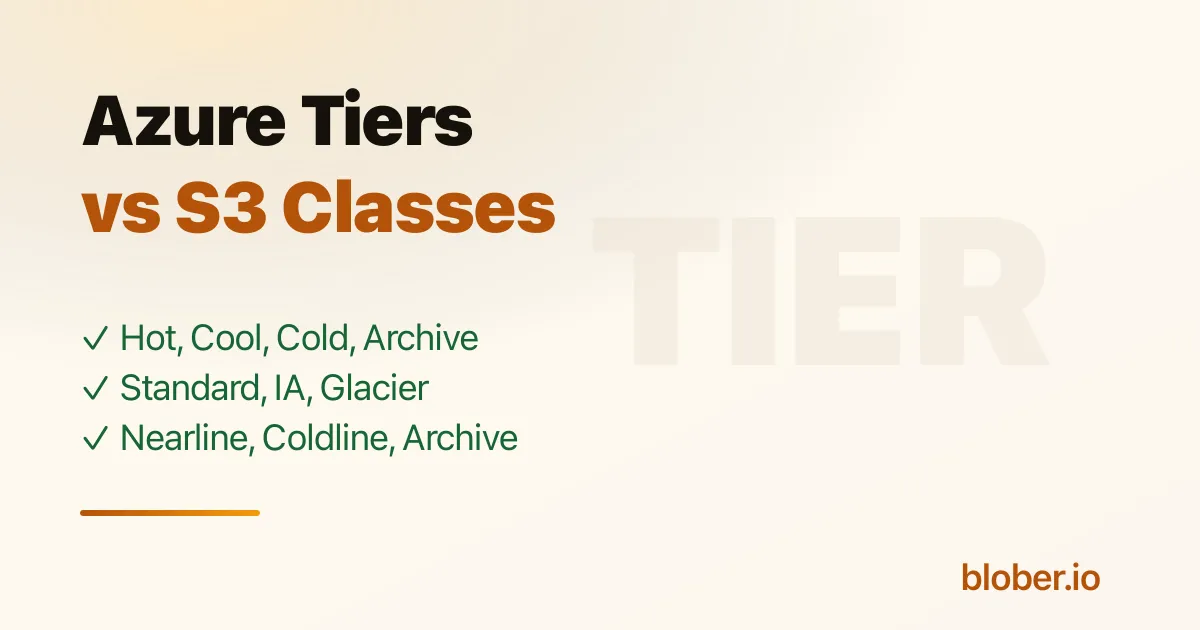
Azure calls them access tiers. Amazon S3 and Google Cloud Storage call them storage classes. Other providers call them tiers, classes, plans, or just pricing. The labels sound interchangeable, but they are not one-to-one.
The biggest trap is the word archive. Azure Archive is offline and must be rehydrated before you can read it. AWS S3 Glacier Flexible Retrieval and Deep Archive are also offline restore workflows. Google Cloud Storage Archive, despite the name, still has millisecond access; it is colder mainly because of retrieval charges and a 365-day minimum storage duration[1]. If you treat all three as the same thing, your restore plan will be wrong.
This guide maps the intent behind each tier or class: hot data, monthly access, quarterly access, offline archive, automatic tiering, and provider-specific variants.
| Intent | Azure Blob | AWS S3 | Google Cloud Storage | Other provider names |
|---|
| Active, frequently read data | Hot | S3 Standard | Standard | OCI Standard, IBM Standard, Cloudflare R2 Standard, DigitalOcean Spaces Standard, Wasabi Hot, Backblaze B2 |
| Unknown or changing access | Smart tier, where available | S3 Intelligent-Tiering | Autoclass | IBM Smart Tier, OCI Auto-Tiering |
| Infrequent but online access | Cool | S3 Standard-IA, S3 One Zone-IA | Nearline | OCI Infrequent Access, IBM Vault, Cloudflare R2 Infrequent Access, DigitalOcean Spaces Cold Storage |
| Rare but still online access | Cold | S3 Glacier Instant Retrieval | Coldline | IBM Cold Vault |
| Archive with restore delay | Archive | S3 Glacier Flexible Retrieval, S3 Glacier Deep Archive | Not the same: Google Archive is still online | OCI Archive |
| High-performance special class | No direct Azure access-tier equivalent | S3 Express One Zone | Rapid storage | Provider-specific performance products |
That table is a mental map, not a pricing calculator. Always check the current pricing page before committing data, because minimum durations, request charges, retrieval fees, and regional prices can matter more than the storage price.
Storage tiers are usually a trade between four things:
- Storage price: colder classes cost less per GB-month.
- Access price: colder classes usually charge more to read, retrieve, or operate on data.
- Minimum duration: colder classes often bill as if the object stayed for 30, 90, 180, or 365 days.
- Access latency: online classes return data immediately; offline archive classes require a restore or rehydration step.
Azure states the ladder clearly: Hot has the highest storage cost and lowest access cost; Cool and Cold reduce storage cost but increase access and transaction costs; Archive is offline, lowest storage cost, and highest access cost[2]. AWS frames S3 classes by use case, from Standard for frequent access, to Standard-IA for monthly access, to Glacier classes for archive and restore workflows[3]. Google keeps every primary storage class online, even Archive, and makes the difference mostly price, availability, retrieval fees, and minimum storage duration[4].
| Provider | Class or tier | Minimum duration | Online read? | Restore or rehydrate behavior |
|---|
| Azure Blob | Hot | None | Yes, milliseconds | None |
| Azure Blob | Cool | 30 days | Yes, milliseconds | None |
| Azure Blob | Cold | 90 days | Yes, milliseconds | None |
| Azure Blob | Archive | 180 days | No | Rehydrate to Hot, Cool, or Cold; can take up to 15 hours[5] |
| AWS S3 | Standard | None | Yes, milliseconds | None |
| AWS S3 | Standard-IA | 30 days | Yes, milliseconds | Retrieval fees apply[6] |
| AWS S3 | One Zone-IA | 30 days | Yes, milliseconds | Retrieval fees apply; stored in one Availability Zone[7] |
| AWS S3 | Glacier Instant Retrieval | 90 days | Yes, milliseconds | Retrieval fees apply[8] |
| AWS S3 | Glacier Flexible Retrieval | 90 days | No | Restore first; expedited, standard, or bulk retrieval ranges from minutes to 12 hours[9] |
| AWS S3 | Glacier Deep Archive | 180 days | No | Restore first; AWS summarizes average retrieval as 9 to 48 hours[10] |
| Google Cloud Storage | Standard | None | Yes, milliseconds | None |
| Google Cloud Storage | Nearline | 30 days | Yes, milliseconds | Retrieval fees apply |
| Google Cloud Storage | Coldline | 90 days | Yes, milliseconds | Retrieval fees apply |
| Google Cloud Storage | Archive | 365 days | Yes, milliseconds | No offline restore; higher access/operation costs and 365-day minimum[11] |
| Oracle Object Storage | Standard | None | Yes | None |
| Oracle Object Storage | Infrequent Access | 31 days | Yes | Retrieval fees apply |
| Oracle Object Storage | Archive | 90 days | No | Restore to Standard for access; Oracle says first byte is available at most an hour after restore request[12] |
| Cloudflare R2 | Standard | None | Yes | No egress bandwidth charge, but operations still bill |
| Cloudflare R2 | Infrequent Access | 30 days | Yes | Data retrieval processing fee applies, but egress bandwidth remains free[13] |
| DigitalOcean Spaces | Standard | None | Yes | Included storage and outbound transfer bundle |
| DigitalOcean Spaces | Cold Storage | 30 days | Yes | Retrieval fee, early deletion/update cost, and 128 KiB minimum billing units[14] |
Azure Hot, AWS S3 Standard, Google Standard, OCI Standard, IBM Standard, Cloudflare R2 Standard, Backblaze B2, and Wasabi Hot are all meant for data that can be read at any time without a restore step. This is where you put application assets, active backups, staging data, media currently in production, and datasets you expect to query often.
The difference is not the meaning. It is the billing model. AWS, Azure, and Google separate storage, requests, retrieval, and transfer in more detail. Wasabi publishes no separate egress or API request charges but applies a 90-day minimum storage duration and a minimum storage amount[15]. Backblaze B2 positions itself as always-hot storage with no minimum storage duration and free egress up to 3x average monthly stored data[16].
Azure Cool, AWS S3 Standard-IA, Google Nearline, OCI Infrequent Access, IBM Vault, Cloudflare R2 Infrequent Access, and DigitalOcean Spaces Cold Storage all point at the same general idea: data you do not read often, but still want online when you do.
The common shape is a lower storage price, a 30-ish day minimum, and some cost when you read the data. The names differ: Azure calls it Cool, AWS calls it IA, Google calls it Nearline, Oracle says Infrequent Access, IBM says Vault, and Cloudflare says Infrequent Access. Treat them as cousins, not exact twins.
Azure Cold, AWS S3 Glacier Instant Retrieval, Google Coldline, and IBM Cold Vault are closer to each other in intention: data accessed at most a few times a year, but still available quickly. Azure Cold has millisecond access with a 90-day minimum. AWS Glacier Instant Retrieval has millisecond access with a 90-day minimum. Google Coldline has millisecond access with a 90-day minimum and retrieval charges[17]. IBM Cold Vault is the IBM name for cold workloads where data is accessed every 90 days or less, with larger retrieval charges than Vault[18].
Azure Archive, AWS S3 Glacier Flexible Retrieval, AWS S3 Glacier Deep Archive, and Oracle Archive are true archive workflows. The object exists, but you cannot just read it like a hot object. You initiate a restore or rehydration operation first.
This is where restore time becomes a product requirement. Azure Archive can take up to 15 hours to rehydrate. AWS Glacier Flexible Retrieval can restore in minutes to hours depending on retrieval tier. AWS Glacier Deep Archive is designed for hours-long restores, with AWS summarizing average retrieval as 9 to 48 hours. Oracle Archive restores objects to Standard for access.
Google Archive does not belong in this exact group. It is the coldest Google Cloud Storage class, but it remains online with millisecond access. Its archive-like behavior is economic: a 365-day minimum duration plus higher data access and operation costs[19].
| Difference | Why it matters |
|---|
| Archive can mean offline or online | Azure Archive and AWS Glacier Flexible/Deep Archive require restore. Google Archive does not. |
| Minimum duration is not always the same | Azure Archive is 180 days; AWS Deep Archive is 180 days; Google Archive is 365 days; Oracle Archive is 90 days. |
| Retrieval fees are separate from egress | A provider can have free egress but still charge retrieval processing or operations, such as R2 Infrequent Access. |
| Automatic tiering is implemented differently | S3 Intelligent-Tiering is a storage class. Google Autoclass is a bucket feature. Azure Smart tier is an access-tier automation feature where available. OCI Auto-Tiering moves between Standard and Infrequent Access. |
| Some providers do not expose a full class ladder | Backblaze B2 and Wasabi focus on simple hot storage economics rather than many storage classes. Lifecycle rules may delete or hide old versions, but that is not the same as a cold storage class. |
| One-zone classes are about resilience, not just price | S3 One Zone-IA and S3 Express One Zone trade multi-AZ resilience for cost, latency, or locality. Do not map them directly to Azure Cool or Google Nearline without considering failure-domain risk. |
Changing the class or tier of existing data is one place where Azure and S3 differ sharply.
Azure Blob has a Set Blob Tier operation. It sets the access tier on a blob, snapshot, or specific blob version by using the comp=tier request and an x-ms-access-tier value[20]. Azure's versioning docs treat tiering as an operation you can apply to any version of a block blob, while version creation is described around write operations such as Put Blob, Put Block List, Copy Blob, and Set Blob Metadata[21]. In practical terms, a tier change is not a copy-over-self operation.
Amazon S3 can also change an existing object's storage class without downloading it to your machine, but the mechanism depends on how you do it.
| Change method | Azure Blob | AWS S3 |
|---|
| Manual immediate change | Set Blob Tier changes the access tier on the blob or version. | Console, CLI, SDK, and API changes are copy-based. AWS documents changing an existing object's class with aws s3 cp object object --storage-class ..., and the CopyObject API accepts x-amz-storage-class[22]. |
| Lifecycle change | Azure lifecycle management can move blobs between tiers by policy. | S3 Lifecycle Transition changes the current object version to the specified storage class; NoncurrentVersionTransition changes noncurrent versions[23]. |
| Versioning impact | A tier change does not create a copied object version the way a write/copy does. Explicitly tiered versions can change how Azure bills shared blocks and full content length[24]. | Manual copy-over-self creates a new copied object version when destination bucket versioning is enabled; AWS says CopyObject returns the version ID of the newly created copy[25]. Lifecycle transitions do not create a new current version; they transition the applicable version. |
| Cost shape | Tier-down is billed as a write operation; tier-up is billed as a read operation for Set Blob Tier[26]. | Copy requests are charged based on destination storage class and Region; the request can also trigger source retrieval charges, and cross-Region copies can incur data transfer charges[27]. Lifecycle transitions have transition request costs and minimum-duration rules. |
The safe S3 cleanup pattern depends on intent. If you want data to age into colder classes predictably, lifecycle rules are usually cleaner. If you need to change specific objects right now, manual copy-over-self works, but versioned buckets will keep the old version until lifecycle or explicit deletion removes it.
Both Azure Blob and Amazon S3 can automatically move data to colder storage by rule. The difference is how much the rule system asks you to think about.
Azure Blob lifecycle management is built around access-tier actions. A policy is a JSON document made of rules; each rule has conditions, actions, and filters. Conditions can use creation time, last modified time, and last accessed time if access tracking is enabled. Actions can move current versions, previous versions, or snapshots to cooler tiers, delete them, or move blobs back from Cool to Hot when they are accessed. Filters can include path prefixes and blob index tags[28]. In the Azure portal, this is exposed under Data management => Lifecycle management, with a list view for common rules and a code view for JSON policies[29].
Amazon S3 Lifecycle is broader. A bucket lifecycle configuration can have rules that transition objects to other storage classes, expire current versions, transition noncurrent versions, permanently delete noncurrent versions, remove expired delete markers, and abort incomplete multipart uploads. Rules can target all objects or filter by prefix, tags, and object size[30]. You can create them in the S3 console under the bucket Management tab, or manage them with CLI, SDKs, or the REST API[31].
| Task | Azure Blob lifecycle | S3 Lifecycle | Easier in practice |
|---|
| Move logs or backups to a colder tier after N days | Add a rule for base blobs, set days since modified/created/accessed, choose Cool, Cold, or Archive. | Add a lifecycle rule, filter by prefix/tag/size, choose a storage-class transition and days after creation. | Tie for simple prefix-by-age rules. Azure reads closer to the access-tier model. |
| Use last-access behavior | Supported if last access tracking is enabled; lifecycle can also move blobs back from Cool to Hot when accessed[32]. | S3 Lifecycle is mostly age/filter based. Use S3 Intelligent-Tiering when access pattern is unknown or changing. | Azure for explicit last-access rules; S3 for fully managed Intelligent-Tiering. |
| Manage old versions | Supports current versions, previous versions, and snapshots as lifecycle targets. | Very explicit current/noncurrent version actions, including transition and expiration of noncurrent versions[33]. | S3 gives more version-specific knobs; Azure is simpler if you only need tier/delete policies. |
| Avoid tiny-object surprises | Fewer class-transition-specific size traps in the lifecycle model. | Objects smaller than 128 KB do not transition by default unless you override with size filters or headers; transition request costs can outweigh storage savings[34]. | Azure is easier; S3 is more configurable but easier to misprice. |
| Rehydrate archived data automatically | Lifecycle policies cannot rehydrate Archive blobs to an online tier[35]. | Lifecycle cannot transition Deep Archive back to warm classes; restore/copy workflows are needed for archived objects[36]. | Neither. Archive restore is a separate workflow. |
| Know when it will happen | Policy changes can take up to 24 hours to go into effect and for first execution to start[37]. | Lifecycle configuration propagation takes minutes, but actions are asynchronous and can complete later; billing usually changes when the rule is satisfied[38]. | Neither is immediate. Use direct tier change/copy when you need right-now changes. |
The short version: Azure is usually easier when your rule is "move these blobs by age, prefix, tag, or access time to Hot/Cool/Cold/Archive." S3 is more flexible when you need full object lifecycle management across current versions, noncurrent versions, delete markers, multipart cleanup, object-size filters, and multiple storage-class transitions. That flexibility is useful, but it also makes S3 lifecycle rules easier to misconfigure.
| Provider | Feature | What it does | Watch out for |
|---|
| Azure Blob | Smart tier | Automatically moves data between Hot, Cool, and Cold based on usage patterns, where available[39]. | It does not include Archive in the same online ladder. Confirm account and API support before designing around it. |
| AWS S3 | Intelligent-Tiering | Keeps the storage class as Intelligent-Tiering while moving objects through Frequent, Infrequent, Archive Instant, and optional Archive/Deep Archive access tiers[40]. | Monitoring/automation fees apply; objects under 128 KB are not auto-tiered. Optional archive tiers require restore. |
| Google Cloud Storage | Autoclass | Moves objects to colder storage classes when not accessed, and back to Standard when read[41]. | Management and enablement charges can apply; manual storage class changes are ignored in Autoclass buckets. |
| Oracle Object Storage | Auto-Tiering | Moves objects larger than 1 MiB from Standard to Infrequent Access and back to Standard based on access patterns[42]. | It is a Standard to Infrequent Access optimizer, not a deep archive policy. |
| IBM Cloud Object Storage | Smart Tier | Bills dynamic workloads by automatically classifying data into hot, cool, and cold tiers based on monthly usage patterns[43]. | It is bucket-class pricing, not the same mechanics as S3 Intelligent-Tiering or Google Autoclass. |
| If you use Azure... | Closest AWS S3 class | Closest Google class | Practical meaning |
|---|
| Hot | S3 Standard | Standard | Active data; lowest read friction; highest storage cost among general classes. |
| Cool | S3 Standard-IA | Nearline | Infrequent online data, roughly monthly access, 30-day minimum. |
| Cold | S3 Glacier Instant Retrieval | Coldline | Rare online data, roughly quarterly access, 90-day minimum. |
| Archive | S3 Glacier Flexible Retrieval or Deep Archive | No exact equivalent | Offline restore workflow. Google Archive is colder economically but still online. |
| Smart tier | S3 Intelligent-Tiering | Autoclass | Let the provider move data across warmer and colder classes based on access. |
| If your thought is... | Choose this kind of class | Examples |
|---|
| "This data is active and users or apps read it constantly." | Hot/standard | Azure Hot, S3 Standard, GCS Standard, R2 Standard, IBM Standard, OCI Standard. |
| "I read this monthly, but it still needs to come back instantly." | Online infrequent access | Azure Cool, S3 Standard-IA, GCS Nearline, R2 Infrequent Access, OCI Infrequent Access, IBM Vault. |
| "I read this quarterly or rarely, but a restore delay would be painful." | Online cold | Azure Cold, S3 Glacier Instant Retrieval, GCS Coldline, IBM Cold Vault. |
| "This is compliance/archive data and waiting hours is acceptable." | Offline archive | Azure Archive, S3 Glacier Flexible Retrieval, S3 Glacier Deep Archive, OCI Archive. |
| "I do not know the access pattern yet." | Auto tiering | Azure Smart tier, S3 Intelligent-Tiering, Google Autoclass, IBM Smart Tier, OCI Auto-Tiering. |
| "I want simple predictable billing more than fine-grained classes." | Flat hot storage | Backblaze B2, Wasabi, many S3-compatible specialists. |
Choose Hot / Standard when users, apps, or jobs read the data regularly. If your object is a website asset, current media project, active backup, training dataset, or API payload, keep it online and warm.
Choose Cool / Standard-IA / Nearline when the data is still important but usually sits untouched for weeks. This is a good fit for backups, completed projects, and archives that are still likely to be restored within a month.
Choose Cold / Glacier Instant Retrieval / Coldline when you expect rare access but cannot tolerate a restore delay. These classes are good for quarterly compliance checks, disaster recovery material, and media that might need quick retrieval but not frequent reads.
Choose Archive / Glacier Flexible / Deep Archive / OCI Archive only when restore delay is acceptable. These are not CDN origins, app storage, or active backup targets. They are for data you preserve more than you use.
Choose automatic tiering when you genuinely do not know the access pattern. Do not use it as a substitute for understanding a known workflow. If half a bucket is active data and half is never-read backup data, separate prefixes or buckets plus lifecycle rules may be clearer and cheaper.
When you move data between clouds, do not just map names. Map behavior.
- Moving Azure Cool to S3 Standard-IA usually preserves the monthly-access intent.
- Moving Azure Cold to S3 Glacier Instant Retrieval preserves fast retrieval better than moving it to Glacier Flexible Retrieval.
- Moving Azure Archive to Google Archive changes behavior: the data becomes online in Google, but with a 365-day minimum and retrieval/operation charges.
- Moving Google Archive to Azure Archive changes behavior the other direction: the data becomes offline until rehydrated.
- Moving AWS Deep Archive to Azure Archive keeps the offline-archive idea, but restore times and minimum durations differ.
Blober can write new Azure Blob uploads directly to Hot, Cool, Cold, or Archive in a workflow, and it can bulk-change existing Azure blobs between those tiers with Azure mutations. For S3-compatible destinations, the generic connector includes a storage-class field, so you can use provider-documented class names where the destination supports x-amz-storage-class.
- Minimum duration. Cool/IA/Nearline usually means 30 days. Cold/Coldline/Glacier Instant often means 90 days. Deep/archive classes can mean 180 or 365 days.
- Online vs offline. Azure Archive and S3 Glacier Flexible/Deep Archive require restore. Google Archive does not.
- Retrieval fees. Cold storage often charges when you read, copy, move, or rewrite data.
- Operation fees. Moving, rewriting, lifecycle transitions, and metadata-heavy workflows can cost more in colder classes.
- Minimum billable object size. S3 IA and Glacier Instant use 128 KB minimums; DigitalOcean Cold Storage also documents 128 KiB minimum billable object/read behavior.
- Auto-tiering eligibility. Small objects may not auto-tier. AWS Intelligent-Tiering and Google Autoclass both document 128 KB/KiB style thresholds for automatic transitions.
- Provider-specific semantics. Some providers set class at the bucket level, some per object, some through lifecycle only, and some avoid classes entirely.
Is Azure Cool the same as S3 Standard-IA?
Conceptually, yes: both target long-lived, infrequently accessed data that still needs millisecond access and has a 30-day minimum. Pricing, operations, and redundancy details differ.
Is Azure Cold the same as Google Coldline?
They are close in intention: rare-access online storage with a 90-day minimum and fast reads. Do not confuse either with Azure Archive or S3 Glacier Deep Archive, which are restore-first archive workflows.
Is Google Archive the same as Azure Archive?
No. Google Archive is still online with millisecond access. Azure Archive is offline and must be rehydrated before reading.
Which S3 class maps to Azure Archive?
S3 Glacier Flexible Retrieval and S3 Glacier Deep Archive are the closest behavioral matches because they are archived and require restore before normal access. S3 Glacier Instant Retrieval maps more closely to Azure Cold.
Does the cheapest storage class always save money?
No. If you read the data more often than expected, retrieval, operation, early deletion, and restore costs can erase the storage savings. The cheapest class is usually only cheapest when the access pattern matches the class.
Pick the right storage class before you move the data. Blober transfers between S3, S3-compatible storage, Azure Blob, Google Drive, Dropbox, local storage, and more, and can write Azure Blob data straight to the tier you choose.
Download Blober at blober.io