Skip to content
Add as Preferred Source

photo backup

7 posts with the tag "photo backup"

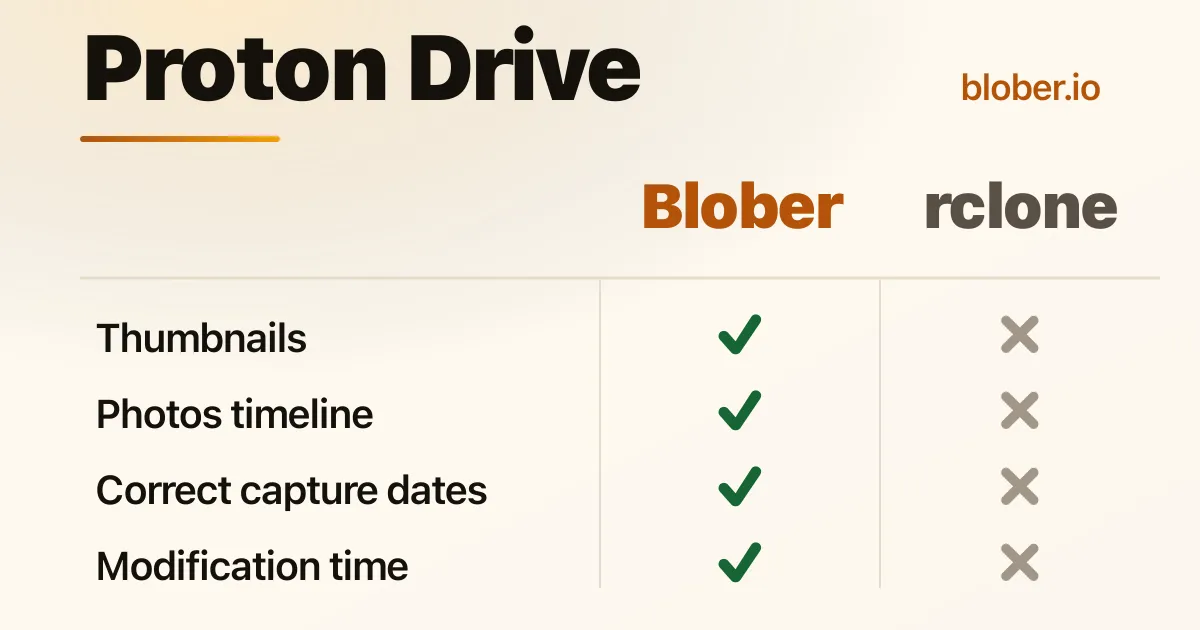
Blober vs rclone for Proton Drive and Proton Photos

If rclone already moves your other clouds around, adding Proton Drive looks like the obvious next step. It is a real rclone backend, open source, and for scheduled jobs and mounts it does a genuinely good job. The catch only shows up when the job involves photos or videos.

You use rclone to backup a camera roll, then open Proton expecting the Photos tab to be full. The files are there, just not where or what you expected: a folder in My Files full of generic file icons, and nothing in the Photos timeline.

People describe it plainly:

Uploading images via rclone results in generic file icons instead of visual thumbnails inside the Proton Drive interface.

That line comes from a thread where a NAS owner set up rclone with Proton Drive and asked why nothing looked like a photo[1]. It is not a Proton bug. It is what happens when a general file mover uploads into a service whose photo features depend on extra data the mover never sends.

Bot blober and rclone use Proton's own encryption, so privacy is identical either way. The difference is what survives the upload: thumbnails, capture dates, and which surface the media ends up on. For a photo library, those decide whether the result is usable.

Why the previews and thumbnails go missing

Section titled "Why the previews and thumbnails go missing"

Proton Drive is end to end encrypted, so Proton's servers never see the inside of your files. They cannot generate a preview from the original, because nothing is decrypted until it reaches your device.

That means the uploader has to make the thumbnails. Proton's own apps decode each image or video on your device, build the small preview images, encrypt them, and store them beside the original[2]. Those extra blocks are what the interface renders as a tile or a preview.

rclone's Proton backend only speaks the file side of the API. It uploads the original and stops there, with no thumbnail blocks and no preview. On the rclone issue tracker this shows up as a known missing feature: the client would have to generate the preview and upload it for the file to display one[3]. Proton then has nothing to render but a generic icon.

There is also no fix later. Proton Drive has no option to set or replace a thumbnail on a file that is already uploaded, and its servers cannot generate one after the fact. To get a preview you have to upload the file again with a client that sends thumbnails. So the tool you choose on day one decides what your library looks like from then on.

Blober uploads the same thumbnail data Proton's own clients do. Before an upload it decodes the media, produces Proton's standard preview sizes, and sends them alongside the original. Images and videos both show real previews in My Files, and photos get a proper tile in the Photos timeline. Audio gets the same care, and here Blober goes further than rclone could: a music file's embedded album art (the cover on an mp3 or m4a) is read straight off the file and uploaded as its thumbnail, so audio shows a real cover tile instead of a generic icon.

Proton Photos organizes the timeline by each photo's capture time. That value comes from the photo's EXIF data and is set when the file is uploaded. When it is missing, a photo has no real capture date, so it lands wherever upload time puts it.

The rclone backend documentation is direct about the underlying gap: the backend does not support updating modification times yet[4]. rclone treats photos as files. Migrate a few years of pictures that way and you get a timeline that groups by upload date, not by when anything was taken.

Blober reads the EXIF capture time and hands it to Proton with the upload, and it carries over the file's own dates from the source. Photos group under the day they were actually taken.

The files land in the wrong surface

Section titled "The files land in the wrong surface"

Proton keeps two surfaces under one login: My Files, a folder tree, and Photos, a timeline with albums. Where a photo lands decides how you see it later.

rclone is a file backend, and it only ever sees the file side. Its remote maps to the My Files tree, and rclone forum threads describe trying to reach Proton's separate Photos area and failing, because that library sits outside the folder tree the backend exposes[5]. Sync a camera roll this way and every picture lands in a folder, none of them appear in the Photos tab, and there is no album step to put them there.

Blober is built around the destination you choose. Pick the Photos surface and each upload becomes a timeline photo. Pick My Files and it is a regular file. Because Proton Photos is a flat timeline without folders, Blober automatically keeps the path rules you set sensible on either destination.

What the setup actually looks like

Section titled "What the setup actually looks like"

Most of the rclone column below comes from rclone's own Proton Drive documentation[6].

Bloberrclone (Proton Drive)
InterfaceDesktop appTerminal commands and config files
Proton loginSign in inside the appUsername and password prompts plus 2FA or OTP, with an optional mailbox password for two-password accounts
KeysHandled for youEncryption keys must already exist from a normal browser login, and there is no official Proton API documentation to lean on when something breaks
StatusGA productCommunity backend, still marked Beta and classed as Tier 4
ThumbnailsGenerated for images, videos, and audio (album art)Not generated
Capture timeRead from EXIFNot set
Modification timesPreservedNot supported by the backend
Photos surfaceA real destinationFiles and folders only
Fits bestPhoto migrations, people who do not live in a terminalScripted sync, mounts, headless servers

That last row is the honest summary. rclone is the right tool when the job is moving files on a schedule or mounting Proton as a drive and you do not care about Proton's photo features. It is the wrong tool when the point of the move is getting a photo library to look right inside Proton.

If you are migrating a photo library, especially out of Google Photos, you want the uploader to behave like Proton's own client: generate previews, carry the capture dates, and put media where the Photos tab can show it. That is what Blober does.

If you are a terminal user syncing folders, running backups on a schedule, or mounting Proton on a server, rclone is a strong, established choice and you already know whether its tradeoffs matter to you.

For a photo library, that choice is the difference between files in a folder and a Photos tab that works the way Proton intends.

Why do my rclone-uploaded photos have no thumbnails in Proton Drive? Proton is end to end encrypted, so its servers cannot create previews; the uploading client has to. rclone's backend only moves files and sends no thumbnail data, so Proton shows a generic icon.

Can I add a thumbnail to a file I already uploaded with rclone? No. Proton Drive does not let you set or replace a thumbnail on an existing file, and its servers cannot generate one later. You would have to upload the file again with a client that produces thumbnails, which is what Blober does.

Does rclone upload into Proton Photos albums or the timeline? No. Its Proton backend works with files and folders in My Files only. Photos uploaded that way do not appear in the Photos timeline and are not added to albums.

Does Blober make thumbnails for audio files? Yes, and rclone cannot. Blober reads a music file's embedded album art (the cover on an mp3 or m4a) and uploads it as a Type1 thumbnail, so audio gets a real cover tile instead of a generic icon. rclone generates no thumbnails at all.

How stable is rclone's Proton Drive backend? It is a community backend. rclone ships it as Beta and Tier 4, Proton publishes no official API documentation, and rclone's own docs warn that Proton's protocol changes may leave some accounts incompatible.

For Proton Drive, is Blober better than rclone? For scripted file sync into folders, rclone is the established terminal option. For a photo library, where previews, capture dates, and the Photos timeline matter, Blober is the better fit because it uploads the thumbnail and metadata Proton needs. Both encrypt your data the same way.

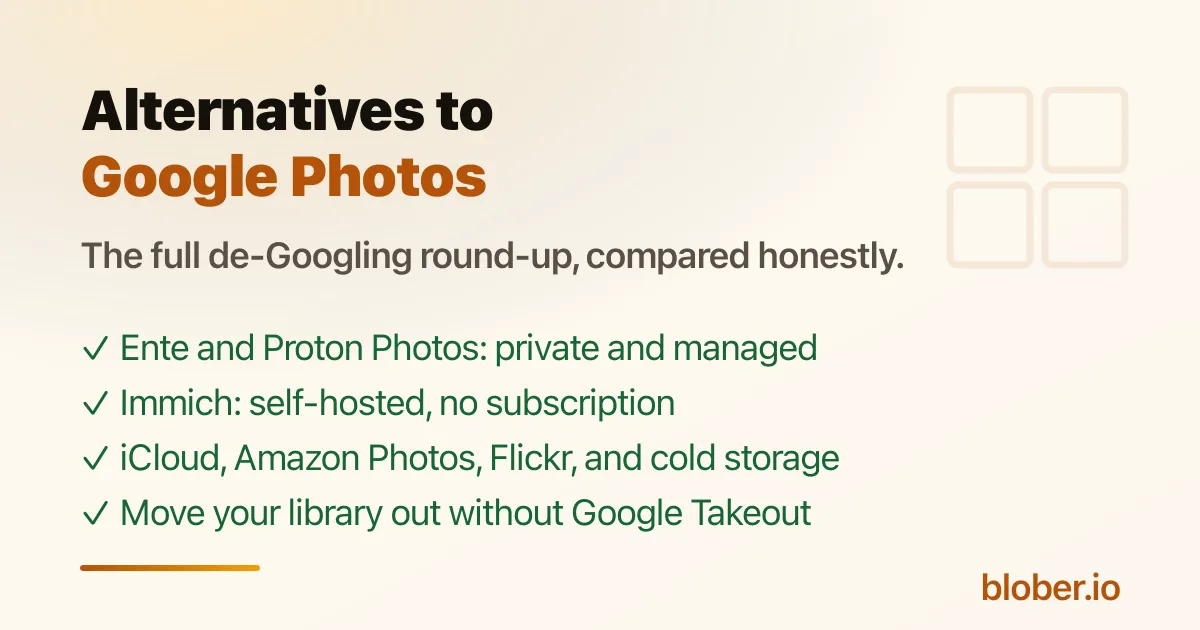
Alternatives to Google Photos: The Full De-Googling Round-Up

Google Photos Is Not the Only Option, and Not the Private One

Section titled "Google Photos Is Not the Only Option, and Not the Private One"

Google Photos is convenient, but it has costs people increasingly want to avoid: 15 GB of free storage shared with Gmail and Drive, a default compression mode that downsizes originals, an inactivity policy that can delete your content, and a company that analyzes your photos and has folded Gemini AI into the product[1]. The r/degoogle community is full of people asking for a way out, like the post "Alternatives to Google Photos?"[2].

There are five realistic categories of alternatives, and the right one depends on how much you value privacy, whether you are willing to self-host, and whether you want a photo-specific app or just encrypted storage. The thread's consensus: for a managed privacy-first service, Ente Photos; for self-hosting, Immich; for a photo surface tied to a broader encrypted cloud, Proton Photos.

This round-up compares them all with current, sourced numbers, and links to the migration guides at the end.

AlternativeTypePrivacy modelFree tierPrice (paid)Best for
Ente PhotosManaged, E2E encryptedEnd-to-end encryption, open source, self-hostable10 GB free foreverFrom $2.49/mo[3]Privacy-first with a Google-Photos-like app
Proton PhotosInside Proton DriveEnd-to-end, zero-access, Swiss5 GB freeFrom $4.99/mo (200 GB)[4]Privacy plus a broader encrypted cloud
ImmichSelf-hosted, open sourceYour server, your keysFree software; you pay for hardwareNo subscriptionFull control, face recognition, no monthly fee
iCloud PhotosApple ecosystemEncrypted in transit/at rest; Apple holds keys5 GB shared iCloudPaid iCloud tiers[5]People already in the Apple ecosystem
Amazon PhotosManagedEncrypted; Amazon holds keys5 GB, or unlimited photos with PrimePlans from $1.99/mo[6]Prime members with big photo libraries
FlickrPhotography communityPhotos are public/private by setting; no E2EFree tier with upload limitsPro subscription[7]Photographers who want a community and portfolio
Backblaze B2 / S3Object storageStandard cloud encryptionNoneAbout $6/TB/mo[8]Cold archival, not daily photo browsing

Ente Photos: the closest Google Photos drop-in that is actually private

Section titled "Ente Photos: the closest Google Photos drop-in that is actually private"

Ente is the most common recommendation in the de-Googling community, and the top comment on that thread recommends it for anyone who does not want to self-host[9]. It offers end-to-end encrypted backups, on-device face recognition, a zero-knowledge AI search, shared albums, memories, and a family plan, all open source with apps for Android, iOS, web, macOS, Linux, and Windows[10]. The free tier is 10 GB forever, and paid plans start at a few dollars a month[11].

Proton Photos: private photos inside a private cloud

Section titled "Proton Photos: private photos inside a private cloud"

Proton Photos is the photo surface of Proton Drive: the same end-to-end encryption, automatic mobile backup, albums, favorites, and filters, with a free 5 GB plan and paid Drive Plus tiers[12]. It is the strongest choice if you also want an encrypted cloud for files, Docs, and Sheets, not just photos. It is younger than Google Photos: no face recognition and no AI search yet, which the community has loudly requested[13]. See the full comparison in Proton Photos vs Google Photos.

Immich: run your own Google Photos

Section titled "Immich: run your own Google Photos"

If you do not want to rent storage from anyone, Immich is the leading open-source, self-hosted photo manager. It offers automatic mobile backup, facial recognition, shared albums, and search, running on your own server[14]. The trade-off is exactly what self-hosting always costs: you provide the hardware, keep it updated, and own the failure domain. For a few gigabytes of phone photos it may be overkill; for a large family archive it gives you total control.

The Big-Tech Alternatives (De-Googling by Switching Silos)

Section titled "The Big-Tech Alternatives (De-Googling by Switching Silos)"

These replace Google Photos without really solving the privacy problem; they just move your photos into a different company's cloud:

  • iCloud Photos: the natural choice inside the Apple ecosystem, with 5 GB of shared free iCloud storage and paid tiers[15].
  • Amazon Photos: "Prime members get unlimited full-resolution photo storage and 5 GB for video," with 5 GB for everyone else and paid storage from $1.99/mo[16].
  • OneDrive: Microsoft's storage, with photo backup built into the mobile app; storage is shared with the free OneDrive tier and Microsoft 365 plans[17].

These are fine if your goal is simply to leave Google, but they do not change the underlying deal: your photos live with a company that holds the keys.

  • Flickr: the photography community and portfolio option, with a free tier and a Pro subscription for unlimited uploads[18]. Great for photographers who want visibility, not a private family archive.
  • Backblaze B2 and S3-compatible storage: for the 3-2-1 backup mindset, object storage at around $6/TB/mo is the cheap way to keep an independent, cold copy of your library[19]. It is storage, not a photo app: you pair it with a tool to browse or transfer. Blober supports B2 and the whole S3 family, so this is a natural pairing if you want a private archive you fully control. See How to Backup Google Photos Without Google Takeout for the workflow.

The Hard Part: Getting Your Photos Out of Google

Section titled "The Hard Part: Getting Your Photos Out of Google"

None of this matters until your library is out of Google Photos, and that is the step every alternative expects you to handle yourself:

  • Google Takeout is the official export, but it is slow, splits into 2 GB zips, and flattens albums (Proton's own import guide even warns about scattered folders)[20].
  • Blober connects to Google Photos directly and transfers the library to any supported destination, including Proton Drive, pCloud, Backblaze B2, or a local drive, without Takeout. See How to Move Google Photos to Proton Drive and How to Backup Google Photos to pCloud.
  • Whichever destination you pick, keep the originals until the transfer finishes and verify a sample before deleting anything from Google.
  • Privacy + a managed app, no self-hosting: Ente Photos or Proton Photos.
  • Total control, no subscription: self-host Immich (or a NAS).
  • Already on Apple or Prime: iCloud Photos or Amazon Photos are the least-effort swaps.
  • Photography portfolio: Flickr.
  • Cheap independent archive: Backblaze B2 / S3 storage.
  • Also want an encrypted file cloud, Docs, and Sheets: Proton Photos via Proton Drive.

What is the best private alternative to Google Photos? For a managed service, Ente Photos is the community favorite: end-to-end encrypted, open source, 10 GB free, with face recognition and shared albums[21][22]. For a photo surface inside a broader encrypted cloud, Proton Photos.

Is there a free self-hosted Google Photos alternative? Yes. Immich is open source and free; you only pay for the hardware it runs on[23]. It includes facial recognition and automatic mobile backup.

Does Amazon Photos give you unlimited storage? For Prime members, unlimited full-resolution photo storage plus 5 GB for video. Non-Prime customers get 5 GB total, with paid plans from $1.99/mo[24].

How do I move my Google Photos library to another service? You can use Google Takeout (slow, zip-based) or a direct transfer tool. Blober connects to Google Photos and transfers to Proton Drive, pCloud, B2, or a local drive without Takeout. See How to Backup Google Photos Without Google Takeout and How to Move Google Photos to Proton Drive.

Will Google delete my photos if I stop using Google Photos? Google's policy states that if you are inactive in Google Photos for 2 years or more, your content may be deleted[25]. This is one of the strongest reasons to hold an independent copy.

What about Proton Photos specifically? It is the photo surface inside Proton Drive: end-to-end encrypted, 5 GB free, paid tiers start with 200 GB on Drive Plus, with albums and automatic backup but no face recognition yet. See Proton Photos vs Google Photos.

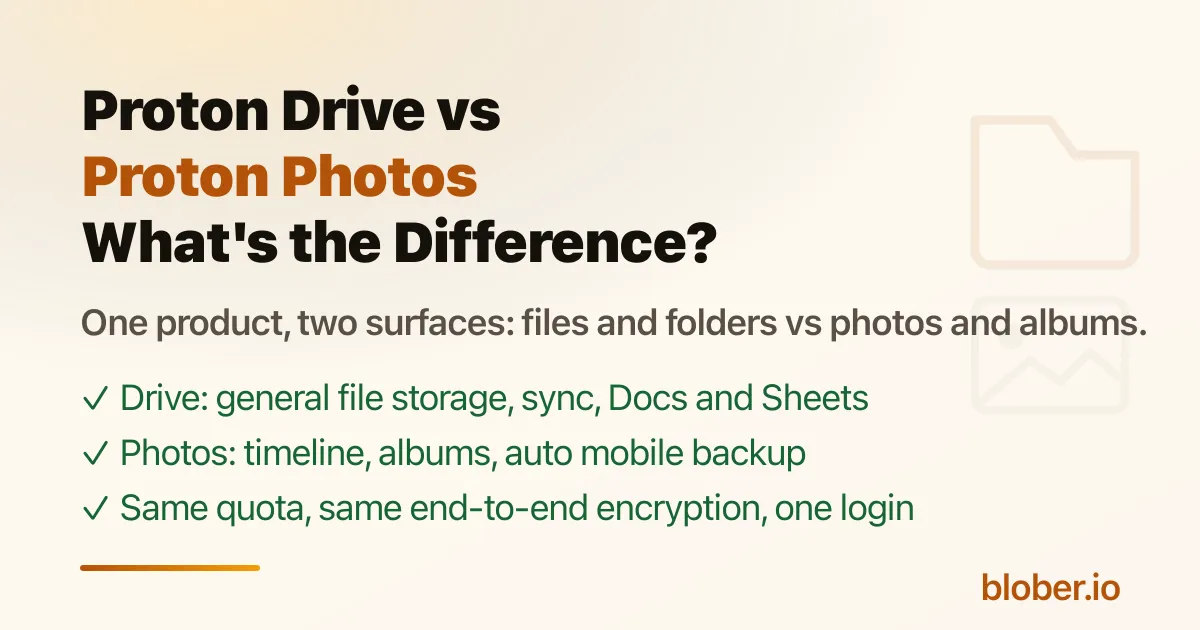
Proton Drive vs Proton Photos: What's the Difference?

Proton Drive and Proton Photos Are the Same Product, Two Surfaces

Section titled "Proton Drive and Proton Photos Are the Same Product, Two Surfaces"

Proton markets both "Proton Drive" and "Proton Photos," and the two names trip people up when they are deciding where their photos should go, or where their photos end up after a migration.

Proton Photos is not a separate product. It is the photo-and-album surface inside Proton Drive. Proton Drive is the general-purpose file storage product: folders, sync, sharing, Docs, Sheets. Proton Photos is the media surface built on top of it: timeline, albums, favorites, filters, EXIF-based organization, automatic mobile backup. Both share the same end-to-end encryption, the same storage quota, and one login.

If you upload a JPEG through the Photos tab, it appears in your photo timeline. If you drop the same file into a folder in My Files, it lives in the file tree. Knowing which surface holds your photos matters more than it sounds, because it decides how they are organized after a Google Photos migration.

Proton's web app has two main views:

Proton DriveProton Photos
URLdrive.proton.medrive.proton.me/u/0/photos
What it isGeneral file storagePhoto and video surface
Organized byFolders, subfolders, file namesTimeline (date), albums, favorites, filters
Typical contentDocuments, downloads, work files, archivesCamera roll, photos, videos, albums
Key featuresFolder sync (Windows/macOS), sharing, Proton Docs and SheetsAutomatic mobile backup, albums, favorites, filters[1]
SharingFiles and folders with password and expiry[2]Albums shared by email invite, with view or contribute roles[3]
EncryptionEnd-to-end, zero-accessSame end-to-end encryption, including album names and photo locations[4]
Storage quotaYour Proton Drive quotaSame quota, shared with Proton Drive

The rule of thumb: Photos surface is for things you want in a timeline and albums; Drive surface is for everything else.

  • Camera-roll backups from the iOS and Android apps land in Proton Photos, because automatic photo backup uploads to the Photos surface[5].
  • When you use the Windows app's "Photos import" feature, imported pictures are sorted into albums automatically[6].
  • Files you drag into My Files in the web app go to the Drive surface as ordinary files, even if they are images.

The practical difference is organization: Photos gives you a date timeline, albums, favorites, and filters. Drive gives you a folder tree. A photo sitting in a Drive folder is still encrypted and safe, but it will not show up in your Photos timeline unless it is in the Photos surface.

Why the Distinction Matters for a Migration

Section titled "Why the Distinction Matters for a Migration"

When you move a library out of Google Photos, the destination determines the result:

  • Into Proton Photos: your photos are organized into a timeline and albums, which is the closest to how Google Photos worked. Proton's official Google Photos import does exactly this: it takes your Takeout folder and "automatically upload your photos and then sort them into albums"[7]. Both Google Photos and Proton Photos don't have folders. If you want the timeline and albums, point it at Photos.
  • Into Proton Drive folders: your photos are files in a folder tree. This is fine for archiving, but you lose the timeline and album view unless you then move them into Photos. If you want date-based folder organization, point the destination at a My Files folder.

There is a catch with the official Google Photos import that also matters here: it builds albums from folder structure, and Google Takeout can scatter photos from the same year across different parts, so Proton's own guide recommends manually reorganizing by year first[8]. For a cleaner path, see How to Move Google Photos to Proton Drive, which compares the Takeout route with a direct transfer.

Choose Proton Drive if you want a general encrypted file store: documents, downloads, work files, synced folders, shared files with password protection, and Docs/Sheets.

Use Proton Photos for your personal media: automatic camera-roll backup, a date timeline, albums for trips and events, favorites, and filters.

In practice you get both with the same account. The question is only which surface your media ends up in, and that is decided by where you upload it. For anything photo-like, put it in Photos if you want the timeline and albums. For everything else, use Drive.

Is Proton Photos a separate subscription? No. Proton Photos is part of Proton Drive. It uses the same storage quota and the same plan, so 200 GB of Drive Plus covers both your files and your photos[9].

Are my photos in Proton Photos encrypted? Yes. Everything in Proton Photos uses the same end-to-end encryption as Proton Drive, and Proton says album names and photo metadata like locations are encrypted too[10].

If I upload photos to Proton Drive folders, will they appear in Proton Photos? Not automatically. Files in the Drive surface live in the folder tree; the Photos surface has its own timeline and albums. Import through the Photos flow (or the Windows app's Photos import) to get photos into the Photos surface.

Which surface should I use to migrate Google Photos? Proton Photos, if you want the timeline and albums to match how Google Photos worked. See Proton Photos vs Google Photos for the comparison and How to Move Google Photos to Proton Drive for the mechanics.

Can I move files between the Drive and Photos surfaces? Proton's import flow is the supported path for getting photos into the Photos surface. For moving the other direction, the general file-transfer story for Proton Drive is covered in Migrating To or From Proton Drive.

Proton Photos vs Google Photos: The Honest Comparison

Proton Photos vs Google Photos: Two Different Deals

Section titled "Proton Photos vs Google Photos: Two Different Deals"

Google Photos is the default home for most people's photo library, and it has real costs: only 15 GB of free storage shared with Gmail and Drive, a compression option that downsizes originals, an inactivity policy that can delete your content, and a business model built on analyzing your photos. Proton positions its Photos feature as the private alternative, and the demand is real: a top r/ProtonDrive post titled "Make Proton Photos more like a real alternative to Google Photos" collects a long list of the gaps users hit[1].

Proton Photos is the photo surface inside Proton Drive. It beats Google Photos on privacy: every photo is end-to-end encrypted before upload, nothing is compressed unless you choose it, and Proton says it does not scan your photos or train AI on them. Google Photos still wins on convenience: mature face recognition, AI-powered search, and a far larger feature set. If your priority is keeping photos private and unmodified, Proton wins. If you rely on Google's AI search and automatic face grouping day to day, you will feel the difference.

This article is the honest feature-by-feature comparison. For the actual move, see How to Move Google Photos to Proton Drive.

Proton Photos is not a separate app with its own login. It is the photo and album surface of Proton Drive, at drive.proton.me/u/0/photos. Your photo quota is your Proton Drive quota (5 GB free, 200 GB on Drive Plus), and the photos share the same end-to-end encryption as every other file in Proton Drive[2]. Proton's own framing is direct: "Unlike Google Photos, Proton Drive empowers you to control your pictures, videos, and albums with uncompromising privacy and security"[3].

FeatureProton PhotosGoogle Photos
Free storage5 GB (shared with Proton Drive)15 GB (shared with Gmail and Drive)
End-to-end encryptionYes, zero-access. Proton says "no one, not even Proton, can access your files"[4]No. Google holds the keys and can read your photos
CompressionOriginals stored as-is, no forced downscaling"Storage saver" (previously "High quality") compresses photos[5]
Face recognitionNot availableYes, mature, automatic
AI searchNo (search by date, type, favorites, filters)Yes, natural-language and object search, Gemini integration
AlbumsYes, shared albums with email invites, favorites[6]Yes, shared albums
Auto mobile backupYes, iOS and Android[7]Yes, iOS and Android
Metadata / EXIFPreserved; album names and photo locations are encrypted[8]Preserved, but readable by Google
Scanning / AI trainingProton states it does not scan photos or use them to train AI[9]Google analyzes photos (faces, objects, locations) and has folded Gemini into Photos
Inactivity deletionNo such policy documentedGoogle may delete content after 2+ years of inactivity[10]
JurisdictionSwitzerland, open source, auditedUS-based, subject to US law
Price (paid)Drive Plus: 200 GB, see pricingGoogle One paid tiers (see plans)

End-to-end encryption. This is the entire point. Proton encrypts photos, album names, and metadata like locations on your device before upload, so even Proton cannot read them[11]. Google Photos is not encrypted this way; Google can see your photos, and Proton's marketing presses the point that Google "scans and analyzes the faces" in them[12].

No forced compression. Google's "Storage saver" mode downsizes originals to fit more in your quota, and it is the default that most people have been running for years. Proton stores originals as-is. If you care about keeping full-resolution files, that is a meaningful difference for a large library.

No AI-training or advertising pipeline. Proton's position is that your photos are "too personal to be scanned by surveillance systems or analyzed by algorithms"[13]. Google, by contrast, has integrated Gemini into Google Photos and uses the data for its own models.

You are not renting against a deletion policy. Google's own support page states: "If you're inactive in Google Photos for 2 years or more, your content may be deleted"[14]. Proton does not have an equivalent inactivity-deletion policy for stored photos.

Be honest about the gaps before switching, because they are real:

  • Face recognition. Google automatically groups photos by person and lets you search by face. Proton Photos has no face recognition today.
  • AI search. Google's natural-language search ("photos of my dog at the beach") is best-in-class. Proton searches by date, type, favorite, and filter, not by content.
  • Mature editor and ecosystem. Google Photos has editing tools, shared libraries, partner sharing, and deep Android integration. Proton's Photos surface is younger.
  • Bigger free tier. 15 GB vs 5 GB, both shared with the rest of the account.

What Proton Photos Still Lacks (Per the Community)

Section titled "What Proton Photos Still Lacks (Per the Community)"

The r/ProtonDrive thread that calls for Proton Photos to be "more like a real alternative" lists the specific gaps users hit[15]:

  1. Viewing on-device photos alongside cloud photos in one interface.
  2. iCloud-style storage optimization (full original in the cloud, small preview on the device).
  3. A dedicated duplicates view to find and remove duplicate files.
  4. Editing tools (the post suggests Lumo image editing).
  5. Editing the captured date of a photo to correct wrong timestamps.
  6. A standalone Proton Photos app.

None of these are dealbreakers for a private archive, but they matter if you treat Proton Photos as a full Google Photos replacement for daily browsing.

ProtonGoogle
Free5 GB15 GB
200 GBDrive Plus (see pricing)Google One paid tiers, see plans
500 GBProton Unlimited (VPN + Mail + Calendar + Pass)Google One paid tiers

Proton's paid tier is a flat storage subscription. Google One bundles other Google benefits, but the storage is the part that matters for photos. Prices drift, so check the Proton Drive pricing page and Google One plans before deciding.

Choose Proton Photos if you want originals kept unmodified, end-to-end encrypted, in a zero-access service you are not renting against a deletion policy. Choose Google Photos if you rely on face recognition, AI search, and editing day to day and are comfortable with Google reading your library.

If you switch, the mechanics are covered in depth in How to Move Google Photos to Proton Drive, which compares Proton's official Takeout-based import with a direct transfer, and Migrating To or From Proton Drive covers the general Proton Drive migration story.

Is Proton Photos free? Yes. It is the photo surface of Proton Drive, and the free plan includes 5 GB of storage for photos and files. Proton says that is "enough space to store more than 1000 photos" at an average size of 4 MB[16]. Paid plans start with 200 GB on Drive Plus[17].

Does Proton Photos compress my photos? No. Originals are stored as-is. Google's "Storage saver" mode, by contrast, compresses photos to save space[18].

Does Proton Photos have face recognition? Not yet. Google Photos has automatic face grouping; Proton Photos does not. It is one of the most-requested gaps in the community[19].

Can Proton Photos replace Google Photos? For private, encrypted photo storage: yes. For a drop-in with Google's AI search, face recognition, and editing: not fully yet. This article walks through exactly what you gain and what you give up.

Is Proton Photos the same as Proton Drive? No. Proton Drive is the general file-storage product (folders, sync, sharing, Docs and Sheets). Proton Photos is the photo-and-album surface inside it, optimized for media. See How is Proton Drive different to Proton Photos? for the full explanation.

How do I get my existing photos out of Google Photos? Google has no bulk "download all" button, and Takeout is slow and Windows-only for Proton's import. See How to Move Google Photos to Proton Drive and How to Backup Google Photos Without Google Takeout for the options.

What Is Proton Drive? Features, Plans, and What It's Used For

Proton Drive Is the Privacy-First Cloud Storage Service

Section titled "Proton Drive Is the Privacy-First Cloud Storage Service"

Mainstream cloud storage, meaning Google Drive, Dropbox, and iCloud, can read your files, scan your photos, and use them for ad profiles or AI training. If you do not want a storage company looking at your data, most standard options are a poor fit[1].

Proton Drive is the encrypted alternative from the makers of Proton Mail. Files are encrypted on your device before upload, so not even Proton can read them. It covers the same basics as Google Drive or Dropbox: file storage, folder sync, sharing, photo backup, Docs and Sheets, plus a free 5 GB plan. This guide covers what Proton Drive is used for, how the security works, what it costs, and where it falls short.

Proton Drive is general-purpose file storage, but in practice it is most used for:

  1. Private file storage and sync. Back up documents, photos, and work files, and keep a folder synced between your computer and the cloud with the Windows and macOS desktop apps.
  2. Photo and video backup. The iOS and Android apps back up your camera roll automatically, and Proton Drive organizes photos into albums and a searchable timeline. Proton states the free 5 GB plan is "enough space to store more than 1000 photos," based on an average file size of 4 MB[2].
  3. Private documents and spreadsheets. Proton Docs and Proton Sheets are online editors bundled with Drive, positioned as a private alternative to Google Docs and Google Sheets.
  4. Secure file sharing. You can share files and folders with password protection and expiry dates, and revoke access at any time. Proton says it does "not impose file-size limits or restrict the number of times your contacts can download them"[3].
  5. Sensitive records. Passwords, passports, contracts, and tax files are a natural fit because of the encryption.
  6. A destination when leaving Google, Dropbox, or iCloud. Privacy-conscious users migrating away from Big Tech often land here.

The Security Model: End-to-End and Zero-Access

Section titled "The Security Model: End-to-End and Zero-Access"

Proton's own description of how it works: "We encrypt your files, their names, and more right on your device before they're uploaded to the cloud, so only you hold the keys to unlock them"[4].

This is the zero-access model: the encryption keys never leave your device, so Proton cannot read your data even if asked. The main security points:

  • End-to-end encryption. Files, folder names, and filenames are encrypted client-side using the open-source OpenPGP standard with Curve25519 encryption[5].
  • Zero-access. "No one, not even Proton, can access your files and folders or see their names without your permission"[6].
  • Swiss jurisdiction. Proton is based in Switzerland. Under Article 271 of the Swiss Criminal Code, Proton is prohibited from sharing data with foreign authorities[7].
  • Open source and audited. The clients and encryption libraries are public, and Proton Drive has been audited by Securitum, an independent European security auditor[8].
  • Scale. Proton says it is "trusted by over 100 million users and organizations"[9].
FeatureDetails
File storageStore any file type; files are split into 4 MB blocks for high-performance encryption
Desktop syncWindows and macOS apps sync a local folder with the cloud
Photo backupAutomatic camera-roll backup on iOS and Android, with albums and a timeline
Proton DocsPrivate online document editor
Proton SheetsPrivate online spreadsheet editor with formulas and charts
Secure sharingPassword-protected links with expiry dates and revocable access
File versioningRecover previous file versions (10 years on paid plans)
Encrypted sharing linksShared content is end-to-end encrypted
LinuxCLI available; full desktop client announced as in progress

Proton's consumer plans are the ones most people choose between. Exact prices change, so check the Proton Drive pricing page before deciding[10]:

PlanStorageIncludes
Free5 GBPhotos, documents, Docs and Sheets
Drive Plus200 GB10 years of file version recovery
Proton Unlimited500 GBPlus Proton VPN, Mail, Calendar, and Pass
Proton Duo2 TBUp to 2 users, everything in Unlimited

All paid plans come with a 30-day money-back guarantee, and higher tiers are available through business plans.

Proton Drive runs on Windows, macOS, Android, iOS, and the web[11]. There is no full-featured Linux desktop sync client yet: Proton released a Proton Drive CLI for Windows, macOS, and Linux in June 2026, and states a "full-featured desktop client with sync is on its way"[12].

Proton has been investing heavily in performance. In June 2026 Proton announced it "rebuilt Proton Drive's engine" on a shared SDK, with uploads up to 3x faster and downloads up to 2x faster across platforms[13]. A companion cryptography update made file encryption up to 4x faster: encrypting a 4 MB file dropped from 97 ms to 32 ms on mobile and from 12 ms to 3 ms on desktop[14]. For heavy transfers this matters, because Proton encrypts every block locally, which is CPU work no other storage provider does.

The trade-off for the privacy is that getting files in and out of Proton Drive, at scale, is not a first-class experience. The official clients are sync tools, not migration tools: there is no built-in way to pull files directly from Google Drive, Dropbox, or S3, and the official Google Photos import runs through Google Takeout and is currently Windows-only. Linux users have a CLI but no full sync client, and the iOS Files integration is temporarily unavailable while Proton rebuilds it. Each of these pain points is covered in detail in Migrating To or From Proton Drive.

Is Proton Drive really private? Yes, for what it claims. Files are encrypted on your device before upload using OpenPGP with Curve25519, and Proton runs a zero-access model where it does not hold the decryption keys. Proton says "no one, not even Proton, can access your files"[15]. The code is open source and audited by Securitum.

Is Proton Drive free? Yes. The free plan includes 5 GB of storage for files and photos, plus Proton Docs and Sheets, all end-to-end encrypted[16]. Paid plans start with 200 GB on Drive Plus[17].

Can Proton Drive replace Google Photos? For secure, private photo storage, yes: it has automatic camera-roll backup, albums, favorites, filters, and a timeline. It does not offer Google's unlimited free compression, AI search, or face recognition. See How to Move Google Photos to Proton Drive for the migration path.

How much storage do I get on the free plan? 5 GB, which Proton says holds more than 1000 photos at an average size of 4 MB[18].

Does Proton Drive have a desktop app for Linux? Not a full sync client yet. Proton ships a CLI for Linux and is building a full-featured Linux desktop client on its shared SDK[19][20]. Third-party tools like Blober fill the gap today.

Can I move my files from Google Drive or Dropbox into Proton Drive? Proton offers manual import flows (Takeout for Google Photos, drag-and-drop for Google Drive). There is no direct cross-cloud transfer in the official apps. Blober connects to Proton Drive and can transfer in from Google Drive, Dropbox, S3, Backblaze B2, and 20+ other sources directly. See Migrating To or From Proton Drive for the full comparison.

Back Up Google Photos to pCloud Without Takeout

The move comes up more than any other: get a Google Photos library out of Google and into a pCloud lifetime plan. The transfer breaks in the same place almost every time, and it is never the archive part.

The manual route starts with Google Takeout. You request an export and wait hours, sometimes days, for a pile of zip files. Each item arrives next to a JSON sidecar that holds Google's metadata, and you extract the zips. For the minority of files that need it, you merge that sidecar back into the files with an EXIF tool. Then you upload the result to pCloud, and when the upload breaks partway, you figure out what happened and try again.

For a big library, that takes days. It is why so many pCloud lifetime plans sit mostly empty.

Takeout does not break dates for most photos. Files uploaded at original quality keep their own EXIF, including the capture date, and a plain copy preserves it. The JSON sidecar is extra.

The metadata fix applies only to a subset: photos edited in Google Photos, which download as re-encoded files, and files that never had an embedded capture date, which covers screenshots, downloaded images, and forwards.[1] For those, the reliable date lives in Google's JSON. Most libraries are mostly original files, so the fix is a minority concern.

What that means for a transfer tool: the file should pass through unchanged. Whatever date is embedded in the file comes with it, no merge step and nothing stripped. That is the rule Blober follows. It reads each file as Google serves it and writes it to pCloud.

rclone used to list and download a Google Photos library. Google changed its API policy in March 2025, and since then rclone can only download photos it uploaded itself.[2] That leaves an existing library out of reach. Transfer services that run on your behalf face the same limit, or they meter how much data you can move per month.

For a library you built through the Google Photos app or the web, the direct path to pCloud needs a tool that reads Google Photos the way the service exposes it, plus pCloud support on the other side.

Blober sends Google Photos to pCloud directly

Section titled "Blober sends Google Photos to pCloud directly"

Blober is a desktop app with a Google Photos provider and a pCloud provider, so the Takeout step drops out of the job:

  • connect Google Photos as the source and pCloud as the destination in one workflow;
  • Blober reads the library through the provider and writes each photo and video to pCloud, passing the files through unchanged;
  • no Takeout archive, no zip extraction, no sidecar step;
  • transfers resume on their own if the connection drops, and files already copied stay done;
  • you can organize during the move with a path template if you want folders by year or by month instead of one flat folder.

If your pCloud account is on the EU data center, Blober picks that up during authorization and uses it for the transfer. There is nothing to configure.

To start, connect Google Photos and pCloud, then create a workflow with Google Photos as the source and pCloud as the destination. Select the library (or an album), select the pCloud folder, and run it.

For the general case of downloading Google Photos without Takeout, see how to backup Google Photos without Google Takeout.

Will the photo dates survive the move?

For the files that have a date embedded, yes. Blober passes each file through unchanged, so the capture date in the file comes along. It does not strip or rewrite anything.

Do I still need exiftool or a script?

Not through Blober. A metadata fix applies only to edited photos and files without an embedded date, which is a minority of most libraries. Blober transfers each file as it is, so the files that already carry their date come through unchanged and need nothing extra.

What happens if my connection drops halfway?

Blober keeps per-file progress. When you resume the task, the files that already transferred stay done and the rest continue. You do not redo the library.

Does this work with a pCloud lifetime plan?

Yes. Blober connects to the account the same way regardless of how you pay for it.

My pCloud account is on the EU servers. Do I need to do anything?

No. The data center is detected when you authorize, and Blober uses the right API host from then on.

Do I need to create my own pCloud app?

No. Blober pre-fills its pCloud app keys, so you authorize in seconds without creating an app or waiting for a review. If you prefer your own app, the pCloud guide covers that too.

I still want to use Takeout as a fallback. Does that work?

It works, but you are back to the manual route: batches, zip extraction, and a metadata fix for the files that need one. Blober is the direct route, and it does not reintroduce the exact problem you were trying to avoid.

Blober is a one-time purchase with a lifetime license. No subscription, no transfer fees, no per-GB cap. It runs on Mac, Windows, and Linux.

Download Blober at blober.io

How to Backup Google Photos Without Google Takeout (After rclone Lost Access)

Google Photos Does Not Have a "Download All" Button

Section titled "Google Photos Does Not Have a "Download All" Button"

If you have 10,000 or 50,000 photos in Google Photos and you want them on your computer, Google gives you two options:

  1. Select photos manually in the web interface. You can select up to 500 at a time, click download, and receive a zip file. Then repeat until you have covered your entire library.
  2. Use Google Takeout to request an export of your entire library. Google will prepare zip archives and email you a download link. This process can take hours or even days depending on library size.

Neither option lets you browse your library, pick a destination, and transfer everything in one step. There is no sync, no resume, and no way to send files directly to another cloud provider.

Google Photos has no download all button, Takeout takes hours, rclone lost library access, and manual download requires selecting photos one by one

Google Takeout: The Problems Nobody Talks About

Section titled "Google Takeout: The Problems Nobody Talks About"

Google Takeout is the official way to export your Google Photos library. On paper it works. In practice, it has real limitations:

  • Wait time. Google creates your archive in the background. For large libraries, this can take 12 to 48 hours.
  • Zip file format. Your photos arrive in multiple zip archives, often split into 2 GB chunks. You have to download each zip and extract them manually.
  • No folder structure. Takeout dumps all photos into flat directories organized by date. If you had albums, those names may appear as metadata JSON files next to the images, not as actual folders.
  • No resume. If a download fails, you start over. There is no incremental sync.
  • No direct cloud transfer. You cannot send Takeout exports directly to Dropbox, Backblaze, or a NAS. Everything goes through your browser first.

For someone with 200 GB of family photos, Google Takeout means hours of waiting followed by hours of downloading and extracting.

Google's official download options compared: manual selection limited to 500 at a time, Takeout takes hours, rclone API access revoked, and other tools do not work

rclone Lost Full Library Access in March 2025

Section titled "rclone Lost Full Library Access in March 2025"

Until early 2025, rclone had a Google Photos backend that could list and download your photo library. Then Google changed their API access policy.

Starting March 31, 2025, rclone can only download photos that were uploaded through the rclone API itself. If you uploaded your photos through the Google Photos app, the web interface, or any other method, rclone cannot access them anymore.

The rclone documentation states it clearly: "From March 31, 2025 rclone can only download photos it uploaded."

This means rclone is no longer a viable tool for backing up or migrating an existing Google Photos library. Other transfer tools like MultCloud, Flexify, and various CLI utilities face the same restriction or never supported Google Photos at all.

Blober downloads your entire Google Photos library without Takeout, with no manual selection, transfer to any cloud or disk, and auto-resume

Blober Downloads Your Entire Google Photos Library

Section titled "Blober Downloads Your Entire Google Photos Library"

Blober is a desktop application that connects to Google Photos and gives you a visual file browser showing your entire library. From there, you can:

  • Download all photos and videos to your local disk, external drive, or NAS
  • Transfer your library to Dropbox, Google Drive, Backblaze B2, AWS S3, or any other supported provider
  • Browse by album, date, or folder with a familiar file manager interface
  • Resume interrupted transfers automatically if your connection drops
  • Optionally replace files with existing filenames by setting destination deduplication to Overwrite the existing file. The default skips them instead

No Google Takeout. No zip files. No manual selection. You connect your Google Photos account, pick a destination, and Blober handles the rest.

FeatureGoogle TakeoutBlober
Bulk downloadYes, after hours of waitingYes, immediate
Folder structureFlat zip archivesAlbums and dates preserved
Resume on failureNoYes, automatic
Transfer to another cloudNo, browser download onlyYes, direct to any provider
Real-time browsingNoYes, visual file browser
Incremental syncNoRe-runs into a local drive or NAS can skip already-downloaded files

For repeat exports, see how task resume and destination deduplication prevent duplicate downloads. Resume an interrupted task to preserve its per-file progress. When you intentionally start a new export into the same folder, the destination skips files that are already there by default, and you can switch it to overwrite them instead.

Before and after comparison showing Google Takeout workflow versus Blober's direct Google Photos download and transfer

Back Up Google Photos to a Local Drive

Section titled "Back Up Google Photos to a Local Drive"

Connect Google Photos in Blober, select your local disk as the destination, and transfer. Every photo and video downloads to a folder on your computer. If you have 100 GB of photos, Blober will transfer them without creating zip files or requiring extraction.

Migrate Google Photos to Dropbox or iCloud

Section titled "Migrate Google Photos to Dropbox or iCloud"

If you are leaving Google Photos for another service, Blober lets you transfer your library directly. Connect Google Photos as the source and Dropbox as the destination. Your photos move from one cloud to the other without touching your local disk (or through it, if you prefer a local copy).

Create a Cold Backup on Backblaze B2

Section titled "Create a Cold Backup on Backblaze B2"

Pair Google Photos with Backblaze B2 in Blober. Your entire photo library gets copied to B2 at $6.95/TB/month for storage. This gives you an independent backup that does not depend on Google.


Google Photos is not a backup. It is a service that can change its terms, adjust its storage pricing, or restrict access at any time. The March 2025 API change proved that: tools that worked for years stopped working overnight.

Having a local copy of your photos, or a copy in a second cloud provider, means you are not dependent on a single company to access your own memories.

Blober makes that transfer possible without the pain of Google Takeout, without CLI configuration, and without selecting 500 photos at a time.


  • Anyone with a large Google Photos library who wants a local backup
  • Users leaving Google Photos for Dropbox, iCloud, or another service
  • Parents and families with years of photos who want a second copy on a hard drive
  • Photographers who used Google Photos as a sync target and need to migrate
  • Privacy-conscious users who want their photos on storage they control

Blober is a one-time purchase with a lifetime license. No subscriptions. No transfer fees. No transfer limits. It runs on Mac, Windows, and Linux.

Download Blober at blober.io