Skip to content
Add as Preferred Source

google photos

6 posts with the tag "google photos"

Alternatives to Google Photos: The Full De-Googling Round-Up
Google Photos Is Not the Only Option, and Not the Private One

Section titled "Google Photos Is Not the Only Option, and Not the Private One"

Google Photos is convenient, but it has costs people increasingly want to avoid: 15 GB of free storage shared with Gmail and Drive, a default compression mode that downsizes originals, an inactivity policy that can delete your content, and a company that analyzes your photos and has folded Gemini AI into the product[1]. The r/degoogle community is full of people asking for a way out, like the post "Alternatives to Google Photos?"[2].

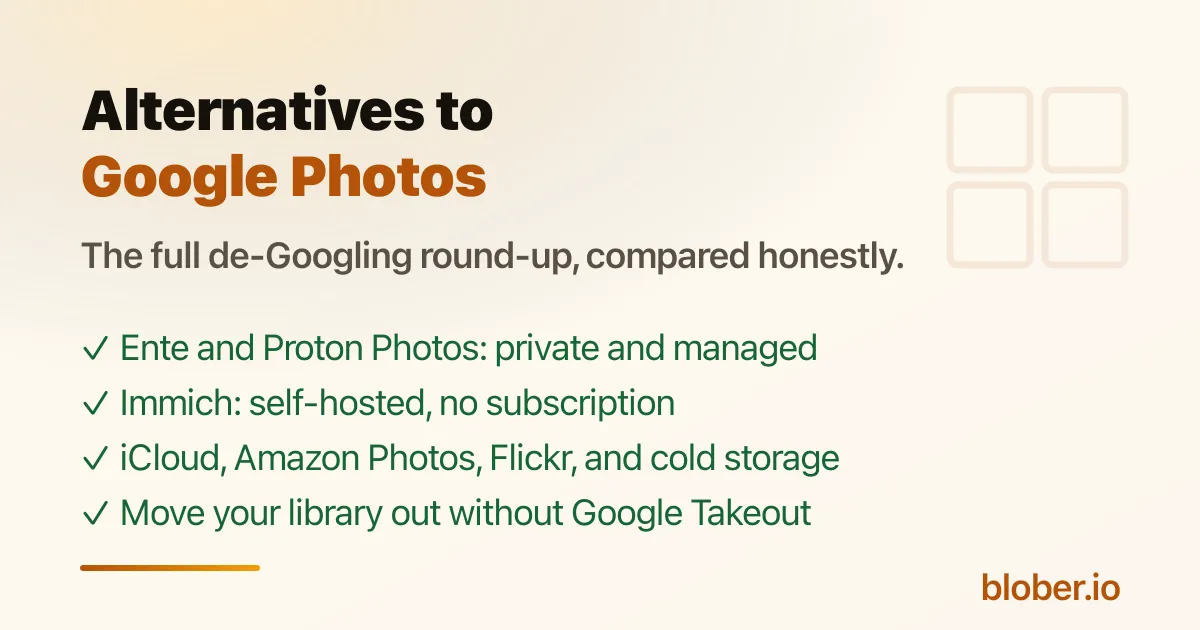
There are five realistic categories of alternatives, and the right one depends on how much you value privacy, whether you are willing to self-host, and whether you want a photo-specific app or just encrypted storage. The thread's consensus: for a managed privacy-first service, Ente Photos; for self-hosting, Immich; for a photo surface tied to a broader encrypted cloud, Proton Photos.

This round-up compares them all with current, sourced numbers, and links to the migration guides at the end.

AlternativeTypePrivacy modelFree tierPrice (paid)Best for
Ente PhotosManaged, E2E encryptedEnd-to-end encryption, open source, self-hostable10 GB free foreverFrom $2.49/mo[3]Privacy-first with a Google-Photos-like app
Proton PhotosInside Proton DriveEnd-to-end, zero-access, Swiss5 GB freeFrom $4.99/mo (200 GB)[4]Privacy plus a broader encrypted cloud
ImmichSelf-hosted, open sourceYour server, your keysFree software; you pay for hardwareNo subscriptionFull control, face recognition, no monthly fee
iCloud PhotosApple ecosystemEncrypted in transit/at rest; Apple holds keys5 GB shared iCloudPaid iCloud tiers[5]People already in the Apple ecosystem
Amazon PhotosManagedEncrypted; Amazon holds keys5 GB, or unlimited photos with PrimePlans from $1.99/mo[6]Prime members with big photo libraries
FlickrPhotography communityPhotos are public/private by setting; no E2EFree tier with upload limitsPro subscription[7]Photographers who want a community and portfolio
Backblaze B2 / S3Object storageStandard cloud encryptionNoneAbout $6/TB/mo[8]Cold archival, not daily photo browsing

Ente Photos: the closest Google Photos drop-in that is actually private

Section titled "Ente Photos: the closest Google Photos drop-in that is actually private"

Ente is the most common recommendation in the de-Googling community, and the top comment on that thread recommends it for anyone who does not want to self-host[9]. It offers end-to-end encrypted backups, on-device face recognition, a zero-knowledge AI search, shared albums, memories, and a family plan, all open source with apps for Android, iOS, web, macOS, Linux, and Windows[10]. The free tier is 10 GB forever, and paid plans start at a few dollars a month[11].

Proton Photos: private photos inside a private cloud

Section titled "Proton Photos: private photos inside a private cloud"

Proton Photos is the photo surface of Proton Drive: the same end-to-end encryption, automatic mobile backup, albums, favorites, and filters, with a free 5 GB plan and paid Drive Plus tiers[12]. It is the strongest choice if you also want an encrypted cloud for files, Docs, and Sheets, not just photos. It is younger than Google Photos: no face recognition and no AI search yet, which the community has loudly requested[13]. See the full comparison in Proton Photos vs Google Photos.

Immich: run your own Google Photos

Section titled "Immich: run your own Google Photos"

If you do not want to rent storage from anyone, Immich is the leading open-source, self-hosted photo manager. It offers automatic mobile backup, facial recognition, shared albums, and search, running on your own server[14]. The trade-off is exactly what self-hosting always costs: you provide the hardware, keep it updated, and own the failure domain. For a few gigabytes of phone photos it may be overkill; for a large family archive it gives you total control.

The Big-Tech Alternatives (De-Googling by Switching Silos)

Section titled "The Big-Tech Alternatives (De-Googling by Switching Silos)"

These replace Google Photos without really solving the privacy problem; they just move your photos into a different company's cloud:

  • iCloud Photos: the natural choice inside the Apple ecosystem, with 5 GB of shared free iCloud storage and paid tiers[15].
  • Amazon Photos: "Prime members get unlimited full-resolution photo storage and 5 GB for video," with 5 GB for everyone else and paid storage from $1.99/mo[16].
  • OneDrive: Microsoft's storage, with photo backup built into the mobile app; storage is shared with the free OneDrive tier and Microsoft 365 plans[17].

These are fine if your goal is simply to leave Google, but they do not change the underlying deal: your photos live with a company that holds the keys.

  • Flickr: the photography community and portfolio option, with a free tier and a Pro subscription for unlimited uploads[18]. Great for photographers who want visibility, not a private family archive.
  • Backblaze B2 and S3-compatible storage: for the 3-2-1 backup mindset, object storage at around $6/TB/mo is the cheap way to keep an independent, cold copy of your library[19]. It is storage, not a photo app: you pair it with a tool to browse or transfer. Blober supports B2 and the whole S3 family, so this is a natural pairing if you want a private archive you fully control. See How to Backup Google Photos Without Google Takeout for the workflow.

The Hard Part: Getting Your Photos Out of Google

Section titled "The Hard Part: Getting Your Photos Out of Google"

None of this matters until your library is out of Google Photos, and that is the step every alternative expects you to handle yourself:

  • Google Takeout is the official export, but it is slow, splits into 2 GB zips, and flattens albums (Proton's own import guide even warns about scattered folders)[20].
  • Blober connects to Google Photos directly and transfers the library to any supported destination, including Proton Drive, pCloud, Backblaze B2, or a local drive, without Takeout. See How to Move Google Photos to Proton Drive and How to Backup Google Photos to pCloud.
  • Whichever destination you pick, keep the originals until the transfer finishes and verify a sample before deleting anything from Google.
  • Privacy + a managed app, no self-hosting: Ente Photos or Proton Photos.
  • Total control, no subscription: self-host Immich (or a NAS).
  • Already on Apple or Prime: iCloud Photos or Amazon Photos are the least-effort swaps.
  • Photography portfolio: Flickr.
  • Cheap independent archive: Backblaze B2 / S3 storage.
  • Also want an encrypted file cloud, Docs, and Sheets: Proton Photos via Proton Drive.

What is the best private alternative to Google Photos? For a managed service, Ente Photos is the community favorite: end-to-end encrypted, open source, 10 GB free, with face recognition and shared albums[21][22]. For a photo surface inside a broader encrypted cloud, Proton Photos.

Is there a free self-hosted Google Photos alternative? Yes. Immich is open source and free; you only pay for the hardware it runs on[23]. It includes facial recognition and automatic mobile backup.

Does Amazon Photos give you unlimited storage? For Prime members, unlimited full-resolution photo storage plus 5 GB for video. Non-Prime customers get 5 GB total, with paid plans from $1.99/mo[24].

How do I move my Google Photos library to another service? You can use Google Takeout (slow, zip-based) or a direct transfer tool. Blober connects to Google Photos and transfers to Proton Drive, pCloud, B2, or a local drive without Takeout. See How to Backup Google Photos Without Google Takeout and How to Move Google Photos to Proton Drive.

Will Google delete my photos if I stop using Google Photos? Google's policy states that if you are inactive in Google Photos for 2 years or more, your content may be deleted[25]. This is one of the strongest reasons to hold an independent copy.

What about Proton Photos specifically? It is the photo surface inside Proton Drive: end-to-end encrypted, 5 GB free, paid tiers start with 200 GB on Drive Plus, with albums and automatic backup but no face recognition yet. See Proton Photos vs Google Photos.
How to Move Google Photos to Proton Drive (Without Google Takeout)

Google Photos to Proton Drive: Two Very Different Paths

Section titled "Google Photos to Proton Drive: Two Very Different Paths"

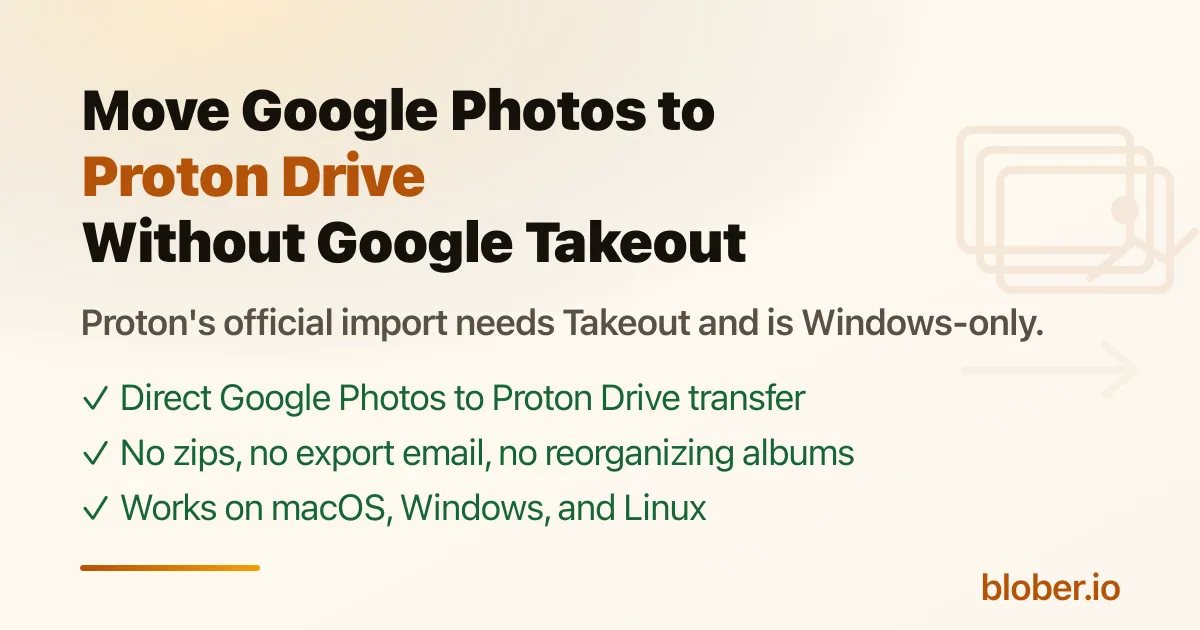
Google has no "download all" button, and every official route for moving your library out is slow and manual. If you are switching to Proton Drive for privacy, you have two practical paths.

Proton's official way exports your whole library through Google Takeout, then imports it into Proton Drive; the desktop import is Windows-only. Blober connects to Google Photos directly and transfers your photos to Proton Drive without Takeout, on any platform. This guide walks through both with the trade-offs, so you can pick the one that fits your library.

Path 1: Proton's Official Way (Google Takeout)

Section titled "Path 1: Proton's Official Way (Google Takeout)"

Proton's official guide, "How to import from Google Photos into Proton Drive"[1], has three steps:

  1. Export your Google Photos. Sign in at takeout.google.com, select Google Photos, and create an export. Google prepares the archive in the background and emails you a download link, which is valid for one week.
  2. Download your export. Download all parts, then unzip them.
  3. Import into Proton Drive. Either drag the unzipped folders into the Photos tab in the web app, or use the Windows desktop app: Photos import, then Import from Google Photos.

Proton's own documentation flags the rough edges:

  • It is Windows-only for the desktop import. The feature announcement says "Google Photos import now supported on Drive for Windows" and notes "Photo import support for macOS is coming soon"[2].
  • Takeout scatters albums. "Google Takeout splits large exports into multiple parts, but it may not keep photos from the same year in the same part... This can cause issues if you're using Proton Drive's desktop app, which builds albums based on folder structure"[3]. Proton's advice is to manually reorganize photos into year folders before importing.

For a small library, this path works. For tens of thousands of photos, it is a multi-day chore: wait for the export, download zips, extract, reorganize, then upload.

Path 2: Blober (Direct Google Photos to Proton Drive)

Section titled "Path 2: Blober (Direct Google Photos to Proton Drive)"

Blober is a desktop app that connects to Google Photos and to Proton Drive as two endpoints, then transfers the photos you select between them.

  1. Connect Google Photos in Blober (you see your whole library in a file browser).
  2. Connect Proton Drive (a browser window opens to Proton's own login page; your password never touches Blober).
  3. Select the photos you want and start the transfer.

Google Photos Is Flat - and So Is Proton Photos

Section titled "Google Photos Is Flat - and So Is Proton Photos"

Google Photos has no folders. When you browse your library in Blober, the date-based view you see (for example 2026-08-23/IMG...) is a virtual grouping Blober builds so you can find photos by when they were taken - nothing is moving between real Google folders. There is no source folder tree to preserve.

Where your photos land in Proton then depends on which surface you choose as the destination:

  • A folder in Proton Drive (My Files) - for example the root or a Google Photos folder. My Files is a normal folder tree, so Blober's YYYY-MM-DD/{filename} organization creates real date folders here.
  • The Proton Photos surface (the timeline). Proton Photos is flat: it has no folders, only a date timeline plus albums. A YYYY-MM-DD/{filename} template cannot create folders on this surface, so every photo is uploaded flat into the timeline and sorted by its capture date instead. In Blober's preview the destination shows as Photos/{filename}, which reflects that. Google Photos albums are not recreated on either surface.

Pick My Files if you want a real date-folder structure. Pick Proton Photos if you want the timeline and albums. You can also move between the two later - see How to Move Photos from My Files to Proton Photos.

The differences from Takeout:

Google Takeout + Proton importBlober
Export waitHours to days for the archive emailNone
Zips and unzippingYes, often 2 GB partsNo
Album structureCan scatter photos across folders; manual reorganizing advisedGoogle Photos albums are not recreated. YYYY-MM-DD folders are created when the destination is a Proton Drive (My Files) folder; the Proton Photos surface is a flat timeline and has no folders
PlatformDesktop import is Windows-only; web is drag-and-dropmacOS, Windows, Linux
Resume on failureNoYes, per-file progress with automatic retry
Direct to ProtonRequires local download and re-uploadStreams directly to Proton Drive
Disk spaceNeeds free local disk for the whole libraryStreams through memory, no full copy staged

Why Skip Takeout for Large Libraries

Section titled "Why Skip Takeout for Large Libraries"

Takeout is designed for backup, not migration. Its pain points are well documented in the community: the export can take a day or more, downloads split into 2 GB zips, there is no resume, and album metadata often lands in separate JSON files instead of real folders. People build entire tools to work around it. A developer who migrated 354 GB wrote up the script he built, "gphoto2proton," precisely because the official flows are so manual[4].

Blober removes those steps entirely: no export request, no zips, no reorganizing. It reads the library in place and writes it straight to Proton Drive.

  • Check your Proton storage first. The free plan is 5 GB. A large photo library needs Drive Plus (200 GB), Unlimited (500 GB), or Duo (2 TB)[5].
  • Keep originals until the transfer finishes. Verify a sample of photos in Proton Drive before deleting anything from Google Photos. Proton's own post-migration advice is to remove them from Google Photos only after they are safely stored[6].
  • Re-run for new photos. You can run the workflow again later to catch photos added since the last transfer. An interrupted run can be resumed from where it stopped.
  • HEIC and RAW files transfer as-is. Blober copies the original files, so formats and EXIF metadata are preserved.

Can Proton Drive replace Google Photos? For private, encrypted photo storage, yes. Proton Drive has automatic mobile photo backup, albums, favorites, filters, and a timeline[7]. It does not have Google's face recognition or unlimited free compression. The move is the hard part, which is what this guide covers.

Can I transfer all of my Google Photos to a hard drive? Yes. Connect Google Photos as the source in Blober and select your local disk as the destination. Blober downloads the whole library without Takeout, and re-runs can skip files that are already on the drive. See the related guide on backing up Google Photos below.

Does Blober use Google Takeout? No. Blober connects to Google Photos directly and transfers photos from the library, so there is no export request, no zip files, and no waiting for an email link. This is the key difference from Proton's official import flow.

Is Proton's Google Photos import available on macOS? Not yet. Proton's desktop import feature is Windows-only as of 2026, with macOS "coming soon"[8]. Blober runs on macOS, Windows, and Linux.

Will my albums be preserved when moving to Proton Drive? With Takeout, album structure can be scattered across folders, and Proton advises manually reorganizing by year to get clean albums[9]. With Blober, Google Photos albums are not recreated. Each photo lands in a YYYY-MM-DD folder when the destination is a Proton Drive (My Files) folder; if the destination is the Proton Photos surface, photos land flat in the timeline because Proton Photos has no folders - only a timeline and albums.

How do I move Google Drive files (not photos) to Proton Drive? Proton offers a manual import guide for Google Drive files that uses drag-and-drop[10]. Blober also handles Google Drive to Proton Drive transfers directly, alongside photos. See Migrating To or From Proton Drive.

Proton Drive Is Hard to Migrate To or From. Blober Makes It Easy.

The Privacy-First Cloud That Is Awkward to Move Files Into

Section titled "The Privacy-First Cloud That Is Awkward to Move Files Into"

Proton Drive is one of the most privacy-respecting cloud storage services you can pick. End-to-end PGP encryption, Swiss jurisdiction, open-source clients, and a zero-access architecture: not even Proton can read your files. Over 100 million accounts trust it[1]. If privacy comes first, Proton Drive is a strong choice.

The catch is that Proton built sync clients, not transfer tools. The apps sync a folder between your device and Proton Drive, which works fine while Proton is your only cloud. The moment you want to pull files in from Google Drive, Dropbox, or S3, or move a Proton library out to cold storage, you are on your own. The official path is to download everything locally and re-upload it. That is fine for a few gigabytes. For 500 GB of photos spread across three Google accounts, it is a weekend you do not get back.

This guide runs through the pain points one by one, with sources, then shows what Blober does about each. It is also honest about when rclone is still the better tool.

Where Proton Drive Is Officially Supported

Section titled "Where Proton Drive Is Officially Supported"

Proton offers native clients on four platforms, plus web access:

PlatformClientSyncFile BrowserBulk Transfer From Other Clouds
WindowsDesktop appFolder syncVia webNo
macOSDesktop appFolder syncVia webNo
iOSMobile appPhoto backupIn-appNo
AndroidMobile appPhoto backupIn-appNo
LinuxNo clientNoWeb onlyNo
WebBrowserNoYesNo

Look at the last column. Across every platform, on every client, there is no built-in way to transfer files from another cloud into Proton Drive. You download to your machine first, then let the sync client pick the files up, which means you need enough free local storage to hold everything in transit.

If you are on Linux it is worse: there is no desktop client at all. You get the web interface, which works, but it does not support drag-and-drop bulk uploads from other services either.

1. The official apps are sync clients, not migration tools

Section titled "1. The official apps are sync clients, not migration tools"

Proton ships folder-sync apps for Windows and macOS, and photo backup on mobile. None of them can pull files from another cloud. If you want 200 GB of photos from Google Drive inside Proton Drive, the official path is: download everything to your machine, then let the sync client upload it. That needs free local disk equal to your whole library, and it sends every byte over the network twice.

The feature requests confirm the gap. Proton's own UserVoice has long-running requests for exactly this, including "Easy Switch for Google Photos" and a post titled "To switch from Google Photos, Proton drive is not the deal"[2].

2. Google Photos import means Takeout, and the desktop import is Windows-only

Section titled "2. Google Photos import means Takeout, and the desktop import is Windows-only"

Proton's official "How to import from Google Photos into Proton Drive" guide[3] is a Takeout pipeline: export from Google Takeout, wait for the email link, download the zips, unzip them, then import the folder in the web app or the Windows desktop app.

Three things make this painful:

  1. It depends on Takeout. Google prepares the archive in the background, which "may take a while," and the download link expires after a week[4].
  2. The desktop import is Windows-only. The September 2025 announcement that "Google Photos import now supported on Drive for Windows" notes "Photo import support for macOS is coming soon"[5]. On a Mac you are left with the web drag-and-drop path.
  3. Takeout scatters albums. Proton's own guide warns: "Google Takeout splits large exports into multiple parts, but it may not keep photos from the same year in the same part. As a result, photos from the same time period may end up scattered across different folders"[6]. Users then reorganize by year by hand to get clean albums.

3. rclone's Proton Drive support is Tier 4

Section titled "3. rclone's Proton Drive support is Tier 4"

rclone is the standard open-source answer, and its Proton Drive backend works, with caveats worth knowing before you trust a library to it. The rclone docs are explicit:

  • The backend "is currently in Beta" and is rated Tier 4, rclone's lowest support tier[7].
  • Modification times are not preserved: "Proton Drive Bridge does not support updating modification times yet"[8].
  • Setup puts your password in a config file. Config asks for username, password, 2FA, and optionally your OTP secret and mailbox password[9].
  • The underlying library is honest about risk: "There are likely quite a few errors in this library, as there isn't official documentation available"[10].
  • Caching goes stale with concurrent clients: "if there are concurrent clients accessing the same mount point, then we might have a problem with caching the stale data"[11].

4. There is no full Linux desktop client

Section titled "4. There is no full Linux desktop client"

As of 2026 Proton has no full-featured Linux desktop sync client. The June 2026 Proton Drive CLI announcement says a "full-featured desktop client with sync is on its way"[12], and the engine-rebuild post confirms Proton is "actively building one of the community's most-requested features: the Proton Drive client for Linux"[13]. Until then, Linux users get the CLI, which is not a drop-in replacement. Proton's own words: "only the applications include a full synchronization engine that runs in the background"[14].

5. The iOS Files integration is temporarily gone

Section titled "5. The iOS Files integration is temporarily gone"

Proton removed its iOS Files (File Provider) integration and is rebuilding it. A June 2026 post by Proton's iOS lead explains the constraint: the extension runs in a sandboxed process capped at roughly 20 MB of memory, and Proton is reworking its SDK to fit. Proton says "we'd be surprised if this isn't resolved within the year"[15]. In the meantime, iOS users cannot browse their whole Proton Drive from the Files app.

6. Docs and Sheets are rough for power users

Section titled "6. Docs and Sheets are rough for power users"

Proton Docs and Sheets are improving, but community feedback is candid. A top r/ProtonDrive post is titled "As Always Proton Sheet is Buggy and Proton Docs is slow to add feature!" and reports Sheets freezing on large datasets and missing document features like shapes[16]. Other recent complaints include spreadsheet tab ordering reverting on reopen and no PDF export from Sheets. This matters if you are planning to move a heavy Google Workspace workflow over to Proton.

rclone is the canonical open-source tool for cloud storage. It supports 70+ backends and is genuinely excellent at what it does, and its Proton Drive backend works, with the caveats listed above. If you are already in the rclone ecosystem and those tradeoffs fit, rclone is a perfectly good option. Blober is a different style of tool for a different style of user, and the rest of this article is about that.

How Blober Handles Proton Drive Differently

Section titled "How Blober Handles Proton Drive Differently"

Blober takes a different approach: instead of asking for your credentials in a config file, it asks Proton for them.

When you connect Proton Drive in Blober, a browser window opens to Proton's own login page. You sign in with your email, password, and 2FA exactly as you would in any browser. There is no config file with credentials on disk, and nothing to type into a CLI. The provider guide covers how Proton Drive login works in Blober.

What Blober supports with Proton Drive

Section titled "What Blober supports with Proton Drive"
OperationSupportedDetails
BrowseYesNavigate your full folder tree
DownloadYesParallel, resumable downloads
UploadYesParallel uploads, auto-creates folders
DeleteYesMoves to Proton Trash (recoverable)
MetadataYesFilename, size, created and modified dates
Multiple accountsYesEach account gets its own session; run transfers in parallel

What Blober does that Proton's client can't

Section titled "What Blober does that Proton's client can't"
  1. Transfer from any supported provider directly to Proton Drive. Google Drive, Dropbox, AWS S3, Azure Blob, Backblaze B2, Cloudflare R2, DigitalOcean Spaces, Wasabi, Rabata, GoPro Cloud, local disk. No intermediate downloads.
  2. Transfer from Proton Drive to any other provider. Moving away from Proton, or shifting a subset to cold storage on Backblaze? Blober handles it.
  3. Selective file transfer. Browse the source, pick exactly the files you want, transfer only those. Not a full sync of everything.
  4. Saved workflows. Set up "Dropbox to Proton Drive" once and run it whenever you want. The workflow remembers source path, destination path, filters, and file naming templates.
  5. Runs on Linux. Blober works on Windows, macOS, and Linux. Since Proton does not ship a Linux desktop client, Blober is one of the few ways to get a desktop-native Proton Drive experience on Linux without a browser.
  6. Resumable transfers. If your session expires mid-transfer, Blober prompts you to sign in again and picks up where it left off. No files are lost or duplicated.

One detail matters for Google Photos specifically. Blober lists your library chronologically and keeps each photo's capture date, so a transfer lands in date-based folders. It does not recreate Google Photos albums as Proton albums, because Google provides no API for that kind of access. See How to Move Google Photos to Proton Drive.

Here is the situation Blober is built for.

You are on Google Drive or Dropbox, you have decided to move to Proton Drive for privacy, and you have 200 GB of documents and photos spread across folders. Today your options are:

Option A: Manual download and re-upload

  1. Download 200 GB from Google Drive to your machine (hours, needs free disk space)
  2. Wait for the Proton Drive sync client to upload it all (hours more; encryption is CPU-heavy)
  3. Repeat for Dropbox
  4. Hope nothing failed silently

Option B: Google Takeout plus manual upload

  1. Request a Takeout archive (can take days)
  2. Download the archive(s)
  3. Extract, organize, upload to Proton Drive
  4. Storage used: 3x (source cloud + local archive + Proton)

Option C: rclone

  1. Run rclone config and set up your Google/Dropbox and Proton remotes
  2. Provide your Proton credentials when prompted
  3. Run rclone copy gdrive: protondrive: with the flags that fit your scenario
  4. Drive everything from the CLI, including monitoring and restarts

Option D: Blober

  1. Sign in to Google Drive (OAuth) or Dropbox (OAuth)
  2. Sign in to Proton Drive (browser login)
  3. Select the files you want
  4. Start the transfer, then re-run the same workflow whenever you need to

Blober vs rclone for Proton Drive: Side by Side

Section titled "Blober vs rclone for Proton Drive: Side by Side"
Bloberrclone
Auth methodBrowser login on Proton's own pageCredentials in rclone config
InterfaceNative desktop GUICLI
Resume on failureAutomaticManual restart
LinuxNative desktop appCLI
Cross-provider transferBuilt-in (pick source and destination)rclone copy source: dest:
Multiple Proton accountsEach one its own sessionSeparate config remotes
Scriptable automationSaved workflowsCron-friendly CLI
Mount as filesystemNot supportedSupported (FUSE)

A note on modification times, because rclone's Proton backend does not preserve them at all. Blober reads source timestamps for metadata and naming. If preserving exact modification times on Proton is a hard requirement for you, verify it on your own transfer before committing a large library.

Blober is a good fit if:

  • You are migrating into Proton Drive from Google Drive, Dropbox, or another cloud
  • You are moving out of Proton Drive, or shifting a subset to cold storage
  • You are on Linux and want a desktop-native way to manage Proton Drive files
  • You would rather log in through a browser than configure credentials in a file
  • You want a repeatable, named workflow you can re-run later

rclone is a good fit if:

  • You are already in the rclone ecosystem and want one tool for everything
  • You need scriptable, cron-based automation
  • You want to mount Proton Drive as a filesystem (FUSE)
  • You prefer CLI control over a GUI

Is rclone safe to use with Proton Drive? It works, but treat it as experimental. rclone rates the backend Tier 4, calls it "in Beta," and notes the bridge library "likely" has errors[17]. Modification times are not preserved, and setup stores your Proton password and 2FA secret in the rclone config file.

Why can't I import Google Photos to Proton Drive on my Mac? Proton's Google Photos import is Windows-only as of 2026; the announcement says macOS support "is coming soon"[18]. On macOS you are limited to the web drag-and-drop path, which still needs a Takeout export first.

Does Proton Drive work on Linux? Partially. Proton ships a CLI for Linux and is building a full desktop client[19]. There is no official GUI sync client for Linux today. Blober runs natively on Linux and provides one.

Does Blober store my Proton password? No. Blober opens Proton's own login page in a browser window. You sign in there, exactly as you would on drive.proton.me, and your password never passes through Blober.

Is Blober a sync tool? No. Blober is a transfer tool. It moves a selected set of files from one provider to another and stops. Nothing runs in the background and overwrites files, unlike a sync client.

Where do my Google Photos land when I move them with Blober? In Proton Drive's folder tree, organized by each photo's capture date. Blober lists Google Photos chronologically and does not recreate Google Photos albums. If you want the Proton Photos timeline and album view instead, Proton's official Google Photos import (Windows-only) is the supported route, and it sorts imported photos into albums from the folder structure. See How to Move Google Photos to Proton Drive.

Move a Proton Drive library in or out without filling your disk. Blober signs you into Proton through Proton's own login page, then transfers to or from 20+ providers with parallel, resumable transfers. Runs on Windows, macOS, and Linux.

Download Blober at blober.io

Proton Photos vs Google Photos: The Honest Comparison

Proton Photos vs Google Photos: Two Different Deals

Section titled "Proton Photos vs Google Photos: Two Different Deals"

Google Photos is the default home for most people's photo library, and it has real costs: only 15 GB of free storage shared with Gmail and Drive, a compression option that downsizes originals, an inactivity policy that can delete your content, and a business model built on analyzing your photos. Proton positions its Photos feature as the private alternative, and the demand is real: a top r/ProtonDrive post titled "Make Proton Photos more like a real alternative to Google Photos" collects a long list of the gaps users hit[1].

Proton Photos is the photo surface inside Proton Drive. It beats Google Photos on privacy: every photo is end-to-end encrypted before upload, nothing is compressed unless you choose it, and Proton says it does not scan your photos or train AI on them. Google Photos still wins on convenience: mature face recognition, AI-powered search, and a far larger feature set. If your priority is keeping photos private and unmodified, Proton wins. If you rely on Google's AI search and automatic face grouping day to day, you will feel the difference.

This article is the honest feature-by-feature comparison. For the actual move, see How to Move Google Photos to Proton Drive.

Proton Photos is not a separate app with its own login. It is the photo and album surface of Proton Drive, at drive.proton.me/u/0/photos. Your photo quota is your Proton Drive quota (5 GB free, 200 GB on Drive Plus), and the photos share the same end-to-end encryption as every other file in Proton Drive[2]. Proton's own framing is direct: "Unlike Google Photos, Proton Drive empowers you to control your pictures, videos, and albums with uncompromising privacy and security"[3].

FeatureProton PhotosGoogle Photos
Free storage5 GB (shared with Proton Drive)15 GB (shared with Gmail and Drive)
End-to-end encryptionYes, zero-access. Proton says "no one, not even Proton, can access your files"[4]No. Google holds the keys and can read your photos
CompressionOriginals stored as-is, no forced downscaling"Storage saver" (previously "High quality") compresses photos[5]
Face recognitionNot availableYes, mature, automatic
AI searchNo (search by date, type, favorites, filters)Yes, natural-language and object search, Gemini integration
AlbumsYes, shared albums with email invites, favorites[6]Yes, shared albums
Auto mobile backupYes, iOS and Android[7]Yes, iOS and Android
Metadata / EXIFPreserved; album names and photo locations are encrypted[8]Preserved, but readable by Google
Scanning / AI trainingProton states it does not scan photos or use them to train AI[9]Google analyzes photos (faces, objects, locations) and has folded Gemini into Photos
Inactivity deletionNo such policy documentedGoogle may delete content after 2+ years of inactivity[10]
JurisdictionSwitzerland, open source, auditedUS-based, subject to US law
Price (paid)Drive Plus: 200 GB, see pricingGoogle One paid tiers (see plans)

End-to-end encryption. This is the entire point. Proton encrypts photos, album names, and metadata like locations on your device before upload, so even Proton cannot read them[11]. Google Photos is not encrypted this way; Google can see your photos, and Proton's marketing presses the point that Google "scans and analyzes the faces" in them[12].

No forced compression. Google's "Storage saver" mode downsizes originals to fit more in your quota, and it is the default that most people have been running for years. Proton stores originals as-is. If you care about keeping full-resolution files, that is a meaningful difference for a large library.

No AI-training or advertising pipeline. Proton's position is that your photos are "too personal to be scanned by surveillance systems or analyzed by algorithms"[13]. Google, by contrast, has integrated Gemini into Google Photos and uses the data for its own models.

You are not renting against a deletion policy. Google's own support page states: "If you're inactive in Google Photos for 2 years or more, your content may be deleted"[14]. Proton does not have an equivalent inactivity-deletion policy for stored photos.

Be honest about the gaps before switching, because they are real:

  • Face recognition. Google automatically groups photos by person and lets you search by face. Proton Photos has no face recognition today.
  • AI search. Google's natural-language search ("photos of my dog at the beach") is best-in-class. Proton searches by date, type, favorite, and filter, not by content.
  • Mature editor and ecosystem. Google Photos has editing tools, shared libraries, partner sharing, and deep Android integration. Proton's Photos surface is younger.
  • Bigger free tier. 15 GB vs 5 GB, both shared with the rest of the account.

What Proton Photos Still Lacks (Per the Community)

Section titled "What Proton Photos Still Lacks (Per the Community)"

The r/ProtonDrive thread that calls for Proton Photos to be "more like a real alternative" lists the specific gaps users hit[15]:

  1. Viewing on-device photos alongside cloud photos in one interface.
  2. iCloud-style storage optimization (full original in the cloud, small preview on the device).
  3. A dedicated duplicates view to find and remove duplicate files.
  4. Editing tools (the post suggests Lumo image editing).
  5. Editing the captured date of a photo to correct wrong timestamps.
  6. A standalone Proton Photos app.

None of these are dealbreakers for a private archive, but they matter if you treat Proton Photos as a full Google Photos replacement for daily browsing.

ProtonGoogle
Free5 GB15 GB
200 GBDrive Plus (see pricing)Google One paid tiers, see plans
500 GBProton Unlimited (VPN + Mail + Calendar + Pass)Google One paid tiers

Proton's paid tier is a flat storage subscription. Google One bundles other Google benefits, but the storage is the part that matters for photos. Prices drift, so check the Proton Drive pricing page and Google One plans before deciding.

Choose Proton Photos if you want originals kept unmodified, end-to-end encrypted, in a zero-access service you are not renting against a deletion policy. Choose Google Photos if you rely on face recognition, AI search, and editing day to day and are comfortable with Google reading your library.

If you switch, the mechanics are covered in depth in How to Move Google Photos to Proton Drive, which compares Proton's official Takeout-based import with a direct transfer, and Migrating To or From Proton Drive covers the general Proton Drive migration story.

Is Proton Photos free? Yes. It is the photo surface of Proton Drive, and the free plan includes 5 GB of storage for photos and files. Proton says that is "enough space to store more than 1000 photos" at an average size of 4 MB[16]. Paid plans start with 200 GB on Drive Plus[17].

Does Proton Photos compress my photos? No. Originals are stored as-is. Google's "Storage saver" mode, by contrast, compresses photos to save space[18].

Does Proton Photos have face recognition? Not yet. Google Photos has automatic face grouping; Proton Photos does not. It is one of the most-requested gaps in the community[19].

Can Proton Photos replace Google Photos? For private, encrypted photo storage: yes. For a drop-in with Google's AI search, face recognition, and editing: not fully yet. This article walks through exactly what you gain and what you give up.

Is Proton Photos the same as Proton Drive? No. Proton Drive is the general file-storage product (folders, sync, sharing, Docs and Sheets). Proton Photos is the photo-and-album surface inside it, optimized for media. See How is Proton Drive different to Proton Photos? for the full explanation.

How do I get my existing photos out of Google Photos? Google has no bulk "download all" button, and Takeout is slow and Windows-only for Proton's import. See How to Move Google Photos to Proton Drive and How to Backup Google Photos Without Google Takeout for the options.

Back Up Google Photos to pCloud Without Takeout

The move comes up more than any other: get a Google Photos library out of Google and into a pCloud lifetime plan. The transfer breaks in the same place almost every time, and it is never the archive part.

The manual route starts with Google Takeout. You request an export and wait hours, sometimes days, for a pile of zip files. Each item arrives next to a JSON sidecar that holds Google's metadata, and you extract the zips. For the minority of files that need it, you merge that sidecar back into the files with an EXIF tool. Then you upload the result to pCloud, and when the upload breaks partway, you figure out what happened and try again.

For a big library, that takes days. It is why so many pCloud lifetime plans sit mostly empty.

Takeout does not break dates for most photos. Files uploaded at original quality keep their own EXIF, including the capture date, and a plain copy preserves it. The JSON sidecar is extra.

The metadata fix applies only to a subset: photos edited in Google Photos, which download as re-encoded files, and files that never had an embedded capture date, which covers screenshots, downloaded images, and forwards.[1] For those, the reliable date lives in Google's JSON. Most libraries are mostly original files, so the fix is a minority concern.

What that means for a transfer tool: the file should pass through unchanged. Whatever date is embedded in the file comes with it, no merge step and nothing stripped. That is the rule Blober follows. It reads each file as Google serves it and writes it to pCloud.

rclone used to list and download a Google Photos library. Google changed its API policy in March 2025, and since then rclone can only download photos it uploaded itself.[2] That leaves an existing library out of reach. Transfer services that run on your behalf face the same limit, or they meter how much data you can move per month.

For a library you built through the Google Photos app or the web, the direct path to pCloud needs a tool that reads Google Photos the way the service exposes it, plus pCloud support on the other side.

Blober sends Google Photos to pCloud directly

Section titled "Blober sends Google Photos to pCloud directly"

Blober is a desktop app with a Google Photos provider and a pCloud provider, so the Takeout step drops out of the job:

  • connect Google Photos as the source and pCloud as the destination in one workflow;
  • Blober reads the library through the provider and writes each photo and video to pCloud, passing the files through unchanged;
  • no Takeout archive, no zip extraction, no sidecar step;
  • transfers resume on their own if the connection drops, and files already copied stay done;
  • you can organize during the move with a path template if you want folders by year or by month instead of one flat folder.

If your pCloud account is on the EU data center, Blober picks that up during authorization and uses it for the transfer. There is nothing to configure.

To start, connect Google Photos and pCloud, then create a workflow with Google Photos as the source and pCloud as the destination. Select the library (or an album), select the pCloud folder, and run it.

For the general case of downloading Google Photos without Takeout, see how to backup Google Photos without Google Takeout.

Will the photo dates survive the move?

For the files that have a date embedded, yes. Blober passes each file through unchanged, so the capture date in the file comes along. It does not strip or rewrite anything.

Do I still need exiftool or a script?

Not through Blober. A metadata fix applies only to edited photos and files without an embedded date, which is a minority of most libraries. Blober transfers each file as it is, so the files that already carry their date come through unchanged and need nothing extra.

What happens if my connection drops halfway?

Blober keeps per-file progress. When you resume the task, the files that already transferred stay done and the rest continue. You do not redo the library.

Does this work with a pCloud lifetime plan?

Yes. Blober connects to the account the same way regardless of how you pay for it.

My pCloud account is on the EU servers. Do I need to do anything?

No. The data center is detected when you authorize, and Blober uses the right API host from then on.

Do I need to create my own pCloud app?

No. Blober pre-fills its pCloud app keys, so you authorize in seconds without creating an app or waiting for a review. If you prefer your own app, the pCloud guide covers that too.

I still want to use Takeout as a fallback. Does that work?

It works, but you are back to the manual route: batches, zip extraction, and a metadata fix for the files that need one. Blober is the direct route, and it does not reintroduce the exact problem you were trying to avoid.

Blober is a one-time purchase with a lifetime license. No subscription, no transfer fees, no per-GB cap. It runs on Mac, Windows, and Linux.

Download Blober at blober.io

How to Backup Google Photos Without Google Takeout (After rclone Lost Access)

Google Photos Does Not Have a "Download All" Button

Section titled "Google Photos Does Not Have a "Download All" Button"

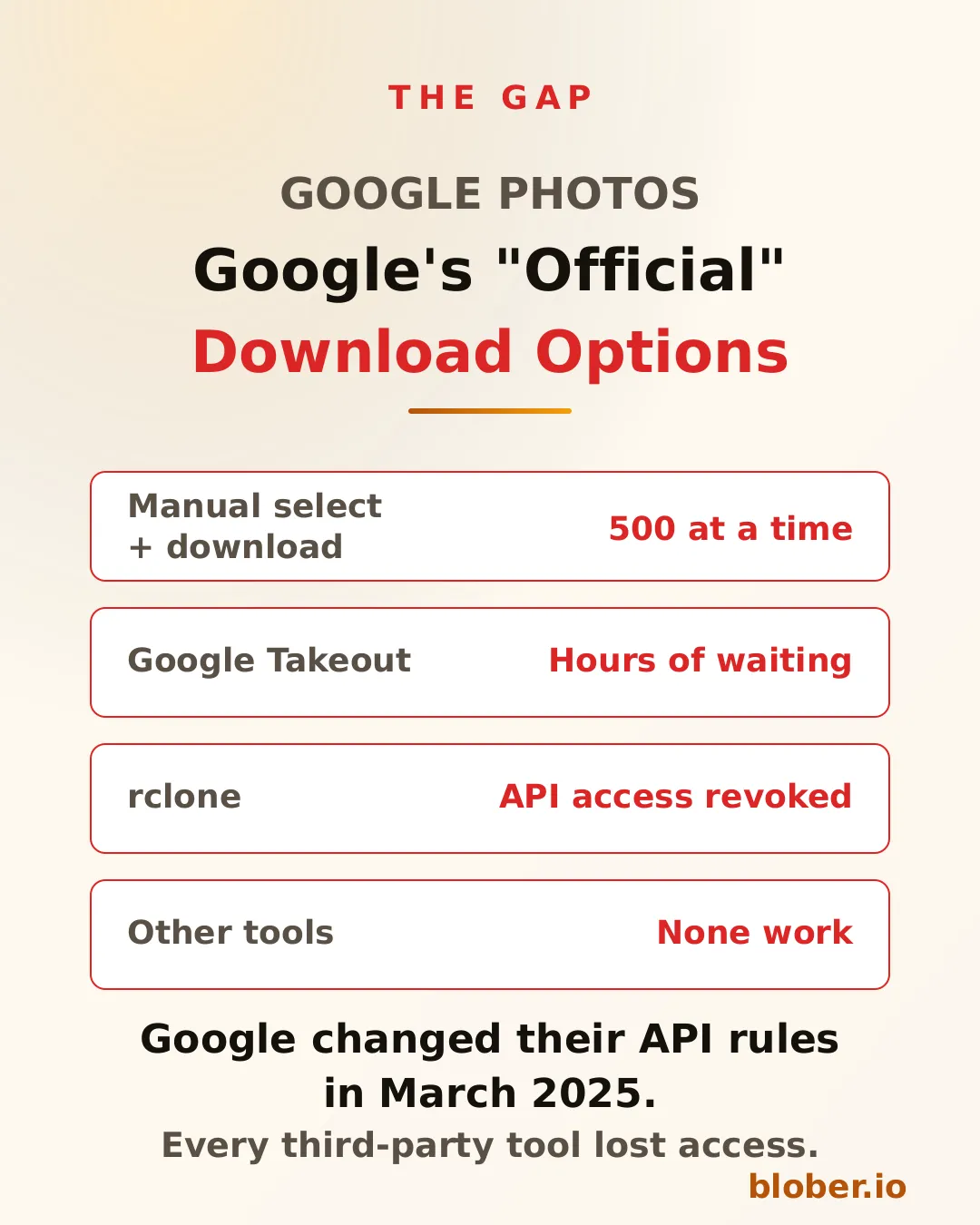
If you have 10,000 or 50,000 photos in Google Photos and you want them on your computer, Google gives you two options:

  1. Select photos manually in the web interface. You can select up to 500 at a time, click download, and receive a zip file. Then repeat until you have covered your entire library.
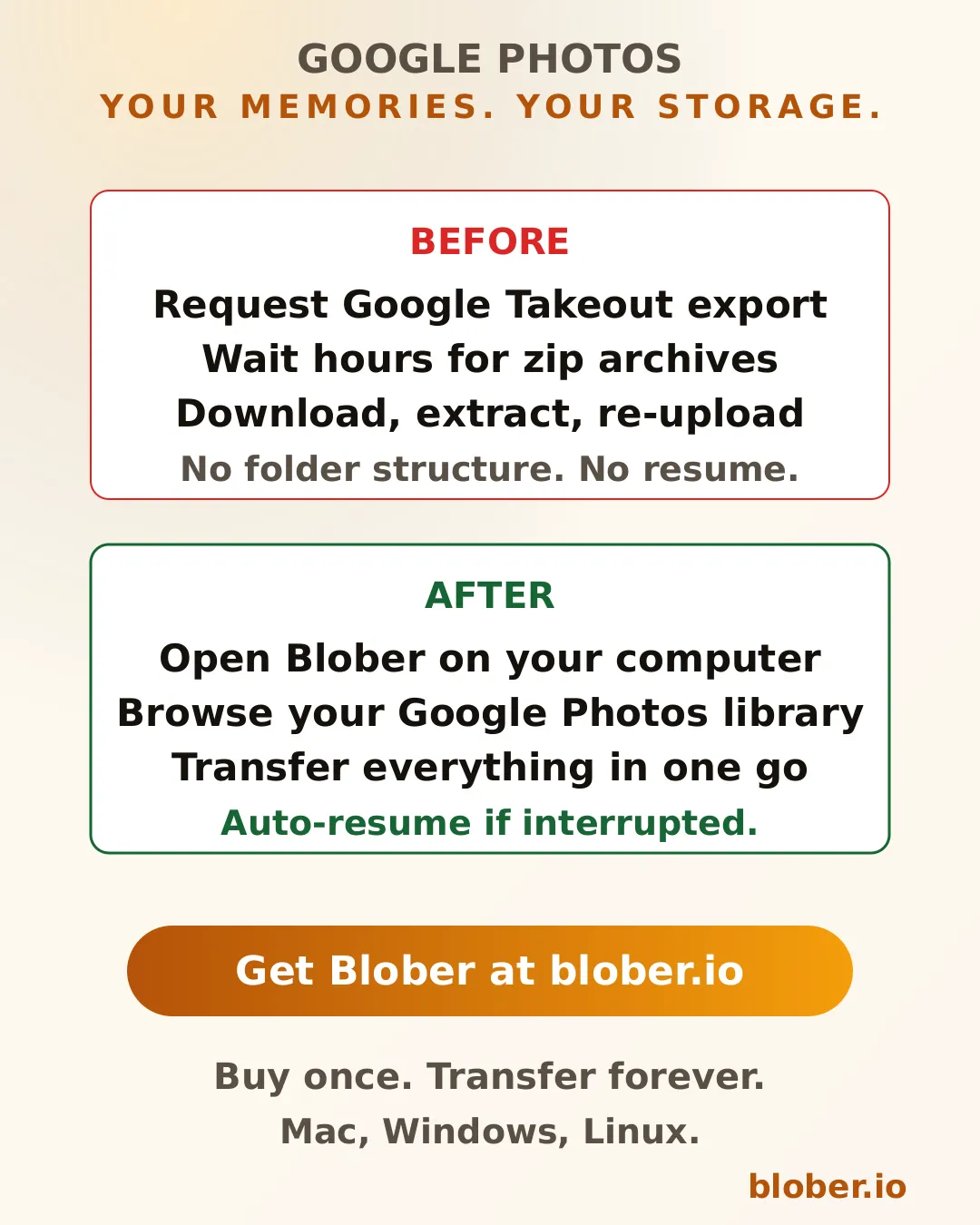
  2. Use Google Takeout to request an export of your entire library. Google will prepare zip archives and email you a download link. This process can take hours or even days depending on library size.

Neither option lets you browse your library, pick a destination, and transfer everything in one step. There is no sync, no resume, and no way to send files directly to another cloud provider.

Google Photos has no download all button, Takeout takes hours, rclone lost library access, and manual download requires selecting photos one by one

Google Takeout: The Problems Nobody Talks About

Section titled "Google Takeout: The Problems Nobody Talks About"

Google Takeout is the official way to export your Google Photos library. On paper it works. In practice, it has real limitations:

  • Wait time. Google creates your archive in the background. For large libraries, this can take 12 to 48 hours.
  • Zip file format. Your photos arrive in multiple zip archives, often split into 2 GB chunks. You have to download each zip and extract them manually.
  • No folder structure. Takeout dumps all photos into flat directories organized by date. If you had albums, those names may appear as metadata JSON files next to the images, not as actual folders.
  • No resume. If a download fails, you start over. There is no incremental sync.
  • No direct cloud transfer. You cannot send Takeout exports directly to Dropbox, Backblaze, or a NAS. Everything goes through your browser first.

For someone with 200 GB of family photos, Google Takeout means hours of waiting followed by hours of downloading and extracting.

Google's official download options compared: manual selection limited to 500 at a time, Takeout takes hours, rclone API access revoked, and other tools do not work

rclone Lost Full Library Access in March 2025

Section titled "rclone Lost Full Library Access in March 2025"

Until early 2025, rclone had a Google Photos backend that could list and download your photo library. Then Google changed their API access policy.

Starting March 31, 2025, rclone can only download photos that were uploaded through the rclone API itself. If you uploaded your photos through the Google Photos app, the web interface, or any other method, rclone cannot access them anymore.

The rclone documentation states it clearly: "From March 31, 2025 rclone can only download photos it uploaded."

This means rclone is no longer a viable tool for backing up or migrating an existing Google Photos library. Other transfer tools like MultCloud, Flexify, and various CLI utilities face the same restriction or never supported Google Photos at all.

Blober downloads your entire Google Photos library without Takeout, with no manual selection, transfer to any cloud or disk, and auto-resume

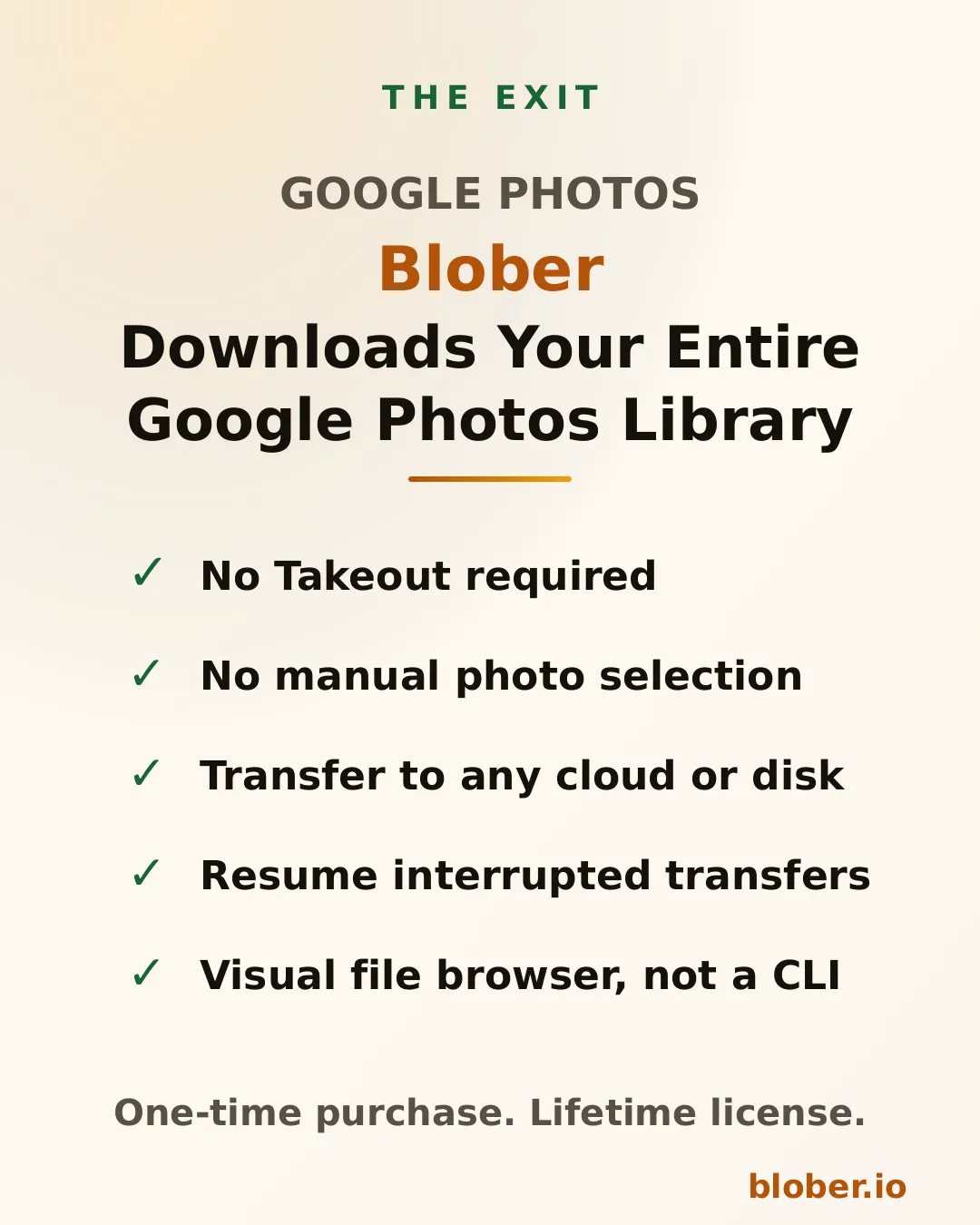
Blober Downloads Your Entire Google Photos Library

Section titled "Blober Downloads Your Entire Google Photos Library"

Blober is a desktop application that connects to Google Photos and gives you a visual file browser showing your entire library. From there, you can:

  • Download all photos and videos to your local disk, external drive, or NAS
  • Transfer your library to Dropbox, Google Drive, Backblaze B2, AWS S3, or any other supported provider
  • Browse by album, date, or folder with a familiar file manager interface
  • Resume interrupted transfers automatically if your connection drops
  • Optionally replace files with existing filenames by setting destination deduplication to Overwrite the existing file. The default skips them instead

No Google Takeout. No zip files. No manual selection. You connect your Google Photos account, pick a destination, and Blober handles the rest.

FeatureGoogle TakeoutBlober
Bulk downloadYes, after hours of waitingYes, immediate
Folder structureFlat zip archivesAlbums and dates preserved
Resume on failureNoYes, automatic
Transfer to another cloudNo, browser download onlyYes, direct to any provider
Real-time browsingNoYes, visual file browser
Incremental syncNoRe-runs into a local drive or NAS can skip already-downloaded files

For repeat exports, see how task resume and destination deduplication prevent duplicate downloads. Resume an interrupted task to preserve its per-file progress. When you intentionally start a new export into the same folder, the destination skips files that are already there by default, and you can switch it to overwrite them instead.

Before and after comparison showing Google Takeout workflow versus Blober's direct Google Photos download and transfer

Back Up Google Photos to a Local Drive

Section titled "Back Up Google Photos to a Local Drive"

Connect Google Photos in Blober, select your local disk as the destination, and transfer. Every photo and video downloads to a folder on your computer. If you have 100 GB of photos, Blober will transfer them without creating zip files or requiring extraction.

Migrate Google Photos to Dropbox or iCloud

Section titled "Migrate Google Photos to Dropbox or iCloud"

If you are leaving Google Photos for another service, Blober lets you transfer your library directly. Connect Google Photos as the source and Dropbox as the destination. Your photos move from one cloud to the other without touching your local disk (or through it, if you prefer a local copy).

Create a Cold Backup on Backblaze B2

Section titled "Create a Cold Backup on Backblaze B2"

Pair Google Photos with Backblaze B2 in Blober. Your entire photo library gets copied to B2 at $6.95/TB/month for storage. This gives you an independent backup that does not depend on Google.


Google Photos is not a backup. It is a service that can change its terms, adjust its storage pricing, or restrict access at any time. The March 2025 API change proved that: tools that worked for years stopped working overnight.

Having a local copy of your photos, or a copy in a second cloud provider, means you are not dependent on a single company to access your own memories.

Blober makes that transfer possible without the pain of Google Takeout, without CLI configuration, and without selecting 500 photos at a time.


  • Anyone with a large Google Photos library who wants a local backup
  • Users leaving Google Photos for Dropbox, iCloud, or another service
  • Parents and families with years of photos who want a second copy on a hard drive
  • Photographers who used Google Photos as a sync target and need to migrate
  • Privacy-conscious users who want their photos on storage they control

Blober is a one-time purchase with a lifetime license. No subscriptions. No transfer fees. No transfer limits. It runs on Mac, Windows, and Linux.

Download Blober at blober.io