
How to Backup Google Photos Without Google Takeout (After rclone Lost Access)
Google Photos Does Not Have a "Download All" Button
Section titled "Google Photos Does Not Have a "Download All" Button"If you have 10,000 or 50,000 photos in Google Photos and you want them on your computer, Google gives you two options:
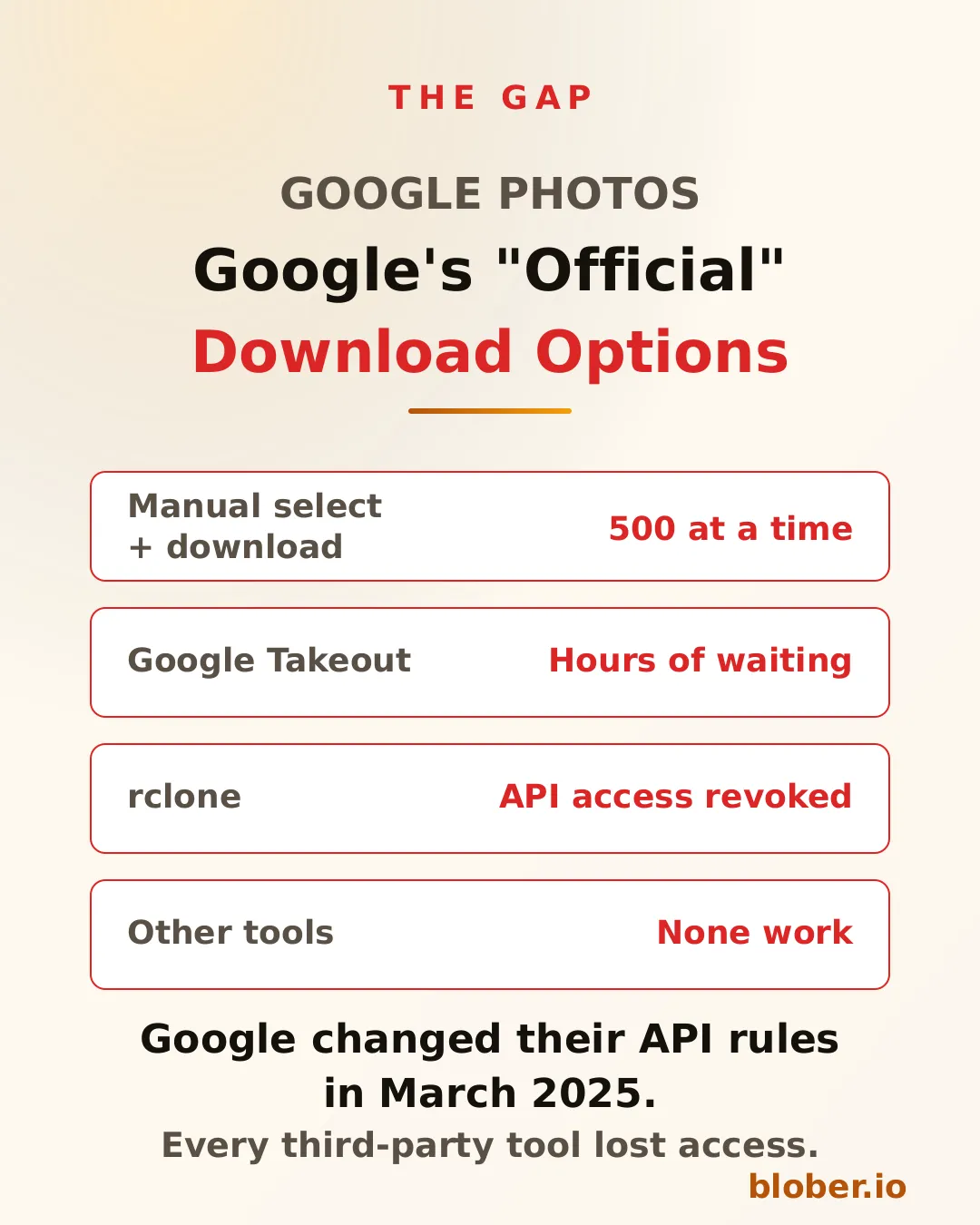
- Select photos manually in the web interface. You can select up to 500 at a time, click download, and receive a zip file. Then repeat until you have covered your entire library.
- Use Google Takeout to request an export of your entire library. Google will prepare zip archives and email you a download link. This process can take hours or even days depending on library size.
Neither option lets you browse your library, pick a destination, and transfer everything in one step. There is no sync, no resume, and no way to send files directly to another cloud provider.

Google Takeout: The Problems Nobody Talks About
Section titled "Google Takeout: The Problems Nobody Talks About"Google Takeout is the official way to export your Google Photos library. On paper it works. In practice, it has real limitations:
- Wait time. Google creates your archive in the background. For large libraries, this can take 12 to 48 hours.
- Zip file format. Your photos arrive in multiple zip archives, often split into 2 GB chunks. You have to download each zip and extract them manually.
- No folder structure. Takeout dumps all photos into flat directories organized by date. If you had albums, those names may appear as metadata JSON files next to the images, not as actual folders.
- No resume. If a download fails, you start over. There is no incremental sync.
- No direct cloud transfer. You cannot send Takeout exports directly to Dropbox, Backblaze, or a NAS. Everything goes through your browser first.
For someone with 200 GB of family photos, Google Takeout means hours of waiting followed by hours of downloading and extracting.
rclone Lost Full Library Access in March 2025
Section titled "rclone Lost Full Library Access in March 2025"Until early 2025, rclone had a Google Photos backend that could list and download your photo library. Then Google changed their API access policy.
Starting March 31, 2025, rclone can only download photos that were uploaded through the rclone API itself. If you uploaded your photos through the Google Photos app, the web interface, or any other method, rclone cannot access them anymore.
The rclone documentation states it clearly: "From March 31, 2025 rclone can only download photos it uploaded."
This means rclone is no longer a viable tool for backing up or migrating an existing Google Photos library. Other transfer tools like MultCloud, Flexify, and various CLI utilities face the same restriction or never supported Google Photos at all.
Blober Downloads Your Entire Google Photos Library
Section titled "Blober Downloads Your Entire Google Photos Library"Blober is a desktop application that connects to Google Photos and gives you a visual file browser showing your entire library. From there, you can:
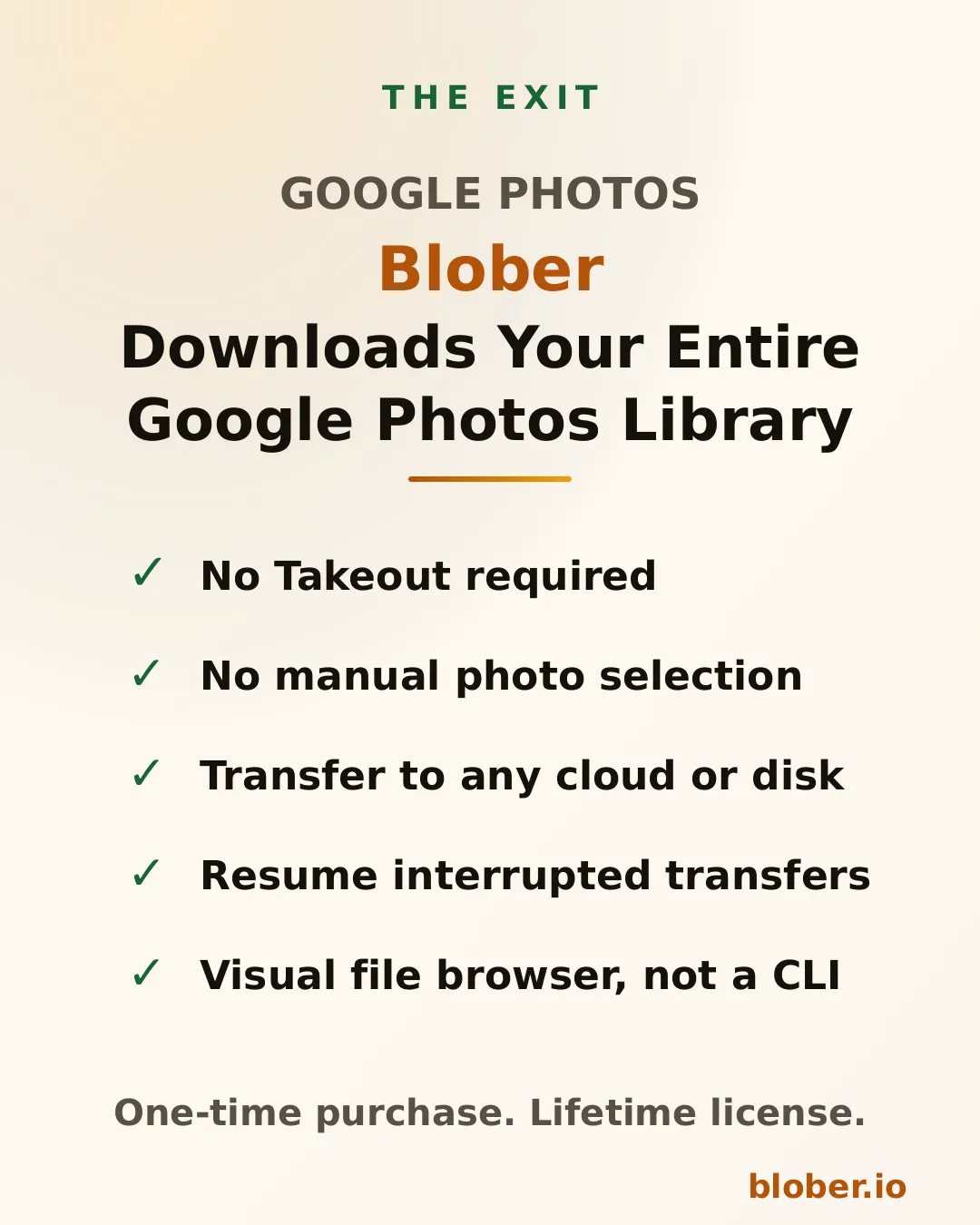
- Download all photos and videos to your local disk, external drive, or NAS
- Transfer your library to Dropbox, Google Drive, Backblaze B2, AWS S3, or any other supported provider
- Browse by album, date, or folder with a familiar file manager interface
- Resume interrupted transfers automatically if your connection drops
- Optionally replace files with existing filenames by setting destination deduplication to Overwrite the existing file. The default skips them instead
No Google Takeout. No zip files. No manual selection. You connect your Google Photos account, pick a destination, and Blober handles the rest.
How It Compares to Takeout
Section titled "How It Compares to Takeout"| Feature | Google Takeout | Blober |
|---|---|---|
| Bulk download | Yes, after hours of waiting | Yes, immediate |
| Folder structure | Flat zip archives | Albums and dates preserved |
| Resume on failure | No | Yes, automatic |
| Transfer to another cloud | No, browser download only | Yes, direct to any provider |
| Real-time browsing | No | Yes, visual file browser |
| Incremental sync | No | Re-runs into a local drive or NAS can skip already-downloaded files |
For repeat exports, see how task resume and destination deduplication prevent duplicate downloads. Resume an interrupted task to preserve its per-file progress. When you intentionally start a new export into the same folder, the destination skips files that are already there by default, and you can switch it to overwrite them instead.
Common Use Cases
Section titled "Common Use Cases"Back Up Google Photos to a Local Drive
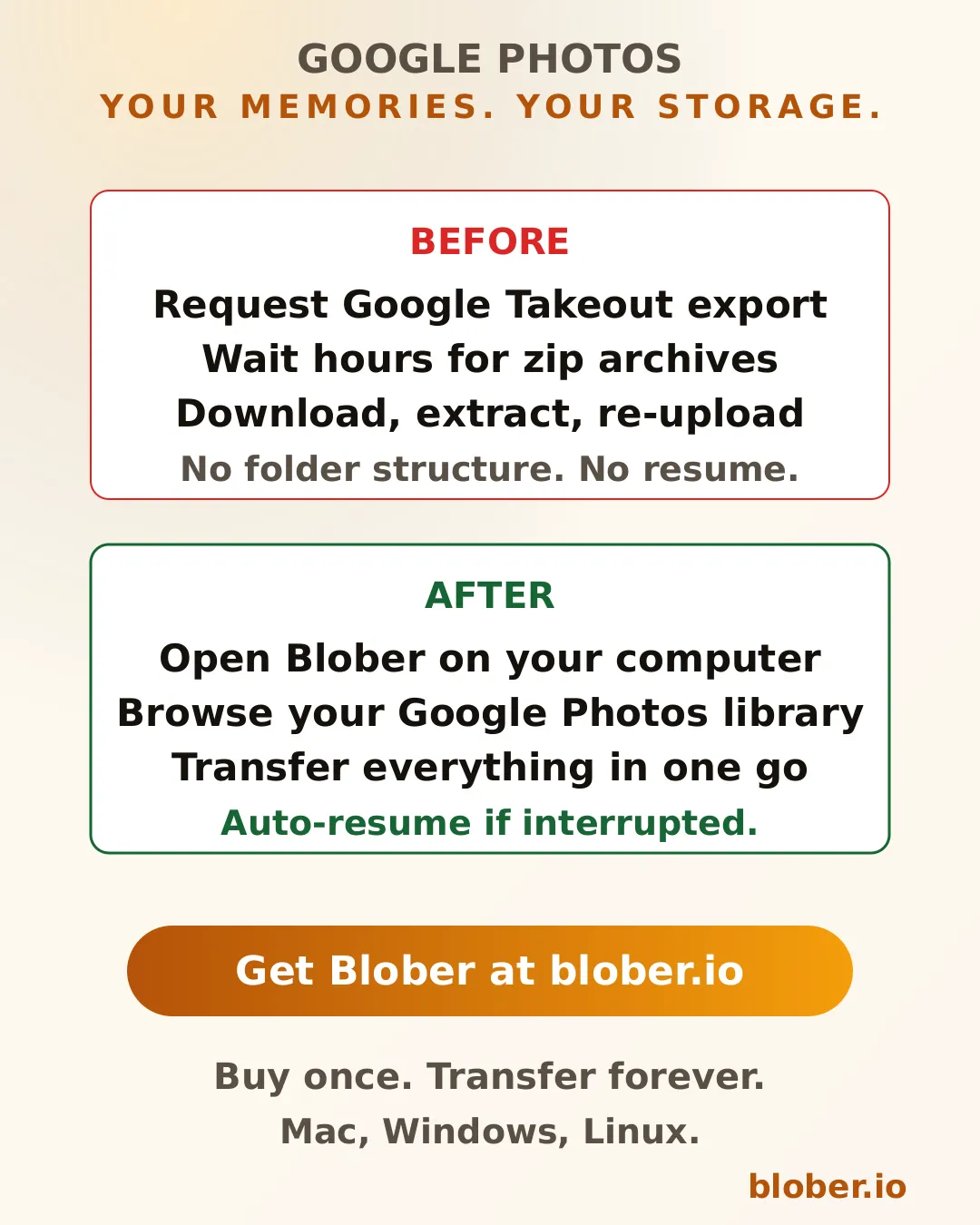
Section titled "Back Up Google Photos to a Local Drive"Connect Google Photos in Blober, select your local disk as the destination, and transfer. Every photo and video downloads to a folder on your computer. If you have 100 GB of photos, Blober will transfer them without creating zip files or requiring extraction.
Migrate Google Photos to Dropbox or iCloud
Section titled "Migrate Google Photos to Dropbox or iCloud"If you are leaving Google Photos for another service, Blober lets you transfer your library directly. Connect Google Photos as the source and Dropbox as the destination. Your photos move from one cloud to the other without touching your local disk (or through it, if you prefer a local copy).
Create a Cold Backup on Backblaze B2
Section titled "Create a Cold Backup on Backblaze B2"Pair Google Photos with Backblaze B2 in Blober. Your entire photo library gets copied to B2 at $6.95/TB/month for storage. This gives you an independent backup that does not depend on Google.
Why This Matters
Section titled "Why This Matters"Google Photos is not a backup. It is a service that can change its terms, adjust its storage pricing, or restrict access at any time. The March 2025 API change proved that: tools that worked for years stopped working overnight.
Having a local copy of your photos, or a copy in a second cloud provider, means you are not dependent on a single company to access your own memories.
Blober makes that transfer possible without the pain of Google Takeout, without CLI configuration, and without selecting 500 photos at a time.
Who Is This For?
Section titled "Who Is This For?"- Anyone with a large Google Photos library who wants a local backup
- Users leaving Google Photos for Dropbox, iCloud, or another service
- Parents and families with years of photos who want a second copy on a hard drive
- Photographers who used Google Photos as a sync target and need to migrate
- Privacy-conscious users who want their photos on storage they control
Get Blober
Section titled "Get Blober"Blober is a one-time purchase with a lifetime license. No subscriptions. No transfer fees. No transfer limits. It runs on Mac, Windows, and Linux.