Skip to content

cloud migration

25 posts with the tag “cloud migration”

How to Migrate from DigitalOcean Spaces to AWS S3

Migrate from DigitalOcean Spaces to AWS S3 with Blober

DigitalOcean Spaces is a good starting point for object storage. It is simple, affordable ($5/month for 250 GB + 1 TB transfer), and S3-compatible. For small to mid-size projects, it does the job.

But as your storage needs grow, you run into limitations:

  • Region constraints. Spaces are region-scoped. Each region only sees its own Spaces. Cross-region replication is not available.
  • No storage tiers. Everything is stored at the same tier. There is no equivalent to S3’s Glacier or Intelligent-Tiering for cost optimization.
  • Limited ecosystem. AWS S3 integrates with hundreds of services: Lambda, CloudFront, Athena, Step Functions, SageMaker. DigitalOcean’s ecosystem is smaller.
  • Bandwidth limits. The included 1 TB transfer can be burned through quickly on busy applications.

When a project outgrows Spaces, AWS S3 is the most common destination.

DigitalOcean runs Spaces across 7 regions: NYC3, SFO3, AMS3, SGP1, FRA1, SYD1, and BLR1. If you have Spaces in multiple regions, you need to handle each region separately.

Blober detects all your Spaces across all DigitalOcean regions automatically. When you connect your DigitalOcean account, Blober probes all 7 regions in parallel and presents a unified view of all your Spaces. You do not need to configure each region separately.

DigitalOcean recently introduced cold storage tiers for Spaces. Blober detects whether a Space is using Standard or Cold storage and flags it accordingly. This helps you make informed decisions about which S3 storage class to target.

Add DigitalOcean Spaces as a provider in Blober. You can use either:

  • S3-compatible credentials (Access Key + Secret Key) for basic access
  • Personal Access Token for richer bucket listing with project metadata

Blober discovers all your Spaces across all regions.

Add AWS S3 with your Access Key ID, Secret Access Key, and preferred region. Blober lists your S3 buckets.

Create a workflow with DigitalOcean as the source and S3 as the destination. Browse your Spaces, select files or entire Spaces, and choose the target S3 bucket and storage class.

Options for the destination:

  • Storage class: Standard, Intelligent-Tiering, Standard-IA, Glacier Instant Retrieval, Glacier, or Deep Archive
  • Target bucket: Any existing S3 bucket (or create one in the AWS console first)

Blober handles the transfer with parallel multipart uploads on both sides. S3-to-S3-compatible transfers are efficient because both services speak the same protocol.

DigitalOcean SpacesAWS S3 StandardAWS S3 Standard-IA
Storage (1 TB)$5/mo (250 GB included) + $20/mo extra$23/mo$12.50/mo
Bandwidth (1 TB)Included$90/mo$90/mo
PUT requests (100K)$0.50$0.50$1.00

DigitalOcean is cheaper for simple, low-traffic use cases. S3 is more cost-effective at scale with its tiering options, especially if you use Intelligent-Tiering or Glacier for archival data.

One-time purchase. Transfer as much as you need.

Download Blober at blober.io

How to Migrate from Google Drive to Backblaze B2

Migrate Google Drive files to Backblaze B2 with Blober

Why Move from Google Drive to Backblaze B2?

Section titled “Why Move from Google Drive to Backblaze B2?”

Google Drive is a collaboration tool with storage built in. Backblaze B2 is pure storage built for scale. The reasons people move between them usually come down to one or more of these:

  • Cost. Google One charges $100/year for 2 TB. Backblaze B2 charges $6.95/TB/month, but for archival or backup data you access rarely, the math works differently. If you are storing 5+ TB of media, raw footage, or project archives, B2 can be significantly cheaper depending on your access patterns.
  • Control. B2 gives you S3-compatible API access, which means you can integrate it with backup tools, CDNs, media workflows, and custom applications. Google Drive’s API is more limited for bulk operations.
  • Redundancy. Keeping a copy of your Google Drive data in B2 means you are not dependent on a single provider. If Google changes pricing, restricts your account, or has an outage, your files are safe elsewhere.

Google Drive stores native files (Docs, Sheets, Slides) as cloud-only application states, not as downloadable files. When you need them outside of Google, they must be converted to Office formats first.

Google Takeout can export your Drive, but it takes hours, produces fragmented zip archives, and flattens your folder structure. For a migration to B2 specifically, Takeout is especially awkward because you would need to download everything locally, extract it, then upload it to B2 using a separate tool.

Blober connects to both Google Drive and Backblaze B2. It handles the tricky parts automatically:

  • Google Docs become .docx files during transfer
  • Google Sheets become .xlsx files during transfer
  • Google Slides become .pptx files during transfer
  • Regular files (photos, videos, PDFs) transfer as-is
  • Folder structure is preserved in your B2 bucket
  • Shared files are accessible through a “Shared with me” virtual folder
  1. Connect Google Drive: Add Google Drive as a provider in Blober. OAuth login through your browser.
  2. Connect Backblaze B2: Add B2 with your Application Key ID and Application Key. Blober auto-detects your bucket regions.
  3. Create a workflow: Set Google Drive as source, B2 as destination. Browse and select files or folders.
  4. Run: Blober streams files from Google Drive to B2 through your machine. No local storage needed for intermediate files.
Google One (2 TB)Backblaze B2 (2 TB)
Monthly$8.33~$14
Annual$100~$167
5 TB$25/month (Google One Premium)~$35/month
10 TB+Not available on consumer plans~$70/month
EgressFree (via Drive sync/download)Free up to 3x stored

For small amounts of active data, Google Drive is the better deal. For large archives, backups, and media libraries that you rarely access, B2’s pay-for-what-you-use model wins.

Many people do not fully leave Google Drive. Instead, they keep it for active collaboration (shared documents, team folders) and move everything else to B2:

  • Current projects stay in Google Drive for real-time editing
  • Completed projects, old photos, and archives go to Backblaze B2
  • Blober handles the transfer once, then you adjust your Google storage plan

This hybrid approach gives you the best of both: Google’s collaboration features for active work and B2’s affordable storage for everything else.

One-time purchase. No subscription, no per-GB fees.

Download Blober at blober.io

How to Migrate Google Drive Files to AWS S3

Migrate Google Drive files to AWS S3 with Blober

Google Drive works great as a collaboration tool. Real-time editing, sharing links, 15 GB free storage. But when your data grows past a few hundred gigabytes, or when you need programmatic access, versioning policies, or storage tiering, Google Drive starts showing its limits.

AWS S3 is built for exactly those use cases. It handles petabytes, offers multiple storage classes, integrates with hundreds of AWS services, and gives you full API control. The gap between Google Drive and S3 is not about which is “better.” It is about what each one is built for.

Moving from one to the other is where things get complicated.

Google Drive stores some files as native Google formats: Google Docs, Google Sheets, Google Slides. These are not actual files on disk. They are application states stored in Google’s cloud. You cannot download a “Google Doc file” the way you download a PDF.

When you export from Google Drive (or use Google Takeout), these files get converted to their Microsoft Office equivalents: DOCX, XLSX, PPTX. But this conversion is often inconsistent with Takeout, and the folder structure gets flattened.

Blober connects to Google Drive via OAuth and to AWS S3 via access keys. It solves the two biggest pain points of this migration:

When Blober encounters a Google Doc, Sheet, or Slide, it automatically converts it to the corresponding Office format (DOCX, XLSX, PPTX) during transfer. This happens on the fly. You do not need to manually export anything.

The converted files land in your S3 bucket in a usable format that any application can read.

Blober recreates your Google Drive folder hierarchy in S3. If you have Work/Projects/2025/Proposal.docx in Google Drive, it becomes Work/Projects/2025/Proposal.docx in your S3 bucket. No flat dumps, no reorganization needed.

Google Drive has a “Shared with me” section that is separate from your main drive. Blober shows this as a browsable folder, so you can include shared files in your migration if needed.

  1. Connect Google Drive: Add Google Drive as a provider. Blober opens a browser window for OAuth authorization. Sign in and grant access.
  2. Connect AWS S3: Add S3 with your Access Key ID, Secret Access Key, and region.
  3. Create a workflow: Set Google Drive as source, S3 as destination. Browse your Drive, select files and folders.
  4. Choose S3 options: Pick the storage class (Standard, Intelligent-Tiering, Standard-IA, Glacier, etc.) and target bucket.
  5. Run: Blober transfers with progress tracking and auto-resume.

One advantage of moving to S3 is choosing the right storage class for your data:

Storage ClassUse CaseCost (per TB/mo)
StandardFrequently accessed files~$23
Intelligent-TieringUnknown access patterns~$23 (auto-optimizes)
Standard-IAInfrequent access, fast retrieval~$12.50
Glacier InstantArchive with instant access~$4
Glacier Deep ArchiveLong-term cold storage~$1

With Blober, you set the storage class when creating the workflow. All transferred files land on the tier you choose. If you want different tiers for different data, create multiple workflows.

  • Startups growing out of Google Workspace who need infrastructure-grade storage
  • Data teams that need to run analytics on files currently in Google Drive
  • Companies consolidating storage to AWS for compliance or integration reasons
  • Developers who want S3’s API and event-driven architecture instead of Google Drive’s sync model

One-time purchase. No per-GB fees, no subscription.

Download Blober at blober.io

How to Move Data from Azure Blob Storage to Cloudflare R2

Move data from Azure Blob Storage to Cloudflare R2 with Blober

Azure Blob Storage charges $0.087 per GB for data leaving their network. If you serve 1 TB of files per month to users or external systems, that is $87/month in egress alone, on top of storage costs.

Cloudflare R2 charges $0 for egress. Zero. Nothing. You pay for storage ($0.015/GB/month) and operations, but downloading data from R2 is free. For applications that serve files to users, APIs, CDNs, or other services, switching to R2 can cut your cloud bill significantly.

The most common reason is cost. If your Azure Blob account is mostly used for serving static assets, media files, backups that get restored frequently, or API responses, the egress fees can dwarf your storage costs. R2 removes that variable entirely.

Another reason is simplicity. R2 is S3-compatible, meaning any tool or SDK that works with S3 works with R2. If your application already uses the S3 API (many do, even on Azure), the migration is mostly about moving data and updating the endpoint.

Blober supports both Azure Blob Storage and Cloudflare R2 as native providers. The transfer works like any other Blober workflow: connect both accounts, select files, run.

Add Azure Blob as a provider with your connection string. Blober lists your containers and their contents.

Add Cloudflare R2 as a provider. You will need your Account ID along with an S3-compatible Access Key ID and Secret Access Key from the Cloudflare dashboard. If you also provide a Cloudflare API token, Blober can list your buckets through Cloudflare’s native API with server-side pagination, which is more efficient for accounts with many buckets.

Set Azure Blob as the source and Cloudflare R2 as the destination. Browse your Azure containers, select the files or containers you want to migrate, and choose the destination bucket in R2.

Blober streams data from Azure through your machine to R2. It uses parallel uploads on both ends, so large files move efficiently. If the transfer is interrupted, Blober resumes from where it stopped.

What About Azure Egress Fees During Migration?

Section titled “What About Azure Egress Fees During Migration?”

This is the unavoidable part. Moving data out of Azure means paying egress. For the initial migration, you will pay $0.087/GB to get your data from Azure to your machine (where Blober runs), and from there to R2.

For 1 TB, that is about $87 in egress fees. That is a one-time cost. After the migration, your ongoing egress from R2 is $0.

If you were paying $87/month in Azure egress, the migration pays for itself in the first month.

Data SizeAzure Egress Cost (one-time)Monthly Savings on R2
500 GB~$43Depends on egress pattern
1 TB~$87Up to $87/month
5 TB~$435Up to $435/month
10 TB~$870Up to $870/month

This matters because your application code likely uses the AWS SDK or an S3-compatible client. After migrating data to R2, updating your app is often as simple as changing the endpoint URL and credentials. No SDK changes, no API rewrites.

Blober connects to R2 using the same S3 protocol, so the transfer is seamless.

R2 is excellent for serving files and eliminating egress. But Azure has features that R2 does not:

  • Storage tiers (Hot, Cool, Cold, Archive) for lifecycle cost optimization
  • Geo-redundant replication built into the platform
  • Azure Functions and event triggers tied to blob operations
  • Enterprise compliance certifications that some industries require

If you need those features, Azure is worth the egress premium. Many teams keep some data on Azure (for processing and compliance) and move the served/public data to R2 (for cost savings).

One-time purchase. Transfer as much data as you need.

Download Blober at blober.io

How to Move Files from Dropbox to Backblaze B2

Move files from Dropbox to Backblaze B2 with Blober

Dropbox works well as a file sync tool. You drop files in a folder and they show up on all your devices. But as your data grows, Dropbox gets expensive. The Plus plan costs $120/year for 2 TB. If you have 5 TB or more, you need Dropbox Business at $180/year per user.

Backblaze B2 charges $6.95 per TB per month for storage. For 2 TB, that is about $14/month or $167/year. But here is where it gets interesting: most of the data sitting in Dropbox is not being actively synced. It is old projects, archives, backups, photos from three years ago. That data does not need instant sync to every device. It needs to be stored cheaply and retrieved when needed.

For archival and backup storage, Backblaze B2 is significantly cheaper. And unlike Dropbox, you only pay for what you use. No fixed plans, no storage ceilings.

The Problem with Moving Data Out of Dropbox

Section titled “The Problem with Moving Data Out of Dropbox”

The obvious approach is to download everything from Dropbox to your computer, then upload it to Backblaze B2. This works for small amounts of data. For 500 GB or more, it becomes painful:

  • You need enough free space on your local disk to hold the download
  • Downloading takes hours or days depending on your connection
  • Uploading to B2 takes equally long
  • If anything fails midway, you start over

Some people try rclone for this. rclone works, but you need to configure both remotes in a text file, understand the command syntax, and handle errors yourself. If you are comfortable with the terminal, rclone is a solid choice. If you are not, it is a wall.

Blober connects to both Dropbox and Backblaze B2. You set up both providers, select the files you want to move, and Blober handles the transfer. Files stream from Dropbox through your computer to Backblaze B2 without needing to store them locally.

Add Dropbox as a provider in Blober. Click the OAuth login button and authorize Blober with your Dropbox account. Blober stores your credentials locally on your machine, not on any server.

Add Backblaze B2 as a provider. You will need your Application Key ID and Application Key from the Backblaze dashboard. Blober verifies the connection and lists your buckets.

Create a new workflow with Dropbox as the source and Backblaze B2 as the destination. Browse your Dropbox files, select what you want to transfer, and choose which B2 bucket to send it to.

Click run. Blober transfers files with parallel uploads, progress tracking, and automatic resume if your connection drops.

Blober preserves your folder structure. If you have Projects/2024/Client-A/ in Dropbox, it creates the same path in your B2 bucket. You do not end up with a flat pile of files.

Dropbox PlusBackblaze B2 (2 TB)
Monthly cost$10/month~$14/month
5 TBNeed Business plan ($15/user/mo)~$35/month
10 TBNeed Business plan~$70/month
EgressFree (sync)Free to Cloudflare partners, $0.01/GB otherwise
API accessOAuthS3-compatible

For pure storage (not sync), B2 wins at every tier above 2 TB. And if you pair B2 with Cloudflare CDN through the Bandwidth Alliance, egress is free.

This is not about abandoning Dropbox entirely. Dropbox is great for active files you need on every device. The move that makes sense for most people is:

  • Keep Dropbox for current projects and actively used files
  • Move archives, old projects, and large media to Backblaze B2
  • Use Blober to transfer the archival data once, then cancel the upgraded Dropbox plan

Blober is a one-time purchase. No subscription, no per-GB transfer fees.

Download Blober at blober.io

How to Move Files from Dropbox to Google Drive

Move files from Dropbox to Google Drive with Blober

People switch from Dropbox to Google Drive for a few common reasons:

  • Their company standardized on Google Workspace and needs everything in Drive
  • Google One pricing is more competitive for their storage needs (2 TB for $100/year vs Dropbox Plus at $120/year)
  • They want the Google Docs, Sheets, and Slides collaboration features
  • They are consolidating everything under one Google account

The actual move is where friction shows up.

Without a migration tool, moving from Dropbox to Google Drive looks like this:

  1. Install the Dropbox desktop client
  2. Wait for all files to sync to your computer
  3. Drag those files into your Google Drive folder (if using the desktop client) or upload them through the browser
  4. Wait for everything to upload
  5. Verify nothing was missed

This requires enough local disk space to hold your entire Dropbox. If you have 500 GB in Dropbox and a 256 GB laptop, you are stuck.

Even with enough space, the process is slow. You are downloading everything from Dropbox’s servers to your local disk, then uploading everything from your local disk to Google’s servers. That is double the transfer time.

Blober connects to both Dropbox and Google Drive. Files stream from Dropbox through your computer to Google Drive without being stored on your local disk. You need just enough memory to buffer the current file being transferred, not enough disk space for your entire library.

  • No disk space worries. A 1 TB Dropbox migrates to Google Drive even on a laptop with 128 GB of storage.
  • Half the network time. Instead of download + upload (two trips), Blober streams the data through in a single pass. The download from Dropbox and upload to Google Drive happen simultaneously.
  • Folder structure preserved. Your Dropbox folder hierarchy recreates exactly in Google Drive.
  1. Connect Dropbox: OAuth login in your browser. Blober supports both long-term OAuth tokens (with refresh) and direct access tokens.
  2. Connect Google Drive: OAuth login in your browser. Blober accesses your Drive files.
  3. Browse and select: Navigate your Dropbox in Blober’s file browser. Select specific folders or your entire Dropbox.
  4. Create a workflow: Set Dropbox as source, Google Drive as destination.
  5. Run: Blober transfers with auto-resume and progress tracking.

Dropbox is one of the providers where Blober supports native copy and move operations. This means:

  • Copy duplicates files within Dropbox without re-downloading them
  • Move relocates files within Dropbox without a round-trip transfer

For the cross-cloud transfer to Google Drive, files stream through your machine as described above. But if you also need to reorganize files within Dropbox before or after the migration, Blober handles that natively.

Once your files are in Google Drive:

  • They are accessible from any device with a Google account
  • Google automatically indexes content for search
  • Office files (DOCX, XLSX, PPTX) can be edited natively in Google Docs/Sheets/Slides
  • Files sync across devices via the Google Drive desktop app

You can keep Dropbox installed alongside Google Drive if you need a transition period. Once you verify everything transferred correctly, you can downgrade or cancel Dropbox.

One-time purchase. No subscription, no per-GB fees.

Download Blober at blober.io

How to Switch from Google Drive to Dropbox

Switch from Google Drive to Dropbox with Blober

Google Drive vs Dropbox: Different Strengths

Section titled “Google Drive vs Dropbox: Different Strengths”

Google Drive is tightly integrated with Google Workspace. If your team lives in Gmail and Google Docs, Drive is the natural file storage. But if you work with non-Google tools, or you need reliable desktop sync, offline access, and smart file management, Dropbox has a stronger desktop experience.

People switch from Google Drive to Dropbox for a few reasons:

  • Dropbox’s desktop sync is more reliable for large file sets
  • Better support for non-Google file formats and creative tools
  • Dropbox Paper, Smart Sync, and team folder management
  • Moving away from Google Workspace entirely

Whatever the reason, the migration is the part nobody looks forward to.

Google Drive stores some files as native Google formats. Google Docs, Sheets, and Slides are not files in the traditional sense. They exist only in Google’s cloud. You cannot drag a Google Doc into Dropbox.

If you try to move files manually, you need to:

  1. Open each Google Doc, Sheet, or Slide
  2. Download it as DOCX, XLSX, or PPTX
  3. Upload it to Dropbox
  4. Repeat for every native Google file

For regular files (PDFs, images, videos), you download from Google Drive and upload to Dropbox. But you still need enough local disk space to hold everything, and you need to recreate the folder structure manually.

Google Takeout exports everything as flat zip archives. Your carefully organized folder structure disappears into date-stamped directories.

Blober connects to both Google Drive and Dropbox. When it encounters Google Docs, Sheets, or Slides, it automatically converts them to their Office equivalents (DOCX, XLSX, PPTX) during the transfer. Regular files pass through as-is.

  • Google Docs become .docx files that open in Word, Dropbox Paper, or any text editor
  • Google Sheets become .xlsx files that open in Excel or Numbers
  • Google Slides become .pptx files that open in PowerPoint or Keynote
  • Regular files (PDFs, images, videos) transfer without conversion
  • Folder structure preserved exactly as it appears in Google Drive
  • Shared files accessible through the “Shared with me” virtual folder
  1. Connect Google Drive: OAuth login through your browser
  2. Connect Dropbox: OAuth login (or paste an access token)
  3. Browse and select: Navigate your Google Drive in Blober’s file browser, select everything or specific folders
  4. Run the transfer: Files move from Google Drive to Dropbox through your computer

No local disk space needed for intermediate storage. Blober streams files directly from one cloud to the other.

Once your files are in Dropbox, you can:

  • Install Dropbox on your devices for desktop sync
  • Share folders and files with Dropbox’s sharing tools
  • Use Smart Sync to keep files in the cloud until you need them locally
  • Edit Office files directly (Dropbox has built-in Office integration)

The converted Google Docs are fully editable Office files. They are not locked into any format.

One-time purchase. No subscription, no per-GB fees.

Download Blober at blober.io

How to Switch from Wasabi to Backblaze B2

Switch from Wasabi to Backblaze B2 with Blober

Two S3-Compatible Providers, Different Tradeoffs

Section titled “Two S3-Compatible Providers, Different Tradeoffs”

Wasabi and Backblaze B2 both position themselves as affordable alternatives to AWS S3. Both are S3-compatible. Both offer low-cost storage. But they have meaningful differences that lead people to switch from one to the other.

Wasabi charges $6.99/TB/month with no egress fees. Sounds perfect, until you read the fine print:

  • 90-day minimum retention. If you delete or overwrite a file within 90 days, you still pay for the full 90 days of storage.
  • Egress is “free” with conditions. Your monthly egress cannot exceed your stored data. If you store 1 TB and download 1.5 TB in a month, Wasabi may contact you about their “reasonable use” policy.
  • No native CDN partnerships. Wasabi does not have bandwidth alliance partnerships like Backblaze does.

Backblaze B2 charges $6.95/TB/month for storage and $0.01/GB for egress. But:

  • Free egress through Cloudflare. Through the Bandwidth Alliance, egress from B2 to Cloudflare is free. If you use Cloudflare as your CDN (many do), egress is effectively $0.
  • No minimum retention. Store and delete whenever you want.
  • Free egress allowance. B2 includes 3x your storage amount in free egress each month. If you store 1 TB, you get 3 TB of free downloads.

For most use cases, Backblaze B2 ends up cheaper or equivalent to Wasabi, with fewer restrictions.

Both Wasabi and Backblaze B2 speak the S3 protocol. This means Blober uses the same underlying S3 operations for both providers, making the transfer clean and predictable.

  1. Connect Wasabi: Add Wasabi as a provider with your Access Key, Secret Key, and region (Wasabi uses region-specific endpoints like s3.us-east-1.wasabisys.com).
  2. Connect Backblaze B2: Add B2 with your Application Key ID and Application Key. Blober auto-detects your bucket regions.
  3. Create a workflow: Source = Wasabi, Destination = B2. Browse your Wasabi buckets, select what to move.
  4. Run: Blober transfers with parallel multipart uploads and automatic resume.
  • Multi-region detection for B2. Backblaze B2 buckets can be in different regions. Blober fetches all buckets via B2’s native API to determine the correct region for each, then configures the S3 endpoint accordingly.
  • Region-aware endpoints for Wasabi. Wasabi uses different endpoints per region. Blober maps your chosen region to the correct endpoint.
  • Large file support. Both providers handle multipart uploads. Blober chunks large files and uploads them in parallel.

When migrating from Wasabi, keep in mind the 90-day minimum retention policy. If you uploaded files to Wasabi less than 90 days ago, you will be charged for the full 90 days even after you delete them.

The practical approach:

  1. Transfer everything to Backblaze B2
  2. Wait until the oldest files in Wasabi pass the 90-day mark
  3. Then delete and close the Wasabi account

This avoids paying both Wasabi and B2 for the same data longer than necessary.

WasabiBackblaze B2
Storage per TB/mo$6.99$6.95
Egress per GB$0 (with conditions)$0.01 (free via Cloudflare)
Min retention90 daysNone
Free egress allowanceEqual to storage3x storage
CDN partnershipNoneCloudflare Bandwidth Alliance

One-time purchase. No recurring fees, no per-GB charges.

Download Blober at blober.io

How to Transfer Files from AWS S3 to Azure Blob Storage

Transfer files from AWS S3 to Azure Blob Storage with Blober

Moving Between the Two Largest Cloud Providers

Section titled “Moving Between the Two Largest Cloud Providers”

AWS S3 and Azure Blob Storage are the two most popular object storage services in the world. Companies move data between them for all sorts of reasons: switching primary cloud vendors, setting up multi-cloud redundancy, following compliance requirements, or simply taking advantage of Azure’s pricing for certain workloads.

The transfer itself is the hard part. Both providers have their own tools (AWS DataSync, Azure Data Box, AzCopy), but those tools are designed for their own ecosystem. Cross-cloud transfers with native tools usually require intermediate steps, scripting, or third-party managed services that charge per-GB.

You can download from S3 using the AWS CLI and upload to Azure using AzCopy. This requires local disk space for the intermediate files, separate authentication for each tool, and scripting to coordinate the two.

Services like Flexify charge per-GiB transferred. For large migrations (10 TB+), the fees add up. Your data also routes through their infrastructure, which may not meet compliance requirements.

rclone supports both S3 and Azure Blob. It works, but you need to configure both remotes, handle multipart upload settings, and manage the transfer from the command line.

Blober connects to both AWS S3 and Azure Blob Storage natively. You configure both providers with their respective credentials, create a workflow, and run the transfer. Files stream from S3 through your machine to Azure without intermediate storage.

What Blober Does That Matters for This Transfer

Section titled “What Blober Does That Matters for This Transfer”

Parallel uploads to Azure. Blober uses Azure’s uploadStream with configurable concurrency. Large files are streamed in parallel chunks, which makes a noticeable difference on fast connections.

S3 multipart downloads. On the source side, Blober downloads from S3 using the AWS SDK with multipart support. Large objects do not bottleneck the pipeline.

Azure tier selection. When setting up Azure as your destination, you choose which storage tier new blobs land on: Hot, Cool, Cold, or Archive. This means you can migrate directly to the tier that matches your access pattern without a second step to change tiers after upload.

Write behavior options. You can configure Blober to overwrite existing blobs, skip files that already exist at the destination, or skip only archived blobs. This is useful for incremental migrations where you want to resume without re-transferring what is already there.

  1. Connect AWS S3: Add S3 as a provider with your Access Key ID, Secret Access Key, and region. Blober lists your buckets.
  2. Connect Azure Blob: Add Azure Blob Storage with your connection string. Blober verifies and lists your containers.
  3. Create a workflow: Set S3 as source, Azure Blob as destination. Browse and select files or entire buckets.
  4. Choose Azure options: Pick the storage tier and write behavior.
  5. Run: Blober transfers with progress tracking and auto-resume.

If your S3 bucket is in us-east-1 and your Azure storage account is in westeurope, Blober handles the cross-region transfer. S3’s cross-region copy limitations (which affect native S3-to-S3 copies) do not apply here because the data flows through your machine.

The tradeoff is that transfer speed depends on your internet connection. For very large migrations (50 TB+), this is slower than a datacenter-to-datacenter transfer. But for migrations under 10 TB, running through Blober on a fast connection is often faster than coordinating managed services.

AWS S3 StandardAzure Blob HotAzure Blob Cool
Storage (per TB/mo)$23$18$10
Egress (per GB)$0.09$0.087$0.087
PUT requests (per 10K)$0.005$0.065$0.10

Azure is generally cheaper for storage. S3 is cheaper for write-heavy workloads. The right choice depends on your access patterns.

One-time purchase. No per-GB fees, no subscription.

Download Blober at blober.io

Transfer GoPro Cloud Files in 45 Seconds with Blober

GoPro Cloud workflow setup in 45 seconds with Blober

This video shows the full process of creating a Blober workflow with GoPro Cloud as the source.

Play

Select GoPro Cloud as your source, click Open GoPro Login, and sign in. Blober captures your session. No API keys, no config files, no CLI.

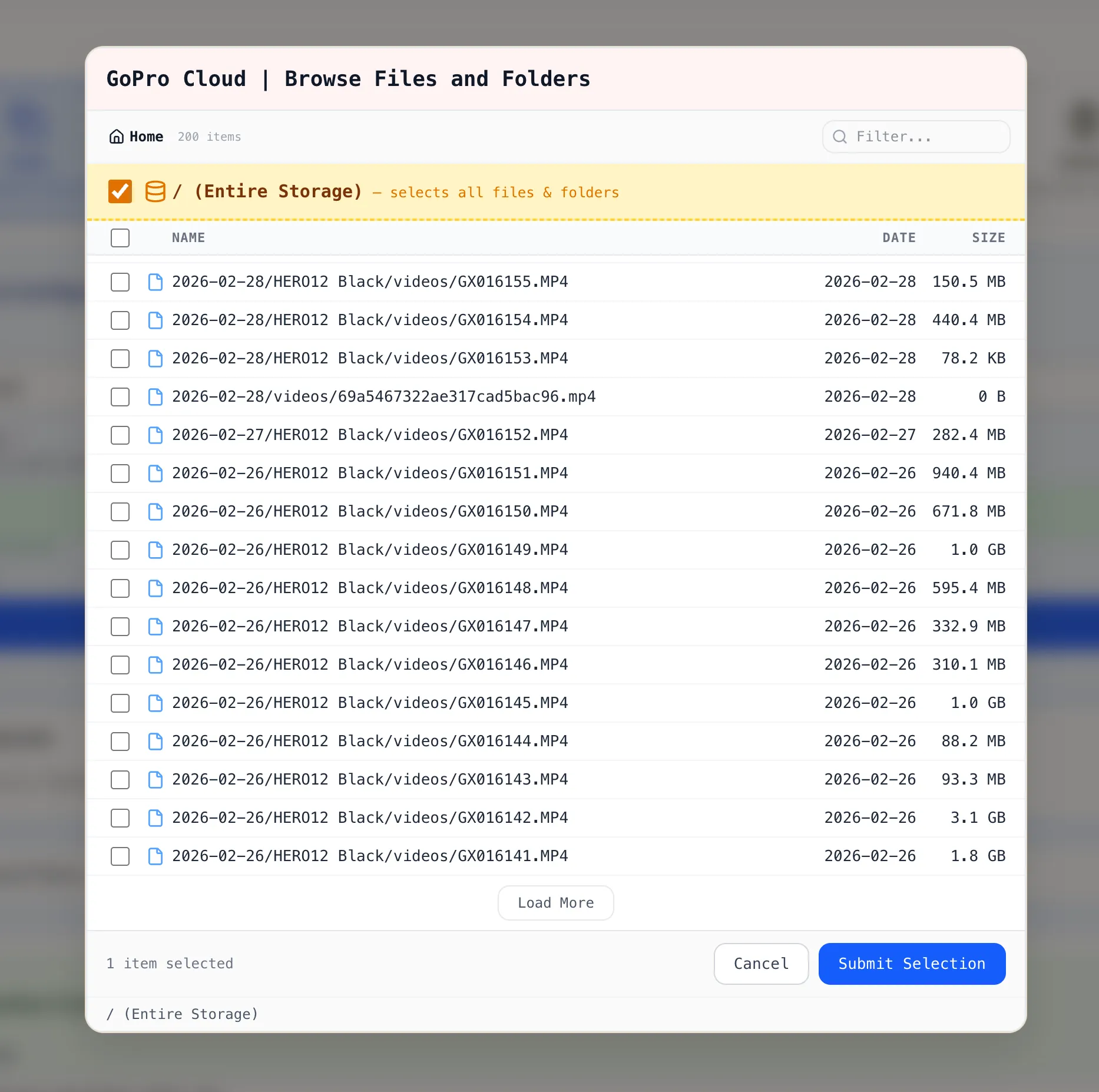
Click Browse Files and Folders. Blober loads your GoPro Cloud library. Files are listed with date and size.

Blober file browser showing GoPro Cloud files with entire storage directory selected

You can select:

  • Individual files by clicking a single file
  • Multiple files by checking several files across folders
  • Entire directory by ticking the / (Entire Storage) checkbox

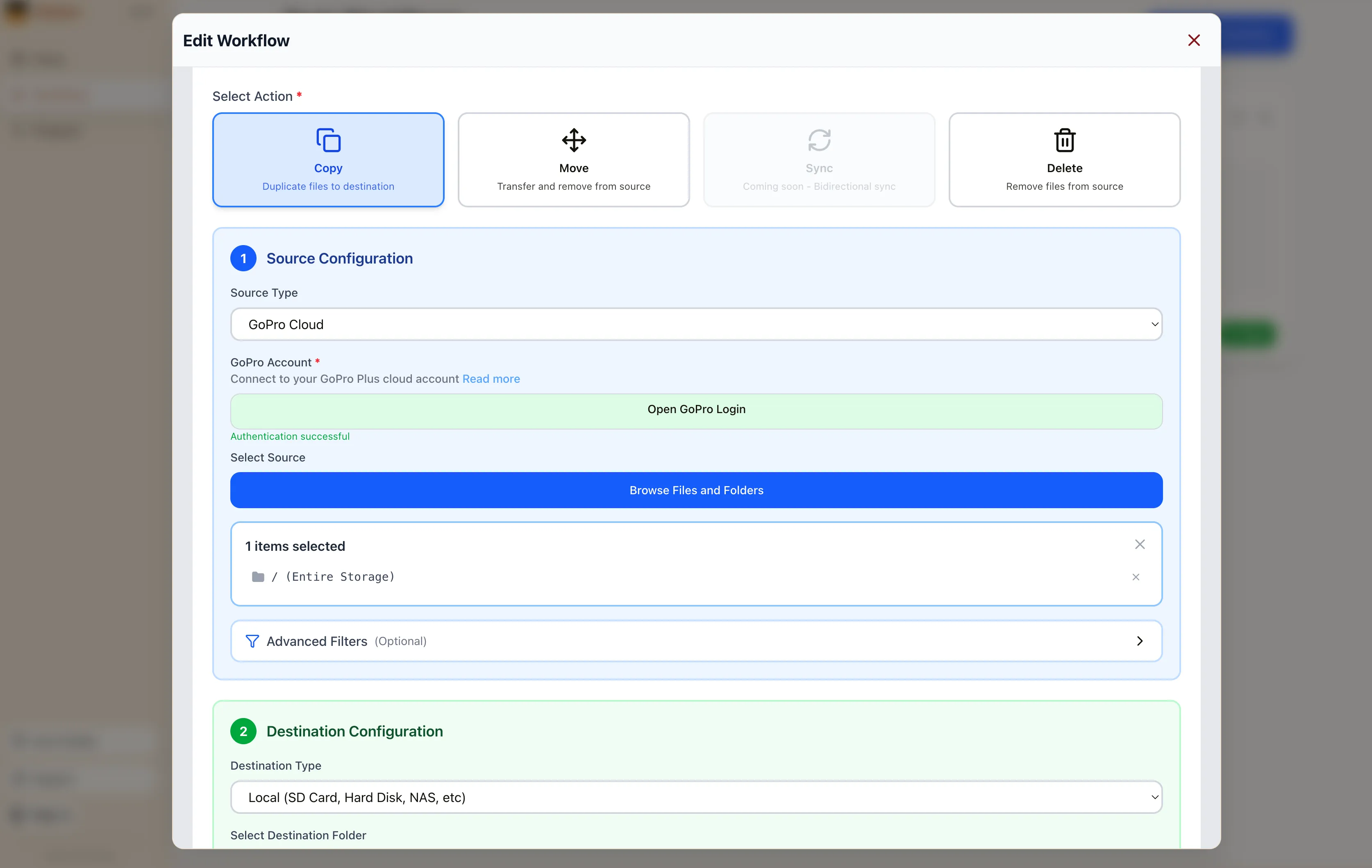
Click Submit Selection. The workflow editor shows your GoPro Cloud source with the selected items. Pick your destination (local disk, Backblaze B2, AWS S3, Dropbox, or another supported provider), configure options, and click Save Workflow.

Blober workflow editor with GoPro Cloud as source and entire storage selected

Close the workflow editor with the X button in the top-right corner. On the Workflows page, click the green Run button on your workflow card. Blober starts the transfer with parallel downloads, progress tracking, and automatic resume.

GoPro’s web portal limits batch downloads to 25 files at a time, bundled as ZIPs. Large downloads often fail. There is no bulk export and no “Download All” button.

Blober is the only tool that connects to GoPro Cloud. rclone, MultCloud, and Flexify do not support GoPro as a source.

  • No manual downloads. Files move directly from GoPro Cloud to your destination.
  • No file limits. Transfer 10 files or 10,000 in one run.
  • No subscription. Blober is a one-time purchase.
  • No middleman. Everything runs on your machine. Your credentials stay local.
  1. Download Blober (macOS, Windows, Linux)
  2. Connect your GoPro Cloud account
  3. Create a workflow and run it

Back Up Cloud Storage Directly to Your NAS

Back up cloud storage directly to your NAS - Synology, QNAP, TrueNAS, or any network drive

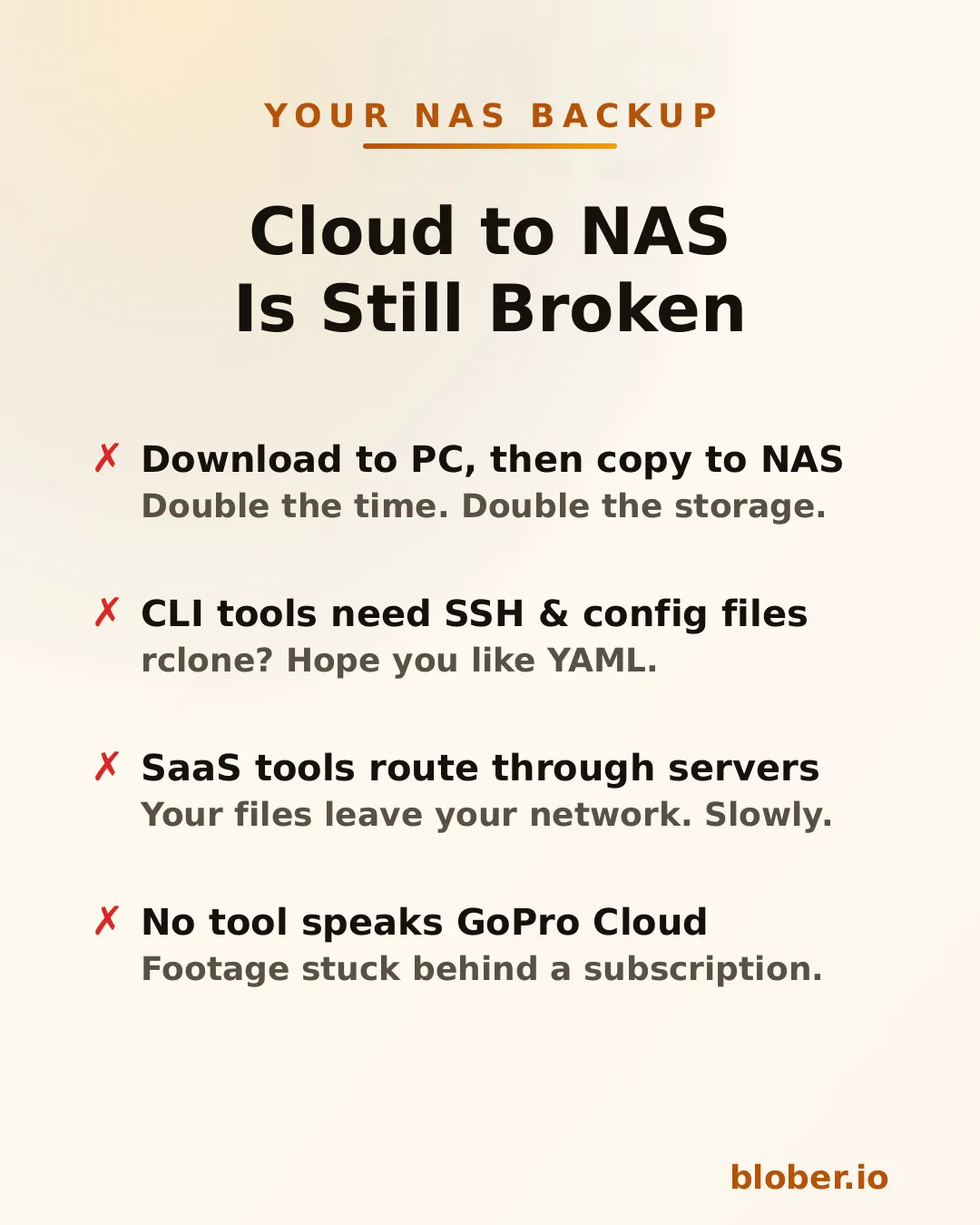
You have files in the cloud - GoPro footage, Dropbox archives, Google Drive projects, S3 buckets - and you want them on your NAS. Simple enough in theory. In practice, the available options are all some flavor of painful.

Four pain points of cloud-to-NAS backup: double-copy workflow, CLI config overhead, SaaS routing through third-party servers, and no GoPro Cloud tool support

Download then copy is the default workflow. Download everything from the cloud to your PC, then manually copy it to the NAS. You need enough free space on your PC for the entire dataset, you do every byte twice, and if the NAS connection drops mid-copy you start over.

CLI tools like rclone can mount cloud storage or sync directly, but you need to configure remotes, write YAML, manage credentials, and troubleshoot provider-specific flags. It works - eventually. It’s not something most people reach for on a Saturday afternoon.

SaaS migration services like MultCloud or Cloudsfer route your files through their servers. Your data leaves your network, passes through a third party, then comes back down to your NAS. It’s slower, it’s a privacy concern, and it costs a monthly subscription - usually with transfer caps.

GoPro Cloud has no solution at all. No migration tool supports it. rclone doesn’t. MultCloud doesn’t. You’re stuck batch-downloading 25 files at a time through a web browser, manually.


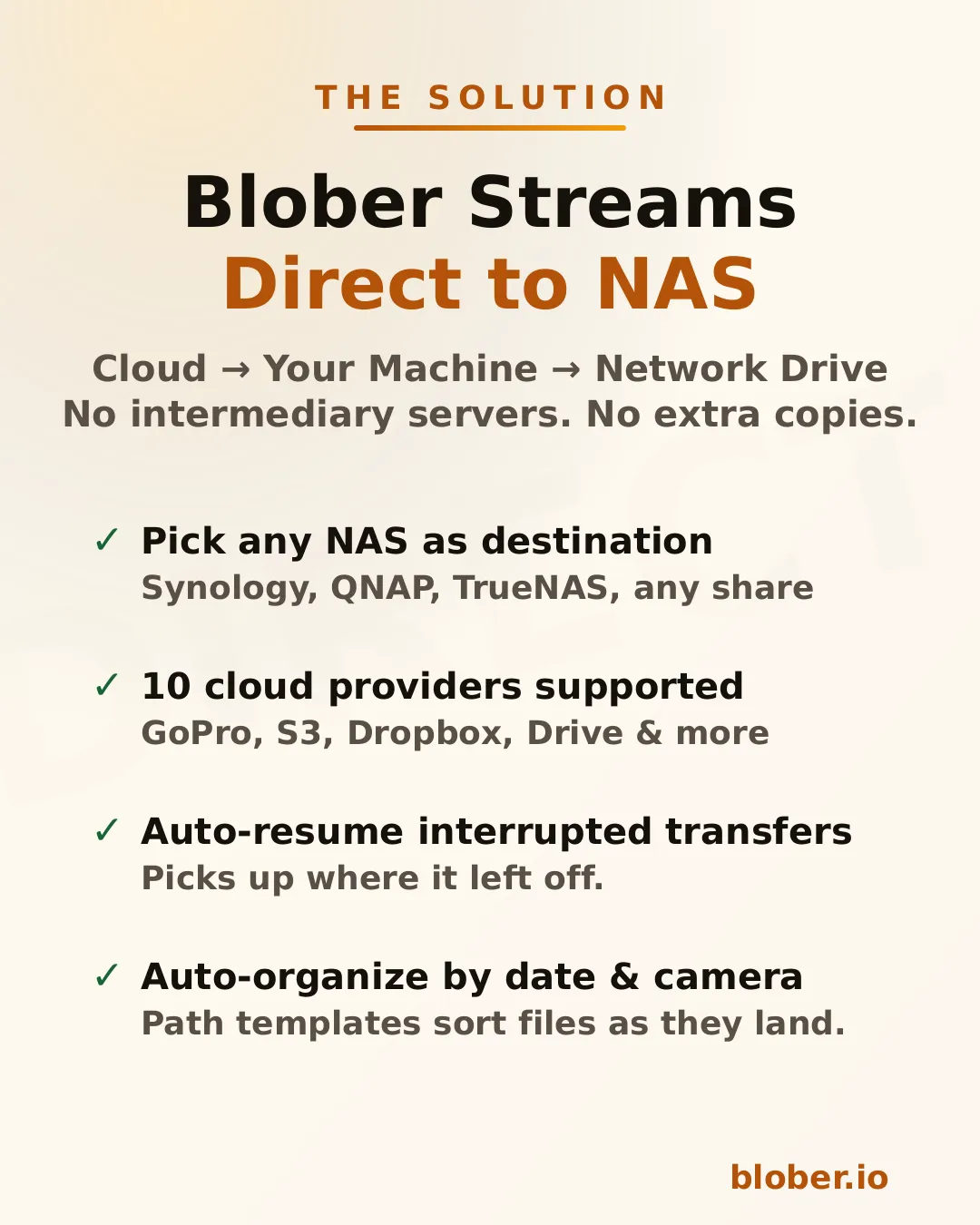
Blober is a desktop app that connects to 10 cloud providers and transfers files to any local or network destination - including NAS drives.

Blober streams files directly from cloud to NAS: supports Synology, QNAP, TrueNAS, and any SMB share, with auto-resume and path templates

The architecture is straightforward: Blober runs on your computer, pulls data from the cloud API, and writes it to whatever destination you select in the file picker. If that destination is a mapped network drive (\\SYNOLOGY\backup or /Volumes/NAS/media), the files go there.

No intermediate server. No extra copy on your local disk. No subscription.

Blober works with any NAS that your OS can see as a folder:

  • Synology DiskStation - map via SMB/CIFS (\synology\shared) or mount via NFS
  • QNAP - same: SMB share or NFS mount
  • TrueNAS / FreeNAS - SMB, NFS, or iSCSI-backed mount points
  • Unraid - SMB shares show up as network folders
  • Western Digital My Cloud - maps as a standard network drive
  • Any SMB/NFS share - if your OS can browse it, Blober can write to it

There’s nothing NAS-specific to configure in Blober. You just pick the folder.


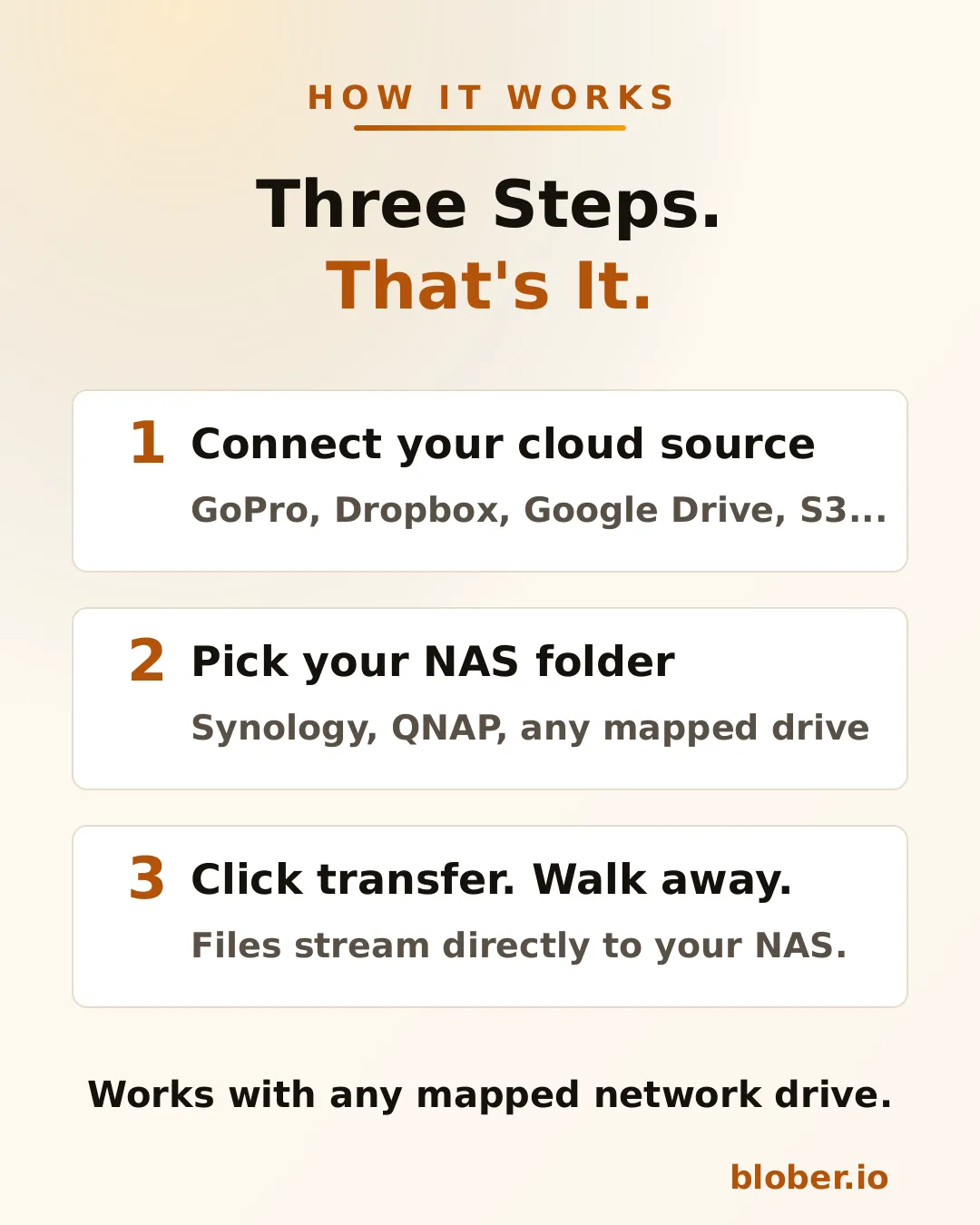
Three steps: connect your cloud source, pick your NAS folder, click transfer
  1. Connect your cloud source. Blober supports GoPro Cloud, Dropbox, Google Drive, AWS S3, Azure Blob, Backblaze B2, Cloudflare R2, Wasabi, and DigitalOcean Spaces. Authenticate once.

  2. Pick your NAS folder. The standard OS folder picker shows your mapped network drives. Select the target directory on your NAS.

  3. Transfer. Blober streams the files and writes them directly to the network path. If your connection drops or the NAS goes to sleep, the transfer resumes from where it stopped.

Blober supports path templates that sort files as they arrive:

{file_created_date}/{camera_model}/{media_type}/{filename}

This turns a flat cloud dump into an organized library:

2024-12-15/HERO12 Black/videos/GH010432.MP4
2024-12-15/HERO12 Black/photos/GOPR0900.JPG
2025-01-03/HERO7 Black/videos/GH010904.MP4

The template runs before the file is written - files land on your NAS already organized.


NAS owners tend to be people who care about data ownership, long-term archival, and not paying recurring fees for storage they already bought. Blober aligns with all three.

Buy once, transfer forever. No subscriptions, no per-GB fees, no limits. Files never leave your network.

Your files stay on your network. Unlike SaaS tools that route data through external servers, Blober pulls from the cloud API and writes locally. For NAS users who chose a NAS precisely to keep data under their control, this matters.

One-time payment. NAS users already rejected the subscription model when they bought hardware instead of renting cloud storage. Blober follows the same philosophy: pay once, use forever.

Scale doesn’t matter. Whether you’re backing up 50 GoPro clips or migrating 10 TB from S3, there are no transfer caps, no per-GB fees, and no throttling.


ScenarioSourceNAS destination
GoPro footage archiveGoPro Cloud\\NAS\media\gopro\
Photo library consolidationGoogle Drive + Dropbox\\NAS\photos\
S3 cold storage migrationAWS S3\\NAS\archive\s3-backup\
Shared family photo vaultDropbox\\SYNOLOGY\family-photos\
Video production offloadBackblaze B2\\NAS\projects\raw-footage\

Each of these is a single task in Blober. Set source, set destination, transfer.


  • NAS owners who want cloud backups on hardware they control
  • GoPro users who need their footage off GoPro Cloud (Blober is the only tool that connects)
  • Photographers and videographers archiving years of work to local network storage
  • Home lab users consolidating data from multiple cloud services onto one NAS
  • Small businesses migrating away from cloud storage subscriptions to on-premise drives

One app. Ten cloud providers. Any NAS.

Download Blober at blober.io

Data Holders: How Blober Fits Your Workflow

Data holders - how Blober fits your workflow for centralized cloud file management

Data holders are individuals and organizations that accumulate, manage, and preserve large volumes of digital files as a core part of their work. They aren’t just storing files - they’re responsible for keeping data accessible, organized, and safe across years and even decades.

Data holders include:

  • Photographers and videographers with terabytes of RAW footage and project archives
  • Researchers and academics maintaining datasets, papers, and experimental outputs
  • Small businesses managing client records, invoices, contracts, and media assets
  • IT administrators responsible for infrastructure backups and compliance archives
  • Content creators with libraries of video, audio, and design files across platforms
  • Legal and medical professionals bound by retention requirements for sensitive records
  • Personal archivists preserving family photos, home videos, and documents

What unites them is a common problem: data grows, scatters, and becomes harder to manage over time.


Most data holders didn’t plan to end up with files in five different places. It happens organically:

  1. Files start local - on a laptop, NAS, or external drive
  2. Cloud adoption fragments storage - Google Drive for sharing, Dropbox for syncing, an S3 bucket for backups
  3. Platform lock-in creeps in - GoPro Cloud holds your footage, iCloud holds your photos, OneDrive holds your documents
  4. Manual management breaks down - folder naming conventions drift, backups become inconsistent, some files have three copies while others have none

The result is a scattered, fragile data footprint where no single tool gives you visibility across all your storage.

SymptomRoot Cause
”I know I have that file somewhere”Files spread across 3–5 providers with no unified view
”My backup is months out of date”Manual backup processes that require constant attention
”I’m paying for storage I barely use”Redundant copies in expensive tiers that should be archived
”I can’t move my data without paying egress”Provider lock-in via egress fees and proprietary APIs
”Organizing everything would take weeks”Flat folder structures with no metadata-driven automation

Blober is a desktop application purpose-built for data holders who need to move, organize, and back up files across cloud providers and local storage - without recurring fees.

Blober connects to the storage providers data holders actually use:

ProviderTypical Use Case
AWS S3Production infrastructure, enterprise backups
Backblaze B2Affordable long-term archive
WasabiHot storage with no egress fees
Cloudflare R2CDN-adjacent delivery, zero egress
Google Cloud StorageWorkspace-integrated projects
Azure Blob StorageEnterprise and compliance workloads
DigitalOcean SpacesDev team object storage
GoPro CloudAction camera footage (Blober exclusive)
DropboxFile sharing and synchronization
Local / NASOn-premise primary storage

No other single tool covers this range - especially GoPro Cloud, which Blober is the only application to support.

Instead of downloading files to your machine and re-uploading them, Blober transfers data directly between providers. This matters for data holders because:

  • Saves time - a 2 TB migration doesn’t bottleneck on your home internet
  • Saves bandwidth - your ISP data cap stays intact
  • Reduces failure points - no half-downloaded files sitting on your local disk

Data holders accumulate files over years. Manually sorting them into folders is unsustainable. Blober supports path templates that use file metadata to auto-organize during transfer:

/{year}/{month}/{camera_model}/{filename}

A flat dump of 50,000 files becomes a clean archive:

/2025/06/HERO13 Black/GX015742.MP4
/2025/06/Canon EOS R5/IMG_4521.CR3
/2026/01/iPhone 15 Pro/IMG_0032.HEIC

This works for any transfer - cloud-to-cloud, cloud-to-local, or local-to-cloud.

Backup workflows for data holders need to be reliable, not heroic. Blober supports:

  • Resumable transfers - if your connection drops or your machine restarts, pick up where you left off
  • Incremental syncs - only transfer files that are new or changed since the last run
  • Large-file handling - multi-part uploads for files in the tens of gigabytes

No babysitting required. Set up a transfer, let it run, and come back to a completed job.

Most cloud migration tools charge per-GB or require annual subscriptions with data caps. For data holders who move terabytes regularly, those costs compound:

ToolPricing ModelCost for 10 TB/year
Flexify.io~$0.03/GiB per migration~$300+ (plus egress)
MultCloud$99.98/year for 2.4 TB cap~$400+ (need multiple renewals)
rcloneFree but manual$0 (but hours of CLI configuration)
BloberOne-time purchaseOne price, unlimited transfers

You buy Blober once. Transfer 1 TB or 100 TB - the price doesn’t change.


Setup: 8 TB of footage across GoPro Cloud, a local NAS, and Google Drive. Delivers finals via Dropbox.

With Blober:

  • Connects GoPro Cloud and pulls all footage to Backblaze B2 as a cold archive
  • Moves finished projects from local NAS to Cloudflare R2 for client delivery
  • Uses path templates to organize by project date and camera model
  • Runs periodic syncs from Google Drive to B2 to keep a second backup

Result: One tool replaces four manual processes. Total cost: one Blober license.

Setup: 500 GB of compliance documents in Azure Blob Storage. Daily operational files in Google Workspace. Regulatory requirement for off-site backup.

With Blober:

  • Transfers compliance archive from Azure to Backblaze B2 as a secondary backup
  • Syncs critical Google Drive folders to a local NAS nightly
  • Uses Blober’s incremental sync so only changed files move each day

Result: Meets audit requirements for geographic redundancy without provisioning a second enterprise cloud account.

Setup: 12 TB of experimental datasets in AWS S3. New data generated weekly. Grants require data preservation for 10 years.

With Blober:

  • Migrates completed datasets from S3 Standard to Backblaze B2 (80% storage cost reduction)
  • Keeps active datasets in S3 for compute-adjacent access
  • Uses metadata templates to organize by experiment ID and date
  • Resumable transfers handle multi-GB dataset files without corruption

Result: Storage costs drop dramatically while preservation requirements are met.


rclone is a powerful open-source CLI tool, and many data holders start there. But it has real limitations for ongoing data management:

CapabilityrcloneBlober
GUI for browsing filesNo (CLI only)Yes
GoPro Cloud supportNoYes (exclusive)
Dropbox supportYesYes
Visual transfer progressLimitedFull progress dashboard
Resumable multi-part uploadsPartialBuilt-in
Path template organizationManual scriptingVisual template builder
Error handling and retryConfig flagsAutomatic
Setup timeHours (config per remote)Minutes (OAuth flows)

rclone is great for scripted, automated pipelines. Blober is built for data holders who want reliable transfers without writing shell scripts.


  1. Audit your storage - list every provider and local device where you keep files
  2. Identify your archive tier - choose an affordable destination like Backblaze B2 or Wasabi for long-term storage
  3. Connect everything in Blober - add each provider via OAuth or API key
  4. Set up your first migration - pick a source, pick a destination, configure a path template
  5. Let Blober handle the rest - resumable transfers, incremental syncs, and metadata organization do the heavy lifting

Data holders shouldn’t need a subscription to manage their own files. Blober runs locally on your machine - your credentials never pass through third-party servers, your transfer bandwidth isn’t metered, and your workflow isn’t gated by monthly caps.

One license. Unlimited providers. Unlimited data.

Get Blober and take control of your data workflow.

Your Files, Your Machine, No Middleman: Why Local-First Transfers Matter

Your Files. Your Machine. No Middleman. Blober local-first cloud file transfer

Every time you use a SaaS cloud transfer tool (MultCloud, Flexify, or any browser-based service), your files pass through someone else’s servers. Your vacation photos, your client deliverables, your financial backups: all routed through infrastructure you don’t control, operated by companies you’ve never audited.

Most people don’t think about this. They click “transfer,” see a progress bar, and assume their files went from A to B. In reality, the path is A to middleman to B. That middleman sees your filenames, your folder structure, and in many cases, the file contents themselves.

The risk of SaaS cloud transfer tools: your files pass through someone else's servers, data is routed through proxies, and you have zero control over the path

Blober is a desktop app. It runs on your machine (Mac, Windows, or Linux) and talks directly to your cloud provider’s API. When you transfer files from AWS S3 to Backblaze B2, the data flows from your machine to the provider endpoint. No relay. No proxy. No middleman.

This isn’t just a privacy feature. It’s a fundamentally different architecture:

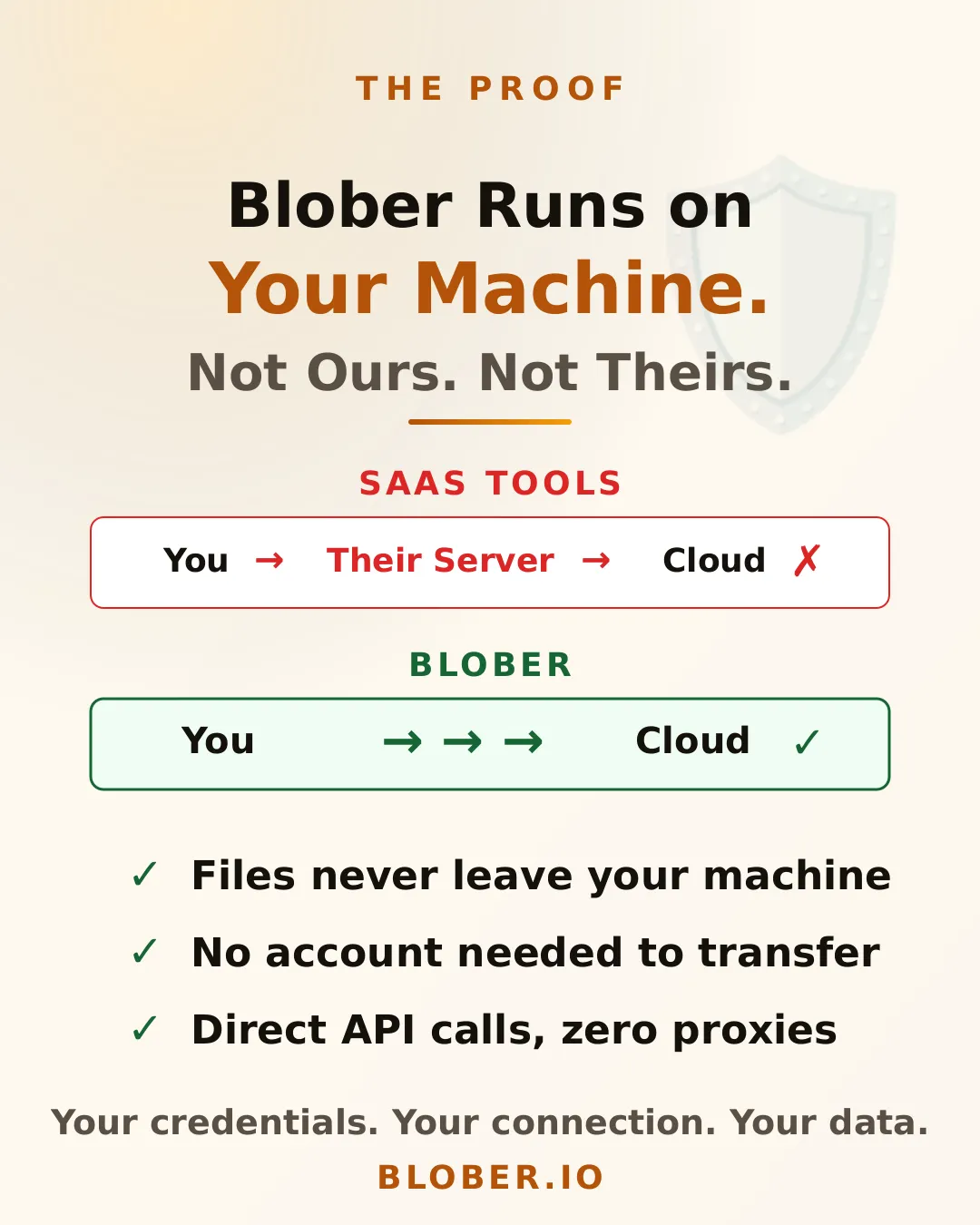
  • SaaS tools: Your Machine > Their Server > Cloud Provider
  • Blober: Your Machine > Cloud Provider (direct)

Your credentials never leave your device. Your files never touch a server you didn’t choose. And because there’s no middleman bandwidth to pay for, there are no per-GB transfer charges from the tool itself. You only pay what your cloud provider charges.

Blober runs on your machine with direct API calls. SaaS tools proxy through their servers while Blober connects you directly to your cloud providers

Blober connects to 10 providers (AWS S3, Azure Blob Storage, Backblaze B2, Cloudflare R2, DigitalOcean Spaces, Dropbox, Google Drive, GoPro Cloud, Local Disk, and Wasabi), all from a single app with a visual file browser.

No subscriptions. No per-transfer fees. One purchase, lifetime access. And every byte stays between you and your cloud provider.

Take back control with Blober. 10 cloud providers, 100% local transfers, one-time purchase, available on Mac, Windows, and Linux
  • Privacy-conscious users who don’t want their files routed through third-party servers
  • Photographers and videographers transferring large media libraries between providers
  • Small businesses that need to move data without compliance headaches
  • Anyone leaving a cloud provider who wants a clean, direct migration path
  • GoPro users who want their footage somewhere they actually control

Your files. Your machine. No middleman. Download Blober

How to Move GoPro Cloud Media to Dropbox the Easy Way

GoPro Cloud (included with GoPro Plus / GoPro Premium) stores your camera footage automatically. It’s convenient, until you need to actually do something with it.

The problems with keeping everything in GoPro Cloud:

  • No easy bulk export. GoPro’s web portal limits batch downloads to 25 files at a time, bundled as a ZIP. Large downloads frequently fail or time out.
  • No third-party integrations. No other file transfer tool (rclone, MultCloud, Flexify) can connect to GoPro Cloud. You’re stuck with the GoPro web interface.
  • Subscription lock-in. Cancel GoPro Plus and you lose access to your footage. Your media is held hostage by a recurring charge.
  • No redundancy. If GoPro changes their cloud offering or shuts it down, you have no backup unless you’ve already downloaded everything manually.

Why Dropbox makes a good destination:

  • Accessible everywhere. Desktop, mobile, web. Dropbox works across all devices.
  • Selective sync. Keep large video files in the cloud and only download what you need locally.
  • Sharing built in. Send footage to clients, collaborators, or editors with a link.
  • Established and reliable. Dropbox has been around since 2007 and isn’t going anywhere.
  • Integration with editing tools. Many video editors and photo apps integrate directly with Dropbox.

Moving your footage from GoPro Cloud to Dropbox gives you a second copy in a provider you control, one that doesn’t depend on a GoPro subscription to access.

Blober is the only desktop app that connects directly to GoPro Cloud. No browser extensions, no manual downloads, no CLI config files. You create a workflow, press play, and your media transfers automatically.

Play

Open Blober, go to the Workflows page, and click New Workflow. Select GoPro as the source and Dropbox as the destination. Pick the folders you want to transfer from and where they should land.

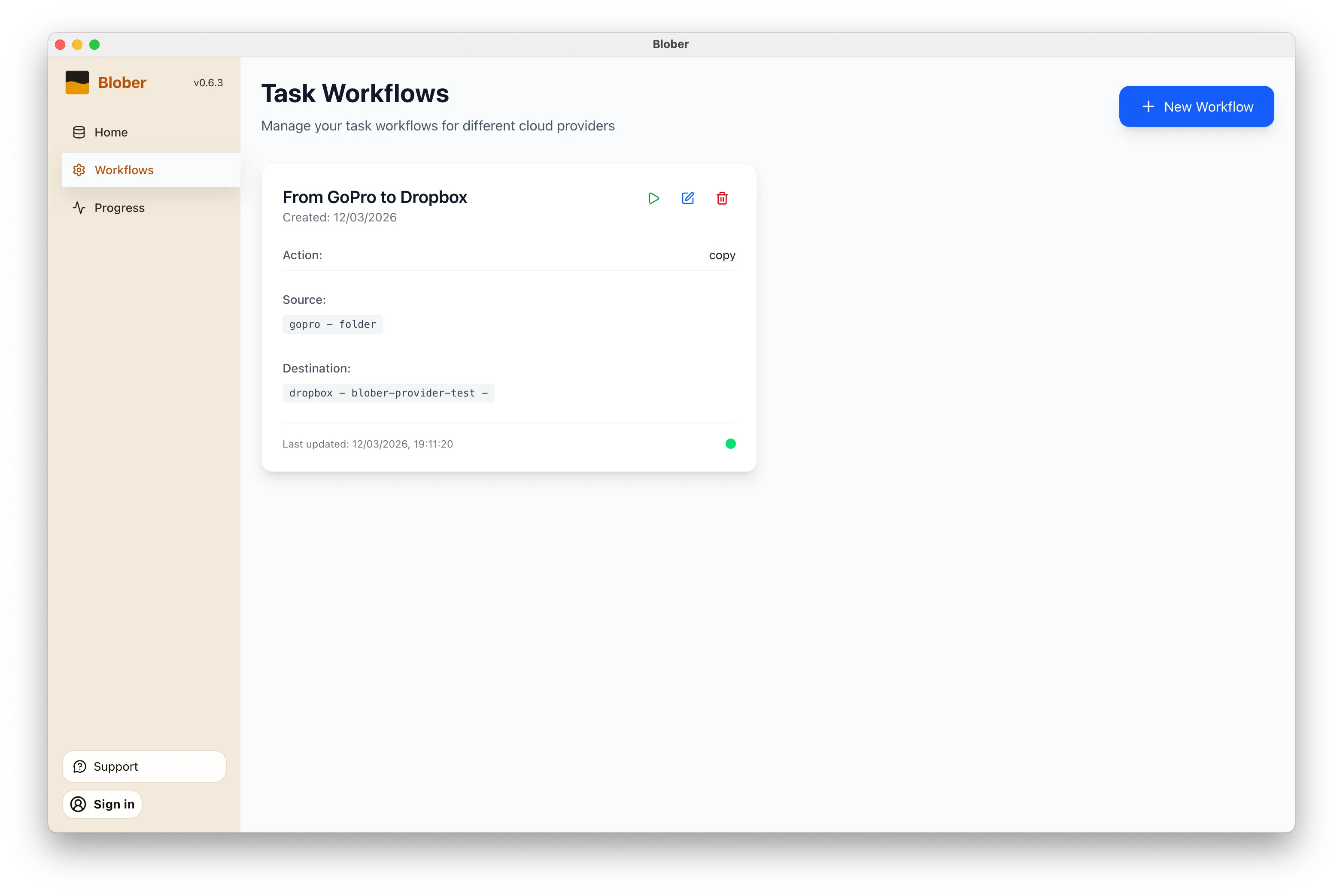
Blober workflow configured to copy media from GoPro Cloud to Dropbox

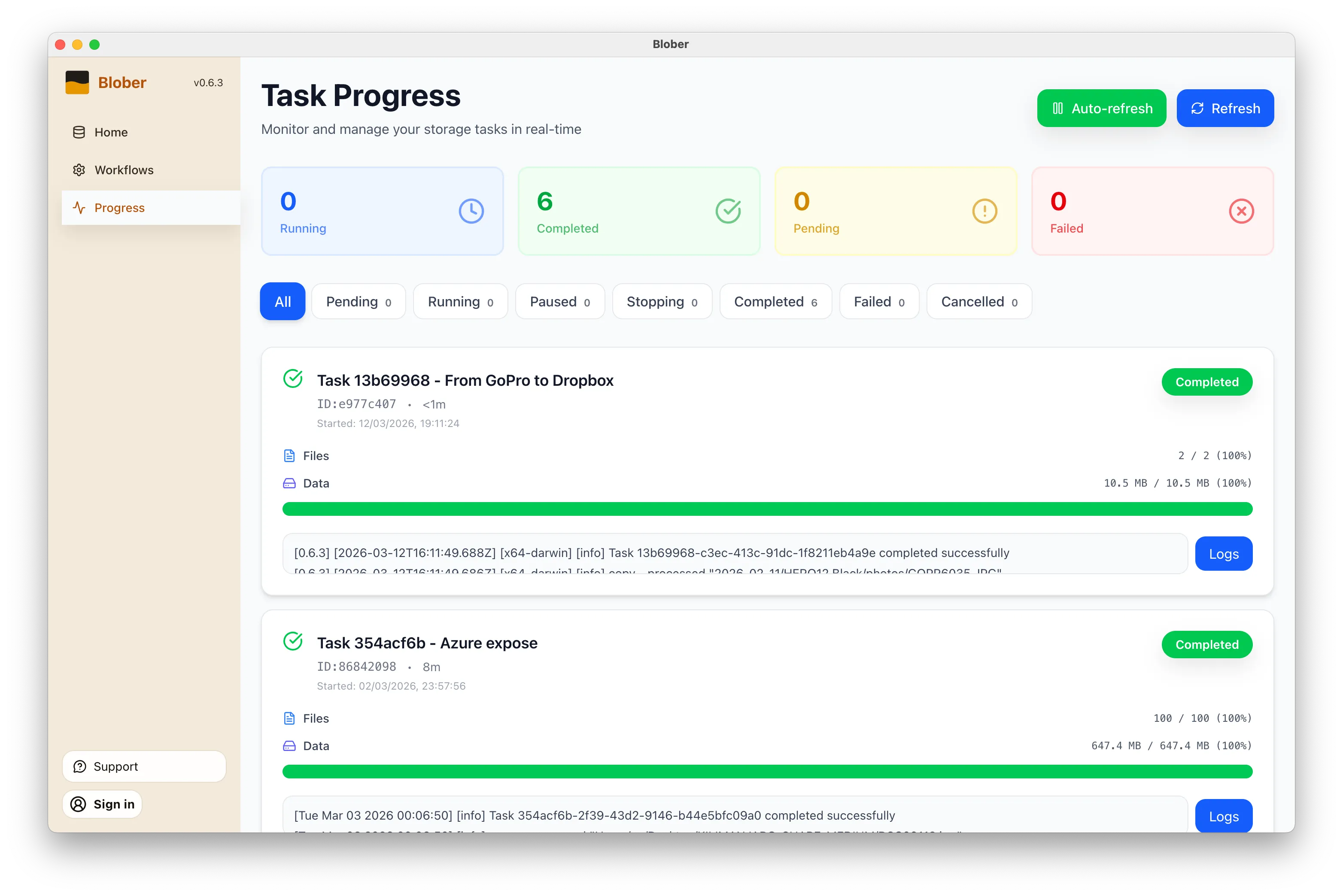
Click the play button on your workflow. Blober connects to both providers and starts transferring files immediately. Every file (photos, videos, time-lapses) gets moved directly from GoPro Cloud to Dropbox without touching your local disk first (unless you want it to).

Blober task progress showing files transferring from GoPro to Dropbox

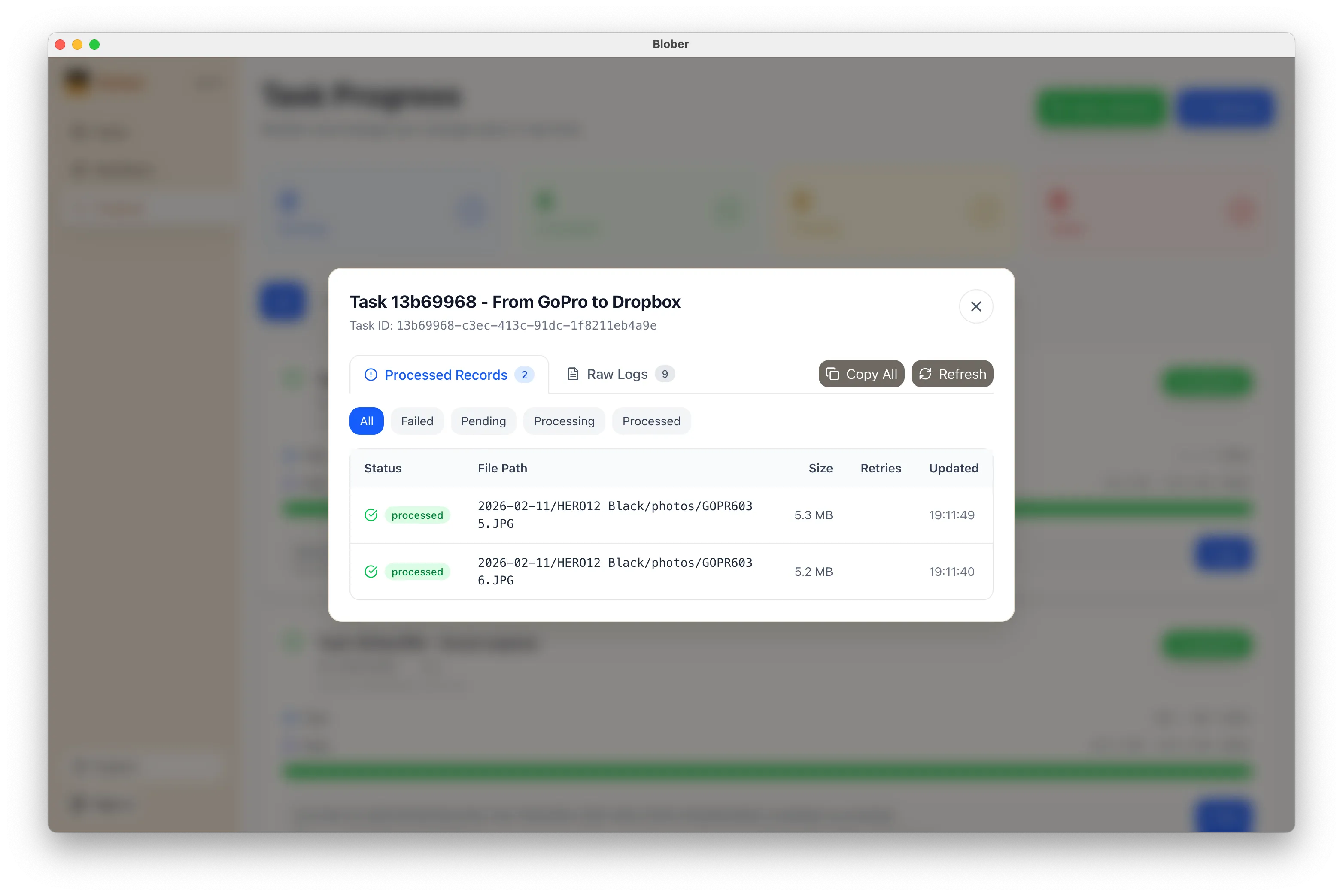
The Progress page shows exactly what’s happening: files transferred, bytes moved, current speed, and estimated time remaining. If something goes wrong, you can pause, retry, or cancel at any time.

Blober task logs showing detailed transfer activity
  • No manual work. You don’t download ZIPs, unzip them, then re-upload to Dropbox. Blober handles the entire pipeline.
  • No file limits. Transfer 10 files or 10,000. Blober processes them all in one run.
  • No subscription. Blober is a one-time purchase. No monthly fees, no per-GB transfer charges, no limits on how many times you run a workflow.
  • Runs locally. Your credentials stay on your machine. Files transfer directly between providers. Nothing passes through Blober’s servers.
  • Before canceling GoPro Plus. Get your footage out before you lose access.
  • Regular backups. Set up a workflow now and run it whenever you want a fresh copy in Dropbox.
  • Switching providers. Moving off GoPro Cloud entirely? Transfer everything to Dropbox first, then cancel.
  • Sharing with a team. Put footage in a shared Dropbox folder so editors and collaborators can access it immediately.
  1. Download Blober (available for macOS, Windows, and Linux)
  2. Connect your GoPro and Dropbox accounts
  3. Create a workflow and press play

That’s it. Your GoPro footage in Dropbox in minutes, not hours.

Stop Paying Rent to Move Your Own Files

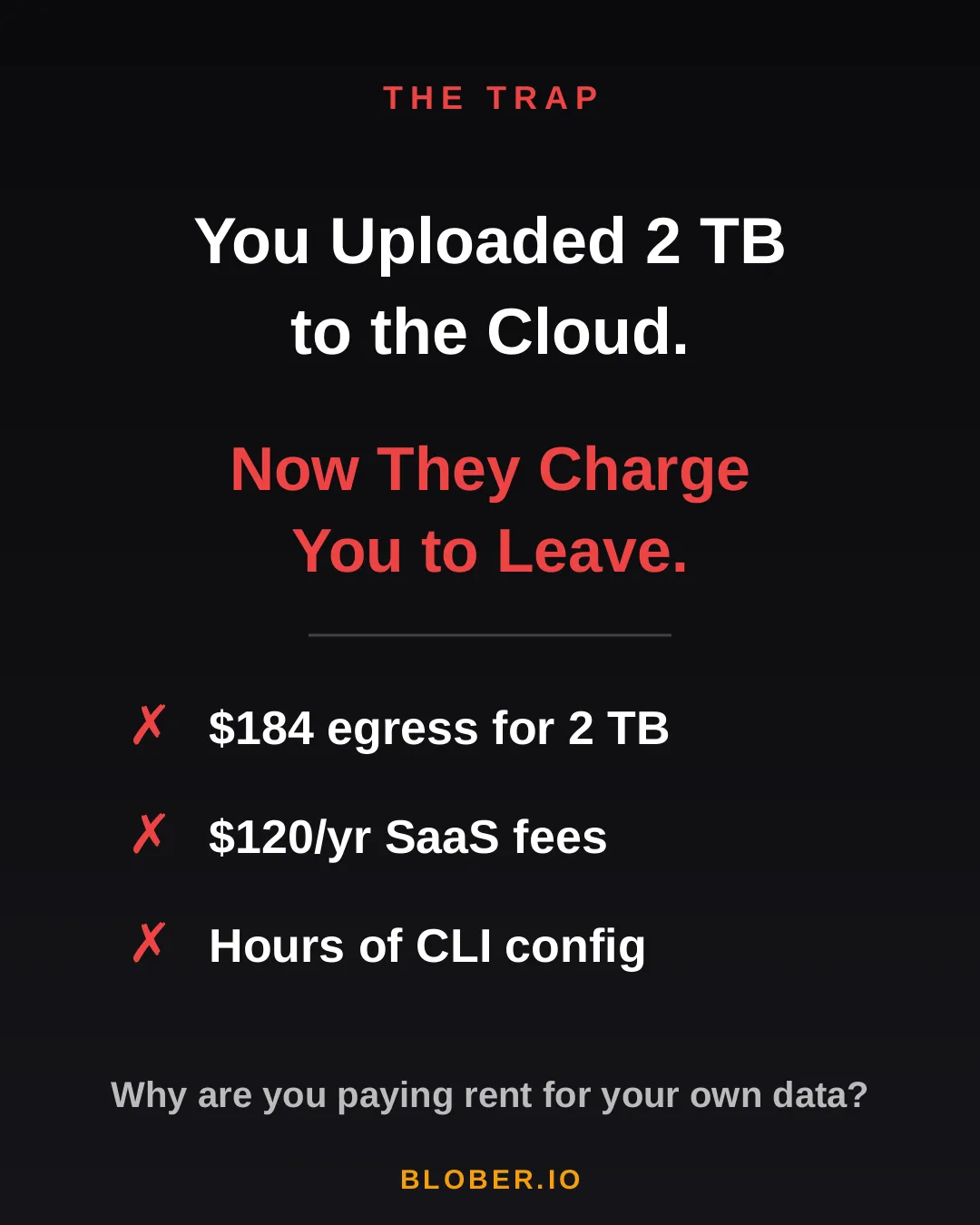
You uploaded 2 TB of photos, videos, and backups to the cloud. Life was good - until you wanted to move them somewhere else.

Suddenly, you’re hit with egress fees, per-GB migration charges, and the realization that your cloud provider has been counting on you never leaving. It’s your data. But moving it costs real money - every single time.

AWS charges ~$0.09/GB for egress. That’s $184 just to download 2 TB of your own files. Want to use a SaaS migration tool? That’s another $10–20/month, with transfer caps. Prefer the open-source CLI route? Clear your afternoon - you’ll need it for YAML configs, credential files, and provider-specific quirks.

The trap: cloud providers charge you egress fees, SaaS tools charge subscriptions, and CLI tools cost you hours of setup time

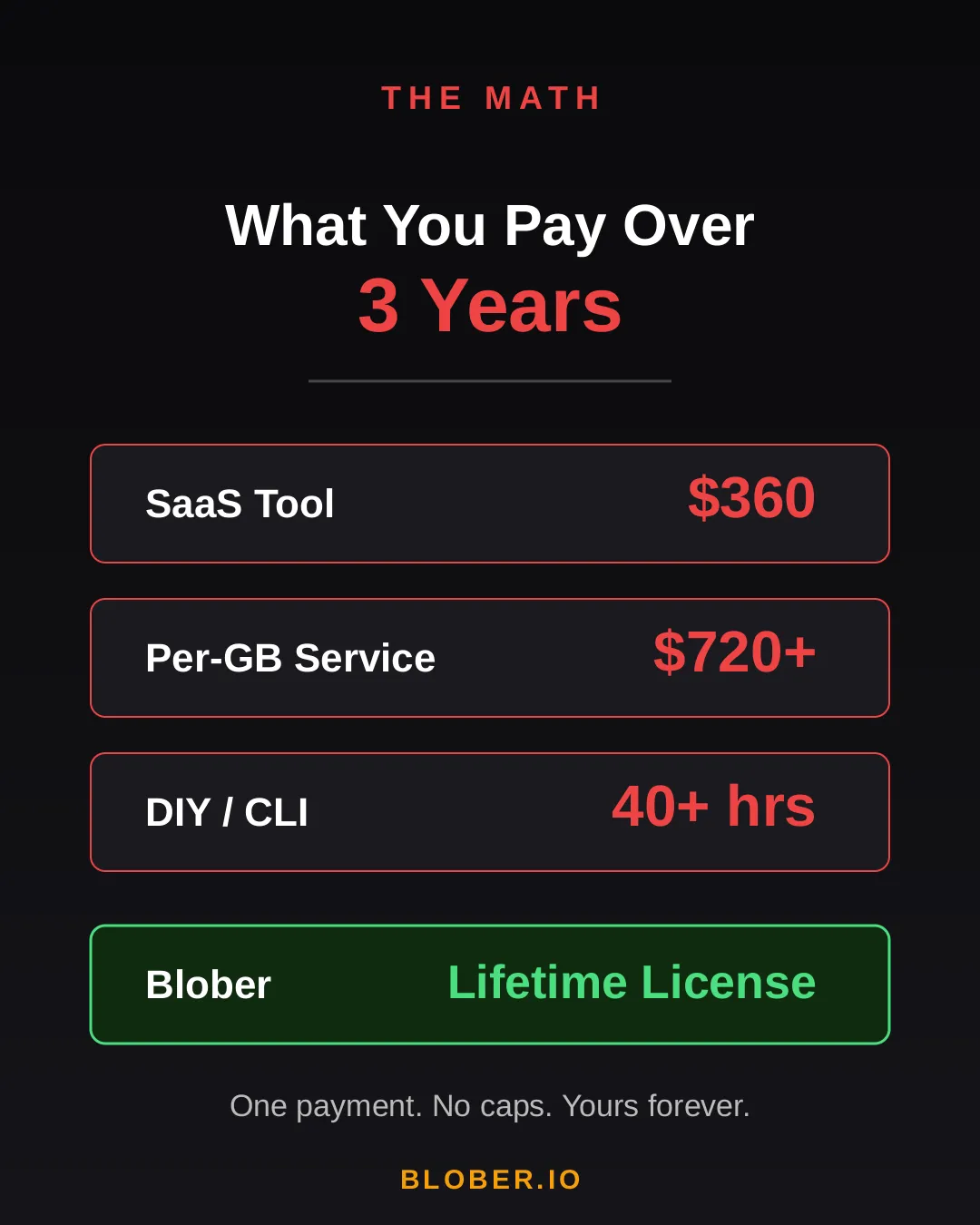
Let’s talk real numbers. Over three years, here’s what you’ll pay using common approaches:

Approach3-Year CostCatch
SaaS Migration Tool~$360Monthly sub + data caps
Per-GB Service~$720+$0.03/GB, billed every transfer
DIY with CLI40+ hoursConfig per provider, no UI, breaks silently
BloberOne paymentUnlimited transfers. Forever.

The subscription model is designed to extract value from you month after month. The per-GB model punishes you for having more data. The CLI path trades money for your time.

Blober breaks the cycle. Pay once. Transfer as much as you want, as many times as you want. No meter running. No renewal emails. No “upgrade to unlock more.”

Cost comparison over 3 years: SaaS tools cost $360, per-GB services cost $720+, DIY CLI costs 40+ hours, Blober costs one single payment

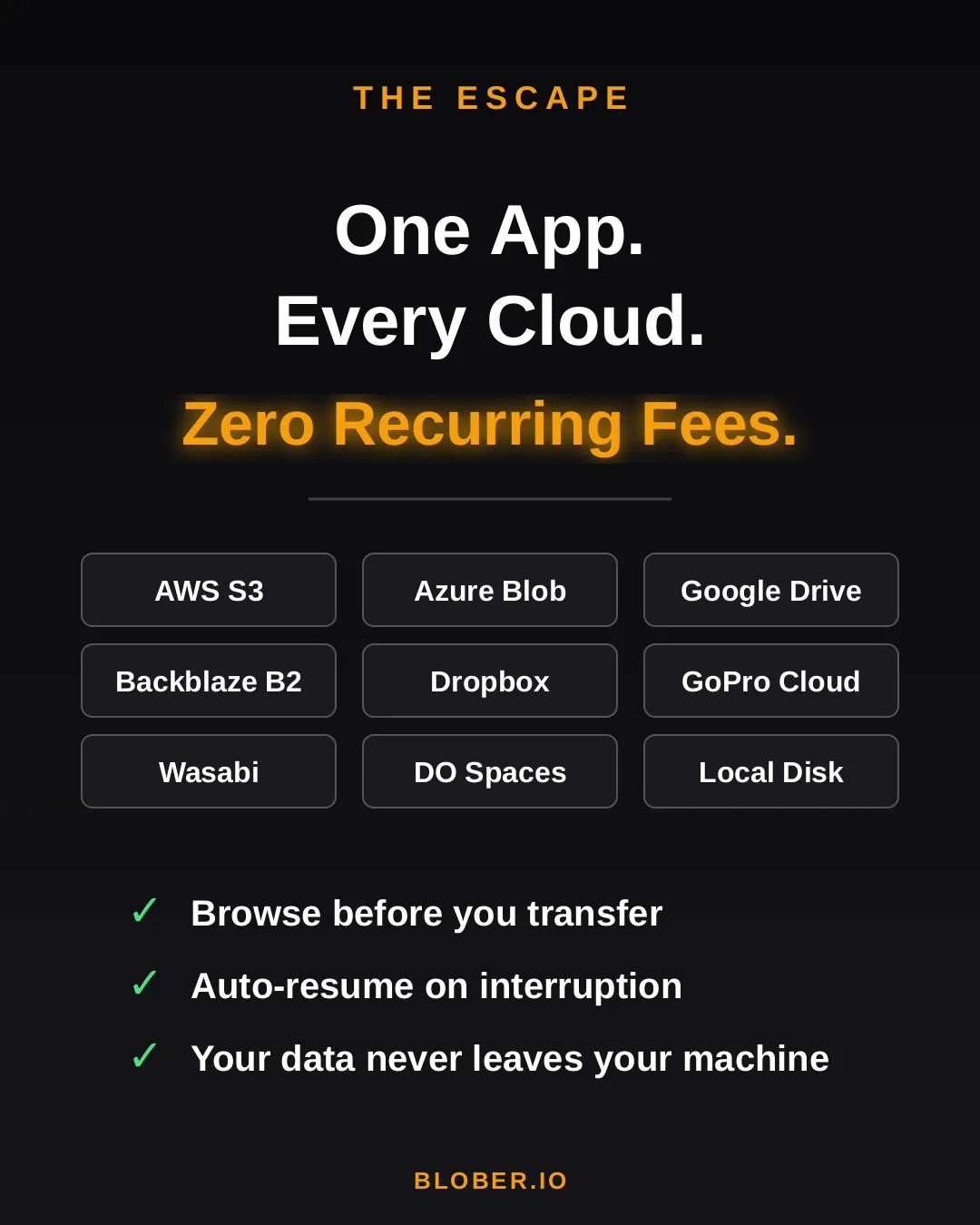
Blober is a desktop app - not a SaaS, not a CLI tool, not a cloud service. It runs on your Mac, Windows, or Linux machine and connects directly to your cloud providers:

  • AWS S3 - buckets and objects, any region
  • Azure Blob Storage - containers and blobs
  • Google Drive - files and folders, including shared drives
  • GoPro Cloud - back up your action footage locally or to any cloud
  • Backblaze B2 - the affordable S3 alternative
  • Dropbox - personal and business accounts
  • Cloudflare R2 - zero-egress object storage
  • Wasabi - hot storage without the cold fees
  • DigitalOcean Spaces - all regions, auto-detected
  • Local Disk - any folder on your machine

Your files never touch a middleman server. Blober streams directly between your machine and the provider APIs. Browse your cloud storage visually, select what you want, pick a destination - done.

If a transfer gets interrupted (bad WiFi, laptop closed, provider hiccup), Blober picks up where it left off. No re-uploading. No duplicate files.

Blober connects 10+ cloud providers in one app: AWS S3, Azure Blob, Google Drive, GoPro Cloud, Backblaze B2, Dropbox, Cloudflare R2, Wasabi, DigitalOcean Spaces, and local disk

Here’s what switching to Blober actually looks like:

Before: You’re juggling browser tabs, CLI sessions, and a spreadsheet tracking which files went where. A SaaS tool emails you that you’ve hit your 1.2 TB monthly cap. You Google “rclone config azure” for the third time.

After: You open Blober. Connect your accounts. Drag from source to destination. Walk away. It just works.

No account required to transfer. No internet needed for local-to-local moves. No data ever leaves your machine unless you’re sending it to a cloud provider you chose.

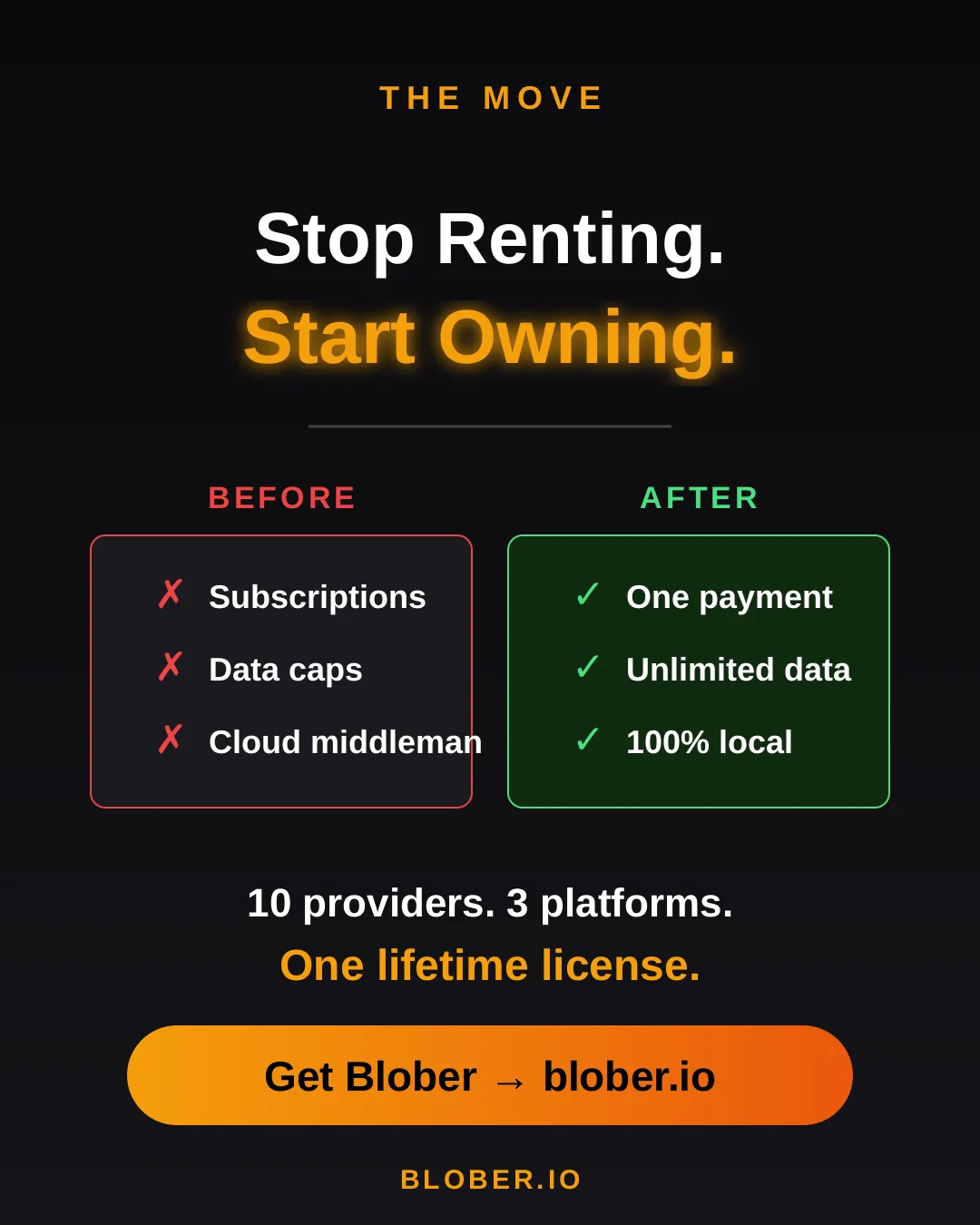
Before and after comparison: monthly subscriptions, data caps, and files routed through servers vs. one-time payment, unlimited transfers, and 100% local execution with Blober
  • Photographers & videographers moving terabytes of footage from GoPro Cloud or Google Drive to cheaper archival storage
  • Developers & DevOps engineers migrating between S3-compatible providers without writing scripts
  • Small businesses consolidating cloud storage without paying an enterprise migration service
  • Privacy-conscious users who want their files transferred directly, not through a third-party cloud
  • Anyone tired of paying monthly fees to tools that move files you already own

Your data. Your machine. Your rules.

One payment. Unlimited transfers. No expiration.

Download Blober → blober.io

Migrating 100M+ Files from DigitalOcean Spaces to Backblaze B2

Migrating 100 million files from DigitalOcean Spaces to Backblaze B2

A media company has 25TB of data spread across 120 million files in DigitalOcean Spaces. Monthly bill: roughly $500/month. They want to move everything to Backblaze B2 to cut costs and get more flexibility.

This is a real-world pattern we see a lot. Let’s walk through what it actually takes.


ItemDetailsEstimated Cost
Blober LicenseOne-time purchase$49
DigitalOcean Egress~24TB billable at $0.01/GiB (first 1TB free)~$240
Backblaze IngressFree. Backblaze never charges for uploads$0
Backblaze API CallsUploads are free Class A calls, minor listing costs~$2
Total~$291

After migrating, the monthly bill drops from ~$500 on DigitalOcean to ~$150 on Backblaze B2. The entire migration pays for itself in about two weeks.


This is where it gets interesting. Backblaze actively wants people to switch to their platform and they back that up with real programs:

  • Free egress up to 3x your average monthly storage on B2, which means once you’re on Backblaze, downloading your own data doesn’t cost extra in most scenarios.
  • Unlimited free egress through CDN and compute partners like Cloudflare, Fastly, Bunny.net, and Vultr.
  • Assisted data migration is listed as a standard B2 feature on their pricing page.
  • Universal Data Migration is available for larger committed contracts (50TB+ on pay-as-you-go, or included with B2 Reserve annual plans).

Backblaze explains their philosophy well in this blog post: Cloud Egress Fees: What They Are and How to Reduce Them. The short version is that they believe egress fees are vendor lock-in, and they want to make switching easy.

Even if your dataset is under the 50TB threshold, it’s worth contacting their sales team. With a 25TB dataset and willingness to commit for 12 months, there’s a solid chance they’ll help reduce or cover the DigitalOcean egress fees to get you onboarded.


Let’s be honest here. 25TB is a lot of data.

Every file needs its own set of API calls: list from the source, download, then upload to the destination. Each round-trip carries network latency regardless of file size. When you multiply that per-object overhead across 120 million files with 25TB of bandwidth on top, the aggregate time adds up fast.

For a client-side migration where data streams through your local machine, you’re looking at:

  • Several weeks of continuous runtime depending on your connection speed and latency
  • Your machine needs to stay on and connected the entire time
  • If your ISP has a monthly data cap, 25TB will almost certainly exceed it
  • 16GB+ RAM recommended for handling the file listing at this scale

This isn’t a Blober limitation. Any client-side tool (rclone, Cyberduck, whatever) will face the same physics. Data has to travel from DigitalOcean’s datacenter to your machine, then from your machine to Backblaze’s datacenter. That’s two full trips through your ISP.


Phase 1: Let the Datacenters Do the Heavy Lifting

Section titled “Phase 1: Let the Datacenters Do the Heavy Lifting”

Contact Backblaze’s sales team and ask about their assisted migration options. For datasets at this scale, they partner with migration services that can move data directly between datacenters at speeds your home connection can’t match. What takes weeks on a home connection can take hours on a datacenter link.

Reach out here: Backblaze Sales

Once the initial bulk migration is done, Blober becomes your daily tool for managing files across providers. New uploads, folder syncs, log rotations, moving files between buckets, all handled from your desktop with no per-GB fees and no subscriptions. Your credentials stay on your machine and never touch a third-party server.


DigitalOcean SpacesBackblaze B2
Storage (25TB)~$500/mo~$174/mo
Egress (3TB/mo)~$30/moFree (within 3x allowance)
Total~$530/mo~$174/mo
Annual~$6,360/yr~$2,088/yr

That’s about $4,200 saved per year, every year.


For large-scale one-time migrations, use Backblaze’s own migration programs. They want your business and they’ll often help you get there.

For everything after that, Blober gives you a one-time $49 license to manage, sync, and move files across any supported provider, with no recurring costs and no third party ever touching your credentials.

What Is Blober? Cloud File Transfer Made Simple

Transferring files between cloud providers today means monthly subscriptions, surprise transfer fees, and wrestling with CLI config files. Most tools are either expensive SaaS platforms or developer-only terminals with steep learning curves.

The problem with moving files between cloud providers - monthly subscriptions, hidden transfer fees, and ugly config files

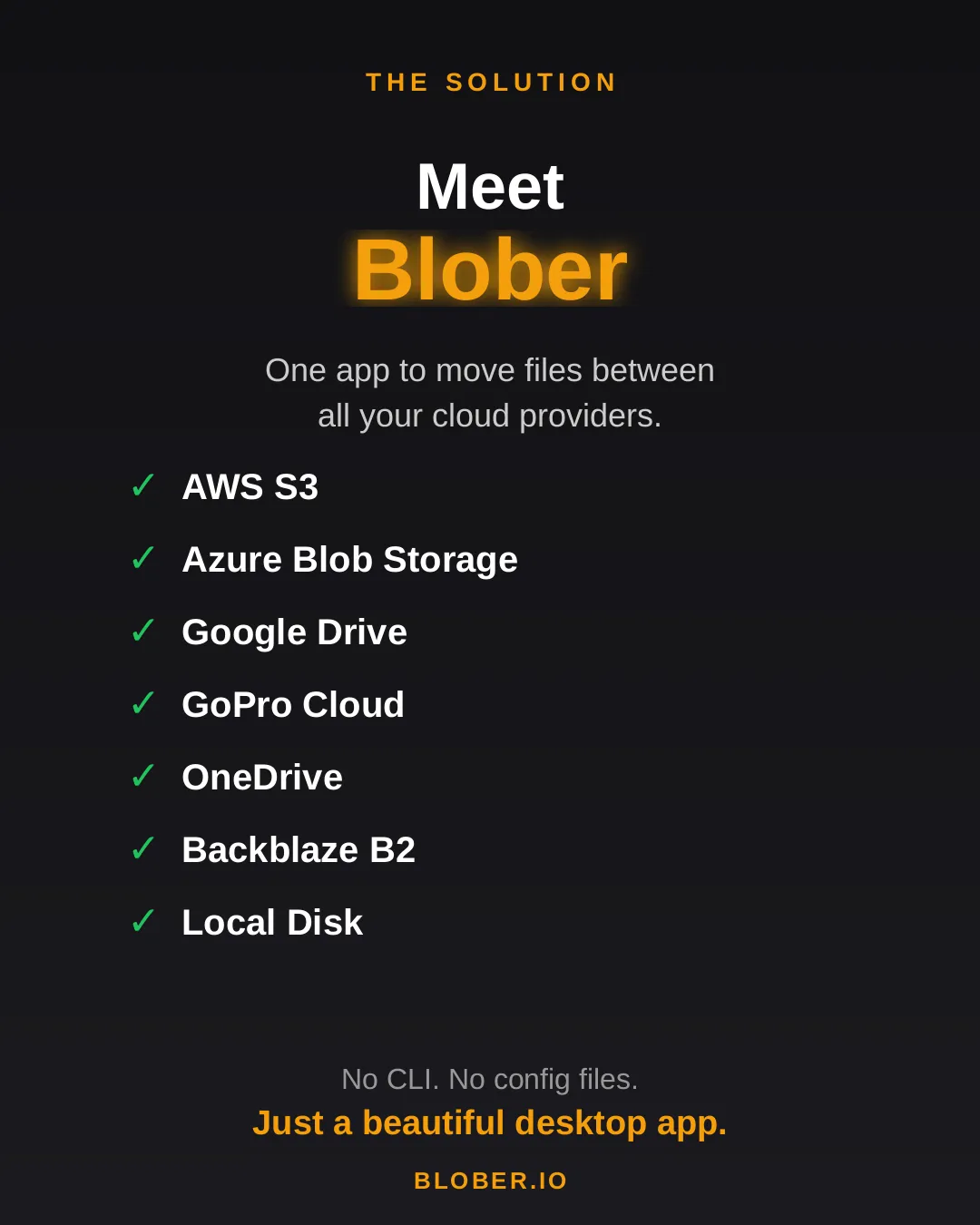
Blober is a desktop app that connects all your cloud storage in one place. AWS S3, Azure Blob Storage, Google Drive, GoPro Cloud, OneDrive, Backblaze B2, and local disk - all supported out of the box. No CLI. No config files. Just a beautiful, intuitive interface.

Meet Blober: one app to move files between AWS S3, Azure Blob, Google Drive, GoPro Cloud, OneDrive, Backblaze B2, and local disk

Buy once, transfer forever. No subscriptions. No transfer fees. Blober runs natively on Mac, Windows, and Linux - and it works offline too.

Blober: buy once, transfer forever. No subscriptions, no transfer fees, beautiful UI, works offline, runs on Mac, Windows, and Linux

Stop renting your tools. Download Blober →

Back Up Your GoPro Cloud to Backblaze B2, AWS S3, or Local Storage

Back up GoPro Cloud to Backblaze B2, AWS S3, or local storage

GoPro’s cloud storage (GoPro Plus / GoPro Premium) offers unlimited storage for GoPro camera media. It’s a great perk - until you want your footage somewhere else.

The reality for most GoPro users:

  • Painfully limited batch download - GoPro’s web portal caps batch downloads at 25 files at a time, bundled into a ZIP. Large batches frequently fail or time out, and metadata like GPS data may be stripped during compression
  • No third-party tool support - rclone, MultCloud, Flexify, and every other transfer tool do not support GoPro Cloud
  • Subscription dependency - cancel GoPro Plus and your cloud access disappears. Your footage remains hostage to a recurring charge
  • No “Download All” option - if you have hundreds or thousands of files, you’re stuck doing dozens of 25-file batch downloads manually, hoping none fail

GoPro community forums are filled with users asking the same question: “How do I download all my GoPro Cloud content at once?” - and the practical answer is: not without hours of manual work and frequent failures.

Blober changes that.


Blober: The Only Tool That Connects to GoPro Cloud

Section titled “Blober: The Only Tool That Connects to GoPro Cloud”

Blober is the only desktop application that integrates with GoPro’s cloud storage. No other migration tool - free or paid - supports GoPro Cloud as a source or destination.

With Blober, you can:

  • Browse all your GoPro Cloud media - photos and videos, organized by date, camera, and type
  • Download everything at once to your local drive, NAS, or external HDD
  • Transfer directly to Backblaze B2, AWS S3, Wasabi, Cloudflare R2, Azure Blob Storage, or DigitalOcean Spaces
  • Use metadata-based path templates to auto-organize files (e.g., by camera model, capture date, resolution)
  • Resume interrupted transfers - no need to start over if your connection drops

GoPro Plus costs ~$49.99/year. As long as you pay, your footage stays accessible. The moment you cancel, your cloud media goes offline. For years of footage, that’s a dangerous bet on a single subscription.

GoPro Cloud is your only copy in the cloud. There is no built-in backup, no versioning, no geographic replication. If GoPro ever changes their terms, shuts down the service, or experiences data loss - your footage is gone.

Long-term archival storage costs a fraction of ongoing subscriptions:

Storage OptionCost for 1 TB/yearEgress Fees
GoPro Plus~$49.99/year (ongoing)N/A (limited downloads)
Backblaze B2~$83/year ($6.95/TB/mo)Free up to 3x stored
Wasabi~$83.88/year ($6.99/TB/mo)Free
AWS S3 (Standard)~$276/year$0.09/GB
Local NASOne-time HDD costFree

For most GoPro users, Backblaze B2 or Wasabi combined with a Blober one-time license is the most cost-effective long-term strategy.

Your GoPro footage is yours. Keeping it locked behind a single provider’s subscription model is not ownership - it’s rental. Backing it up to storage you control gives you true data sovereignty.


  1. Open Blober and create a new workflow
  2. Select GoPro as the source
  3. Click Open GoPro Login - a browser window opens
  4. Sign in with your GoPro account
  5. Blober captures your session automatically

Select where you want your footage to go:

  • Local disk - your SSD, HDD, NAS, or external drive
  • Backblaze B2 - affordable, S3-compatible, free egress
  • AWS S3 - enterprise-grade, global availability
  • Wasabi - hot storage with no egress fees
  • Cloudflare R2 - zero egress, fast edge delivery
  • Any other Blober-supported provider

Step 3: Configure Path Templates (Optional)

Section titled “Step 3: Configure Path Templates (Optional)”

Use Blober’s metadata-based path templates to auto-organize files as they transfer:

/{camera_model}/{capture_date}/{filename}

This turns a flat GoPro dump into a clean archive:

/HERO13 Black/2026-01-23/GX015742.MP4
/HERO13 Black/2026-01-23/gorp0001.JPG
/HERO12 Black/2025-12-15/GX014521.MP4

Click Start and Blober handles the rest:

  • Parallel downloads for maximum throughput
  • Real-time progress tracking
  • Automatic resume on interruption
  • Full task history logged for every file

TypeExtensions
Videos.mp4, .mov, .avi, .mkv
Photos.jpg, .png, .raw, .dng

Blober downloads the highest available quality - no compression, no re-encoding.


Each GoPro file includes rich metadata that Blober can use for organization:

FieldExample
Camera modelHERO13 Black
Capture date2026-01-23
Resolution5312 × 2988
File size142.5 MB
Duration0:32 (videos)

Can I upload to GoPro Cloud with Blober? Yes. Blober supports uploads to GoPro Cloud (up to 5 TB per file) with multipart upload and progress tracking.

Does Blober store my GoPro credentials? No. Blober uses a browser-based login flow. Your session lasts approximately 20 hours, after which Blober prompts you to sign in again. Credentials are never stored or transmitted to any server.

Can rclone, MultCloud, or Flexify do this? No. As of February 2026, Blober is the only transfer tool that supports GoPro Cloud. rclone (70+ providers), MultCloud (30+ services), and Flexify (~25 clouds) do not include GoPro Cloud integration.

What if my transfer is interrupted? Blober saves progress and resumes from the last successfully transferred file. No need to re-download everything.


Your footage is irreplaceable - years of adventures, events, and memories sitting in a cloud you can only access through a subscription. Blober gives you a way out: move it all to storage you own and control, in the highest quality, organized exactly how you want.

Get started with Blober →

Data Sovereignty: Why Your Cloud Transfer Tool Matters

Data sovereignty and why your cloud transfer tool architecture matters

When you move data between cloud providers, your transfer tool has access to everything: your storage credentials, your file contents, your metadata. The architecture of that tool - where it runs, where credentials are stored, where data flows - determines whether you maintain control or hand it to a third party.

Most people evaluate migration tools on speed and features. Few ask the harder question: who else can see my data while it’s in transit?


Tools like Flexify.io and MultCloud run on their own servers. Your credentials are stored in their infrastructure. Your data routes through their systems during transfer.

ConcernFlexify.ioMultCloud
Credential storageFlexify serversMultCloud servers (Hong Kong)
Data pathThrough Flexify infrastructureThrough MultCloud servers
Account requiredYesYes
OAuth token storageServer-sideServer-side
Offline operationNoNo
Privacy policy scopeUS (Florida)Hong Kong

This doesn’t mean these services are malicious. But it means:

  • A third party stores your cloud credentials - API keys, OAuth tokens, or access grants
  • Your data transits infrastructure you don’t control - introducing a man-in-the-middle by design
  • You’re subject to their privacy policy and jurisdiction - which may change without notice
  • A breach of their systems exposes your credentials and potentially your data

For personal photos, this might feel acceptable. For business data, media archives, legal documents, or HIPAA/GDPR-adjacent workloads - it’s a serious risk.

rclone runs locally on your machine. Your data goes directly to and from each cloud provider. This is a genuine trust advantage over SaaS tools.

However, rclone stores credentials in a plaintext configuration file (~/.config/rclone/rclone.conf). Anyone with access to your filesystem - malware, another user, a compromised backup - can read your cloud credentials directly.

rclone does offer an encryption option for the config file, but it’s opt-in and requires manual setup. Most users leave it in plaintext.

Blober runs entirely on your machine with encrypted credential storage. Your data flows directly between your machine and each cloud provider. No intermediary.

ConcernBlober
Credential storage✅ Local, encrypted
Data path✅ Direct (no middleman)
Account required✅ No (license key only)
OAuth token storage✅ Local only
Offline operation✅ Yes
Jurisdiction✅ Your machine, your rules

Your cloud storage credentials are the keys to your kingdom. An AWS access key or a Google OAuth token doesn’t just grant transfer access - it grants full access to your storage: read, write, delete, list. If a SaaS provider’s database is breached, your credentials are in that breach.

With Blober, credentials never leave your machine. There is no remote database to breach.

When a SaaS tool transfers your files, those files pass through their servers. Even with SSL encryption in transit, the data is decrypted on their infrastructure before being re-encrypted and sent to the destination. This is not end-to-end encryption - it’s hop-by-hop.

With Blober, data flows directly from source to your machine to destination. No hops through third-party infrastructure.

MultCloud operates from Hong Kong. Flexify.io from Florida, USA. Each jurisdiction has different data protection laws, government access rules, and breach notification requirements. When your data or credentials live on their servers, you’re subject to their jurisdiction - not yours.

Blober runs on your hardware, in your jurisdiction. No foreign servers. No cross-border data flow through third parties.

SaaS tools require active accounts. Cancel your subscription, and you lose access to your workflows, task history, and potentially your configured connections. This creates a soft lock-in that has nothing to do with the quality of the tool.

Blober is a one-time purchase. No account, no subscription, no leverage.


DimensionSaaS (Flexify, MultCloud)CLI (rclone)Blober
CredentialsThird-party serversPlaintext local file✅ Encrypted local
Data pathThrough vendor serversDirect✅ Direct
Account requiredYesNo✅ No
Offline capableNoYes✅ Yes
Risk of vendor breachExposes your credentialsN/A✅ N/A
JurisdictionVendor’s countryYour machine✅ Your machine
Subscription lock-inYesNo✅ No

  • Freelancers and agencies handling client data - you have a professional duty to control where that data flows
  • Photographers and videographers with irreplaceable media - GoPro footage, wedding archives, production masters
  • Small businesses without dedicated security teams - reducing your attack surface matters
  • Anyone under GDPR, HIPAA, or SOC 2 obligations - third-party data processors require disclosure and contractual agreements
  • Privacy-conscious individuals who simply want to own their data pipeline

Your migration tool is not a neutral pipe. It’s an active participant in your data flow. Its architecture determines whether your credentials are stored remotely, whether your files transit foreign servers, and whether you maintain sovereignty over your data.

Blober is designed around a simple principle: your data, your machine, your rules.

No accounts. No SaaS intermediaries. No credential exposure. One-time purchase, local execution, direct transfers.

Get Blober →

The True Cost of Cloud Data Migration in 2026

The true cost of cloud data migration - cost comparison chart

Moving data between cloud providers should be simple. You own the files - you just want them somewhere else. But the cloud industry has turned data migration into a profit center, layering fees at every step: egress charges, per-GB migration fees, monthly subscriptions, and data traffic caps.

Here’s what cloud data migration actually costs in 2026, and why Blober’s one-time pricing model is a fundamentally better deal for anyone who transfers data more than once.


Flexify charges a per-GiB fee for every migration, on top of your cloud provider’s egress charges.

Migration SizeFlexify Fee (~$0.03/GiB)Provider Egress (AWS ~$0.09/GB)Total
100 GB$3$9~$12
1 TB$30$92~$122
10 TB$307$922~$1,229
100 TB$3,072$9,216~$12,288

These are per-job costs. Run the same migration next month? Pay again. Sync regularly? The meter never stops.

Flexify does offer managed migrations for 10+ TB where provider egress may be avoided through direct peering - but those require contacting sales and negotiating custom pricing.

2. Annual Subscriptions with Data Caps (MultCloud)

Section titled “2. Annual Subscriptions with Data Caps (MultCloud)”

MultCloud charges an annual subscription that includes a fixed amount of transfer traffic:

PlanAnnual CostData AllowanceCost Per TB Transferred
Free$05 GB/monthN/A (60 GB/year cap)
1,200 GB plan$59.99/year1,200 GB/year~$50/TB
2,400 GB plan$99.98/year2,400 GB/year~$42/TB

Hit the cap? Transfers stop until you renew. Need to move 5 TB? You’ll need to buy the top-tier plan and wait over two years to exhaust the quota - or pay for multiple years upfront.

Over three years, MultCloud costs $180–$300 in subscriptions alone, and you’re still capped on how much data you can actually move.

Blober charges a one-time license fee. No per-GB charges. No annual renewal. No data caps.

Migration SizeBlober CostProvider Egress (your standard cloud fees)
100 GB✅ One-time licenseStandard egress only
1 TB✅ Same licenseStandard egress only
10 TB✅ Same licenseStandard egress only
100 TB✅ Same licenseStandard egress only

The only variable cost is your cloud provider’s standard egress fee - which you’d pay with any tool, including rclone. There is no Blober surcharge.


Per-GB fees and subscriptions compound over time. If you migrate data regularly - monthly syncs, media archives, backup rotations - the cost gap widens fast:

ScenarioFlexify (per-GB)MultCloud (subscription)Blober (one-time)
One 1 TB migration~$122$59.99/year✅ One-time
Monthly 500 GB sync~$732/yearExceeds cap✅ One-time
3 years of regular use$2,196+$180–$300✅ One-time

For users who transfer data as part of their regular workflow - not a one-time event - subscription and per-GB models are an ongoing tax. Blober eliminates it.


rclone is free and open-source. On raw cost, nothing beats free.

But rclone’s cost is measured in time, not money:

  • Setup time - configuring remotes, flags, and cron jobs
  • Debugging time - when a transfer fails silently or a flag is wrong
  • Maintenance time - updating scripts when providers change APIs

For engineers who already live in the terminal, rclone is excellent. For everyone else, the time cost is significant and ongoing. Blober trades a one-time purchase for a visual, persistent workflow engine that eliminates scripting overhead entirely.


Regardless of which tool you use, cloud provider egress fees apply when downloading data. These are charged by your cloud provider, not by Blober:

ProviderStorage (TB/mo)Egress (per GB)Notes
AWS S3$26$0.09Egress-heavy workloads get expensive
Azure Blob Storage$20$0.08First 100 GB/month free
Google Cloud Storage$23$0.11Varies by region
Backblaze B2$6.95Free (up to 3x)Free egress up to 3x stored
Wasabi$6.99FreeNo egress fees ever
Cloudflare R2$15FreeZero egress by design
DigitalOcean Spaces$5 (250 GB)$0.011 TB outbound included

Pro tip: If you’re choosing a destination for long-term storage, providers like Backblaze B2 ($6.95/TB/mo, free egress), Wasabi ($6.99/TB/mo, no egress fees), and Cloudflare R2 (zero egress) offer significantly lower total cost of ownership than AWS, Azure, or GCS. Blober supports all of them.


ToolCost ModelBest For
Flexify.ioPer-GB + egressEnterprise one-time migrations
MultCloudAnnual subscriptionLight, occasional consumer transfers
rcloneFree (time cost)Engineers comfortable with CLI
BloberOne-time licenseAnyone who transfers data regularly, values simplicity, or needs GoPro Cloud support

If you transfer data more than once - or plan to - a one-time license pays for itself after a single job. No subscriptions. No per-GB surprises. No data caps.

Get Blober →

Why Photographers and Videographers Choose Blober

Why photographers and videographers choose Blober for cloud file transfer

Photographers and videographers generate enormous volumes of data. A single shoot can produce hundreds of gigabytes of RAW photos and 4K/5.3K video files. Over months and years, that adds up to terabytes of irreplaceable media scattered across local drives, cloud providers, and camera-specific platforms.

The challenges are consistent:

  • Files are large - 4K video clips are often 1–5 GB each. 5.3K GoPro footage is even larger.
  • Storage is fragmented - footage lives on local SSDs, NAS devices, Google Drive, GoPro Cloud, and various object storage providers
  • Organization is painful - manually sorting files into date/camera/project folders is tedious and error-prone
  • Backups are inconsistent - some footage has 3 copies, some has 1, some has none
  • Cloud costs add up - Google Drive, AWS S3, and iCloud storage bills grow every month

Blober is built to solve exactly these problems.


Most creators have files spread across multiple providers - intentionally or not. Blober connects to all of them in one interface:

ProviderUse Case
GoPro CloudAction camera footage auto-uploaded
Google DriveClient deliverables and sharing
Local NAS / SSDPrimary working storage
Backblaze B2Long-term archive (cheap, reliable)
WasabiHot archive (no egress fees)
AWS S3Production infrastructure
Cloudflare R2CDN-adjacent delivery

Instead of logging into 4 different dashboards and downloading/uploading manually, Blober lets you build workflows that move files between any of these in a single operation.

If you shoot with GoPro cameras, you likely have footage auto-uploaded to GoPro Cloud. The problem: GoPro’s web portal only allows batch downloads of 25 files at a time (as ZIPs that frequently fail), and no third-party tool supports GoPro Cloud as a transfer source.

Blober is the only tool that connects to GoPro Cloud. You can:

  • Download all GoPro footage to local storage
  • Transfer directly to Backblaze B2 or Wasabi for long-term archival
  • Organize files by camera model, date, and resolution automatically

No other tool - not rclone, not MultCloud, not Flexify - supports GoPro Cloud.

Blober’s path templating system uses file metadata to automatically organize transfers. Instead of dumping files into flat folders, you define a template:

/{camera_model}/{capture_date}/{filename}

And Blober organizes the output:

/HERO13 Black/2026-01-23/GX015742.MP4
/Sony A7IV/2026-01-20/DSC09845.ARW
/DJI Mini 4/2026-01-18/DJI_0042.MP4

This works across all providers - GoPro Cloud to local, Google Drive to B2, or any combination. Months of manual folder sorting, automated in one workflow.

Creative work is cyclical. Shoots happen regularly, and the post-shoot workflow is always the same: ingest → organize → edit → archive → backup.

Blober saves each transfer as a durable workflow:

  • One-click re-execution - run the same ingest pattern after every shoot
  • Resumable transfers - if a 500 GB transfer drops at 80%, pick up where it stopped
  • Task history - see exactly what was transferred, when, and whether it succeeded
  • No scripting - no cron jobs, no bash scripts, no forgotten flags

For long-term storage, the hyperscalers (AWS, Azure, GCS) are expensive. Creative professionals are increasingly moving to budget-friendly alternatives:

ProviderStorage CostEgressWhy Creators Choose It
Backblaze B2$6.95/TB/monthFree (up to 3x)Cheapest reliable archive
Wasabi$6.99/TB/monthFreeNo egress fees, predictable billing
Cloudflare R2$15/TB/monthFreeZero egress, great for delivery

Blober supports all of these, making it trivial to set up an archive workflow: shoot → ingest to local NAS → archive to Backblaze B2 → done. One-time license, no per-GB fees.


After each wedding: 80 GB of RAW photos + 40 GB of video. Create a Blober workflow that copies everything from your SSD to Backblaze B2, organized by date and event name. Run it after every wedding with one click.

Finished projects sit on Google Drive eating into your 2 TB plan. Use Blober to move completed projects to Wasabi for long-term storage at a fraction of the cost, freeing up Google Drive space for active work.

Years of GoPro footage sitting in GoPro Cloud with no easy way out. Use Blober to download everything to a local NAS, organized by camera and date. Cancel GoPro Plus knowing your footage is safe.

100+ GB per flight day across DJI footage on local cards and backup copies on Google Drive. Use Blober to standardize your archive: everything goes to Backblaze B2, organized by date and location, with a local NAS mirror.


rclone is free and powerful, but it requires terminal expertise. For each new storage provider, you configure a remote. For each workflow, you write a command with precise flags. There’s no visual interface, no persistent workflows, and no GoPro support.

If you’re a software engineer, rclone might work. If you’re a photographer who wants to focus on photography, Blober is what you need.


Blober is available for Windows, macOS, and Linux. One-time license, currently at discounted beta pricing. No subscriptions. No per-GB fees. No data caps.
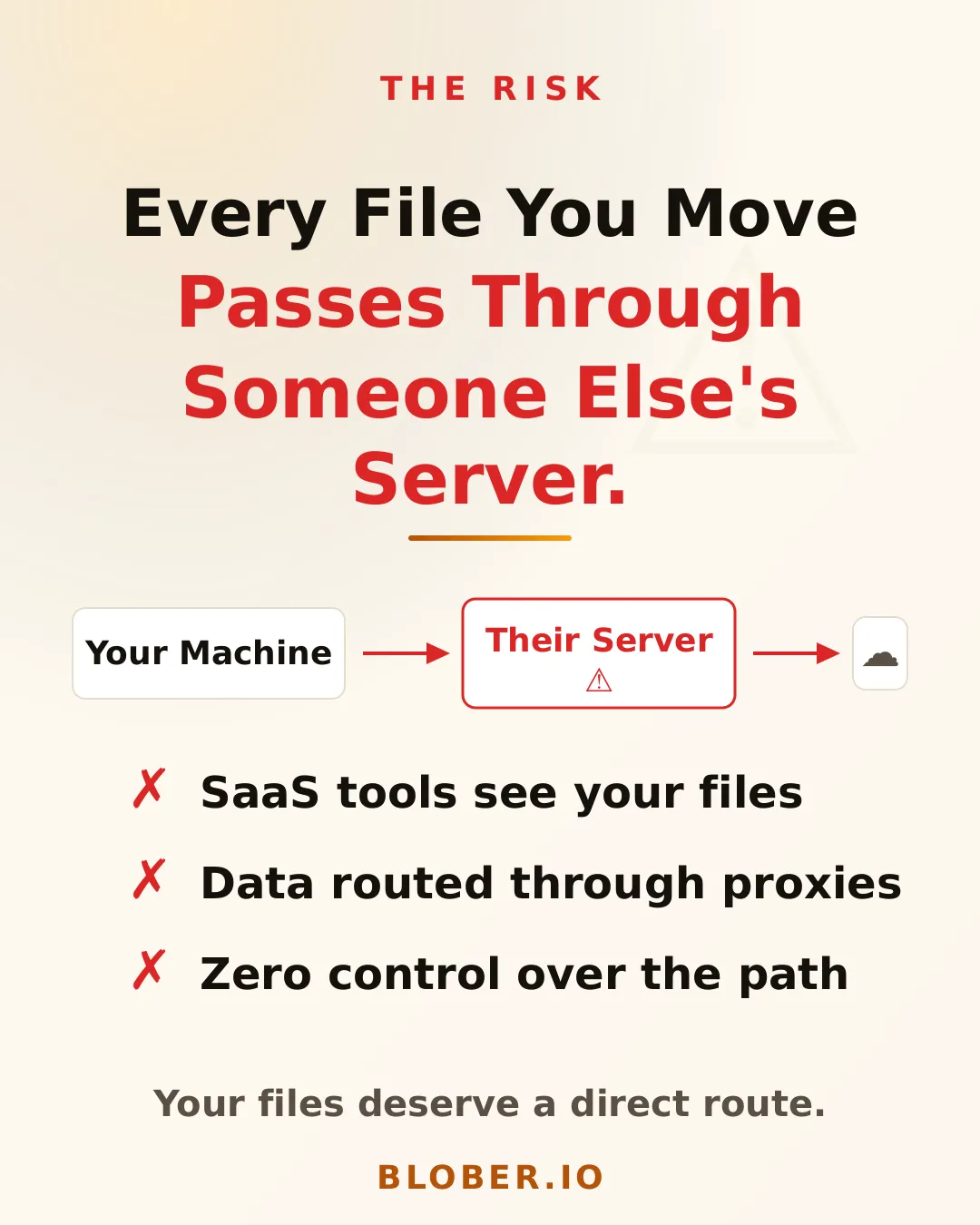
Connect your providers, build your workflows, and take control of your media archive.

Get Blober →

Blober vs Flexify

Blober vs Flexify - comparison of cloud migration tools

Both Blober and Flexify.io solve the same core problem: moving large volumes of data between cloud storage providers. They approach the problem from fundamentally different architectural and economic philosophies.

Flexify.io (founded 2015, Tampa FL) is a managed, cloud-based migration and virtualization platform built for enterprises moving tens or hundreds of terabytes in controlled, one-time projects. Blober is a local-first desktop workflow engine designed for continuous, repeatable transfers - no subscriptions, no per-GB fees, and no third-party servers touching your data.


Flexify.io

  • Cloud-hosted migration engines deployed on Flexify-managed infrastructure
  • Data routes through Flexify servers (or, for managed 10 TB+ migrations, direct cloud-to-cloud)
  • Usage-based pricing - you pay per GiB transferred
  • Emphasis on API virtualization: translates Amazon S3 API to Azure Blob Storage on-the-fly
  • Supports ~25 object-storage providers (S3-compatible, Azure, GCS, Alibaba, etc.)

Blober

  • Runs entirely on your local machine (Windows, macOS, Linux)
  • Transfers go directly between your machine and each storage provider - no intermediary servers
  • All credentials stored locally and never transmitted to a third party
  • Supports unique providers like GoPro Cloud that no other migration tool covers

This distinction matters for users who care about cost predictability, credential ownership, data sovereignty, and ongoing workflows rather than one-time migrations.


AspectBloberFlexify.io
Pricing style✅ One-time licenseUsage-based (per GiB)
Current costDiscounted beta pricing~$0.03/GiB Flexify fee + provider egress ($0.05–$0.09/GiB)
Subscription✅ NoneSign-up required ($20 free credit)
Long-term cost✅ Fixed foreverGrows with every transfer
1 TB migration✅ One-time price~$80 – $120+ in fees

For a single 1 TB migration from AWS S3 to Google Cloud Storage, Flexify’s self-service rate is approximately $0.08–$0.12 per GiB - translating to $80–$120+ for that one job. With Blober, only your provider’s standard egress fees apply; there is no Blober per-GB charge.


FeatureBloberFlexify.io
Cloud-to-cloud transfer✅ YesYes
Local filesystem integration✅ YesLimited
GoPro Cloud support✅ Yes❌ No
Metadata-based path templating✅ YesNo
Persistent task history✅ YesManaged dashboard
Workflow reuse✅ YesLimited
Resumable workflows✅ YesYes
API accessNoYes
Virtual S3 endpointNoYes
Credential storage✅ Local onlyCloud-managed
Data path✅ DirectThrough Flexify servers

With Flexify, your storage credentials are stored on their servers and your data may transit through Flexify-managed infrastructure. For regulated industries, sensitive media archives, or personal data - this introduces a third-party dependency and potential compliance exposure.

Blober eliminates this concern entirely:

  • Credentials never leave your machine - no third-party vault, no OAuth token stored in a SaaS dashboard
  • Data flows directly between your local machine and each cloud provider
  • No account required - Blober works offline with a one-time license
  • Full control over when, where, and how your data moves

Blober is the only migration tool that supports GoPro Cloud - allowing GoPro users to back up or transfer their media archives to any supported provider (AWS S3, Backblaze B2, Wasabi, local disk, etc.). Neither Flexify, rclone, nor MultCloud offer GoPro Cloud integration.

This makes Blober the go-to choice for photographers, videographers, and agencies managing GoPro footage across storage tiers.


Flexify.io is a mature enterprise platform (since 2015) with production-scale deployments and petabytes migrated. Blober is newer and currently in beta, with faster iteration and less operational overhead.

Blober offsets its maturity gap with:

  • Aggressive beta pricing - lock in your license before prices go up
  • Rapid feature development with direct community influence on the roadmap
  • No lock-in to ongoing fees - one purchase, unlimited use
  • Desktop-native architecture that is inherently simpler and more predictable

Choose Blober if you:

  • Transfer data regularly, not just once
  • Want full control over credentials and data flow
  • Need GoPro Cloud support (only Blober has it)
  • Prefer a native desktop UI over enterprise SaaS dashboards
  • Want predictable lifetime pricing with no per-GB surprises
  • Care about data sovereignty - no third-party servers touching your files

Download Blober at blober.io

Blober vs Flexify vs rclone

Blober vs Flexify vs rclone - three cloud transfer tools compared

Three tools dominate cloud data transfer in 2026 - each solving the problem from a completely different angle. Here’s how they compare.


DimensionBloberFlexify.iorclone
Architecture✅ Local-first desktopManaged SaaSCLI utility
Pricing✅ One-time licenseUsage-based (~$0.03–$0.04/GiB + egress)Free
Ease of use✅ High (native GUI)Medium (web dashboard)Low (terminal only)
Provider count9+ and growing~25 (object storage)70+
GoPro Cloud supportYes (exclusive)❌ No❌ No
Credential control✅ Local onlyCloud-managedLocal config file
Data path✅ Direct (no middleman)Through Flexify serversDirect (local)
Workflow persistence✅ Built-inDashboard-basedNone (manual scripts)
Task history & resume✅ Built-inDashboard-basedLogs only
Metadata path templates✅ YesNoManual scripting
AutomationLimitedHighVery high
API virtualizationNoYes (S3-to-Azure gateway)No
Enterprise scaleHighHighHigh
Open sourceNoNoYes
Best forAgencies, creators, engineersEnterprises (petabyte migrations)Engineers, sysadmins

ScenarioBloberFlexify.iorclone
100 GB migration✅ One-time~$8 – $12Free
1 TB migration✅ One-time~$80 – $120+Free
10 TB migration✅ One-time~$800 – $1,200+Free
Recurring monthly✅ $0Compounds every runFree

Flexify charges per GiB transferred plus cloud provider egress fees. Costs add up fast for recurring workflows. rclone is free but demands engineering time. Blober sits in the sweet spot: pay once, transfer forever.


ConcernBloberFlexify.iorclone
Credentials stored✅ Local onlyFlexify serversLocal config file
Data transits 3rd party✅ NoYes (Flexify infra)No
Account required✅ NoYesNo
Offline operation✅ YesNoYes

For regulated industries, sensitive media archives, or personal data - avoiding third-party intermediaries is not a preference, it is a requirement. Both Blober and rclone keep your data path clean. Flexify introduces a managed middleman.


Blober is the only transfer tool that supports GoPro Cloud. Neither Flexify nor rclone can access GoPro’s storage. If you manage GoPro footage - whether as a creator, agency, or production house - Blober is the only option for migrating that media to professional storage like Backblaze B2, AWS S3, or your local NAS.


  • rclone is the most powerful tool if you are deeply technical, automation-driven, and comfortable with terminal workflows. It is free and supports 70+ providers.
  • Flexify.io is ideal for enterprises running massive one-time migrations under strict SLAs, especially when virtual S3 endpoints or managed infrastructure are required. Budget accordingly - costs scale with data volume.
  • Blober fills the gap between them: professional-grade transfers with a native desktop GUI, local credential control, visual workflows, predictable one-time pricing, and exclusive GoPro Cloud support.

Blober’s beta pricing locks in a lifetime license at a fraction of the cost competitors charge for a single large migration. For users who value simplicity, sovereignty, and long-term savings - Blober is the clear choice.

Blober vs MultCloud

Blober vs MultCloud - one-time pricing versus subscription cloud transfer

MultCloud (founded 2012, Hong Kong) is a web-based platform for transferring, syncing, and managing files across 30+ cloud services. It is subscription-based and routes all data through MultCloud’s servers.

Blober is a local-first desktop application that transfers data directly between your machine and cloud providers - no middleman, no subscription, no data caps.

Both tools target non-technical users who want cloud-to-cloud transfers without writing scripts. The difference lies in architecture, pricing, and trust.


MultCloud

  • Web-based SaaS - runs entirely in your browser
  • All data routes through MultCloud’s servers in Hong Kong
  • Requires an account and OAuth access to your cloud accounts
  • Subscription required for meaningful use (free tier: 5 GB/month)

Blober

  • Native desktop application (Windows, macOS, Linux)
  • Data flows directly between your machine and each cloud provider
  • No intermediary servers - your files never touch a third party
  • Credentials stored locally, never transmitted

AspectBloberMultCloud
Pricing style✅ One-time licenseSubscription (annual)
Free tierN/A (beta pricing)5 GB/month, 2 transfer threads
Mid-tier plan-$59.99/year - 1,200 GB/year
Top-tier plan-$99.98/year - 2,400 GB/year
Transfer threadsAutomatic parallelismFree: 2 threads, Paid: 10 threads
Data capNoneCapped per plan (5 GB – 2,400 GB/year)
Long-term cost (3y)✅ One-time purchase$180 – $300+

MultCloud’s data traffic limits are a hard ceiling. Once you exhaust your annual quota, transfers stop until you renew. Blober has no transfer caps - move as much data as your bandwidth allows.


FeatureBloberMultCloud
Cloud-to-cloud transfer✅ YesYes
Local filesystem integration✅ YesNo (web-only)
GoPro Cloud supportYes (exclusive)❌ No
Storage-optimized transfers✅ YesGeneric
Workflow persistence✅ YesScheduled tasks
Task history and logs✅ YesBasic dashboard
Metadata path templates✅ YesNo
Resumable transfers✅ YesLimited
Sync (two-way)PlannedYes
Email-to-cloud (PDF)NoYes
Credential storage✅ Local onlyMultCloud servers (OAuth)
Data path✅ DirectThrough MultCloud servers

This is where the difference is starkest. MultCloud requires OAuth access to your cloud accounts and routes all transferred data through its own servers. Their privacy page states data is “temporarily cached” during operations.

Blober takes the opposite approach:

  • Credentials never leave your machine - no OAuth tokens stored on third-party servers
  • Data flows directly between your local machine and each cloud provider
  • No account needed - Blober works with a license key, offline
  • No data caching - nothing is stored, buffered, or logged on remote servers

For users transferring personal photos, sensitive business documents, or media archives - the question is simple: do you want your data flowing through servers in Hong Kong, or directly from your machine to your cloud provider?


MultCloud supports 30+ consumer cloud services (Google Drive, Dropbox, OneDrive, etc.) but does not support GoPro Cloud. If you need to move GoPro footage to professional storage like Backblaze B2, AWS S3, or Wasabi, MultCloud cannot help.

Blober is the only transfer tool with native GoPro Cloud integration - making it essential for photographers, videographers, and agencies managing action camera footage.


Choose Blober if you:

  • Need to move large volumes of data without annual caps
  • Want predictable, one-time pricing - not $60–$100/year forever
  • Prefer local execution over web-based SaaS
  • Require data sovereignty - no files routing through third-party servers
  • Need GoPro Cloud support (only Blober has it)
  • Value detailed task history, resumable workflows, and metadata-based organization
  • Care about credential security - no OAuth tokens stored in the cloud

Blober vs rclone

Blober vs rclone - visual UI versus CLI for cloud transfers

rclone is the industry-standard CLI tool for cloud storage automation among developers and sysadmins. It is extremely powerful, supports over 70 storage providers, and is completely free and open-source. Its tradeoff is complexity - every job requires flags, config files, and terminal expertise.

Blober is built for users who want rclone-level capability without managing flags, scripts, or terminal state. It replaces stateless CLI execution with persistent, visual workflows that anyone can set up and repeat.


rclone

  • Command-line only (experimental web GUI exists, but limited)
  • Configuration files and flags - every job requires manual setup
  • Excellent for scripting and cron-based automation
  • Steep learning curve for non-technical users
  • No built-in workflow persistence - you must manage your own scripts

Blober

  • Native desktop GUI (Windows, macOS, Linux)
  • Visual setup of sources, destinations, and filters
  • Saved workflows with one-click execution
  • Built-in task history with resumable state
  • Designed for repeatability and clarity - no terminal required

FeatureBloberrclone
Interface✅ GUICLI
Provider countGrowing (9+)70+
GoPro Cloud support✅ Yes❌ No
Local filesystem✅ YesYes
Cloud-to-cloud✅ YesYes
Workflow persistence✅ YesNo (manual scripts)
Metadata path templates✅ YesManual scripting
Task history & resume✅ YesLogs only
EncryptionPlannedBuilt-in
AutomationLimitedExtensive
Open sourceNoYes
Data path✅ DirectDirect (local)

rclone supports over 70 providers - but GoPro Cloud is not one of them. If you shoot with GoPro cameras and want to move your media from GoPro’s cloud to Backblaze B2, AWS S3, Wasabi, or your local NAS, rclone simply cannot help.

Blober is the only transfer tool with native GoPro Cloud integration, making it the obvious choice for photographers, videographers, action sports creators, and agencies managing GoPro media libraries.


rclone requires upfront configuration, careful flag selection, and scripting discipline to safely repeat jobs:

Terminal window
rclone copy remote:bucket/path dest:bucket/path \
--transfers 4 --checkers 8 --retries 3 \
--filter-from filters.txt --log-file transfer.log

Forget a flag? Change a path? The job silently behaves differently. There is no built-in history of what ran, when, or whether it succeeded.

Blober stores each workflow as a durable configuration with immutable execution history. If a transfer is interrupted, Blober resumes based on stored state rather than re-running a stateless command.

This difference becomes critical for:

  • Long-running transfers over unreliable connections
  • Media archives with thousands of files
  • Users who run transfers infrequently and forget the exact flags
  • Teams where multiple people need to trigger the same workflow

Both rclone and Blober are local-first tools - your credentials stay on your machine. This is a shared advantage over SaaS competitors like Flexify and MultCloud where credentials and potentially data flow through third-party servers.

Where Blober adds value over rclone:

  • No terminal exposure - credentials are managed in a secured desktop app, not plaintext config files
  • Encrypted credential storage - not a ~/.config/rclone/rclone.conf file on disk
  • Visual audit trail - every transfer logged with timestamps, file counts, and status

AspectBloberrclone
CostOne-time licenseFree
SupportProduct supportCommunity forums
UpdatesIncluded with licenseCommunity-driven
Target userCreators, agencies, engineersEngineers, sysadmins

rclone being free is a genuine advantage. Blober earns its price by saving time, reducing errors, and opening cloud transfers to users who would never touch a terminal.


Choose Blober if you:

  • Prefer visual tools over terminal commands
  • Want repeatable workflows without writing scripts
  • Need GoPro Cloud support (only Blober has it)
  • Need clarity, task history, and one-click resumption
  • Transfer data occasionally but need it to work reliably every time
  • Value convenience and productivity over maximum flexibility
  • Want credentials stored securely - not in a plaintext config file

Download Blober at blober.io