Skip to content

gopro

5 posts with the tag “gopro”

Transfer GoPro Cloud Files in 45 Seconds with Blober

GoPro Cloud workflow setup in 45 seconds with Blober

This video shows the full process of creating a Blober workflow with GoPro Cloud as the source.

Play

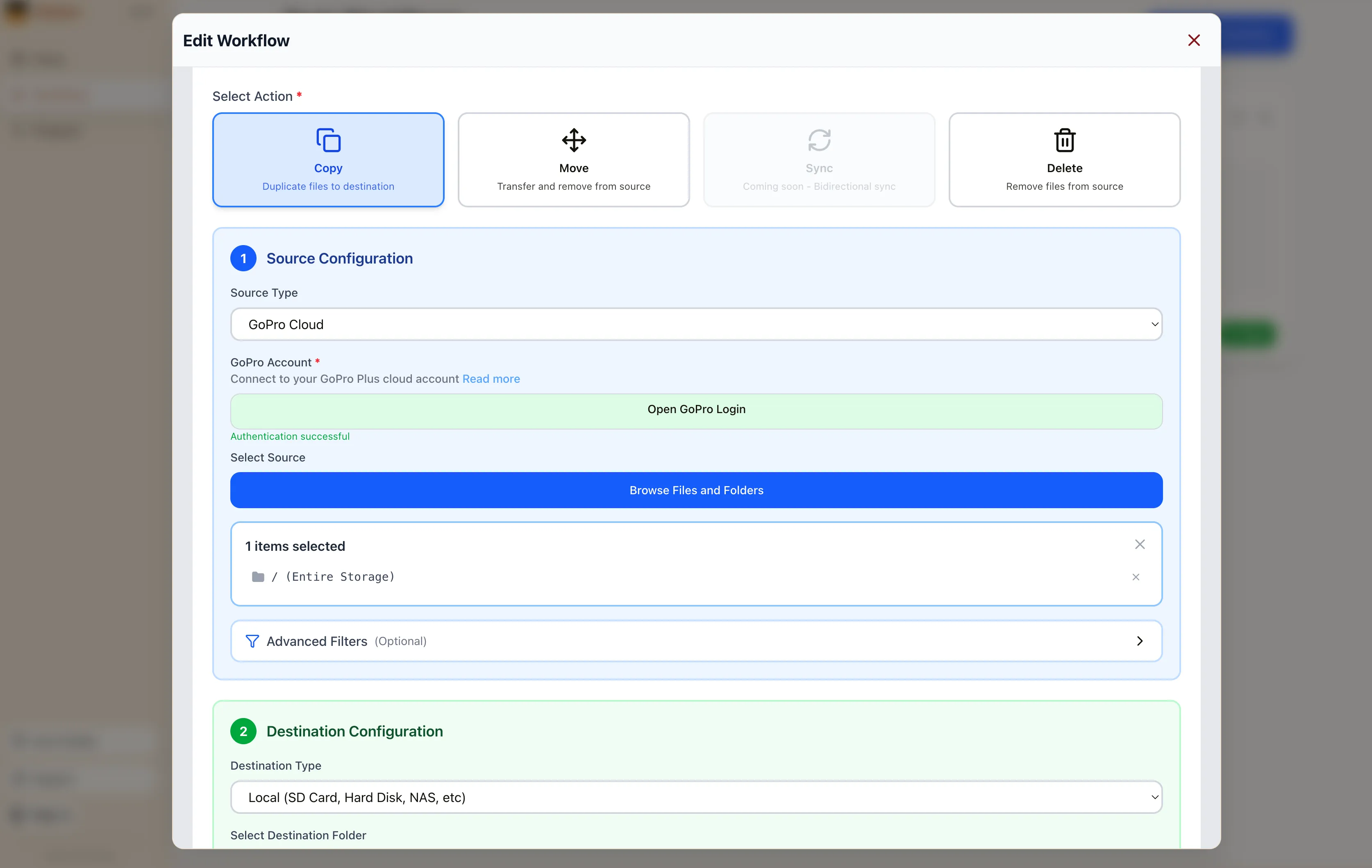
Select GoPro Cloud as your source, click Open GoPro Login, and sign in. Blober captures your session. No API keys, no config files, no CLI.

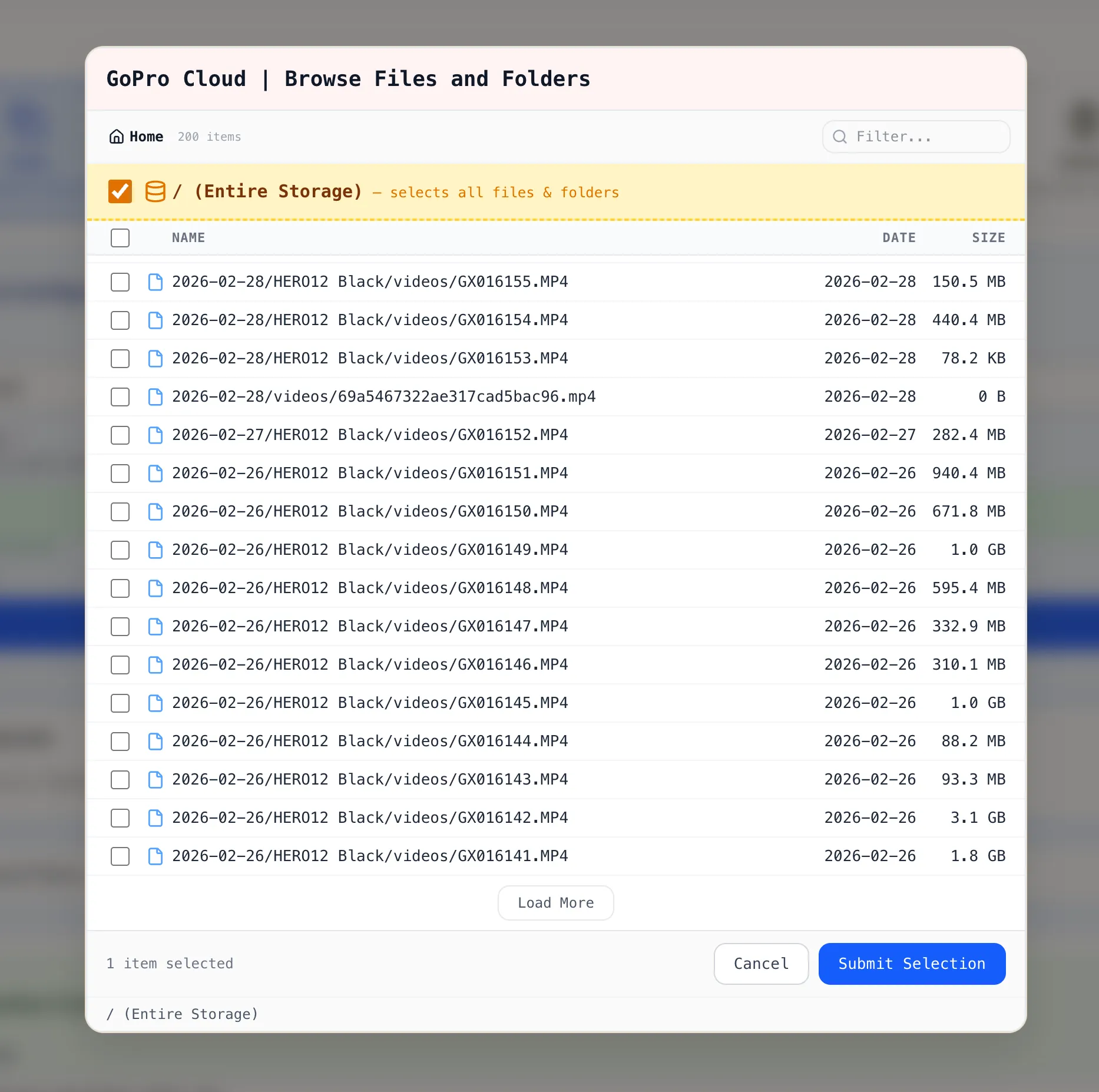
Click Browse Files and Folders. Blober loads your GoPro Cloud library. Files are listed with date and size.

Blober file browser showing GoPro Cloud files with entire storage directory selected

You can select:

  • Individual files by clicking a single file
  • Multiple files by checking several files across folders
  • Entire directory by ticking the / (Entire Storage) checkbox

Click Submit Selection. The workflow editor shows your GoPro Cloud source with the selected items. Pick your destination (local disk, Backblaze B2, AWS S3, Dropbox, or another supported provider), configure options, and click Save Workflow.

Blober workflow editor with GoPro Cloud as source and entire storage selected

Close the workflow editor with the X button in the top-right corner. On the Workflows page, click the green Run button on your workflow card. Blober starts the transfer with parallel downloads, progress tracking, and automatic resume.

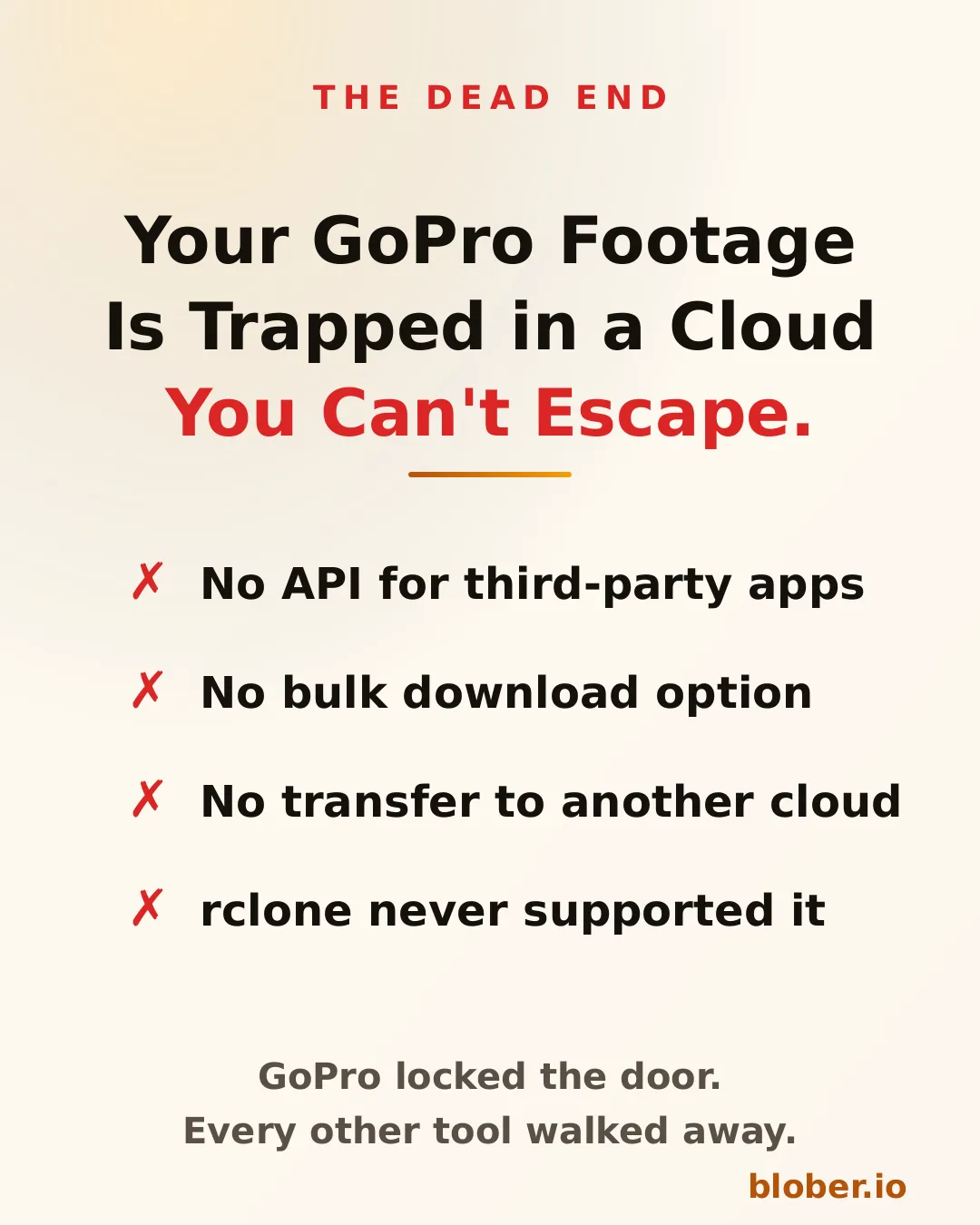
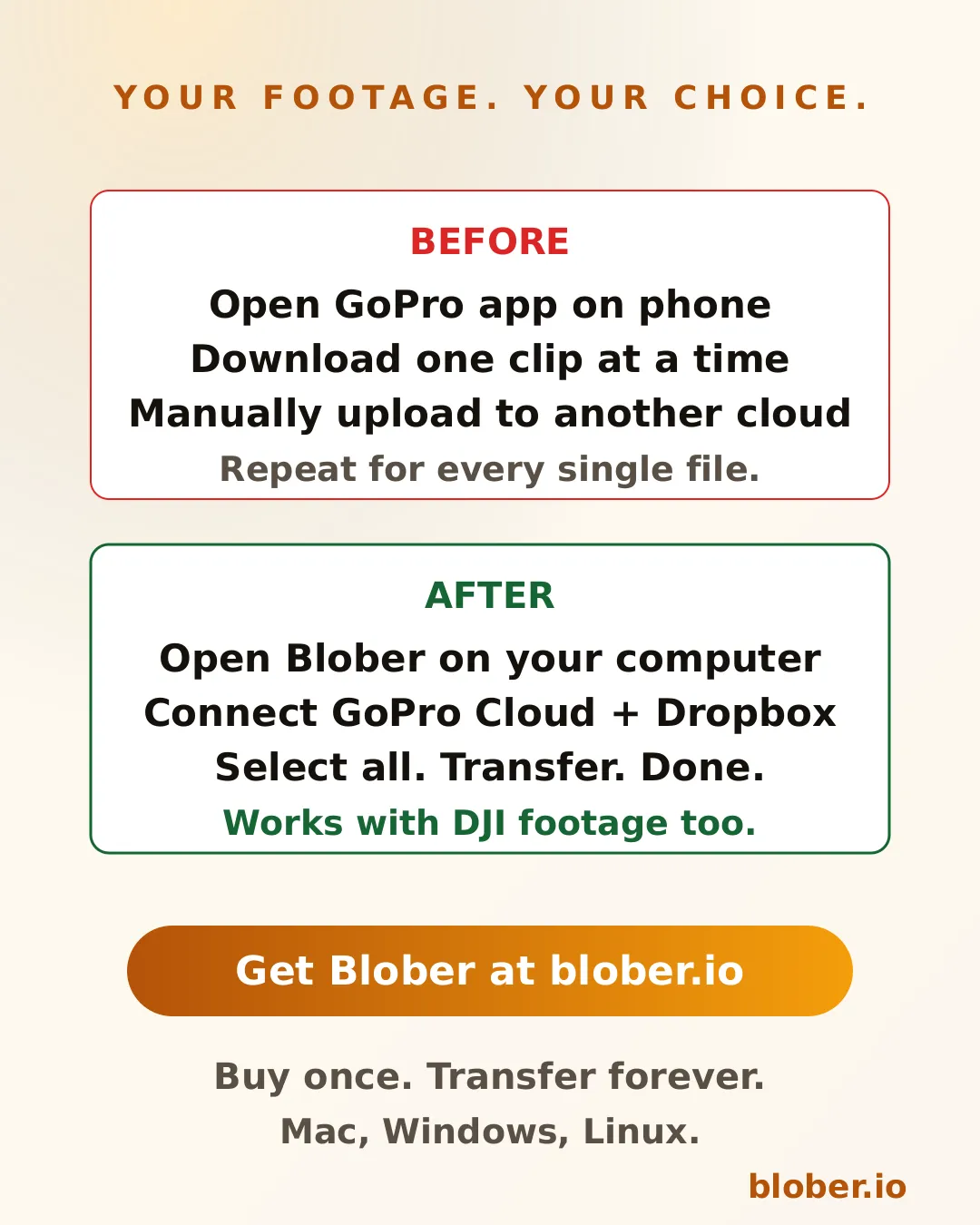
GoPro’s web portal limits batch downloads to 25 files at a time, bundled as ZIPs. Large downloads often fail. There is no bulk export and no “Download All” button.

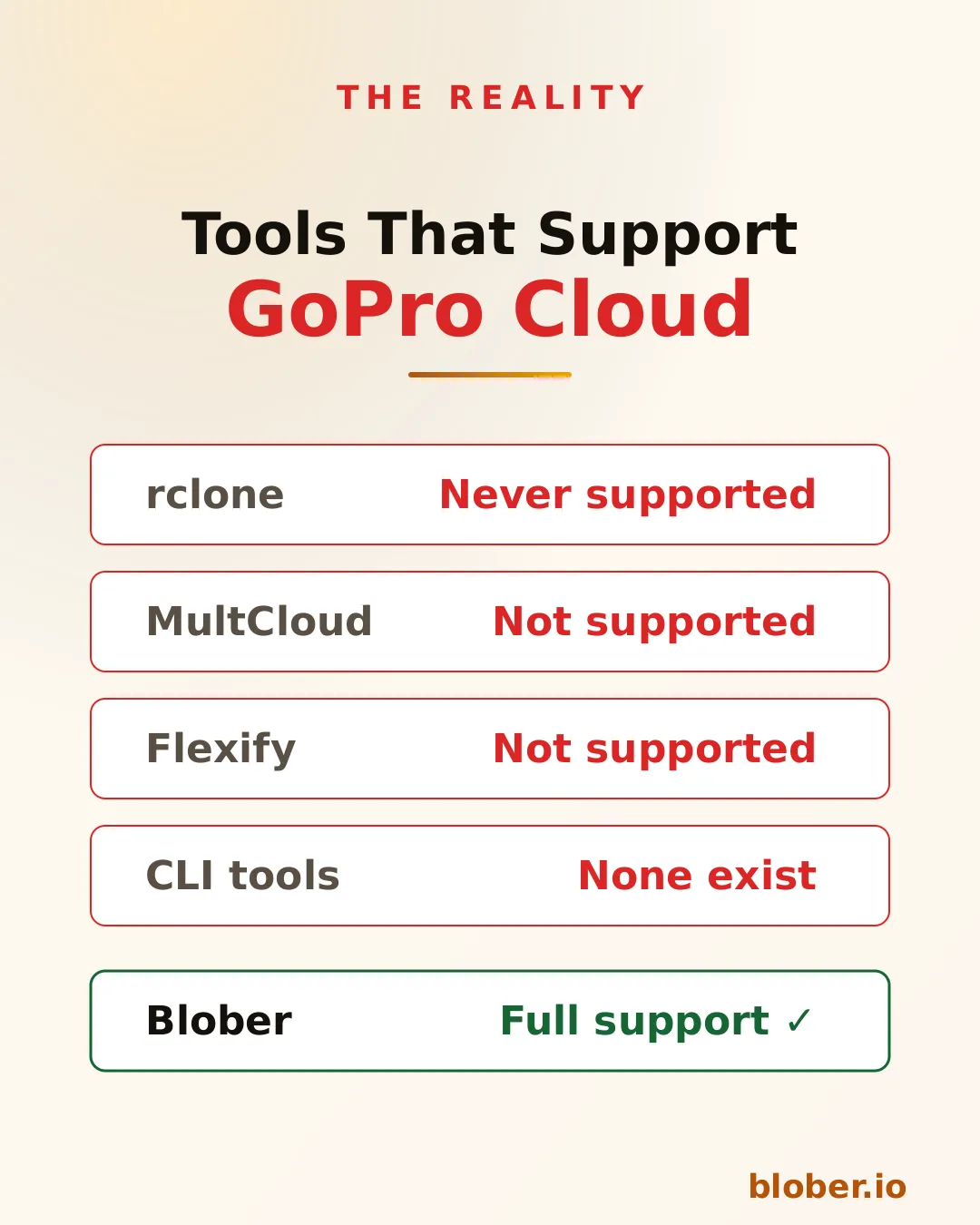
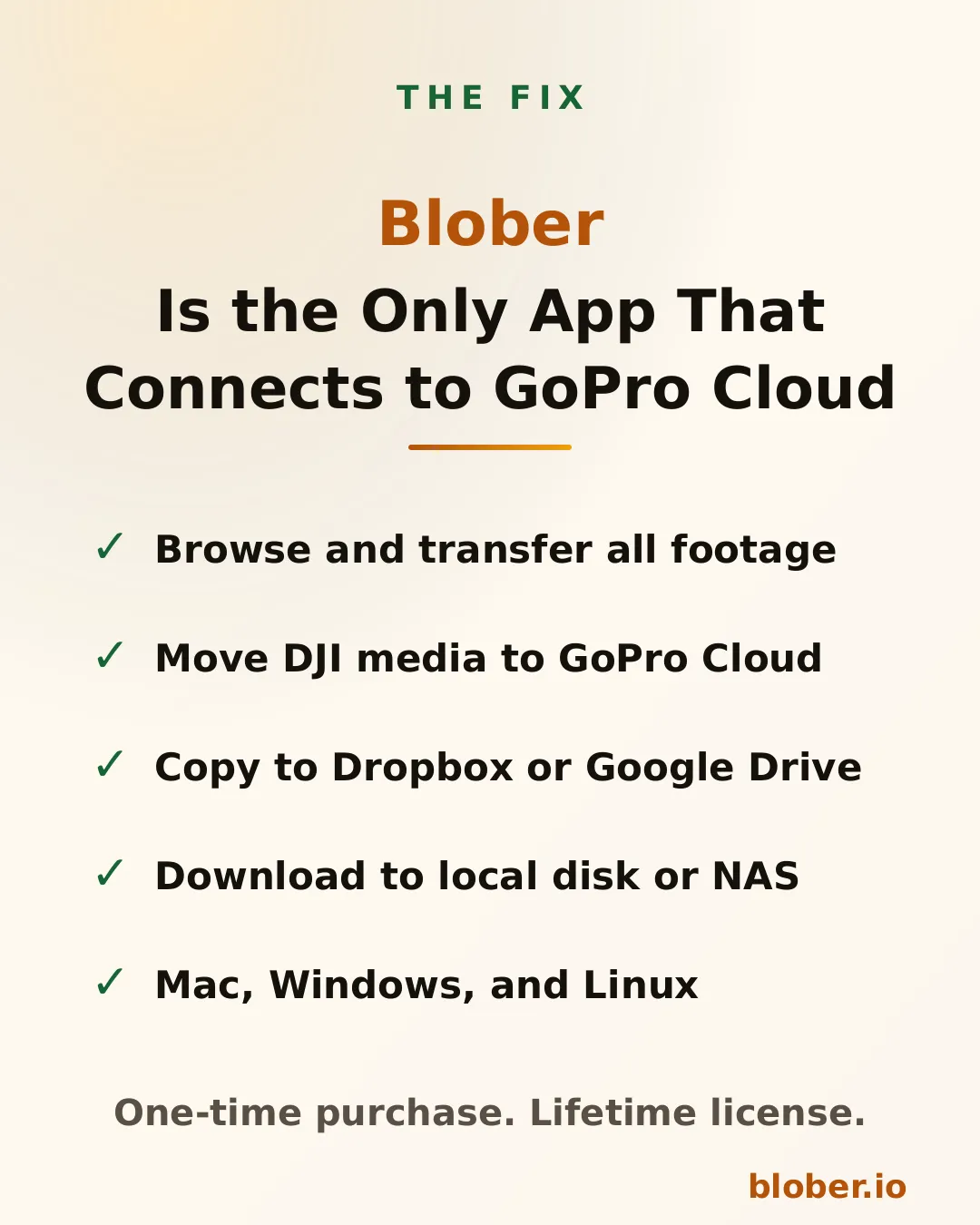
Blober is the only tool that connects to GoPro Cloud. rclone, MultCloud, and Flexify do not support GoPro as a source.

  • No manual downloads. Files move directly from GoPro Cloud to your destination.
  • No file limits. Transfer 10 files or 10,000 in one run.
  • No subscription. Blober is a one-time purchase.
  • No middleman. Everything runs on your machine. Your credentials stay local.
  1. Download Blober (macOS, Windows, Linux)
  2. Connect your GoPro Cloud account
  3. Create a workflow and run it

Back Up Cloud Storage Directly to Your NAS

Back up cloud storage directly to your NAS — Synology, QNAP, TrueNAS, or any network drive

You have files in the cloud — GoPro footage, Dropbox archives, Google Drive projects, S3 buckets — and you want them on your NAS. Simple enough in theory. In practice, the available options are all some flavor of painful.

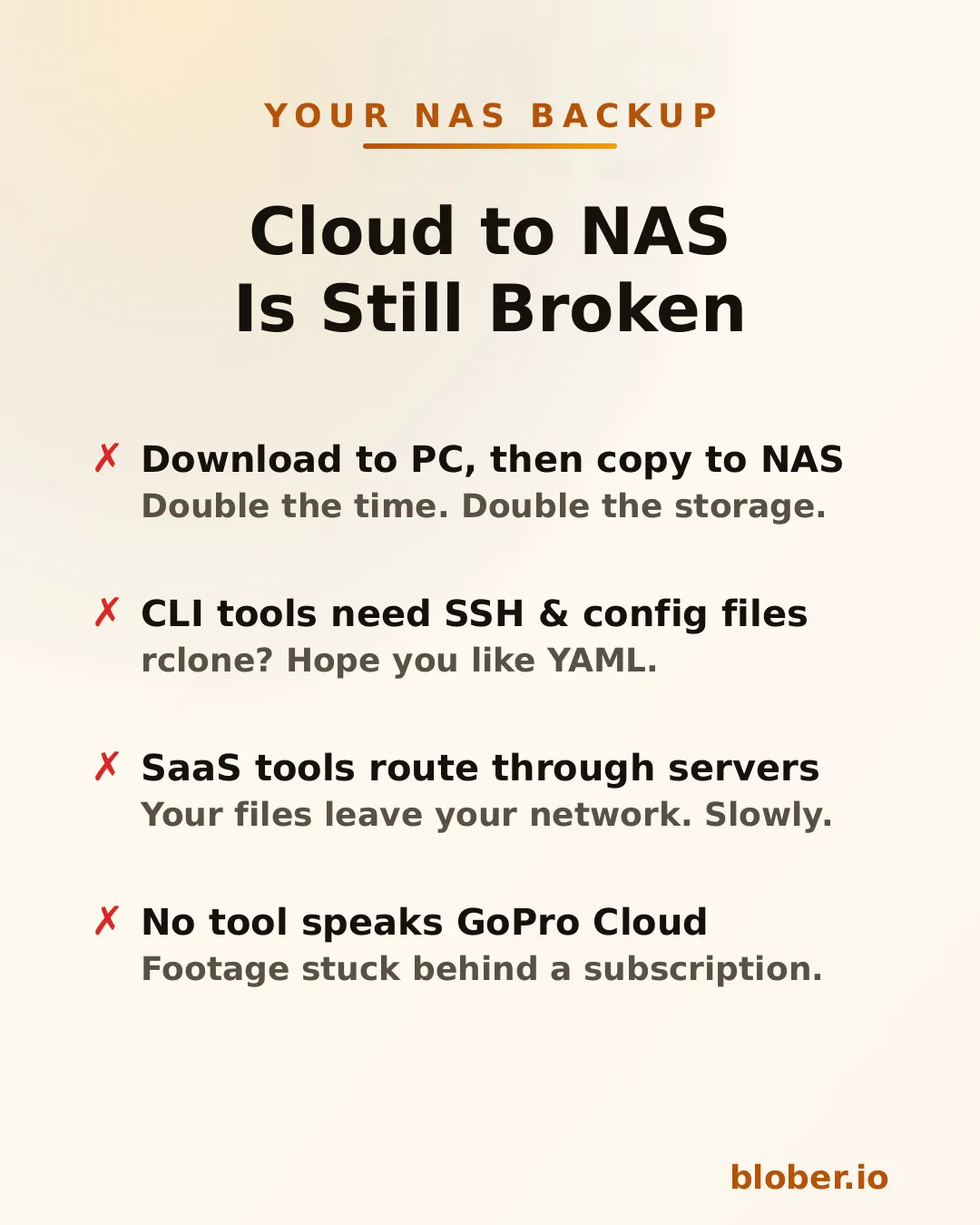
Four pain points of cloud-to-NAS backup: double-copy workflow, CLI config overhead, SaaS routing through third-party servers, and no GoPro Cloud tool support

Download then copy is the default workflow. Download everything from the cloud to your PC, then manually copy it to the NAS. You need enough free space on your PC for the entire dataset, you do every byte twice, and if the NAS connection drops mid-copy you start over.

CLI tools like rclone can mount cloud storage or sync directly, but you need to configure remotes, write YAML, manage credentials, and troubleshoot provider-specific flags. It works — eventually. It’s not something most people reach for on a Saturday afternoon.

SaaS migration services like MultCloud or Cloudsfer route your files through their servers. Your data leaves your network, passes through a third party, then comes back down to your NAS. It’s slower, it’s a privacy concern, and it costs a monthly subscription — usually with transfer caps.

GoPro Cloud has no solution at all. No migration tool supports it. rclone doesn’t. MultCloud doesn’t. You’re stuck batch-downloading 25 files at a time through a web browser, manually.


Blober is a desktop app that connects to 10 cloud providers and transfers files to any local or network destination — including NAS drives.

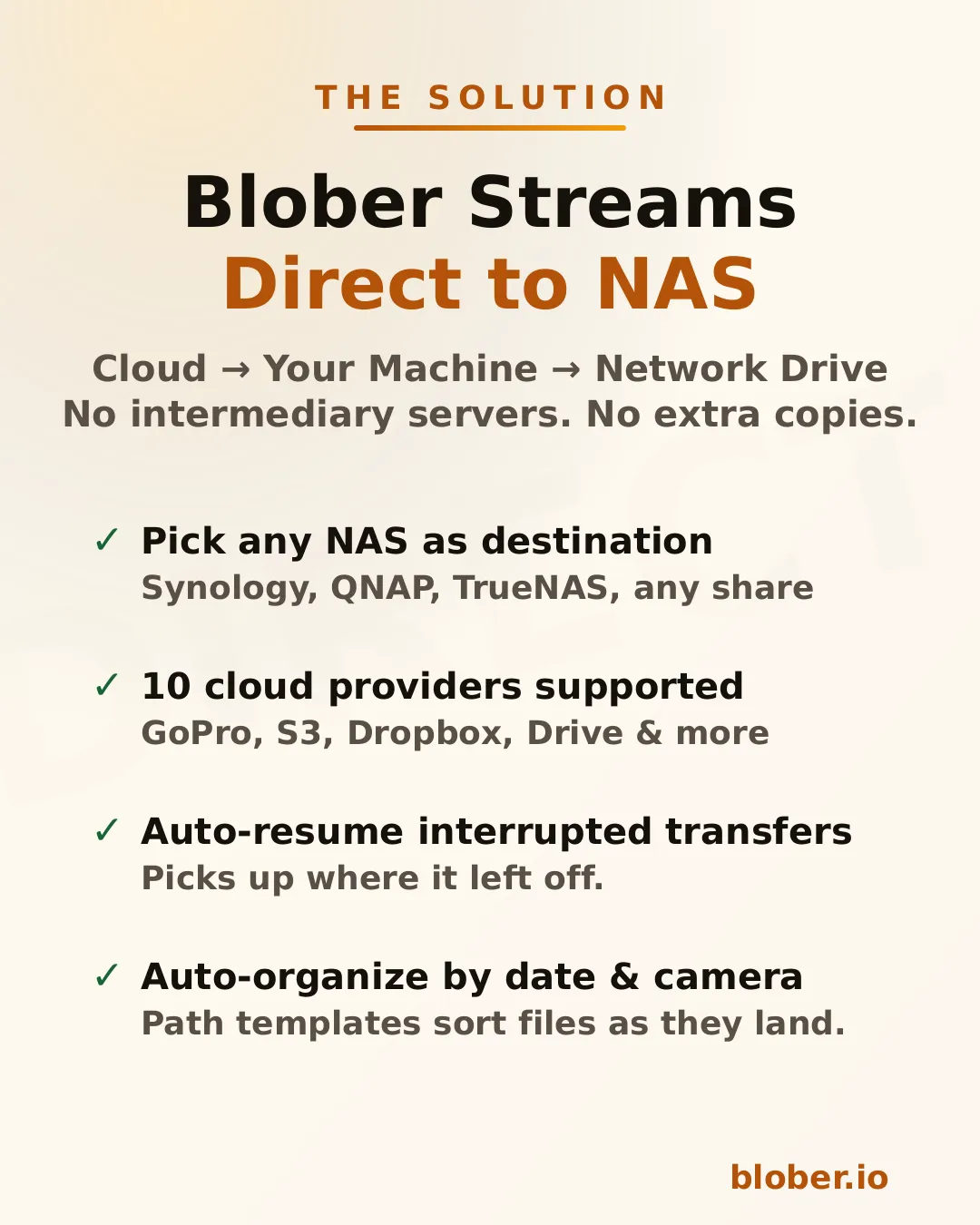
Blober streams files directly from cloud to NAS: supports Synology, QNAP, TrueNAS, and any SMB share, with auto-resume and path templates

The architecture is straightforward: Blober runs on your computer, pulls data from the cloud API, and writes it to whatever destination you select in the file picker. If that destination is a mapped network drive (\\SYNOLOGY\backup or /Volumes/NAS/media), the files go there.

No intermediate server. No extra copy on your local disk. No subscription.

Blober works with any NAS that your OS can see as a folder:

  • Synology DiskStation — map via SMB/CIFS (\synology\shared) or mount via NFS
  • QNAP — same: SMB share or NFS mount
  • TrueNAS / FreeNAS — SMB, NFS, or iSCSI-backed mount points
  • Unraid — SMB shares show up as network folders
  • Western Digital My Cloud — maps as a standard network drive
  • Any SMB/NFS share — if your OS can browse it, Blober can write to it

There’s nothing NAS-specific to configure in Blober. You just pick the folder.


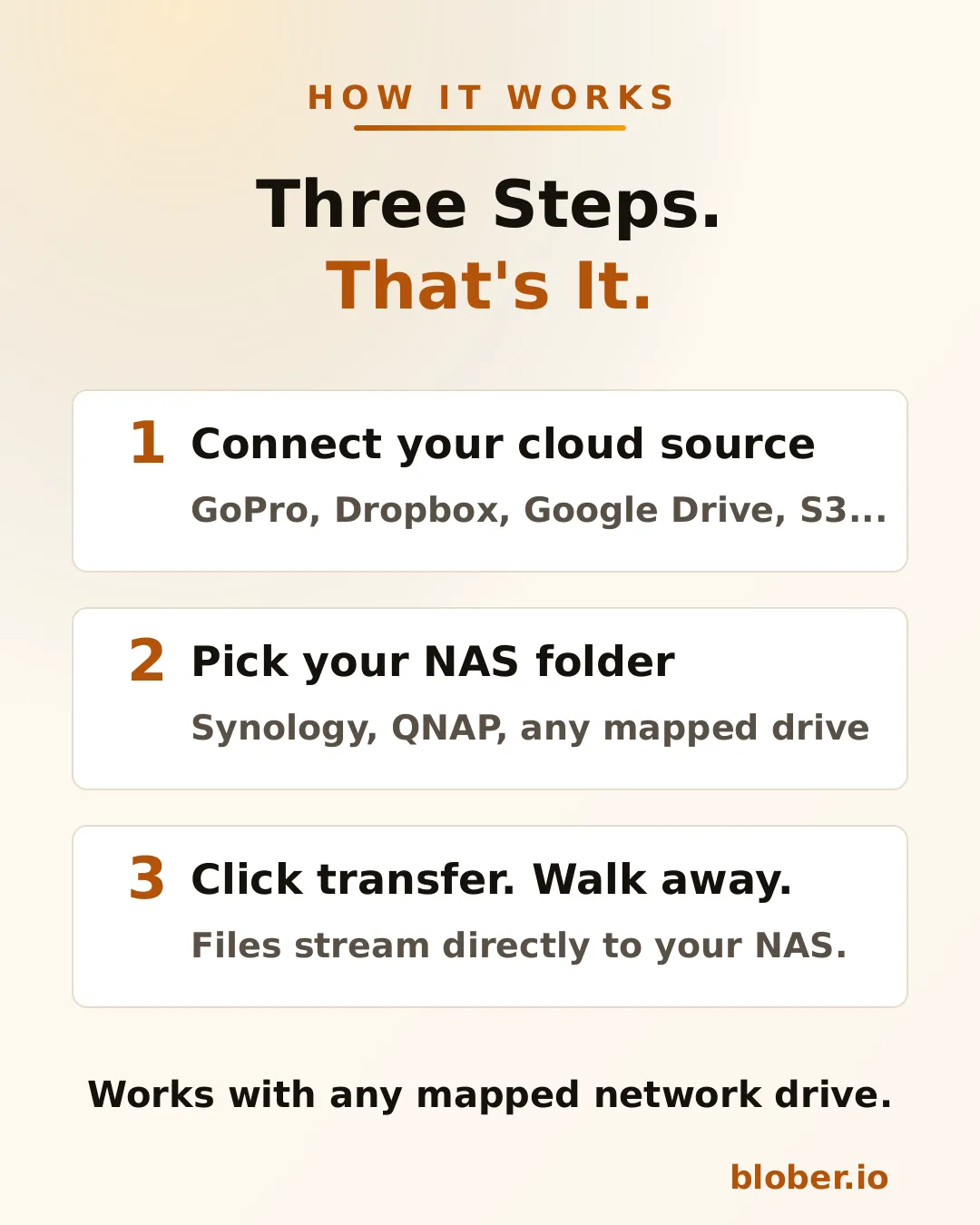
Three steps: connect your cloud source, pick your NAS folder, click transfer
  1. Connect your cloud source. Blober supports GoPro Cloud, Dropbox, Google Drive, AWS S3, Azure Blob, Backblaze B2, Cloudflare R2, Wasabi, and DigitalOcean Spaces. Authenticate once.

  2. Pick your NAS folder. The standard OS folder picker shows your mapped network drives. Select the target directory on your NAS.

  3. Transfer. Blober streams the files and writes them directly to the network path. If your connection drops or the NAS goes to sleep, the transfer resumes from where it stopped.

Blober supports path templates that sort files as they arrive:

{file_created_date}/{camera_model}/{media_type}/{filename}

This turns a flat cloud dump into an organized library:

2024-12-15/HERO12 Black/videos/GH010432.MP4
2024-12-15/HERO12 Black/photos/GOPR0900.JPG
2025-01-03/HERO7 Black/videos/GH010904.MP4

The template runs before the file is written — files land on your NAS already organized.


NAS owners tend to be people who care about data ownership, long-term archival, and not paying recurring fees for storage they already bought. Blober aligns with all three.

Buy once, transfer forever. No subscriptions, no per-GB fees, no limits. Files never leave your network.

Your files stay on your network. Unlike SaaS tools that route data through external servers, Blober pulls from the cloud API and writes locally. For NAS users who chose a NAS precisely to keep data under their control, this matters.

One-time payment. NAS users already rejected the subscription model when they bought hardware instead of renting cloud storage. Blober follows the same philosophy: pay once, use forever.

Scale doesn’t matter. Whether you’re backing up 50 GoPro clips or migrating 10 TB from S3, there are no transfer caps, no per-GB fees, and no throttling.


ScenarioSourceNAS destination
GoPro footage archiveGoPro Cloud\\NAS\media\gopro\
Photo library consolidationGoogle Drive + Dropbox\\NAS\photos\
S3 cold storage migrationAWS S3\\NAS\archive\s3-backup\
Shared family photo vaultDropbox\\SYNOLOGY\family-photos\
Video production offloadBackblaze B2\\NAS\projects\raw-footage\

Each of these is a single task in Blober. Set source, set destination, transfer.


  • NAS owners who want cloud backups on hardware they control
  • GoPro users who need their footage off GoPro Cloud (Blober is the only tool that connects)
  • Photographers and videographers archiving years of work to local network storage
  • Home lab users consolidating data from multiple cloud services onto one NAS
  • Small businesses migrating away from cloud storage subscriptions to on-premise drives

One app. Ten cloud providers. Any NAS.

Download Blober at blober.io

How to Move GoPro Cloud Media to Dropbox the Easy Way

GoPro Cloud (included with GoPro Plus / GoPro Premium) stores your camera footage automatically. It’s convenient, until you need to actually do something with it.

The problems with keeping everything in GoPro Cloud:

  • No easy bulk export. GoPro’s web portal limits batch downloads to 25 files at a time, bundled as a ZIP. Large downloads frequently fail or time out.
  • No third-party integrations. No other file transfer tool (rclone, MultCloud, Flexify) can connect to GoPro Cloud. You’re stuck with the GoPro web interface.
  • Subscription lock-in. Cancel GoPro Plus and you lose access to your footage. Your media is held hostage by a recurring charge.
  • No redundancy. If GoPro changes their cloud offering or shuts it down, you have no backup unless you’ve already downloaded everything manually.

Why Dropbox makes a good destination:

  • Accessible everywhere. Desktop, mobile, web. Dropbox works across all devices.
  • Selective sync. Keep large video files in the cloud and only download what you need locally.
  • Sharing built in. Send footage to clients, collaborators, or editors with a link.
  • Established and reliable. Dropbox has been around since 2007 and isn’t going anywhere.
  • Integration with editing tools. Many video editors and photo apps integrate directly with Dropbox.

Moving your footage from GoPro Cloud to Dropbox gives you a second copy in a provider you control, one that doesn’t depend on a GoPro subscription to access.

Blober is the only desktop app that connects directly to GoPro Cloud. No browser extensions, no manual downloads, no CLI config files. You create a workflow, press play, and your media transfers automatically.

Play

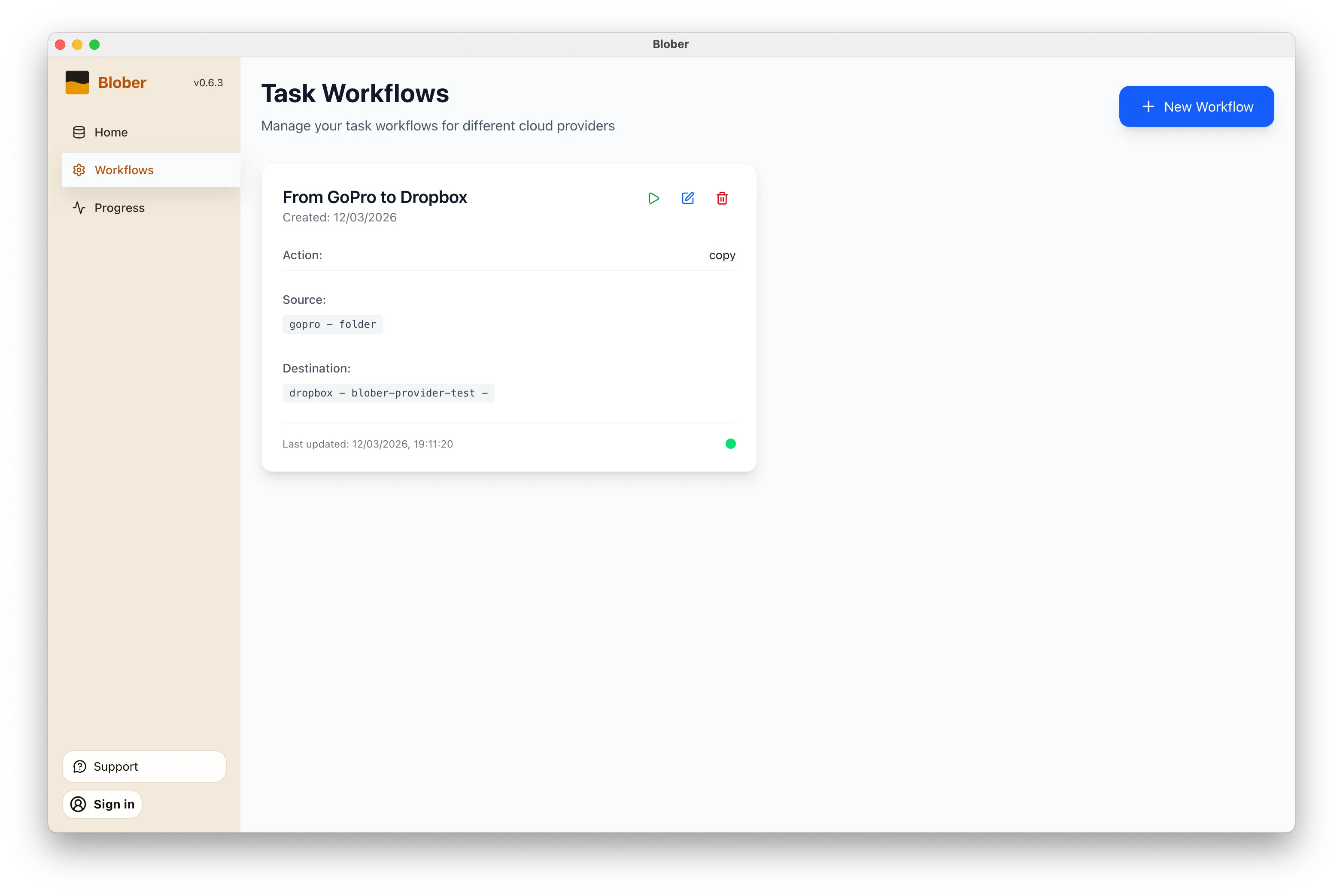
Open Blober, go to the Workflows page, and click New Workflow. Select GoPro as the source and Dropbox as the destination. Pick the folders you want to transfer from and where they should land.

Blober workflow configured to copy media from GoPro Cloud to Dropbox

Click the play button on your workflow. Blober connects to both providers and starts transferring files immediately. Every file (photos, videos, time-lapses) gets moved directly from GoPro Cloud to Dropbox without touching your local disk first (unless you want it to).

Blober task progress showing files transferring from GoPro to Dropbox

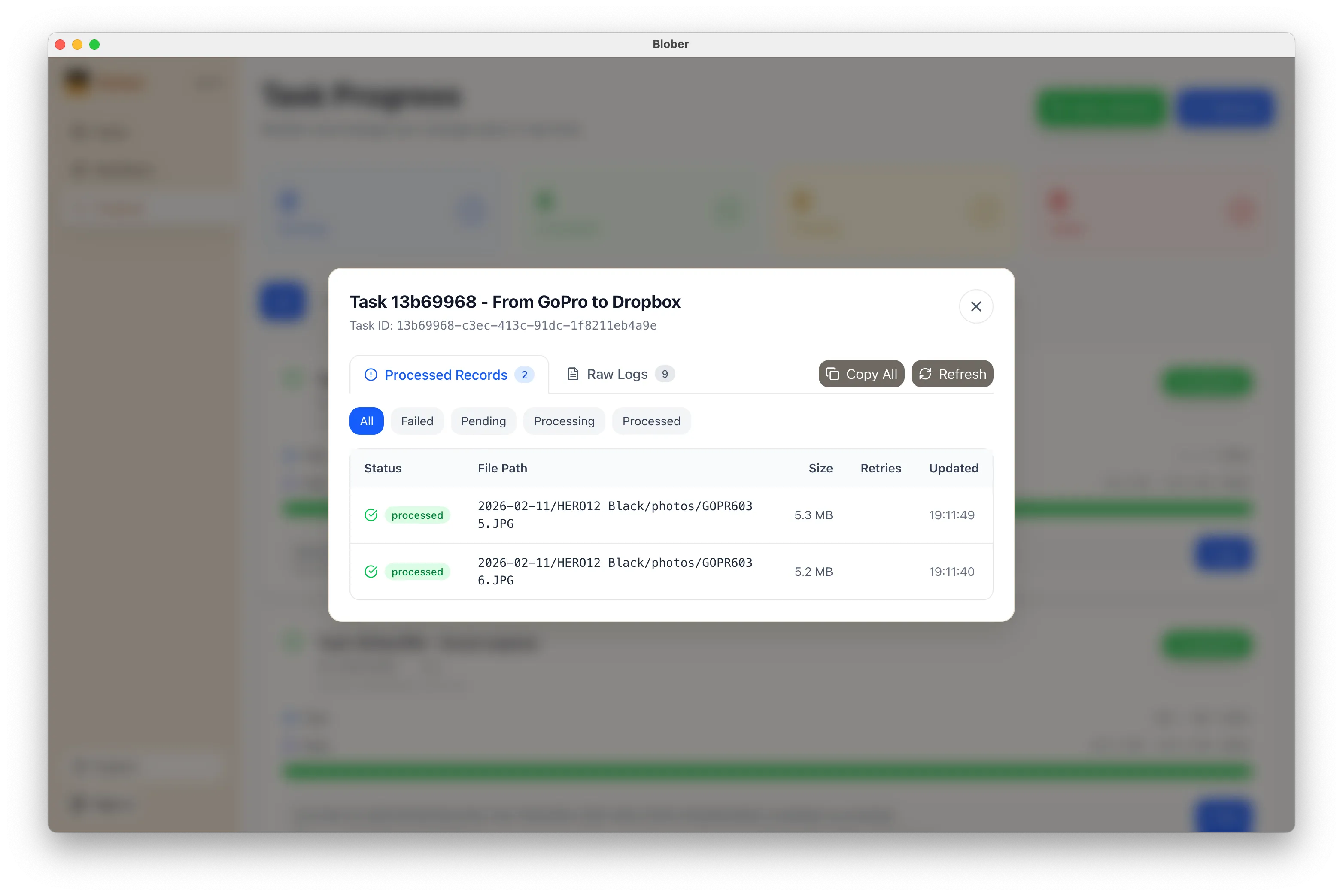
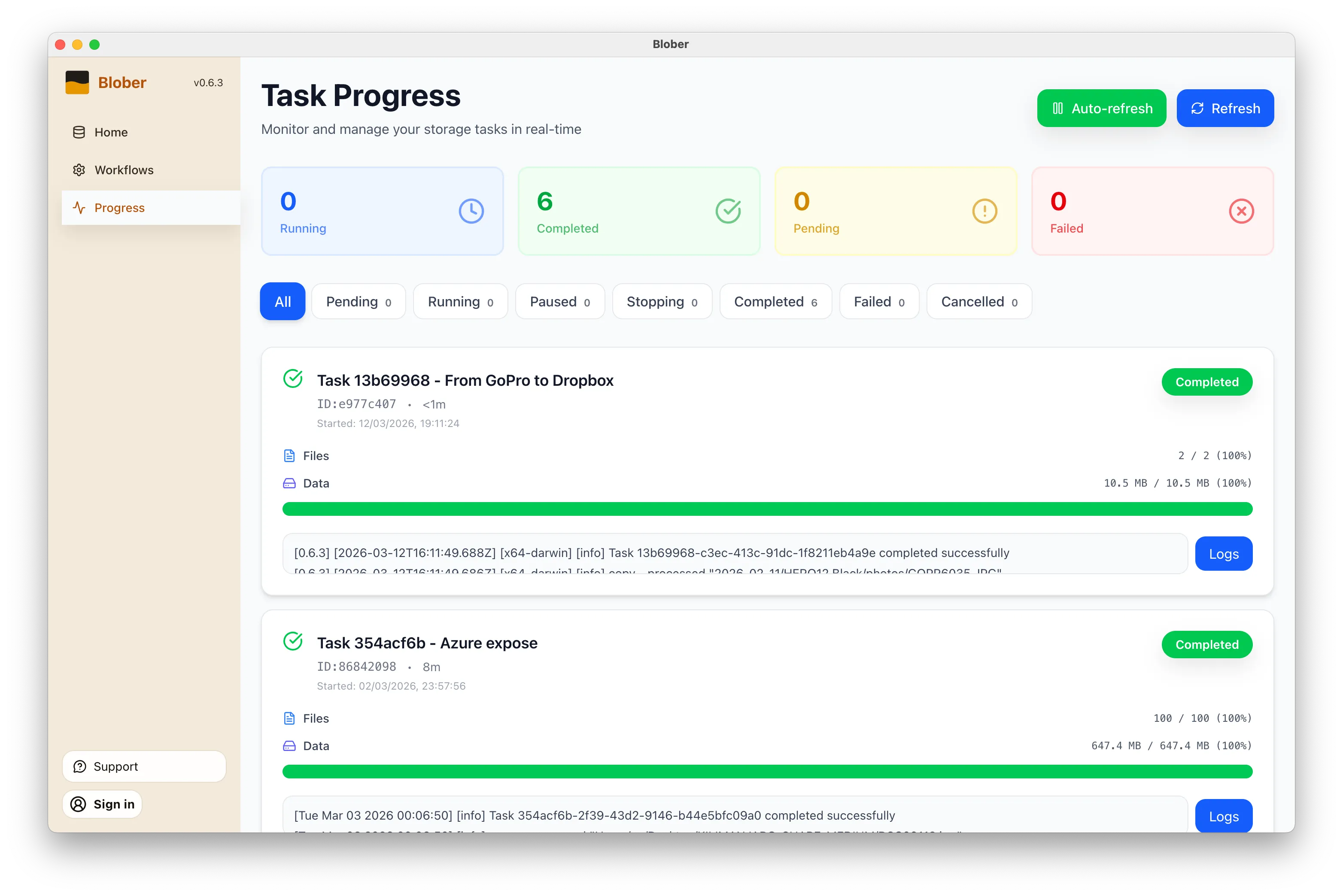
The Progress page shows exactly what’s happening: files transferred, bytes moved, current speed, and estimated time remaining. If something goes wrong, you can pause, retry, or cancel at any time.

Blober task logs showing detailed transfer activity
  • No manual work. You don’t download ZIPs, unzip them, then re-upload to Dropbox. Blober handles the entire pipeline.
  • No file limits. Transfer 10 files or 10,000. Blober processes them all in one run.
  • No subscription. Blober is a one-time purchase. No monthly fees, no per-GB transfer charges, no limits on how many times you run a workflow.
  • Runs locally. Your credentials stay on your machine. Files transfer directly between providers. Nothing passes through Blober’s servers.
  • Before canceling GoPro Plus. Get your footage out before you lose access.
  • Regular backups. Set up a workflow now and run it whenever you want a fresh copy in Dropbox.
  • Switching providers. Moving off GoPro Cloud entirely? Transfer everything to Dropbox first, then cancel.
  • Sharing with a team. Put footage in a shared Dropbox folder so editors and collaborators can access it immediately.
  1. Download Blober (available for macOS, Windows, and Linux)
  2. Connect your GoPro and Dropbox accounts
  3. Create a workflow and press play

That’s it. Your GoPro footage in Dropbox in minutes, not hours.

Back Up Your GoPro Cloud to Backblaze B2, AWS S3, or Local Storage

Back up GoPro Cloud to Backblaze B2, AWS S3, or local storage

GoPro’s cloud storage (GoPro Plus / GoPro Premium) offers unlimited storage for GoPro camera media. It’s a great perk - until you want your footage somewhere else.

The reality for most GoPro users:

  • Painfully limited batch download - GoPro’s web portal caps batch downloads at 25 files at a time, bundled into a ZIP. Large batches frequently fail or time out, and metadata like GPS data may be stripped during compression
  • No third-party tool support - rclone, MultCloud, Flexify, and every other transfer tool do not support GoPro Cloud
  • Subscription dependency - cancel GoPro Plus and your cloud access disappears. Your footage remains hostage to a recurring charge
  • No “Download All” option - if you have hundreds or thousands of files, you’re stuck doing dozens of 25-file batch downloads manually, hoping none fail

GoPro community forums are filled with users asking the same question: “How do I download all my GoPro Cloud content at once?” - and the practical answer is: not without hours of manual work and frequent failures.

Blober changes that.


Blober: The Only Tool That Connects to GoPro Cloud

Section titled “Blober: The Only Tool That Connects to GoPro Cloud”

Blober is the only desktop application that integrates with GoPro’s cloud storage. No other migration tool - free or paid - supports GoPro Cloud as a source or destination.

With Blober, you can:

  • Browse all your GoPro Cloud media - photos and videos, organized by date, camera, and type
  • Download everything at once to your local drive, NAS, or external HDD
  • Transfer directly to Backblaze B2, AWS S3, Wasabi, Cloudflare R2, Azure Blob Storage, or DigitalOcean Spaces
  • Use metadata-based path templates to auto-organize files (e.g., by camera model, capture date, resolution)
  • Resume interrupted transfers - no need to start over if your connection drops

GoPro Plus costs ~$49.99/year. As long as you pay, your footage stays accessible. The moment you cancel, your cloud media goes offline. For years of footage, that’s a dangerous bet on a single subscription.

GoPro Cloud is your only copy in the cloud. There is no built-in backup, no versioning, no geographic replication. If GoPro ever changes their terms, shuts down the service, or experiences data loss - your footage is gone.

Long-term archival storage costs a fraction of ongoing subscriptions:

Storage OptionCost for 1 TB/yearEgress Fees
GoPro Plus~$49.99/year (ongoing)N/A (limited downloads)
Backblaze B2~$72/year ($6/TB/mo)Free up to 3x stored
Wasabi~$83.88/year ($6.99/TB/mo)Free
AWS S3 (Standard)~$276/year$0.09/GB
Local NASOne-time HDD costFree

For most GoPro users, Backblaze B2 or Wasabi combined with a Blober one-time license is the most cost-effective long-term strategy.

Your GoPro footage is yours. Keeping it locked behind a single provider’s subscription model is not ownership - it’s rental. Backing it up to storage you control gives you true data sovereignty.


  1. Open Blober and create a new workflow
  2. Select GoPro as the source
  3. Click Open GoPro Login - a browser window opens
  4. Sign in with your GoPro account
  5. Blober captures your session automatically

Select where you want your footage to go:

  • Local disk - your SSD, HDD, NAS, or external drive
  • Backblaze B2 - affordable, S3-compatible, free egress
  • AWS S3 - enterprise-grade, global availability
  • Wasabi - hot storage with no egress fees
  • Cloudflare R2 - zero egress, fast edge delivery
  • Any other Blober-supported provider

Step 3: Configure Path Templates (Optional)

Section titled “Step 3: Configure Path Templates (Optional)”

Use Blober’s metadata-based path templates to auto-organize files as they transfer:

/{camera_model}/{capture_date}/{filename}

This turns a flat GoPro dump into a clean archive:

/HERO13 Black/2026-01-23/GX015742.MP4
/HERO13 Black/2026-01-23/gorp0001.JPG
/HERO12 Black/2025-12-15/GX014521.MP4

Click Start and Blober handles the rest:

  • Parallel downloads for maximum throughput
  • Real-time progress tracking
  • Automatic resume on interruption
  • Full task history logged for every file

TypeExtensions
Videos.mp4, .mov, .avi, .mkv
Photos.jpg, .png, .raw, .dng

Blober downloads the highest available quality - no compression, no re-encoding.


Each GoPro file includes rich metadata that Blober can use for organization:

FieldExample
Camera modelHERO13 Black
Capture date2026-01-23
Resolution5312 × 2988
File size142.5 MB
Duration0:32 (videos)

Can I upload to GoPro Cloud with Blober? Yes. Blober supports uploads to GoPro Cloud (up to 5 TB per file) with multipart upload and progress tracking.

Does Blober store my GoPro credentials? No. Blober uses a browser-based login flow. Your session lasts approximately 20 hours, after which Blober prompts you to sign in again. Credentials are never stored or transmitted to any server.

Can rclone, MultCloud, or Flexify do this? No. As of February 2026, Blober is the only transfer tool that supports GoPro Cloud. rclone (70+ providers), MultCloud (30+ services), and Flexify (~25 clouds) do not include GoPro Cloud integration.

What if my transfer is interrupted? Blober saves progress and resumes from the last successfully transferred file. No need to re-download everything.


Your footage is irreplaceable - years of adventures, events, and memories sitting in a cloud you can only access through a subscription. Blober gives you a way out: move it all to storage you own and control, in the highest quality, organized exactly how you want.

Get started with Blober →

Why Photographers and Videographers Choose Blober

Why photographers and videographers choose Blober for cloud file transfer

Photographers and videographers generate enormous volumes of data. A single shoot can produce hundreds of gigabytes of RAW photos and 4K/5.3K video files. Over months and years, that adds up to terabytes of irreplaceable media scattered across local drives, cloud providers, and camera-specific platforms.

The challenges are consistent:

  • Files are large - 4K video clips are often 1–5 GB each. 5.3K GoPro footage is even larger.
  • Storage is fragmented - footage lives on local SSDs, NAS devices, Google Drive, GoPro Cloud, and various object storage providers
  • Organization is painful - manually sorting files into date/camera/project folders is tedious and error-prone
  • Backups are inconsistent - some footage has 3 copies, some has 1, some has none
  • Cloud costs add up - Google Drive, AWS S3, and iCloud storage bills grow every month

Blober is built to solve exactly these problems.


Most creators have files spread across multiple providers - intentionally or not. Blober connects to all of them in one interface:

ProviderUse Case
GoPro CloudAction camera footage auto-uploaded
Google DriveClient deliverables and sharing
Local NAS / SSDPrimary working storage
Backblaze B2Long-term archive (cheap, reliable)
WasabiHot archive (no egress fees)
AWS S3Production infrastructure
Cloudflare R2CDN-adjacent delivery

Instead of logging into 4 different dashboards and downloading/uploading manually, Blober lets you build workflows that move files between any of these in a single operation.

If you shoot with GoPro cameras, you likely have footage auto-uploaded to GoPro Cloud. The problem: GoPro’s web portal only allows batch downloads of 25 files at a time (as ZIPs that frequently fail), and no third-party tool supports GoPro Cloud as a transfer source.

Blober is the only tool that connects to GoPro Cloud. You can:

  • Download all GoPro footage to local storage
  • Transfer directly to Backblaze B2 or Wasabi for long-term archival
  • Organize files by camera model, date, and resolution automatically

No other tool - not rclone, not MultCloud, not Flexify - supports GoPro Cloud.

Blober’s path templating system uses file metadata to automatically organize transfers. Instead of dumping files into flat folders, you define a template:

/{camera_model}/{capture_date}/{filename}

And Blober organizes the output:

/HERO13 Black/2026-01-23/GX015742.MP4
/Sony A7IV/2026-01-20/DSC09845.ARW
/DJI Mini 4/2026-01-18/DJI_0042.MP4

This works across all providers - GoPro Cloud to local, Google Drive to B2, or any combination. Months of manual folder sorting, automated in one workflow.

Creative work is cyclical. Shoots happen regularly, and the post-shoot workflow is always the same: ingest → organize → edit → archive → backup.

Blober saves each transfer as a durable workflow:

  • One-click re-execution - run the same ingest pattern after every shoot
  • Resumable transfers - if a 500 GB transfer drops at 80%, pick up where it stopped
  • Task history - see exactly what was transferred, when, and whether it succeeded
  • No scripting - no cron jobs, no bash scripts, no forgotten flags

For long-term storage, the hyperscalers (AWS, Azure, GCS) are expensive. Creative professionals are increasingly moving to budget-friendly alternatives:

ProviderStorage CostEgressWhy Creators Choose It
Backblaze B2$6/TB/monthFree (up to 3x)Cheapest reliable archive
Wasabi$6.99/TB/monthFreeNo egress fees, predictable billing
Cloudflare R2$15/TB/monthFreeZero egress, great for delivery

Blober supports all of these, making it trivial to set up an archive workflow: shoot → ingest to local NAS → archive to Backblaze B2 → done. One-time license, no per-GB fees.

After each wedding: 80 GB of RAW photos + 40 GB of video. Create a Blober workflow that copies everything from your SSD to Backblaze B2, organized by date and event name. Run it after every wedding with one click.

Finished projects sit on Google Drive eating into your 2 TB plan. Use Blober to move completed projects to Wasabi for long-term storage at a fraction of the cost, freeing up Google Drive space for active work.

Years of GoPro footage sitting in GoPro Cloud with no easy way out. Use Blober to download everything to a local NAS, organized by camera and date. Cancel GoPro Plus knowing your footage is safe.

100+ GB per flight day across DJI footage on local cards and backup copies on Google Drive. Use Blober to standardize your archive: everything goes to Backblaze B2, organized by date and location, with a local NAS mirror.


rclone is free and powerful, but it requires terminal expertise. For each new storage provider, you configure a remote. For each workflow, you write a command with precise flags. There’s no visual interface, no persistent workflows, and no GoPro support.

If you’re a software engineer, rclone might work. If you’re a photographer who wants to focus on photography, Blober is what you need.


Blober is available for Windows, macOS, and Linux. One-time license, currently at discounted beta pricing. No subscriptions. No per-GB fees. No data caps.
Connect your providers, build your workflows, and take control of your media archive.

Get Blober →