Skip to content

nas

2 posts with the tag "nas"

The Best Storage for GoPro and Action-Cam Footage in 2026

The best storage for GoPro and action-cam footage compared on price and egress

Where to Put Terabytes of GoPro Footage

Section titled "Where to Put Terabytes of GoPro Footage"

The problem: GoPro Cloud is great for shooting, but its unlimited tier only holds GoPro footage, and only while you keep paying. Once you have a real archive (multiple terabytes of HERO and action-cam video you want to keep for years) you need a cheaper, permanent home that you own.

The short answer: for most people, Backblaze B2 is the best all-round home at $6.95/TB/month with free egress up to 3x what you store. If you download often, Wasabi removes egress math entirely. If you serve footage publicly, Cloudflare R2's zero egress wins. And a local NAS is cheapest over many years if you are willing to maintain it. Here is the full comparison.

OptionPriceEgressBest for
Backblaze B2$6.95/TB/mo (about $83/yr per TB)Free up to 3x stored, then $0.01/GBThe best default for most archives
Wasabi$6.99/TB/mo, rising to $7.99 on July 1, 2026Free (no egress or API fees)Frequent downloads, predictable bills
Cloudflare R2$15/TB/mo (about $180/yr per TB)Free (zero egress)Serving or streaming footage publicly
Local drive or NASOne-time hardware costFreeLargest archives, lowest long-run cost
GoPro Cloud (baseline)$59.99/yr, unlimited GoPro footageBulk download is hardCapturing and editing, not archiving

Prices are current as of 2026 and change over time. Always confirm before committing a large library.

At $6.95 per TB per month, B2 is roughly a quarter of the price of Amazon S3 for storage, and egress is free up to three times the amount you store each month. For a footage archive, where you upload once and download occasionally, that free-egress allowance usually covers normal retrieval, so your bill is essentially just storage.

  • Cost for 5 TB: about $35/month, or roughly $417/year.
  • Why it fits GoPro footage: you store a lot and read a little, which is exactly what B2 prices for.
  • S3-compatible, so it works with standard tools.

For most people archiving GoPro footage, B2 is the recommendation.

Wasabi charges one flat rate for capacity, with no egress or API request fees at all. The current rate is $6.99/TB/month, increasing to $7.99/TB/month on July 1, 2026. The trade-offs are a 1 TB minimum and a 90-day minimum storage duration per object, so it suits archives you keep rather than data you churn.

  • Best when you pull footage back frequently and do not want to think about egress allowances.
  • Watch the 90-day minimum retention: deleting footage early still bills for the remainder of the 90 days.

Cloudflare R2: Zero Egress for Public Footage

Section titled "Cloudflare R2: Zero Egress for Public Footage"

R2 costs more to store ($15/TB/month) but charges nothing for egress, ever. That is the opposite balance from B2: you pay more to hold the data and nothing to serve it.

  • Best when you publish or stream footage to viewers, where egress on other providers would dominate the bill.
  • Not the cheapest for a private cold archive you rarely read; B2 or Wasabi wins there.

Local Drive or NAS: Cheapest Over Years

Section titled "Local Drive or NAS: Cheapest Over Years"

A hard drive or a NAS (Synology, QNAP, TrueNAS) is a one-time purchase. An 8 TB drive is well under the cost of a single year of cloud storage at that size, and a NAS gives you redundancy across multiple drives.

  • Best for the largest archives and the lowest cost measured over five or ten years.
  • The catch: a single local copy is not a backup. Drives fail, and a fire or theft takes everything. Use a NAS as one leg of a plan, not the whole plan.

There is a full walkthrough in back up cloud storage directly to your NAS.

The 3-2-1 Setup for Footage You Cannot Re-Shoot

Section titled "The 3-2-1 Setup for Footage You Cannot Re-Shoot"

Action-cam footage is unrepeatable. The standard rule for irreplaceable data is 3-2-1: three copies, on two kinds of media, with one offsite. A practical version for GoPro footage:

  1. Working copy: GoPro Cloud or your editing machine while a project is active.
  2. Local archive: a NAS or external drive you own.
  3. Offsite copy: Backblaze B2 or Wasabi.

That gives you cheap bulk storage, a fast local copy, and an offsite copy that survives a disaster, for far less than paying a 2 TB consumer plan forever.

How Blober Gets Your Footage There

Section titled "How Blober Gets Your Footage There"

Whichever destination wins, Blober is what moves the footage into it. It is the only desktop app that connects to GoPro Cloud, so you can:

  • Pull your entire GoPro Cloud library out (no 25-file zip limit) and push it to B2, Wasabi, R2, or a NAS
  • Copy footage to two destinations to build the 3-2-1 setup
  • Organize files on the way in with path templates, so a flat cloud dump lands as a clean camera/date/file archive

Connect GoPro Cloud as the source, pick your storage as the destination, run, and let it resume through any dropped connection.

What is the cheapest cloud storage for GoPro videos? For a private archive, Backblaze B2 ($6.95/TB/month) and Wasabi ($6.99/TB/month) are the cheapest credible options, both far below Amazon S3 or consumer plans. A local NAS is cheaper still over several years if you maintain it.

Is GoPro Cloud good for long-term storage? It is good for capturing and editing, not for archiving. It only stores GoPro footage cheaply, you lose access if you cancel, and there is no bulk export. Keep a copy elsewhere for the long term.

How do I move footage from GoPro Cloud to Backblaze B2 or Wasabi? Use Blober. It connects to GoPro Cloud and transfers your library directly to B2, Wasabi, or any supported destination, with no manual batching.

Backblaze B2 or Wasabi, which is better for GoPro footage? B2 if you mostly store and rarely download, thanks to its free 3x egress allowance. Wasabi if you download often and want zero egress math, keeping the 1 TB minimum and 90-day retention in mind.

Move your GoPro footage to the storage that actually fits a large archive. Blober is the only app that connects to GoPro Cloud, and it is a one-time purchase with no subscription and no per-GB fees.

Download Blober at blober.io

Back Up Cloud Storage Directly to Your NAS

Back up cloud storage directly to your NAS - Synology, QNAP, TrueNAS, or any network drive

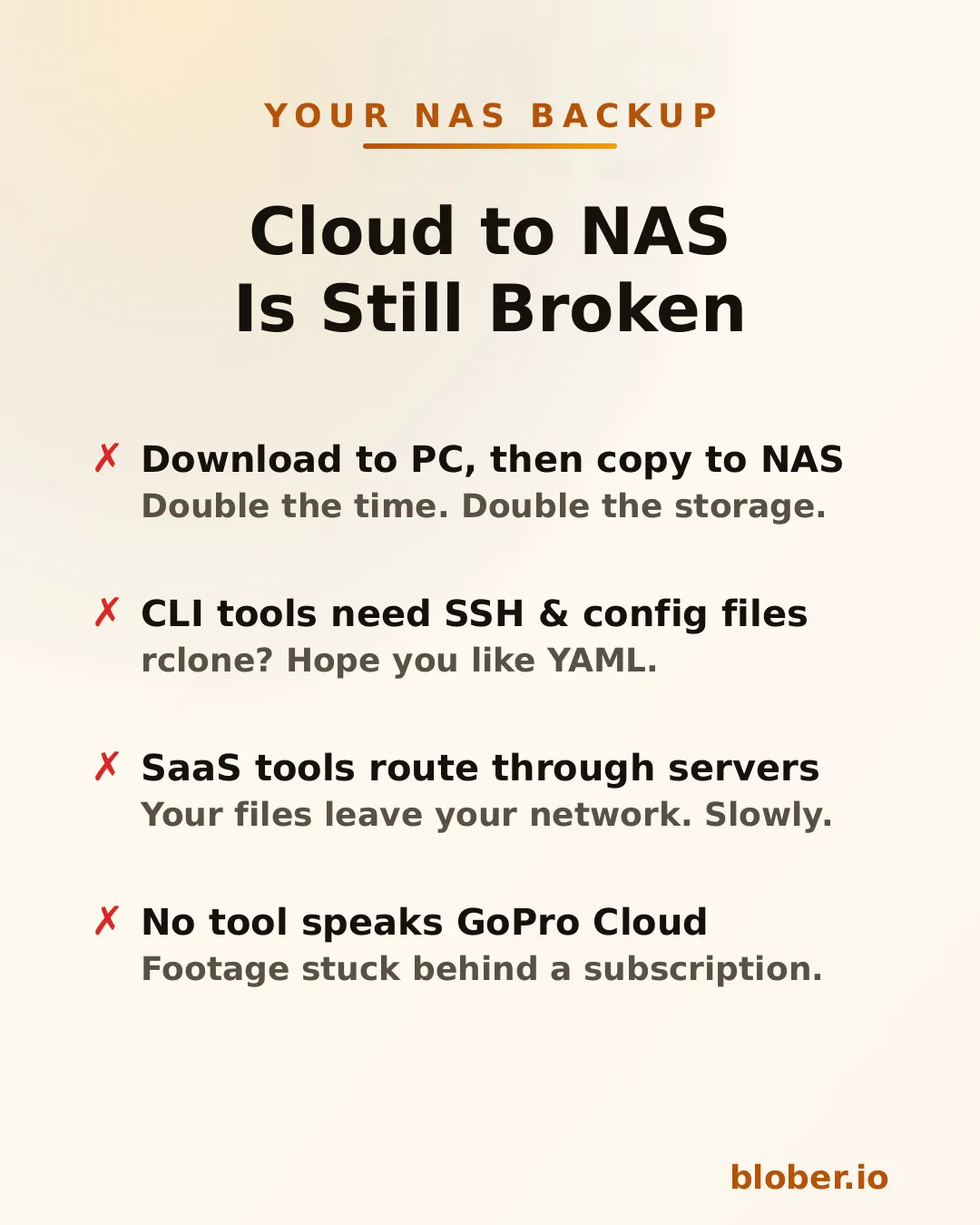
You have files in the cloud - GoPro footage, Dropbox archives, Google Drive projects, S3 buckets - and you want them on your NAS. Simple enough in theory. In practice, the available options are all some flavor of painful.

Four pain points of cloud-to-NAS backup: double-copy workflow, CLI config overhead, SaaS routing through third-party servers, and no GoPro Cloud tool support

Download then copy is the default workflow. Download everything from the cloud to your PC, then manually copy it to the NAS. You need enough free space on your PC for the entire dataset, you do every byte twice, and if the NAS connection drops mid-copy you start over.

CLI tools like rclone can mount cloud storage or sync directly, but you need to configure remotes, write YAML, manage credentials, and troubleshoot provider-specific flags. It works - eventually. It's not something most people reach for on a Saturday afternoon.

SaaS migration services like MultCloud or Cloudsfer route your files through their servers. Your data leaves your network, passes through a third party, then comes back down to your NAS. It's slower, it's a privacy concern, and it costs a monthly subscription - usually with transfer caps.

GoPro Cloud has no solution at all. No migration tool supports it. rclone doesn't. MultCloud doesn't. You're stuck batch-downloading 25 files at a time through a web browser, manually.


Blober Streams Directly to Your NAS

Section titled "Blober Streams Directly to Your NAS"

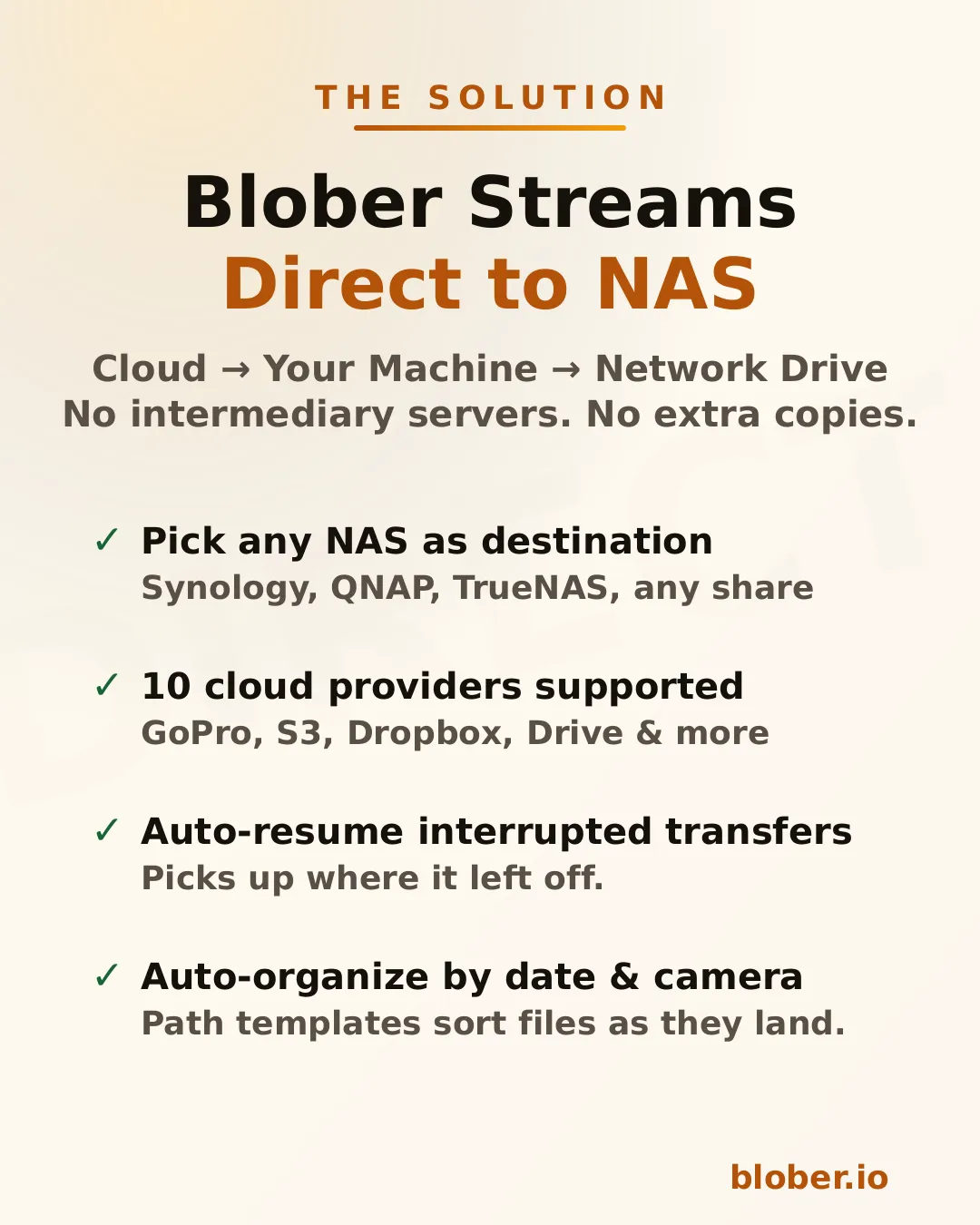
Blober is a desktop app that connects to 10 cloud providers and transfers files to any local or network destination - including NAS drives.

Blober streams files directly from cloud to NAS: supports Synology, QNAP, TrueNAS, and any SMB share, with auto-resume and path templates

The architecture is straightforward: Blober runs on your computer, pulls data from the cloud API, and writes it to whatever destination you select in the file picker. If that destination is a mapped network drive (\\SYNOLOGY\backup or /Volumes/NAS/media), the files go there.

No intermediate server. No extra copy on your local disk. No subscription.

Blober works with any NAS that your OS can see as a folder:

  • Synology DiskStation - map via SMB/CIFS (\synology\shared) or mount via NFS
  • QNAP - same: SMB share or NFS mount
  • TrueNAS / FreeNAS - SMB, NFS, or iSCSI-backed mount points
  • Unraid - SMB shares show up as network folders
  • Western Digital My Cloud - maps as a standard network drive
  • Any SMB/NFS share - if your OS can browse it, Blober can write to it

There's nothing NAS-specific to configure in Blober. You just pick the folder.


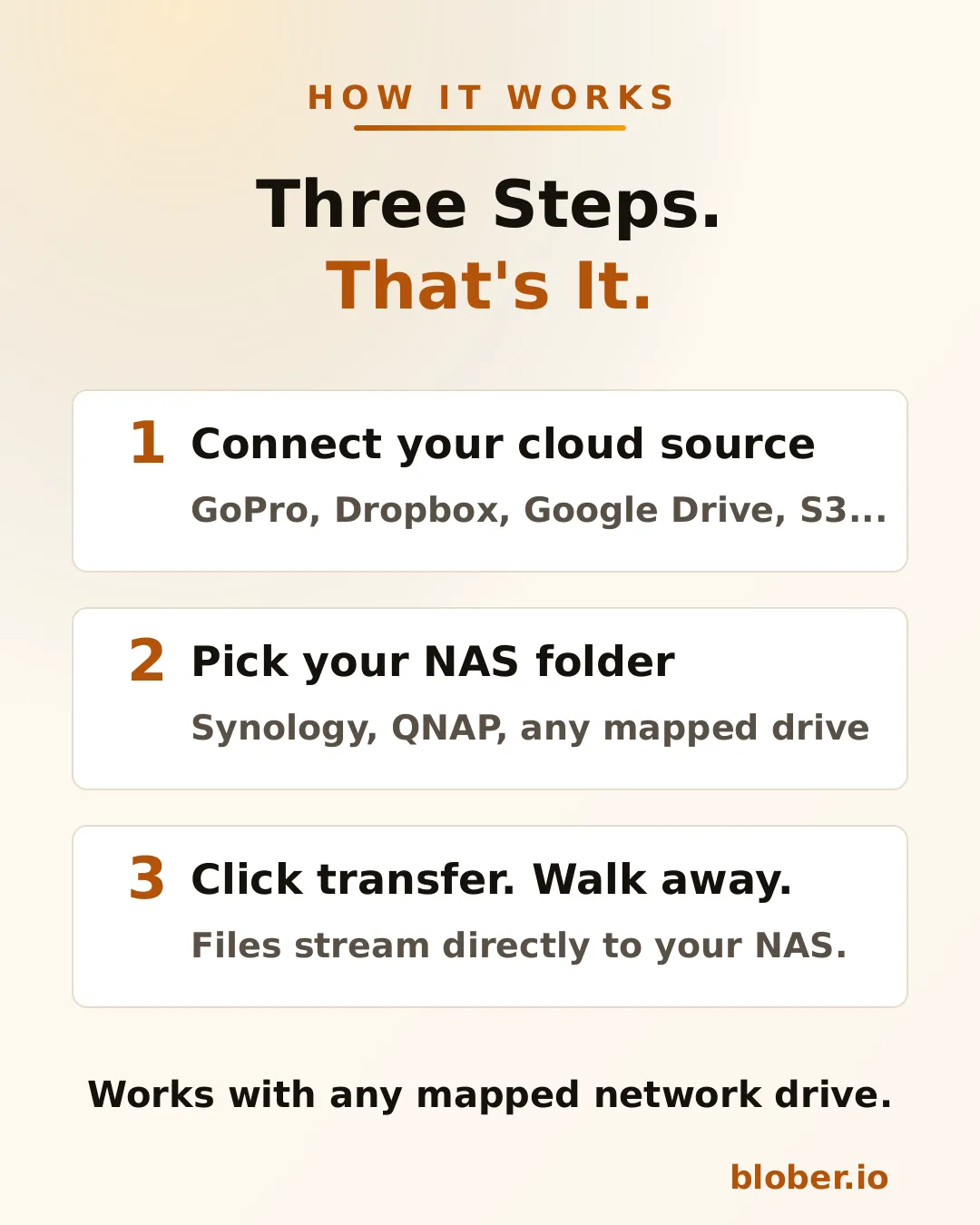
Three steps: connect your cloud source, pick your NAS folder, click transfer
  1. Connect your cloud source. Blober supports GoPro Cloud, Dropbox, Google Drive, AWS S3, Azure Blob, Backblaze B2, Cloudflare R2, Wasabi, and DigitalOcean Spaces. Authenticate once.

  2. Pick your NAS folder. The standard OS folder picker shows your mapped network drives. Select the target directory on your NAS.

  3. Transfer. Blober streams the files and writes them directly to the network path. If your connection drops or the NAS goes to sleep, the transfer resumes from where it stopped.

Blober supports path templates that sort files as they arrive:

{file_created_date}/{camera_model}/{media_type}/{filename}

This turns a flat cloud dump into an organized library:

2024-12-15/HERO12 Black/videos/GH010432.MP4
2024-12-15/HERO12 Black/photos/GOPR0900.JPG
2025-01-03/HERO7 Black/videos/GH010904.MP4

The template runs before the file is written - files land on your NAS already organized.


Why NAS Users Specifically Benefit

Section titled "Why NAS Users Specifically Benefit"

NAS owners tend to be people who care about data ownership, long-term archival, and not paying recurring fees for storage they already bought. Blober aligns with all three.

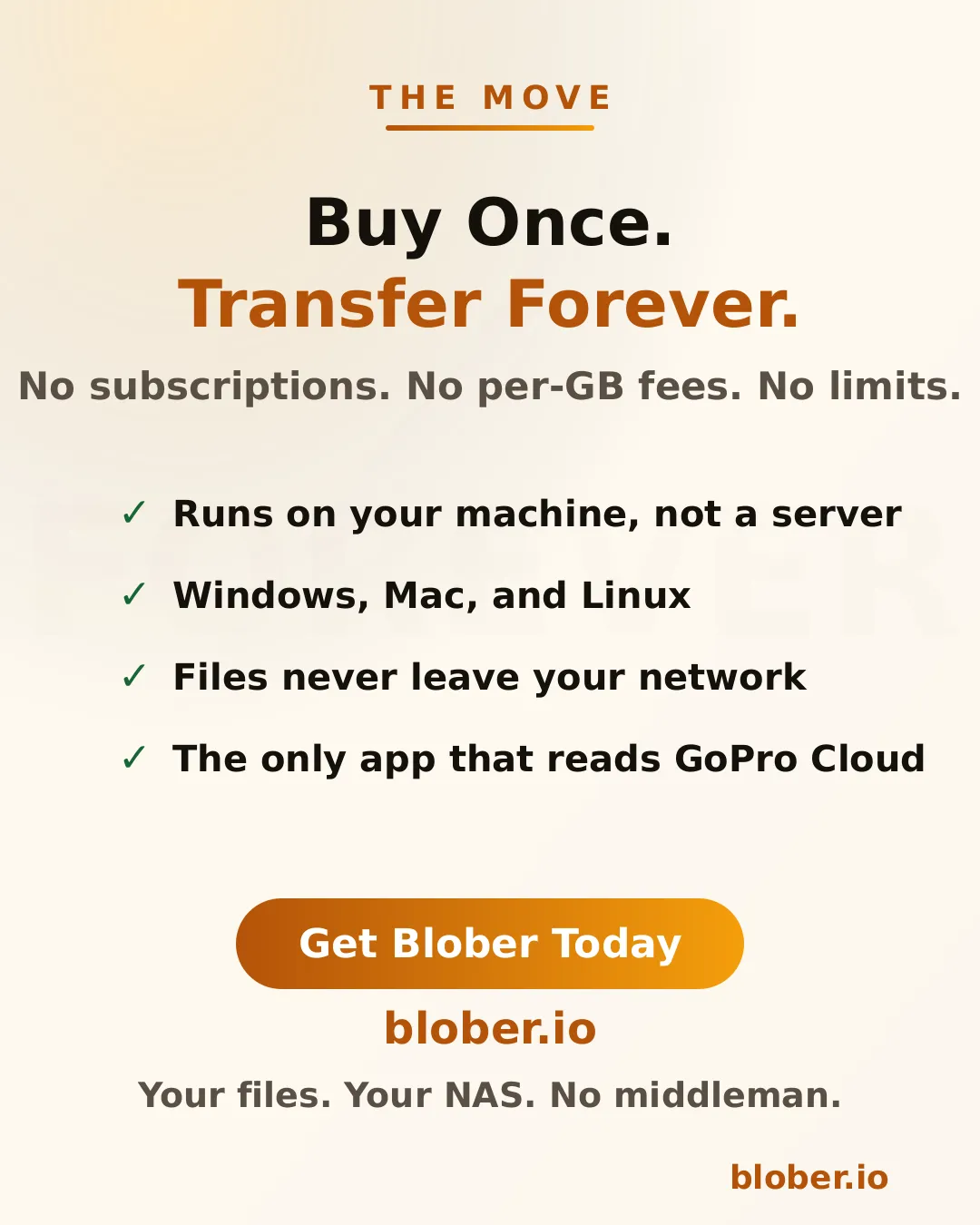
Buy once, transfer forever. No subscriptions, no per-GB fees, no limits. Files never leave your network.

Your files stay on your network. Unlike SaaS tools that route data through external servers, Blober pulls from the cloud API and writes locally. For NAS users who chose a NAS precisely to keep data under their control, this matters.

One-time payment. NAS users already rejected the subscription model when they bought hardware instead of renting cloud storage. Blober follows the same philosophy: pay once, use forever.

Scale doesn't matter. Whether you're backing up 50 GoPro clips or migrating 10 TB from S3, there are no transfer caps, no per-GB fees, and no throttling.


ScenarioSourceNAS destination
GoPro footage archiveGoPro Cloud\\NAS\media\gopro\
Photo library consolidationGoogle Drive + Dropbox\\NAS\photos\
S3 cold storage migrationAWS S3\\NAS\archive\s3-backup\
Shared family photo vaultDropbox\\SYNOLOGY\family-photos\
Video production offloadBackblaze B2\\NAS\projects\raw-footage\

Each of these is a single task in Blober. Set source, set destination, transfer.


The 3-2-1 Rule, Applied to Your Cloud Accounts

Section titled "The 3-2-1 Rule, Applied to Your Cloud Accounts"

The standard rule for data you cannot afford to lose is 3-2-1: keep three copies, on two kinds of media, with one of them offsite. Most people apply it to files on their computer and forget that a cloud account is just one copy, held on someone else's hardware, under someone else's terms.

A cloud account is not a backup. The provider can lock the account, change pricing, suffer an outage, or (as GoPro Cloud and rclone's Google Photos change both showed) alter API access overnight. Pulling your cloud data down to a NAS turns a single rented copy into a real backup you control.

Applied to cloud accounts, 3-2-1 looks like this:

  1. The cloud copy you already have (Google Photos, Drive, Dropbox, S3, GoPro Cloud).
  2. A NAS copy on hardware you own, pulled down with Blober.
  3. An offsite or second-cloud copy, for example a cheap object-storage bucket, so a fire or theft at home does not take the only local copy.

Blober covers steps 2 and 3 from the same workflow: pick a source, pick your NAS or a second provider, run.

Pulling Each Cloud Down to Your NAS

Section titled "Pulling Each Cloud Down to Your NAS"

The destination is the same NAS folder in every case. What differs is the source.

  • Google Photos. Google has no "download all" button, and since March 2025 rclone can only see photos it uploaded. Blober connects to Google Photos directly and writes your whole library to the NAS. See how to back up Google Photos without Takeout.
  • Google Drive. Native Google Docs, Sheets, and Slides are not real files. Blober converts them to Office formats (.docx, .xlsx, .pptx) as it writes them to your NAS, and keeps your folder structure intact.
  • Dropbox. Point the source at your Dropbox and the destination at the NAS share. Folder hierarchy is preserved exactly.
  • AWS S3 and other object storage. Select a bucket or prefix and write it to a NAS archive folder. Useful for pulling cold S3 data onto cheaper local storage.
  • GoPro Cloud. Blober is the only tool that connects to GoPro Cloud, so a NAS is the natural home for footage you want off a subscription. See the GoPro Cloud guide.

  • NAS owners who want cloud backups on hardware they control
  • GoPro users who need their footage off GoPro Cloud (Blober is the only tool that connects)
  • Photographers and videographers archiving years of work to local network storage
  • Home lab users consolidating data from multiple cloud services onto one NAS
  • Small businesses migrating away from cloud storage subscriptions to on-premise drives

Does Blober copy files to my NAS without storing them on my PC first? Yes. Blober pulls from the cloud provider's API and writes directly to the network path you select. There is no second copy left on your local disk and no double transfer.

Which NAS brands work? Any NAS your operating system can see as a folder: Synology, QNAP, TrueNAS, Unraid, Western Digital My Cloud, or any SMB or NFS share. There is nothing NAS-specific to configure in Blober; you just pick the folder.

Can I back up Google Photos to my NAS without Google Takeout? Yes. Blober connects to Google Photos directly and writes your library to the NAS, with no Takeout zips and no manual selection. See the Google Photos guide.

What happens if the transfer is interrupted? Blober resumes from where it stopped. If the NAS goes to sleep or the connection drops, you do not start over.

Can I back up to a NAS and a second cloud at the same time? Run two workflows: one to the NAS, one to a cheap object-storage provider like Backblaze B2. Together they give you the local and offsite copies of a 3-2-1 setup.

One app. Ten cloud providers. Any NAS.

Download Blober at blober.io