
GoPro Cloud Backup: 6 Methods Compared (and the Best for Each Job)
Backing Up a Full GoPro Cloud Library
Section titled "Backing Up a Full GoPro Cloud Library"The problem: GoPro Cloud has no "Download All" button. The website lets you grab about 25 files at a time as a ZIP, and large batches often stall. For a year of 5.3K footage, clicking through 25-file batches is not a real plan.
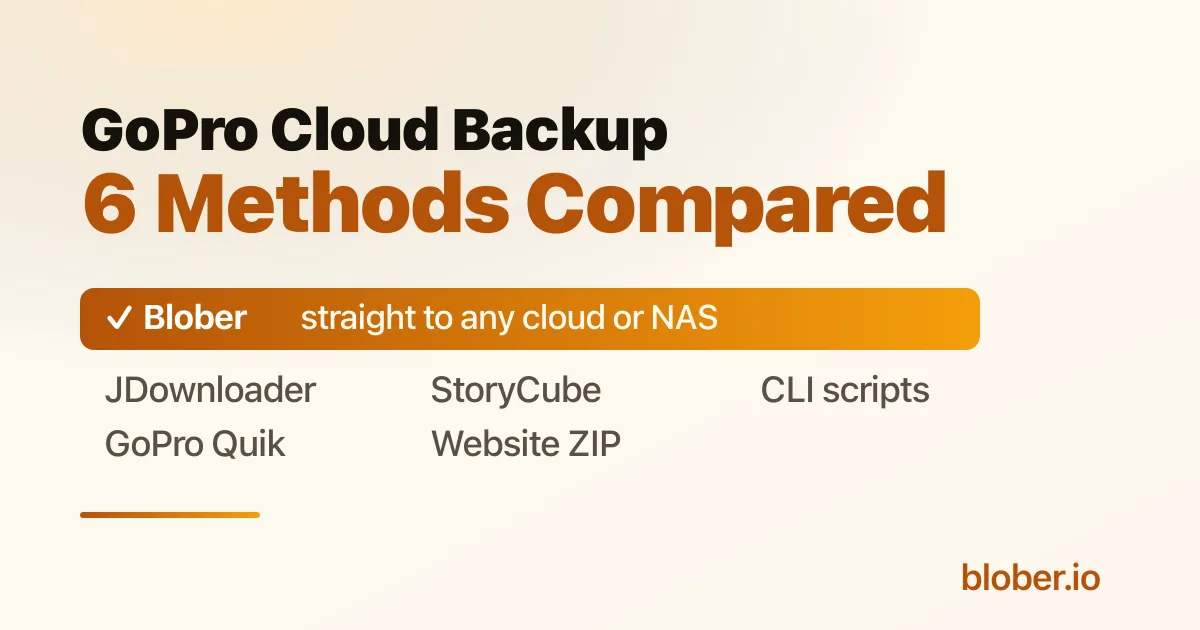
The short answer: there are five honest ways to get your whole library out, and they split into two camps. Most of them download your footage to your computer first and leave the rest to you. One of them, Blober, moves the library straight from GoPro Cloud to another cloud or a NAS with no download-and-reupload round trip. Which one is "best" depends on where you want the footage to land. Below is each option, what it does well, and where it slows down.
Why Bulk Download Is Hard in the First Place
Section titled "Why Bulk Download Is Hard in the First Place"GoPro Cloud is built around the capture-and-edit loop, not around handing you your raw archive. Three facts shape every method here:
- The web portal caps batch downloads at roughly 25 files, bundled into a ZIP. Big batches time out, and you repeat the process by hand.
- There is no public API and no official cloud-to-cloud export.
- Your library is tied to the subscription. Cancel it and access ends, so a copy you own matters.
Keep those in mind and the trade-offs between the methods make sense.
Method 1: The GoPro Website (Manual ZIP Download)
Section titled "Method 1: The GoPro Website (Manual ZIP Download)"How it works: sign in at gopro.com, open your media library, select up to 25 items, and download the batch as a ZIP. Repeat until you have everything.
Good for: a small number of clips, or grabbing one shoot. It is official, free with your subscription, and needs nothing installed.
Watch for: the 25-file cap turns a large library into dozens of manual rounds. Large ZIPs can fail or time out, and you only find out after the wait. Everything lands on your local disk, so getting it into another cloud later is a separate job.
Method 2: The GoPro Quik App (Phone or Tablet)
Section titled "Method 2: The GoPro Quik App (Phone or Tablet)"How it works: open Quik, go to Media then Cloud, select your files (you can select all), tap share, and save them to your device. From there you move them off the phone.
Good for: people who mostly shoot and review on a phone and only need a modest number of clips on the camera roll. Official and free with the subscription.
Watch for: the files land in phone storage first, which fills fast with 5.3K video, and you still have to move them to a computer or another cloud afterward. It runs one device at a time and is slow over a phone connection. Not practical for hundreds of gigabytes.
Method 3: ASUS StoryCube (Windows)
Section titled "Method 3: ASUS StoryCube (Windows)"How it works: StoryCube is an ASUS-engineered, AI-powered media manager. As of October 2025 it is the first Windows app to connect to GoPro Cloud, including .360 footage. It auto-organizes clips by activity, previews and reframes GoPro MAX footage, and lets you drag clips into editors like Adobe Premiere Pro or CapCut.
Good for: Windows creators who want to organize and edit, especially 360 video. The AI sorting and 360 reframing are genuinely useful, and ASUS laptop buyers may get a GoPro Premium subscription included. If your goal is to edit on a PC, this is a strong, official option.
Watch for: it runs on Windows only, so Mac and Linux users are out. It is built to organize and edit on your machine, not to migrate your library into Dropbox, Google Drive, a NAS, or object storage. As a back-up-to-anywhere tool, that is the gap.
Method 4: JDownloader 2 (Free Download Manager)
Section titled "Method 4: JDownloader 2 (Free Download Manager)"How it works: JDownloader is a free, open-source download manager with a GoPro Plus Media Library plugin. You add your GoPro account, paste the media-library link, and it scans your whole library and batch-downloads it to a local folder with no 25-file cap.
Good for: a free way to pull your entire library down to your computer in one pass. It is open source, cross-platform, and removes the batch limit. If local disk is your destination and you do not mind a busy interface, it does the job at no cost.
Watch for: you type your GoPro password directly into the app's account manager, and an active subscription is required. It downloads to local storage only, so footage destined for Dropbox or a NAS still needs a manual upload after. The general-purpose interface takes a little learning.
Method 5: Open-Source CLI Scripts (e.g. GoPro Plus Downloader)
Section titled "Method 5: Open-Source CLI Scripts (e.g. GoPro Plus Downloader)"How it works: community projects such as the GoPro Plus Downloader run from the command line or Docker. You supply an auth token and user ID pulled from your browser session, and the script pages through your library and downloads everything, which suits unattended NAS and Synology jobs.
Good for: developers and homelab users who like automation. It is free, open source, has no 25-file limit, and drops cleanly into a Docker or NAS routine.
Watch for: you extract a JWT token and user ID from your browser dev tools, and the token expires, so you redo it now and then. It is command-line first with no graphical browser, and it downloads to a local volume, so onward delivery to another cloud is on you. Maintenance follows the project's author.
Method 6: Blober (Straight to Another Cloud, NAS, or Local)
Section titled "Method 6: Blober (Straight to Another Cloud, NAS, or Local)"How it works: Blober is a desktop app for Mac, Windows, and Linux that connects to GoPro Cloud as a first-class provider. You sign in through a normal browser login, Blober captures the session, and you get a visual file browser of your whole library. Select one file, a folder, or your entire storage, choose a destination, and run.
Here is what sets it apart from every method above: the destination can be another cloud or a NAS, and the transfer goes directly there. Blober moves GoPro Cloud footage to Dropbox, Google Drive, Backblaze B2, Wasabi, AWS S3, Cloudflare R2, Azure Blob, or DigitalOcean Spaces, as well as to a local drive or a Synology or QNAP share. The files never have to be downloaded to your computer and re-uploaded by hand.
Good for: backing up or migrating a full library to storage you own, or to another cloud, in one step. The parts that matter:
- No 25-file limit. Transfer 10 files or 10,000 in a single run.
- Direct cloud-to-cloud movement, so there is no download-then-reupload round trip.
- Parallel transfers that keep your connection busy, roughly four times faster than GoPro's one-at-a-time app, with auto-resume if the connection drops.
- A browser-based login, so your credentials are not stored or sent to any server. Everything runs on your machine.
- Path templates like
/{camera_model}/{capture_date}/{filename}that turn a flat dump into a tidy archive. - Full original quality, with no re-encoding.
Watch for: Blober is a one-time purchase rather than free. It runs workflows on demand, so it is a refresh you trigger yourself, not a scheduled background sync. If your only goal is a single local copy and cost is the deciding factor, the free tools above also work.
Move your GoPro Cloud library straight to Dropbox, a NAS, or Backblaze B2. Download Blober.
Every Method at a Glance
Section titled "Every Method at a Glance"| Method | Platform | Beats the 25-file cap | Straight to another cloud or NAS | Setup | Cost |
|---|---|---|---|---|---|
| GoPro website (ZIP) | Any browser | No | No (local ZIP) | None | Free with subscription |
| GoPro Quik app | iOS, Android | Yes | No (via phone) | None | Free with subscription |
| ASUS StoryCube | Windows only | Yes | No (organize and edit) | App install | Free, ASUS-tied |
| JDownloader 2 | Win, Mac, Linux | Yes | No (local only) | Moderate | Free |
| CLI scripts | Docker, CLI | Yes | No (local only) | Technical | Free |
| Blober | Win, Mac, Linux | Yes | Yes | App install | One-time |
Prices and features change, so confirm current details with each provider.
Which One Should You Pick?
Section titled "Which One Should You Pick?"- You want a few clips fast with nothing installed: the GoPro website is fine.
- You live in the Quik app and only need some footage on your phone: use Quik.
- You are on Windows and mainly want to organize and edit, especially 360: StoryCube is a great fit.
- You want a free full download to your computer and do not mind setup: JDownloader, or a CLI script if you automate a NAS.
- You want your whole library on another cloud, a NAS, or cheap object storage in one step: Blober, because it is the only option that moves it there directly.
The honest framing: if local disk is your final destination and free is the priority, the free tools are good, and you should use them. The moment your destination is another cloud or a NAS, every other method makes you download first and upload second. That is the step Blober removes.
A Direct Transfer, Start to Finish
Section titled "A Direct Transfer, Start to Finish"- Open Blober and create a workflow. Pick GoPro as the source and click the GoPro login. Sign in, and Blober captures your session.
- Browse your library and tick what you want, or select the entire storage.
- Choose a destination: Dropbox, Google Drive, Backblaze B2, a NAS, or any supported provider.
- Optionally set a path template so files arrive organized by camera and date.
- Run it. Watch live progress, and let auto-resume handle any dropouts.
For a large archive you can start it and leave it running overnight.
Frequently Asked Questions
Section titled "Frequently Asked Questions"Can I download my entire GoPro library at once? Not through the GoPro website, which limits you to roughly 25 files per ZIP. JDownloader, CLI scripts, and Blober all remove that cap. Blober also sends the library straight to another cloud or a NAS instead of only to your local disk.
How do I move GoPro Cloud footage to another cloud? Blober transfers GoPro Cloud directly to Dropbox, Google Drive, Backblaze B2, Wasabi, AWS S3, Cloudflare R2, Azure Blob, or DigitalOcean Spaces, with no download-and-reupload step.
What is the best way to download GoPro Cloud videos for free? JDownloader's GoPro Plus plugin, or an open-source CLI script. Both pull your full library to local storage at no cost. You handle any later upload yourself.
Will I lose my footage if I cancel GoPro? Access to the cloud library ends when the subscription ends, and GoPro does not publish how long files are kept afterward. Back up everything before you cancel. See How to Cancel GoPro Plus Without Losing Your Footage.
Does anything handle 360 footage?
StoryCube previews and reframes GoPro MAX 360 footage on Windows. Blober transfers the .360 files themselves to your chosen destination at full quality.
Is the browser login safe? Blober uses GoPro's own browser login and keeps the session on your machine. Your password is not stored or sent to any server. The session lasts about 20 hours, then you sign in again.
Related Guides
Section titled "Related Guides"- How to Download All Your GoPro Cloud Videos to Your Computer
- Back Up Your GoPro Cloud to Backblaze B2, AWS S3, or Local Storage
- How to Move GoPro Cloud Media to Dropbox
- GoPro Cloud Storage: The Complete Guide
- GoPro Cloud vs Dropbox vs Google Drive
- Provider setup: GoPro
Get Blober
Section titled "Get Blober"Keep a copy of your footage on storage you control. Blober is the only app that moves your GoPro Cloud library straight to another cloud, a NAS, or a local drive, and it is a one-time purchase with no subscription and no per-GB fees.