Skip to content

google drive

7 posts with the tag “google drive”

Proton Drive Is Hard to Migrate To or From. Blober Makes It Easy.

Proton Drive Is Hard to Migrate To or From. Blober Makes It Easy. Browser login, no password stored, Google Drive/Dropbox/S3 to Proton in one step.

The Privacy-First Cloud Storage That’s Hard to Move Files Into

Section titled “The Privacy-First Cloud Storage That’s Hard to Move Files Into”

Proton Drive is one of the most privacy-respecting cloud storage services available. End-to-end PGP encryption. Swiss jurisdiction. Open-source clients. Zero-access architecture, so not even Proton can read your files. Over 100 million accounts trust it. If privacy is your priority, Proton Drive is a strong choice.

But there’s a catch: Proton built great sync clients, not transfer tools.

Their official apps sync a folder between your device and Proton Drive. That works perfectly when Proton Drive is your only cloud. The moment you need to move files from Google Drive, from Dropbox, from AWS S3, or to Proton Drive from another provider, you’re on your own. Download everything locally, then re-upload. For a few gigabytes, that’s fine. For 500 GB of photos across three Google accounts, it’s a weekend you don’t get back.

Where Proton Drive Is Officially Supported

Section titled “Where Proton Drive Is Officially Supported”

Proton offers native clients on four platforms, plus web access:

PlatformClientSyncFile BrowserBulk Transfer From
Other Clouds
Windows✅ Desktop app✅ Folder sync✅ Via web
macOS✅ Desktop app✅ Folder sync✅ Via web
iOS✅ Mobile app✅ Photo backup✅ In-app
Android✅ Mobile app✅ Photo backup✅ In-app
LinuxNo client✅ Web only
Web✅ Browser

Notice the last column. Across every platform, on every client, there is no built-in way to transfer files from another cloud provider into Proton Drive. The official path is: download to your machine, then let the sync client pick it up. That means you need enough free local storage to hold everything in transit.

And if you’re on Linux, there is no desktop client at all. You get the web interface, which works but doesn’t support drag-and-drop bulk uploads from other services either.

What The Proton Client Does Well (And What It Doesn’t)

Section titled “What The Proton Client Does Well (And What It Doesn’t)”

The Proton Drive clients are well-built for their intended purpose, which is sync, not migration:

What they do well:

  • Folder sync between your device and Proton Drive
  • Automatic photo backup on mobile
  • End-to-end encryption handled transparently
  • Proton Docs and Sheets integration

What they’re not built for:

  • Moving files between Proton Drive and another cloud
  • Browsing or selecting files from another cloud as part of a transfer
  • Repeatable transfer workflows
  • Linux without a browser

That’s the gap Blober fills.

rclone is the canonical open-source tool for cloud storage. It supports 70+ backends and is genuinely excellent at what it does. Its Proton Drive backend works, with a couple of things worth knowing up front:

  • Tier 4 (Experimental). rclone classifies its Proton Drive support as Tier 4, meaning it’s community-maintained and flagged as “use with care.” Known gaps include unsupported modification times, draft conflicts on retries, and stale caching when other clients touch the same files. The underlying Proton-API-Bridge library notes there are “likely quite a few errors.”
  • Password-based auth. To set up rclone with Proton Drive, you provide your Proton email, password, 2FA, and (if applicable) mailbox password through rclone config. These end up in rclone’s config file on disk.

If you’re already in the rclone ecosystem and these tradeoffs work for you, rclone is a perfectly good fit. Blober is a different style of tool for a different style of user, and the rest of this article is about that.

How Blober Handles Proton Drive Differently

Section titled “How Blober Handles Proton Drive Differently”

Blober takes a different approach to Proton Drive: instead of asking for your credentials in a config file, it asks Proton for them.

When you connect Proton Drive in Blober, a browser window opens to account.proton.me, which is Proton’s own login page. You sign in with your email, password, and 2FA exactly as you would in any browser. Your password never touches Blober. It stays inside the isolated browser session, the same way it does when you log in at drive.proton.me.

OperationSupportedDetails
BrowseNavigate your full folder tree
DownloadParallel, resumable downloads
UploadParallel uploads, auto-creates folders
DeleteMoves to Proton Trash (recoverable)
MetadataFilename, size, created/modified dates
Multiple accountsEach account gets its own session. Run transfers in parallel

What Blober Does That Proton’s Client Can’t

Section titled “What Blober Does That Proton’s Client Can’t”
  1. Transfer from any supported provider directly to Proton Drive. Google Drive, Dropbox, AWS S3, Azure Blob, Backblaze B2, Cloudflare R2, DigitalOcean Spaces, Wasabi, Rabata, GoPro Cloud, local disk. No intermediate downloads.
  2. Transfer from Proton Drive to any other provider. Moving away from Proton? Moving a subset of files to cold storage on Backblaze? Blober handles it.
  3. Selective file transfer. Browse your source, pick exactly the files you want, transfer only those. Not a full sync of everything.
  4. Saved workflows. Set up “Dropbox to Proton Drive” once, run it whenever you want. The workflow remembers your source path, destination path, filters, and file naming templates.
  5. Works on Linux. Blober runs on Windows, macOS, and Linux. Since Proton doesn’t ship a Linux desktop client, Blober is one of the few ways to get a desktop-native Proton Drive experience on Linux without using a browser.
  6. Resumable transfers. If your session expires mid-transfer, Blober prompts you to re-authenticate and picks up where it left off. No files are lost or duplicated.

Here’s the situation Blober is built for:

You’re on Google Drive or Dropbox. You’ve decided to move to Proton Drive for privacy. You have 200 GB of documents and photos spread across folders. Today, your options are:

Option A: Manual download and re-upload

  1. Download 200 GB from Google Drive to your local machine (hours, needs free disk space)
  2. Wait for Proton Drive sync client to upload it all (hours more, CPU-intensive due to encryption)
  3. Repeat for Dropbox
  4. Hope nothing failed silently

Option B: Google Takeout + manual upload

  1. Request a Takeout archive (can take days)
  2. Download the archive(s)
  3. Extract, organize, upload to Proton Drive
  4. Storage used: 3× (source cloud + local archive + Proton)

Option C: rclone

  1. Run rclone config to set up your Google/Dropbox and Proton remotes
  2. Provide your Proton credentials when prompted
  3. Run rclone copy gdrive: protondrive: with the flags that fit your scenario
  4. Drive everything from the CLI, including monitoring and restart

Option D: Blober

  1. Sign in to Google Drive (OAuth) or Dropbox (OAuth)
  2. Sign in to Proton Drive (browser login)
  3. Select the files you want
  4. Start the transfer, then come back and re-run the same workflow whenever you need to

Blober vs rclone for Proton Drive: Side by Side

Section titled “Blober vs rclone for Proton Drive: Side by Side”
Bloberrclone
Auth methodBrowser login via Proton’s own pageCredentials in rclone config
InterfaceNative desktop GUICLI
Modification timesPreserved from sourceNot preserved
Resume on failureAutomaticManual restart
LinuxNative desktop appCLI
Cross-provider transferBuilt-in (select source and destination)rclone copy source: dest:
Multiple Proton accountsEach one its own sessionSeparate config remotes
Scriptable automationWorkflows, no cronCron-friendly CLI
Mount as filesystemNot supportedSupported (FUSE)

Blober is a good fit if:

  • You’re migrating into Proton Drive from Google Drive, Dropbox, or another cloud
  • You’re moving out of Proton Drive to another provider, or shifting a subset to cold storage
  • You’re on Linux and want a desktop-native way to manage Proton Drive files
  • You’d rather log in through a browser than configure credentials in a file
  • You want a repeatable, named workflow you can re-run later

rclone is a good fit if:

  • You’re already in the rclone ecosystem and want one tool for everything
  • You need scriptable, cron-based automation
  • You want to mount Proton Drive as a filesystem (FUSE)
  • You prefer CLI control over a GUI

Proton Drive is a genuine privacy-first storage service. End-to-end PGP. Zero-knowledge architecture. Open clients. The trade-off Proton makes for that privacy is that getting files in or out, at scale, isn’t a first-class experience.

That’s where Blober comes in. You sign in to Proton Drive through Proton’s own login page, pick the cloud you’re moving from or to (Google Drive, Dropbox, S3, Backblaze B2, R2, Wasabi, GoPro, NAS, or local disk), choose what you want to move, and let it run. No config files, no CLI, no separate sync clients to install. The same workflow runs on Linux, macOS, and Windows.

If you have files in other clouds and you want them in Proton Drive, or files in Proton Drive you want elsewhere: that’s what Blober is for.

How to Migrate from Google Drive to Backblaze B2

Migrate Google Drive files to Backblaze B2 with Blober

Why Move from Google Drive to Backblaze B2?

Section titled “Why Move from Google Drive to Backblaze B2?”

Google Drive is a collaboration tool with storage built in. Backblaze B2 is pure storage built for scale. The reasons people move between them usually come down to one or more of these:

  • Cost. Google One charges $100/year for 2 TB. Backblaze B2 charges $6.95/TB/month, but for archival or backup data you access rarely, the math works differently. If you are storing 5+ TB of media, raw footage, or project archives, B2 can be significantly cheaper depending on your access patterns.
  • Control. B2 gives you S3-compatible API access, which means you can integrate it with backup tools, CDNs, media workflows, and custom applications. Google Drive’s API is more limited for bulk operations.
  • Redundancy. Keeping a copy of your Google Drive data in B2 means you are not dependent on a single provider. If Google changes pricing, restricts your account, or has an outage, your files are safe elsewhere.

Google Drive stores native files (Docs, Sheets, Slides) as cloud-only application states, not as downloadable files. When you need them outside of Google, they must be converted to Office formats first.

Google Takeout can export your Drive, but it takes hours, produces fragmented zip archives, and flattens your folder structure. For a migration to B2 specifically, Takeout is especially awkward because you would need to download everything locally, extract it, then upload it to B2 using a separate tool.

Blober connects to both Google Drive and Backblaze B2. It handles the tricky parts automatically:

  • Google Docs become .docx files during transfer
  • Google Sheets become .xlsx files during transfer
  • Google Slides become .pptx files during transfer
  • Regular files (photos, videos, PDFs) transfer as-is
  • Folder structure is preserved in your B2 bucket
  • Shared files are accessible through a “Shared with me” virtual folder
  1. Connect Google Drive: Add Google Drive as a provider in Blober. OAuth login through your browser.
  2. Connect Backblaze B2: Add B2 with your Application Key ID and Application Key. Blober auto-detects your bucket regions.
  3. Create a workflow: Set Google Drive as source, B2 as destination. Browse and select files or folders.
  4. Run: Blober streams files from Google Drive to B2 through your machine. No local storage needed for intermediate files.
Google One (2 TB)Backblaze B2 (2 TB)
Monthly$8.33~$14
Annual$100~$167
5 TB$25/month (Google One Premium)~$35/month
10 TB+Not available on consumer plans~$70/month
EgressFree (via Drive sync/download)Free up to 3x stored

For small amounts of active data, Google Drive is the better deal. For large archives, backups, and media libraries that you rarely access, B2’s pay-for-what-you-use model wins.

Many people do not fully leave Google Drive. Instead, they keep it for active collaboration (shared documents, team folders) and move everything else to B2:

  • Current projects stay in Google Drive for real-time editing
  • Completed projects, old photos, and archives go to Backblaze B2
  • Blober handles the transfer once, then you adjust your Google storage plan

This hybrid approach gives you the best of both: Google’s collaboration features for active work and B2’s affordable storage for everything else.

One-time purchase. No subscription, no per-GB fees.

Download Blober at blober.io

How to Migrate Google Drive Files to AWS S3

Migrate Google Drive files to AWS S3 with Blober

Google Drive works great as a collaboration tool. Real-time editing, sharing links, 15 GB free storage. But when your data grows past a few hundred gigabytes, or when you need programmatic access, versioning policies, or storage tiering, Google Drive starts showing its limits.

AWS S3 is built for exactly those use cases. It handles petabytes, offers multiple storage classes, integrates with hundreds of AWS services, and gives you full API control. The gap between Google Drive and S3 is not about which is “better.” It is about what each one is built for.

Moving from one to the other is where things get complicated.

Google Drive stores some files as native Google formats: Google Docs, Google Sheets, Google Slides. These are not actual files on disk. They are application states stored in Google’s cloud. You cannot download a “Google Doc file” the way you download a PDF.

When you export from Google Drive (or use Google Takeout), these files get converted to their Microsoft Office equivalents: DOCX, XLSX, PPTX. But this conversion is often inconsistent with Takeout, and the folder structure gets flattened.

Blober connects to Google Drive via OAuth and to AWS S3 via access keys. It solves the two biggest pain points of this migration:

When Blober encounters a Google Doc, Sheet, or Slide, it automatically converts it to the corresponding Office format (DOCX, XLSX, PPTX) during transfer. This happens on the fly. You do not need to manually export anything.

The converted files land in your S3 bucket in a usable format that any application can read.

Blober recreates your Google Drive folder hierarchy in S3. If you have Work/Projects/2025/Proposal.docx in Google Drive, it becomes Work/Projects/2025/Proposal.docx in your S3 bucket. No flat dumps, no reorganization needed.

Google Drive has a “Shared with me” section that is separate from your main drive. Blober shows this as a browsable folder, so you can include shared files in your migration if needed.

  1. Connect Google Drive: Add Google Drive as a provider. Blober opens a browser window for OAuth authorization. Sign in and grant access.
  2. Connect AWS S3: Add S3 with your Access Key ID, Secret Access Key, and region.
  3. Create a workflow: Set Google Drive as source, S3 as destination. Browse your Drive, select files and folders.
  4. Choose S3 options: Pick the storage class (Standard, Intelligent-Tiering, Standard-IA, Glacier, etc.) and target bucket.
  5. Run: Blober transfers with progress tracking and auto-resume.

One advantage of moving to S3 is choosing the right storage class for your data:

Storage ClassUse CaseCost (per TB/mo)
StandardFrequently accessed files~$23
Intelligent-TieringUnknown access patterns~$23 (auto-optimizes)
Standard-IAInfrequent access, fast retrieval~$12.50
Glacier InstantArchive with instant access~$4
Glacier Deep ArchiveLong-term cold storage~$1

With Blober, you set the storage class when creating the workflow. All transferred files land on the tier you choose. If you want different tiers for different data, create multiple workflows.

  • Startups growing out of Google Workspace who need infrastructure-grade storage
  • Data teams that need to run analytics on files currently in Google Drive
  • Companies consolidating storage to AWS for compliance or integration reasons
  • Developers who want S3’s API and event-driven architecture instead of Google Drive’s sync model

One-time purchase. No per-GB fees, no subscription.

Download Blober at blober.io

How to Move Files from Dropbox to Google Drive

Move files from Dropbox to Google Drive with Blober

People switch from Dropbox to Google Drive for a few common reasons:

  • Their company standardized on Google Workspace and needs everything in Drive
  • Google One pricing is more competitive for their storage needs (2 TB for $100/year vs Dropbox Plus at $120/year)
  • They want the Google Docs, Sheets, and Slides collaboration features
  • They are consolidating everything under one Google account

The actual move is where friction shows up.

Without a migration tool, moving from Dropbox to Google Drive looks like this:

  1. Install the Dropbox desktop client
  2. Wait for all files to sync to your computer
  3. Drag those files into your Google Drive folder (if using the desktop client) or upload them through the browser
  4. Wait for everything to upload
  5. Verify nothing was missed

This requires enough local disk space to hold your entire Dropbox. If you have 500 GB in Dropbox and a 256 GB laptop, you are stuck.

Even with enough space, the process is slow. You are downloading everything from Dropbox’s servers to your local disk, then uploading everything from your local disk to Google’s servers. That is double the transfer time.

Blober connects to both Dropbox and Google Drive. Files stream from Dropbox through your computer to Google Drive without being stored on your local disk. You need just enough memory to buffer the current file being transferred, not enough disk space for your entire library.

  • No disk space worries. A 1 TB Dropbox migrates to Google Drive even on a laptop with 128 GB of storage.
  • Half the network time. Instead of download + upload (two trips), Blober streams the data through in a single pass. The download from Dropbox and upload to Google Drive happen simultaneously.
  • Folder structure preserved. Your Dropbox folder hierarchy recreates exactly in Google Drive.
  1. Connect Dropbox: OAuth login in your browser. Blober supports both long-term OAuth tokens (with refresh) and direct access tokens.
  2. Connect Google Drive: OAuth login in your browser. Blober accesses your Drive files.
  3. Browse and select: Navigate your Dropbox in Blober’s file browser. Select specific folders or your entire Dropbox.
  4. Create a workflow: Set Dropbox as source, Google Drive as destination.
  5. Run: Blober transfers with auto-resume and progress tracking.

Dropbox is one of the providers where Blober supports native copy and move operations. This means:

  • Copy duplicates files within Dropbox without re-downloading them
  • Move relocates files within Dropbox without a round-trip transfer

For the cross-cloud transfer to Google Drive, files stream through your machine as described above. But if you also need to reorganize files within Dropbox before or after the migration, Blober handles that natively.

Once your files are in Google Drive:

  • They are accessible from any device with a Google account
  • Google automatically indexes content for search
  • Office files (DOCX, XLSX, PPTX) can be edited natively in Google Docs/Sheets/Slides
  • Files sync across devices via the Google Drive desktop app

You can keep Dropbox installed alongside Google Drive if you need a transition period. Once you verify everything transferred correctly, you can downgrade or cancel Dropbox.

One-time purchase. No subscription, no per-GB fees.

Download Blober at blober.io

How to Switch from Google Drive to Dropbox

Switch from Google Drive to Dropbox with Blober

Google Drive vs Dropbox: Different Strengths

Section titled “Google Drive vs Dropbox: Different Strengths”

Google Drive is tightly integrated with Google Workspace. If your team lives in Gmail and Google Docs, Drive is the natural file storage. But if you work with non-Google tools, or you need reliable desktop sync, offline access, and smart file management, Dropbox has a stronger desktop experience.

People switch from Google Drive to Dropbox for a few reasons:

  • Dropbox’s desktop sync is more reliable for large file sets
  • Better support for non-Google file formats and creative tools
  • Dropbox Paper, Smart Sync, and team folder management
  • Moving away from Google Workspace entirely

Whatever the reason, the migration is the part nobody looks forward to.

Google Drive stores some files as native Google formats. Google Docs, Sheets, and Slides are not files in the traditional sense. They exist only in Google’s cloud. You cannot drag a Google Doc into Dropbox.

If you try to move files manually, you need to:

  1. Open each Google Doc, Sheet, or Slide
  2. Download it as DOCX, XLSX, or PPTX
  3. Upload it to Dropbox
  4. Repeat for every native Google file

For regular files (PDFs, images, videos), you download from Google Drive and upload to Dropbox. But you still need enough local disk space to hold everything, and you need to recreate the folder structure manually.

Google Takeout exports everything as flat zip archives. Your carefully organized folder structure disappears into date-stamped directories.

Blober connects to both Google Drive and Dropbox. When it encounters Google Docs, Sheets, or Slides, it automatically converts them to their Office equivalents (DOCX, XLSX, PPTX) during the transfer. Regular files pass through as-is.

  • Google Docs become .docx files that open in Word, Dropbox Paper, or any text editor
  • Google Sheets become .xlsx files that open in Excel or Numbers
  • Google Slides become .pptx files that open in PowerPoint or Keynote
  • Regular files (PDFs, images, videos) transfer without conversion
  • Folder structure preserved exactly as it appears in Google Drive
  • Shared files accessible through the “Shared with me” virtual folder
  1. Connect Google Drive: OAuth login through your browser
  2. Connect Dropbox: OAuth login (or paste an access token)
  3. Browse and select: Navigate your Google Drive in Blober’s file browser, select everything or specific folders
  4. Run the transfer: Files move from Google Drive to Dropbox through your computer

No local disk space needed for intermediate storage. Blober streams files directly from one cloud to the other.

Once your files are in Dropbox, you can:

  • Install Dropbox on your devices for desktop sync
  • Share folders and files with Dropbox’s sharing tools
  • Use Smart Sync to keep files in the cloud until you need them locally
  • Edit Office files directly (Dropbox has built-in Office integration)

The converted Google Docs are fully editable Office files. They are not locked into any format.

One-time purchase. No subscription, no per-GB fees.

Download Blober at blober.io

Stop Paying Rent to Move Your Own Files

You uploaded 2 TB of photos, videos, and backups to the cloud. Life was good - until you wanted to move them somewhere else.

Suddenly, you’re hit with egress fees, per-GB migration charges, and the realization that your cloud provider has been counting on you never leaving. It’s your data. But moving it costs real money - every single time.

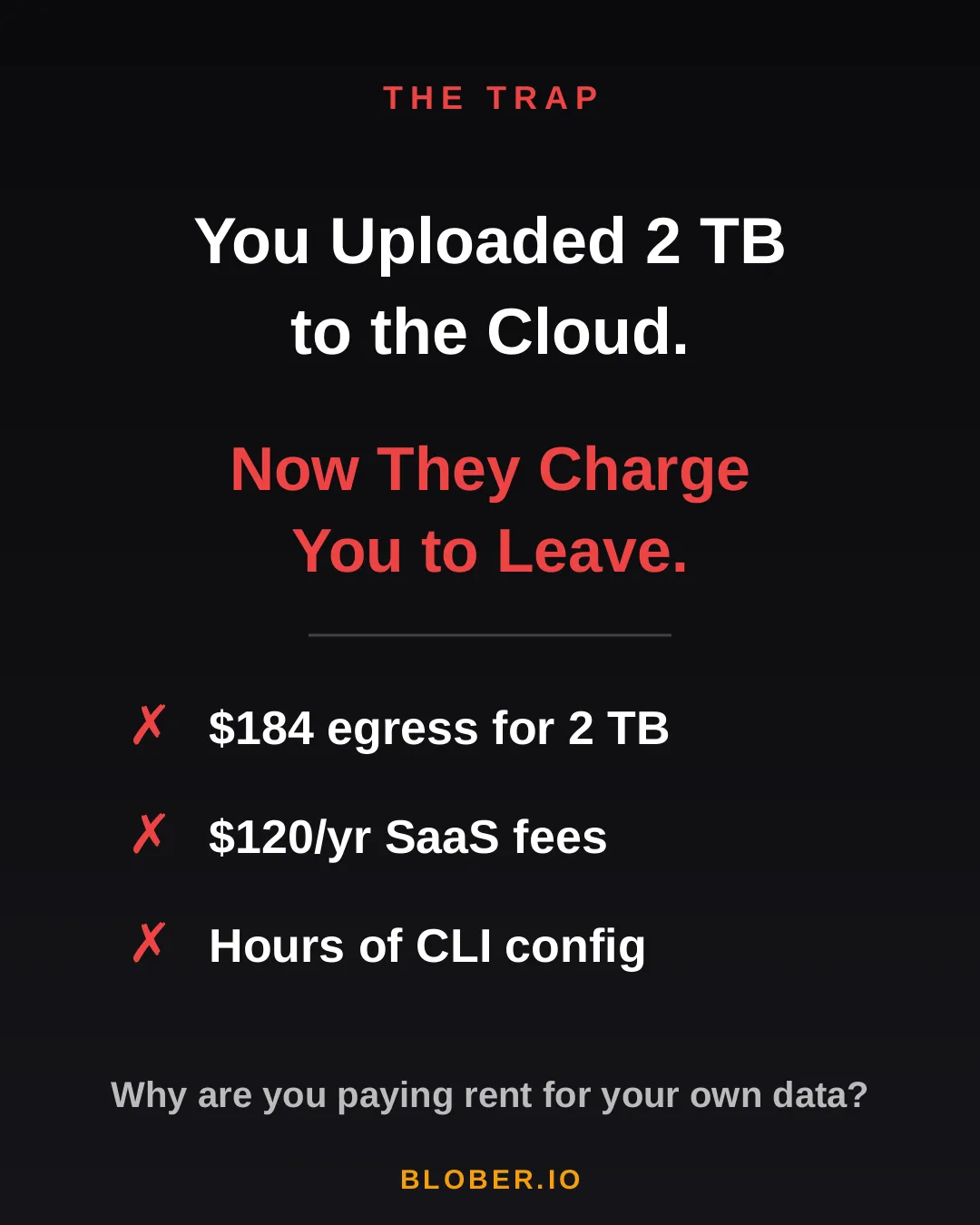
AWS charges ~$0.09/GB for egress. That’s $184 just to download 2 TB of your own files. Want to use a SaaS migration tool? That’s another $10–20/month, with transfer caps. Prefer the open-source CLI route? Clear your afternoon - you’ll need it for YAML configs, credential files, and provider-specific quirks.

The trap: cloud providers charge you egress fees, SaaS tools charge subscriptions, and CLI tools cost you hours of setup time

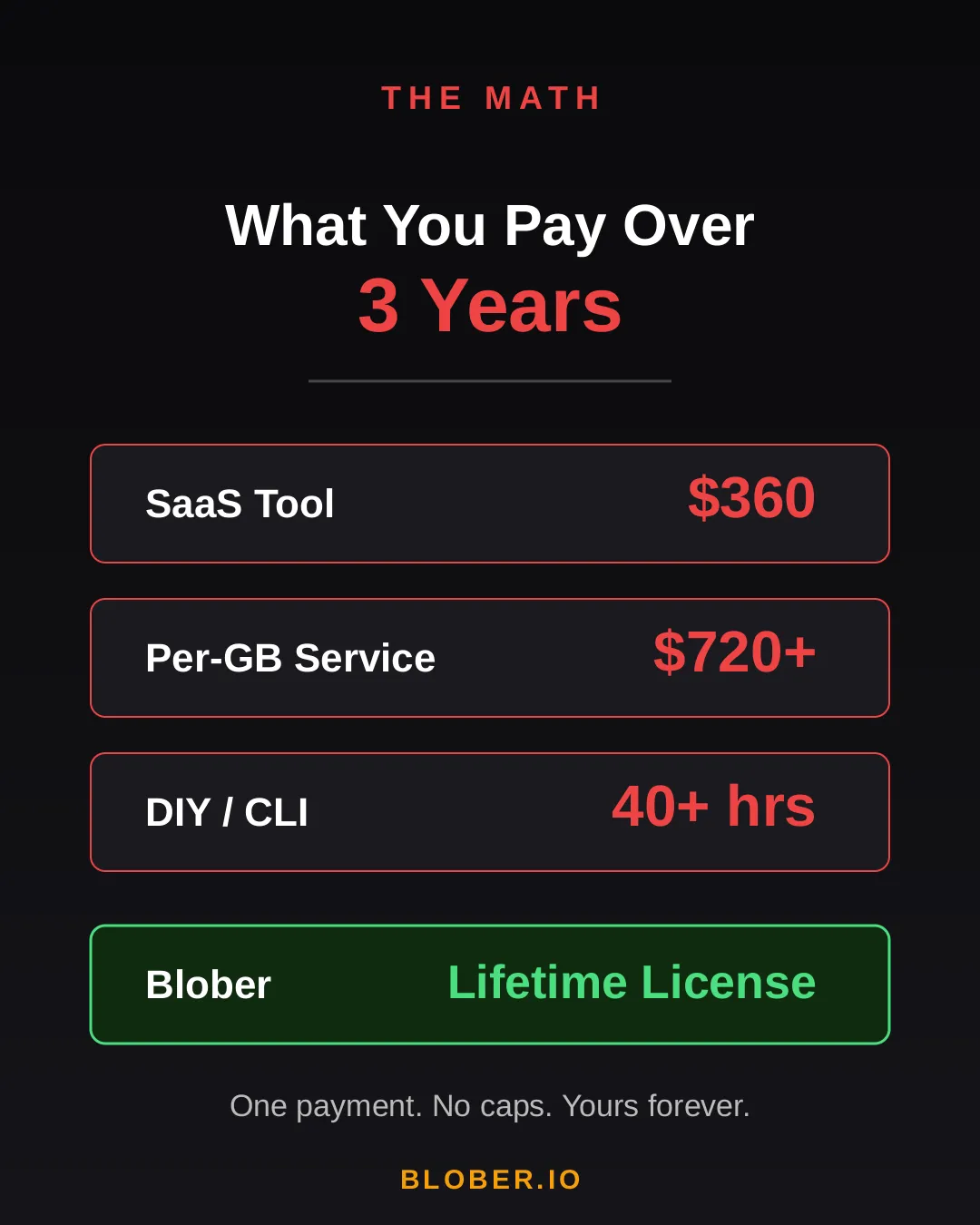
Let’s talk real numbers. Over three years, here’s what you’ll pay using common approaches:

Approach3-Year CostCatch
SaaS Migration Tool~$360Monthly sub + data caps
Per-GB Service~$720+$0.03/GB, billed every transfer
DIY with CLI40+ hoursConfig per provider, no UI, breaks silently
BloberOne paymentUnlimited transfers. Forever.

The subscription model is designed to extract value from you month after month. The per-GB model punishes you for having more data. The CLI path trades money for your time.

Blober breaks the cycle. Pay once. Transfer as much as you want, as many times as you want. No meter running. No renewal emails. No “upgrade to unlock more.”

Cost comparison over 3 years: SaaS tools cost $360, per-GB services cost $720+, DIY CLI costs 40+ hours, Blober costs one single payment

Blober is a desktop app - not a SaaS, not a CLI tool, not a cloud service. It runs on your Mac, Windows, or Linux machine and connects directly to your cloud providers:

  • AWS S3 - buckets and objects, any region
  • Azure Blob Storage - containers and blobs
  • Google Drive - files and folders, including shared drives
  • GoPro Cloud - back up your action footage locally or to any cloud
  • Backblaze B2 - the affordable S3 alternative
  • Dropbox - personal and business accounts
  • Cloudflare R2 - zero-egress object storage
  • Wasabi - hot storage without the cold fees
  • DigitalOcean Spaces - all regions, auto-detected
  • Local Disk - any folder on your machine

Your files never touch a middleman server. Blober streams directly between your machine and the provider APIs. Browse your cloud storage visually, select what you want, pick a destination - done.

If a transfer gets interrupted (bad WiFi, laptop closed, provider hiccup), Blober picks up where it left off. No re-uploading. No duplicate files.

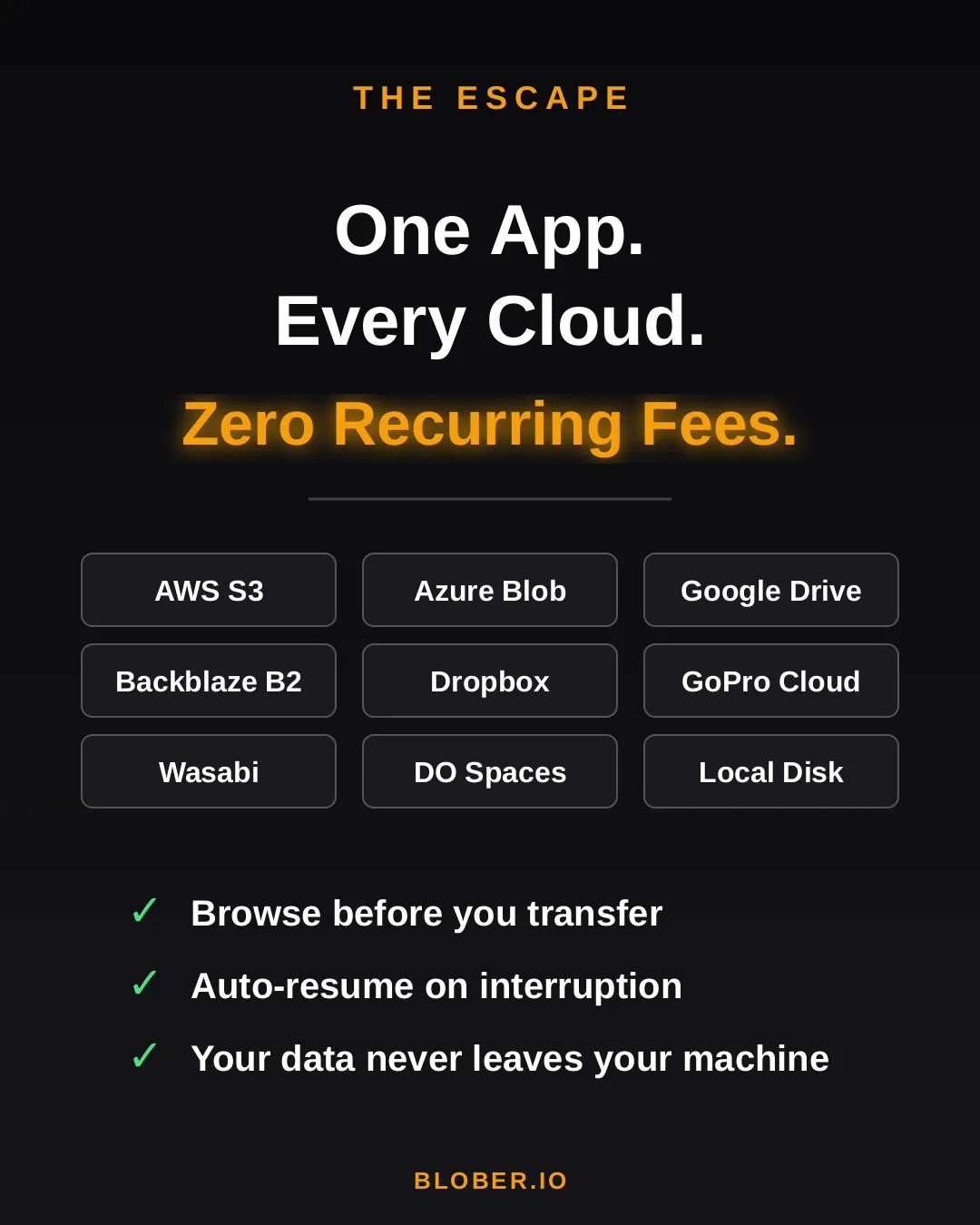
Blober connects 10+ cloud providers in one app: AWS S3, Azure Blob, Google Drive, GoPro Cloud, Backblaze B2, Dropbox, Cloudflare R2, Wasabi, DigitalOcean Spaces, and local disk

Here’s what switching to Blober actually looks like:

Before: You’re juggling browser tabs, CLI sessions, and a spreadsheet tracking which files went where. A SaaS tool emails you that you’ve hit your 1.2 TB monthly cap. You Google “rclone config azure” for the third time.

After: You open Blober. Connect your accounts. Drag from source to destination. Walk away. It just works.

No account required to transfer. No internet needed for local-to-local moves. No data ever leaves your machine unless you’re sending it to a cloud provider you chose.

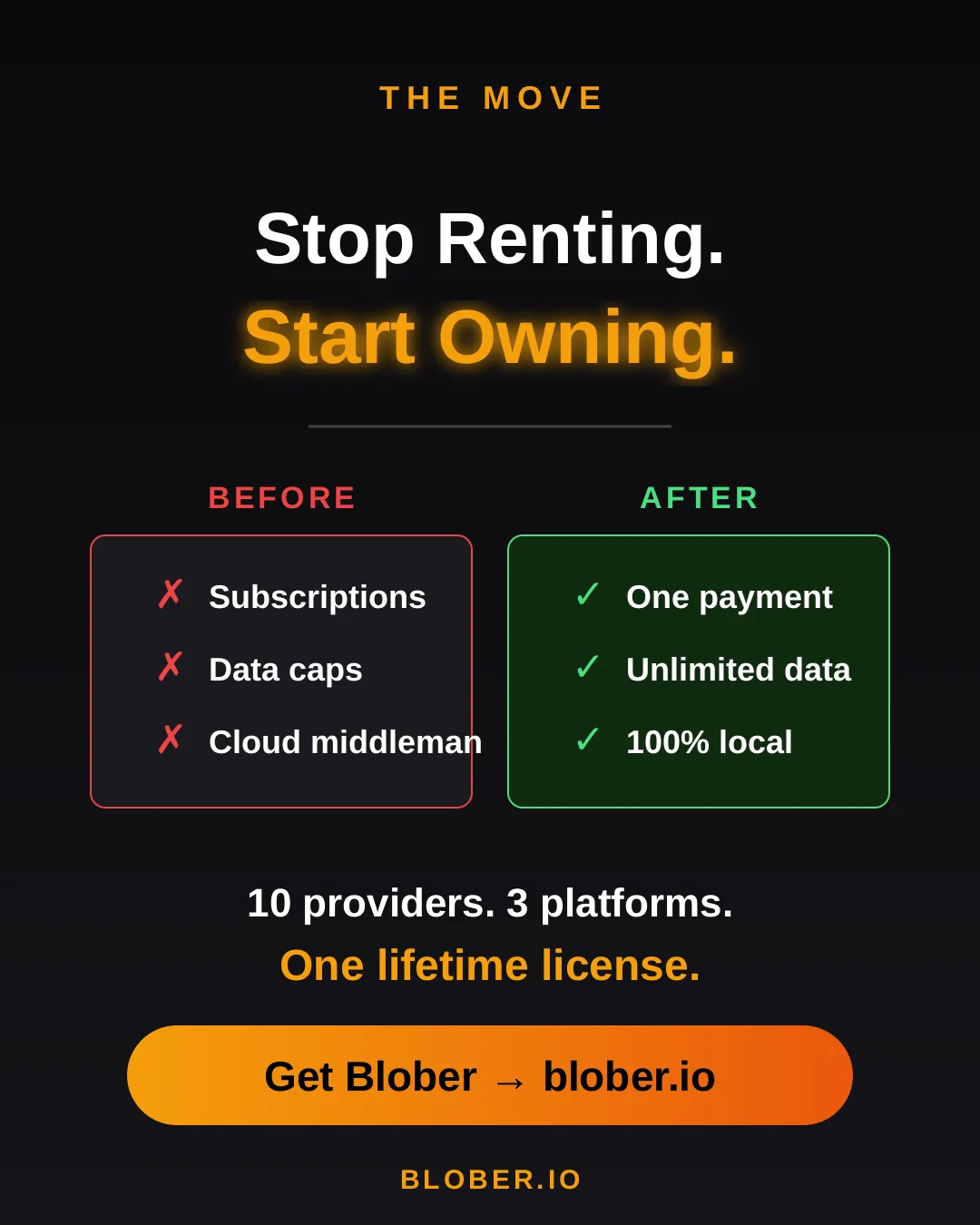
Before and after comparison: monthly subscriptions, data caps, and files routed through servers vs. one-time payment, unlimited transfers, and 100% local execution with Blober
  • Photographers & videographers moving terabytes of footage from GoPro Cloud or Google Drive to cheaper archival storage
  • Developers & DevOps engineers migrating between S3-compatible providers without writing scripts
  • Small businesses consolidating cloud storage without paying an enterprise migration service
  • Privacy-conscious users who want their files transferred directly, not through a third-party cloud
  • Anyone tired of paying monthly fees to tools that move files you already own

Your data. Your machine. Your rules.

One payment. Unlimited transfers. No expiration.

Download Blober → blober.io

What Is Blober? Cloud File Transfer Made Simple

Transferring files between cloud providers today means monthly subscriptions, surprise transfer fees, and wrestling with CLI config files. Most tools are either expensive SaaS platforms or developer-only terminals with steep learning curves.

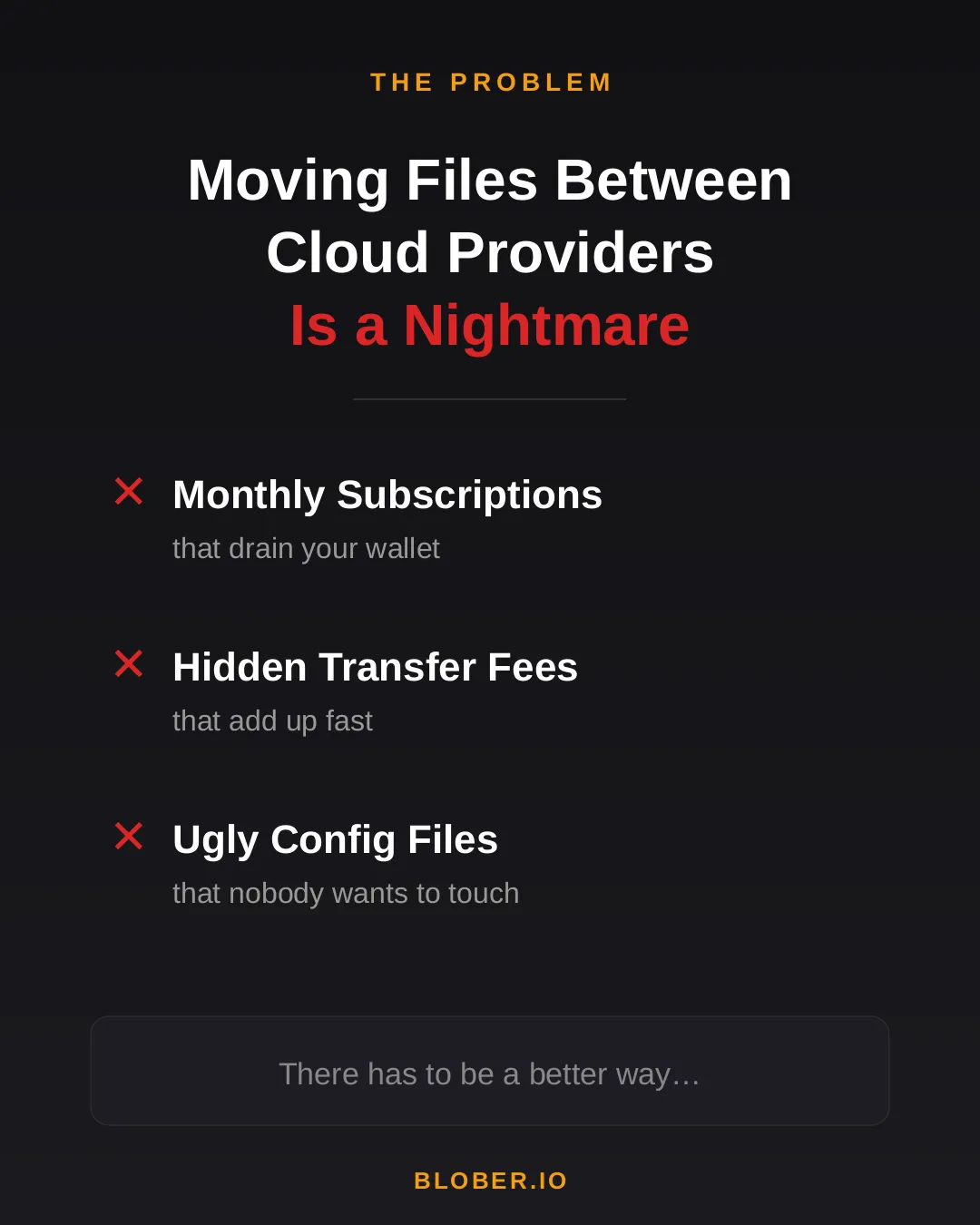
The problem with moving files between cloud providers - monthly subscriptions, hidden transfer fees, and ugly config files

Blober is a desktop app that connects all your cloud storage in one place. AWS S3, Azure Blob Storage, Google Drive, GoPro Cloud, OneDrive, Backblaze B2, and local disk - all supported out of the box. No CLI. No config files. Just a beautiful, intuitive interface.

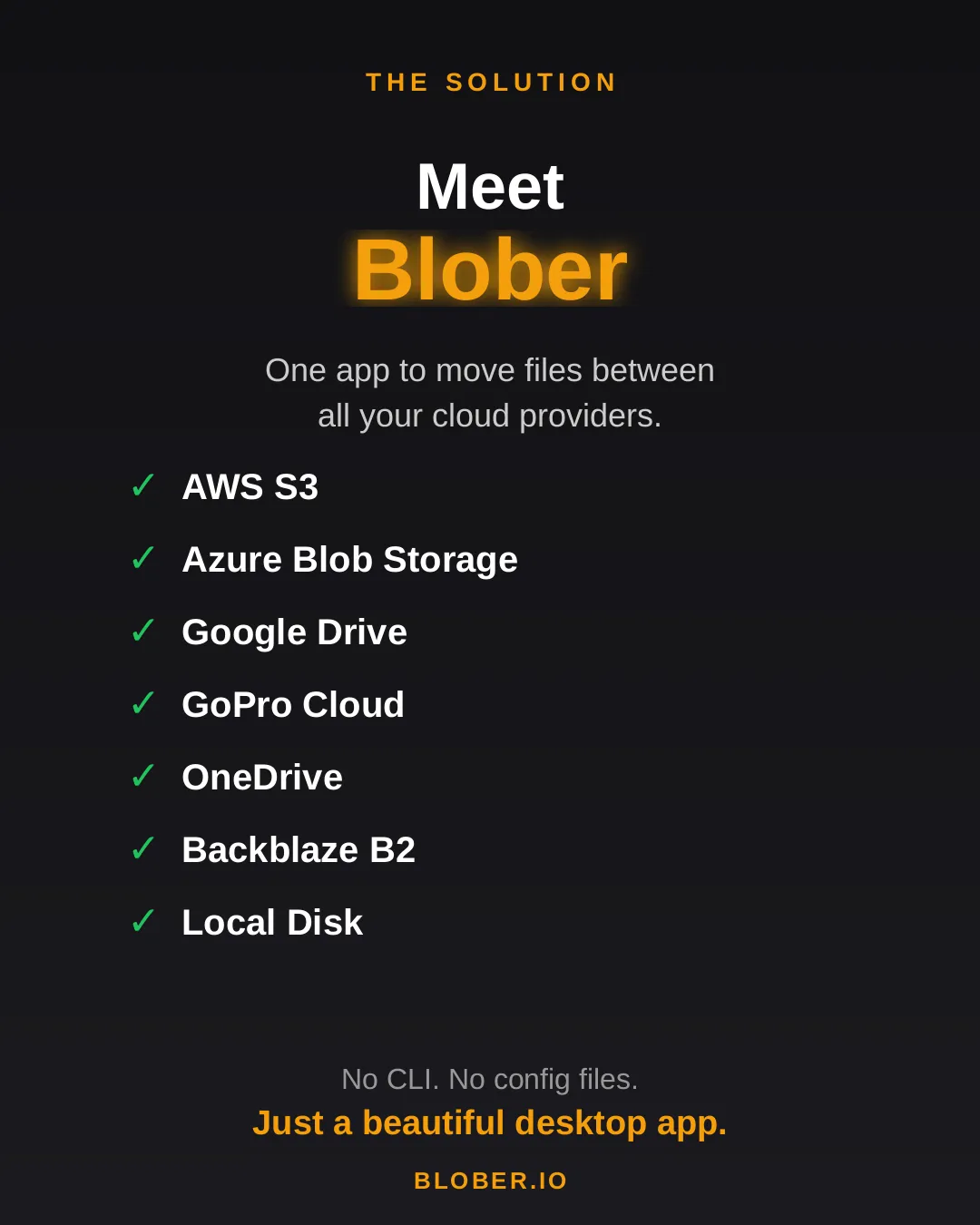
Meet Blober: one app to move files between AWS S3, Azure Blob, Google Drive, GoPro Cloud, OneDrive, Backblaze B2, and local disk

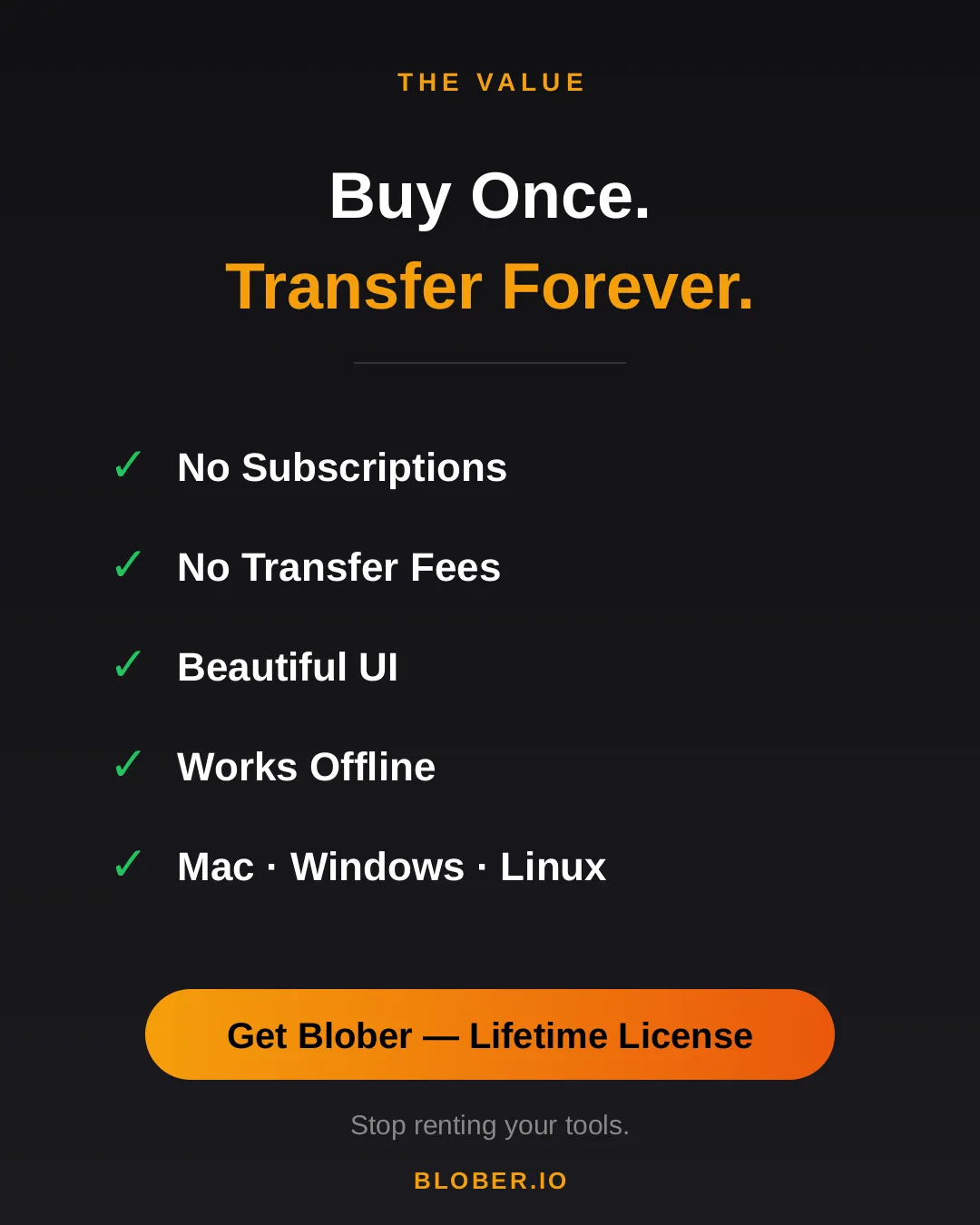
Buy once, transfer forever. No subscriptions. No transfer fees. Blober runs natively on Mac, Windows, and Linux - and it works offline too.

Blober: buy once, transfer forever. No subscriptions, no transfer fees, beautiful UI, works offline, runs on Mac, Windows, and Linux

Stop renting your tools. Download Blober →