Skip to content

gopro cloud

11 posts with the tag "gopro cloud"

GoPro Cloud Backup: 6 Methods Compared (and the Best for Each Job)

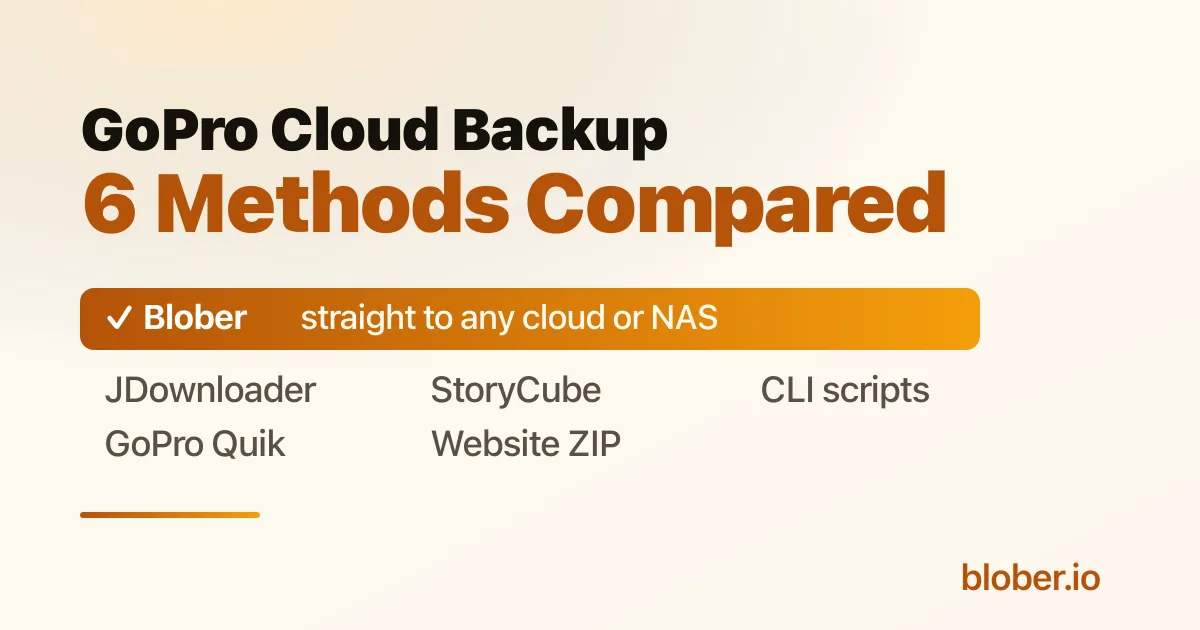
GoPro Cloud backup methods compared, with Blober the best for moving footage to another cloud or NAS

Backing Up a Full GoPro Cloud Library

Section titled "Backing Up a Full GoPro Cloud Library"

The problem: GoPro Cloud has no "Download All" button. The website lets you grab about 25 files at a time as a ZIP, and large batches often stall. For a year of 5.3K footage, clicking through 25-file batches is not a real plan.

The short answer: there are five honest ways to get your whole library out, and they split into two camps. Most of them download your footage to your computer first and leave the rest to you. One of them, Blober, moves the library straight from GoPro Cloud to another cloud or a NAS with no download-and-reupload round trip. Which one is "best" depends on where you want the footage to land. Below is each option, what it does well, and where it slows down.

Why Bulk Download Is Hard in the First Place

Section titled "Why Bulk Download Is Hard in the First Place"

GoPro Cloud is built around the capture-and-edit loop, not around handing you your raw archive. Three facts shape every method here:

  • The web portal caps batch downloads at roughly 25 files, bundled into a ZIP. Big batches time out, and you repeat the process by hand.
  • There is no public API and no official cloud-to-cloud export.
  • Your library is tied to the subscription. Cancel it and access ends, so a copy you own matters.

Keep those in mind and the trade-offs between the methods make sense.

Method 1: The GoPro Website (Manual ZIP Download)

Section titled "Method 1: The GoPro Website (Manual ZIP Download)"

How it works: sign in at gopro.com, open your media library, select up to 25 items, and download the batch as a ZIP. Repeat until you have everything.

Good for: a small number of clips, or grabbing one shoot. It is official, free with your subscription, and needs nothing installed.

Watch for: the 25-file cap turns a large library into dozens of manual rounds. Large ZIPs can fail or time out, and you only find out after the wait. Everything lands on your local disk, so getting it into another cloud later is a separate job.

Method 2: The GoPro Quik App (Phone or Tablet)

Section titled "Method 2: The GoPro Quik App (Phone or Tablet)"

How it works: open Quik, go to Media then Cloud, select your files (you can select all), tap share, and save them to your device. From there you move them off the phone.

Good for: people who mostly shoot and review on a phone and only need a modest number of clips on the camera roll. Official and free with the subscription.

Watch for: the files land in phone storage first, which fills fast with 5.3K video, and you still have to move them to a computer or another cloud afterward. It runs one device at a time and is slow over a phone connection. Not practical for hundreds of gigabytes.

Method 3: ASUS StoryCube (Windows)

Section titled "Method 3: ASUS StoryCube (Windows)"

How it works: StoryCube is an ASUS-engineered, AI-powered media manager. As of October 2025 it is the first Windows app to connect to GoPro Cloud, including .360 footage. It auto-organizes clips by activity, previews and reframes GoPro MAX footage, and lets you drag clips into editors like Adobe Premiere Pro or CapCut.

Good for: Windows creators who want to organize and edit, especially 360 video. The AI sorting and 360 reframing are genuinely useful, and ASUS laptop buyers may get a GoPro Premium subscription included. If your goal is to edit on a PC, this is a strong, official option.

Watch for: it runs on Windows only, so Mac and Linux users are out. It is built to organize and edit on your machine, not to migrate your library into Dropbox, Google Drive, a NAS, or object storage. As a back-up-to-anywhere tool, that is the gap.

Method 4: JDownloader 2 (Free Download Manager)

Section titled "Method 4: JDownloader 2 (Free Download Manager)"

How it works: JDownloader is a free, open-source download manager with a GoPro Plus Media Library plugin. You add your GoPro account, paste the media-library link, and it scans your whole library and batch-downloads it to a local folder with no 25-file cap.

Good for: a free way to pull your entire library down to your computer in one pass. It is open source, cross-platform, and removes the batch limit. If local disk is your destination and you do not mind a busy interface, it does the job at no cost.

Watch for: you type your GoPro password directly into the app's account manager, and an active subscription is required. It downloads to local storage only, so footage destined for Dropbox or a NAS still needs a manual upload after. The general-purpose interface takes a little learning.

Method 5: Open-Source CLI Scripts (e.g. GoPro Plus Downloader)

Section titled "Method 5: Open-Source CLI Scripts (e.g. GoPro Plus Downloader)"

How it works: community projects such as the GoPro Plus Downloader run from the command line or Docker. You supply an auth token and user ID pulled from your browser session, and the script pages through your library and downloads everything, which suits unattended NAS and Synology jobs.

Good for: developers and homelab users who like automation. It is free, open source, has no 25-file limit, and drops cleanly into a Docker or NAS routine.

Watch for: you extract a JWT token and user ID from your browser dev tools, and the token expires, so you redo it now and then. It is command-line first with no graphical browser, and it downloads to a local volume, so onward delivery to another cloud is on you. Maintenance follows the project's author.

Method 6: Blober (Straight to Another Cloud, NAS, or Local)

Section titled "Method 6: Blober (Straight to Another Cloud, NAS, or Local)"

How it works: Blober is a desktop app for Mac, Windows, and Linux that connects to GoPro Cloud as a first-class provider. You sign in through a normal browser login, Blober captures the session, and you get a visual file browser of your whole library. Select one file, a folder, or your entire storage, choose a destination, and run.

Here is what sets it apart from every method above: the destination can be another cloud or a NAS, and the transfer goes directly there. Blober moves GoPro Cloud footage to Dropbox, Google Drive, OneDrive, Backblaze B2, Wasabi, AWS S3, Cloudflare R2, Azure Blob, or DigitalOcean Spaces, as well as to a local drive or a Synology or QNAP share. The files never have to be downloaded to your computer and re-uploaded by hand.

Good for: backing up or migrating a full library to storage you own, or to another cloud, in one step. The parts that matter:

  • No 25-file limit. Transfer 10 files or 10,000 in a single run.
  • Direct cloud-to-cloud movement, so there is no download-then-reupload round trip.
  • Parallel transfers that keep your connection busy, roughly four times faster than GoPro's one-at-a-time app, with auto-resume if the connection drops.
  • A browser-based login, so your credentials are not stored or sent to any server. Everything runs on your machine.
  • Path templates like /{camera_model}/{capture_date}/{filename} that turn a flat dump into a tidy archive.
  • Full original quality, with no re-encoding.

Watch for: Blober is a one-time purchase rather than free. It runs workflows on demand with skip-existing for repeat runs, so it is a refresh you trigger yourself, not a scheduled background sync. If your only goal is a single local copy and cost is the deciding factor, the free tools above also work.

Move your GoPro Cloud library straight to Dropbox, a NAS, or Backblaze B2. Download Blober.

MethodPlatformBeats the 25-file capStraight to another cloud or NASSetupCost
GoPro website (ZIP)Any browserNoNo (local ZIP)NoneFree with subscription
GoPro Quik appiOS, AndroidYesNo (via phone)NoneFree with subscription
ASUS StoryCubeWindows onlyYesNo (organize and edit)App installFree, ASUS-tied
JDownloader 2Win, Mac, LinuxYesNo (local only)ModerateFree
CLI scriptsDocker, CLIYesNo (local only)TechnicalFree
BloberWin, Mac, LinuxYesYesApp installOne-time

Prices and features change, so confirm current details with each provider.

  • You want a few clips fast with nothing installed: the GoPro website is fine.
  • You live in the Quik app and only need some footage on your phone: use Quik.
  • You are on Windows and mainly want to organize and edit, especially 360: StoryCube is a great fit.
  • You want a free full download to your computer and do not mind setup: JDownloader, or a CLI script if you automate a NAS.
  • You want your whole library on another cloud, a NAS, or cheap object storage in one step: Blober, because it is the only option that moves it there directly.

The honest framing: if local disk is your final destination and free is the priority, the free tools are good, and you should use them. The moment your destination is another cloud or a NAS, every other method makes you download first and upload second. That is the step Blober removes.

A Direct Transfer, Start to Finish

Section titled "A Direct Transfer, Start to Finish"
  1. Open Blober and create a workflow. Pick GoPro as the source and click the GoPro login. Sign in, and Blober captures your session.
  2. Browse your library and tick what you want, or select the entire storage.
  3. Choose a destination: Dropbox, Google Drive, Backblaze B2, a NAS, or any supported provider.
  4. Optionally set a path template so files arrive organized by camera and date.
  5. Run it. Watch live progress, and let auto-resume handle any dropouts.

For a large archive you can start it and leave it running overnight.

Can I download my entire GoPro library at once? Not through the GoPro website, which limits you to roughly 25 files per ZIP. JDownloader, CLI scripts, and Blober all remove that cap. Blober also sends the library straight to another cloud or a NAS instead of only to your local disk.

How do I move GoPro Cloud footage to another cloud? Blober transfers GoPro Cloud directly to Dropbox, Google Drive, OneDrive, Backblaze B2, Wasabi, AWS S3, Cloudflare R2, Azure Blob, or DigitalOcean Spaces, with no download-and-reupload step.

What is the best way to download GoPro Cloud videos for free? JDownloader's GoPro Plus plugin, or an open-source CLI script. Both pull your full library to local storage at no cost. You handle any later upload yourself.

Will I lose my footage if I cancel GoPro? Access to the cloud library ends when the subscription ends, and GoPro does not publish how long files are kept afterward. Back up everything before you cancel. See How to Cancel GoPro Plus Without Losing Your Footage.

Does anything handle 360 footage? StoryCube previews and reframes GoPro MAX 360 footage on Windows. Blober transfers the .360 files themselves to your chosen destination at full quality.

Is the browser login safe? Blober uses GoPro's own browser login and keeps the session on your machine. Your password is not stored or sent to any server. The session lasts about 20 hours, then you sign in again.

Keep a copy of your footage on storage you control. Blober is the only app that moves your GoPro Cloud library straight to another cloud, a NAS, or a local drive, and it is a one-time purchase with no subscription and no per-GB fees.

Download Blober at blober.io

GoPro Cloud Storage: The Complete Guide (Plans, File Types, Sharing, Limits)

GoPro Cloud Storage complete guide - plans, file types, sharing, and limits

The short version: GoPro Cloud is the storage that comes with a GoPro Premium or Premium+ subscription. When your camera charges on Wi-Fi, it auto-uploads your footage at full quality, and you edit and share it from the Quik app. Storage for GoPro-captured video and photos is unlimited; storage for footage from other cameras is capped.

The one limit that matters most: your cloud footage is tied to the subscription. Stop paying and you lose access to it. Everything below explains the plans, file types, sharing, and limits in plain terms, and how to keep a copy you own.

This is a reference page. Each section answers one common question, so jump to whichever one you came for.

GoPro Cloud is an auto-upload and backup service bundled with a GoPro subscription. The idea is simple: plug your camera in to charge, and while it sits on Wi-Fi, the day's footage uploads itself to the cloud at 100% quality. The camera's SD card can then clear, and the Quik app turns your clips into highlight videos you can watch and share from your phone.

It is built around the GoPro workflow, not as a general file locker. The headline feature, unlimited storage, applies only to media captured on a GoPro camera.

GoPro Premium and Premium+: Plans and Features

Section titled "GoPro Premium and Premium+: Plans and Features"

GoPro sells two subscription tiers (the service was previously called GoPro Plus). Here is what each one includes and how the cloud allowance compares to general storage services.

PlanPriceGoPro footageNon-GoPro footage
GoPro Premium$59.99/yrUnlimited cloud storage100 GB
GoPro Premium+$99.99/yrUnlimited cloud storage500 GB
Google One (for comparison)$99.99/yrn/a2 TB total
Apple iCloud+ (for comparison)$119.88/yrn/a2 TB total

Beyond storage, a GoPro Premium subscription also includes:

  • Auto-upload to the cloud at full quality while the camera charges on Wi-Fi
  • Automatic highlight videos generated in the Quik app
  • Guaranteed camera replacement for any reason (subject to GoPro's terms)
  • Up to 50% off accessories at gopro.com
  • Up to $150 off two cameras per year
  • Live streaming

Premium+ adds the larger 500 GB allowance for non-GoPro footage and some advanced editing features in Quik. Prices and inclusions change, so confirm the current numbers on GoPro's subscription page before you buy.

GoPro Cloud stores what your camera produces, plus media you add through the Quik app.

SourceTypical formats
GoPro video.mp4 (HEVC or H.264), .360 on Max and 360 cameras
GoPro photo.jpg, and .gpr RAW (GoPro's DNG-based RAW)
Added through QuikPhotos and videos from your phone or other cameras

The unlimited allowance is for content captured on a GoPro device (Fusion is excluded). Footage from other cameras counts against the 100 GB (Premium) or 500 GB (Premium+) non-GoPro allowance.

Sharing happens mainly through the Quik app and your GoPro account:

  • Highlight videos. Quik auto-edits your uploaded clips into a shareable video you can post or send as a link.
  • Shared links. You can share individual media or edits as links to people who do not have a GoPro account.
  • Social export. Quik exports directly to the usual social platforms at chosen resolutions.

Sharing is designed for finished edits and individual clips, not for handing someone your entire raw library. There is no public API and no bulk export-and-share.

The limits people run into:

  • Unlimited is GoPro-only. Non-GoPro footage is capped at 100 GB on Premium and 500 GB on Premium+. To raise that, upgrade from Premium to Premium+.
  • Auto-upload needs Wi-Fi and power. The camera uploads while charging on a Wi-Fi network. Cellular data fees may apply if you tether.
  • Downloading in bulk is the weak point. The web portal lets you download roughly 25 files at a time as a zip, and large batches frequently fail. There is no "download everything" button.

Upgrading or downgrading between Premium and Premium+ is done in your account settings.

You manage your subscription and view cloud media by signing in at gopro.com and through the Quik mobile app. From your account you can see your plan, change between Premium and Premium+, update billing, and start or stop auto-renew. The Quik app is where you browse uploaded media, build edits, and share.

You cancel a GoPro subscription from your account settings on gopro.com or in the app, by turning off auto-renew. Two things to know before you do:

  • You lose access to your cloud footage when the subscription ends. The cloud library is a benefit of the subscription, not a permanent store.
  • GoPro does not publish an exact retention window for how long already-uploaded media stays on its servers after you cancel. The safe assumption is that you should treat it as gone once your access ends.

The practical takeaway: download or move your footage somewhere you control before you cancel. There is a step-by-step walkthrough in How to Cancel GoPro Plus Without Losing Your Footage.

The Limit Nobody Mentions: Your Footage Lives and Dies With the Subscription

Section titled "The Limit Nobody Mentions: Your Footage Lives and Dies With the Subscription"

GoPro Cloud is convenient, and for an active shooter the unlimited tier is genuinely a good deal. But it is one copy, in one company's cloud, that you can only reach while you keep paying. There is no second copy, no versioning, and no third-party tool with API access if something goes wrong. If you stop paying, change cameras, or GoPro changes its terms, the footage you cannot easily bulk-download is the footage you can lose.

That is not an argument against GoPro Cloud. It is an argument for having a copy of your own alongside it.

Blober is the only desktop app that connects to GoPro Cloud, because no other transfer tool (rclone, MultCloud, Flexify, and the rest) supports it. You sign in to GoPro through Blober, browse your entire library, and send it wherever you want:

  • Your local drive, an external disk, or a NAS
  • Backblaze B2 or Wasabi for cheap long-term storage
  • Dropbox, Google Drive, AWS S3, Azure Blob, Cloudflare R2, or DigitalOcean Spaces

No 25-file zip limit, no manual batches. Connect, select everything, pick a destination, and run, with auto-resume if your connection drops. Keep your GoPro subscription or cancel it; either way the footage is now also on storage you control.

Is GoPro Cloud storage really unlimited? For content captured on a GoPro camera (Fusion excluded), yes. Footage from other cameras counts against a separate allowance: 100 GB on Premium, 500 GB on Premium+.

What file types does GoPro Cloud store? GoPro video (.mp4, and .360 on 360 cameras), GoPro photos (.jpg and .gpr RAW), and media you add through Quik from your phone or other cameras.

How much does GoPro Cloud cost? GoPro Premium is $59.99/year and Premium+ is $99.99/year. Confirm current pricing on GoPro's site, since it changes.

Can I download all my GoPro Cloud footage at once? Not through GoPro's website, which limits you to small zip batches. Blober is the only tool that can browse your full GoPro Cloud library and download or transfer all of it in one workflow.

What happens to my footage if I cancel? You lose access to the cloud library when the subscription ends, and GoPro does not publish how long the data is retained afterward. Download or move it before cancelling.

Does any tool other than Blober connect to GoPro Cloud? No. As of 2026, GoPro Cloud has no public API, and Blober is the only third-party desktop app that supports it as a source.

Keep your GoPro footage on storage you own. Blober is the only app that connects to GoPro Cloud, and it is a one-time purchase with no subscription and no per-GB fees.

Download Blober at blober.io

GoPro Cloud vs Dropbox vs Google Drive: Where Should Your Footage Live?

GoPro Cloud vs Dropbox vs Google Drive for action-cam footage

Where Should Your GoPro Footage Live?

Section titled "Where Should Your GoPro Footage Live?"

The problem: action-cam footage is big. A day of HERO video is tens of gigabytes, and a couple of seasons fills terabytes. GoPro Cloud, Dropbox, and Google Drive all want to hold it, but they are built for different jobs and priced very differently.

The short answer: GoPro Cloud is the best place to capture and edit footage because of auto-upload, but it locks your files to a subscription. Dropbox and Google Drive are better for sharing and mixing footage with other files, but their 2 TB tiers fill up fast and get expensive. For a large archive you rarely touch, none of the three is the cheapest home. Here is the full comparison.

GoPro CloudDropboxGoogle Drive
Typical price$59.99/yr (Premium)$119.88/yr (Plus, 2 TB)$99.99/yr (Google One, 2 TB)
CapacityUnlimited for GoPro footage2 TB2 TB
GoPro auto-uploadYes, built inNoNo
Works with non-GoPro filesLimited (100 GB on Premium)Yes, any fileYes, any file
Bulk downloadHard (25-file zips)YesYes (or Takeout)
SharingQuik edits and linksStrong link sharingStrong, Workspace-friendly
If you stop payingLose cloud accessAccount read-only, then limitedOver-quota, read-only

Prices and allowances change; check each provider before deciding.

Cost Per Terabyte Is the First Filter

Section titled "Cost Per Terabyte Is the First Filter"

The math flips depending on how much footage you have.

  • Under 2 TB, actively shooting GoPro: GoPro Cloud's unlimited tier at $59.99/yr is the cheapest and least hassle, because it also auto-uploads and edits.
  • Under 2 TB, mixed with other work files: Dropbox or Google Drive at roughly $100 to $120/yr make sense, since your footage sits next to everything else and shares cleanly.
  • Over 2 TB: all three get awkward. GoPro Cloud stays unlimited but only for GoPro footage and only while you pay. Dropbox and Google Drive push you to pricier tiers. At this size, dedicated object storage is far cheaper, which is the subject of the best storage for GoPro and action-cam footage.

Upload Friction: GoPro Cloud Wins, Until You Want Out

Section titled "Upload Friction: GoPro Cloud Wins, Until You Want Out"

GoPro Cloud is the only one of the three that uploads your footage for you. Plug the camera in on Wi-Fi and the day's clips go up at full quality, then Quik builds a highlight reel. Dropbox and Google Drive have no GoPro integration, so you offload the SD card to a computer first, then upload by hand.

The friction reverses when you want your footage out. GoPro Cloud has no bulk export and caps web downloads at small zip batches. Dropbox and Google Drive both let you pull everything back down (Drive via the app or Takeout). So GoPro Cloud is the smoothest in, and the hardest out.

  • GoPro Cloud shines for finished edits. Quik turns clips into shareable videos and links without you touching an editor.
  • Dropbox is the strongest for sending raw files and folders to people, with reliable shared links and large-file support.
  • Google Drive is best if your collaborators live in Google Workspace, with comments and in-place previews.

If your goal is a polished clip for social, GoPro Cloud is built for it. If your goal is handing a client or editor the raw footage, Dropbox or Drive is easier.

This is the dimension people forget until it bites.

  • GoPro Cloud is one copy that disappears when you stop paying, with no easy bulk export. It is a working cache, not an archive.
  • Dropbox and Google Drive keep your files if you downgrade, but they go read-only or over-quota, and large libraries cost real money every year, forever.

None of the three gives you an owned, offline copy. For footage you want in ten years, you need a copy on storage you control, regardless of which service you shoot into.

  • Actively shooting and want zero-effort backup plus quick edits: keep GoPro Cloud. It is cheap and frictionless for that. But pair it with an owned copy so you are not one cancelled subscription away from losing everything.
  • You want footage alongside other files and easy sharing: Dropbox or Google Drive, as long as you stay under 2 TB. Past that, the price climbs.
  • You have a large archive you rarely touch: skip all three as the primary home and use cheap object storage or a NAS. See the best storage for GoPro footage.

Whichever you choose for shooting, the smart setup is shoot in one place, archive in another.

Blober Moves Footage Between All of Them

Section titled "Blober Moves Footage Between All of Them"

The reason you do not have to marry one service: Blober connects to GoPro Cloud (the only desktop app that does), Dropbox, Google Drive, and cheaper object storage like Backblaze B2 and Wasabi. You can:

  • Pull your GoPro Cloud library down before cancelling and push it to Dropbox, Drive, B2, or a NAS
  • Keep shooting into GoPro Cloud and run Blober now and then to copy new footage into an archive you own
  • Move a Dropbox or Drive video library into cheaper storage when it outgrows the 2 TB tier

Connect a source, pick a destination, run. Auto-resume if the connection drops, no per-GB fee.

Is GoPro Cloud cheaper than Dropbox or Google Drive? For GoPro footage under the unlimited tier, yes: $59.99/yr beats Dropbox (about $120/yr) and Google One (about $100/yr) for 2 TB. The catch is that GoPro Cloud only stores GoPro footage cheaply, and you lose access if you cancel.

Can I move my footage from GoPro Cloud to Dropbox or Google Drive? Yes, with Blober. It is the only app that connects to GoPro Cloud, so you can transfer your library straight to Dropbox, Google Drive, or anywhere else.

Which is best for sharing GoPro videos? GoPro Cloud for polished highlight edits, Dropbox for sending raw files and folders, Google Drive if your collaborators use Google Workspace.

What is the best cloud storage for a large GoPro archive? For terabytes of footage you rarely touch, object storage like Backblaze B2 or Wasabi is far cheaper than any of these three. See the best storage for GoPro and action-cam footage.

Shoot wherever you like and keep a copy you own. Blober is the only app that connects to GoPro Cloud, and it moves your footage to Dropbox, Google Drive, or cheaper storage. One-time purchase, no subscription.

Download Blober at blober.io

The Best Storage for GoPro and Action-Cam Footage in 2026

The best storage for GoPro and action-cam footage compared on price and egress

Where to Put Terabytes of GoPro Footage

Section titled "Where to Put Terabytes of GoPro Footage"

The problem: GoPro Cloud is great for shooting, but its unlimited tier only holds GoPro footage, and only while you keep paying. Once you have a real archive (multiple terabytes of HERO and action-cam video you want to keep for years) you need a cheaper, permanent home that you own.

The short answer: for most people, Backblaze B2 is the best all-round home at $6.95/TB/month with free egress up to 3x what you store. If you download often, Wasabi removes egress math entirely. If you serve footage publicly, Cloudflare R2's zero egress wins. And a local NAS is cheapest over many years if you are willing to maintain it. Here is the full comparison.

OptionPriceEgressBest for
Backblaze B2$6.95/TB/mo (about $83/yr per TB)Free up to 3x stored, then $0.01/GBThe best default for most archives
Wasabi$6.99/TB/mo, rising to $7.99 on July 1, 2026Free (no egress or API fees)Frequent downloads, predictable bills
Cloudflare R2$15/TB/mo (about $180/yr per TB)Free (zero egress)Serving or streaming footage publicly
Local drive or NASOne-time hardware costFreeLargest archives, lowest long-run cost
GoPro Cloud (baseline)$59.99/yr, unlimited GoPro footageBulk download is hardCapturing and editing, not archiving

Prices are current as of 2026 and change over time. Always confirm before committing a large library.

At $6.95 per TB per month, B2 is roughly a quarter of the price of Amazon S3 for storage, and egress is free up to three times the amount you store each month. For a footage archive, where you upload once and download occasionally, that free-egress allowance usually covers normal retrieval, so your bill is essentially just storage.

  • Cost for 5 TB: about $35/month, or roughly $417/year.
  • Why it fits GoPro footage: you store a lot and read a little, which is exactly what B2 prices for.
  • S3-compatible, so it works with standard tools.

For most people archiving GoPro footage, B2 is the recommendation.

Wasabi charges one flat rate for capacity, with no egress or API request fees at all. The current rate is $6.99/TB/month, increasing to $7.99/TB/month on July 1, 2026. The trade-offs are a 1 TB minimum and a 90-day minimum storage duration per object, so it suits archives you keep rather than data you churn.

  • Best when you pull footage back frequently and do not want to think about egress allowances.
  • Watch the 90-day minimum retention: deleting footage early still bills for the remainder of the 90 days.

Cloudflare R2: Zero Egress for Public Footage

Section titled "Cloudflare R2: Zero Egress for Public Footage"

R2 costs more to store ($15/TB/month) but charges nothing for egress, ever. That is the opposite balance from B2: you pay more to hold the data and nothing to serve it.

  • Best when you publish or stream footage to viewers, where egress on other providers would dominate the bill.
  • Not the cheapest for a private cold archive you rarely read; B2 or Wasabi wins there.

Local Drive or NAS: Cheapest Over Years

Section titled "Local Drive or NAS: Cheapest Over Years"

A hard drive or a NAS (Synology, QNAP, TrueNAS) is a one-time purchase. An 8 TB drive is well under the cost of a single year of cloud storage at that size, and a NAS gives you redundancy across multiple drives.

  • Best for the largest archives and the lowest cost measured over five or ten years.
  • The catch: a single local copy is not a backup. Drives fail, and a fire or theft takes everything. Use a NAS as one leg of a plan, not the whole plan.

There is a full walkthrough in back up cloud storage directly to your NAS.

The 3-2-1 Setup for Footage You Cannot Re-Shoot

Section titled "The 3-2-1 Setup for Footage You Cannot Re-Shoot"

Action-cam footage is unrepeatable. The standard rule for irreplaceable data is 3-2-1: three copies, on two kinds of media, with one offsite. A practical version for GoPro footage:

  1. Working copy: GoPro Cloud or your editing machine while a project is active.
  2. Local archive: a NAS or external drive you own.
  3. Offsite copy: Backblaze B2 or Wasabi.

That gives you cheap bulk storage, a fast local copy, and an offsite copy that survives a disaster, for far less than paying a 2 TB consumer plan forever.

How Blober Gets Your Footage There

Section titled "How Blober Gets Your Footage There"

Whichever destination wins, Blober is what moves the footage into it. It is the only desktop app that connects to GoPro Cloud, so you can:

  • Pull your entire GoPro Cloud library out (no 25-file zip limit) and push it to B2, Wasabi, R2, or a NAS
  • Copy footage to two destinations to build the 3-2-1 setup
  • Organize files on the way in with path templates, so a flat cloud dump lands as a clean camera/date/file archive

Connect GoPro Cloud as the source, pick your storage as the destination, run, and let it resume through any dropped connection.

What is the cheapest cloud storage for GoPro videos? For a private archive, Backblaze B2 ($6.95/TB/month) and Wasabi ($6.99/TB/month) are the cheapest credible options, both far below Amazon S3 or consumer plans. A local NAS is cheaper still over several years if you maintain it.

Is GoPro Cloud good for long-term storage? It is good for capturing and editing, not for archiving. It only stores GoPro footage cheaply, you lose access if you cancel, and there is no bulk export. Keep a copy elsewhere for the long term.

How do I move footage from GoPro Cloud to Backblaze B2 or Wasabi? Use Blober. It connects to GoPro Cloud and transfers your library directly to B2, Wasabi, or any supported destination, with no manual batching.

Backblaze B2 or Wasabi, which is better for GoPro footage? B2 if you mostly store and rarely download, thanks to its free 3x egress allowance. Wasabi if you download often and want zero egress math, keeping the 1 TB minimum and 90-day retention in mind.

Move your GoPro footage to the storage that actually fits a large archive. Blober is the only app that connects to GoPro Cloud, and it is a one-time purchase with no subscription and no per-GB fees.

Download Blober at blober.io
How to Cancel GoPro Plus Without Losing Your Footage

Cancel GoPro Plus without losing your footage by downloading everything with Blober

GoPro Plus (now sold as GoPro Premium) costs $59.99/year. It gives you unlimited cloud storage for your GoPro footage, camera replacement coverage, and discounts on accessories. For active GoPro users, that's a reasonable deal.

The problem shows up when you want to leave.

GoPro Plus auto-uploads your footage to GoPro Cloud. Over time, you might have hundreds of gigabytes sitting there. When you cancel, you lose access to those files. GoPro does not give you a bulk export tool, there's no API, and the web interface lets you download at most 25 files at a time in zip bundles.

If you have 500 videos from two years of travel, surfing, or family events, downloading them 25 at a time is not practical. And the zip downloads often fail on larger batches.

When your GoPro Plus subscription ends:

  • You can no longer view or access your cloud footage
  • Your files remain on GoPro's servers for a limited time (the exact retention policy is not published)
  • No third-party tool has API access to help you
  • You lose camera replacement coverage and store discounts

The footage does not transfer anywhere. It sits in GoPro's cloud until they delete it. If you did not download it before cancelling, it may be gone.

How to Save Everything Before Cancelling

Section titled "How to Save Everything Before Cancelling"

Blober is the only desktop app that connects to GoPro Cloud. It was built specifically because no other tool can access GoPro's proprietary storage system.

Step 1: Download Blober and Connect GoPro Cloud

Section titled "Step 1: Download Blober and Connect GoPro Cloud"

Install Blober on your Mac, Windows, or Linux computer. Add GoPro Cloud as a provider and sign in with your GoPro account. Blober captures your session and gives you a visual file browser showing your entire cloud library.

Step 2: Choose Where to Save Your Footage

Section titled "Step 2: Choose Where to Save Your Footage"

You have several options:

Local hard drive or SSD The simplest option. Select all your GoPro Cloud files, pick a local folder as the destination, and transfer. Your footage downloads to your computer at full quality.

External drive or NAS If your internal drive does not have enough space, point Blober to an external drive, SD card, or network-attached storage (Synology, QNAP, etc.).

Backblaze B2 (cheapest cloud option) If you want your footage in the cloud but do not want to pay $59.99/year, Backblaze B2 stores data at $6.95/TB/month. For 1 TB of GoPro footage, that is about $83/year with no subscription lock-in, no download limits, and full API access.

Dropbox, Google Drive, or AWS S3 If you already use another cloud provider, Blober can transfer your GoPro footage directly there. No double-download needed.

Select your files (or select all), choose the destination, and click run. Blober transfers with parallel streams, auto-resume on failure, and progress tracking. For large libraries, you can leave it running overnight.

Once your footage is safely stored elsewhere, cancel your subscription through the GoPro app or website. Your files are yours, on storage you control.

Cost Comparison: GoPro Plus vs Alternatives

Section titled "Cost Comparison: GoPro Plus vs Alternatives"
Storage OptionCost (1 TB/year)Download LimitsAPI Access
GoPro Plus$59.99/year25 files at a timeNone
Backblaze B2~$83/yearUnlimitedS3-compatible
Wasabi~$84/yearUnlimitedS3-compatible
Local hard driveOne-time ~$40 (4TB HDD)N/AN/A
Google Drive (2TB)$100/yearUnlimitedYes

GoPro Plus is actually the cheapest cloud option per TB, but it comes with restrictions that the others do not have: no bulk downloads, no third-party tool access, and your footage is inaccessible the moment you cancel.

This is not a case of "just use rclone" or "try MultCloud." GoPro Cloud is a proprietary system with no published API. No transfer tool, CLI, or cloud sync service has ever supported it.

  • rclone: No GoPro backend. Never had one.
  • MultCloud: Does not list GoPro Cloud as a provider.
  • Flexify: No GoPro support.
  • CloudHQ, Mover, Movebot: None support GoPro Cloud.

Blober connects to GoPro Cloud through the same authentication path as GoPro's own web app. It is the only third-party tool that can read, download, and transfer your GoPro Cloud files.

What If You Want to Keep GoPro Cloud?

Section titled "What If You Want to Keep GoPro Cloud?"

Not everyone needs to cancel. If you shoot regularly and use GoPro's highlight tools, Plus is a solid deal. But even if you keep your subscription, having a backup somewhere else is just good practice.

Use Blober to mirror your GoPro Cloud to a local drive or Backblaze B2 as a safety net. That way, if GoPro changes their terms, raises prices, or has a service issue, your footage is protected.

Blober is a one-time purchase with a lifetime license. No subscription, no per-GB fees.

Download Blober at blober.io

Upload to GoPro Cloud 4x Faster with Parallel Transfers

Upload to GoPro Cloud 4x faster with Blober parallel uploads

If you shoot with a GoPro, you know the routine. After a day of riding, diving, or traveling, your camera has anywhere from 20 to 200 GB of footage. You plug your camera in or connect via Wi-Fi, and the GoPro app starts uploading to GoPro Cloud.

The upload is slow. Not because your internet is slow, but because GoPro's app sends files one at a time. It picks a file, uploads it, waits for confirmation, then starts the next one. If you have 100 clips from a weekend trip, each one sits in a queue while the previous clip finishes.

This sequential approach means you are never using your full upload bandwidth. Most internet connections can handle several simultaneous uploads. A connection with 50 Mbps upload speed could be pushing four or five files at once, but GoPro's app uses it for just one.

How Blober Handles GoPro Cloud Uploads

Section titled "How Blober Handles GoPro Cloud Uploads"

Blober uses parallel upload streams when transferring files to GoPro Cloud. Instead of sending one file at a time, Blober opens multiple concurrent connections and uploads several files simultaneously.

The result is straightforward: if your connection can handle four simultaneous uploads (and most can), you finish in roughly a quarter of the time.

This is not a theoretical number. It comes down to basic network utilization. GoPro's sequential uploads leave bandwidth idle between files and during handshake overhead. Blober keeps the pipe full by starting the next upload before the previous one finishes its server-side confirmation.

ScenarioGoPro AppBlober
50 GB weekend trip (100 clips)~4 hours~1 hour
120 GB week-long shoot (300 clips)~10 hours~2.5 hours
8 GB quick session (15 clips)~35 min~8 min

Times based on a typical 30 Mbps upload connection. Actual speeds depend on your connection, file sizes, and GoPro Cloud server conditions.

GoPro's web interface limits downloads to 25 files at a time. If you want to download 500 clips, you need to repeat the process 20 times.

Blober has no batch limit. Select 10 files or 10,000 and start the transfer. Blober works through the entire queue without stopping to ask you to select the next batch.

Uploads fail. Connections drop, laptops go to sleep, Wi-Fi switches networks. When a GoPro Cloud upload fails through the app, it often starts the file over from scratch.

Blober tracks progress per file. If a transfer is interrupted, Blober resumes from where it stopped. For large files (GoPro's 5.3K videos can easily be 5-10 GB each), this saves real time. You do not re-upload 4 GB of a 5 GB file because your connection dropped at 80%.

Upload From Anywhere, Not Just Your Camera

Section titled "Upload From Anywhere, Not Just Your Camera"

GoPro's app expects you to upload from the camera or phone. If your footage is on an SD card, a NAS, or already in another cloud provider, you cannot use the app to get it into GoPro Cloud.

Blober lets you upload to GoPro Cloud from any source it supports:

  • Local drives and SD cards: Import footage from your card reader directly to GoPro Cloud
  • NAS devices: Upload from Synology, QNAP, or any network drive
  • Other cloud providers: Move files from Dropbox, Google Drive, or AWS S3 into GoPro Cloud
  • DJI or Insta360 footage: Consolidate action camera media from multiple brands in one cloud

Some people ask why you would upload to GoPro Cloud at all. Fair question. Here is when it makes sense:

  • You already have a GoPro Plus subscription and want to use the cloud highlight reels and editing features
  • You want automatic camera-to-cloud backup but need a faster way to bulk-upload existing footage
  • You shoot with DJI or other cameras and want all your action footage in one place with GoPro's editing tools

If you are moving away from GoPro Cloud, Blober handles that too. Transfer your entire library to Backblaze B2, AWS S3, Dropbox, or a local drive.

Blober is a one-time purchase with a lifetime license. No subscription, no per-GB charges.

Download Blober at blober.io
How to Download All Your GoPro Cloud Videos to Your Computer

GoPro Cloud transfer with Blober, the only app that supports GoPro Cloud backup and download

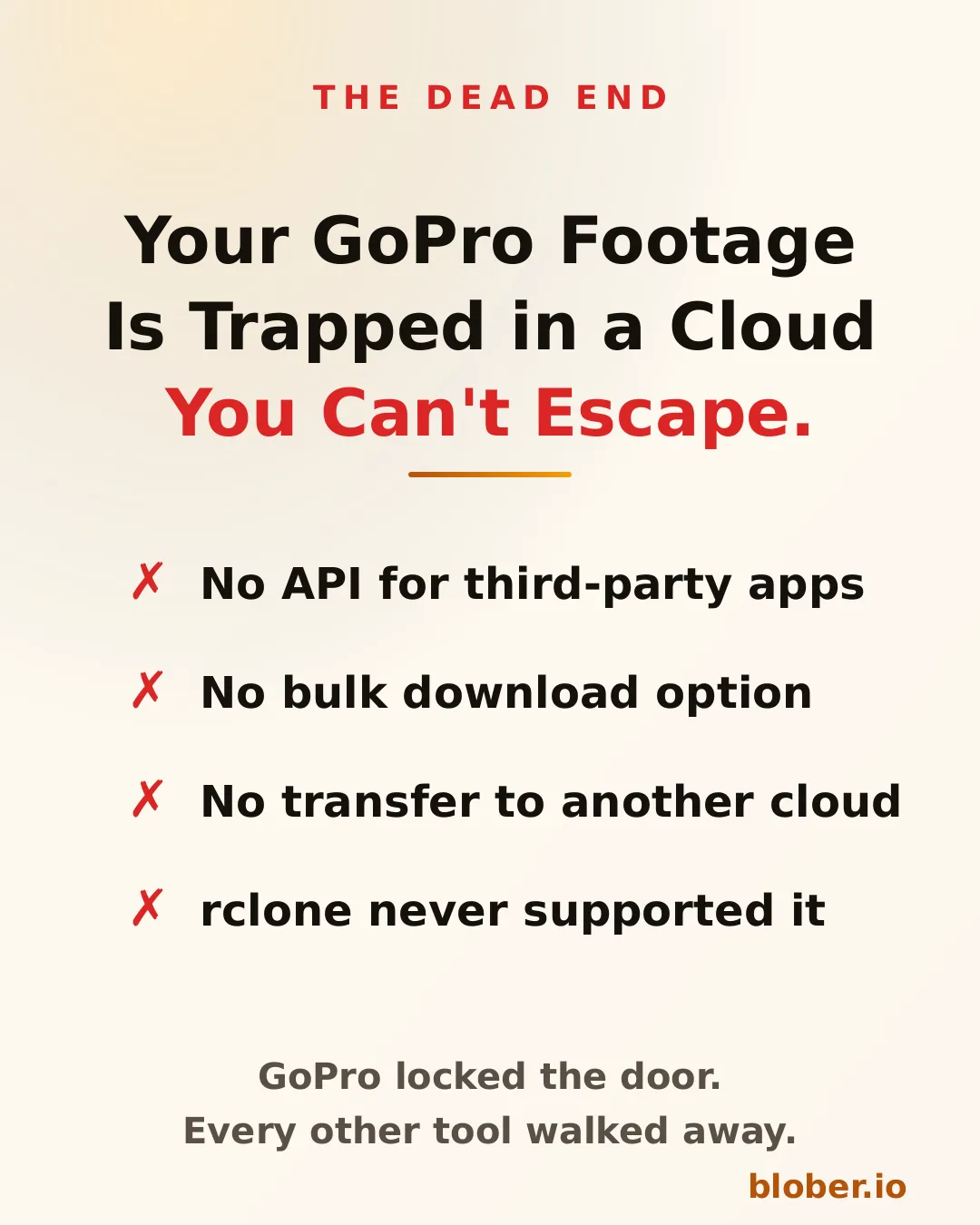
GoPro Cloud stores your footage after it auto-uploads from your camera. But once your videos and photos land there, getting them out is a different story. There is no public API, no bulk download feature, and no way to transfer your media directly to another cloud provider.

If you want to move a single clip, you open the GoPro app on your phone, download it to your device, then manually upload it somewhere else. For a handful of files, that works. For hundreds of gigabytes of 5.3K footage from a year of riding, surfing, or travel, it does not.

GoPro Cloud is a dead end with no API, no bulk download, and no third-party tool support

No Other Tool Supports GoPro Cloud

Section titled "No Other Tool Supports GoPro Cloud"

This is not a matter of choosing the right CLI command or configuring a remote. GoPro Cloud is a proprietary system with no documented API for third-party developers.

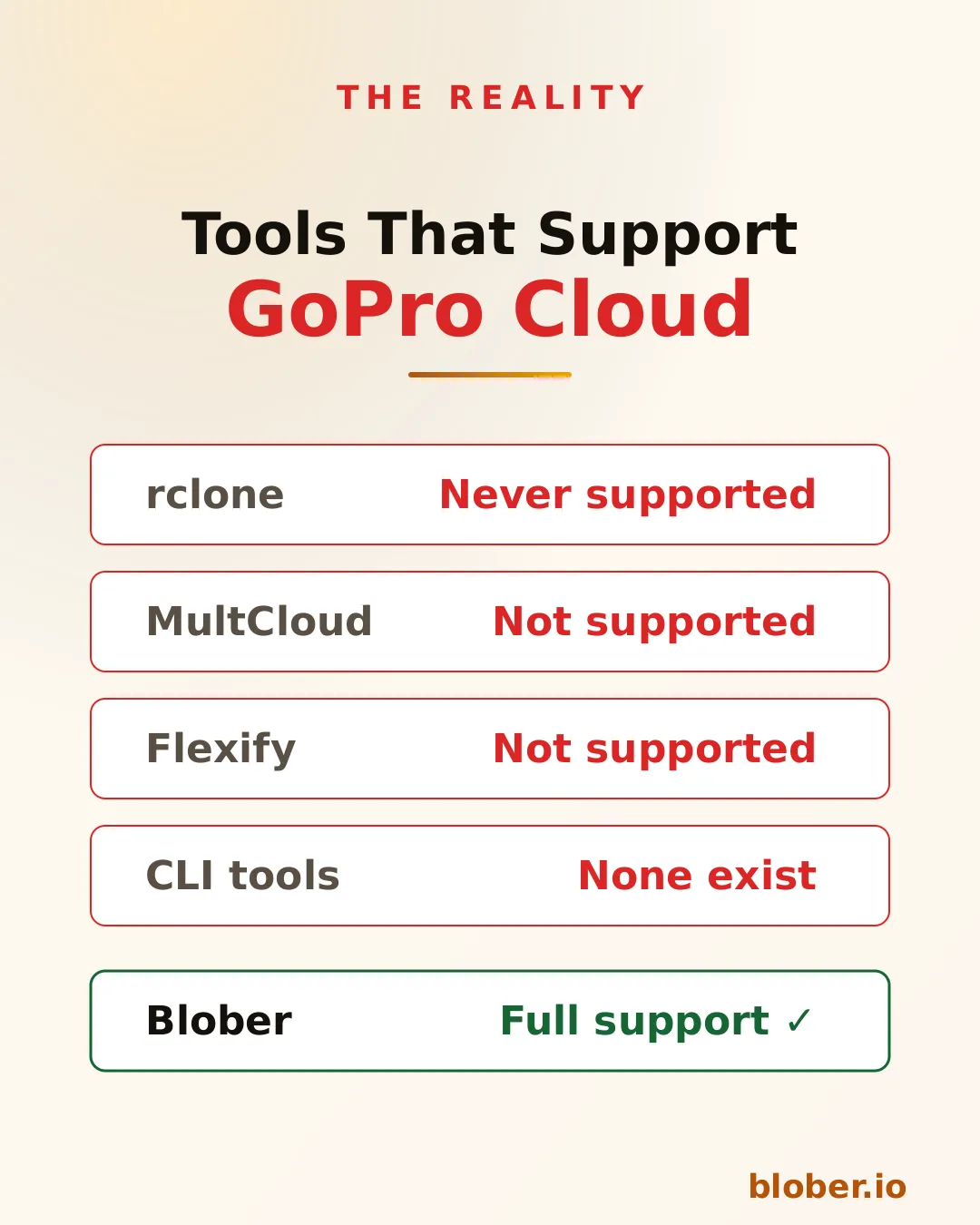
  • rclone has never had a GoPro Cloud backend. It does not appear in any version of the changelog going back to 2012.
  • MultCloud and Flexify list dozens of cloud providers but GoPro Cloud is not among them.
  • CLI tools for GoPro focus on camera firmware and settings, not cloud storage transfers.

The result: if your footage lives in GoPro Cloud, every other transfer tool on the market leaves you stranded.

Comparison showing rclone, MultCloud, Flexify, and CLI tools all fail to support GoPro Cloud while Blober has full support

Blober Connects Directly to GoPro Cloud

Section titled "Blober Connects Directly to GoPro Cloud"

Blober is a desktop application (Mac, Windows, Linux) that connects to GoPro Cloud as a first-class provider. You sign in with your GoPro account, and Blober gives you a visual file browser showing all your uploaded media.

From there, you can:

  • Download all your GoPro footage to your local disk or NAS in one transfer
  • Transfer GoPro Cloud media to Dropbox, Google Drive, or any of the 10 supported providers
  • Upload DJI media to GoPro Cloud, letting you consolidate action camera footage from multiple brands in one place
  • Copy files between any two providers without routing data through a remote server

Blober runs entirely on your machine. Files stream directly between your computer and the provider APIs. No middleman, no SaaS relay, no monthly subscription.

Blober connects to GoPro Cloud with full support for browsing, transferring, and downloading footage to any cloud or local disk

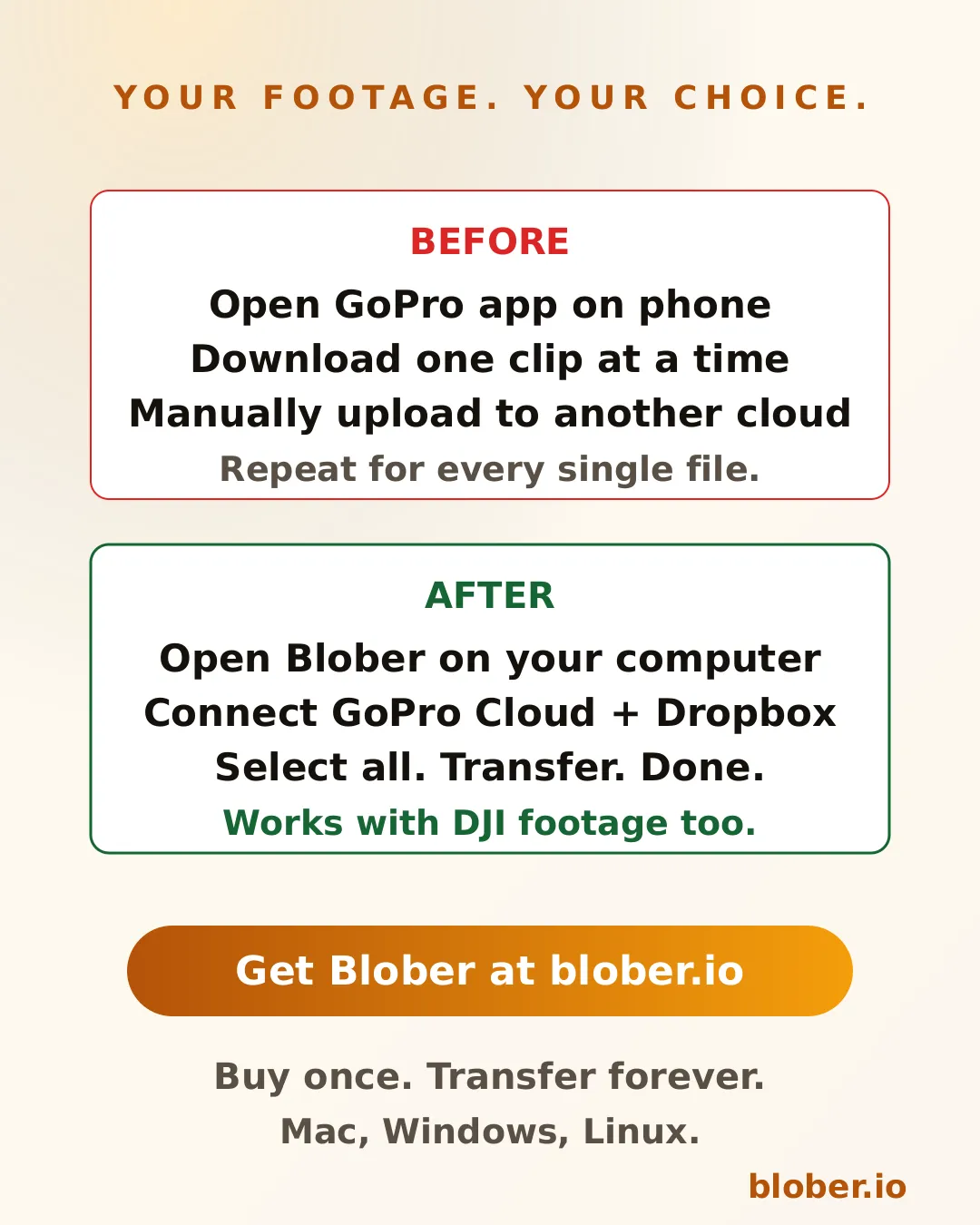
Without Blober, backing up GoPro Cloud footage to Dropbox looks like this:

  1. Open the GoPro app on your phone
  2. Select a video
  3. Download it to your phone storage
  4. Open the Dropbox app
  5. Upload the video
  6. Repeat for every file

With Blober:

  1. Open Blober on your computer
  2. Connect your GoPro Cloud account and your Dropbox account
  3. Select the files (or select all)
  4. Click transfer

Blober handles the rest, including auto-resume if your connection drops.

Before and after comparison showing manual GoPro Cloud workflow versus Blober's one-click transfer to Dropbox or Google Drive

DJI Users: Consolidate Your Footage

Section titled "DJI Users: Consolidate Your Footage"

If you shoot with both a GoPro and a DJI drone or action camera, your footage ends up scattered across local drives, SD cards, and cloud services. Blober lets you upload DJI media directly to GoPro Cloud, Google Drive, Dropbox, or any combination of providers.

This means you can keep all your action camera footage in one place, regardless of which brand captured it.


GoPro Cloud is not a backup if you cannot get your files out. A backup requires that you can retrieve your data when you need it. Without a download or transfer mechanism, GoPro Cloud is storage you cannot control.

Blober turns GoPro Cloud into a real part of your backup workflow:

  • Pull footage from GoPro Cloud to a local drive as a cold backup
  • Mirror GoPro Cloud to Backblaze B2 or Wasabi for cheap long-term archival
  • Sync GoPro Cloud with Google Drive so your footage is accessible from any device

  • GoPro users who want to download their entire cloud library to a computer or external drive
  • Content creators who shoot on GoPro and DJI and need to consolidate footage
  • Travelers and adventurers who auto-upload to GoPro Cloud and want a second copy elsewhere
  • Photographers switching away from GoPro Cloud who need to migrate their media
  • Anyone who tried to bulk-download from GoPro Cloud and found there is no option

Blober is a one-time purchase with a lifetime license. No subscriptions. No transfer fees. No transfer limits.

Download Blober at blober.io

Transfer GoPro Cloud Files in 45 Seconds with Blober

GoPro Cloud workflow setup in 45 seconds with Blober

This video shows the full process of creating a Blober workflow with GoPro Cloud as the source.

Play

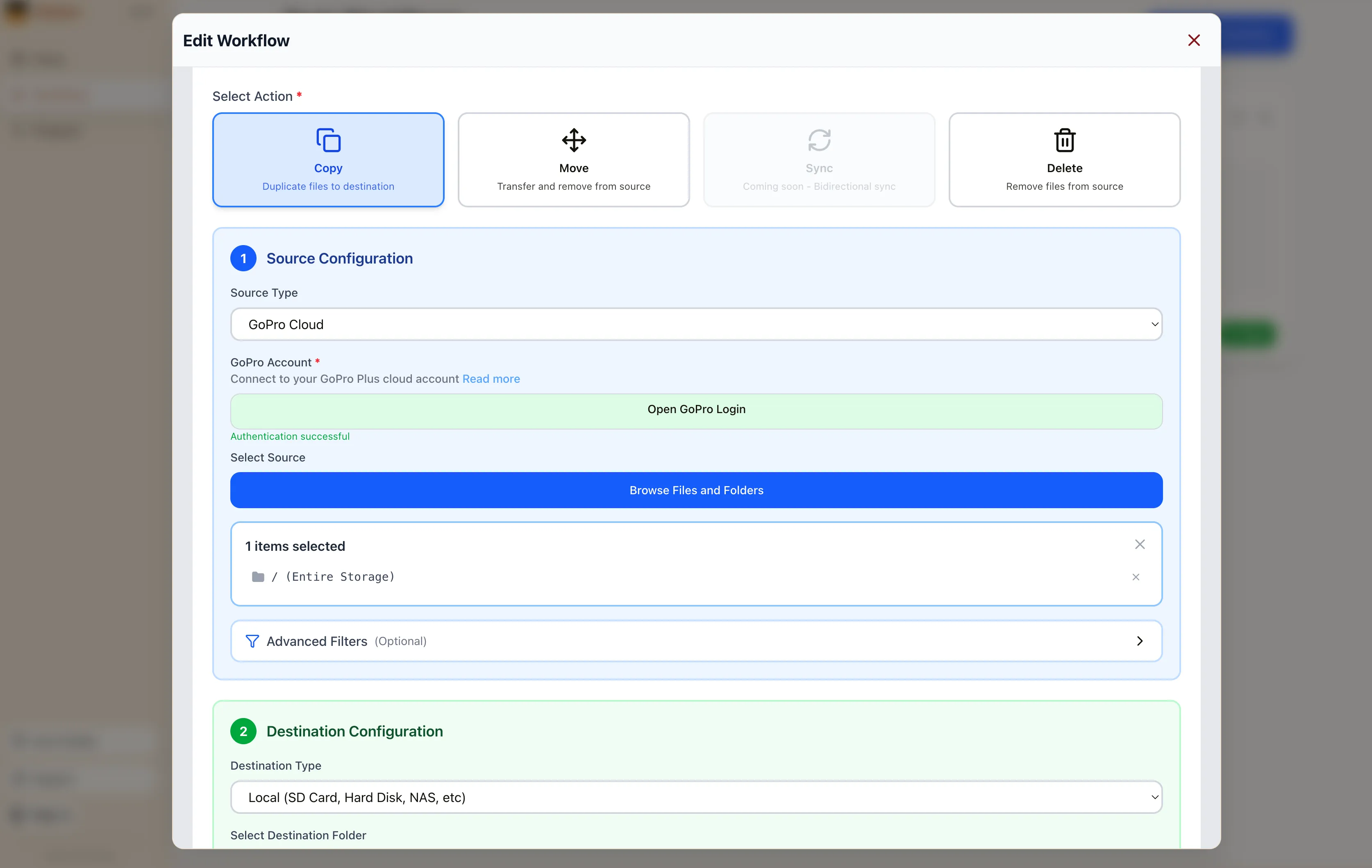
Select GoPro Cloud as your source, click Open GoPro Login, and sign in. Blober captures your session. No API keys, no config files, no CLI.

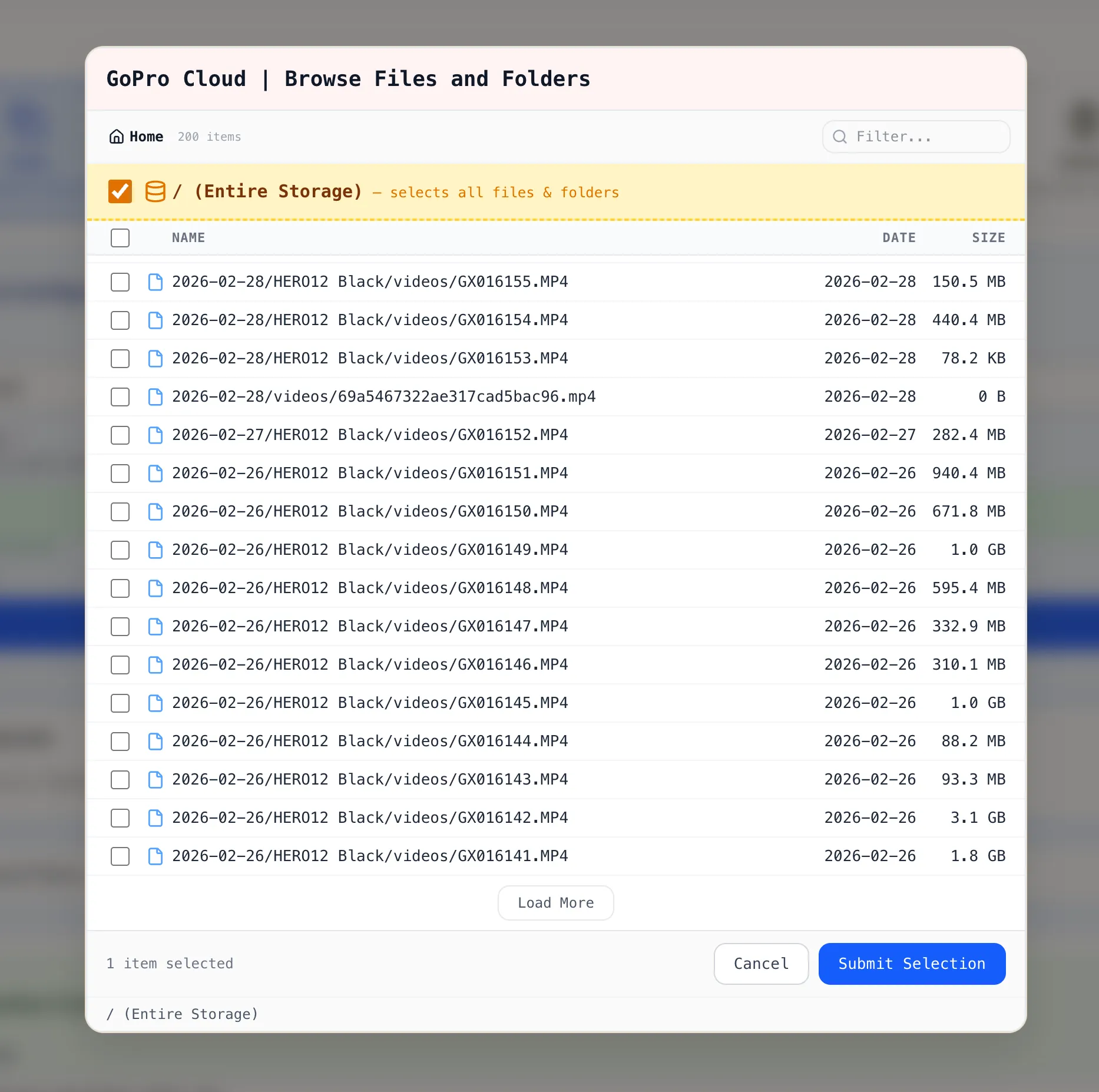
Click Browse Files and Folders. Blober loads your GoPro Cloud library. Files are listed with date and size.

Blober file browser showing GoPro Cloud files with entire storage directory selected

You can select:

  • Individual files by clicking a single file
  • Multiple files by checking several files across folders
  • Entire directory by ticking the / (Entire Storage) checkbox

Click Submit Selection. The workflow editor shows your GoPro Cloud source with the selected items. Pick your destination (local disk, Backblaze B2, AWS S3, Dropbox, or another supported provider), configure options, and click Save Workflow.

Blober workflow editor with GoPro Cloud as source and entire storage selected

Close the workflow editor with the X button in the top-right corner. On the Workflows page, click the green Run button on your workflow card. Blober starts the transfer with parallel downloads, progress tracking, and automatic resume.

GoPro's web portal limits batch downloads to 25 files at a time, bundled as ZIPs. Large downloads often fail. There is no bulk export and no "Download All" button.

Blober is the only tool that connects to GoPro Cloud. rclone, MultCloud, and Flexify do not support GoPro as a source.

  • No manual downloads. Files move directly from GoPro Cloud to your destination.
  • No file limits. Transfer 10 files or 10,000 in one run.
  • No subscription. Blober is a one-time purchase.
  • No middleman. Everything runs on your machine. Your credentials stay local.
  1. Download Blober (macOS, Windows, Linux)
  2. Connect your GoPro Cloud account
  3. Create a workflow and run it

How to Move GoPro Cloud Media to Dropbox the Easy Way

Why Move Your GoPro Footage to Dropbox?

Section titled "Why Move Your GoPro Footage to Dropbox?"

GoPro Cloud (included with GoPro Plus / GoPro Premium) stores your camera footage automatically. It's convenient, until you need to actually do something with it.

The problems with keeping everything in GoPro Cloud:

  • No easy bulk export. GoPro's web portal limits batch downloads to 25 files at a time, bundled as a ZIP. Large downloads frequently fail or time out.
  • No third-party integrations. No other file transfer tool (rclone, MultCloud, Flexify) can connect to GoPro Cloud. You're stuck with the GoPro web interface.
  • Subscription lock-in. Cancel GoPro Plus and you lose access to your footage. Your media is held hostage by a recurring charge.
  • No redundancy. If GoPro changes their cloud offering or shuts it down, you have no backup unless you've already downloaded everything manually.

Why Dropbox makes a good destination:

  • Accessible everywhere. Desktop, mobile, web. Dropbox works across all devices.
  • Selective sync. Keep large video files in the cloud and only download what you need locally.
  • Sharing built in. Send footage to clients, collaborators, or editors with a link.
  • Established and reliable. Dropbox has been around since 2007 and isn't going anywhere.
  • Integration with editing tools. Many video editors and photo apps integrate directly with Dropbox.

Moving your footage from GoPro Cloud to Dropbox gives you a second copy in a provider you control, one that doesn't depend on a GoPro subscription to access.

Blober is the only desktop app that connects directly to GoPro Cloud. No browser extensions, no manual downloads, no CLI config files. You create a workflow, press play, and your media transfers automatically.

Play

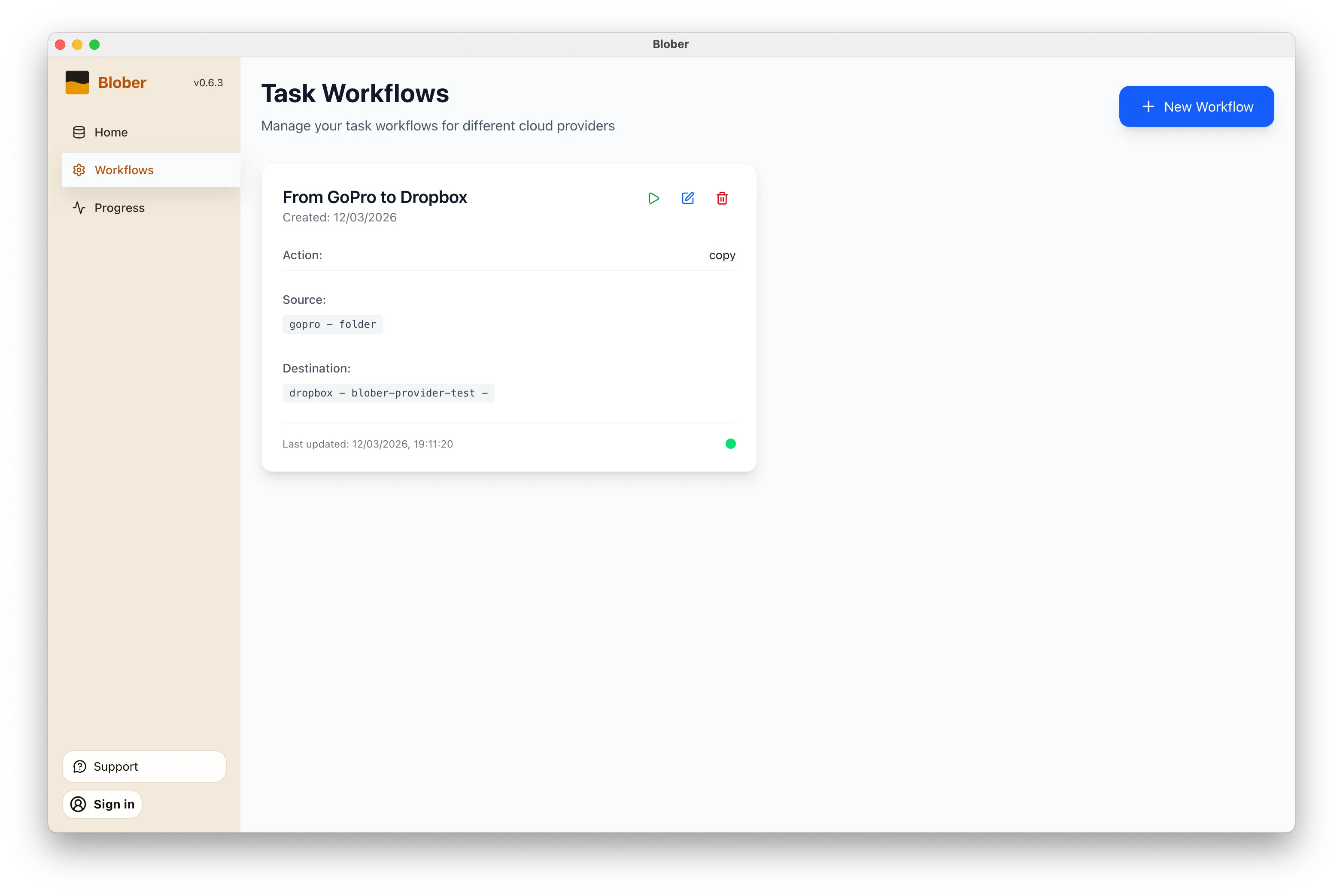
Open Blober, go to the Workflows page, and click New Workflow. Select GoPro as the source and Dropbox as the destination. Pick the folders you want to transfer from and where they should land.

Blober workflow configured to copy media from GoPro Cloud to Dropbox

Click the play button on your workflow. Blober connects to both providers and starts transferring files immediately. Every file (photos, videos, time-lapses) gets moved directly from GoPro Cloud to Dropbox without touching your local disk first (unless you want it to).

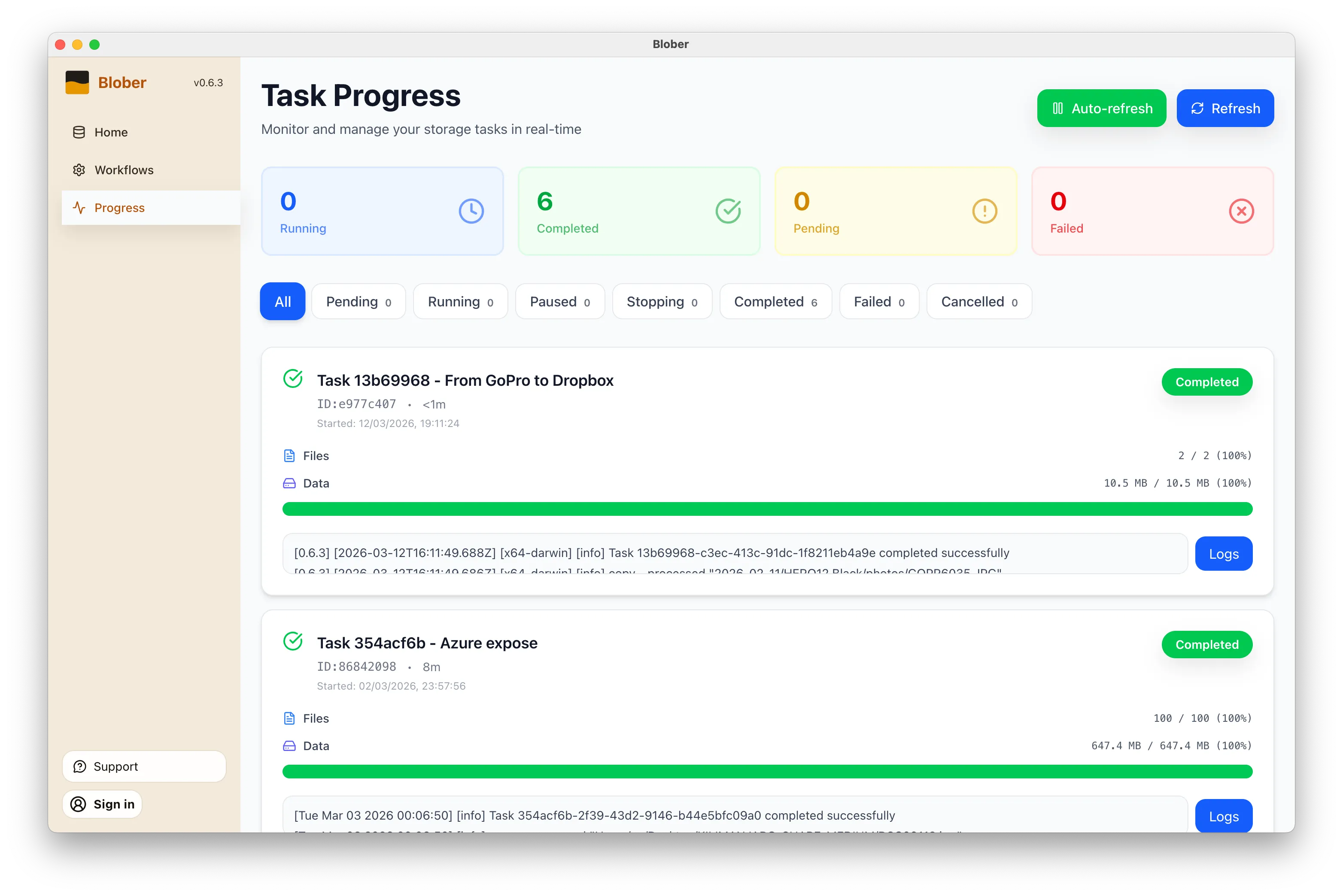
Blober task progress showing files transferring from GoPro to Dropbox

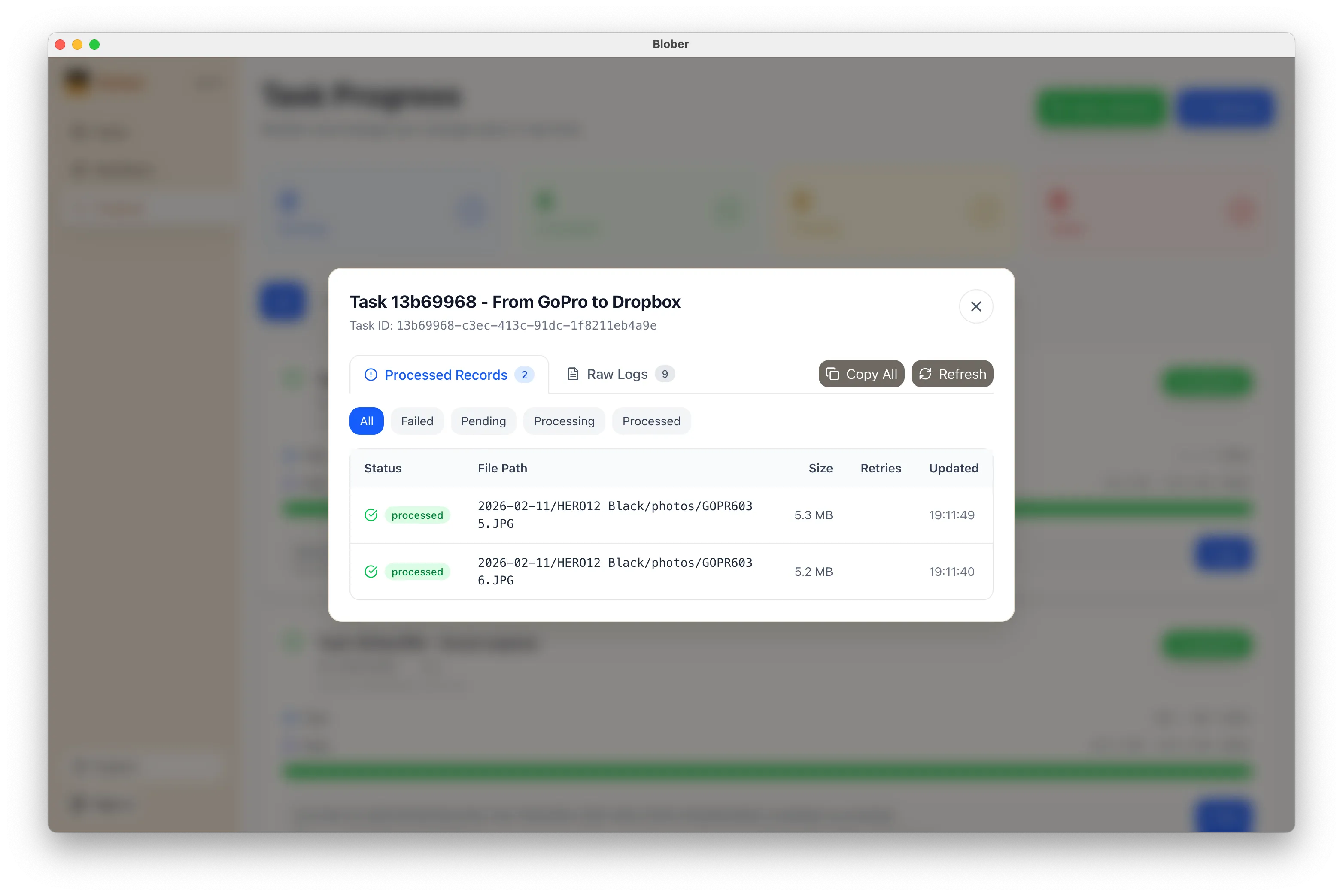
The Progress page shows exactly what's happening: files transferred, bytes moved, current speed, and estimated time remaining. If something goes wrong, you can pause, retry, or cancel at any time.

Blober task logs showing detailed transfer activity
  • No manual work. You don't download ZIPs, unzip them, then re-upload to Dropbox. Blober handles the entire pipeline.
  • No file limits. Transfer 10 files or 10,000. Blober processes them all in one run.
  • No subscription. Blober is a one-time purchase. No monthly fees, no per-GB transfer charges, no limits on how many times you run a workflow.
  • Runs locally. Your credentials stay on your machine. Files transfer directly between providers. Nothing passes through Blober's servers.
  • Before canceling GoPro Plus. Get your footage out before you lose access.
  • Regular backups. Set up a workflow now and run it whenever you want a fresh copy in Dropbox.
  • Switching providers. Moving off GoPro Cloud entirely? Transfer everything to Dropbox first, then cancel.
  • Sharing with a team. Put footage in a shared Dropbox folder so editors and collaborators can access it immediately.
  1. Download Blober (available for macOS, Windows, and Linux)
  2. Connect your GoPro and Dropbox accounts
  3. Create a workflow and press play

That's it. Your GoPro footage in Dropbox in minutes, not hours.

What Is Blober? Cloud File Transfer Made Simple

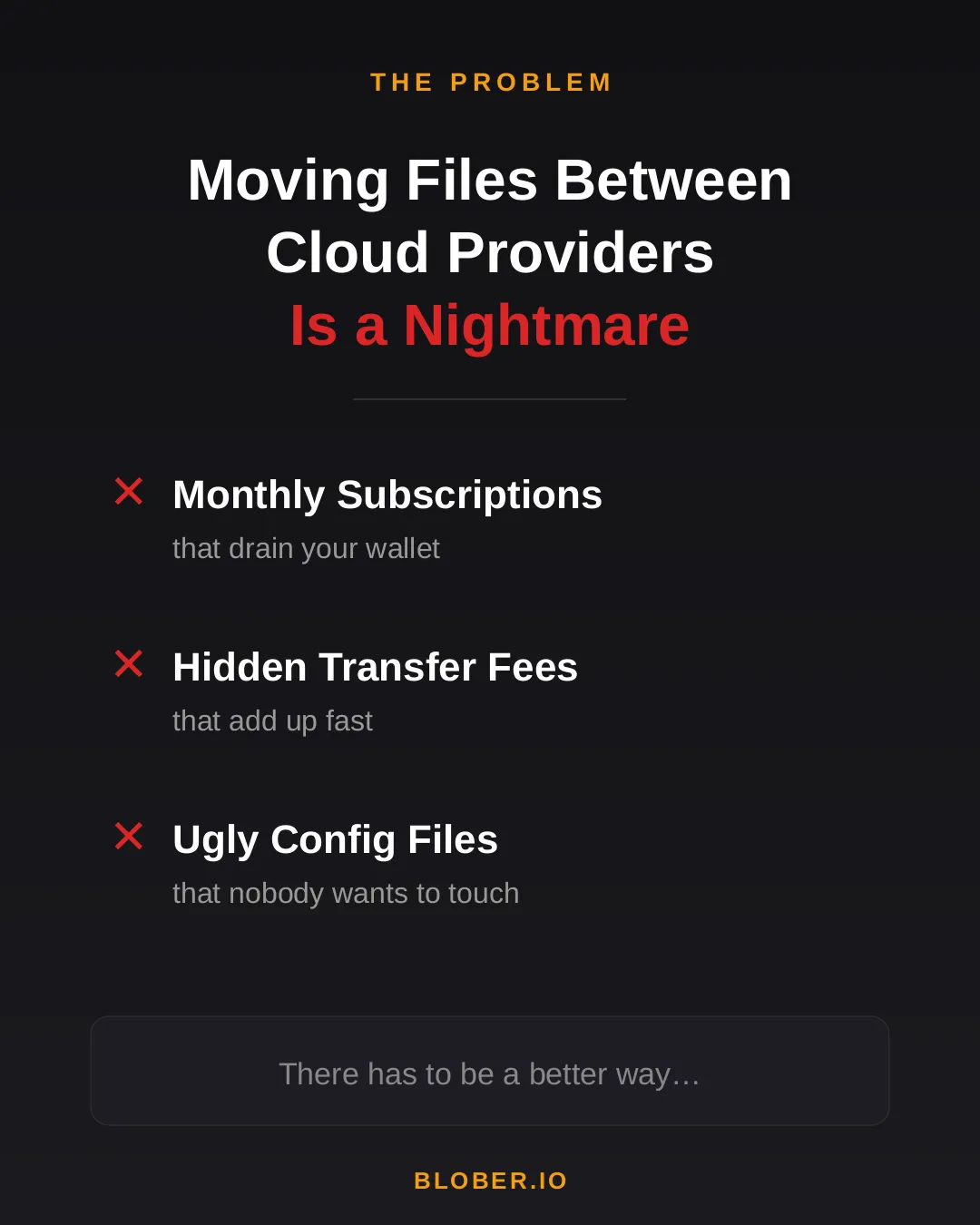
Transferring files between cloud providers today means monthly subscriptions, surprise transfer fees, and wrestling with CLI config files. Most tools are either expensive SaaS platforms or developer-only terminals with steep learning curves.

The problem with moving files between cloud providers - monthly subscriptions, hidden transfer fees, and ugly config files

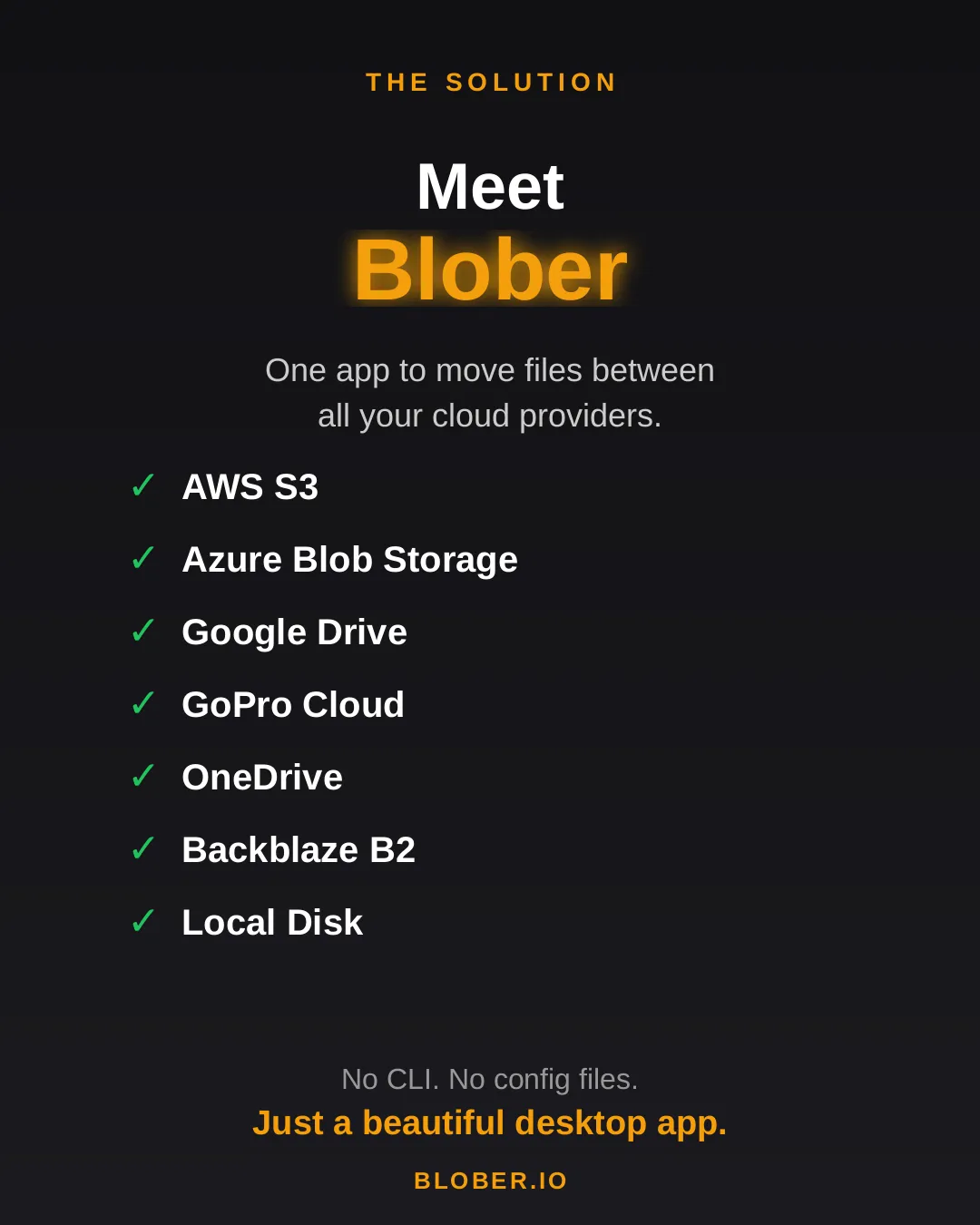
Blober is a desktop app that connects all your cloud storage in one place. AWS S3, Azure Blob Storage, Google Drive, GoPro Cloud, OneDrive, Backblaze B2, and local disk - all supported out of the box. No CLI. No config files. Just a beautiful, intuitive interface.

Meet Blober: one app to move files between AWS S3, Azure Blob, Google Drive, GoPro Cloud, OneDrive, Backblaze B2, and local disk

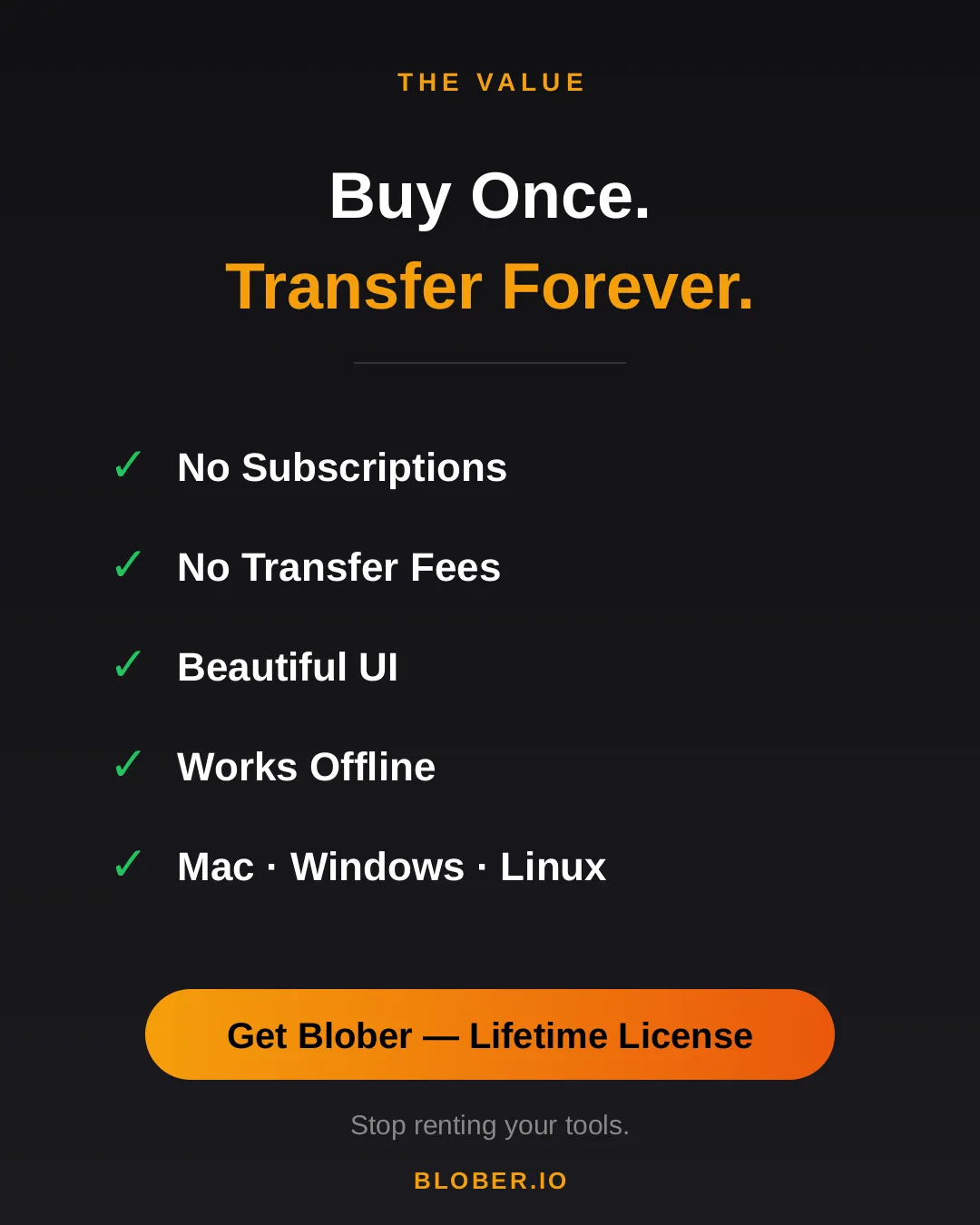
Buy once, transfer forever. No subscriptions. No transfer fees. Blober runs natively on Mac, Windows, and Linux - and it works offline too.

Blober: buy once, transfer forever. No subscriptions, no transfer fees, beautiful UI, works offline, runs on Mac, Windows, and Linux

Stop renting your tools. Download Blober =>

Back Up Your GoPro Cloud to Backblaze B2, AWS S3, or Local Storage

Back up GoPro Cloud to Backblaze B2, AWS S3, or local storage

GoPro's cloud storage (GoPro Plus / GoPro Premium) offers unlimited storage for GoPro camera media. It's a great perk, until you want your footage somewhere else.

The reality for most GoPro users:

  • Painfully limited batch download. GoPro's web portal caps batch downloads at 25 files at a time, bundled into a ZIP. Large batches frequently fail or time out, and metadata like GPS data may be stripped during compression
  • No third-party tool support. rclone, MultCloud, Flexify, and every other transfer tool do not support GoPro Cloud
  • Subscription dependency. Cancel GoPro Plus and your cloud access disappears. Your footage remains hostage to a recurring charge
  • No "Download All" option. If you have hundreds or thousands of files, you're stuck doing dozens of 25-file batch downloads manually, hoping none fail

GoPro community forums are filled with users asking the same question: "How do I download all my GoPro Cloud content at once?" The practical answer is: not without hours of manual work and frequent failures.

Blober changes that.


Blober: The Only Tool That Connects to GoPro Cloud

Section titled "Blober: The Only Tool That Connects to GoPro Cloud"

Blober is the only desktop application that integrates with GoPro's cloud storage. No other migration tool, free or paid, supports GoPro Cloud as a source or destination.

With Blober, you can:

  • Browse all your GoPro Cloud media: photos and videos, organized by date, camera, and type
  • Download everything at once to your local drive, NAS, or external HDD
  • Transfer directly to Backblaze B2, AWS S3, Wasabi, Cloudflare R2, Azure Blob Storage, or DigitalOcean Spaces
  • Use metadata-based path templates to auto-organize files (e.g., by camera model, capture date, resolution)
  • Resume interrupted transfers, with no need to start over if your connection drops

GoPro Plus (now GoPro Premium) costs ~$59.99/year. As long as you pay, your footage stays accessible. The moment you cancel, your cloud media goes offline. For years of footage, that's a dangerous bet on a single subscription.

GoPro Cloud is your only copy in the cloud. There is no built-in backup, no versioning, no geographic replication. If GoPro ever changes their terms, shuts down the service, or experiences data loss, your footage is gone.

Long-term archival storage costs a fraction of ongoing subscriptions:

Storage OptionCost for 1 TB/yearEgress Fees
GoPro Plus~$59.99/year (ongoing)N/A (limited downloads)
Backblaze B2~$83/year ($6.95/TB/mo)Free up to 3x stored
Wasabi~$83.88/year ($6.99/TB/mo)Free
AWS S3 (Standard)~$276/year$0.09/GB
Local NASOne-time HDD costFree

For most GoPro users, Backblaze B2 or Wasabi combined with a Blober one-time license is the most cost-effective long-term strategy.

Your GoPro footage is yours. Keeping it locked behind a single provider's subscription model is not ownership. It is rental. Backing it up to storage you control gives you true data sovereignty.


Step 1: Connect GoPro Cloud in Blober

Section titled "Step 1: Connect GoPro Cloud in Blober"
  1. Open Blober and create a new workflow
  2. Select GoPro as the source
  3. Click Open GoPro Login - a browser window opens
  4. Sign in with your GoPro account
  5. Blober captures your session automatically

Select where you want your footage to go:

  • Local disk: your SSD, HDD, NAS, or external drive
  • Backblaze B2: affordable, S3-compatible, free egress
  • AWS S3: enterprise-grade, global availability
  • Wasabi: hot storage with no egress fees
  • Cloudflare R2: zero egress, fast edge delivery
  • Any other Blober-supported provider

Step 3: Configure Path Templates (Optional)

Section titled "Step 3: Configure Path Templates (Optional)"

Use Blober's metadata-based path templates to auto-organize files as they transfer:

/{camera_model}/{capture_date}/{filename}

This turns a flat GoPro dump into a clean archive:

/HERO13 Black/2026-01-23/GX015742.MP4
/HERO13 Black/2026-01-23/gorp0001.JPG
/HERO12 Black/2025-12-15/GX014521.MP4

Click Start and Blober handles the rest:

  • Parallel downloads for maximum throughput
  • Real-time progress tracking
  • Automatic resume on interruption
  • Full task history logged for every file

TypeExtensions
Videos.mp4, .mov, .avi, .mkv
Photos.jpg, .png, .raw, .dng

Blober downloads the highest available quality, with no compression and no re-encoding.


Each GoPro file includes rich metadata that Blober can use for organization:

FieldExample
Camera modelHERO13 Black
Capture date2026-01-23
Resolution5312 × 2988
File size142.5 MB
Duration0:32 (videos)

Can I upload to GoPro Cloud with Blober? Yes. Blober supports uploads to GoPro Cloud (up to 5 TB per file) with multipart upload and progress tracking.

Does Blober store my GoPro credentials? No. Blober uses a browser-based login flow. Your session lasts approximately 20 hours, after which Blober prompts you to sign in again. Credentials are never stored or transmitted to any server.

Can rclone, MultCloud, or Flexify do this? No. As of February 2026, Blober is the only transfer tool that supports GoPro Cloud. rclone (70+ providers), MultCloud (30+ services), and Flexify (~25 clouds) do not include GoPro Cloud integration.

What if my transfer is interrupted? Blober saves progress and resumes from the last successfully transferred file. No need to re-download everything.


Take Control of Your GoPro Footage

Section titled "Take Control of Your GoPro Footage"

Your footage is irreplaceable: years of adventures, events, and memories sitting in a cloud you can only access through a subscription. Blober gives you a way out: move it all to storage you own and control, in the highest quality, organized exactly how you want.

Get started with Blober =>