Skip to content

auto upload

1 post with the tag "auto upload"

GoPro Cloud Auto Upload Not Working: A Practical Checklist

GoPro Cloud auto upload troubleshooting checklist

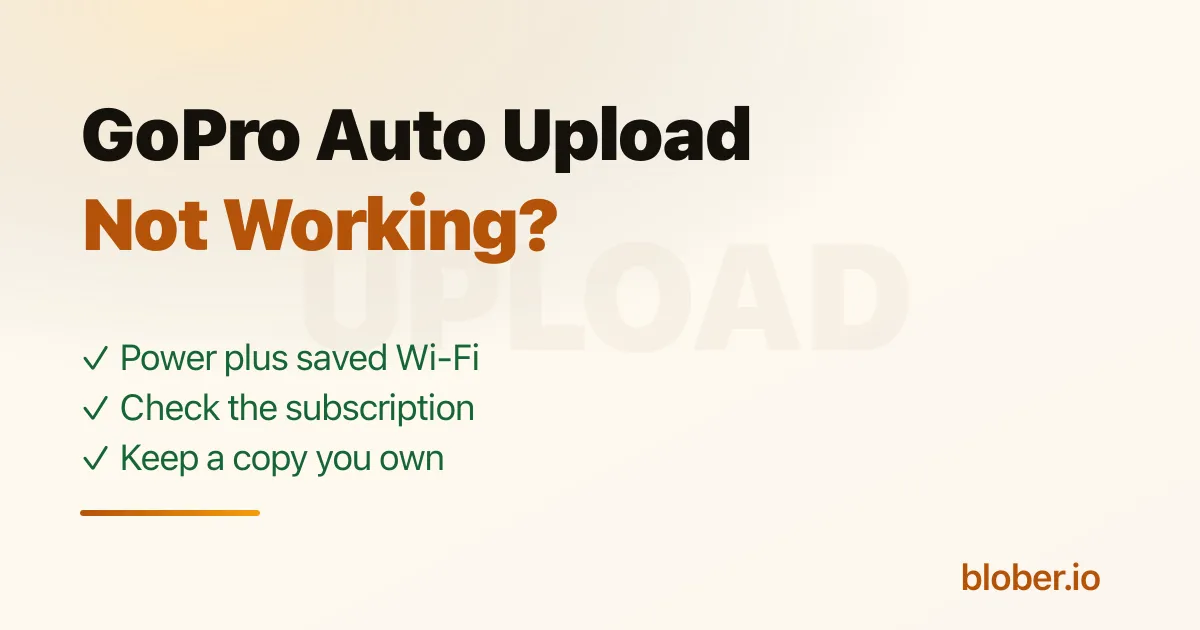
GoPro auto upload is not a background cellular upload. The normal camera workflow starts when the camera is charging and connected to a Wi-Fi network it knows.

GoPro's subscription terms confirm the Wi-Fi requirement.[1] If either power or Wi-Fi is missing, waiting longer will not fix the upload.

Check these first:

  1. Connect the camera to power.
  2. Confirm that the camera is using a saved Wi-Fi network.
  3. Leave the camera connected while it finds and uploads new media.
  4. Confirm that the GoPro subscription on the account is active.

Do not treat a phone's cellular connection as proof that the camera has internet access. The camera needs its own working Wi-Fi connection.

Confirm that the network is the one the camera expects

Section titled "Confirm that the network is the one the camera expects"

A camera can be beside a working router and still fail to upload. The saved network name or password may have changed. Guest networks and sign-in pages can also block devices that cannot complete a browser login.

Test with the same ordinary home or office network that previously worked. If that succeeds, the problem is probably the other network rather than the camera or cloud library.

Avoid changing several settings at once. One controlled test tells you more than resetting the camera, app, router, and account together.

Check whether the footage is already in the library

Section titled "Check whether the footage is already in the library"

Open Quik and check the cloud library before restarting the upload. A clip may have uploaded even if the camera or app did not show the progress you expected.

Compare a small, recent recording with the cloud library. A one-minute test clip is easier to trace than a full card from a weekend shoot.

Separate camera upload problems from library download problems

Section titled "Separate camera upload problems from library download problems"

Auto upload sends new camera media into GoPro Cloud. Downloading an existing cloud library is a different job.

If the footage is already in GoPro Cloud, reconnecting the camera will not help you copy it to a computer, NAS, Google Drive, or another storage provider. For that job, use the GoPro web download in small batches or a transfer tool that connects to the existing cloud library.

Blober connects to GoPro Cloud as a source. It streams the selected files through your computer to a local drive, NAS, or another provider. The files do not need to be downloaded as ZIP archives first.

Do not use one cloud copy as the test

Section titled "Do not use one cloud copy as the test"

An auto-upload feature is convenient, but it should not be the only place where years of footage live. Once the upload starts working again, copy important media to storage you control and open a sample from the destination.

A useful backup check is simple:

  • The expected number of files arrived.
  • Recent and old clips both open.
  • Large videos play past the first few seconds.
  • The destination is not tied to the same subscription.

Fix the upload first. Then make sure the next camera or account problem cannot take the archive with it.

Once the upload works again, keep a copy that does not depend on the subscription. Blober connects to GoPro Cloud and writes your library to a local drive, a NAS, or another cloud provider.

Download Blober at blober.io