
Back Up Cloud Storage Directly to Your NAS
The Problem
Section titled “The Problem”You have files in the cloud — GoPro footage, Dropbox archives, Google Drive projects, S3 buckets — and you want them on your NAS. Simple enough in theory. In practice, the available options are all some flavor of painful.
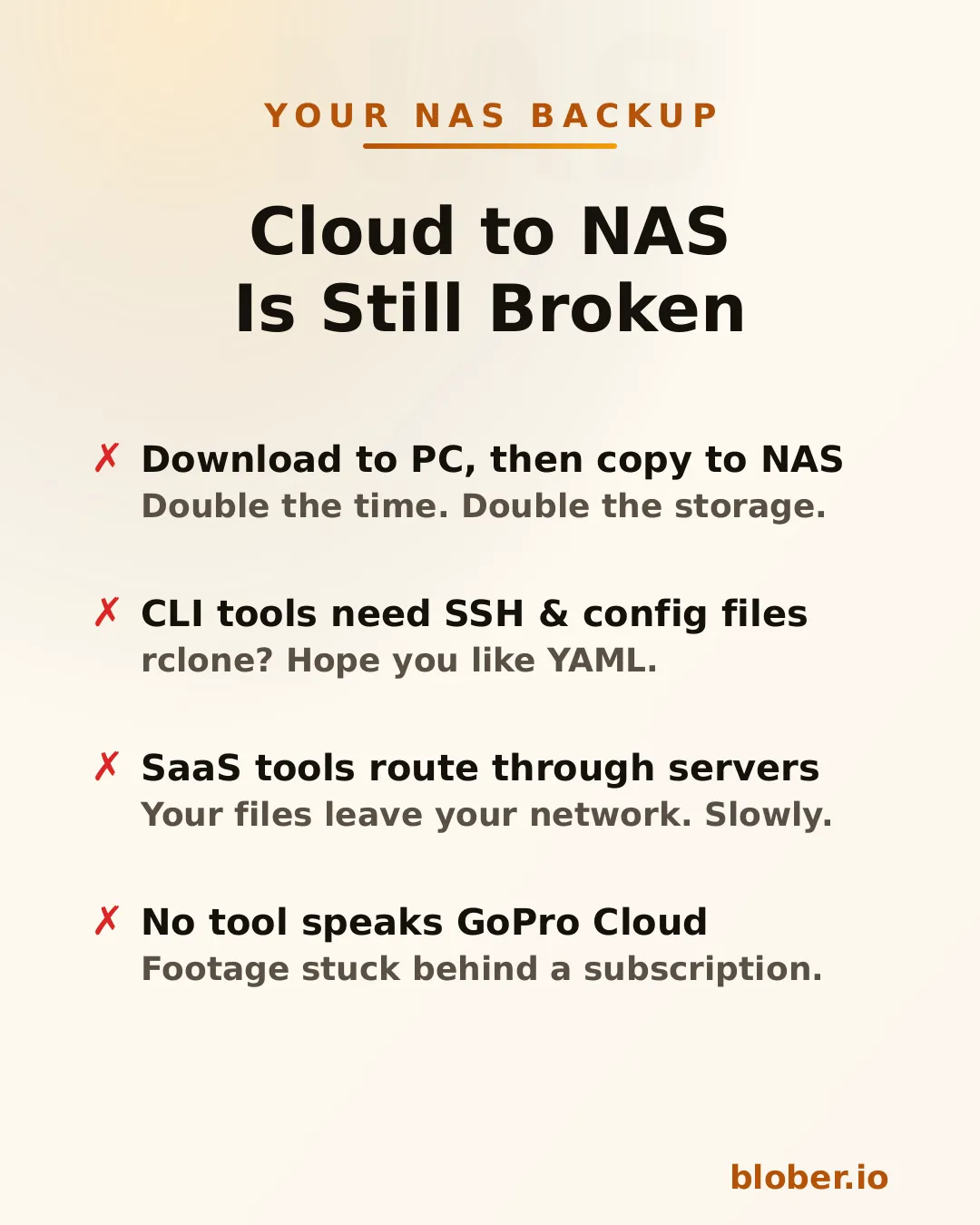
Download then copy is the default workflow. Download everything from the cloud to your PC, then manually copy it to the NAS. You need enough free space on your PC for the entire dataset, you do every byte twice, and if the NAS connection drops mid-copy you start over.
CLI tools like rclone can mount cloud storage or sync directly, but you need to configure remotes, write YAML, manage credentials, and troubleshoot provider-specific flags. It works — eventually. It’s not something most people reach for on a Saturday afternoon.
SaaS migration services like MultCloud or Cloudsfer route your files through their servers. Your data leaves your network, passes through a third party, then comes back down to your NAS. It’s slower, it’s a privacy concern, and it costs a monthly subscription — usually with transfer caps.
GoPro Cloud has no solution at all. No migration tool supports it. rclone doesn’t. MultCloud doesn’t. You’re stuck batch-downloading 25 files at a time through a web browser, manually.
Blober Streams Directly to Your NAS
Section titled “Blober Streams Directly to Your NAS”Blober is a desktop app that connects to 10 cloud providers and transfers files to any local or network destination — including NAS drives.
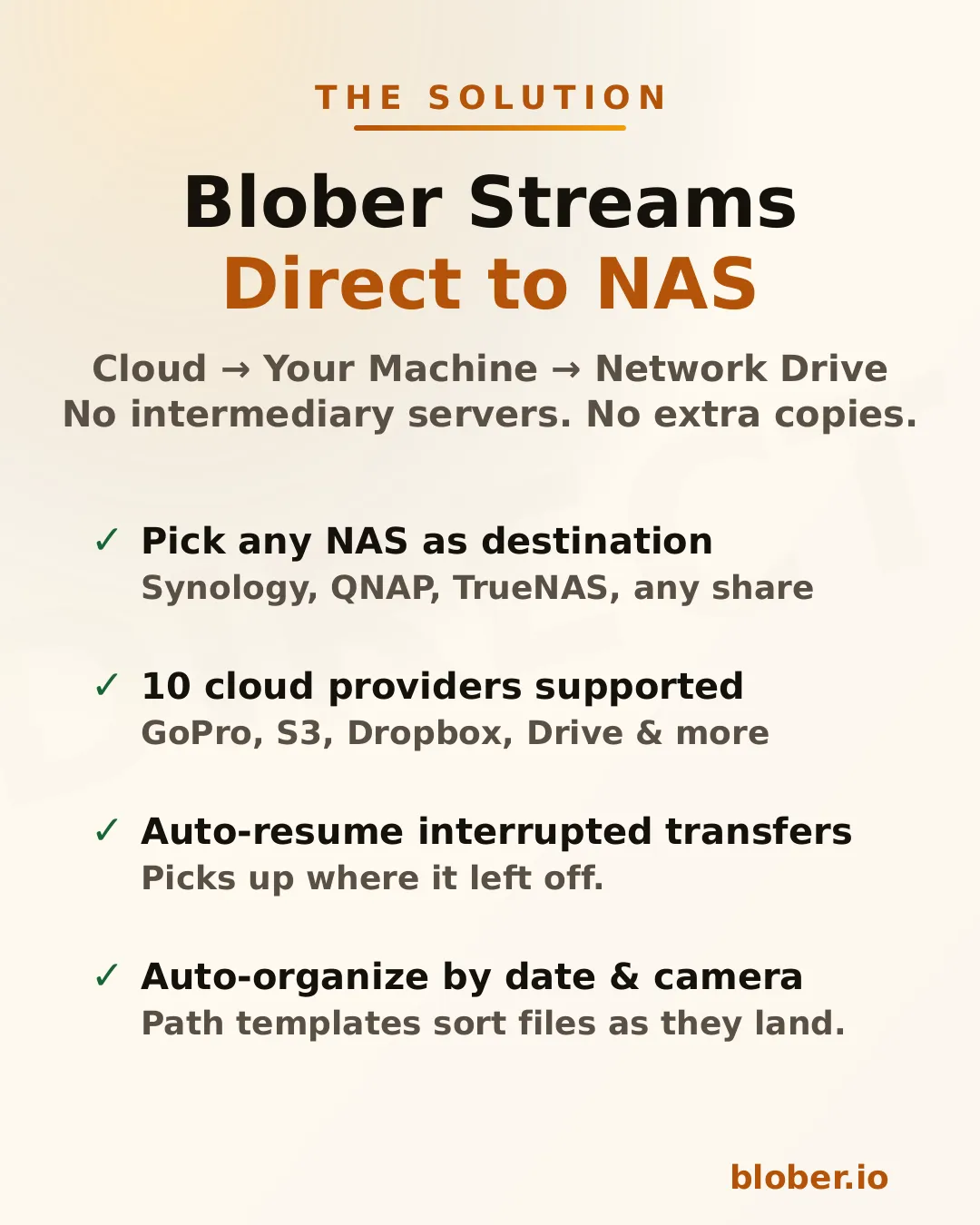
The architecture is straightforward: Blober runs on your computer, pulls data from the cloud API, and writes it to whatever destination you select in the file picker. If that destination is a mapped network drive (\\SYNOLOGY\backup or /Volumes/NAS/media), the files go there.
No intermediate server. No extra copy on your local disk. No subscription.
Supported NAS systems
Section titled “Supported NAS systems”Blober works with any NAS that your OS can see as a folder:
- Synology DiskStation — map via SMB/CIFS (\synology\shared) or mount via NFS
- QNAP — same: SMB share or NFS mount
- TrueNAS / FreeNAS — SMB, NFS, or iSCSI-backed mount points
- Unraid — SMB shares show up as network folders
- Western Digital My Cloud — maps as a standard network drive
- Any SMB/NFS share — if your OS can browse it, Blober can write to it
There’s nothing NAS-specific to configure in Blober. You just pick the folder.
How It Works
Section titled “How It Works”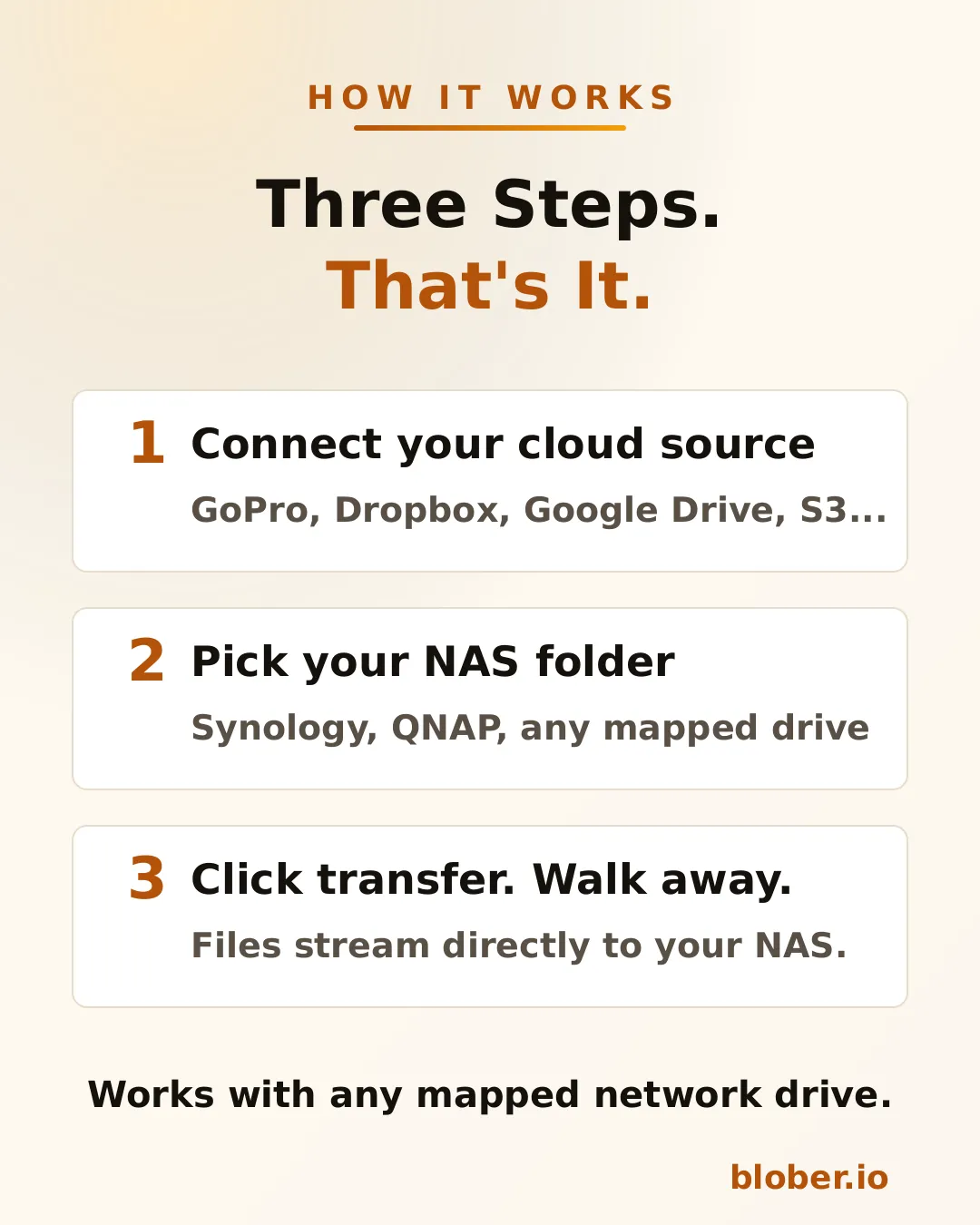
-
Connect your cloud source. Blober supports GoPro Cloud, Dropbox, Google Drive, AWS S3, Azure Blob, Backblaze B2, Cloudflare R2, Wasabi, and DigitalOcean Spaces. Authenticate once.
-
Pick your NAS folder. The standard OS folder picker shows your mapped network drives. Select the target directory on your NAS.
-
Transfer. Blober streams the files and writes them directly to the network path. If your connection drops or the NAS goes to sleep, the transfer resumes from where it stopped.
Auto-organize with path templates
Section titled “Auto-organize with path templates”Blober supports path templates that sort files as they arrive:
{file_created_date}/{camera_model}/{media_type}/{filename}This turns a flat cloud dump into an organized library:
2024-12-15/HERO12 Black/videos/GH010432.MP42024-12-15/HERO12 Black/photos/GOPR0900.JPG2025-01-03/HERO7 Black/videos/GH010904.MP4The template runs before the file is written — files land on your NAS already organized.
Why NAS Users Specifically Benefit
Section titled “Why NAS Users Specifically Benefit”NAS owners tend to be people who care about data ownership, long-term archival, and not paying recurring fees for storage they already bought. Blober aligns with all three.
Your files stay on your network. Unlike SaaS tools that route data through external servers, Blober pulls from the cloud API and writes locally. For NAS users who chose a NAS precisely to keep data under their control, this matters.
One-time payment. NAS users already rejected the subscription model when they bought hardware instead of renting cloud storage. Blober follows the same philosophy: pay once, use forever.
Scale doesn’t matter. Whether you’re backing up 50 GoPro clips or migrating 10 TB from S3, there are no transfer caps, no per-GB fees, and no throttling.
Common NAS Backup Scenarios
Section titled “Common NAS Backup Scenarios”| Scenario | Source | NAS destination |
|---|---|---|
| GoPro footage archive | GoPro Cloud | \\NAS\media\gopro\ |
| Photo library consolidation | Google Drive + Dropbox | \\NAS\photos\ |
| S3 cold storage migration | AWS S3 | \\NAS\archive\s3-backup\ |
| Shared family photo vault | Dropbox | \\SYNOLOGY\family-photos\ |
| Video production offload | Backblaze B2 | \\NAS\projects\raw-footage\ |
Each of these is a single task in Blober. Set source, set destination, transfer.
Who Is This For?
Section titled “Who Is This For?”- NAS owners who want cloud backups on hardware they control
- GoPro users who need their footage off GoPro Cloud (Blober is the only tool that connects)
- Photographers and videographers archiving years of work to local network storage
- Home lab users consolidating data from multiple cloud services onto one NAS
- Small businesses migrating away from cloud storage subscriptions to on-premise drives
Get Blober
Section titled “Get Blober”One app. Ten cloud providers. Any NAS.