
Copy GoPro Footage and Other Media to a Dropbox Team Folder
· 8 min read · Updated
Yes. Blober copies footage from GoPro Cloud into a team folder in your work Dropbox account. You need a Dropbox app with Full Dropbox access, a sign-in with your work account, and a team folder that you can edit.
The footage goes from GoPro Cloud through your computer to Dropbox. It does not pass through Blober's servers. The same steps work for Google Photos, iCloud Photos, Proton Drive, OneDrive, Google Drive and local folders. Only the source changes.
- Blober on macOS, Windows or Linux
- A GoPro Plus or GoPro Premium account with footage in GoPro Cloud
- A work (team) Dropbox account and edit access to the team folder
- A Dropbox app with Full Dropbox access
- Free space in your team's Dropbox storage. The team shares one storage pool
If your team has no team folder yet, ask your team admin. Dropbox lets admins decide who can create team folders.
Follow Create a Dropbox app and Configure permissions in the Dropbox guide. For a team, one choice matters most.
Choose Full Dropbox when Dropbox asks for the type of access. An app with App folder access sees only its own folder, also on a team account, so team folders never show. Dropbox does not let you change this later. Create a new app if you chose App folder.
- Open Blober and select Workflows, then New Workflow.
- Enter a Workflow Name, such as
GoPro to team folder. - Under Select Action, choose Copy. Copy leaves the footage in GoPro Cloud.
- In Source Configuration, search for and select GoPro Cloud.
- Choose a connected GoPro Account. To add one, click Add account, then Open GoPro Login, and sign in to GoPro.
- Click Browse Files and Folders and select the date folders, camera folders or files you want. To take the whole library, tick / (Entire Storage).
- Click Submit Selection.
See the GoPro guide for how GoPro sorts your media.
-
In Destination Configuration, search for and select Dropbox.
-
Enter the App Key and App Secret of your Dropbox app.
-
Click Authorize Dropbox Access. A browser window opens.
-
If Dropbox shows "Before you connect this app...", select Continue.
-
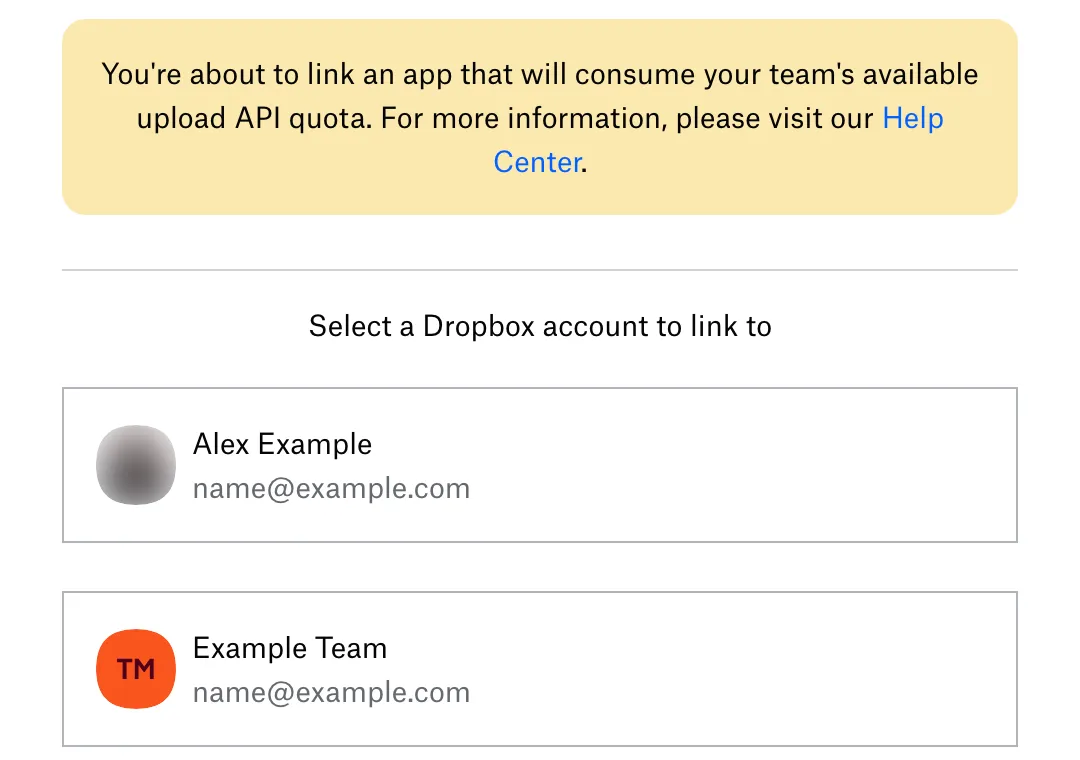
If your personal and work accounts are linked, Dropbox shows "Select a Dropbox account to link to". Choose the work account.
-
Dropbox can show a warning about your team's upload API quota. Read it, then continue. See What to expect.
-
Return to Blober. It shows
Connected as name@example.com (Team name).
If Blober shows an email but no team name, you connected your personal account. Start a new Dropbox connection, for example by creating the workflow again, and choose the work account on the Dropbox page.
If you created the app with another account, Dropbox can refuse this sign-in. Open the app in the Dropbox App Console. On the Settings tab, select Enable additional users. Then click Authorize Dropbox Access again.
-
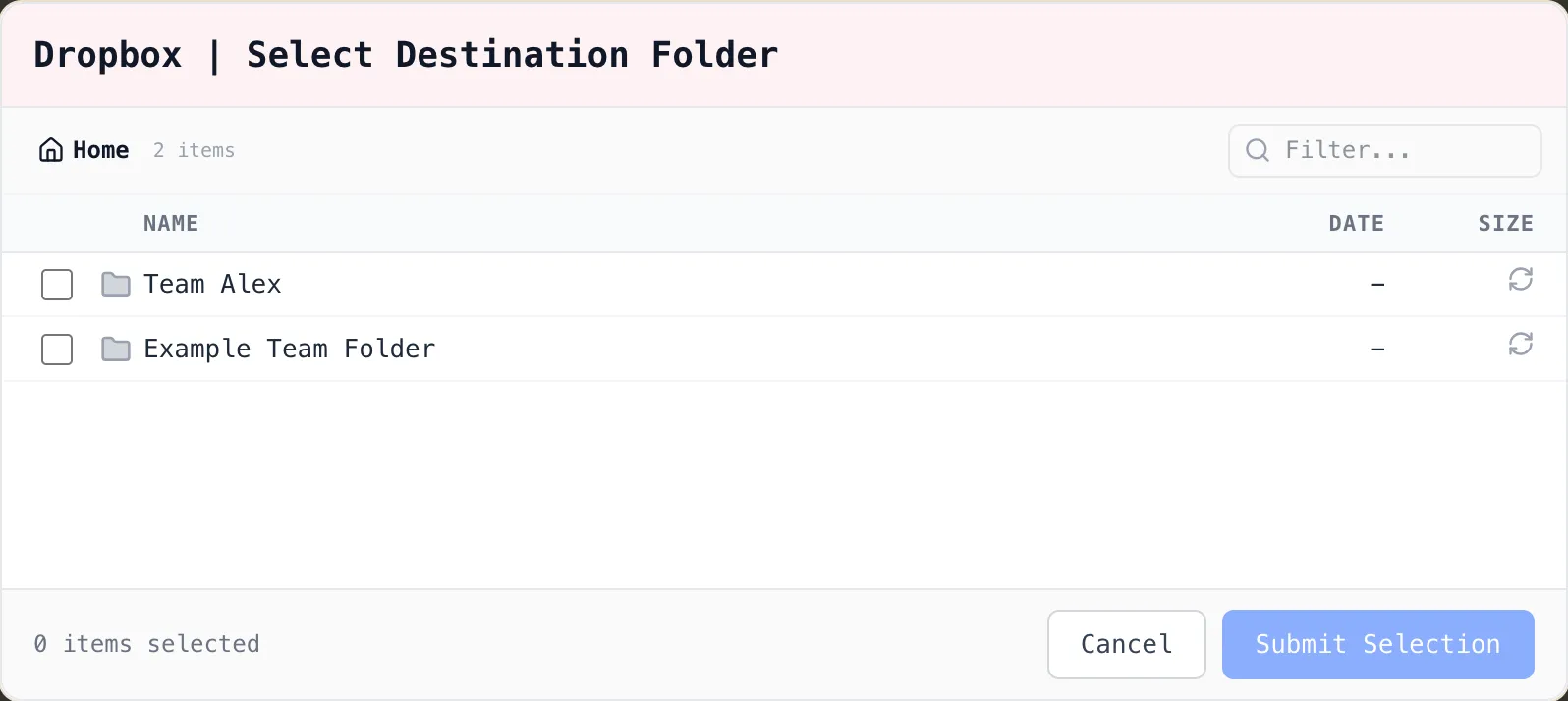
Under Select Destination Folder, click Browse Folder.
-
Blober shows what dropbox.com shows: your team folders, and your own folder, which has your name.
-
Open the team folder you want. Select it, or a subfolder, with its checkbox.
-
Click Submit Selection.
Choose a team folder or your own folder. You cannot choose the top level of the team space, because Dropbox does not let apps add files or folders there. A workflow that you saved with an older Blober version can still point to it. Blober then shows this error when the task runs: "Dropbox does not let apps add files or folders at the top level of a team space. Choose a team folder or your own folder."
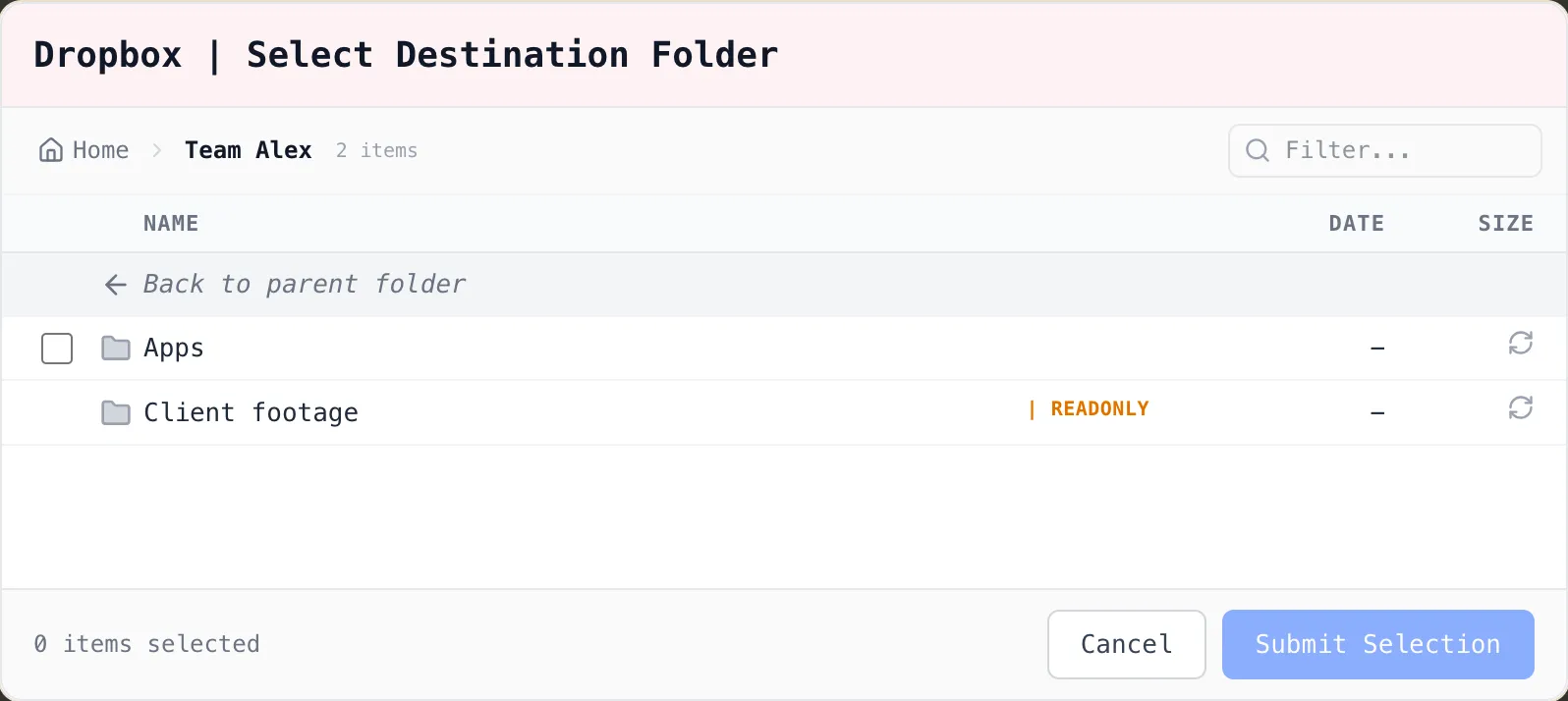
Check that you can edit the folder. The folder list shows the READONLY label next to a folder that you can only view. You can copy from such a folder, but you cannot choose it as the destination. A workflow that you saved with an older Blober version can still point to one. Blober then shows this error when the task runs: "You can only view this Dropbox folder. Ask its owner for edit access, or choose another folder."
A folder that someone shared with you shows only after you add it to your Dropbox. On dropbox.com, open Shared and select Join folder. This is the same for a folder from another team.
To sort footage into year and month folders, add a path template. See Organize cloud files by date.
- In Preview & Summary, check that GoPro media goes to the team folder you chose.
- Click Save Workflow.
- On the Workflows page, click the green Run button on the workflow card.
The Progress page shows the files, the bytes moved and the result of each file. Keep Blober open and the computer on until the task finishes. If the copy stops, resume the same task. Files that are finished stay done, and a file that stopped partway starts again.
- Dropbox shows each file's modified date from the source. For GoPro and Google Photos, this is the capture date that the source reports.
- Dropbox accepts files up to 2 TB each.
- With the default Skip if a file with the same name exists, a second run skips files that are already in the folder. Run the workflow again to add new footage.
- When Dropbox asks Blober to slow down, Blober waits and tries again.
- Dropbox does not accept some names, for example a name with a backslash or a space at the end. Blober shows "Dropbox does not allow this name". Rename the file at the source.
- Some Dropbox team plans limit how many uploads apps can make in a month. Dropbox calls this the data transport limit. It is shared by all apps of the team. If uploads fail, ask your team admin.
Use the same steps for other sources. In Step 2, select a different provider as the source.
| Source | How you connect | Good to know |
|---|---|---|
| GoPro Cloud | GoPro login window | Footage sorted by date, camera and type |
| Google Photos | Google login in a browser window | Download only, so use it as the source |
| iCloud Photos | Apple's login page | Turn on Access iCloud Data on the Web first. Photos shows as one timeline |
| Proton Drive | Proton login window | Slower than other providers because of end-to-end encryption |
| OneDrive | Microsoft app you create | Setup takes about five minutes |
| Google Drive | Google OAuth setup | Docs, Sheets and Slides are exported to Office formats |
| Local folder | No sign-in | Use it for an SD card or a hard drive |
Each new Dropbox connection asks Dropbox again. With one Dropbox app, you can connect your personal account as the source and your work account as the destination of one workflow.
- Select Dropbox as the source and click Authorize Dropbox Access. Choose your personal account.
- Select Dropbox as the destination and click Authorize Dropbox Access. Choose your work account.
- Choose the team folder as the destination folder.
- No team folders show. Check that the app has Full Dropbox access and that Blober shows your team name. See Team folders do not show.
- Dropbox refuses the sign-in. See Dropbox refuses the sign-in for the other account.
- A shared folder is missing. Add it to your Dropbox with Join folder.
- Blober shows an error about the top level of a team space. A workflow that you saved with an older Blober version can cause it. Open the workflow and choose a team folder or your own folder.
- Uploads fail late in the month. See Your team reached its monthly upload limit.
Can I use my personal Dropbox account instead? Yes. The steps are the same, but a personal account has no team folders. Choose any folder in your Dropbox.
Do I need a new Dropbox app for my work account? No. One app works for both accounts. If Dropbox refuses the work account, select Enable additional users in the app's settings.
Why can I not copy to the top level of the team space? Dropbox does not let apps add files or folders there, so Blober does not let you choose it. Choose a team folder or your own folder.
Who can see the footage after the copy? The people who have access to the team folder. Dropbox shares a team folder with the groups and people that your team admin picked.
Does Blober delete the footage from GoPro Cloud? No, not when the action is Copy. The footage stays in GoPro Cloud.
Can I copy Dropbox Paper docs? No. Dropbox Paper docs and other cloud docs that Dropbox cannot download as files are not shown. Export them from Dropbox first.