
OneDrive Setup: Connect & Transfer Files
7 min read
Blober connects to your OneDrive through Microsoft Graph. The first setup usually takes about five minutes.
- ✅ Personal OneDrive
- ✅ Your default work or school OneDrive
- ✅ Browsing files and folders
- ✅ Uploading and downloading files
- ✅ Creating missing destination folders
- ✅ Moving deleted files and folders to the OneDrive recycle bin
- ✅ Reading file names, sizes, and dates
- ✅ Resuming large uploads
Blober accesses only the OneDrive of the account you sign in with. It does not use an organization-wide administrator account.
You need:
- A Microsoft account with OneDrive
- An Azure account, or a work or school account that is allowed to create app registrations
- Blober installed on the same computer where you complete sign-in
A personal Microsoft account on its own can no longer create app registrations, even with a Microsoft 365 Personal or Family plan. Microsoft now requires a directory, and an Azure account gives you one. If you do not have one, create a free Azure account with the same Microsoft account. Azure might asks for a phone number and a card to confirm who you are. App registrations do not cost anything.
-
Open the Microsoft Entra admin center.
-
Sign in with your Microsoft account. If you have more than one directory, select the settings icon at the top right and switch to the one from your Azure account (usually Default Directory).
-
Open Entra ID > App registrations.
-
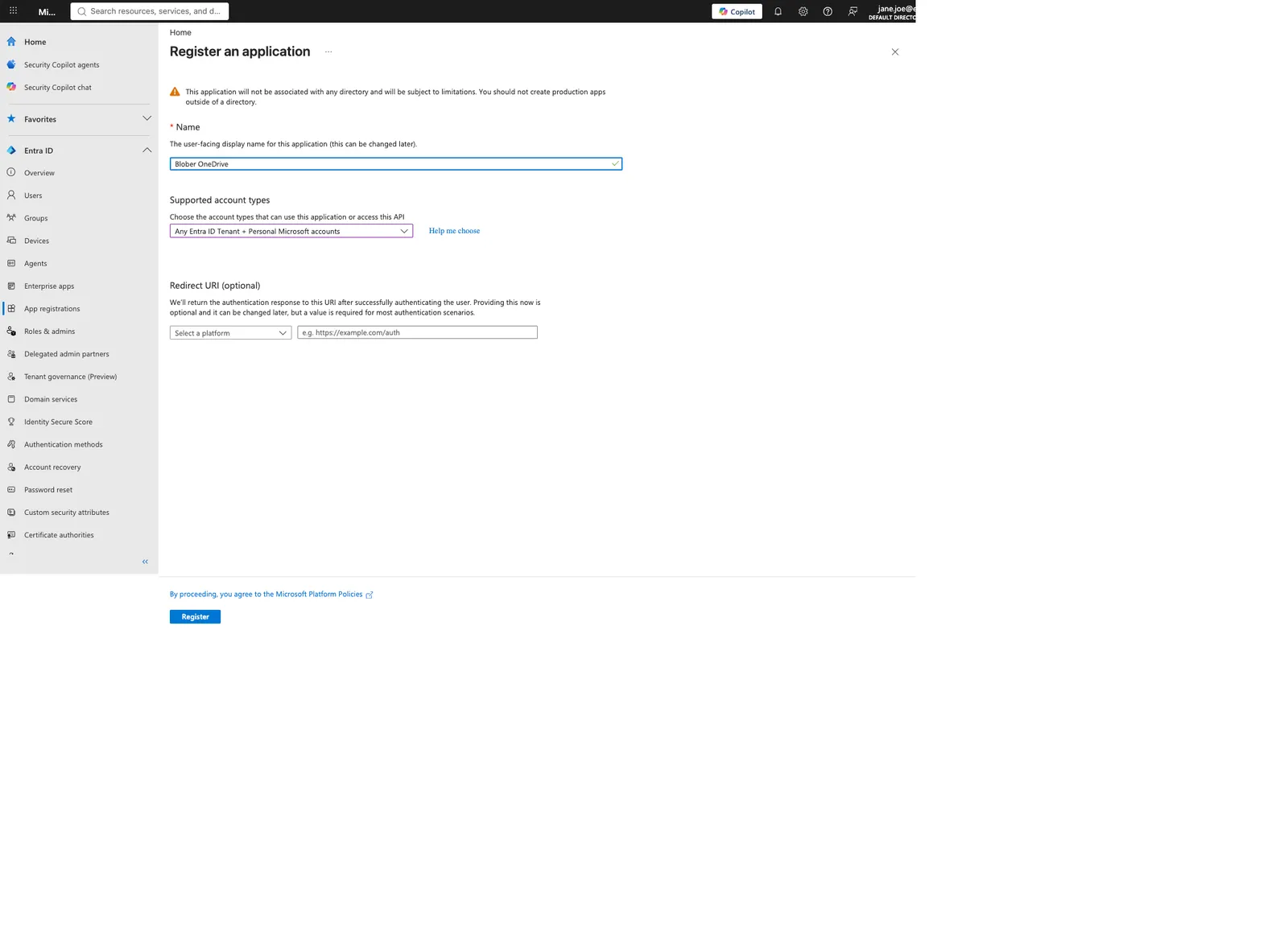
Select New registration.
-
Enter
Blober OneDrivefor the name. -
Under Supported account types, select:
Any Entra ID Tenant + Personal Microsoft accounts
-
Leave Redirect URI empty for now.
-
Select Register.
The app's Overview page opens after registration.
- Find Application (client) ID.
- Copy it somewhere temporarily.
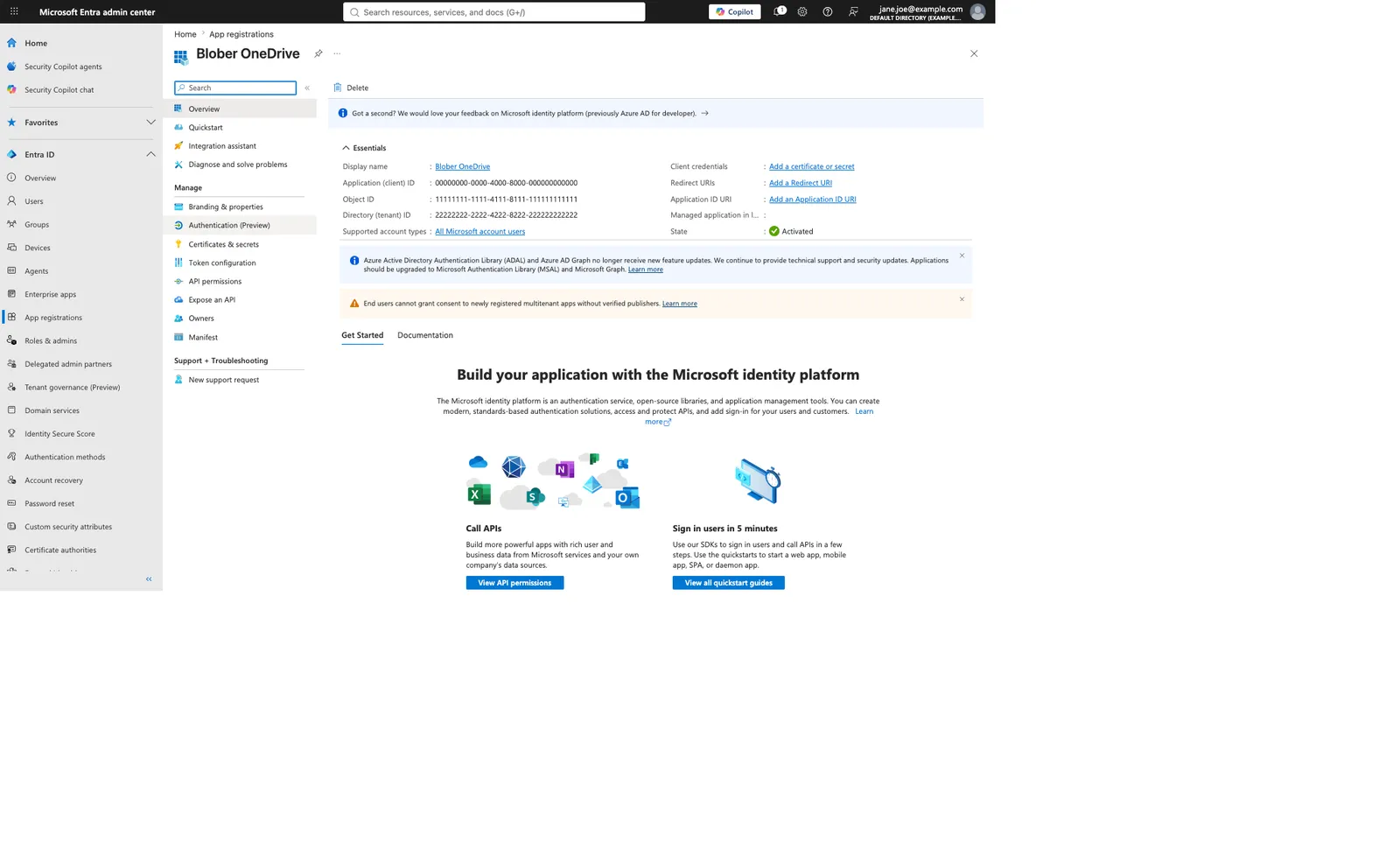
Use the Application (client) ID, not the Object ID or Directory (tenant) ID. It looks like this:
00000000-0000-4000-8000-000000000000
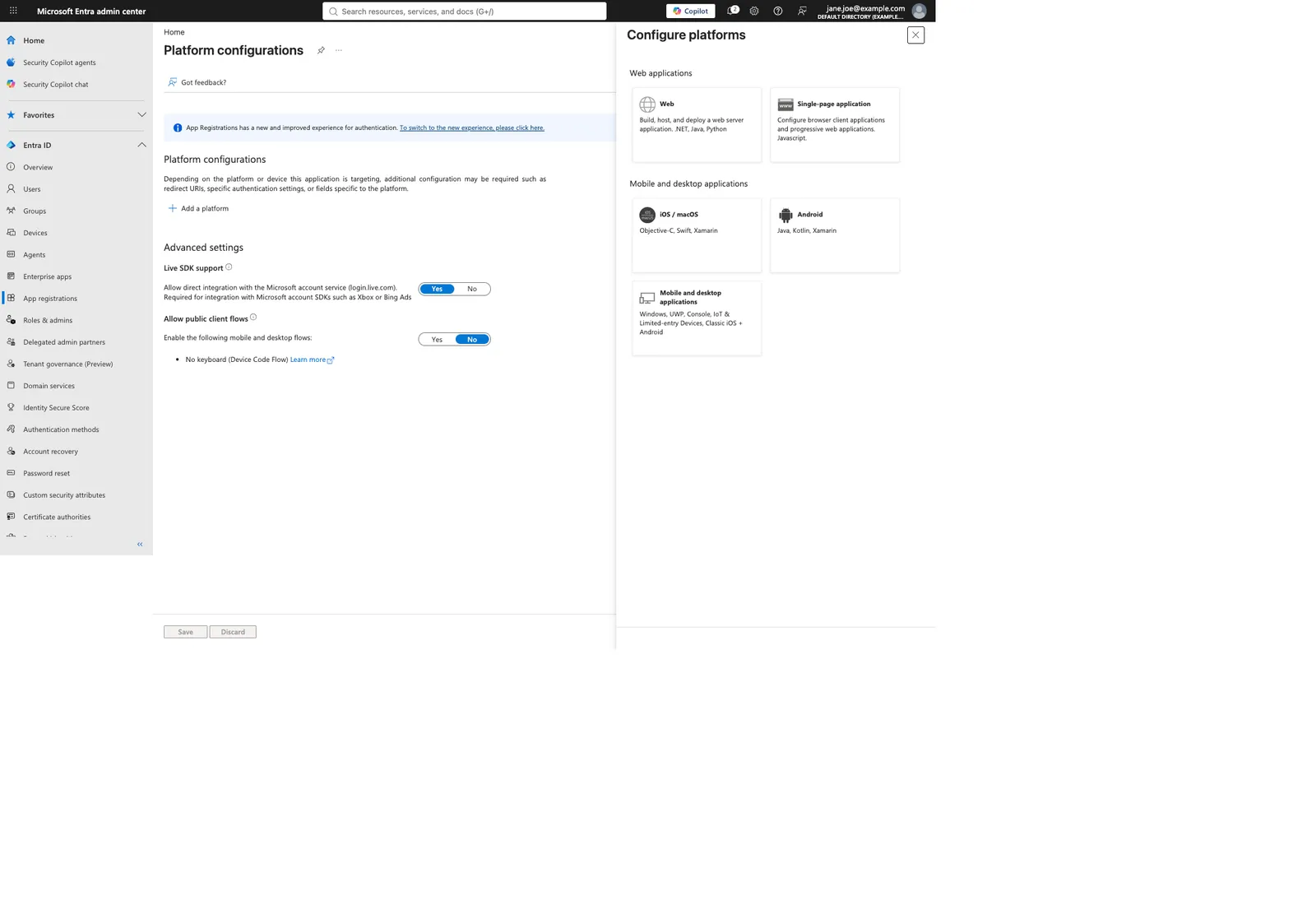
- In the app's left menu, open Authentication or Authentication (Preview).
- Select Add a platform.
- Select Mobile and desktop applications.
-
Under Custom redirect URIs, enter exactly:
http://localhost/onedrive/callback
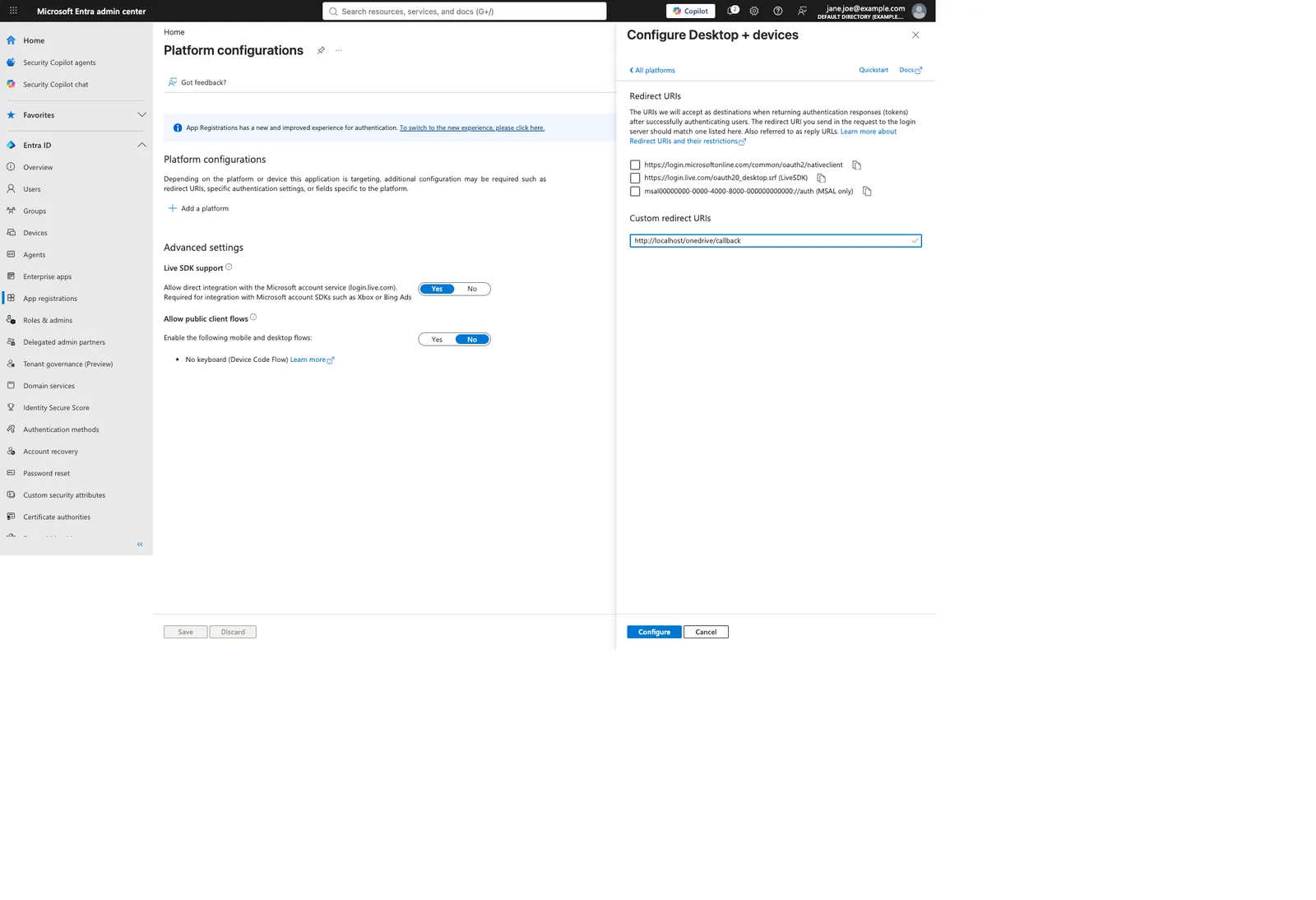
- Select Configure.
The path is case-sensitive. Do not add a port number, trailing slash, or query parameters. Microsoft accepts the temporary local port that Blober uses during sign-in.
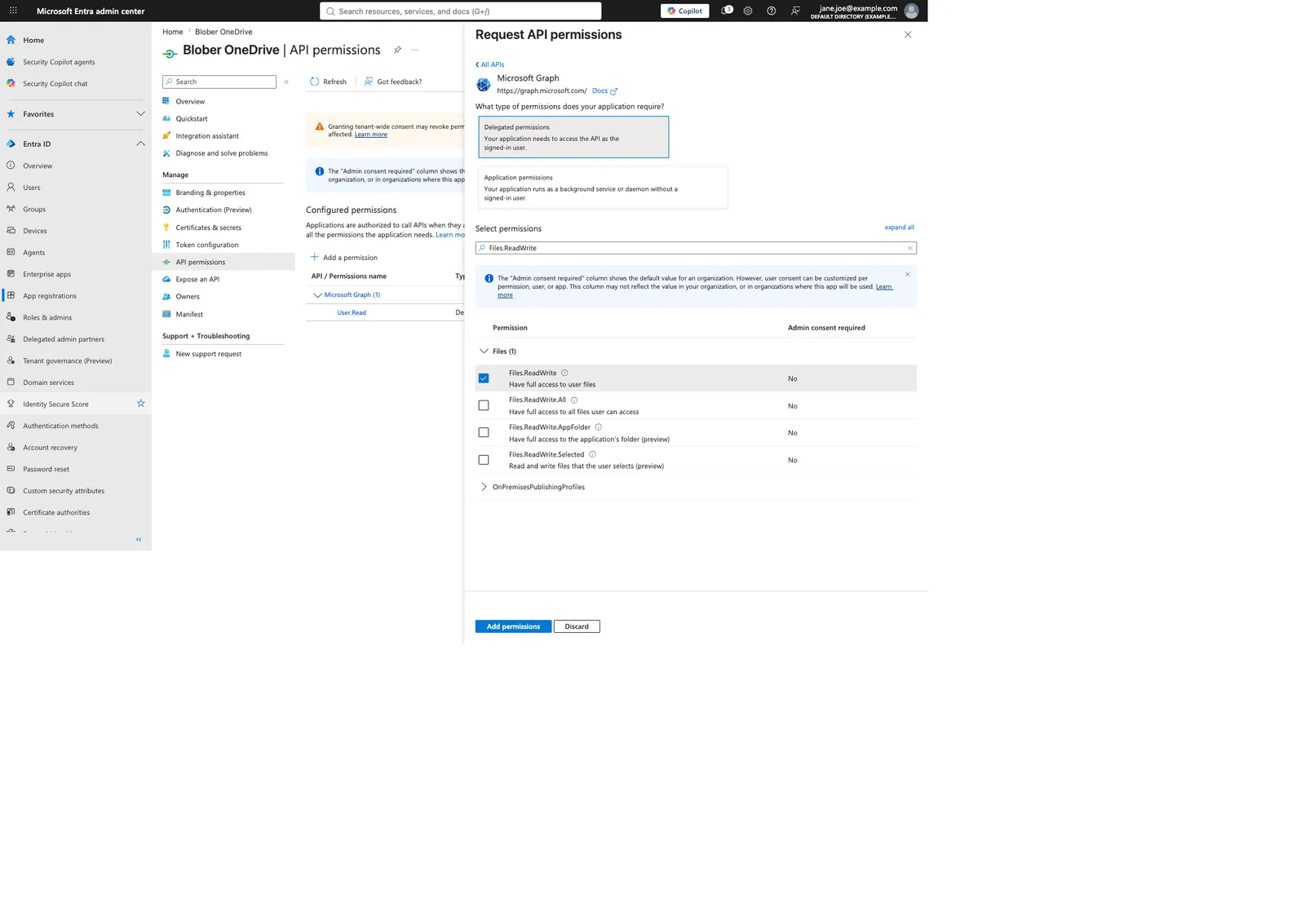
- In the app's left menu, open API permissions.
- Select Add a permission.
- Select Microsoft Graph.
- Select Delegated permissions.
- Search for
Files.ReadWrite. - Check Files.ReadWrite.
- Select Add permissions.
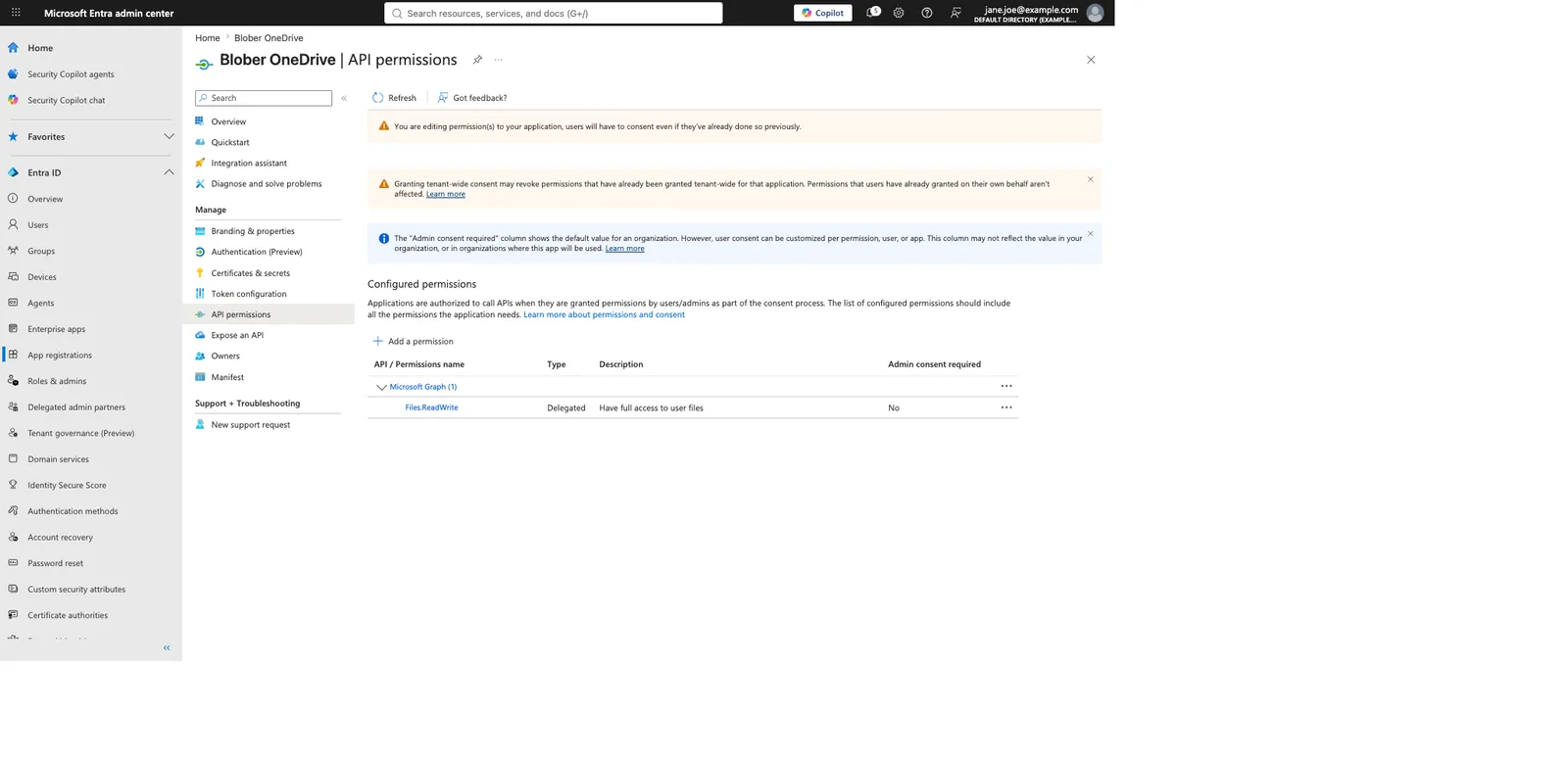
Your configured permissions should show one delegated permission: Files.ReadWrite.
Files.ReadWrite lets Blober read, create, replace, and delete files in the
signed-in user's OneDrive. It does not give Blober unattended access to every
user in an organization.
You do not need Files.ReadWrite.All, Sites.ReadWrite.All, or an application
permission.
If User.Read was added automatically, you can remove it. Blober does not use
that permission.
- Open Blober.
- Go to Workflows > New Workflow.
- Select Microsoft OneDrive as the source or destination.
- Paste the Application (client) ID into the Microsoft application client ID field.
- Enter the email address of the Microsoft account you want to connect.
- Select Authorize Microsoft OneDrive.
- Sign in with that Microsoft account.
- Review the requested file permission and select Accept.
- After Microsoft reports success, close the browser tab and return to Blober.
You can now browse your OneDrive and run a transfer.
- Files up to 250 GB are supported.
- Missing destination folders are created automatically.
- When a file with the same destination name exists, the deduplication setting decides: the default, Skip if a file with the same name exists, skips the new file, and Overwrite the existing file replaces the old one.
- Large files use resumable uploads.
Microsoft Office files stored in OneDrive are ordinary files. Unlike native Google Docs, they do not need export conversion before download.
Deleting through Blober moves an item to the OneDrive recycle bin. It does not permanently erase the item immediately.
Your Microsoft account has no directory, so it cannot create an app registration.
- Create a free Azure account with the same Microsoft account.
- Reopen the Microsoft Entra admin center.
- Switch to the new directory from the settings icon at the top right.
- Start again from Register the app.
AADSTS50058 messages about a silent sign-in can appear in the admin center at
the same time. They come from the portal and you can ignore them.
The redirect URI is missing or different.
-
Open your app registration.
-
Go to Authentication.
-
Confirm it is under Mobile and desktop applications.
-
Confirm the value is exactly:
http://localhost/onedrive/callback
Your organization blocks user consent or app registration.
- Ask your Microsoft 365 administrator to approve the delegated
Files.ReadWritepermission. - Do not work around the policy by adding broader permissions.
Microsoft classifies Files.ReadWrite as not requiring administrator consent
by default, but an organization can enforce stricter rules.
The signed-in work or school account may not have a OneDrive license.
- Open OneDrive on the web with the same account.
- If this is a managed organization account, ask the administrator to assign a OneDrive license.
- Then reconnect in Blober.
Blober uses the saved Microsoft refresh token to replace short-lived access tokens automatically. Normal access-token expiry does not require any action.
Microsoft refresh tokens typically expire after 90 days without use and can also be revoked by you or an administrator.
When Microsoft can no longer refresh the connection, open the workflow for editing. Under Microsoft application client ID, select Authorize Microsoft OneDrive and sign in again. Existing workflows and files are not deleted.
Blober shows only the signed-in account's default drive. It does not show:
- Shared with me
- SharePoint and Teams document libraries
- OneDrive shortcuts to another drive
- OneNote notebooks
- Additional drives belonging to groups or sites
Microsoft's old sharedWithMe API returns references to items in other drives,
not a folder inside your drive. Reading those items requires the broader
Files.Read.All or Files.ReadWrite.All permission. Microsoft has deprecated
the API and says it will stop returning data after November 2026, so Blober
does not request the broader permission or build on that endpoint.
An Add shortcut to My files entry still points to the other drive and is also skipped. To transfer a shared item, download it and upload it to your own OneDrive as an ordinary file first.
OneDrive does not allow these characters in a file or folder name:
" * : < > ? / \ |
Names also cannot begin or end with a space or end with a period. Windows
reserved names such as CON, AUX, NUL, COM1, and LPT1 are rejected.
OneDrive names are case insensitive, so Report.docx and report.docx cannot
exist in the same folder.
OneDrive can report the combined Live Photo size for a .heic file while its
download endpoint returns only the still image. The size mismatch can stop the
transfer. Export the photo from OneDrive and transfer the exported file instead.
- Sign-in happens on Microsoft's website, not inside a Blober password form.
- Blober never receives your Microsoft password.
- The app uses delegated access for the account that signs in.
- No client secret is required or stored.
- You can revoke access from Microsoft account privacy settings or your organization's My Apps portal.
- Government and China cloud endpoints are not supported.
- The signed-in user's default drive only.
- Copy and move transfers pass through the computer running Blober, so Blober must remain open until the transfer finishes.
- Personal Vault is not supported.
- OneDrive can fail to list a single folder containing about 100,000 items. Split unusually large folders before transferring them.