
STRG Setup: Connect & Transfer Files
5 min read
STRG is S3-compatible object storage[1]. Blober has STRG built in. You enter an access key, and Blober lists the buckets of both STRG regions.
Path format:
bucket-name/path/to/file.ext
- ✅ Browse buckets and files in US East and EU Central
- ✅ Upload files
- ✅ Download files
- ✅ Delete files
- ✅ Copy/move files
- A STRG account (sign in or create one)
- At least one bucket (create one). An access key works in a region once you have a bucket there[2].
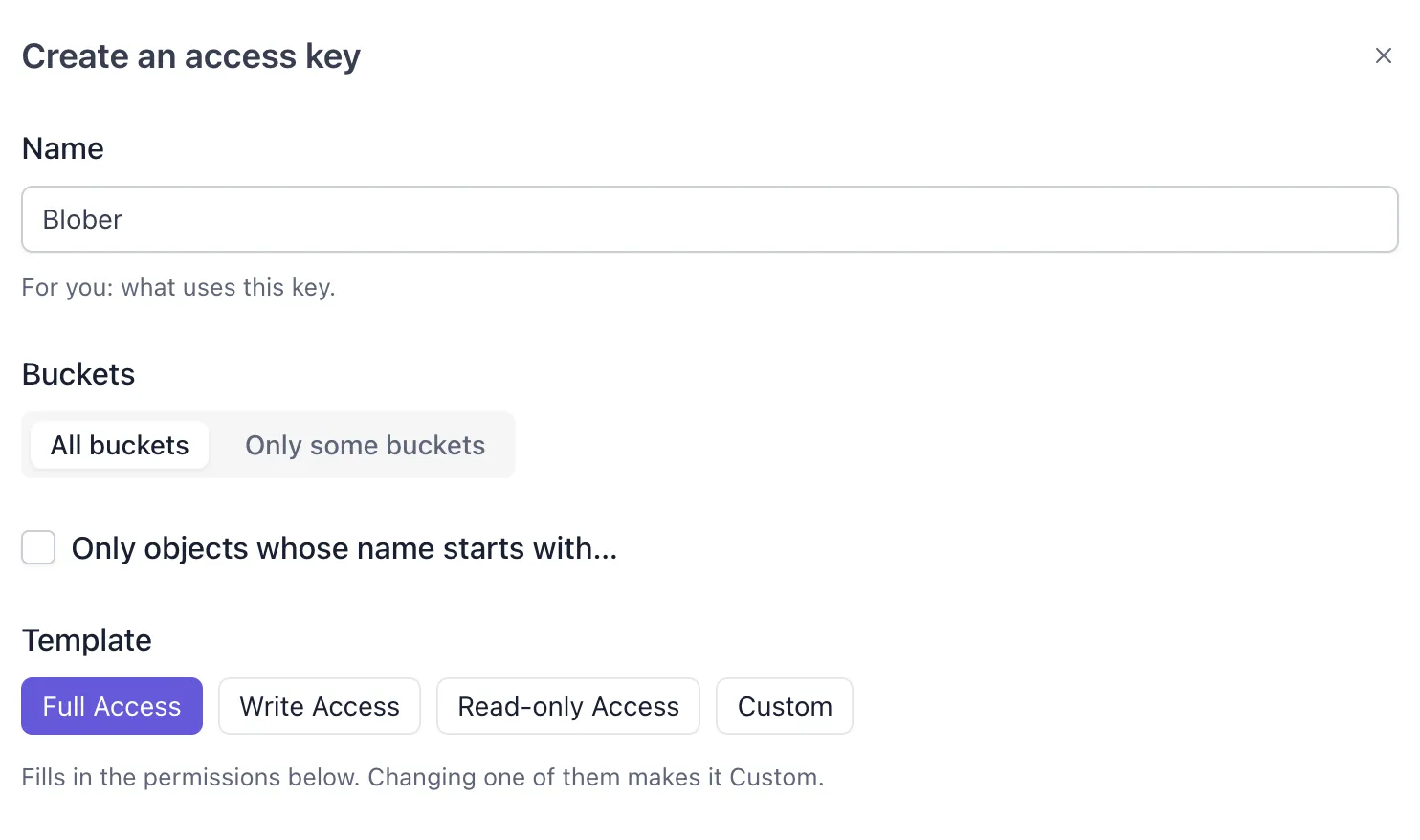
- In the STRG dashboard, open Access Keys and select Create access key[3].
- Enter a Name, for example
Blober. - Under Buckets, select All buckets, or select Only some buckets and tick the buckets that Blober needs. A key for all buckets also reaches the buckets that you create later. A key for some buckets reaches only the buckets that exist when you create it[4].
- Leave Only objects whose name starts with… off. Blober lists each bucket from its top level, and STRG refuses that list to a key limited to a name prefix[5].
- Choose the Template:
- Full Access is the template a new key starts on. It has every permission that Blober needs[6], so the key works for every kind of Blober workflow.
- To give the key only the permissions that Blober uses, select Custom and tick List objects, Read objects and Write objects. Write objects also lets Blober delete files[7]. On a key for some buckets, also tick List all bucket names. A key with only these permissions cannot change bucket settings or manage other access keys.
- Read-only Access cannot upload or delete files[8], so use it only as the source of a Copy workflow.
- Select Create access key. The next dialog shows the Access key ID and the Secret access key. STRG shows the secret only once[9], so copy it before you select Done.
- Where to find: STRG dashboard => Access Keys, in the dialog that creates the key
- Example:
STRGEXAMPLE7KQ2M4N9P
- Where to find: the same dialog. If you lose the secret, create a new key and delete the old one[10].
- Example:
wJalrXUtnFEMI/K7MDENG/bPxRfiCYEXAMPLEKEY
The form has only these two fields. You do not enter an endpoint or a region.
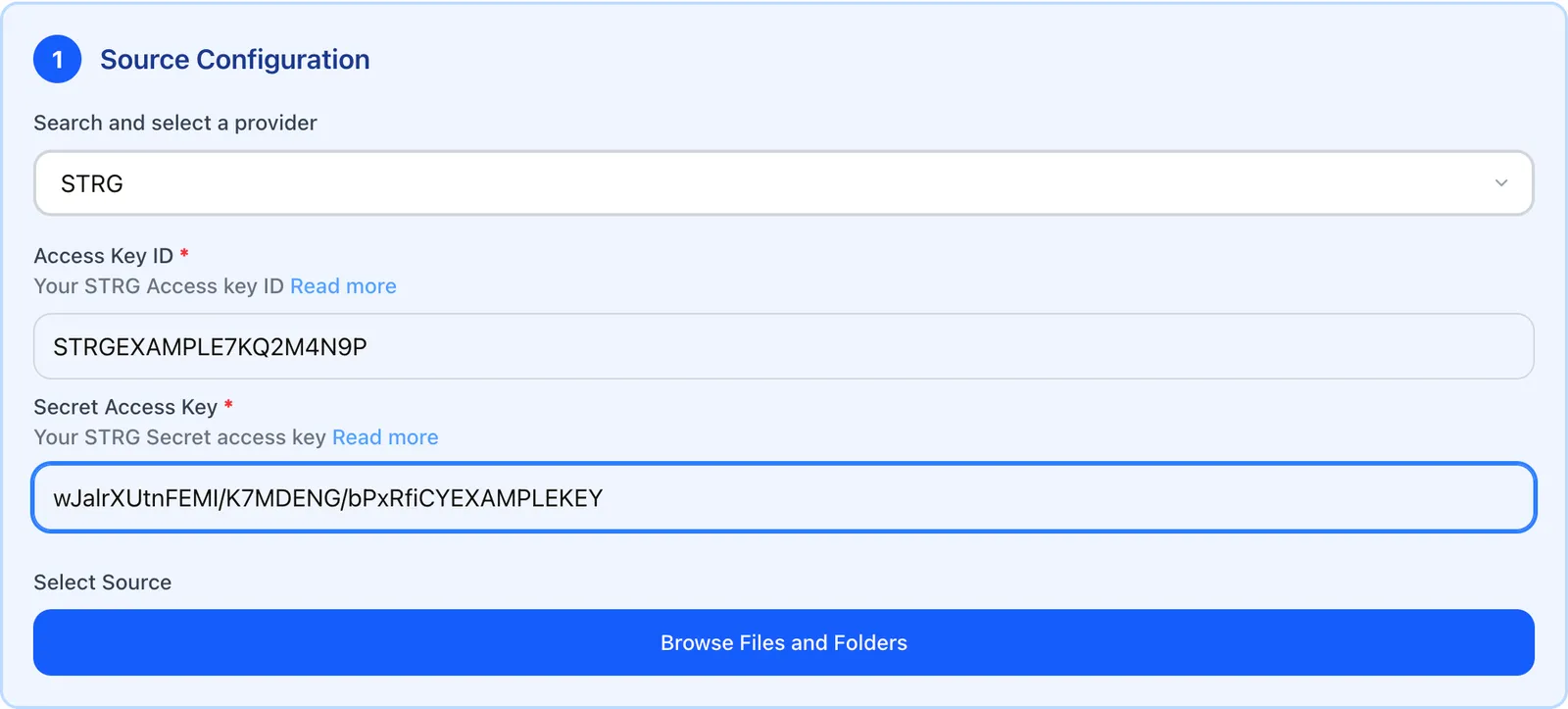
- In Blober, select STRG as the source or destination.
- Enter your Access Key ID and Secret Access Key.
- Browse your buckets.
STRG has two regions: US East (us-east-1) and EU Central (eu-central-1)[11]. Blober shows the buckets of both regions in one list and finds the region of each bucket for you.
- Inside one region, with the same access key on both sides, Blober copies and moves files on STRG's side. The files do not pass through your computer.
- Between the two regions, or with two different access keys, the files pass through your computer.
STRG keeps the earlier versions when you overwrite or delete an object. These versions stay billed until you delete them by version ID or a lifecycle policy removes them[12]. A lifecycle policy can delete previous versions after a number of days[13].
In a Blober workflow:
- Skip if a file with the same name exists leaves the file on STRG as it is.
- Overwrite the existing file keeps the old copy on STRG as an older version.
- A Move or Delete workflow hides the file behind a delete marker, and its older versions stay on STRG.
File Versioning on Overwrite compares STRG with other clouds. Which S3-Compatible Storage Has No Egress Fees? lists the prices.
A new key starts to work in each region, usually within a few minutes. The Access Keys page shows Setting up in and then Ready in for each region[14]. While a key is not ready in one region, Blober shows the buckets of the other region. Wait a few minutes and browse again.
The Access Key ID or the Secret Access Key in Blober is wrong, the key is new and not ready, or the account has no bucket yet.
- Copy the Access Key ID from the Access Keys page again, and check that it starts with
STRG. - If you no longer have the secret, create a new key, because STRG shows the secret only once.
- If the account has no bucket, create one.
- If the key is new, wait a few minutes and run the task again.
The full message is STRG refused to upload to the bucket "<bucket>". Use an access key with the Full Access template that can reach this bucket. The key cannot upload to that bucket[15]. For example, it is a Read-only Access key, a key for some buckets that does not include this bucket, or a key limited to a name prefix. A message that starts with "STRG refused to read files from", "copy files into", "move files into" or "delete files from" has the same cause.
- Create a key with the Full Access template. Select All buckets or tick this bucket, and leave Only objects whose name starts with… off.
- Enter the new key in Blober.
The key is limited to some buckets and does not have the List all bucket names permission. Without it, STRG refuses the bucket list[16], so Blober cannot show your buckets. The Full Access, Write Access and Read-only Access templates include this permission for such a key[17]. On a Custom key, tick it yourself.