
Drime Cloud Setup: Connect & Transfer Files
4 min read
Drime Cloud is cloud storage hosted in Europe. Blober signs in with an API token from your Drime account and shows your personal space and every workspace you belong to.
- ✅ Browse workspaces, folders and files
- ✅ Upload files
- ✅ Download files
- ✅ Delete files and folders (moves them to the Drime trash)
- ✅ Copy files within Drime (Drime does the copy, so nothing is downloaded)
- ✅ Move files within Drime (Drime does the move, so nothing is downloaded)
A Drime Cloud account and an API token. Blober cannot create one for you.
Blober signs in with an API token, so your Drime password stays with you.
| Field | What it is |
|---|---|
| API token | A token you create in your Drime account settings |
-
Sign in to the Drime Cloud web app.
-
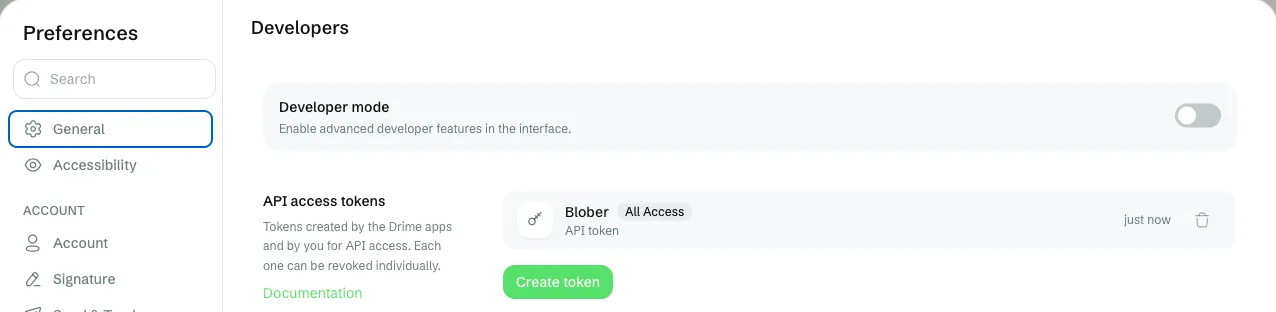
Open Settings, then Developers.
-
Under API access tokens, click Create token.
-
Enter a name, for example
Blober, keep the default permissions, and click Create. -
Copy the token into Blober. Drime shows it only once.
With the default permissions, the token has full access to your Drime account. Treat it like a password.
Drime keeps files in workspaces. The top level of the Drime file list in Blober shows:
- Personal: your own space
- Each shared workspace you belong to, with the name it has in Drime
Pick a workspace, or a folder inside it, as the source or the destination of a workflow.
Drime's Vault is end-to-end encrypted, and Blober does not decrypt it. Do not choose Vault files as a source or a destination.
Folders keep their structure, and Blober creates missing folders when it uploads. Drime replaces a file when an upload has the same name. The deduplication setting decides what happens when a name already exists.
- Default: Skip if a file with the same name exists
- Used for: Destination
Overwrite the existing file replaces the file in Drime for good. The old file does not go to the Drime trash, so you cannot restore it from there.
For the policies (skip, overwrite), where the control appears, and how deduplication differs from resuming a task, see Deduplication.
Copy and move inside the same Drime account happen on Drime's side, so they are quick and use none of your bandwidth.
- Create a new token in your Drime settings and paste it in again.
- Check that the token still exists in the API access tokens list. A deleted token stops working at once.
- If Drime stops accepting the token while a task runs, the task fails. Paste a new token in the workflow and run the task again. With Skip if a file with the same name exists, files that were already copied are skipped.
- Refresh the file list in Blober.
- Check that the files exist in the Drime web app.
- Check that you are looking at the workspace the files are in.
Deleted files go to the Drime trash. Open the trash in the Drime web app to restore them or to delete them for good[1].
Delete the token that you created for Blober in the API access tokens list in your Drime settings. Drime stops accepting it at once[2]. Nothing else in the account changes.
- File names can be up to 255 characters. Blober refuses a longer name before it uploads anything.
- Drime keeps the original modified date of an uploaded file. Drime has no original created date, so the created date in Drime is the day of the upload. A path template that uses the created date of a Drime file gives that day.
- Blober cannot read or write Vault files.
- A deleted token means you must paste a new one.
- Deletes go to the trash. Delete the files from the trash in the Drime web app to free the space.
- A folder with thousands of files makes each upload slower. Use a path template that spreads the files over several folders, for example
{file_created_year}/{file_created_month}/{filename}.