Filen vs Proton Drive: How Their End-to-End Encryption Differs
Filen and Proton Drive both encrypt your files on your device, so neither company can read what you store. People comparing them usually want to know where the designs actually differ, and whether switching is practical.
At a glance
Section titled "At a glance"| Filen | Proton Drive | |
|---|---|---|
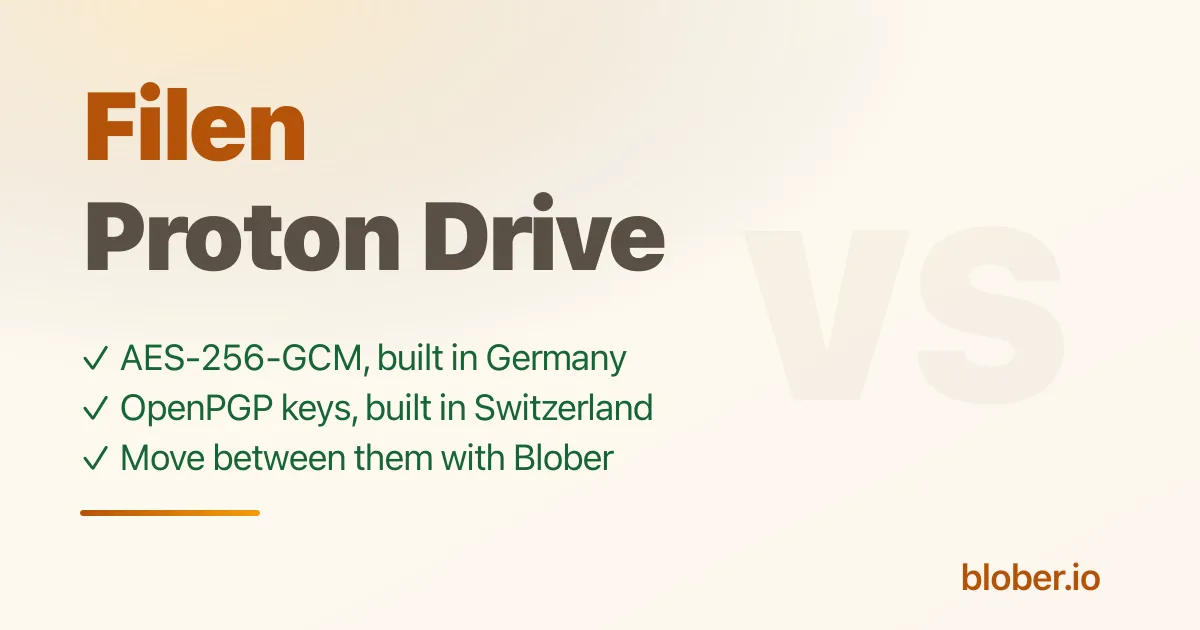
| File encryption | AES-256-GCM, done on your device[1] | A session key per file, with OpenPGP keys (Curve25519) protecting the keys[2] |
| File names and metadata | Encrypted | Encrypted, so Proton cannot see names[3] |
| Tamper detection | AES-GCM is an authenticated mode, so a changed chunk fails to decrypt | Signatures on key passphrases and on a chain of block hashes, so a changed or reordered block is caught[4] |
| Open source | All apps, AGPL-3.0[5] | Apps and encryption libraries[6] |
| Independent audit | None linked from Filen's about and security pages | Reports published, Drive audited by Securitum[7] |
| Company and servers | Germany, GDPR[8] | Switzerland, outside EU and US jurisdiction[9] |
| Other tools | WebDAV and S3 only through a self-hosted CLI mirror; rclone backend[10] | rclone backend rated Tier 4 and in beta[11]; Proton Drive CLI[12] |
How the designs differ
Section titled "How the designs differ"Filen's model is the simpler one to describe. Contents are encrypted with AES-256 in GCM mode on your device, and the key material is protected by your password. Filen's pages describe the cipher and the open source clients, and leave the key layout to the code.
Proton builds on OpenPGP. Each file and folder gets its own key pair, and the passphrase for each is encrypted with the key of the folder above it, up to a share key that your account key unlocks. File contents use one session key per file. Every passphrase is signed with your key, and so is the chain of block hashes, so a compromised server cannot forge or reorder content without detection[13].
The practical effect shows up in sharing. Because Proton wraps keys with public-key cryptography, adding a person means encrypting one key again for them, and the file itself is untouched.
What to weigh
Section titled "What to weigh"- Audits. Proton publishes third-party audit reports. Filen invites you to read its code, and its pages do not link an audit report. If an independent audit matters to you, check Filen's current status before deciding
- Jurisdiction. Both are inside strong privacy regimes. Germany follows EU law and GDPR. Switzerland sits outside the EU and cites its own protections
- Ecosystem. Proton Drive comes with Mail, Pass and the rest of the Proton account. Filen is storage-first, with sync, notes and chat inside the same app
- Getting data out. Neither can hand your files to another service, because neither can read them. Both need a tool that decrypts on your computer
Moving between them
Section titled "Moving between them"Neither provider can copy your files to the other, and the keys do not transfer. A move has to decrypt each file on your computer, then encrypt it again with the destination's keys.
Blober does this in one workflow. Sign in to each provider through its own login page, pick the files, and run the transfer. The Filen setup guide and the Proton Drive setup guide cover the sign-in steps. Neither password is stored by Blober.
Frequently Asked Questions
Section titled "Frequently Asked Questions"Which one is more private? Both hide file contents and names from the provider. The differences are the legal setting and how much outside verification each has, covered above.
Is AES-256-GCM weaker than OpenPGP? No. They do different jobs. AES-GCM is a cipher, and OpenPGP is a format that also covers key management and signatures. Proton's files are still encrypted with a symmetric session key. The difference is how keys are wrapped, shared and signed.
Can I move my files from Filen to Proton Drive in one step? Yes. Blober reads from Filen, decrypts on your computer, and writes to Proton Drive, which encrypts them again. You do not export or re-import anything by hand.
Will my folder structure survive the move? Yes. Folders and file names carry over, and a path template can reorganize them on the way.
What happens to shared links and sharing settings? Blober moves files, not sharing settings. Sharing is tied to each provider's keys, so recreate links and shares at the destination.
What if I lose my password? Neither company can read your files, so a lost password can mean lost data. Set up the recovery option your provider offers before you rely on it.
Related Guides
Section titled "Related Guides"- How to back up Filen (or move files out) without the CLI
- Migrate to or from Proton Drive
- What is Proton Drive?
- Filen setup guide
Get Blober
Section titled "Get Blober"Move files between Filen, Proton Drive and 20+ other providers in one workflow. Blober runs on Windows, macOS and Linux.